

Katılımcı Raporları
Bir çevirmen veya düzeltmen olarak projeye katkınızın fiyatını tahmin edebilir, sayabilir ve En İyi Üyeler listesindeki konumunuzu görüntüleyebilirsiniz. Ayrıca projenin ilerleyişini görüntüleyebilir ve belirli bir zaman dilimindeki katkıları takip edebilirsiniz. Bunun için projeyi açın ve Raporlar sekmesine gidin.

Proje hacminin bir özetini almak ve seçilen zaman aralıklarındaki çeviri ve düzeltme okuması etkinliklerini izlemek için bu bölümü kullanın. Sağ üst köşede, bu bölümdeki tüm raporlara uygulanacak bir rapor birimi (kelimeler, dizgiler, karakterler veya boşlukları olan karakterler) seçebilirsiniz. Yüzde olarak gösterilen karşılaştırmalar, seçilen zaman dilimini bir önceki aynı zaman dilimiyle karşılaştırarak sayılır (örn. eğer bir ay seçerseniz, şu anki ay önceki ile karşılaştırılır).
Daha fazla çözümleme veya kayıt tutmak için raporları indirmek amacıyla Dışa Aktar’a tıklayın ve tercih edilen biçimi (CSV, XLSX veya JSON) seçin.
Etkileşimli grafikler içeren raporlarda, her kategori için günlük veya aylık toplamlar gibi daha ayrıntılı bilgiler için veri noktalarının üzerine gelebilirsiniz.
Sayfanın üst kısmında proje hacmine ilişkin birincil istatistikler görüntülenir:
- Çevrilebilir: Çeviri için mevcut toplam metin miktarı.
- Gizli: Gizli dizgilerdeki toplam metin miktarı.
- Toplam: Projedeki toplam metin miktarı (Çevrilebilir + Gizli).
- Çeviri: Projedeki hedef dillerin sayısı.
Ana istatistiklerin altındaki Genel Bakış bölümü aşağıdaki raporu içerir:
Bu rapor, projedeki genel çeviri ve düzeltme okuması etkinliğini izler. Verileri Tarih Aralığı ve Dil’e göre süzebilirsiniz. Rapor iki ana bölüme ayrılmıştır: Çeviri ve Düzeltme Okuması.
Her bölüm, seçilen dönemde tamamlanan toplam işi, önceki dönemle yüzde karşılaştırmalı olarak görüntüler. Aynı ölçümlerin hedef dile göre ayrılmış tablosunu görüntülemek için her bölümdeki Dile göre döküm bölümünü genişletebilirsiniz.
Bu bölüm, çevrilmiş metnin hacmini aşağıdaki temel ölçümlere göre ayrılmış olarak gösterir:
- Toplam (dönem sonu)
- İnsan Çevirisi
- Çeviri Belleği
- Makine Çevirisi
- YZ
Ölçümlerin altındaki Çeviri grafiği, her çeviri türü için aynı anda birden çok satırı görüntüler. Veri noktalarının üzerine gelerek her kategori için günlük veya aylık toplamları görüntüleyebilirsiniz.
Bu bölüm, onaylanan metnin hacmini ve oylama etkinliğini gösterir. Görüntülenen ana ölçüm Onaylanan kelimelerdir.
Düzeltme Okuması grafiği zaman içindeki onay ve oylama etkinliğini iki farklı çizgiyle görselleştirir: Onaylanan Kelimeler ve Oylar. Veri noktalarının üzerine gelerek hem onaylanan metinlerin hem de kullanılan oyların günlük veya aylık toplamlarını görüntüleyebilirsiniz.
Maliyet Tahmini raporu, atandığınız tüm veya belirli görevlere dayanarak projeye yapacağınız katkının (yani çeviri veya düzeltme okuması) yaklaşık fiyatını hesaplamanızı sağlar.
Seçilen görevler içindeki çevrilmemiş ve onaylanmamış dizgilerin maliyetini görmek için çeviri ve onay fiyatlarını ayarlayın.
Aşağıdaki süzgeç parametrelerine dayanarak bir Maliyet Tahmini raporu oluşturabilirsiniz:
- Görev: Tüm görevler veya belirli bir görev.
Maliyet Tahmin raporunu oluşturmak için şu adımları izleyin:
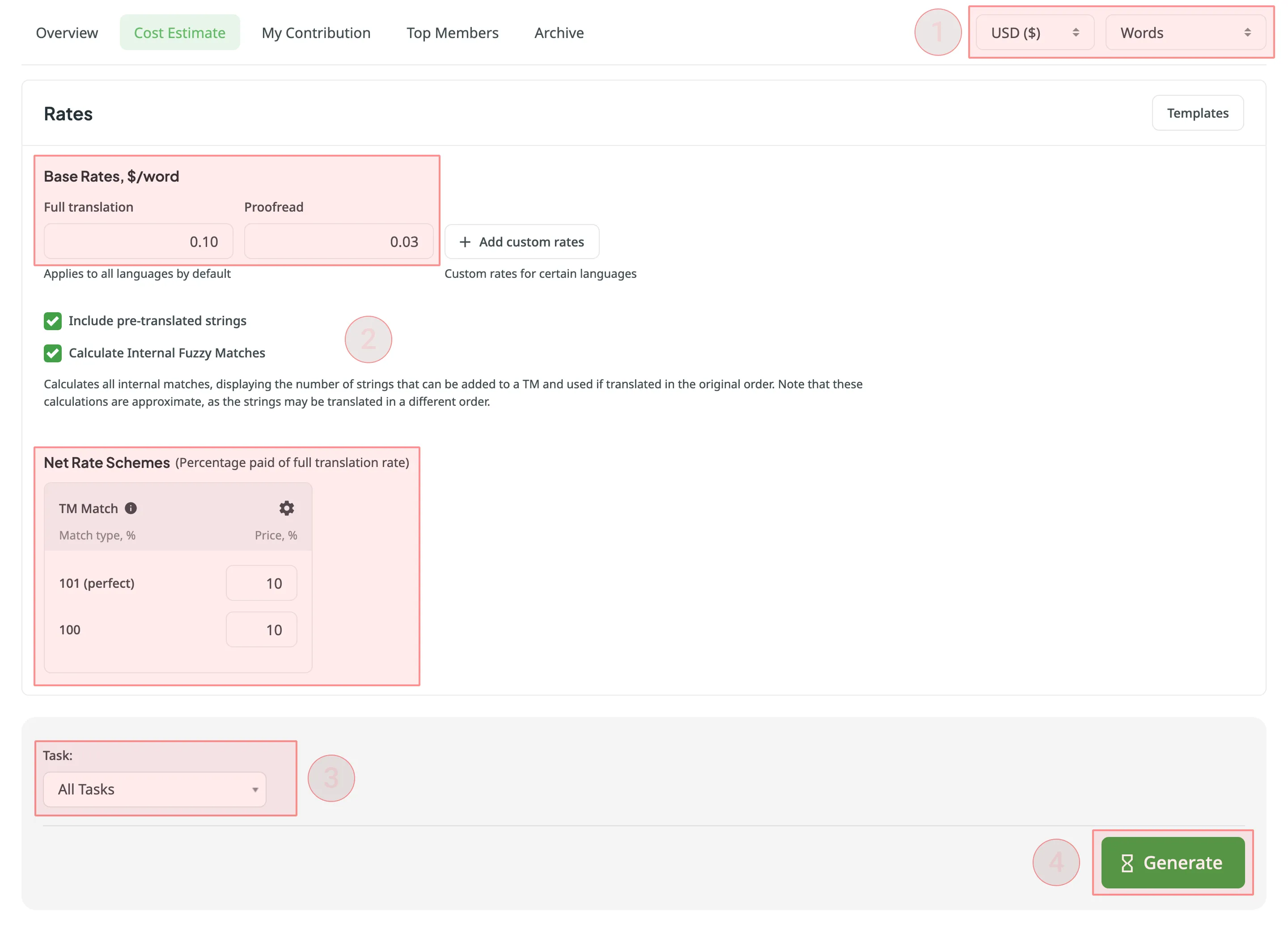
- Tercih edilen para birimini ve rapor birimini (kelimeler, dizgiler, boşlukları olmayan karakterler veya boşlukları olan karakterler) seçin.
- Çeviriler ve onaylar için fiyatlarınızı ayarlayın.
- İlgilendiğiniz rapor verilerini belirtmek için mevcut süzgeç parametrelerini kullanın.
- Oluştur’a tıklayın.
Oluştur’a tıkladıktan sonra, Maliyet Tahmini raporu proje için paylaşılan rapor kuyruğuna eklenir ve arka planda işlenir. Bu, farklı süzgeçlerle oluşturulan birden çok raporun birbirini geçersiz kılmamasını sağlar. Her rapor ayrı olarak oluşturulur ve tamamlandıktan sonra Raporlar > Arşiv bölümünde görünür.
Yöneticiler tarafından oluşturulan raporların kuyrukta daha yüksek önceliği vardır. Eğer katkıda bulunanın raporu hala kuyruktayken yönetici rapor oluşturmaya başlarsa, ilk olarak yöneticinin raporu işlenecektir.
Kuyruğa bir rapor eklendiğinde, kuyruğu görüntülemek veya iletiyi kapatmak için hızlı erişimle birlikte rapor oluşturmanın kuyruğa alındığını onaylayan bir bildirim görünür.
Rapor oluşturulurken ekranın sağ alt köşesindeki açılır pencere kuyruk durumunu gösterir. Rapor ilerledikçe durum otomatik olarak güncellenir:
- Beklemede – rapor kuyrukta bekliyor ve henüz işlenmeye başlamadı.
- Devam ediyor – rapor oluşturma işlemi başladı. Bir ilerleme çubuğu şu anki yüzdeyi gösterir.
- Tamamlandı – rapor başarılı olarak oluşturuldu ve rapora Arşiv aracılığıyla erişilebilir.
- Başarısız oldu – rapor oluşturma sırasında bir hata meydana geldi.
Her rapor bağımsız olarak çalışır, böylece daha önce başlatılmış ve halen devam etmekte olan raporları etkilemeden, farklı süzgeçlere sahip birden çok Maliyet Tahmini raporunu güvenli bir şekilde oluşturabilirsiniz.
Taban fiyatlar (tam çeviri, düzeltme) için ücretleri belirleyebilir ve Net Fiyat Şemalarını (ÇB önerileri kullanılarak çeviri için ödenen tam çeviri fiyatının yüzdesi) yapılandırabilirsiniz.
Taban Fiyatlar bölümünde, aşağıdaki iş türleri için fiyatları ayarlayabilirsiniz:
- Tam çeviri – bir kişi tarafından yapılan her çeviri için.
- Düzeltme – onaylanan her çeviri için.
Net Fiyat Şemaları bölümünde, taban fiyatlara ek olarak, çeşitli ÇB Eşleşme türlerinin ÇB önerileri kullanılarak yapılan çeviriler için ödenecek tam çeviri fiyatının yüzdesini ayarlayabilirsiniz. Varsayılan olarak, aşağıdaki ÇB Eşleşme türleri için tam çeviri fiyatının yüzdesini yapılandırabilirsiniz:
- 101 (mükemmel) – Mükemmel eşleşme ÇB önerileri kullanılarak yapılan çeviriler için (kaynak dizgiler, metin ve içerik olarak ÇB önerisiyle birebir aynıdır).
- 100 – %100 eşleşen ÇB önerileri kullanılarak yapılan çeviriler için (kaynak dizgiler sadece metin olarak ÇB önerisiyle birebir aynıdır).
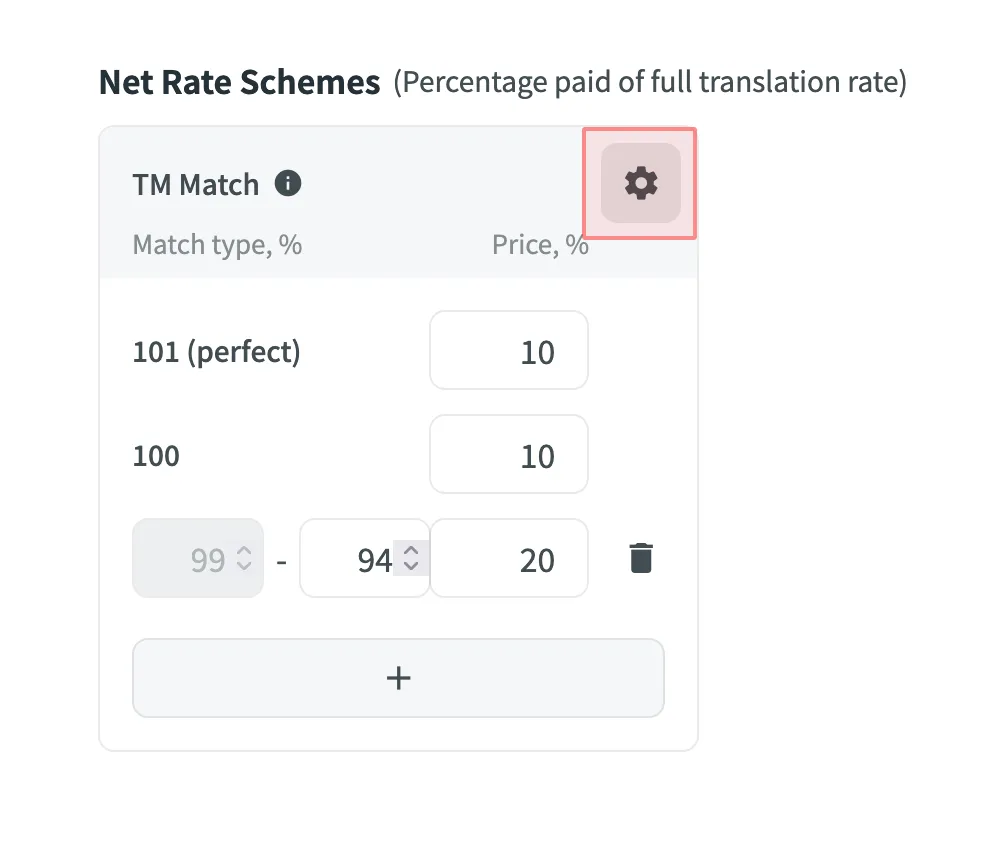
Ayrıca, tercih edilen metin benzerliği yüzdesini ve böyle bir çeviri için ödenecek tam çeviri fiyatı yüzdesini belirterek kendi ÇB eşleşme türlerinizi de ekleyebilirsiniz.
Kendi ÇB eşleşme türlerinizi eklemek için şu adımları izleyin:
- Net Fiyat Şemaları bölümünde simgesine tıklayın.
- Görünen düğmesine tıklayın.
- ÇB eşleşme aralığını ve tam çeviri fiyatı yüzdesini belirtin.
- Ayarları kaydetmek için simgesine tıklayın.
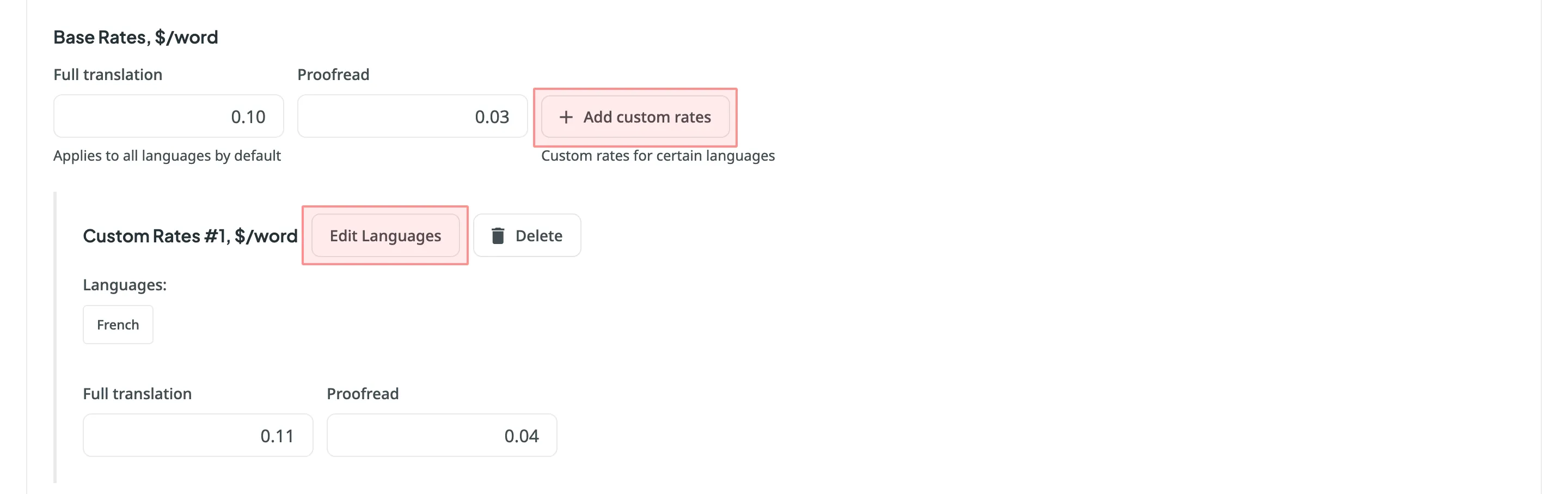
Eğer birden çok dil konuşuyorsanız ve farklı dillerle çalışıyorsanız, varsayılan olarak tüm dillere uygulanan taban fiyatlara ek olarak belirli diller için özel fiyatlar ekleyebilirsiniz. Özel fiyatları eklemek için Özel fiyatlar ekle’ye tıklayın.
Özel fiyatlar için dilleri seçmek amacıyla Dilleri Düzenle’ye tıklayın ve ihtiyacınız olanları seçin. İhtiyacınız olan sayıda özel fiyatlar oluşturabilirsiniz.
Eğer proje yöneticileri birden çok fiyat yapılandırması kaydettiyse, bunları rapor oluşturmak için kullanabilirsiniz. Kaydedilmiş şablonlar, farklı yapılandırmalar arasında hızla geçiş yapmanızı sağlar.
Kaydedilmiş fiyat şablonlarını görüntülemek ve seçmek için Şablonlar’a tıklayın.
Otomatik çevrilmiş dizgileri bir Maliyet Tahmini raporuna dahil etmek istiyorsanız Otomatik çevrilmiş dizgileri dahil et’i seçin. Varsayılan olarak, bu seçenek seçilidir.
Örneğin, projede çevrilmemiş bir Kullanıcı adınızı doğrulayın dizgisi var. Otomatik çevrilmiş dizgileri dahil et seçeneği seçili olarak bir Maliyet Tahmini raporu oluşturuyorsunuz. Bu dizgi, Maliyet Tahminine dahil edilecektir. Daha sonra bir proje yöneticisi bu dizgiyi ÇB veya MÇ motoru aracılığıyla otomatik olarak çevirir ve siz de seçilen Otomatik çevrilen dizgileri dahil et seçeneği ile bir kez daha bir Maliyet Tahmini raporu oluşturursunuz. Bu kez, otomatik çevrilmiş Kullanıcı adınızı doğrulayın dizgisi, Maliyet Tahmini raporuna dahil edilmeyecektir.
Diğer taraftan, Otomatik çevrilmiş dizgileri dahil et seçeneğinin işareti kaldırıldığında, Kullanıcı adınızı doğrulayın dizgisi, hem çevrilmediğinde hem de ÇB veya MÇ motoru ile otomatik çevrildiğinde Maliyet Tahmini raporuna dahil edilecektir.
Dahili Belirsiz Eşleşmeler, projenizdeki çevrilmemiş dizgiler arasında bulunan ve potansiyel olarak Çeviri Belleğine eklenebilir kısmi (belirsiz) ÇB eşleşmeleridir. Örneğin, eğer bir dosyadaki ilk dizgi Kullanıcı adınızı doğrulayın ve sonuncusu Kullanıcı adınızı tekrar doğrulayın ise, dahili belirsiz bir eşleşme olur.
Maliyet Tahmini raporunuza, mükemmel (%101) ve %100 eşleşmelerin yanı sıra dahili belirsiz (%99 ve daha az) eşleşmeleri dahil etmek ve sırayla çevrilirse ÇB’ye kaç dizgi eklenebileceğine ilişkin daha kapsamlı bir tahmin almak için Dahili Belirsiz Eşleşmeleri Hesapla’yı seçin. Gerçek çeviri sırası farklılık gösterebileceğinden bu hesaplamaların yaklaşık değerler olduğunu unutmayın.
Eğer Dahili Belirsiz Eşleşmeleri Hesapla seçeneğinin işaretini kaldırırsanız, Maliyet Tahmini raporu sadece mükemmel (%101) ve %100 dahili eşleşmeleri (tekrarları) gösterir ve herhangi bir belirsiz eşleşmeyi içermeyecektir.
Rapor oluşturulduğunda, aşağıdaki tutarları göreceksiniz:
- Toplam - Tüm görevler için genel maliyet tahmini.
- Alt toplamlar - Her görev için maliyet tahmini:
- Çeviri – Yeni veya güncellenmiş çeviriler gerektiren dizgilerin maliyeti (yüksek yüzdeli eşleşme avantajı yok).
- Düzeltme Okuması – Çevirileri gözden geçirme maliyeti.
- ÇB Tasarrufları – Varolan çevirilerden (ÇB’de veya proje dahilinde) yapılan tasarruflar.
- Ağırlıklı Kelimeler / Dizgiler / Karakterler / Boşlukları Olan Karakterler – ÇB/dahili eşleşme indirimleri uygulandıktan sonra maliyet hesaplamaları için son kelime sayısı.
- Eşleşme kategorileri ve durumlarıyla ilgili ayrıntıların yer aldığı ana tablo.
- Göreve dahil edilen her klasör veya dosya için verileri gösteren ikinci tablo.
Maliyet Tahmini raporunu indirmek için Dışa Aktar’a tıklayın ve tercih edilen dışa aktarma biçimini (CSV, XLSX veya JSON) seçin.
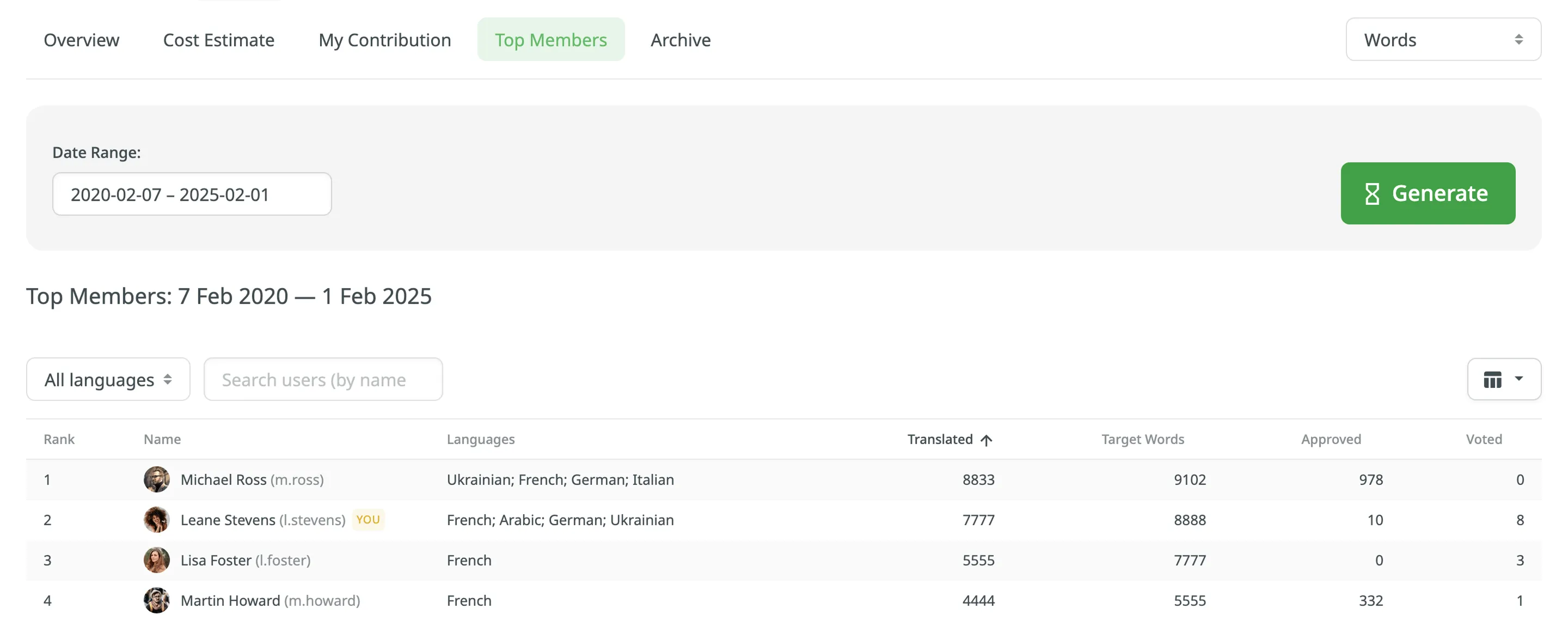
En İyi Üyeler raporu, proje üyeleri listesindeki konumunuzu gözden geçirmeyi ve zaman içinde projenin çevirisine en çok kimin katkıda bulunduğunu görmenizi sağlar. This list includes all users who have ever contributed, even if they are no longer current project members.
Varsayılan parametreler:
- Text unit: words
- Time period: Last 30 days
- Sorted by: translated text units. A member who translated the most is placed at the top of the list.
- Languages: all languages
- Contributors: all
The YOU label appears next to your own username in the report table, making it easier to identify your personal contribution.
Gerekli parametreye tıklayarak üyeleri yeniden sıralayın. Örneğin, bir düzeltmenseniz, dizgilerin çoğunu kimin onayladığını bilmek isteyebilirsiniz. Bunun için sıralamayı yeniden yapmak amacıyla Onaylanmış parametresine tıklayın.
To generate a custom list of top members, follow these steps:
- Tercih edilen rapor birimini seçin (kelimeler, dizgiler, boşluklu veya boşluksuz karakterler).
- Select the time period for which you want to see the activity of contributors.
- To make a list of contributors for a specific language, select the language you need from the drop-down menu above the list. Alternatively, select All languages.
- Oluştur’a tıklayın.
Başka bir katkıda bulunan kişinin hesabını veya hesabınızı aramak için arama alanını kullanın.
The Top Members list includes the following columns:
- Rank – contributor’s position in the list based on the currently selected sorting criteria (e.g., Translated, Approved, etc.).
- Name – contributor’s first name, last name and username.
- Languages – project languages.
- Translated – the number of translated source content units.
- Target – the number of translated content units in a target language.
This parameter is not available for the Strings content unit because the number of source and translated strings is always the same. - Approved – the number of approved content units.
- Voted – the number of votes a contributor made.
- ”+” votes received – the number of upvotes a contributor received for translations.
- ”-” votes received – the number of downvotes a contributor received for translations.
- Winning – the number of approvals a contributor received for translations.
- Given access – indicates when a member was granted access to a project.
To customize the visibility of columns in the report, click at the upper-right side of the table and select the preferred ones.
Katkım raporu, projeye yaptığınız katkınızın (yani çeviri veya düzeltme okuması) fiyatını hesaplamanızı sağlar.
Aşağıdaki süzgeç parametrelerine dayanarak bir Katkım raporu oluşturabilirsiniz:
- Görev: Seçilmedi, Tüm Görevler veya belirli görev.
- Tarih Aralığı: Bugün, Dün, Son 7 gün, Son 30 gün, Bu ay, Geçen ay, Tüm zamanlar veya Özel aralık.
- Dosyalar: Tüm dosyalar (silinen dosyalar ve dizgiler dahil) veya Seçilen dosyalar (silinen dizgiler dahil).
Katkım raporunu oluşturmak için şu adımları izleyin:
- Tercih edilen para birimini ve rapor birimini (kelimeler, dizgiler, boşlukları olmayan karakterler veya boşlukları olan karakterler) seçin.
- Fiyatlarınızı ayarlayın.
- (İsteğe bağlı) Gelişmiş ayarları yapılandırın.
- İlgilendiğiniz rapor verilerini belirtmek için mevcut süzgeç parametrelerini kullanın.
- Oluştur’a tıklayın.
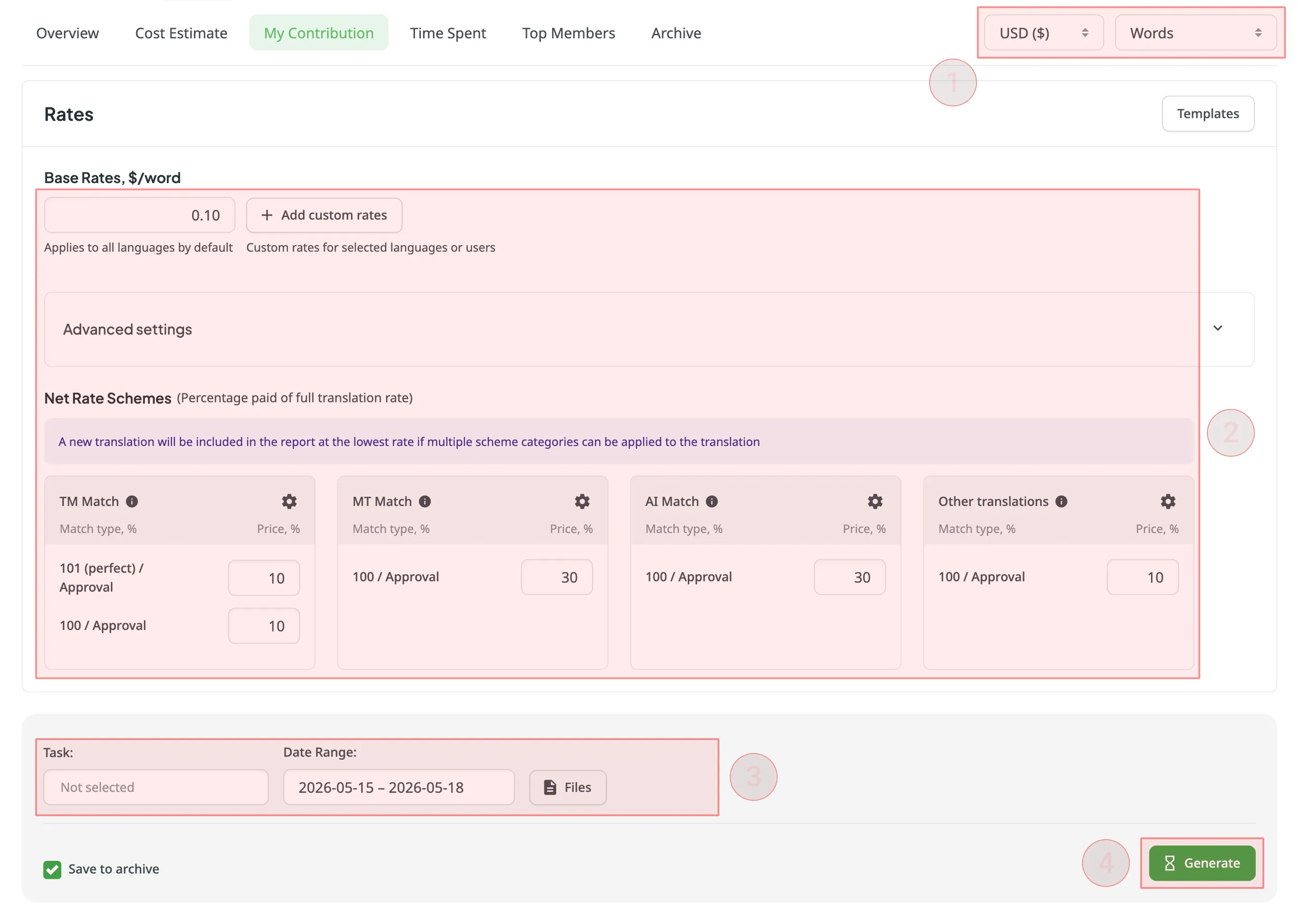
Taban fiyatlar için ücretleri ayarlayabilir ve Net Fiyat Şemalarını yapılandırabilirsiniz (ÇB Eşleşmesi, MÇ Eşleşmesi, YZ Eşleşmesi ve Diğer çeviriler’e dayalı çeviri ve düzeltme okuması için ödenen tam çeviri fiyatının yüzdesi).
In the Base Rates section, you can set the rate for the following type of work:
- Tam çeviri – yaptığınız her çeviri için.
Click Advanced settings to expand a section with additional configuration options for your report:
- Kategoriye dayalı düzeltme fiyatlarını kullan (varsayılan olarak etkindir): Her onayı, Net Fiyat Şeması kategorisinin (ÇB, MÇ, YZ veya Diğer) %100 eşleşme oranını aynı çeviri olarak değerlendirir. Etkisizleştirildiğinde, tüm onaylar sabit Düzeltme taban fiyatını kullanır.
- Exclude approvals for edited translations (enabled by default): Skips an approval when the same user already translated the string, so their work isn’t counted twice. When disabled, both the translation and the approval are counted.
- Use Specific Categories for Auto-translations (enabled by default): Assigns auto-translation matches to their source category (MT, AI) instead of the default Other translations category. Post-editing MT or AI output usually takes a different effort than editing human translations, so this measures cost more precisely.
- Use edit distance for TM Net Rate Scheme (disabled by default): Categorizes TM matches by how much the suggestion was edited to reach the final translation instead of by source similarity, which better reflects post-editing effort. Enabling it removes the 101 (perfect) match type and caps TM matches at 100. Matches recorded before July 13, 2026, fall back to source similarity, but because the option removes the 101 (perfect) match type, any perfect matches among them are also counted as 100.
In the Net Rate Schemes section, you can set the percentage of the full translation rate to be paid for translations and their approvals based on various Match types.
Kategori tabanlı düzeltme fiyatları kullan seçeneği varsayılan olarak etkin olduğundan, düzeltme okuması maliyeti çevirinin kaynak kategorisine (ÇB, MÇ, YZ veya Diğer) bağlıdır.
Regardless of the translation’s original match percentage, its approval is always calculated at the maximum match rate for that category.
Here is how it works in practice:
- Kısmi eşleşmeler: Eğer bir çeviri %85 MÇ eşleşmesiyse, onayı MÇ Eşleşmesi kategorisi altında 100 / Onay fiyatı üzerinden ücretlendirilir.
- Translations from scratch (No match): If a translation was made without any suggestions, its approval is charged at the 100 / Approval rate under the Other translations category.
By default, you can configure the percentage of the full translation rate for the following categories:
ÇB Eşleşmesi:
- 101 (perfect) / Approval – for translations made using Perfect match TM suggestions (source strings are identical to the TM suggestion by text and context), and for their approvals. This match type is available only when Use edit distance for TM Net Rate Scheme is disabled.
- 100 / Approval – for translations made using 100% match TM suggestions (source strings are identical to the TM suggestion only by text), and for approvals of all TM matches of 100% or lower.
MÇ Eşleşmesi:
- 100 / Approval – for translations made using 100% match MT suggestions (the saved translation matches the MT suggestion exactly), and for all approvals within the MT category.
YZ Eşleşmesi:
- 100 / Approval – for translations made using 100% match AI suggestions (the saved translation matches the AI suggestion exactly), and for all approvals within the AI category.
Other translations:
- 100 / Approval – for translations made using existing translations from other users (the saved translation matches the existing translation exactly), and for approvals of translations made from scratch (No match) or using existing translations.
If multiple scheme categories can be applied to a translation (e.g., a string has a combination of TM, MT, or AI suggestions, and existing translations from other users), the new translation is calculated at the lowest Net Rate Scheme value. For example, if a string has a 101% (perfect) TM match suggestion (10% of the full translation rate) and a 100% MT match suggestion (5% of the full translation rate), the new translation added to this string will be calculated at 5% of the full translation rate.
You can also add custom match types for the TM, MT, AI, and Other translations categories, specifying the preferred percentage of text similarity and the percentage of the full translation rate to be paid for such a translation.
Kendi eşleşme türlerinizi eklemek için şu adımları izleyin:
- Click in the header of the specific category section.
- Click at the bottom of the section.
- Eşleşme aralığını ve tam çeviri fiyatı yüzdesini belirtin.
- Click again to save the settings.
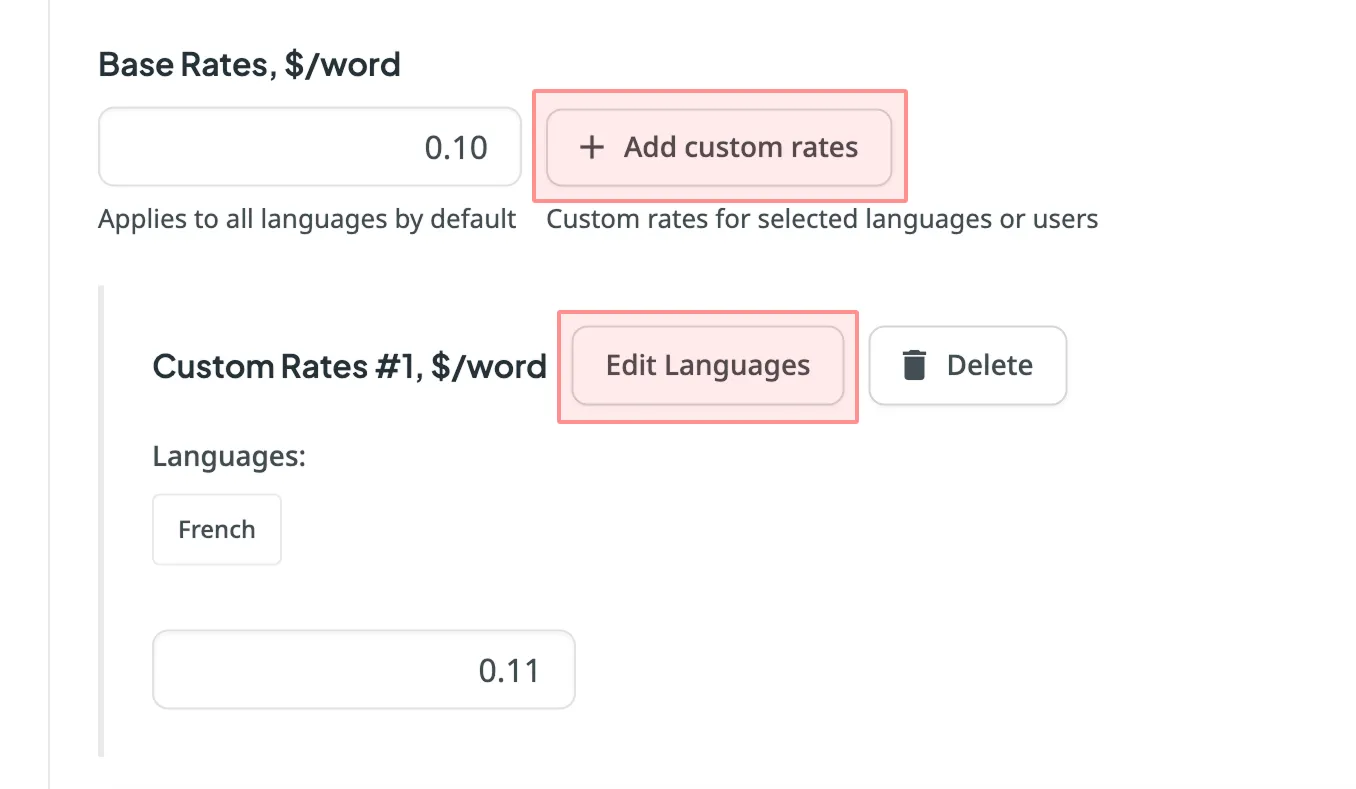
Eğer birden çok dil konuşuyorsanız ve farklı dillerle çalışıyorsanız, varsayılan olarak tüm dillere uygulanan taban fiyatlara ek olarak belirli diller için özel fiyatlar ekleyebilirsiniz. Özel fiyatları eklemek için Özel fiyatlar ekle’ye tıklayın.
Özel fiyatlar için dilleri seçmek amacıyla Dilleri Düzenle’ye tıklayın ve ihtiyacınız olanları seçin. İhtiyacınız olan sayıda özel fiyatlar oluşturabilirsiniz.
Katkım raporu oluşturulduğunda maliyetlerinizin, tasarruflarınızın ve çalışma türlerinizin kapsamlı bir dökümünü görüntüler.
- Total – The final calculated translation and validation cost for your entire contribution.
- User Information – Your profile picture, full name, username, and role in the project. Since this report reflects only your work, the summary displayed next to your profile matches the global total.
- Language Subtotals – Below your user information, the report breaks down your contribution by each target language.
- Metrics – At every level (global total, user total, and language subtotal), the following metrics are provided:
- Çeviri ve Sonradan Düzenleme – Çevirilerin maliyeti.
- Proofreading – The cost of approvals.
- Savings (TM, MT and AI) – The financial amount saved by leveraging matches from TM, MT, or AI.
- Weighted Words / Strings / Characters / Characters with Spaces – The adjusted unit count after applying repetition and fuzzy match discount schemes, reflecting the actual translation effort.
- Otomatik Çevrilmiş Kelimeler / Dizgiler / Karakterler / Boşlukları Olan Karakterler – Otomatik çeviri yoluyla zaten doldurulmuş birimlerin toplam sayısı.
Within each language section, the report generates a breakdown table containing the following columns:
- Match type – The specific category and percentage range applied to the text.
- Contribution Words / Strings / Characters / Characters with Spaces – The raw number of units handled within that specific row type.
- Weighted Words / Strings / Characters / Characters with Spaces – The adjusted unit volume based on your Net Rate Scheme rules.
- Rate per unit – The specific price paid per single unit for that match or approval type.
- Price – The total cost for that row, calculated based on the unit count and assigned rate.
Varsayılan olarak Kategori tabanlı düzeltme fiyatlarını kullan etkinleştirilmişken, tüm çeviriler ve onaylar kaynak kategorilerine göre gruplandırılır. A separate proofreading table is not shown; instead, approvals appear as rows within the respective match blocks:
- Eşleşme yok – ÇB, MÇ veya YZ’den yararlanılmadan sıfırdan çevrilen birimler (tam çeviri fiyatı üzerinden hesaplanır).
- ÇB Eşleşmesi – Çeviri Belleğine karşı eşleşen birimler. Bu, çeviriler için farklı satırları (örn.
%101 (Mükemmel eşleşme),%100,%99-85) ve bunların ilgili onaylarını (örn.Onay %101 (Mükemmel eşleşme),Onay %100) içerir. - MÇ Eşleşmesi – Makine Çeviri motorlarına karşı eşleşen birimler. Includes rows for translations (e.g.,
100%,99-94%) and a dedicatedApprovalrow for validations within this category. - YZ Eşleşmesi – YZ önerilerine karşı eşleşen birimler. Includes rows for translations (e.g.,
100%,99-94%) and a dedicatedApprovalrow for validations within this category. - Other translations match – Units matched against existing translations from other users. Includes rows for translations (e.g.,
100%,99-94%) and a dedicatedApprovalrow for validations within this category. - Total – Summarizes all translated, weighted, and approved units for that specific section.
Çevrimdışı çözümlemeye veya muhasebeye yönelik Katkım raporunu indirmek için Dışa Aktar’a tıklayın ve tercih ettiğiniz biçimi (CSV, XLSX veya JSON) seçin.
Eğer raporu başka fiyatlarla yeniden oluşturmak istiyorsanız, fiyatları düzenleyin ve süreci tekrar talip edin.
Harcanan Zaman raporu, projeye katkınızın (yani çeviri veya düzeltme okuması) fiyatını, görevlerde harcadığınız zamana göre hesaplamanızı sağlar.
Rapor, bir görevin yorumlarında doğrudan giriş yaptığınız zamanı kullanır.
You can generate a Time Spent report based on the following filter parameters:
- Task: Not selected, All Tasks, or multiple specific tasks.
- Date Range: Today, Yesterday, Last 7 days, Last 30 days, This month, Last month, All time, or Custom range.
- Language: All or specific target language.
- Görev Türü: Tüm türler, Çeviri, Düzeltme, Satıcı tarafından çeviri veya Satıcı tarafından düzeltme.
- Group by: Member, Language, or Task.
To generate the Time Spent report, follow these steps:
- Select the preferred currency.
- Set your rates.
- İlgilendiğiniz rapor verilerini belirtmek için mevcut süzgeç parametrelerini kullanın.
- Oluştur’a tıklayın.
Çalışmanız için saatlik fiyatları belirleyebilirsiniz. Katkım raporunun aksine, Harcanan Zaman raporunun birimi saat olarak sabittir.
Taban Fiyat bölümünde, projede yaptığınız tüm iş türlerine (çeviri ve düzeltme okuması) uygulanacak saatlik fiyatı ayarlayabilirsiniz.
Eğer birden çok dil konuşuyorsanız ve farklı dillerle çalışıyorsanız, belirli diller için özel fiyatlar ekleyebilirsiniz. Özel fiyatları eklemek için Özel fiyatlar ekle’ye tıklayın.
Özel fiyatlar için dilleri seçmek amacıyla Dilleri Düzenle’ye tıklayın ve ihtiyacınız olanları seçin. İhtiyacınız olan sayıda özel fiyatlar oluşturabilirsiniz.
Eğer proje yöneticileri birden çok fiyat yapılandırması kaydettiyse, bunları rapor oluşturmak için kullanabilirsiniz. Kaydedilmiş fiyat şablonlarını görüntülemek ve seçmek için Şablonlar’a tıklayın.
Rapor oluşturulduğunda, aşağıdaki tutarları göreceksiniz:
- Kullanıcı Bilgileri - profil fotoğrafı, ad soyad ve kullanıcı adı.
- Toplam - Seçilen zaman dilimi boyunca katkınız için hesaplanan toplam maliyet ve toplam harcanan süre.
- Dil Alt Toplamları - Rapor, her hedef dil için maliyetlerin dökümünü gösterir:
- Harcanan Zaman - Belirli bir dildeki çalışma için giriş yaptığınız toplam süre.
- Saat başına fiyat - Uygulanan saatlik fiyat (yapılandırmış olduğunuz Taban Fiyat ve Özel Fayatlar’a dayanır).
- Fiyat - O dildeki çalışma için hesaplanan toplam maliyet.
To download the Time Spent report, click Export and select the preferred format (CSV, XLSX, or JSON) for further analysis or record-keeping.
Arşiv bölümü, önceden oluşturulmuş Maliyet tahmin ve Katkım raporlarının kayıtlarına erişmenizi sağlayarak geçmiş verileri incelemenin kolay bir yolunu sunar.
Bu bölüm aynı zamanda rapor oluşturmanın tamamlanmasını bekleme ihtiyacını da ortadan kaldırır. Bir rapor oluşturmayı başlatabilir ve daha sonra size uygun bir zamanda geri dönebilirsiniz. Arşiv içerisinde rapor özetini inceleyebilir ve gerekirse desteklenen çeşitli dosya biçimlerinde indirebilirsiniz.
Her projenin kendi bağımsız arşiv bölümü vardır. Katkıda bulunan biri olarak, sadece kendinizin oluşturduğu raporları görüntüleyebilir, dışa aktarabilir ve silebilirsiniz.
Önceden oluşturulan raporların (yani arşiv kayıtlarının) özetini görüntülemek için şu adımları izleyin:
- Projeyi açın ve Raporlar > Arşiv’e gidin.
- Gerekli arşiv kaydının adına tıklayın.
- Arşiv raporu kaydını açtıktan sonra gerekli tüm verileri görüntüleyebilirsiniz.
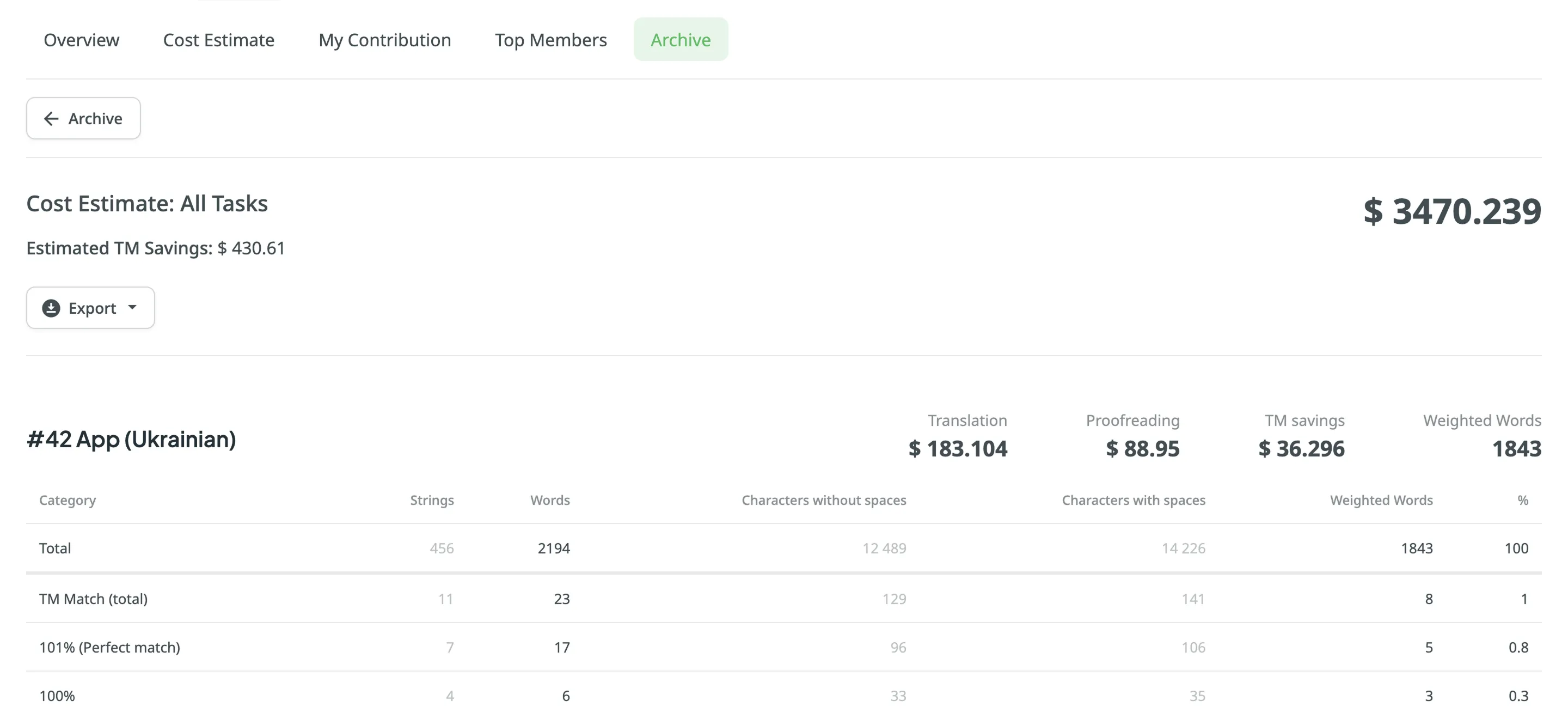
Önceden Oluşturulan Raporları Dışa Aktarma
Bölüm başlığı “Önceden Oluşturulan Raporları Dışa Aktarma”Önceden oluşturulan raporları dışa aktarmak için şu adımları izleyin:
- Projeyi açın ve Raporlar > Arşiv’e gidin.
- Click on the needed report in the list.
- Dışa aktarmak için tercih edilen dosya biçimine tıklayın.
Önceden oluşturulan raporları silmek için şu adımları izleyin:
- Projeyi açın ve Raporlar > Arşiv’e gidin.
- Click on the needed report in the list.
- Click Delete.