

Billing Settings
Crowdin uses the FastSpring service for payment processing. With the help of the FastSpring account management page, you can manage settings like your payment methods, your billing details, and other related information. You can also view your subscriptions, billing dates, and past invoices.
You can open the FastSpring account management page from Crowdin: go to Account Settings > Billing and click Update Payment Details in the Payment Method row.
Your FastSpring account is separate from your Crowdin account. You log in to it with the email entered at checkout, and FastSpring sends your payment receipts to the same email. This email can differ from your Crowdin account email. Your subscription stays linked to your Crowdin account, so changing your email in Account Settings changes nothing in FastSpring, and your FastSpring login stays the same. When purchasing a subscription, enter an email you’ll keep access to.
To update your billing information, follow these steps:
- Go to the FastSpring Account Management page.
- To log in, specify the same email that was used to purchase your Crowdin subscription. It’s the email that receives your FastSpring payment receipts.
- Click Continue.
- Click Edit.
- Change the fields with your billing information.
- Save changes.
As a result, the updated billing information will be applied to future payments.
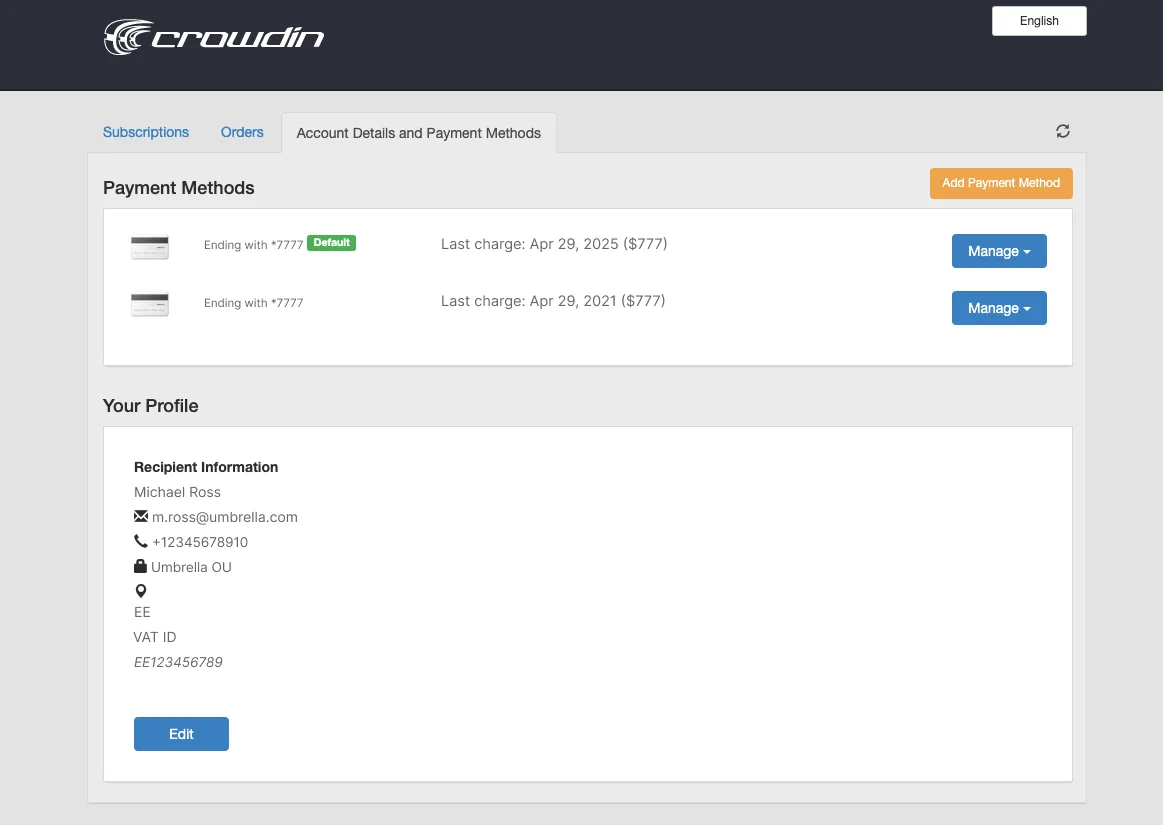
You can change the payment method used for your Crowdin subscription.
To update your payment method, follow these steps:
- Go to the FastSpring Account Management page.
- To log in, specify the same email that was used to purchase your Crowdin subscription. It’s the email that receives your FastSpring payment receipts.
- Click Continue.
- Click Add Payment Method.
- Specify your new credit card details.
- Save changes.
Set your new payment method as default to make sure that it will be used for future charges.