

Sketch Plugin
Mit dem Crowdin-Plugin für Sketch kannst du Texte aus Crowdin in deinen Designs verwenden und dadurch sowohl für Designer als auch für Entwickler Zeit sparen. These could include original or translated texts. Bei Bedarf kannst du neue Texte hinzufügen (z. B. Dialogtitel oder Schaltflächenbeschriftungen) und sie an Übersetzer in Crowdin senden.
- Quickly generate multilingual creative assets.
- Translate mockups and test them in different languages before the programming starts.
- Verwende nicht mehr „Lorem Ipsum“, sondern füge stattdessen echte Texte aus Crowdin zu deinen Prototypen hinzu.
- Erstelle Quellstrings in deinen Designs und lade sie in dein Crowdin-Projekt hoch. This way, uploaded strings could be used by developers, which reduces time spent on development.
- Lade Screenshots mit Tags in dein Crowdin-Projekt hoch.
You can download the latest release from our GitHub repository.
- Download the installation file.
- Unzip it.
- Double-click on the sketch-crowdin.sketchplugin file for auto installation.
Crowdin plugin for Sketch can also be installed with Sketch Runner.
Before you can start sending translations to Crowdin and upload them back to Sketch, follow these steps:
- Click Plugins > Crowdin.
- Switch to Settings.
- Provide your Personal Access Token.
- Click Connect to Crowdin.
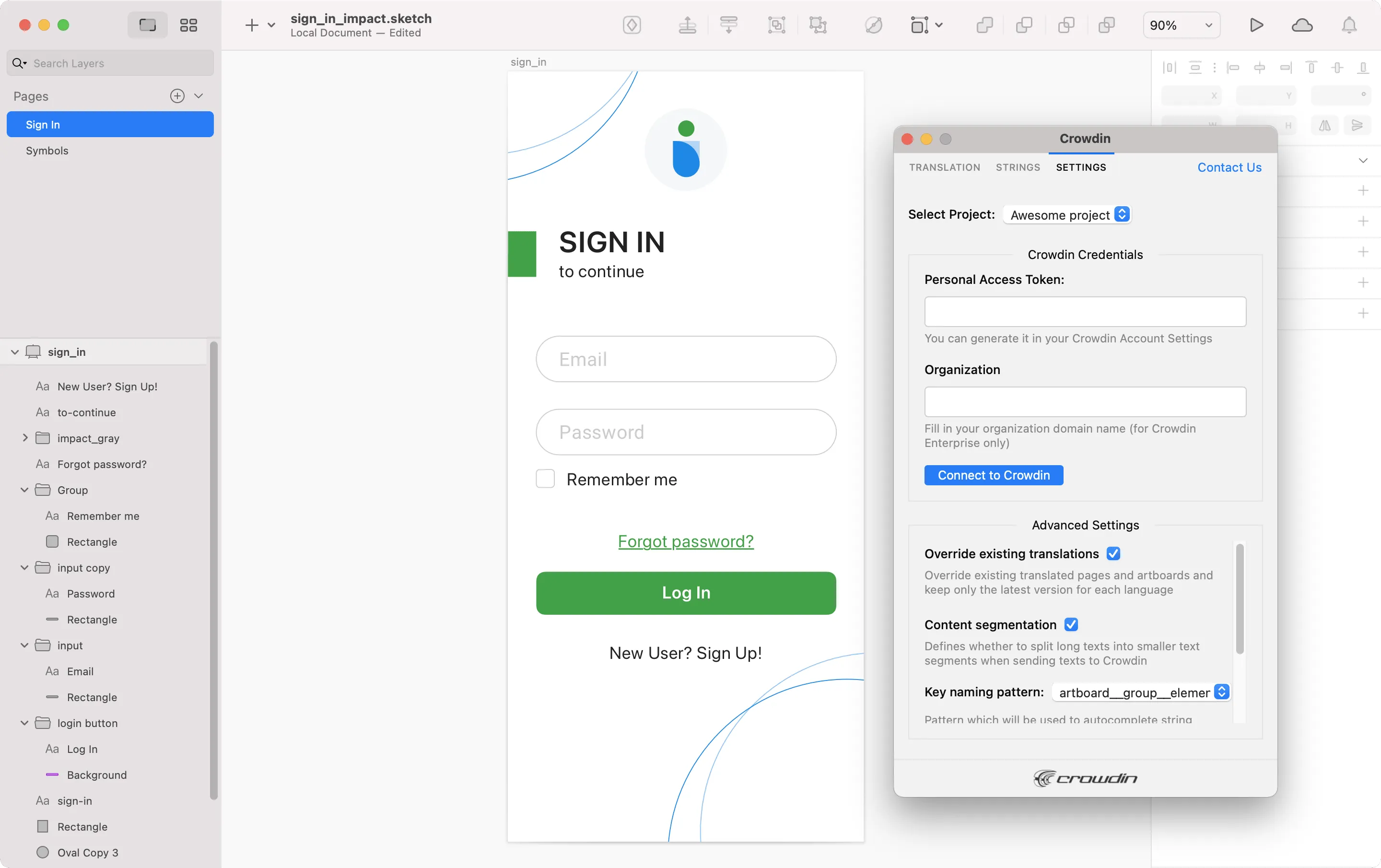
Gehe folgendermaßen vor, um ein neues Token in Crowdin zu generieren:
- Gehe zum Tab Kontoeinstellungen > API, zum Abschnitt Persönliche Zugriffstoken und klicke auf Neues Token.
- Gib einen Tokennamen an und klicke auf Erstellen.
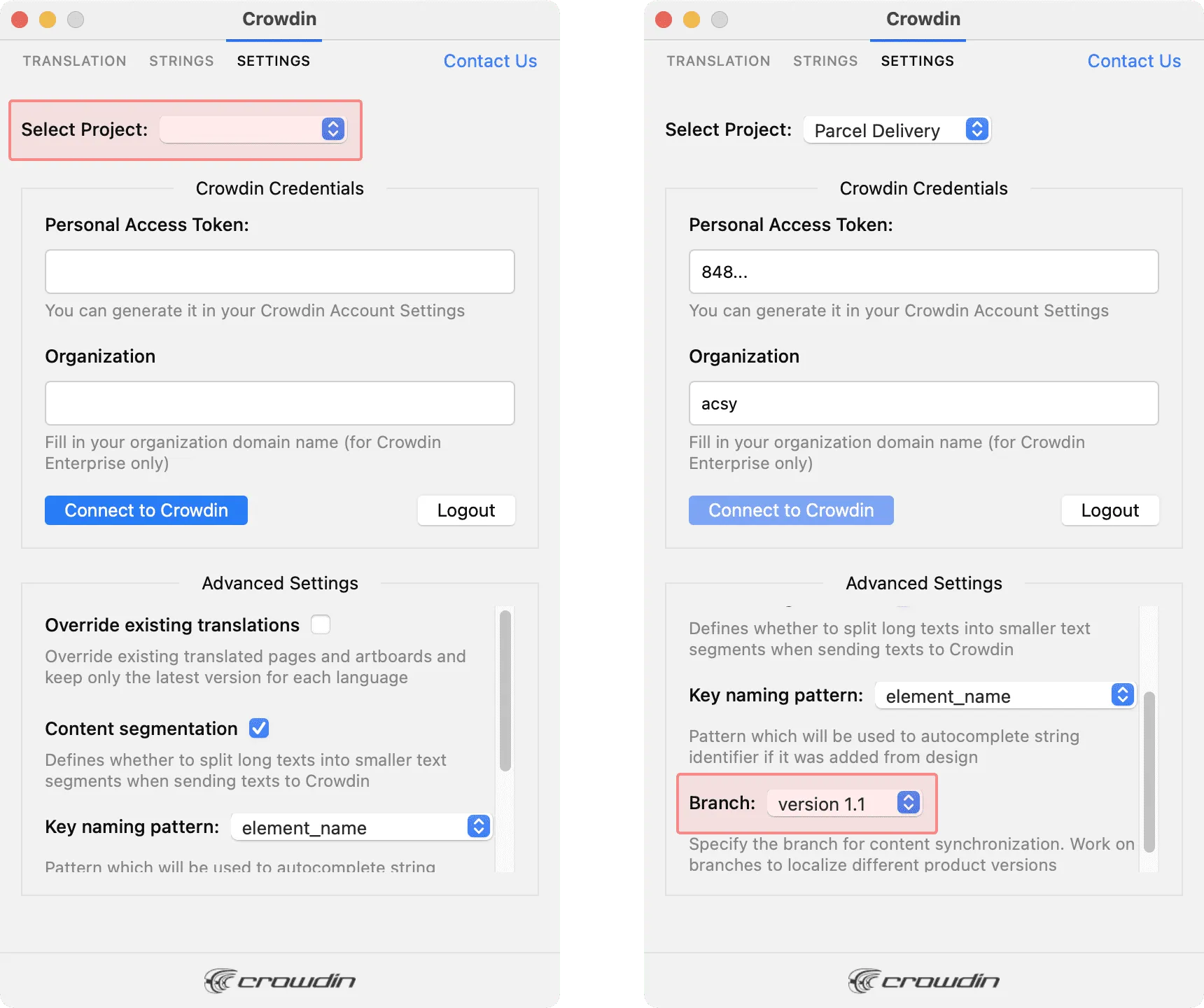
Um das Crowdin-Projekt auszuwählen, mit dem du arbeiten möchtest, klicke in Einstellungen auf das Dropdown-Menü Projekt auswählen und wähle ein Projekt aus der Liste. Later on, you can use the same drop-down menu to switch to another project if needed. Additionally, you can select the specific branch your content will be uploaded to.
Use the Strings tab when localizing UI and working on dynamic pages with your development and marketing teams. In diesem Tab kannst du Quellstrings mit einem Klick aus Crowdin zu deinen Designs in Sketch hinzufügen. Nachdem die Texte in den Designs verwendet wurden, kannst du getaggte Screenshots für die Referenz der Übersetzer automatisch wieder in Crowdin hochladen.
Using Source Strings from Crowdin in Sketch
Abschnitt betitelt „Using Source Strings from Crowdin in Sketch“- Open the Crowdin plugin for Sketch.
- In the Strings tab, use the Search field to find the specific copy. You can search strings by source text, string identifier, or context.
- Select the text layer you want to add text to and click on the needed string.
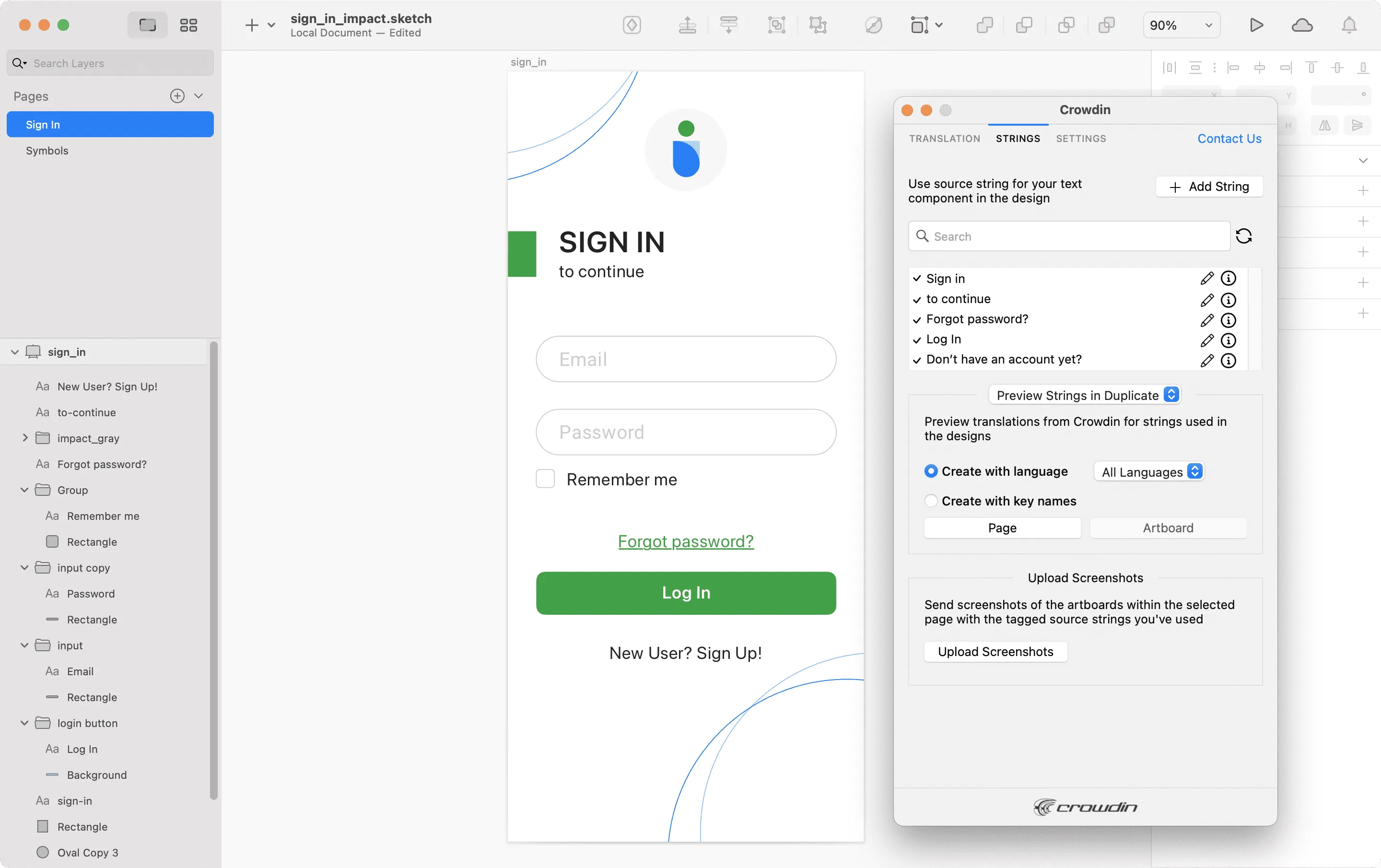
Nachdem du die Quellstrings aus Crowdin in deinen Designs verwendet hast, kannst du in Sketch für diese Strings Übersetzungen in der Vorschau anzeigen und Screenshots hochladen für dein Crowdin-Projekt.
Adding Source Strings from Sketch to Crowdin
Abschnitt betitelt „Adding Source Strings from Sketch to Crowdin“You can add the strings that are already used in the designs or create and add completely new strings.
- Open the Crowdin plugin for Sketch.
- To add the strings used in the designs, select the whole artboard, multiple artboards, or the needed strings on the artboards. Alternatively, skip this step if you want to add a new string.
- In the Strings tab, click Add String.
- In the appeared dialog, fill in the required fields.
- (Optional) To add labels to the strings, alternately select them from the Label drop-down menu and click Save.
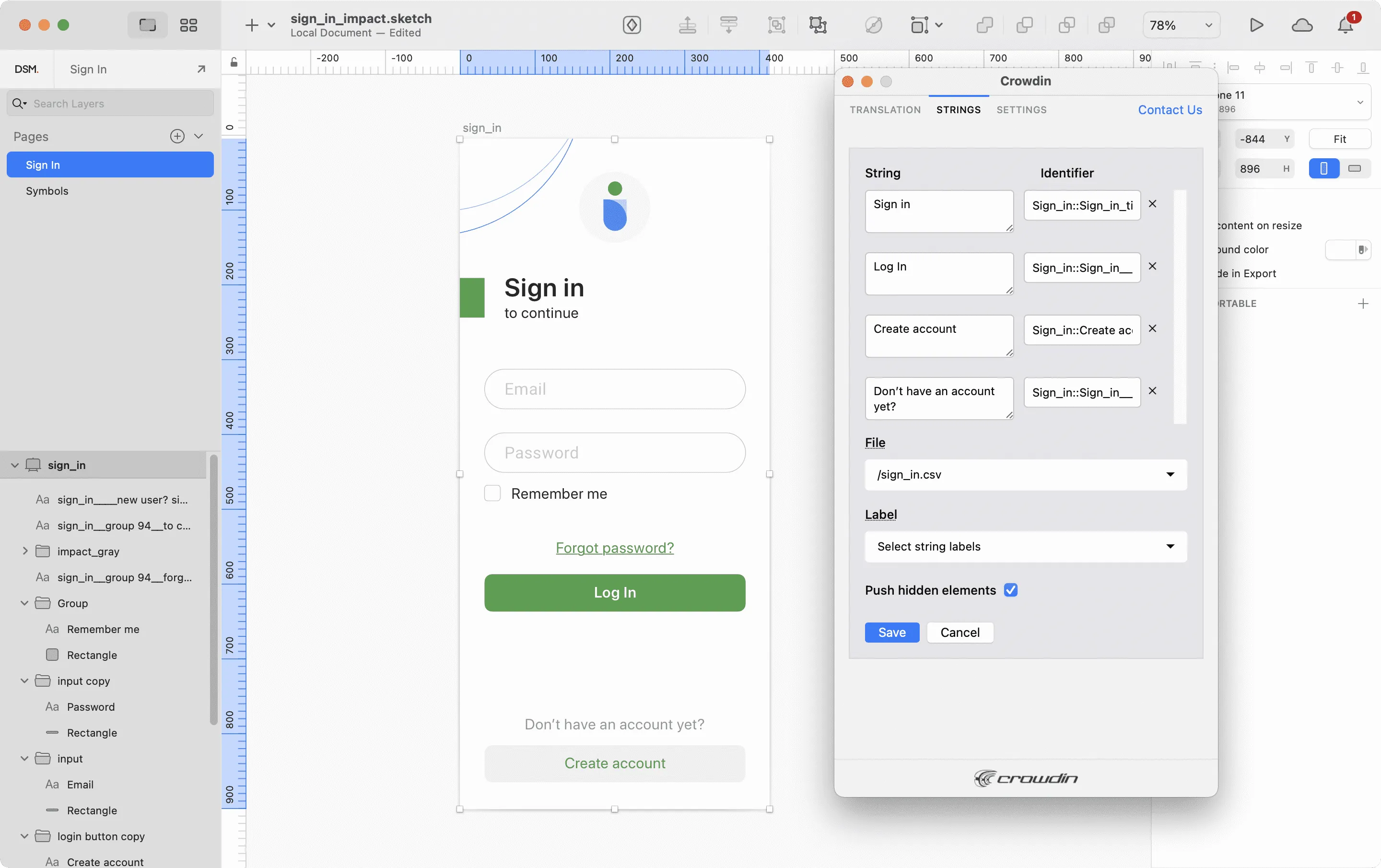
Um dieselben Strings in mehrere Dateien in Crowdin einzufügen, wähle nacheinander die benötigten Dateien aus dem Dropdown-Menü Datei aus.
Wenn einige Zeichenflächen ausgeblendete Elemente enthalten, die nicht zu Crowdin hinzugefügt werden sollen, deaktiviere die Option Ausgeblendete Elemente übertragen.
Die hinzugefügten Strings werden in dein Crowdin-Projekt übertragen und auch in der Liste des Tabs Strings angezeigt. You can edit or delete the strings from the same list anytime. Die entsprechenden Änderungen werden auch auf die Strings in deinem Crowdin-Projekt angewendet.
Um das Hinzufügen von Strings aus Sketch zum Crowdin-Projekt zu vereinfachen, kannst du in den Plugin-Einstellungen das gewünschte Benennungsschema für die Schlüssel der Quellstring-IDs festlegen. The Crowdin plugin for Sketch will suggest the string identifiers for new strings based on the selected pattern. While adding new source strings, you can always edit the suggested identifier to the preferred look.
To select the key naming pattern, follow these steps:
- Open the Crowdin plugin for Sketch.
- Switch to Settings.
- In the Key naming pattern section, select the preferred option from the drop-down menu.
- Open the Crowdin plugin for Sketch.
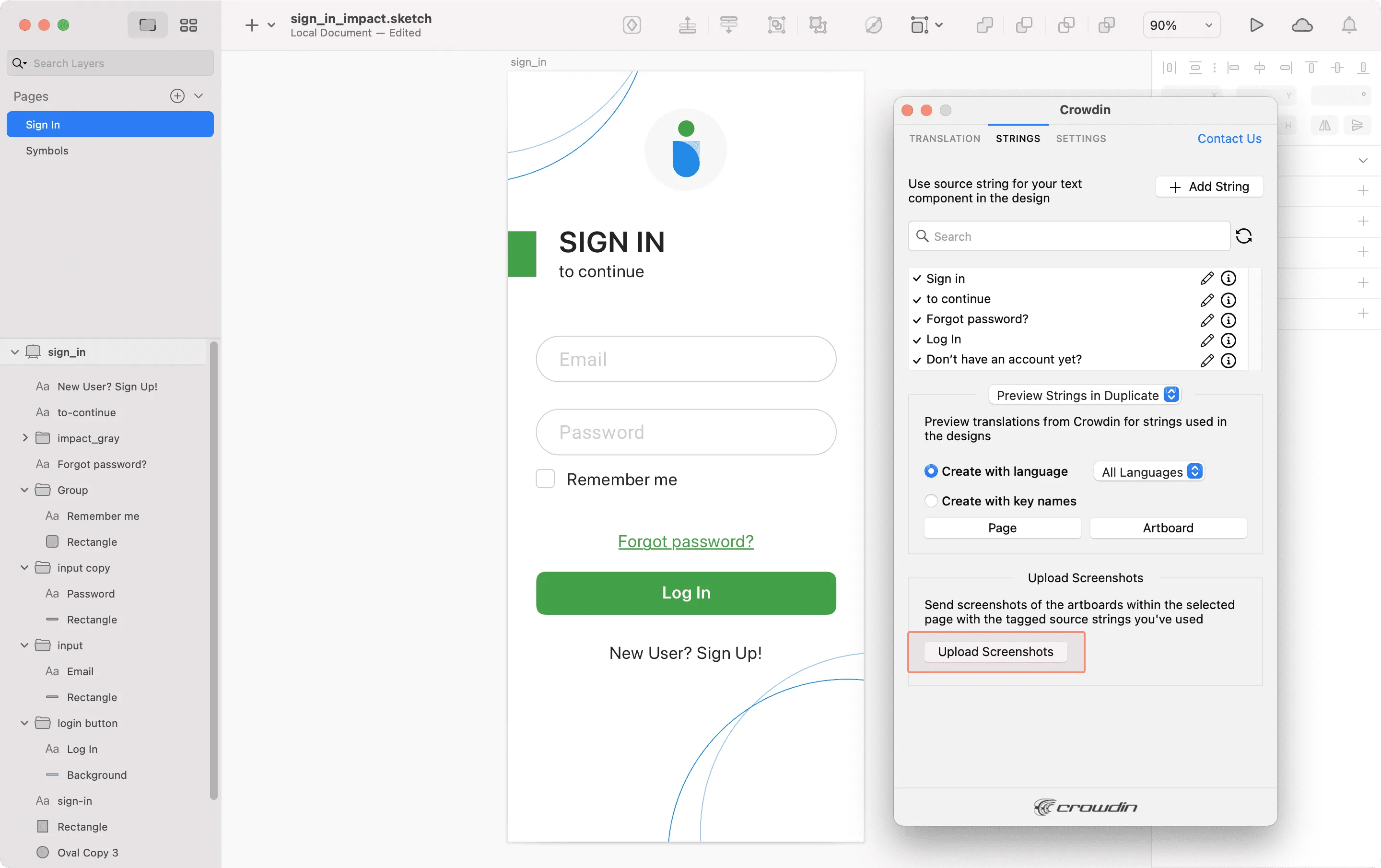
- Verwende im Tab Strings Texte aus dem Crowdin-Projekt in deinen Designs. Click Upload Screenshots to upload screenshots of the artboards that include the used texts.
- Um Screenshots in Crowdin zu aktualisieren, klicke erneut auf Screenshots hochladen.
Read more about Screenshots.
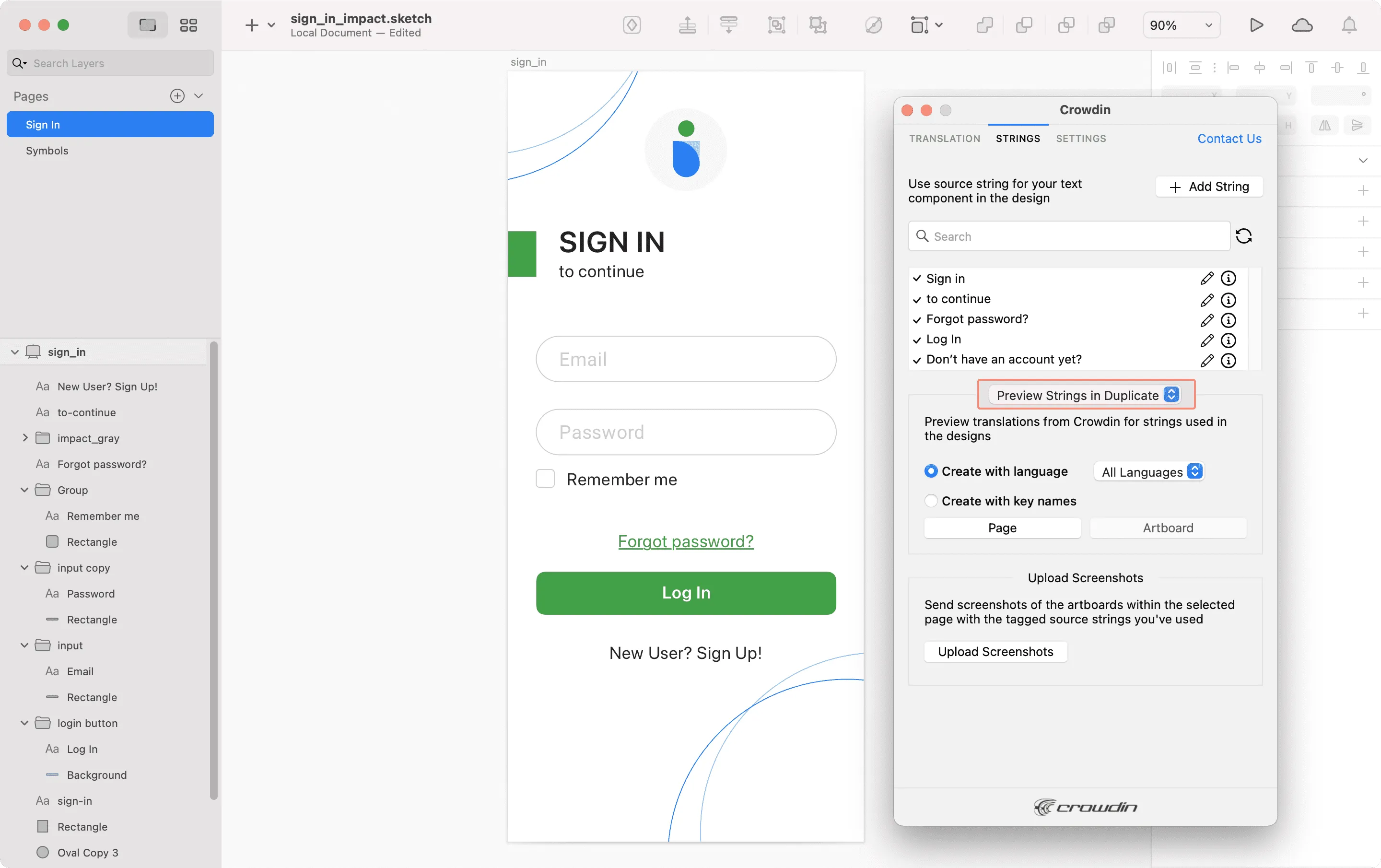
Zeige für die in deinen Designs in Sketch verwendeten Strings Übersetzungen aus Crowdin in der Vorschau an. You can preview translations in the new frames or the original ones. When previewing translations in the new frames, you can populate them with the actual translations or with string keys for further use by developers.
To preview strings populated with translations, follow these steps:
- Open the Crowdin plugin for Sketch.
- In the Strings tab, Preview Strings section, select Preview in duplicated artboards or Preview in the current artboards.
- Select Create with language.
- Select the target language you want to preview translations for. You can also choose All languages.
- Choose the content you want to preview in Sketch. Select Page or Artboard.
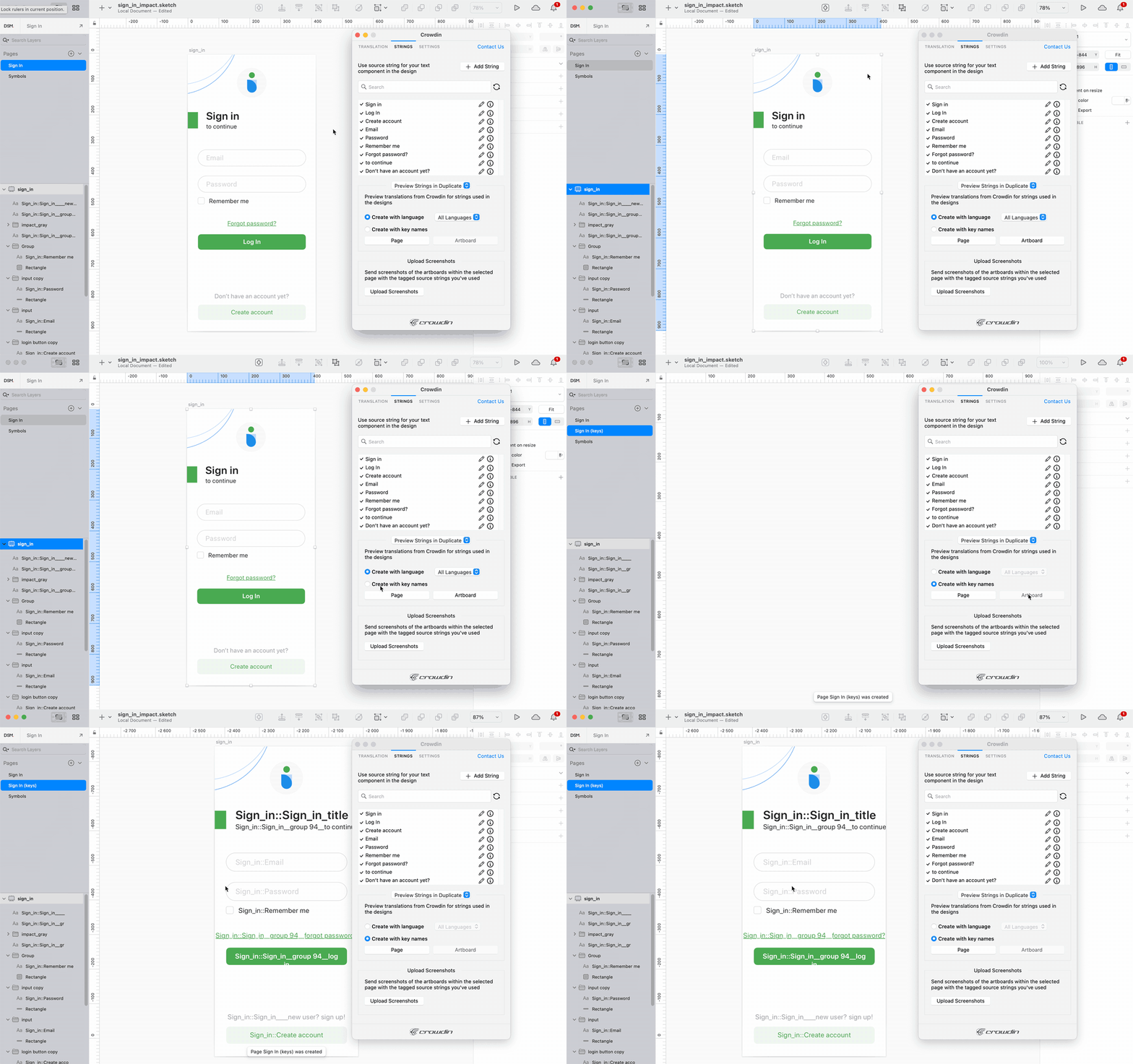
To preview strings populated with key names, follow these steps:
- Open the Crowdin plugin for Sketch.
- In the Strings tab, Preview Strings section, select Preview in duplicated artboards.
- Select Create with key names.
- Choose the content you want to preview in Sketch. Select Page or Artboard.
Use the Translation tab to localize static pages, like brochures and banners. In diesem Tab kannst du Texte mit Kontext für Übersetzer an Crowdin senden und übersetzte Kopien zurück zu Sketch hochladen.
Sending Texts for Translation to Crowdin
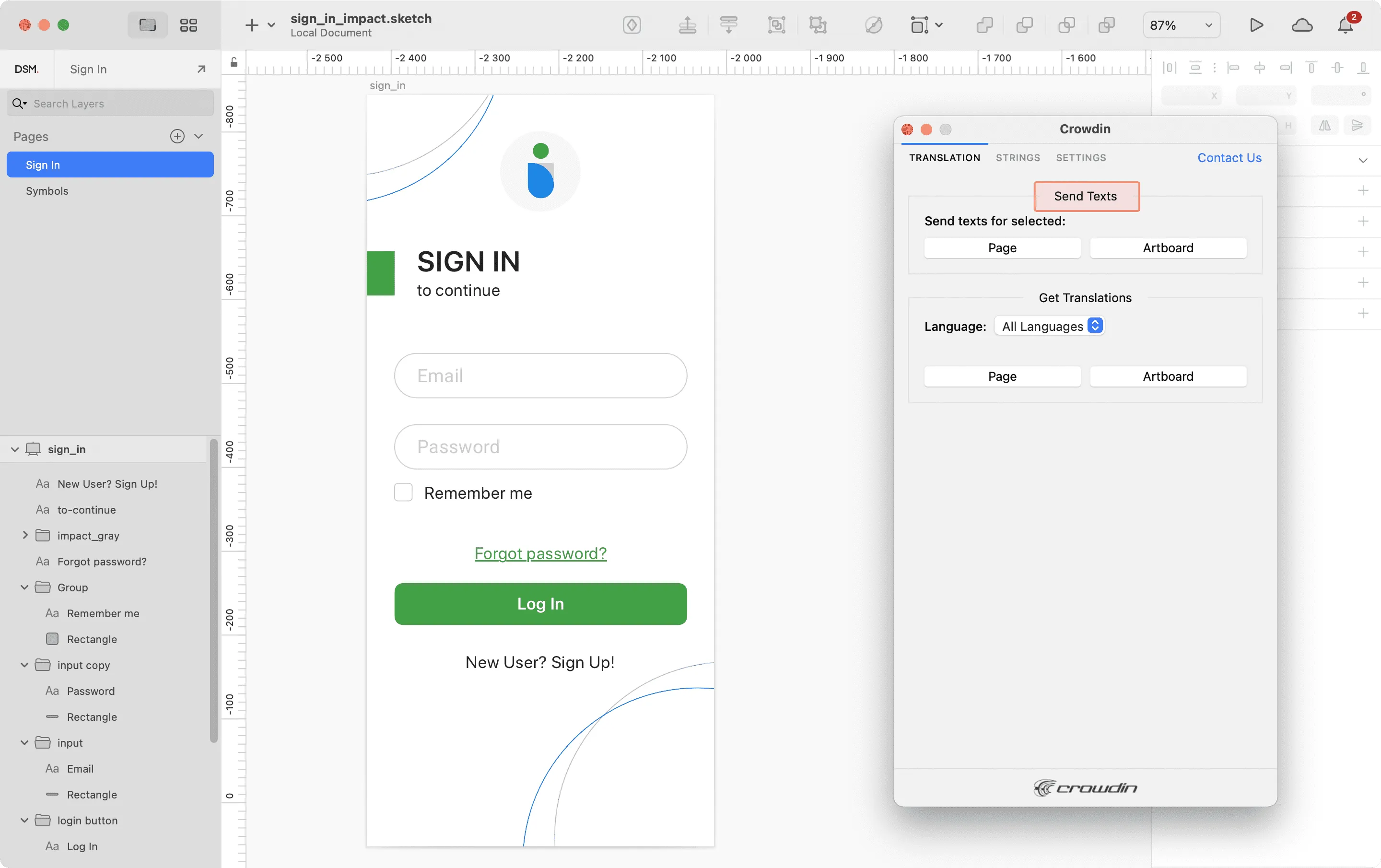
Abschnitt betitelt „Sending Texts for Translation to Crowdin“You can send text for translation either from selected or all artboards from a Sketch file. Translators will work with those texts in the list view and use designs as an additional context for even higher translation quality.
In Crowdin wird ein Stammordner Sketch-Plugin erstellt. This folder will contain HTML files for each artboard the selected Sketch page contains. If needed, you can disable content segmentation in the plugin Settings so the long texts will not be split into sentences.
Pulling Translations Back to Sketch
- Open the necessary Sketch file.
- Go to Plugins > Crowdin.
- In the Translation tab, Send Texts section, select content you’d like to translate. Select Page or Artboard.
Nachdem die Quelldateien in dein Crowdin-Projekt hochgeladen wurden, kannst du Mitwirkende einladen, sie zu übersetzen und Korrektur zu lesen.
Mehr über Übersetzungsstrategien erfahren.
Uploading Translations from Crowdin to Sketch
Abschnitt betitelt „Uploading Translations from Crowdin to Sketch“Du kannst Texte zwischen Sketch und Crowdin-Projekten jederzeit synchronisieren, um die übersetzte Version in Sketch zu testen oder mehrsprachige Assets zu erstellen.
To upload translated copies to Sketch, follow these steps:
- Open the necessary Sketch file.
- Go to Plugins > Crowdin.
- In the Translation tab, Get Translations section, select the target language you want to upload translations for. You can also Select All languages.
- Select the content you want to preview in Sketch. Select Page or Artboard.
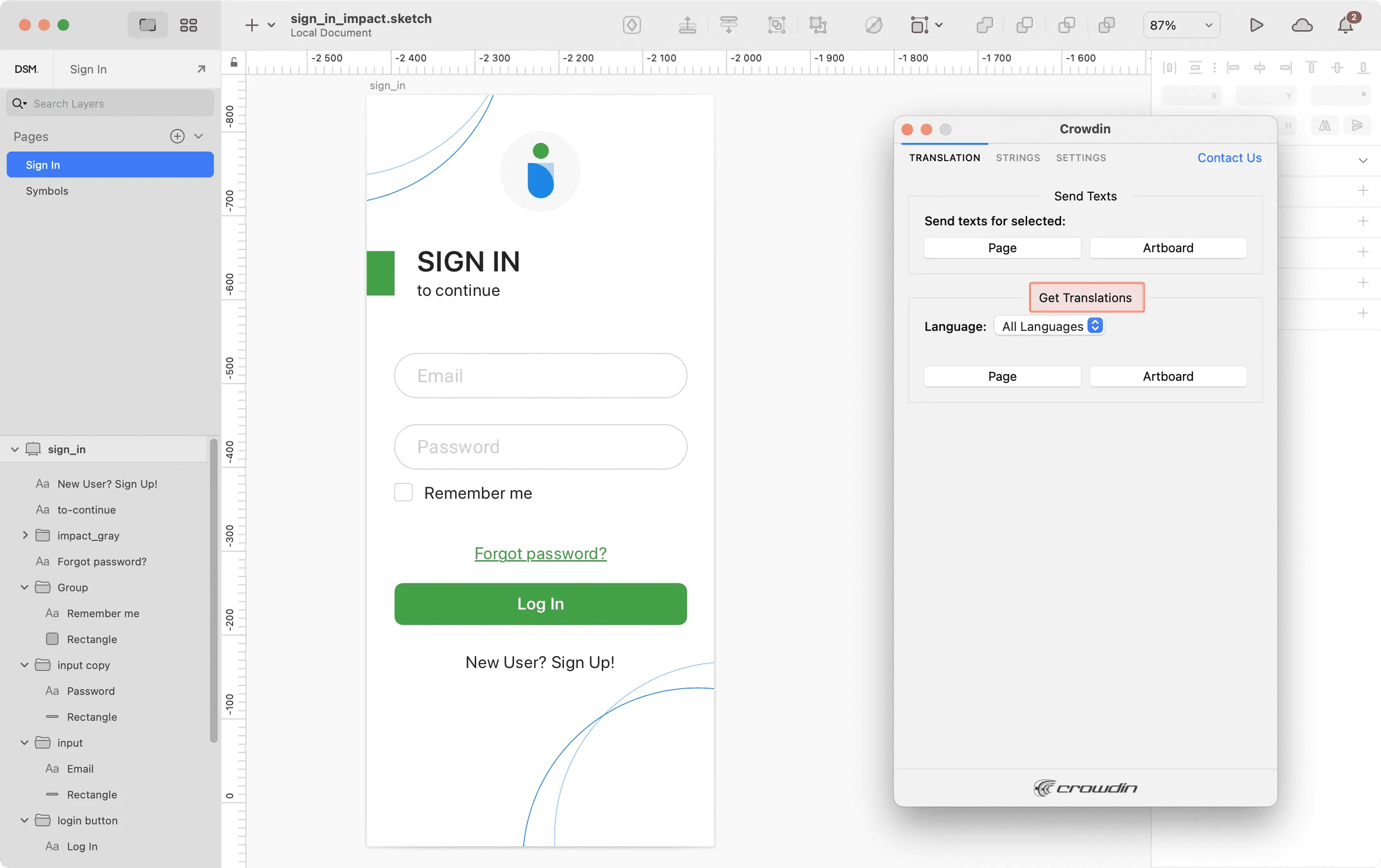
After uploading translations to Sketch, the modified file will contain a separate artboard with translations for each target language. The newly uploaded translated versions won’t override the ones you uploaded previously. You can always delete the translated copies you no longer need.
If you’d like the newly uploaded translated versions to override the previously uploaded ones, open the plugin Settings and select Override existing translations.