

Einstellungen für die automatische Übersetzung
Im Bereich Automatisch übersetzen der Projekteinstellungen kannst du die automatische Übersetzung neuer Inhalte konfigurieren, die in das Projekt hochgeladen werden. Du kannst das Translation Memory, Engines für maschinelle Übersetzung oder KI verwenden, um Inhalte automatisch zu übersetzen.
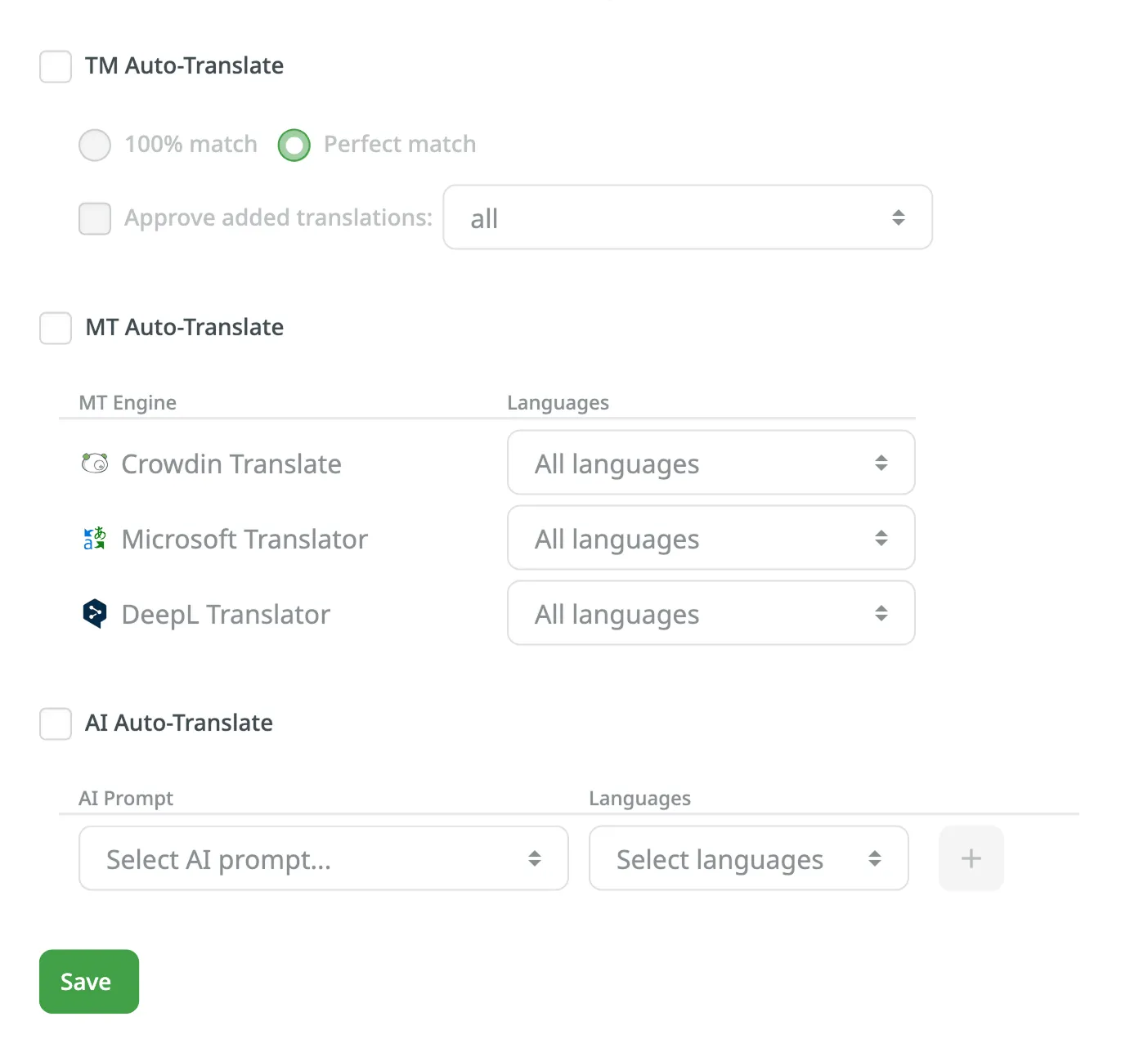
Wenn die Option Neue Inhalte automatisch übersetzen aktiviert ist, wird die automatische Übersetzung ausgelöst, wenn neue Inhalte hochgeladen werden, sich die Zielsprachen ändern oder sich Dateieinstellungen ändern.
Aktiviere und konfiguriere die automatische Übersetzung über TM. Bei Aktivierung wendet das System automatisch Übersetzungen aus deinem TM an, wenn neue Inhalte hochgeladen werden, sich die Zielsprachen ändern oder Dateieinstellungen geändert wurden.
- Übereinstimmungsquote – Wähle den Übereinstimmungstyp der TM-Vorschläge aus, der bei der automatischen Übersetzung angewendet werden soll:
- 100-%-Übereinstimmung
- Perfekte Übereinstimmung
- Hinzugefügte Übersetzungen freigeben – Wähle aus, ob neue Übersetzungen freigegeben werden sollen. Konfiguriere dies zusätzlich mit den folgenden Optionen:
- Mit perfekter Übereinstimmung – gibt nur Übersetzungen mit perfekter Übereinstimmung frei.
- Mit perfekter Übereinstimmung (zuvor freigegeben) – gibt zuvor freigegebene Übersetzungen mit perfekter Übereinstimmung frei.
- Alle (automatisch ersetzte Vorschläge überspringen) – gibt alle Übersetzungen außer automatisch ersetzten Übersetzungen frei.
- Alle – gibt alle neuen Übersetzungen frei, die während der automatischen Übersetzung hinzugefügt wurden.
Mehr über Translation Memory erfährst du hier.
Aktiviere und konfiguriere die automatische Übersetzung über MT. Bei Aktivierung wendet das System automatisch Übersetzungen der ausgewählten MT-Engine an, wenn neue Inhalte hochgeladen werden, sich die Zielsprachen ändern oder Dateieinstellungen geändert wurden.
Für jede MT-Engine kannst du alle oder ausgewählte Projektsprachen festlegen.
Mehr über maschinelle Übersetzung erfährst du hier.
Aktiviere und konfiguriere die automatische Übersetzung über KI. Bei Aktivierung wendet das System automatisch Übersetzungen des ausgewählten KI-Modells an, wenn neue Inhalte hochgeladen werden, sich die Zielsprachen ändern oder Dateieinstellungen geändert wurden.
Für jeden konfigurierten KI-Prompt kannst du alle oder ausgewählte Projektsprachen festlegen. Klicke auf die Schaltfläche , um eine weitere KI-Prompt-Konfiguration für zusätzliche Sprachen hinzuzufügen.
Mehr über Crowdin AI erfährst du hier.