│ │ │ or ...?state=&error=... │ │ │<──────────────────────────────────────────────────────────────────────┤ │ │ │ │ 7. GET /callback?state=...&code=... │ ├───────────────────────────────────>│ │ │ │ │ │ │ POST /api/auth/verify │ │ │ { │ │ │ "code": "", │ │ │ "userId": ..., │ │ │ "organizationId": ..., │ │ │ "ipAddress": ..., │ │ │ "moduleKey": "..." │ │ │ } │ │ ├─────────────────────────────────>│ │ │ │ │ │ { "success": true } │ │ │<─────────────────────────────────┤ │ │ │ │ 8. Access granted │ │ │<───────────────────────────────────┤ │ │ │ │ ``` #### [Initial Request to the App](#initial-request-to-the-app) [Section titled “Initial Request to the App”](#initial-request-to-the-app) Crowdin first attempts a direct check to see if access can be granted automatically. **HTTP request:** ```shell POST {AppBaseUrl}/api/auth/verify ``` **Request Headers** The request to your app will contain the following headers: * `Authorization: Bearer ` * `Content-Type: application/json` **Request Payload Example:** ```json { "userId": 12345, "organizationId": 67890, "ipAddress": "192.168.1.1", "moduleKey": "your-module-key" } ``` **Expected Response (Trigger Redirect):** To trigger the redirect flow, your app must return `success: false`. ```json { "success": false } ``` #### [Redirect and Callback](#redirect-and-callback) [Section titled “Redirect and Callback”](#redirect-and-callback) If the initial check returns `false`, Crowdin redirects the user to the `url` defined in your manifest options. **Redirect URL Structure:** ```shell https://{your-app-url}?jwtToken=&state= ``` Your app must validate the `jwtToken`, display the verification UI, and upon success, redirect the user back to Crowdin using an HTTP 302 redirect. **On Success:** ```http HTTP 302 Redirect Location: https://accounts.crowdin.com/{domain}/guard/callback?state=&code= ``` **On Failure:** ```http HTTP 302 Redirect Location: https://accounts.crowdin.com/{domain}/guard/callback?state=&error=User+denied+access ``` #### [Code Verification Request](#code-verification-request) [Section titled “Code Verification Request”](#code-verification-request) Once Crowdin receives the `code` from the callback, it sends a final request to your app to verify it. **HTTP request:** ```shell POST {AppBaseUrl}/api/auth/verify ``` **Request Headers** * `Authorization: Bearer ` * `Content-Type: application/json` **Request Payload Example:** ```json { "code": "abc123xyz", "userId": 12345, "organizationId": 67890, "ipAddress": "192.168.1.1", "moduleKey": "your-module-key" } ``` **Expected Response:** ```json { "success": true } ``` ### [Frame Type (Embedded UI)](#frame-type-embedded-ui) [Section titled “Frame Type (Embedded UI)”](#frame-type-embedded-ui) The Frame type displays your verification page within an iframe inside the Crowdin login interface. This provides a seamless user experience for custom forms or mTLS checks while keeping the user within the Crowdin environment. #### [Communication Flow](#communication-flow-2) [Section titled “Communication Flow”](#communication-flow-2) ```text ┌─────────┐ ┌──────────────┐ ┌──────────┐ │ User │ │ Crowdin │ │ Your App │ └────┬────┘ └──────┬───────┘ └────┬─────┘ │ │ │ │ 1. Login attempt │ │ ├───────────────────────────────>│ │ │ │ │ │ │ Try POST /api/auth/verify │ │ ├─────────────────────────────────>│ │ │ │ │ │ { "success": false } │ │ │<─────────────────────────────────┤ │ │ │ │ 2. Show verification page │ │ │ with embedded iframe │ │ │<───────────────────────────────┤ │ │ │ │ │ 3. Iframe loads your URL │ │ │ GET /frame?jwtToken=... │ │ ├──────────────────────────────────────────────────────────────────>│ │ │ │ │ 4. Your verification UI │ │ │<──────────────────────────────────────────────────────────────────┤ │ │ │ │ 5. User interacts with iframe │ │ │ (clicks approve/deny) │ │ │────────────────────────────────────────────────────────────────┐ │ │ │ │ │ │ 6. JavaScript API call via │ │ │ │ Crowdin Apps SDK │ │ │ │ AP.verifyAuth({ code: "..."}) │ │ ├────────────────────────────────────────────────────────────────┼─>│ │ │ │ │ │ 7. Crowdin receives code │<──────────────────────────────┘ │ │ from iframe via postMessage│ │ │ │ │ │ │ POST /api/auth/verify │ │ │ { │ │ │ "code": "...", │ │ │ "userId": ..., │ │ │ "moduleKey": "..." │ │ │ } │ │ ├─────────────────────────────────>│ │ │ │ │ │ { "success": true } │ │ │<─────────────────────────────────┤ │ │ │ │ 8. Access granted │ │ │<───────────────────────────────┤ │ │ │ │ ``` #### [Initial Request to the App](#initial-request-to-the-app-1) [Section titled “Initial Request to the App”](#initial-request-to-the-app-1) Crowdin first attempts a direct check to see if access can be granted automatically. **HTTP request:** ```shell POST {AppBaseUrl}/api/auth/verify ``` **Request Payload Example:** ```json { "userId": 12345, "organizationId": 67890, "ipAddress": "192.168.1.1", "moduleKey": "your-module-key" } ``` **Expected Response (Trigger Iframe):** To trigger the iframe flow, your app must return `success: false`. ```json { "success": false } ``` #### [Iframe Display and UI](#iframe-display-and-ui) [Section titled “Iframe Display and UI”](#iframe-display-and-ui) If the initial check returns `false`, Crowdin loads your app’s `url` in an iframe with the following parameters: ```shell https://{your-app-url}?jwtToken= ``` **Verification UI Implementation:** Create an HTML page that initializes the Crowdin Apps SDK and handles the user interaction. ```html Verification Security Verification
Please confirm your identity
``` #### [Communication via SDK](#communication-via-sdk) [Section titled “Communication via SDK”](#communication-via-sdk) Use the `AP.verifyAuth()` method to communicate the result back to Crowdin. **Success:** ```javascript AP.verifyAuth({ code: "your-verification-code" }); ``` **Failure:** ```javascript AP.verifyAuth({ error: "Verification failed: device not trusted" }); ``` #### [Code Verification Request](#code-verification-request-1) [Section titled “Code Verification Request”](#code-verification-request-1) Once Crowdin receives the `code` from the SDK, it sends a final request to your app to verify it. **HTTP request:** ```shell POST {AppBaseUrl}/api/auth/verify ``` **Request Payload Example:** ```json { "code": "abc123xyz", "userId": 12345, "organizationId": 67890, "ipAddress": "192.168.1.1", "moduleKey": "your-module-key" } ``` **Expected Response:** ```json { "success": true } ```
# Context Menu Module
> Create the item in the context menu where possible
This module allows creating custom items in Crowdin’s context menus. Crowdin context menus: * Resources > TM > TM record * Resources > Glossary > Glossary record * Project home tab > Language record * Project > Content > Files > File record * Project > Content > Screenshots > Screenshot record * Project > Language page > File record Crowdin Enterprise context menus: * Workspace > TM > TM record * Workspace > Glossary > Glossary record * Project home page > Language record * Project > Content > Files > File record * Project > Content > Screenshots > Screenshot record * Project home page > Language page > File record A context menu item can open a specified app module with additional context related to the selected record or custom URL. There are the following types of actions: * Open a specified app module in a modal dialog (see [Modal module](#modal)) * Redirect to a specified app module * Open a custom URL in a new tab ## [Access](#access) [Section titled “Access”](#access) You can grant access to this module to one of the following user categories: For Crowdin: * Only me (i.e., project owner) * Me, project managers and developers (if location: `language`, `screenshot`, `source_file`, `translated_file`) * All project members * Selected users For Crowdin Enterprise: * Only organization admins * Organization admins, project managers and developers (if location: `language`, `screenshot`, `source_file`, `translated_file`) * All users in the organization projects * Selected users ## [Structure](#structure) [Section titled “Structure”](#structure) ### [Modal](#modal) [Section titled “Modal”](#modal) Context menu item shows the specified module in the modal. manifest.json ```json { "modules": { "context-menu": [ { "key": "context-menu-key", "name": "Name of Context Menu Item", "description": "Description of Context Menu Item", "options": { "location": "source_file", "type": "modal", "module": { "project-integrations": "integration-module-key" }, "signaturePatterns": { "fileName": ".*\\.json", "nodeType": [0, 1] } } } ], "project-integrations": [ { "key": "integration-module-key", "name": "New Integration", "logo": "/integration-logo.png", "url": "/path/to/integration/module" } ] } } ``` ### [Redirect](#redirect) [Section titled “Redirect”](#redirect) Context menu item redirects to the specified module. manifest.json ```json { "modules": { "context-menu": [ { "key": "context-menu-key", "name": "Name of Context Menu Item", "description": "Description of Context Menu Item", "options": { "location": "source_file", "type": "redirect", "module": { "project-integrations": "integration-module-key" }, "signaturePatterns": { "fileName": ".*\\.json", "nodeType": [0, 1] } } } ], "project-integrations": [ { "key": "integration-module-key", "name": "New Integration", "logo": "/integration-logo.png", "url": "/path/to/integration/module" } ] } } ``` ### [New Tab](#new-tab) [Section titled “New Tab”](#new-tab) Context menu item opens a new tab with the URL: `baseUrl/options.url`. manifest.json ```json { "baseUrl": "https://app.example.com", "modules": { "context-menu": [ { "key": "context-menu-key", "name": "Name of Context Menu Item", "description": "Description of Context Menu Item", "options": { "location": "source_file", "type": "new_tab", "url": "/example/path", "signaturePatterns": { "fileName": ".*\\.json", "nodeType": [0, 1] } } } ] } } ``` ## [Properties](#properties) [Section titled “Properties”](#properties) | | | | ---------------------------- | ----------------------------------------------------------------------------------------------------------------------------------------------------------------------------------------------------------- | | `key` | **Type:** `string`**Required:** yes**Description:** Module identifier within the Crowdin app. | | `name` | **Type:** `string`**Required:** yes**Description:** The human-readable name displayed in the context menu. | | `description` | **Type:** `string`**Description:** A human-readable description of what the module does. The description will be visible in the Crowdin UI. | | `options.location` | **Type:** `string`**Required:** yes**Allowed values:** `tm`, `glossary`, `language`, `screenshot`, `source_file`, `translated_file`**Description:** The location in UI where the context menu can be added. | | `options.type` | **Type:** `string`**Required:** yes**Allowed values:** `modal`, `new_tab`, `redirect`**Description:** The type of action this module will perform. | | `options.url` | **Type:** `string`**Description:** Relative URL.Use it only with `new_tab` type | | `options.module` | **Type:** `object`**Description:** Module definition.Use it only with `modal` and `redirect` types | | `signaturePatterns` | **Type:** `object`**Description:** Contains criteria used to detect the type of file or node, specifying when the context menu item is shown.Use it only when `options.location` is set to `source_file` | | `signaturePatterns.fileName` | **Type:** `string`**Description:** Contains `fileName` regular expressions used to detect file type. | | `signaturePatterns.nodeType` | **Type:** `array`**Allowed values:** `0` – folder, `1` – file, `2` – branch**Description:** Array of node types specifying when the context menu item appears. | | `environments` | **Type:** `string`**Allowed values:** `crowdin`, `crowdin-enterprise`**Description:** Set of environments where a module could be installed. This parameter is needed for cross-product applications. |
# Custom AI Module
> Connect AI providers not yet supported by Crowdin
This module helps you connect AI providers not yet supported by Crowdin. Once you create this kind of app, you’ll be able to pre-translate your content with the connected AI provider and use the AI provider as an assistant in the Editor. ## [Access](#access) [Section titled “Access”](#access) You can grant access to this module to one of the following user categories: For Crowdin: * Only me (i.e., project owner) * All project members * Selected users For Crowdin Enterprise: * Only organization admins * All users in the organization projects * Selected users ## [Structure](#structure) [Section titled “Structure”](#structure) manifest.json ```json { "modules": { "ai-provider": [ { "key": "custom-ai", "name": "Custom Open AI", "logo": "/logo.png", "url": "/ai-settings", "chatCompletionsUrl": "/chat/completions", "modelsUrl": "/models" } ] } } ``` ## [Properties](#properties) [Section titled “Properties”](#properties) | | | | --------------------- | ------------------------------------------------------------------------------------------------------------------------------------------------------------------------------------------------------------------------------------------------------------------------------------------------------------------------------------------------------------------------------------------------------------ | | `key` | **Type:** `string`**Required:** yes**Description:** Module identifier within the Crowdin app. | | `name` | **Type:** `string`**Required:** yes**Description:** The human-readable name of the module. | | `logo` | **Type:** `string`**Required:** yes**Description:** The relative URL to the custom AI’s logo that will be displayed in the Crowdin UI. The recommended resolution is 48x48 pixels. | | `url` | **Type:** `string`**Required:** no**Description:** The relative URL to the module settings page (e.g., AI provider credentials settings, etc.). | | `chatCompletionsUrl` | **Type:** `string`**Required:** yes**Description:** The relative URL used for fetching chat completions. | | `modelsUrl` | **Type:** `string`**Required:** yes**Description:** The relative URL used for retrieving the list of models supported by the AI provider. | | `environments` | **Type:** `string`**Allowed values:** `crowdin`, `crowdin-enterprise`**Description:** Set of environments where a module could be installed. This parameter is needed for cross-product applications. | | `restrictAiToSameApp` | **Type:** `boolean`**Description:** If your application implements both AI Provider and AI Prompt Provider modules and you need to restrict them to work only in pairs, you can use the `restrictAiToSameApp` configuration property. When this property is enabled, prompts that use the application’s AI Provider can be saved only if they use the same application’s AI Prompt Provider, and vice versa. | ## [Communication between Custom AI App and Crowdin](#communication-between-custom-ai-app-and-crowdin) [Section titled “Communication between Custom AI App and Crowdin”](#communication-between-custom-ai-app-and-crowdin) Crowdin sends prompts to the app using `chatCompletionsUrl`, and the app then processes these prompts and responds to Crowdin with a reply. For an improved experience when interacting with your Custom AI as an assistant in the Crowdin Editor, it is recommended to implement the `stream` parameter using [server-sent events](https://developer.mozilla.org/en-US/docs/Web/API/Server-sent_events/Using_server-sent_events#event_stream_format). When streaming is supported, AI-generated content can be delivered progressively, providing real-time feedback to users. This improves the workflow by offering immediate suggestions or corrections without waiting for a complete response, ensuring a smooth, interactive experience for tasks like confirming terminology, checking consistency, or refining translations. Crowdin includes the `stream` parameter set to `true` in requests to the app for `chatCompletions` and expects a response in [the corresponding format](#expected-response-from-the-app-streaming). When configuring a Custom AI provider in the **AI > Providers** page, Crowdin sends a request to the app using `modelsUrl`, specifically to display available models in the respective input field in the Custom AI provider settings page. You can select and save needed models, which then will be used for content pre-translation and communication with the assistant using `chatCompletionsUrl`. ## [Request to the App from Crowdin for сhatCompletions](#request-to-the-app-from-crowdin-for-сhatcompletions) [Section titled “Request to the App from Crowdin for сhatCompletions”](#request-to-the-app-from-crowdin-for-сhatcompletions) **HTTP request:** ```shell https://{AppBaseUrl}/chat/completions/ ``` **Request Headers** The request to `chatCompletionsUrl` will contain authorization headers (e.g., `Authorization: Bearer `). Request payload example: ```json { "model": "gpt-3.5-turbo", "stream": false, "messages": [ { "role": "user", "content": [ { "type": "text", "text": "Prompt" }, { "type": "image", "mimeType": "image/png", "url": "https://picsum.photos/200/300" } ] }, { "role": "assistant", "content": "Reply" }, { "role": "user", "content": "New prompt" } ] } ``` ## [Expected Response from the App](#expected-response-from-the-app) [Section titled “Expected Response from the App”](#expected-response-from-the-app) Response payload example: ```json { "choices": [ { "message": { "role": "assistant", "content": "New reply" } } ] } ``` ## [Expected Response from the App (Streaming)](#expected-response-from-the-app-streaming) [Section titled “Expected Response from the App (Streaming)”](#expected-response-from-the-app-streaming) Response payload example: ```json data: {"choices":[{"delta":{"role":"assistant","content":"Your"}}]} data: {"choices":[{"delta":{"role":"assistant","content":" rephrased"}}]} .... data: {"choices":[{"delta":{"role":"assistant","content":" translation"}}]} [DONE] ``` ## [Response from the App to Crowdin for modelsUrl](#response-from-the-app-to-crowdin-for-modelsurl) [Section titled “Response from the App to Crowdin for modelsUrl”](#response-from-the-app-to-crowdin-for-modelsurl) Response payload example: ```json { "data": [ { "id": "gpt-3.5-turbo", "supportsJsonMode": true, "supportsFunctionCalling": true, "supportsVision": false, "contextWindowLimit": 16385, "outputLimit": 4096 }, { "id": "gpt-4-turbo", "supportsJsonMode": true, "supportsFunctionCalling": true, "supportsVision": true, "contextWindowLimit": 128000, "outputLimit": 4096 }, { "id": "gpt-5-power", "supportsJsonMode": true, "supportsFunctionCalling": true, "supportsVision": true, "contextWindowLimit": 1000000, "outputLimit": 8192 }, { "id": "gpt-6-devil", "supportsJsonMode": true, "supportsFunctionCalling": true, "supportsStreaming": true, "supportsVision": true, "contextWindowLimit": 1000000, "outputLimit": 8192 }, { "id": "gpt-7-magic", "supportsJsonMode": true, "supportsFunctionCalling": true, "supportsStreaming": true, "supportsVision": true, "contextWindowLimit": 1000000, "outputLimit": 8192 } ] } ``` Default values: * **supportsJsonMode**: `false` * **supportsFunctionCalling**: `false` * **supportsStreaming**: `false` * **supportsVision**: `false` * **contextWindowLimit**: `4096` * **outputLimit**: `4096` The structure of the responses from the app should correspond to the presented examples, otherwise Crowdin will consider them invalid.
# Custom Bundle Generator Module
> Add support for new custom bundles to Crowdin
Use this module to support custom formats of [Target File Bundles](/bundles/). The generation process is delegated to your Crowdin app that implements a custom bundle generator module. When translations are ready, Crowdin sends the translation data to your app, which returns the generated bundle in the desired format. ## [Access](#access) [Section titled “Access”](#access) You can grant access to this module to one of the following user categories: For Crowdin: * Only me (i.e., project owner) * All project members * Selected users For Crowdin Enterprise: * Only organization admins * All users in the organization projects * Selected users ## [Structure](#structure) [Section titled “Structure”](#structure) manifest.json ```json { "modules": { "custom-file-format": [ { "key": "your-module-key-type-xyz", "type": "type-xyz", "url": "/process", "multilingualExport": true, "stringsExport": true, "extensions": [ ".resx" ] } ] } } ``` ## [Properties](#properties) [Section titled “Properties”](#properties) | | | | -------------------- | -------------------------------------------------------------------------------------------------------------------------------------------------------------------------------------------------------------------------------------------------------------------- | | `key` | **Type:** `string`**Required:** yes**Description:** Module identifier within the Crowdin app. | | `type` | **Type:** `string`**Required:** yes**Description:** Identifier of the custom bundle type. Can be used in the API to trigger the processing of this module when generating translation bundles. | | `url` | **Type:** `string`**Required:** yes**Description:** The relative URL triggered during translation export. Crowdin sends a request to this URL to initiate custom bundle generation. | | `multilingualExport` | **Type:** `bool`**Required:** no**Allowed values:** `true`, `false`. Default is `false`**Description:** Enables export of strings for multiple target languages in a single request. Useful for file formats that support multiple languages within the same bundle. | | `stringsExport` | **Type:** `bool`**Required:** yes**Description:** Must be set to `true` for bundle generator modules. Indicates that the app expects exported strings from Crowdin to generate a custom bundle. | | `extensions` | **Type:** `array`**Required:** yes**Description:** List of file extensions associated with the generated bundles (e.g., `.resx`, `.json`). Defines the expected output format and is used for file naming and export handling in Crowdin. | ## [Communication between Custom Bundle Generator App and Crowdin](#communication-between-custom-bundle-generator-app-and-crowdin) [Section titled “Communication between Custom Bundle Generator App and Crowdin”](#communication-between-custom-bundle-generator-app-and-crowdin) When a user requests a translation bundle export, Crowdin sends an HTTP request to the app’s configured URL (`$baseUrl . $url`) with the necessary project, language, and translation data. The app processes the data and responds with the generated bundle file. The requests and responses to and from the custom bundle generator apps have two-minute timeouts. The maximum request and response payload size is limited to 5 MB. ### [Request to the App](#request-to-the-app) [Section titled “Request to the App”](#request-to-the-app) Request payload example: ```json // max request payload - 5 MB // wait timeout - 2 minutes { "jobType": "build-file", "organization": { "id": 1, "domain": "{domain}", "baseUrl": "https://{domain}.crowdin.com", "apiBaseUrl": "https://{domain}.api.crowdin.com" }, "project": { "id": 1, "identifier": "your-project-identifier", "name": "Your Project Name" }, "sourceLanguage": { "id": "es", "name": "Spanish", "editorCode": "es", "twoLettersCode": "es", "threeLettersCode": "spa", "locale": "es-ES", "androidCode": "es-rES", "osxCode": "es.lproj", "osxLocale": "es", "pluralCategoryNames": ["one"], "pluralRules": "(n != 1)" }, "targetLanguages": [ { // same structure as for sourceLanguage } ], "strings": [...], // array of segments "stringsUrl": "https://tmp.downloads.crowdin.com/strings.ndjson" // file with segments, in new-line delimited json format } ``` Properties: | | | | ----------------------- | -------------------------------------------------------------------------------------------------------------------------------------------------------------------------------------------------------------------------------------------------------------- | | `jobType` | **Type:** `string`**Possible values:** `build-file`**Description:** Specifies the action that should be executed by the app. Always set to `build-file` for bundle generator modules. Crowdin sends translation data and expects a generated bundle in return. | | `strings`, `stringsUrl` | **Type(strings):** `array`**Type(stringsUrl):** `string`**Description:** Contains the translation strings for the bundle generation. Either `strings` (inline array) or `stringsUrl` (public link to NDJSON) can be used. | ### [Expected Response from the App](#expected-response-from-the-app) [Section titled “Expected Response from the App”](#expected-response-from-the-app) Response payload example: ```json // max response payload - 5 MB // wait timeout - 2 minutes { "data": { "content": "TWF5IHRoZSBGb3JjZSBiZSB3aXRoIHlvdS4=", // base64 encoded translation file content "contentUrl": "https://app.example.com/p5uLEpq8p-result.xml", // translation file public URL }, "error": { "message": "Your error message" } } ``` Properties: | | | | --------------------------------- | ---------------------------------------------------------------------------------------------------------------------------------------------------------------------------------------------------------------------------------------------------------------------------------------------------------------------------- | | `data.content`, `data.contentUrl` | **Type(data.content):** `string`**Type(data.contentUrl):** `string`**Description:** Use either `data.content` (base64 encoded) or `data.contentUrl` (publicly accessible URL) to return the generated bundle file. Only one of them should be present in the response.The format of the file depends on your implementation. | | `error.message` | **Type:** `string`**Description:** An error message that can be passed from the app to Crowdin and will be visible to a user in the UI. | ### [Translation Strings Structure](#translation-strings-structure) [Section titled “Translation Strings Structure”](#translation-strings-structure) Below is an example of the structure used to pass translation strings to the app for custom bundle generation. Payload example: ```json // strings should be in "new-line delimited json" format if they passed by URL [ { // non plural string "id": 1, // numeric identifier of the string in Crowdin "identifier": "string-key-1", // required: unique string key "context": "Some context", // optional: additional info for translators "customData": "max 4 KB of custom data", // optional: preserved on export "maxLength": 10, // optional, default null "isHidden": false, // optional, default null "hasPlurals": false, // optional, default false "labels": ["label-one", "label-two"], // optional, default [] "text": "String source text", // required: source content "translations": { // required: grouped by target language ID "uk": { // targetLanguage.id "text": "Переклад стрічки", // required: translation text "status": "untranslated | translated | approved" // optional, default "translated" }, // can be other languages for multilingual, check "targetLanguages" in the request payload } }, { // plural string "id": 2, "identifier": "string-key-2", "context": "Some optional context", "customData": "max 4 KB of custom data", "maxLength": 15, "isHidden": false, "hasPlurals": true, "labels": [], "text": { // keys from sourceLanguage.pluralCategoryNames "one": "One file", "other": "%d files", }, "translations": { "uk": { "text": { // keys from targetLanguage.pluralCategoryNames "one": "One file", "few": "%d файла", "many": "%d файлів", }, "status": { "one": "untranslated", "few": "translated", "many": "approved", } } } } ] ``` Properties: | | | | -------------- | ----------------------------------------------------------------------------------------------------------------------------------------------------------------------------------------------------------------------------------------------------------------------------- | | `id` | **Type:** `integer`**Required:** yes**Description:** Numeric identifier of the string in your Crowdin project. Required for mapping translations. | | `identifier` | **Type:** `string`**Required:** yes**Description:** Unique string key within the file. Required. | | `text` | **Type:** `string` (non-plural) or `object` (plural)**Description:** Source string text. Required for generating translations. For plural strings, this is an object with plural form keys from `sourceLanguage.pluralCategoryNames`. | | `customData` | **Type:** `string`**Required:** no**Description:** Any custom data that needs to be linked to the string. Added custom data will be exported along the corresponding strings on translation export. | | `translations` | **Type:** `object`**Required:** yes**Description:** Required translations for each target language. Each language ID maps to an object with a `text` field, and optionally `status`. For plural strings, `text` and `status` are also objects keyed by plural category names. |
# Custom File Format Module
> Add support of new custom file formats to Crowdin
Use this module to add support of new custom file formats. It’s implemented by delegating a source file parsing to an app with a custom file format module. When translations are completed, Crowdin passes a source file and a string array with translations to the Custom file format app for translation files generation. ## [Access](#access) [Section titled “Access”](#access) You can grant access to this module to one of the following user categories: For Crowdin: * Only me (i.e., project owner) * All project members * Selected users For Crowdin Enterprise: * Only organization admins * All users in the organization projects * Selected users ## [Structure](#structure) [Section titled “Structure”](#structure) manifest.json ```json { "modules": { "custom-file-format": [ { "key": "your-module-key-type-xyz", "type": "type-xyz", "url": "/process", "multilingual": true, "signaturePatterns": { "fileName": "^.+\\.xyz$", "fileContent": "\\s* " } } ] } } ``` ## [Properties](#properties) [Section titled “Properties”](#properties) | | | | ------------------- | ------------------------------------------------------------------------------------------------------------------------------------------------------------------------------------------------------------------------------------------------------------------------------------------------ | | `key` | **Type:** `string`**Required:** yes**Description:** Module identifier within the Crowdin app. | | `type` | **Type:** `string`**Required:** yes**Description:** The custom file format identifier. Can be used in API to force the processing of the files by the Custom file format app. If the `type` parameter is used in API, the `signaturePatterns` will be ignored. | | `url` | **Type:** `string`**Required:** yes**Description:** The relative URL triggered on file import, update, translation upload, and export. | | `multilingual` | **Type:** `bool`**Required:** no**Allowed values:** `true`, `false`. Default is `false`**Description:** This parameter is used to combine the content of multiple languages into one request when uploading and downloading translations in your Crowdin project. | | `signaturePatterns` | **Type:** `object`**Description:** Contains `fileName` and/or `fileContent` regular expressions used to detect file type when uploading a new source file via UI (or via API without specified `type` parameter). If the file matches regular expressions, it’s labeled as a custom format file. | ## [Communication between Custom File Format App and Crowdin](#communication-between-custom-file-format-app-and-crowdin) [Section titled “Communication between Custom File Format App and Crowdin”](#communication-between-custom-file-format-app-and-crowdin) On the initial file import, the system detects custom file format using the `signaturePatterns` or `type` parameters and makes an HTTP request to the app’s URL (`$baseUrl . $url`) for further processing. Then app processes the file in a custom format and responds to the system. The requests and responses to and from the custom file format apps have two-minute timeouts. The maximum request and response payload size is limited to 5 MB. ### [Request to the App](#request-to-the-app) [Section titled “Request to the App”](#request-to-the-app) Request payload example: ```json // max request payload - 5 MB // wait timeout - 2 minutes { "jobType": "parse-file | build-file", "organization": { "id": 1, "domain": "{domain}", "baseUrl": "https://{domain}.crowdin.com", "apiBaseUrl": "https://{domain}.api.crowdin.com" }, "project": { "id": 1, "identifier": "your-project-identifier", "name": "Your Project Name" }, "file": { "id": 1, "name": "file.xml", "content": "VGhpcyBpcyBmaWxlIGNvbnRlbnQ=", // base64 encoded source file content "contentUrl": "https://crowdin-tmp.downloads.crowdin.com/1/file.xml?aws-signature=..." // source file public URL }, "sourceLanguage": { "id": "es", "name": "Spanish", "editorCode": "es", "twoLettersCode": "es", "threeLettersCode": "spa", "locale": "es-ES", "androidCode": "es-rES", "osxCode": "es.lproj", "osxLocale": "es", "pluralCategoryNames": ["one"], "pluralRules": "(n != 1)" }, "targetLanguages": [ { // same structure as for sourceLanguage, empty when uploading a new source file, one element for import_translations & export, can be more for multilingual files } ], "strings": [...], // for the build-file jobs, array of segments "stringsUrl": "https://tmp.downloads.crowdin.com/strings.ndjson" // for the build-file jobs, file with segments, in new-line delimited json format } ``` Properties: | | | | --------------------------------- | ----------------------------------------------------------------------------------------------------------------------------------------------------------------------------------------------------------------------------------------------------------------------------------------------------------------------------------------------------------------------------------------------------------------------------------------------------------------------------------------------------------------------------------------------------------------------------------------------- | | `jobType` | **Type:** `string`**Possible values:** `parse-file`, `build-file`**Description:** Specifies the action that should be executed by the app. `parse-file` job is used for initial source file upload, source file update, and translation upload. For `parse-file` jobs, the system passes a source file to the app and expects a parsed source string array in the response. `build-file` job is used for translation download. For `build-file` jobs, the system passes a source file and a string array with translations to the app and expects a generated translation file in the response. | | `file.content`, `file.contentUrl` | **Type:** `string`**Description:** Parameters used to pass the base64 encoded source file content (`file.content`) or a source file public URL (`file.contentUrl`). Either of these two parameters can be used. | | `strings`, `stringsUrl` | **Type(strings):** `array`**Type(stringsUrl):** `string`**Description:** Parameters used for translations download (for `build-file` job type only). `strings` - translation strings array. `stringsUrl` - public URL to a [new-line delimited json](https://github.com/ndjson/ndjson-spec) with translation strings. Either of these two parameters can be used. | ### [Expected Response from the App for the parse-file Job Type](#expected-response-from-the-app-for-the-parse-file-job-type) [Section titled “Expected Response from the App for the parse-file Job Type”](#expected-response-from-the-app-for-the-parse-file-job-type) Response payload example: ```json // max response payload - 5 MB // wait timeout - 2 minutes { "data": { "strings": [...], // segments array "stringsUrl": "https://app.example.com/jKe8ujs7a-segments.ndjson", // new-line delimited json file with parsed strings "preview": "VGhpbmdzIGFyZSBvbmx5IGltcG9zc2libGUgdW50aWwgdGhleSdyZSBub3Qu", // optional, base64 encoded content of preview html file, not supported if there are plural strings "previewUrl": "https://app.example.com/LN3km2K6M-preview.html", // optional, URL of preview html file, not supported if there are plural strings }, "error": { "message": "Your error message" } } ``` Properties: | | | | --------------------------------- | ----------------------------------------------------------------------------------------------------------------------------------------------------------------------------------------------------------------------------------------------------------------------------------------------------------------------------------------------------------------------------------------------------------------------------------------------------------------------------------------- | | `data.strings`, `data.stringsUrl` | **Type(data.strings):** `array`**Type(data.stringsUrl):** `string`**Description:** Parameters used to pass the parsed strings content. `data.strings` - parsed strings array. `data.stringsUrl` - public URL to a [new-line delimited json](https://github.com/ndjson/ndjson-spec) with parsed strings. Either of these two parameters can be used. | | `data.preview`, `data.previewUrl` | **Type(data.preview):** `string`**Type(data.previewUrl):** `string`**Description:** Parameters used to pass the optional HTML preview of the parsed strings content, which can be generated by the app. The generated HTML preview will be displayed in the Editor. See the [HTML Preview file example.](/developer/crowdin-apps-module-custom-file-format/#html-preview-of-the-file)CautionHTML preview won’t be displayed in the Crowdin Editor if the app passes strings with plurals. | | `error.message` | **Type:** `string`**Description:** An error message that can be passed from the app to Crowdin Enterprise and will be visible to a user in the UI. | ### [Expected Response from the App for the build-file Job Type](#expected-response-from-the-app-for-the-build-file-job-type) [Section titled “Expected Response from the App for the build-file Job Type”](#expected-response-from-the-app-for-the-build-file-job-type) Response payload example: ```json // max response payload - 5 MB // wait timeout - 2 minutes { "data": { "content": "TWF5IHRoZSBGb3JjZSBiZSB3aXRoIHlvdS4=", // base64 encoded translation file content "contentUrl": "https://app.example.com/p5uLEpq8p-result.xml", // translation file public URL }, "error": { "message": "Your error message" } } ``` Properties: | | | | --------------------------------- | -------------------------------------------------------------------------------------------------------------------------------------------------------------------------------------------------------------------------------------------------------------------------- | | `data.content`, `data.contentUrl` | **Type(data.content):** `string`**Type(data.contentUrl):** `string`**Description:** Parameters used to pass the base64 encoded translation file content (`data.content`) or a translation file public URL (`data.contentUrl`). Either of these two parameters can be used. | | `error.message` | **Type:** `string`**Description:** An error message that can be passed from the app to Crowdin Enterprise and will be visible to a user in the UI. | ### [Strings Array Structure](#strings-array-structure) [Section titled “Strings Array Structure”](#strings-array-structure) Below you can see an example of the strings structure expected from the app for `parse-file` job type and passed to the app for `build-file` job type. Payload example: ```json // strings should be in "new-line delimited json" format if they passed by URL [ { // non plural string "previewId": 1, // only for "parse-file" jobType, required when the HTML preview of the file is generated "id": 1, // only for "build-file" jobType "identifier": "string-key-1", // required "context": "Some context", // optional "customData": "max 4 KB of custom data", // optional "maxLength": 10, // optional, default null "isHidden": false, // optional, default null "hasPlurals": false, // optional, default false "labels": ["label-one", "label-two"], // optional, default [] "text": "String source text", // required "translations": { // optional "uk": { // targetLanguage.id "text": "Переклад стрічки", // required "status": "untranslated | translated | approved" // optional, default "translated" }, // can be other languages for multilingual, check "targetLanguages" in the request payload } }, { // plural string "previewId": 2, "id": 2, "identifier": "string-key-2", "context": "Some optional context", "customData": "max 4 KB of custom data", "maxLength": 15, "isHidden": false, "hasPlurals": true, "labels": [], "text": { // keys from sourceLanguage.pluralCategoryNames "one": "One file", "other": "%d files", }, "translations": { "uk": { "text": { // keys from targetLanguage.pluralCategoryNames "one": "One file", "few": "%d файла", "many": "%d файлів", }, "status": { "one": "untranslated", "few": "translated", "many": "approved", } } } } ] ``` Properties: | | | | ------------ | ----------------------------------------------------------------------------------------------------------------------------------------------------------------------------------------------------------------------------------- | | `previewId` | **Type:** `integer`**Required:** yes (only for the `parse-file` job when the HTML preview of the file is generated)**Description:** Numeric identifier of the string in the HTML Preview file. Used for `parse-file` job type only. | | `id` | **Type:** `integer`**Description:** Numeric identifier of the string in your Crowdin Enterprise project. Used for `build-file` job type only. | | `identifier` | **Type:** `string`**Description:** Unique string key within the file. | | `customData` | **Type:** `string`**Description:** Any custom data that need to be linked to the string. Added custom data will be exported along the corresponding strings on translation export. | ## [HTML Preview of the File](#html-preview-of-the-file) [Section titled “HTML Preview of the File”](#html-preview-of-the-file) HTML Preview of the file example: ```html Optional Title HTML preview of the file
Key: Text: Key 1 Source Text 1 Key 2 Source Text 2
```
# Custom MT Module
> Connect custom machine translation engines to Crowdin
This module helps you connect machine translation engines not yet supported by Crowdin. Once you create this kind of app, you’ll be able to pre-translate your content with the connected MT or enable translation suggestions made by it to be shown in the Editor for translators.  ## [Access](#access) [Section titled “Access”](#access) You can grant access to this module to one of the following user categories: For Crowdin: * Only me (i.e., project owner) * All project members * Selected users For Crowdin Enterprise: * Only organization admins * All users in the organization projects * Selected users ## [Structure](#structure) [Section titled “Structure”](#structure) manifest.json ```json { "modules": { "custom-mt": [ { "key": "custom-mt", "name": "Custom MT", "logo": "/logo.png", "url": "/translate", "withContext": true, "batchSize": 10 } ] } } ``` ## [Properties](#properties) [Section titled “Properties”](#properties) | | | | -------------- | ----------------------------------------------------------------------------------------------------------------------------------------------------------------------------------------------------- | | `key` | **Type:** `string`**Required:** yes**Description:** Module identifier within the Crowdin app. | | `name` | **Type:** `string`**Required:** yes**Description:** The human-readable name of the module. | | `logo` | **Type:** `string`**Required:** yes**Description:** The relative URL to the custom MT’s logo that will be displayed in the Crowdin UI. The recommended resolution is 48x48 pixels. | | `url` | **Type:** `string`**Required:** yes**Description:** The relative URL to the content page of the module that will be integrated with Crowdin. | | `withContext` | **Type:** `boolean`**Required:** no**Description:** The additional meta data that will be sent along the strings. | | `batchSize` | **Type:** `integer`**Required:** no**Description:** The maximum quantity of strings that can be sent to the Custom MT app in one request. | | `environments` | **Type:** `string`**Allowed values:** `crowdin`, `crowdin-enterprise`**Description:** Set of environments where a module could be installed. This parameter is needed for cross-product applications. | ## [Communication between Custom MT App and Crowdin](#communication-between-custom-mt-app-and-crowdin) [Section titled “Communication between Custom MT App and Crowdin”](#communication-between-custom-mt-app-and-crowdin) The system sends texts for translation using `url` and then the app processes the texts and responds back to the system with one of the two possible types of responses: [without errors](#expected-response-from-the-app-without-errors), and [with errors](#expected-response-from-the-app-with-errors). **HTTP request:** ```shell https://{AppBaseUrl}/translate/?source=en&target=uk&project_id=727186&jwtToken={yourTokenValue} ``` ## [Query parameters](#query-parameters) [Section titled “Query parameters”](#query-parameters) | | | | ------------ | -------------------------------------------------------------------------------- | | `source` | **Type:** `string`**Description:** Source language. | | `target` | **Type:** `string`**Description:** Target language. | | `project_id` | **Type:** `integer`**Description:** The numeric identifier of a Crowdin project. | | `jwtToken` | **Type:** `string`**Description:** JWT token used for authorization. | | `strings` | **Type:** `string`**Description:** Source strings that require translation. | ## [Handling Non-Translatable Elements by Your MT Engine](#handling-non-translatable-elements-by-your-mt-engine) [Section titled “Handling Non-Translatable Elements by Your MT Engine”](#handling-non-translatable-elements-by-your-mt-engine) For strings containing non-translatable elements (e.g., tags, placeholders, etc.), Crowdin replaces these elements with special *notranslate* tags. This ensures that these elements remain in their original state after the string is translated by the MT engine. Crowdin uses this approach to avoid potential issues that could break exported translation files. Below you can see the examples of a string before and after the modification. Here is an example of how a string containing non-translatable elements (tags, placeholders, etc.) looks in Crowdin: ```html Task: ``` This is how Crowdin modifies the above string before sending it to the MT engine: ```html 0Task:1 ``` ### [Customizing Non-Translatable Elements for Your MT Engine](#customizing-non-translatable-elements-for-your-mt-engine) [Section titled “Customizing Non-Translatable Elements for Your MT Engine”](#customizing-non-translatable-elements-for-your-mt-engine) If your MT engine already has a similar feature but implements it differently from Crowdin, we recommend adjusting the handling of non-translatable elements in your Custom MT app to match your MT engine’s implementation. Specifically, replace Crowdin’s defaults, like ```html %index% ``` with do-not-translate elements specific to your MT engine. Here you can explore an implementation example of do-not-translate elements in Amazon Translate: [Using do-not-translate in Amazon Translate](https://docs.aws.amazon.com/translate/latest/dg/customizing-translations-tags.html). ### [Handling Translations with Altered Non-Translatable Elements](#handling-translations-with-altered-non-translatable-elements) [Section titled “Handling Translations with Altered Non-Translatable Elements”](#handling-translations-with-altered-non-translatable-elements) If the MT engine sends a translation to Crowdin that doesn’t include all tags in their original state or if they are somehow altered (e.g., translated), Crowdin will ignore such translations and won’t save them to the string. ## [Request to the App from Crowdin for applicationUrl (simple)](#request-to-the-app-from-crowdin-for-applicationurl-simple) [Section titled “Request to the App from Crowdin for applicationUrl (simple)”](#request-to-the-app-from-crowdin-for-applicationurl-simple) Request payload example: ```json { "strings": [ "Save as...", "New file", "You received one message.", "You received {number} messages." ] } ``` ## [Request to the App from Crowdin for applicationUrl (extended)](#request-to-the-app-from-crowdin-for-applicationurl-extended) [Section titled “Request to the App from Crowdin for applicationUrl (extended)”](#request-to-the-app-from-crowdin-for-applicationurl-extended) To use the extended request please add the `withContext` parameter to your Custom MT module. Request payload example: ```json { "strings": [ { "id": 1, "projectId": 727186, "fileId": 47047, "text": "Save as...", "identifier": "save_as", "context": "translation Context", "maxLength": 15, "isHidden": false, "isPlural": false, "pluralForm": null }, ] } ``` ## [Expected Response from the App (Without errors)](#expected-response-from-the-app-without-errors) [Section titled “Expected Response from the App (Without errors)”](#expected-response-from-the-app-without-errors) Response payload example: ```json { "data": { "translations": [ "Зберегти як...", "Новий файл", "Ви отримали одне нове повідомлення.", "Ви отримали {number} нових повідомлень." ] } } ``` ## [Expected Response from the App (With errors)](#expected-response-from-the-app-with-errors) [Section titled “Expected Response from the App (With errors)”](#expected-response-from-the-app-with-errors) Response payload example: ```json { "error": { "message": "Error message from the App or MT engine" } } ``` The structure of the responses from the app should correspond to the presented examples, otherwise Crowdin will consider them invalid.
# Custom Spellchecker Module
> Add a custom spellchecker to verify translations against specific rules
This module allows you to add custom spellcheckers to verify translations against specific rules that are not supported by default. Each language can be assigned to only one active spellchecker. When using multiple custom spellcheckers, languages selected for a specific spellchecker are automatically unassigned from all other spellcheckers. Languages not assigned to any of the custom spellcheckers will be processed by the default Crowdin spellchecker. ## [Access](#access) [Section titled “Access”](#access) You can grant access to this module to one of the following user categories: * Only organization admins * All users in the organization projects * Selected users ## [Structure](#structure) [Section titled “Structure”](#structure) manifest.json ```json { "modules": { "custom-spellchecker": [ { "key": "custom-spellchecker", "name": "Custom Spellchecker", "description": "Description", "checkSpellingUrl": "/check", "listSupportedLanguagesUrl": "/languages", "url": "/setup.html" } ] } } ``` ## [Properties](#properties) [Section titled “Properties”](#properties) | | | | --------------------------- | ------------------------------------------------------------------------------------------------------------------------------------------------------------------------------------------ | | `key` | **Type:** `string`**Required:** yes**Description:** Module identifier within the Crowdin app. | | `name` | **Type:** `string`**Required:** yes**Description:** The human-readable name of the module. | | `description` | **Type:** `string`**Description:** The human-readable description of what the module does. The description will be visible in the Crowdin Enterprise UI. | | `checkSpellingUrl` | **Type:** `string`**Required:** yes**Description:** The relative URL triggered when sending texts for spell checking. | | `listSupportedLanguagesUrl` | **Type:** `string`**Required:** yes**Description:** The relative URL triggered when retrieving the list of languages supported by the module. | | `url` | **Type:** `string`**Required:** yes**Description:** The relative URL to the module setup page. | | `environments` | **Type:** `string`**Allowed values:** `crowdin-enterprise`**Description:** Set of environments where a module could be installed. This parameter is needed for cross-product applications. | ## [Communication between Custom Spellchecker App and Crowdin](#communication-between-custom-spellchecker-app-and-crowdin) [Section titled “Communication between Custom Spellchecker App and Crowdin”](#communication-between-custom-spellchecker-app-and-crowdin) The system sends texts for spell checking using `checkSpellingUrl` either from the Editor during translation or when the QA Checks validate translations. The app then processes the texts and responds back to the system with one of the two possible types of responses: [without spelling issues](#expected-response-from-the-app-without-spelling-issues), and [with spelling issues](#expected-response-from-the-app-with-spelling-issues). There are cases when the system needs to check the languages supported by the module (e.g., when configuring languages for Custom Spellchecker in the Organization Settings). In these cases, Crowdin sends a request to the app using `listSupportedLanguagesUrl` and the app responds with the data about the languages it supports. ## [Request to the App from Crowdin for checkSpellingUrl](#request-to-the-app-from-crowdin-for-checkspellingurl) [Section titled “Request to the App from Crowdin for checkSpellingUrl”](#request-to-the-app-from-crowdin-for-checkspellingurl) Request payload example: ```json { "language": "uk", "texts": [ "Збререгти якк...", "Ноаий файд" ] } ``` ## [Expected Response from the App (Without spelling issues)](#expected-response-from-the-app-without-spelling-issues) [Section titled “Expected Response from the App (Without spelling issues)”](#expected-response-from-the-app-without-spelling-issues) Response payload example: ```json { "data": [ { "text": "Зберегти як...", "matches": [] }, { "text": "Новий файл", "matches": [] } ] } ``` ## [Expected Response from the App (With spelling issues)](#expected-response-from-the-app-with-spelling-issues) [Section titled “Expected Response from the App (With spelling issues)”](#expected-response-from-the-app-with-spelling-issues) Response payload example: ```json { "data": [ { "text": "Збререгти якк...", "matches": [ { "category": "typos", "message": "Знайдено потенційну орфографічну помилку.", "shortMessage": "Орфографічна помилка", "offset": 0, "length": 9, "replacements": [ "Зберегти" ] }, { "category": "typos", "message": "Знайдено потенційну орфографічну помилку.", "shortMessage": "Орфографічна помилка", "offset": 10, "length": 3, "replacements": [ "як" ] } ] }, { "text": "Ноаий файд", "matches": [ ] } ] } ``` **Expected category types:** * `typography` * `casing` * `grammar` * `typos` * `spelling` * `punctuation` * `confused_words` * `redundancy` * `style` * `gender_neutrality` * `semantics` * `colloquialisms` * `wikipedia` * `barbarism` * `misc` ## [Response from the App to Crowdin for listSupportedLanguagesUrl](#response-from-the-app-to-crowdin-for-listsupportedlanguagesurl) [Section titled “Response from the App to Crowdin for listSupportedLanguagesUrl”](#response-from-the-app-to-crowdin-for-listsupportedlanguagesurl) Response payload example: ```json { "data": [ { "code": "uk", "name": "Ukrainian" }, { "code": "kab", "name": "Kabul" }, { "code": "en", "name": "English" } ] } ``` The structure of the responses from the app should correspond to the presented examples, otherwise Crowdin will consider them invalid. Languages that are not available in the organization won’t be displayed in the module’s language list. To display such languages, add them as custom languages. Read more about [Custom Languages](/enterprise/organization-settings/#custom-languages).
# Editor Asset Panel Module
> Replace the default asset preview in the Editor with a custom app for specific file types
The Editor Asset Panel module allows your app to replace the default asset preview panel in the Editor. When a user opens an asset, your app can take over the entire preview area if the asset’s file name matches a pattern you define. This functionality is particularly useful for handling file types that are not natively previewable in the Editor, such as video, audio, or other proprietary formats. If an asset’s file name matches the `fileNamePattern` specified in your app’s manifest, your app will be loaded in place of the default preview. If there is no match, the standard Crowdin preview panel will be displayed.  ## [Access](#access) [Section titled “Access”](#access) You can grant access to this module to one of the following user categories: For Crowdin: * Only me (i.e., project owner) * Me, project managers and developers * All project members * Selected users For Crowdin Enterprise: * Only organization admins * Organization admins, project managers and developers * All users in the organization projects * Selected users ## [Structure](#structure) [Section titled “Structure”](#structure) manifest.json ```json { "modules": { "editor-asset-panel": [ { "key": "your-module-key", "name": "Module name", "url": "/editor-page", "fileNamePattern": "^.+\\.xyz$", "environments": [ "crowdin", "crowdin-enterprise" ] } ] } } ``` ## [Properties](#properties) [Section titled “Properties”](#properties) | | | | ----------------- | ------------------------------------------------------------------------------------------------------------------------------------------------------------------------------------------------------------------------------------------------------------------------------------------------- | | `key` | **Type:** `string`**Required:** yes**Description:** Module identifier within the Crowdin app. | | `name` | **Type:** `string`**Required:** yes**Description:** The human-readable name of the module. | | `url` | **Type:** `string`**Required:** yes**Description:** The relative URL to the module content page that will be embedded in the Editor’s asset panel. | | `fileNamePattern` | **Type:** `string`**Required:** yes**Description:** A regular expression that Crowdin uses to match the file names of assets your app can handle. If the asset’s name matches this pattern, your app will be loaded in the preview panel. For example, to match all MOV files, use `”^.+\.mov$“`. | | `environments` | **Type:** `string`**Allowed values:** `crowdin`, `crowdin-enterprise`**Description:** Set of environments where a module could be installed. This parameter is needed for cross-product applications. | ## [How It Works](#how-it-works) [Section titled “How It Works”](#how-it-works) The Editor Asset Panel module operates on an event-driven mechanism. When a user navigates to an asset within the Editor, the system checks for any installed apps that use this module. 1. **Pattern Matching**: Crowdin takes the `fileNamePattern` from your app’s `manifest.json` and tests it against the name of the currently opened asset (e.g., `clip.mov`). 2. **App Initialization**: If the asset’s file name matches the pattern, Crowdin replaces the default preview panel with an iframe pointing to your app’s `url`. 3. **Event Handling**: Once your app is loaded, Crowdin dispatches events to it, which your app must subscribe to and handle. These events contain the necessary data (payload) for your app to display the correct asset content. The primary events are: * `asset.source.preview`: Dispatched when the user clicks on the source asset preview. * `asset.suggestion.preview`: Dispatched when the user clicks on a translated asset preview. Your app should listen for these events to implement its custom preview logic, such as rendering a video player or an audio console. If an asset’s file name does not match the `fileNamePattern`, the default Crowdin asset previewer will be loaded as usual.
# Editor Right Panel Module
> Create additional tabs in the Editor's right panel
The module allows the creation of additional tabs in the Editor’s right panel. When using this module in your Crowdin app, you can choose the Editor mode where you’d like the additional tabs to be displayed.  ## [Access](#access) [Section titled “Access”](#access) You can grant access to this module to one of the following user categories: For Crowdin: * Only me (i.e., project owner) * Me, project managers and developers * All project members * Selected users For Crowdin Enterprise: * Only organization admins * Organization admins, project managers and developers * All users in the organization projects * Selected users ## [Structure](#structure) [Section titled “Structure”](#structure) manifest.json ```json { "modules": { "editor-right-panel": [ { "key": "your-module-key", "name": "Module name", "modes": [ "translate" ], "supportsMultipleStrings": false, "url": "/editor-page" } ] } } ``` ## [Properties](#properties) [Section titled “Properties”](#properties) | | | | ------------------------- | ---------------------------------------------------------------------------------------------------------------------------------------------------------------------------------------------------------------------------------------------------------------------------------------------------------------------------------------------------------------------------------------------------------------------------------------------------------------------------------------------------------------------------------------------------------------------------------------------------------------------------- | | `key` | **Type:** `string`**Required:** yes**Description:** Module identifier within the Crowdin app. | | `name` | **Type:** `string`**Required:** yes**Description:** The human-readable name of the module. | | `modes` | **Type:** `array`**Required:** yes**Allowed values:** `translate`, `comfortable`, `side-by-side`, `multilingual`, `review`, `assets`**Description:** The Editor’s mode list where the module will be available. Use `translate` to make the module available in the following views: `comfortable`, `side-by-side`, and `multilingual`. For more granular control, specify one or more of these values directly. The `review` mode is available only in Crowdin Enterprise and only on the [Source Text Review](/enterprise/source-text-review/) workflow step. The `assets` mode is used for managing assets in the Editor. | | `supportsMultipleStrings` | **Type:** `boolean`**Description:** Indicates whether the module can remain active when multiple strings are selected in the Editor. Set to `true` if your module is designed to handle multiple selected strings. If set to `false` or omitted, the right panel will be disabled when multiple strings are selected. | | `url` | **Type:** `string`**Required:** yes**Description:** The relative URL to the module content page that will be embedded in the Editor’s right panel. | | `environments` | **Type:** `string`**Allowed values:** `crowdin`, `crowdin-enterprise`**Description:** Set of environments where a module could be installed. This parameter is needed for cross-product applications. |
# Editor Translations Panel Module
> Create additional panels in the Editor's translation section
The module allows the creation of additional panels in the Editor’s translation section. When using this module in your Crowdin app, you can choose the Editor mode where you’d like the additional panels to be displayed.  ## [Access](#access) [Section titled “Access”](#access) You can grant access to this module to one of the following user categories: For Crowdin: * Only me (i.e., project owner) * Me, project managers and developers * All project members * Selected users For Crowdin Enterprise: * Only organization admins * Organization admins, project managers and developers * All users in the organization projects * Selected users ## [Structure](#structure) [Section titled “Structure”](#structure) manifest.json ```json { "modules": { "editor-translations-panel": [ { "key": "your-module-key", "name": "Module name", "modes": [ "translate" ], "url": "/editor-page" } ] } } ``` ## [Properties](#properties) [Section titled “Properties”](#properties) | | | | -------------- | ----------------------------------------------------------------------------------------------------------------------------------------------------------------------------------------------------- | | `key` | **Type:** `string`**Required:** yes**Description:** Module identifier within the Crowdin app. | | `name` | **Type:** `string`**Required:** yes**Description:** The human-readable name of the module. | | `modes` | **Type:** `array`**Required:** yes**Allowed values:** `assets`, `review`, `translate`**Description:** The Editor’s mode list where the module will be available. | | `url` | **Type:** `string`**Required:** yes**Description:** The relative URL to the content page of the module that will be integrated into the Crowdin Enterprise UI. | | `environments` | **Type:** `string`**Allowed values:** `crowdin`, `crowdin-enterprise`**Description:** Set of environments where a module could be installed. This parameter is needed for cross-product applications. |
# External QA Check Module
> Add an external QA check for advanced, AI-powered, and other specialized verifications.
This module allows for the integration of advanced, AI-powered, and other specialized QA checks, enabling verification of translations for nuanced issues that cannot be detected by [default QA checks](/enterprise/project-settings/qa-checks/) or JavaScript-based [Custom QA checks](/enterprise/custom-qa-checks/). ## [Access](#access) [Section titled “Access”](#access) You can grant access to this module to one of the following user categories: * Only organization admins * All users in the organization projects * Selected users ## [Structure](#structure) [Section titled “Structure”](#structure) manifest.json ```json { "modules": { "external-qa-check": [ { "key": "custom-check-qa", "name": "QA Check", "description": "Description", "runQaCheckUrl": "/validate", "getBatchSizeUrl": "/batch-size", "url": "/settings/index.html" } ] } } ``` ## [Properties](#properties) [Section titled “Properties”](#properties) | | | | ----------------- | ------------------------------------------------------------------------------------------------------------------------------------------------------------------------------------------ | | `key` | **Type:** `string`**Required:** yes**Description:** Module identifier within the Crowdin app. | | `name` | **Type:** `string`**Required:** yes**Description:** The human-readable name of the module. | | `description` | **Type:** `string`**Description:** The human-readable description of what the module does. The description will be visible in the Crowdin Enterprise UI. | | `runQaCheckUrl` | **Type:** `string`**Required:** yes**Description:** The relative URL triggered when sending texts for QA validation. | | `getBatchSizeUrl` | **Type:** `string`**Required:** no**Description:** The relative URL triggered when retrieving the batch size supported by the module. | | `url` | **Type:** `string`**Required:** no**Description:** The relative URL to the module settings page. | | `environments` | **Type:** `string`**Allowed values:** `crowdin-enterprise`**Description:** Set of environments where a module could be installed. This parameter is needed for cross-product applications. | ## [Communication between External QA Check App and Crowdin](#communication-between-external-qa-check-app-and-crowdin) [Section titled “Communication between External QA Check App and Crowdin”](#communication-between-external-qa-check-app-and-crowdin) The system sends texts for QA validation using `runQaCheckUrl` either from the Editor after saving translation or when QA Checks are performed. The app then processes the texts and responds back to the system with one of the two possible types of responses: [without QA issues](#expected-response-from-the-app-without-qa-issues) or [with QA issues](#expected-response-from-the-app-with-qa-issues). When the app needs to determine the maximum batch size for the QA check, it sets the `getBatchSizeUrl` key in the `manifest.json` with the URL to an endpoint that provides the optimal batch size. ## [Request to the App from Crowdin for runQaCheckUrl](#request-to-the-app-from-crowdin-for-runqacheckurl) [Section titled “Request to the App from Crowdin for runQaCheckUrl”](#request-to-the-app-from-crowdin-for-runqacheckurl) Request payload example: ```json { "data": { "translations": [ { "id": 12345, "stringId": 1234567, "languageId": "fr", "userId": 1, "text": "La mise à jour est installé avec succès.", "provider": null, "pluralCategoryName": null, "isPreTranslated": false, "rating": 0 } ], "strings": [ { "id": 1234567, "key": "update_success", "context": "Confirmation of successful software update", "maxLength": null, "text": "The update was successfully installed.", "fields": [] } ], "file": { "id": 123, "name": "filename.csv", "title": null, "context": null, "type": "csv", "path": "/filename.csv", "fields": [] } } } ``` ## [Expected Response from the App (Without QA issues)](#expected-response-from-the-app-without-qa-issues) [Section titled “Expected Response from the App (Without QA issues)”](#expected-response-from-the-app-without-qa-issues) Response payload example: ```json { "data": { "validations": [ { "translationId": 123, "passed": true } ] } } ``` ## [Expected Response from the App (With QA issues)](#expected-response-from-the-app-with-qa-issues) [Section titled “Expected Response from the App (With QA issues)”](#expected-response-from-the-app-with-qa-issues) Response payload example: ```json { "data": { "validations": [ { "translationId": 456, "passed": false, "error": { "message": "Example error message" } } ] } } ``` ## [Response from the App to Crowdin for getBatchSizeUrl](#response-from-the-app-to-crowdin-for-getbatchsizeurl) [Section titled “Response from the App to Crowdin for getBatchSizeUrl”](#response-from-the-app-to-crowdin-for-getbatchsizeurl) Response payload example: ```json { "data": { "size": 10 } } ``` The structure of the responses from the app should correspond to the presented examples; otherwise, Crowdin will consider them invalid.
# File Post-Export Processing Module
> Modify your files after exporting them from Crowdin
The post-export module allows you to modify your files after exporting them from Crowdin. With the post-export module, you can apply automated modifications to selected files. This module can work with a wide range of file formats, such as TXT, XML, JSON, and many more, to customize their contents. By using the post-export module in your Crowdin app, you can adjust the file format, structure, and content. Since the module is executed after Crowdin exports the file, you can fine-tune the content after the file is processed by the system. ## [Access](#access) [Section titled “Access”](#access) You can grant access to this module to one of the following user categories: For Crowdin: * Only me (i.e., project owner) * All project members * Selected users For Crowdin Enterprise: * Only organization admins * All users in the organization projects * Selected users ## [Structure](#structure) [Section titled “Structure”](#structure) manifest.json ```json { "modules": { "file-post-export": [ { "key": "your-post-export-module-key", "url": "/export-file", "signaturePatterns": { "fileName": "^.+\\.xml$", "fileContent": "\\s* " } } ] } } ``` ## [Properties](#properties) [Section titled “Properties”](#properties) | | | | ------------------- | ----------------------------------------------------------------------------------------------------------------------------------------------------------- | | `key` | **Type:** `string`**Required:** yes**Description:** Module identifier within the Crowdin app. | | `url` | **Type:** `string`**Required:** yes**Description:** The relative URL triggered on file export. | | `signaturePatterns` | **Type:** `object`**Description:** Contains `fileName` and/or `fileContent` regular expressions used to detect file type when exporting a translation file. | ## [Communication between File Processing App and Crowdin](#communication-between-file-processing-app-and-crowdin) [Section titled “Communication between File Processing App and Crowdin”](#communication-between-file-processing-app-and-crowdin) When exporting a file, Crowdin detects an appropriate module using the `signaturePatterns` parameter and makes an HTTP request to the app’s URL (`$baseUrl . $url`) for further processing. Additionally, during the file export, Crowdin will also validate the file name and content to ensure they match the appropriate file processing app modules. This process can include the pre-export processing module to modify the strings before the export and the post-export processing module to modify the content of the file after it is exported. To modify the file content, the system first locates the appropriate post-export module and sends the file content to it. The module then performs the predetermined modifications, which may include file format changes, structure, and content updates. Once the post-export module has completed the file modifications, Crowdin returns the modified file content, as well as a new file name or extension if applicable. ### [Request to the File Processing App](#request-to-the-file-processing-app) [Section titled “Request to the File Processing App”](#request-to-the-file-processing-app) Request payload example: ```json // max request payload - 5 MB // wait timeout - 2 minutes { "jobType": "file-post-export", "organization": { "id": 1, "domain": "{domain}", "baseUrl": "https://{domain}.crowdin.com", "apiBaseUrl": "https://{domain}.api.crowdin.com" }, "project": { "id": 1, "identifier": "your-project-identifier", "name": "Your Project Name" }, "file": { "id": 1, "name": "file.xml", "content": "VGhpcyBpcyBmaWxlIGNvbnRlbnQ=", // base64 encoded exported file content "contentUrl": "https://crowdin-tmp.downloads.crowdin.com/1/file.xml?aws-signature=...", // exported file public URL "rawContent": "VGhpcyBpcyBmaWxlIGNvbnRlbnQ=", // base64 encoded source file content "rawContentUrl": "https://crowdin-tmp.downloads.crowdin.com/1/file.xml?aws-signature=..." // source file public URL }, "sourceLanguage": { "id": "es", "name": "Spanish", "editorCode": "es", "twoLettersCode": "es", "threeLettersCode": "spa", "locale": "es-ES", "androidCode": "es-rES", "osxCode": "es.lproj", "osxLocale": "es", "pluralCategoryNames": ["one"], "pluralRules": "(n != 1)" }, "targetLanguages": [ { // same structure as for sourceLanguage, one element for export, can be more for multilingual files } ] } ``` Properties: | | | | --------------------------------------- | --------------------------------------------------------------------------------------------------------------------------------------------------------------------------------------------------------------------- | | `jobType` | **Type:** `string`**Value:** `file-post-export`**Description:** Specifies the action of the file post-export module. | | `file.content`, `file.contentUrl` | **Type:** `string`**Description:** Parameters used to pass the base64 encoded exported file content (`file.content`) or a exported file public URL (`file.contentUrl`). Either of these two parameters can be used. | | `file.rawContent`, `file.rawContentUrl` | **Type:** `string`**Description:** Parameters used to pass the base64 encoded source file content (`file.rawContent`) or a source file public URL (`file.rawContentUrl`). Either of these two parameters can be used. | ### [Expected Response from the App](#expected-response-from-the-app) [Section titled “Expected Response from the App”](#expected-response-from-the-app) Response payload example: ```json // max response payload - 5 MB // wait timeout - 2 minutes { "data": { "content": "VGhpcyBpcyBmaWxlIGNvbnRlbnQ=", // base64 encoded modified file content "contentUrl": "https://crowdin-tmp.downloads.crowdin.com/1/file.xml?aws-signature=...", // modified file public URL "exportPattern": "file.html" // optional, new export pattern for a resulting file }, "error": { "message": "Your error message" } } ``` Properties: | | | | --------------------------------- | -------------------------------------------------------------------------------------------------------------------------------------------------------------------------------------------------------------------------------------------------------------------- | | `data.content`, `data.contentUrl` | **Type(data.content):** `string`**Type(data.contentUrl):** `string`**Description:** Parameters used to pass the base64 encoded modified file content (`data.content`) or a modified file public URL (`data.contentUrl`). Either of these two parameters can be used. | | `exportPattern` | **Type:** `string`**Description:** Optional parameter used to overwrite export pattern for a resulting file. | | `error.message` | **Type:** `string`**Description:** An error message that can be passed from the app to Crowdin and will be visible to a user in the UI. |
# File Post-Import Processing Module
> Modify the strings parsed from your files after the file import
The post-import module allows you to modify the strings parsed from your files after the file import. This module works with both the source strings and their respective translations. The pre-import module is especially useful if you’d like to preserve the original file structure and parse it as it is but want to make some changes to source strings, context, string translations or add labels, and maximum length limits for translations, etc. With the help of the post-import module, you will get a payload with the file content and strings parsed from it. Using the post-import module, you can modify the parsed strings in a number of ways (e.g., split, merge, or add new strings) and return the modified strings. This allows you to customize the strings without directly modifying the file content. ## [Access](#access) [Section titled “Access”](#access) You can grant access to this module to one of the following user categories: For Crowdin: * Only me (i.e., project owner) * All project members * Selected users For Crowdin Enterprise: * Only organization admins * All users in the organization projects * Selected users ## [Structure](#structure) [Section titled “Structure”](#structure) manifest.json ```json { "modules": { "file-post-import": [ { "key": "your-post-import-module-key", "url": "/import-strings", "signaturePatterns": { "fileName": "^.+\\.xml$", "fileContent": "\\s* " } } ] } } ``` ## [Properties](#properties) [Section titled “Properties”](#properties) | | | | ------------------- | ----------------------------------------------------------------------------------------------------------------------------------------------------------------------------------------------------------------- | | `key` | **Type:** `string`**Required:** yes**Description:** Module identifier within the Crowdin app. | | `url` | **Type:** `string`**Required:** yes**Description:** The relative URL triggered on file import, update, and translation upload. | | `signaturePatterns` | **Type:** `object`**Description:** Contains `fileName` and/or `fileContent` regular expressions used to detect file type when uploading a new source file via UI (or via API without specified `type` parameter). | ## [Communication between File Processing App and Crowdin](#communication-between-file-processing-app-and-crowdin) [Section titled “Communication between File Processing App and Crowdin”](#communication-between-file-processing-app-and-crowdin) When importing a file, the system detects an appropriate post-import module using the `signaturePatterns` parameter and makes an HTTP request to the app’s URL (`$baseUrl . $url`) for further processing containing the extracted strings. The file processing app will modify the received strings according to your needs. The post-import module allows you to split, merge, add new strings, or edit the attributes of the existing ones. Once the modified strings are returned from the post-import module, they are added to the Crowdin project and become available for translation. ### [Request to the File Processing App](#request-to-the-file-processing-app) [Section titled “Request to the File Processing App”](#request-to-the-file-processing-app) Request payload example: ```json // max request payload - 5 MB // wait timeout - 2 minutes { "jobType": "file-post-import", "organization": { "id": 1, "domain": "{domain}", "baseUrl": "https://{domain}.crowdin.com", "apiBaseUrl": "https://{domain}.api.crowdin.com" }, "project": { "id": 1, "identifier": "your-project-identifier", "name": "Your Project Name" }, "file": { "id": 1, "name": "file.xml", "content": "VGhpcyBpcyBmaWxlIGNvbnRlbnQ=", // base64 encoded source file content "contentUrl": "https://crowdin-tmp.downloads.crowdin.com/1/file.xml?aws-signature=..." // source file public URL }, "sourceLanguage": { "id": "es", "name": "Spanish", "editorCode": "es", "twoLettersCode": "es", "threeLettersCode": "spa", "locale": "es-ES", "androidCode": "es-rES", "osxCode": "es.lproj", "osxLocale": "es", "pluralCategoryNames": ["one"], "pluralRules": "(n != 1)" }, "targetLanguages": [ { // same structure as for sourceLanguage, empty when uploading a new source file, one element for import_translations, can be more for multilingual files } ], "strings": [...], "stringsUrl": "https://tmp.downloads.crowdin.com/strings.ndjson", } ``` Properties: | | | | --------------------------------- | ------------------------------------------------------------------------------------------------------------------------------------------------------------------------------------------------------------------------------------------------------------------------------------------------------------------------- | | `jobType` | **Type:** `string`**Value:** `file-post-import`**Description:** Specifies the action of the file post-import module. | | `file.content`, `file.contentUrl` | **Type:** `string`**Description:** Parameters used to pass the base64 encoded source file content (`file.content`) or a source file public URL (`file.contentUrl`). Either of these two parameters can be used. | | `strings`, `stringsUrl` | **Type(strings):** `array`**Type(stringsUrl):** `string`**Description:** Parameters used for extracted strings after the file import. `strings` - strings array. `stringsUrl` - public URL to a [new-line delimited json](https://github.com/ndjson/ndjson-spec) with strings. Either of these two parameters can be used | ### [Expected Response from the App](#expected-response-from-the-app) [Section titled “Expected Response from the App”](#expected-response-from-the-app) Response payload example: ```json // max response payload - 5 MB // wait timeout - 2 minutes { "data": { "strings": [...], // modified strings array "stringsUrl": "https://app.example.com/jKe8ujs7a-segments.ndjson", // new-line delimited json file with modified strings "preview": "VGhpbmdzIGFyZSBvbmx5IGltcG9zc2libGUgdW50aWwgdGhleSdyZSBub3Qu", // optional, base64 encoded content of preview html file, not supported if there are plural strings "previewUrl": "https://app.example.com/LN3km2K6M-preview.html", // optional, URL of preview html file, not supported if there are plural strings }, "error": { "message": "Your error message" } } ``` Properties: | | | | --------------------------------- | ----------------------------------------------------------------------------------------------------------------------------------------------------------------------------------------------------------------------------------------------------------------------------------------------------------------------------------------------------------------------------------------------------------------------------------------------------------------------------------------- | | `data.strings`, `data.stringsUrl` | **Type(data.strings):** `array`**Type(data.stringsUrl):** `string`**Description:** Parameters used to pass the modified strings content. `data.strings` - modified strings array. `data.stringsUrl` - public URL to a [new-line delimited json](https://github.com/ndjson/ndjson-spec) with modified strings. Either of these two parameters can be used. | | `data.preview`, `data.previewUrl` | **Type(data.preview):** `string`**Type(data.previewUrl):** `string`**Description:** Parameters used to pass the optional HTML preview of the parsed strings content, which can be generated by the app. The generated HTML preview will be displayed in the Editor. See the [HTML Preview file example.](/developer/crowdin-apps-module-custom-file-format/#html-preview-of-the-file)CautionHTML preview won’t be displayed in the Crowdin Editor if the app passes strings with plurals. | | `error.message` | **Type:** `string`**Description:** An error message that can be passed from the app to Crowdin and will be visible to a user in the UI. | ### [Strings Array Structure](#strings-array-structure) [Section titled “Strings Array Structure”](#strings-array-structure) Below you can see an example of the strings that app will receive after the import. The same structure is used for the modified strings in the app response. Payload example: ```json // strings should be in "new-line delimited json" format if they passed by URL [ { // non plural string "uniqId": "9cdfb439c7876e703e307864c9167a15::1", // required, unique ID "identifier": "string-key-1", // required "context": "Some context", // optional "maxLength": 10, // optional, default null "isHidden": false, // optional, default null "hasPlurals": false, // optional, default false "labels": ["label-one", "label-two"], // optional, default [] "attributes": { "crowdinType": "json" }, "text": "String source text", // required "translations": { // optional "uk": { // targetLanguage.id "text": "Переклад стрічки", // required "status": "untranslated | translated | approved" // optional, default "translated" } // can be other languages for multilingual, check "targetLanguages" in the request payload } }, { // plural string "uniqId": "9cdfb439c7876e703e307864c9167a15::2", // required, unique ID "identifier": "string-key-2", "context": "Some optional context", "maxLength": 15, "isHidden": false, "hasPlurals": true, "labels": [], "text": { // keys from sourceLanguage.pluralCategoryNames "one": "One file", "other": "%d files" }, "translations": { "uk": { "text": { // keys from targetLanguage.pluralCategoryNames "one": "One file", "few": "%d файла", "many": "%d файлів" }, "status": { "one": "untranslated", "few": "translated", "many": "approved" } } } } ] ``` Properties: | | | | ------------------------ | ------------------------------------------------------------------------------------------------------------------------------------------------------------------------------------------------------------------------------------------------------------------------------------------------------------------------------------------------------------------------------------------------------------------------------------------------------------------------------------------------------------------------------------------------------------------------------------------------------------------------------------------------------------------------- | | `uniqId` | **Type:** `string`**Description:** Unique identifier within the file. | | `identifier` | **Type:** `string`**Description:** Visible string key. | | `attributes.crowdinType` | **Type:** `string`**Allowed values:** Mostly match the `type` values accepted by the [Add File API method](/developer/api/v2/#operation/api.projects.files.post), excluding the following: `auto`, `xml`, `csv`, `docx`, `xlsx`, `dita`, `idml`, `mif`, `svg`.**Description:** Used to specify the file format type for a string when post-processing is needed. For example, if a JSON file contains strings with embedded HTML, setting `crowdinType` to `html` allows to re-parse the string using the HTML parser. This helps ensure correct rendering and prevents unwanted tags from being displayed. The value must match one of the supported Crowdin file types. |
# File Pre-Export Processing Module
> Modify the strings before the file export
The pre-export module allows you to modify the strings before the file export. This module works with both the source strings and their respective translations. The pre-export module is especially useful if you’d like to preserve the original file structure and export it as it is but want to make some changes to translated strings. With the help of the pre-export module, you will get a payload with the file content and strings for export. Using the pre-export module, you can modify translated strings and return them for export. This allows you to customize the strings without directly modifying the file content. ## [Access](#access) [Section titled “Access”](#access) You can grant access to this module to one of the following user categories: For Crowdin: * Only me (i.e., project owner) * All project members * Selected users For Crowdin Enterprise: * Only organization admins * All users in the organization projects * Selected users ## [Structure](#structure) [Section titled “Structure”](#structure) manifest.json ```json { "modules": { "file-pre-export": [ { "key": "your-pre-export-module-key", "url": "/export-strings", "signaturePatterns": { "fileName": "^.+\\.xml$", "fileContent": "\\s* " } } ] } } ``` ## [Properties](#properties) [Section titled “Properties”](#properties) | | | | ------------------- | ----------------------------------------------------------------------------------------------------------------------------------------------------------- | | `key` | **Type:** `string`**Required:** yes**Description:** Module identifier within the Crowdin app. | | `url` | **Type:** `string`**Required:** yes**Description:** The relative URL triggered on file export. | | `signaturePatterns` | **Type:** `object`**Description:** Contains `fileName` and/or `fileContent` regular expressions used to detect file type when exporting a translation file. | ## [Communication between File Processing App and Crowdin](#communication-between-file-processing-app-and-crowdin) [Section titled “Communication between File Processing App and Crowdin”](#communication-between-file-processing-app-and-crowdin) When exporting a file, the system detects an appropriate pre-export module using the `signaturePatterns` parameter and makes an HTTP request to the app’s URL (`$baseUrl . $url`) for further processing containing the source strings and their respective translations. The file processing app will modify the string translations according to your needs. Make sure that the pre-export module returns the original string quantity along with their string uniqId to ensure a successful translation export. Once the modified strings are returned from the pre-export module, they are used to build a translation file. ### [Request to the File Processing App](#request-to-the-file-processing-app) [Section titled “Request to the File Processing App”](#request-to-the-file-processing-app) Request payload example: ```json // max request payload - 5 MB // wait timeout - 2 minutes { "jobType": "file-pre-export", "organization": { "id": 1, "domain": "{domain}", "baseUrl": "https://{domain}.crowdin.com", "apiBaseUrl": "https://{domain}.api.crowdin.com" }, "project": { "id": 1, "identifier": "your-project-identifier", "name": "Your Project Name" }, "file": { "id": 1, "name": "file.xml", "content": "VGhpcyBpcyBmaWxlIGNvbnRlbnQ=", // base64 encoded source file content "contentUrl": "https://crowdin-tmp.downloads.crowdin.com/1/file.xml?aws-signature=..." // source file public URL }, "sourceLanguage": { "id": "es", "name": "Spanish", "editorCode": "es", "twoLettersCode": "es", "threeLettersCode": "spa", "locale": "es-ES", "androidCode": "es-rES", "osxCode": "es.lproj", "osxLocale": "es", "pluralCategoryNames": ["one"], "pluralRules": "(n != 1)" }, "targetLanguages": [ { // same structure as for sourceLanguage, one element for export, can be more for multilingual files } ], "strings": [...], "stringsUrl": "https://tmp.downloads.crowdin.com/strings.ndjson", } ``` Properties: | | | | --------------------------------- | -------------------------------------------------------------------------------------------------------------------------------------------------------------------------------------------------------------------------------------------------------------------------------------------------------------------------------------------------------------- | | `jobType` | **Type:** `string`**Value:** `file-pre-export`**Description:** Specifies the action of the file pre-export module. | | `file.content`, `file.contentUrl` | **Type:** `string`**Description:** Parameters used to pass the base64 encoded source file content (`file.content`) or a source file public URL (`file.contentUrl`). Either of these two parameters can be used. | | `strings`, `stringsUrl` | **Type(strings):** `array`**Type(stringsUrl):** `string`**Description:** Parameters used for the source strings and their respective translations before the file export. `strings` - strings array. `stringsUrl` - public URL to a [new-line delimited json](https://github.com/ndjson/ndjson-spec) with strings. Either of these two parameters can be used. | ### [Expected Response from the App](#expected-response-from-the-app) [Section titled “Expected Response from the App”](#expected-response-from-the-app) Response payload example: ```json // max response payload - 5 MB // wait timeout - 2 minutes { "data": { "strings": [...], // modified strings array "stringsUrl": "https://app.example.com/jKe8ujs7a-segments.ndjson", // new-line delimited json file with modified strings }, "error": { "message": "Your error message" } } ``` Properties: | | | | --------------------------------- | --------------------------------------------------------------------------------------------------------------------------------------------------------------------------------------------------------------------------------------------------------------------------------------------------------------------------------------------------------- | | `data.strings`, `data.stringsUrl` | **Type(data.strings):** `array`**Type(data.stringsUrl):** `string`**Description:** Parameters used to pass the modified strings content. `data.strings` - modified strings array. `data.stringsUrl` - public URL to a [new-line delimited json](https://github.com/ndjson/ndjson-spec) with modified strings. Either of these two parameters can be used. | | `error.message` | **Type:** `string`**Description:** An error message that can be passed from the app to Crowdin and will be visible to a user in the UI. | ### [Strings Array Structure](#strings-array-structure) [Section titled “Strings Array Structure”](#strings-array-structure) Below you can see an example of the strings that app will receive before the export. The same structure is used for the modified strings in the app response. Payload example: ```json // strings should be in "new-line delimited json" format if they passed by URL [ { // non plural string "uniqId": "9cdfb439c7876e703e307864c9167a15::1", // required, unique ID "identifier": "string-key-1", // required "context": "Some context", // optional "maxLength": 10, // optional, default null "isHidden": false, // optional, default null "hasPlurals": false, // optional, default false "labels": ["label-one", "label-two"], // optional, default [] "text": "String source text", // required "translations": { // optional "uk": { // targetLanguage.id "text": "Переклад стрічки", // required "status": "untranslated | translated | approved" // optional, default "translated" } // can be other languages for multilingual, check "targetLanguages" in the request payload } }, { // plural string "uniqId": "9cdfb439c7876e703e307864c9167a15::2", // required, unique ID "identifier": "string-key-2", "context": "Some optional context", "maxLength": 15, "isHidden": false, "hasPlurals": true, "labels": [], "text": { // keys from sourceLanguage.pluralCategoryNames "one": "One file", "other": "%d files" }, "translations": { "uk": { "text": { // keys from targetLanguage.pluralCategoryNames "one": "One file", "few": "%d файла", "many": "%d файлів" }, "status": { "one": "untranslated", "few": "translated", "many": "approved" } } } } ] ``` Properties: | | | | ------------ | --------------------------------------------------------------------- | | `uniqId` | **Type:** `string`**Description:** Unique identifier within the file. | | `identifier` | **Type:** `string`**Description:** Visible string key. |
# File Pre-Import Processing Module
> Modify your files before importing them to Crowdin
The pre-import module allows you to modify your files before importing them to Crowdin. With the pre-import module, you can apply automated modifications to selected files. This module can work with a wide range of file formats, such as TXT, XML, JSON, and many more, to customize their contents. By using the pre-import module in your Crowdin app, you can adjust the file format, structure, and content. Since the module is executed before Crowdin imports the file, you can fine-tune the content before the file is processed by the system. ## [Access](#access) [Section titled “Access”](#access) You can grant access to this module to one of the following user categories: For Crowdin: * Only me (i.e., project owner) * All project members * Selected users For Crowdin Enterprise: * Only organization admins * All users in the organization projects * Selected users ## [Structure](#structure) [Section titled “Structure”](#structure) manifest.json ```json { "modules": { "file-pre-import": [ { "key": "your-pre-import-module-key", "url": "/import-file", "signaturePatterns": { "fileName": "^.+\\.xml$", "fileContent": "\\s* " } } ] } } ``` ## [Properties](#properties) [Section titled “Properties”](#properties) | | | | ------------------- | ----------------------------------------------------------------------------------------------------------------------------------------------------------------------------------------------------------------- | | `key` | **Type:** `string`**Required:** yes**Description:** Module identifier within the Crowdin app. | | `url` | **Type:** `string`**Required:** yes**Description:** The relative URL triggered on file import, update, and translation upload. | | `signaturePatterns` | **Type:** `object`**Description:** Contains `fileName` and/or `fileContent` regular expressions used to detect file type when uploading a new source file via UI (or via API without specified `type` parameter). | ## [Communication between File Processing App and Crowdin](#communication-between-file-processing-app-and-crowdin) [Section titled “Communication between File Processing App and Crowdin”](#communication-between-file-processing-app-and-crowdin) When importing a file, Crowdin detects an appropriate module using the `signaturePatterns` parameter and makes an HTTP request to the app’s URL (`$baseUrl . $url`) for further processing. Additionally, during the file import, Crowdin will also validate the file name and content to ensure they match the appropriate file processing app modules. This process can include the pre-import processing module to modify the content of the file before it is imported and the post-import processing module to modify the strings extracted from the file. To modify the file content, the system first locates the appropriate pre-import module and sends the file content to it. The module then performs the predetermined modifications, which may include file format changes, structure, and content updates. Once the pre-import module has completed the file modifications, Crowdin receives the modified file content, as well as a new file name or extension if applicable. ### [Request to the File Processing App](#request-to-the-file-processing-app) [Section titled “Request to the File Processing App”](#request-to-the-file-processing-app) Request payload example: ```json // max request payload - 5 MB // wait timeout - 2 minutes { "jobType": "file-pre-import", "organization": { "id": 1, "domain": "{domain}", "baseUrl": "https://{domain}.crowdin.com", "apiBaseUrl": "https://{domain}.api.crowdin.com" }, "project": { "id": 1, "identifier": "your-project-identifier", "name": "Your Project Name" }, "file": { "id": 1, "name": "file.xml", "content": "VGhpcyBpcyBmaWxlIGNvbnRlbnQ=", // base64 encoded source file content "contentUrl": "https://crowdin-tmp.downloads.crowdin.com/1/file.xml?aws-signature=..." // source file public URL }, "sourceLanguage": { "id": "es", "name": "Spanish", "editorCode": "es", "twoLettersCode": "es", "threeLettersCode": "spa", "locale": "es-ES", "androidCode": "es-rES", "osxCode": "es.lproj", "osxLocale": "es", "pluralCategoryNames": [ "one" ], "pluralRules": "(n != 1)" }, "targetLanguages": [ { // same structure as for sourceLanguage, empty when uploading a new source file, one element for import_translations, can be more for multilingual files } ] } ``` Properties: | | | | --------------------------------- | --------------------------------------------------------------------------------------------------------------------------------------------------------------------------------------------------------------- | | `jobType` | **Type:** `string`**Value:** `file-pre-import`**Description:** Specifies the action of the file pre-import module. | | `file.content`, `file.contentUrl` | **Type:** `string`**Description:** Parameters used to pass the base64 encoded source file content (`file.content`) or a source file public URL (`file.contentUrl`). Either of these two parameters can be used. | ### [Expected Response from the App](#expected-response-from-the-app) [Section titled “Expected Response from the App”](#expected-response-from-the-app) Response payload example: ```json // max response payload - 5 MB // wait timeout - 2 minutes { "data": { "content": "VGhpcyBpcyBmaWxlIGNvbnRlbnQ=", // base64 encoded modified file content "contentUrl": "https://crowdin-tmp.downloads.crowdin.com/1/file.xml?aws-signature=...", // modified file public URL "fileName": "file.html", // optional, new file name with extension "fileType": "webxml" // optional, an importer Crowdin should use to import a file }, "error": { "message": "Your error message" } } ``` Properties: | | | | --------------------------------- | -------------------------------------------------------------------------------------------------------------------------------------------------------------------------------------------------------------------------------------------------------------------- | | `data.content`, `data.contentUrl` | **Type(data.content):** `string`**Type(data.contentUrl):** `string`**Description:** Parameters used to pass the base64 encoded modified file content (`data.content`) or a modified file public URL (`data.contentUrl`). Either of these two parameters can be used. | | `fileName` | **Type:** `string`**Description:** Optional parameter used to overwrite a file name and extension with a new one. | | `fileType` | **Type:** `string`**Description:** Optional parameter to specify an importer Crowdin should use to import a file. | | `error.message` | **Type:** `string`**Description:** An error message that can be passed from the app to Crowdin and will be visible to a user in the UI. |
# Modal Module
> Create a custom modal dialog to open from the Context Menu module
The module allows the creation of a new modal dialog. The current module works only with the Context menu module that opens it. ## [Access](#access) [Section titled “Access”](#access) You can grant access to this module to one of the following user categories: For Crowdin: * Only me (i.e., project owner) * All project members * Selected users For Crowdin Enterprise: * Only organization admins * All users in the organization projects * Selected users ## [Structure](#structure) [Section titled “Structure”](#structure) manifest.json ```json { "modules": { "modal": [ { "key": "your-module-key", "name": "Module name", "url": "/module-url" } ] } } ``` ## [Properties](#properties) [Section titled “Properties”](#properties) | | | | -------------- | --------------------------------------------------------------------------------------------------------------------------------------------------------------------------------------------------- | | `key` | **Type:** `string`**Required:** yes**Description:** Module identifier within the Crowdin app. | | `name` | **Type:** `string`**Required:** yes**Description:** The human-readable name of the module. Uses as Context menu text | | `url` | **Type:** `string`**Required:** yes**Description:** The relative URL to the content page of the module that will be integrated into the UI. | | `environments` | **Type:** `string`**Allowed values:** `crowdin`, `crowdin-enterprise`**Description:** Define the environment in which the module will run. This parameter is needed for cross-product applications. |
# Organization Menu Module
> Create a new section in the left panel of the Workspace home page
The module allows the creation of a new section in the left panel of the Workspace home page.  ## [Access](#access) [Section titled “Access”](#access) You can grant access to this module to one of the following user categories: * Only organization admins * All users in the organization projects * Selected users ## [Structure](#structure) [Section titled “Structure”](#structure) manifest.json ```json { "modules": { "organization-menu": [ { "key": "your-module-key", "name": "Module name", "url": "/organization-page", "icon": "/images/icon.png" } ] } } ``` ## [Properties](#properties) [Section titled “Properties”](#properties) | | | | ------ | ----------------------------------------------------------------------------------------------------------------------------------------------------------------------------------------------- | | `key` | **Type:** `string`**Required:** yes**Description:** Module identifier within the Crowdin app. | | `name` | **Type:** `string`**Required:** yes**Description:** The human-readable name of the module. | | `url` | **Type:** `string`**Required:** yes**Description:** The relative URL to the content page of the module that will be integrated into the Crowdin Enterprise UI. | | `icon` | **Type:** `string`**Required:** yes**Description:** The relative URL to the new section’s icon that will be displayed in the Crowdin Enterprise UI. The recommended resolution is 24x24 pixels. |
# Organization Menu (Crowdsource View) Module
> Create additional tabs on the crowdsourcing public page in Crowdin Enterprise
The module allows the creation of additional tabs on the crowdsourcing public page in Crowdin Enterprise. To work with it, ensure that you have at least one project containing the Crowdsourcing workflow step and that it’s published on the Crowdsourcing settings page. ## [Access](#access) [Section titled “Access”](#access) You can grant access to this module to one of the following user categories: * Only organization admins * All users in the organization projects * Selected users * Guests (unauthenticated users) ## [Structure](#structure) [Section titled “Structure”](#structure) manifest.json ```json { "modules": { "organization-menu-crowdsource": [ { "key": "your-module-key", "name": "Module name", "url": "/crowdsource-page" } ] } } ``` ## [Properties](#properties) [Section titled “Properties”](#properties) | | | | ------ | -------------------------------------------------------------------------------------------------------------------------------------------------------------- | | `key` | **Type:** `string`**Required:** yes**Description:** Module identifier within the Crowdin app. | | `name` | **Type:** `string`**Required:** yes**Description:** The human-readable name of the module. | | `url` | **Type:** `string`**Required:** yes**Description:** The relative URL to the content page of the module that will be integrated into the Crowdin Enterprise UI. |
# Organization Settings Menu Module
> Create a new section in the Organization Settings page
The module allows the creation of a new section in the Organization Settings page.  ## [Access](#access) [Section titled “Access”](#access) You can grant access to this module to one of the following user categories: * Only organization admins * Selected organization admins ## [Structure](#structure) [Section titled “Structure”](#structure) manifest.json ```json { "modules": { "organization-settings-menu": [ { "key": "your-settings-module-key", "name": "Settings Module name", "url": "/organization-settings-page", "icon": "/images/settings-icon.png" } ] } } ``` ## [Properties](#properties) [Section titled “Properties”](#properties) | | | | ------ | ---------------------------------------------------------------------------------------------------------------------------------------------------------------------------------------------------- | | `key` | **Type:** `string`**Required:** yes**Description:** Module identifier within the Crowdin app. | | `name` | **Type:** `string`**Required:** yes**Description:** The human-readable name of the module. | | `url` | **Type:** `string`**Required:** yes**Description:** The relative URL to the settings page of the module that will be integrated into the Crowdin Enterprise UI. | | `icon` | **Type:** `string`**Required:** yes**Description:** The relative URL to the settings section’s icon that will be displayed in the Crowdin Enterprise UI. The recommended resolution is 24x24 pixels. |
# Resources Module
> Create a new item in the Extensions section of the user's profile
The module allows the creation of a new item in the **Extensions** section of the user’s profile.  ## [Access](#access) [Section titled “Access”](#access) You can grant access to this module to one of the following user categories: * Only me (i.e., project owner) * All project members * Selected users ## [Structure](#structure) [Section titled “Structure”](#structure) manifest.json ```json { "modules": { "profile-resources-menu": [ { "key": "your-module-key", "name": "Module name", "url": "/resource-page", "icon": "/images/icon.png", "environments": "crowdin" } ] } } ``` ## [Properties](#properties) [Section titled “Properties”](#properties) | | | | -------------- | ------------------------------------------------------------------------------------------------------------------------------------------------------------------------------- | | `key` | **Type:** `string`**Required:** yes**Description:** Module identifier within the Crowdin app. | | `name` | **Type:** `string`**Required:** yes**Description:** The human-readable name of the module. | | `url` | **Type:** `string`**Required:** yes**Description:** The relative URL to the content page of the module that will be integrated into the Crowdin UI. | | `icon` | **Type:** `string`**Required:** yes**Description:** The relative URL to the icon that will be displayed in the Crowdin UI. The recommended resolution is 24x24 pixels. | | `environments` | **Type:** `string`**Allowed values:** `crowdin`**Description:** Set of environments where a module could be installed. This parameter is needed for cross-product applications. |
# Profile Settings Menu Module
> Create a new section in the user's profile settings
The module allows the creation of a new section in the user’s profile settings.  ## [Access](#access) [Section titled “Access”](#access) You can grant access to this module to one of the following user categories: * Only me (i.e., profile owner) ## [Structure](#structure) [Section titled “Structure”](#structure) manifest.json ```json { "modules": { "profile-settings-menu": [ { "key": "your-settings-module-key", "name": "Settings Module name", "url": "/profile-settings-page" } ] } } ``` ## [Properties](#properties) [Section titled “Properties”](#properties) | | | | ------ | ---------------------------------------------------------------------------------------------------------------------------------------------------- | | `key` | **Type:** `string`**Required:** yes**Description:** Module identifier within the Crowdin app. | | `name` | **Type:** `string`**Required:** yes**Description:** The human-readable name of the module. | | `url` | **Type:** `string`**Required:** yes**Description:** The relative URL to the settings page of the module that will be integrated into the Crowdin UI. |
# Integrations Module
> Create a new integration within the Crowdin project
The module allows the creation and insertion of a new integration within the Crowdin project. You can find it in the **Integrations** section of the project page.  ## [Access](#access) [Section titled “Access”](#access) You can grant access to this module to one of the following user categories: For Crowdin: * Only me (i.e., project owner) * All project members * Selected users For Crowdin Enterprise: * Only organization admins * All users in the organization projects * Selected users ## [Structure](#structure) [Section titled “Structure”](#structure) manifest.json ```json { "modules": { "project-integrations": [ { "key": "your-module-key", "name": "Module name", "description": "Module description", "logo": "/logo.png", "url": "/integration-page" } ] } } ``` ## [Properties](#properties) [Section titled “Properties”](#properties) | | | | -------------- | ----------------------------------------------------------------------------------------------------------------------------------------------------------------------------------------------------- | | `key` | **Type:** `string`**Required:** yes**Description:** Module identifier within the Crowdin app. | | `name` | **Type:** `string`**Required:** yes**Description:** The human-readable name of the module. | | `description` | **Type:** `string`**Description:** The human-readable description of what the module does. The description will be visible in the Crowdin Enterprise UI. | | `logo` | **Type:** `string`**Required:** yes**Description:** The relative URL to the integration’s logo that will be displayed in the Crowdin Enterprise UI. The recommended resolution is 48x48 pixels. | | `url` | **Type:** `string`**Required:** yes**Description:** The relative URL to the content page of the module that will be integrated into the Crowdin Enterprise UI. | | `environments` | **Type:** `string`**Allowed values:** `crowdin`, `crowdin-enterprise`**Description:** Set of environments where a module could be installed. This parameter is needed for cross-product applications. |
# Project Menu Module
> Create a new section in the project page
The module allows the creation of a new section in the project page.  ## [Access](#access) [Section titled “Access”](#access) You can grant access to this module to one of the following user categories: For Crowdin: * Only me (i.e., project owner) * Me, project managers and developers * All project members * Selected users For Crowdin Enterprise: * Only organization admins * Organization admins, project managers and developers * All users in the organization projects * Selected users ## [Structure](#structure) [Section titled “Structure”](#structure) manifest.json ```json { "modules": { "project-menu": [ { "key": "your-module-key", "name": "Module name", "url": "/project-page" } ] } } ``` ## [Properties](#properties) [Section titled “Properties”](#properties) | | | | -------------- | ----------------------------------------------------------------------------------------------------------------------------------------------------------------------------------------------------- | | `key` | **Type:** `string`**Required:** yes**Description:** Module identifier within the Crowdin app. | | `name` | **Type:** `string`**Required:** yes**Description:** The human-readable name of the module. | | `url` | **Type:** `string`**Required:** yes**Description:** The relative URL to the content page of the module that will be integrated into the Crowdin Enterprise UI. | | `environments` | **Type:** `string`**Allowed values:** `crowdin`, `crowdin-enterprise`**Description:** Set of environments where a module could be installed. This parameter is needed for cross-product applications. |
# Project Menu (Crowdsource View) Module
> Create additional tabs on the crowdsourcing public page of the project in Crowdin Enterprise
The module allows the creation of additional tabs on the crowdsourcing public page of the project in Crowdin Enterprise. To work with it, ensure that your project meets the following requirements: * The project’s workflow contains the Crowdsourcing step. * The project is published on the Crowdsourcing settings page. ## [Access](#access) [Section titled “Access”](#access) You can grant access to this module to one of the following user categories: For Crowdin: * Only me (i.e., project owner) * All project members * Selected users * Guests (unauthenticated users) For Crowdin Enterprise: * Only organization admins * All users in the organization projects * Selected users * Guests (unauthenticated users) ## [Structure](#structure) [Section titled “Structure”](#structure) manifest.json ```json { "modules": { "project-menu-crowdsource": [ { "key": "your-module-key", "name": "Module name", "url": "/crowdsource-page" } ] } } ``` ## [Properties](#properties) [Section titled “Properties”](#properties) | | | | ------ | -------------------------------------------------------------------------------------------------------------------------------------------------------------- | | `key` | **Type:** `string`**Required:** yes**Description:** Module identifier within the Crowdin app. | | `name` | **Type:** `string`**Required:** yes**Description:** The human-readable name of the module. | | `url` | **Type:** `string`**Required:** yes**Description:** The relative URL to the content page of the module that will be integrated into the Crowdin Enterprise UI. |
# Reports Module
> Create a new report within the Crowdin or Crowdin Enterprise project
The module allows the creation and insertion of a new report within the Crowdin or Crowdin Enterprise project. You can find it in the **Reports** section. ## [Access](#access) [Section titled “Access”](#access) You can grant access to this module to one of the following user categories: For Crowdin: * Only me (i.e., project owner) * All project members * Selected users For Crowdin Enterprise: * Only organization admins * All users in the organization projects * Selected users ## [Structure](#structure) [Section titled “Structure”](#structure) manifest.json ```json { "modules": { "project-reports": [ { "key": "your-module-key", "name": "Module name", "description": "Module description", "logo": "/logo.png", "url": "/reports-page" } ] } } ``` ## [Properties](#properties) [Section titled “Properties”](#properties) | | | | -------------- | ----------------------------------------------------------------------------------------------------------------------------------------------------------------------------------------------------- | | `key` | **Type:** `string`**Required:** yes**Description:** Module identifier within the Crowdin app. | | `name` | **Type:** `string`**Required:** yes**Description:** The human-readable name of the module. | | `description` | **Type:** `string`**Description:** The human-readable description of what the module does. The description will be visible in the Crowdin Enterprise UI. | | `logo` | **Type:** `string`**Required:** yes**Description:** The relative URL to the tool’s logo that will be displayed in the Crowdin Enterprise UI. The recommended resolution is 48x48 pixels. | | `url` | **Type:** `string`**Required:** yes**Description:** The relative URL to the content page of the module that will be integrated into the Crowdin Enterprise UI. | | `environments` | **Type:** `string`**Allowed values:** `crowdin`, `crowdin-enterprise`**Description:** Set of environments where a module could be installed. This parameter is needed for cross-product applications. |
# Tools Module
> Create a new tool page within the Crowdin or Crowdin Enterprise project
The tools module allows the creation and insertion of a new tool page within the Crowdin or Crowdin Enterprise project. You can find it in the **Tools** section.  ## [Access](#access) [Section titled “Access”](#access) You can grant access to this module to one of the following user categories: For Crowdin: * Only me (i.e., project owner) * All project members * Selected users For Crowdin Enterprise: * Only organization admins * All users in the organization projects * Selected users ## [Structure](#structure) [Section titled “Structure”](#structure) manifest.json ```json { "modules": { "project-tools": [ { "key": "your-module-key", "name": "Module name", "description": "Module description", "logo": "/logo.png", "url": "/tools-page" } ] } } ``` ## [Properties](#properties) [Section titled “Properties”](#properties) | | | | -------------- | ----------------------------------------------------------------------------------------------------------------------------------------------------------------------------------------------------- | | `key` | **Type:** `string`**Required:** yes**Description:** Module identifier within the Crowdin app. | | `name` | **Type:** `string`**Required:** yes**Description:** The human-readable name of the module. | | `description` | **Type:** `string`**Description:** The human-readable description of what the module does. The description will be visible in the Crowdin Enterprise UI. | | `logo` | **Type:** `string`**Required:** yes**Description:** The relative URL to the tool’s logo that will be displayed in the Crowdin Enterprise UI. The recommended resolution is 48x48 pixels. | | `url` | **Type:** `string`**Required:** yes**Description:** The relative URL to the content page of the module that will be integrated into the Crowdin Enterprise UI. | | `environments` | **Type:** `string`**Allowed values:** `crowdin`, `crowdin-enterprise`**Description:** Set of environments where a module could be installed. This parameter is needed for cross-product applications. |
# Translation Alignment Processing Module
> Use a custom service to align translations for non-key-value files
The Translation Alignment Processing module allows you to override Crowdin’s default alignment mechanism when uploading translations for non-key-value files (e.g., HTML, MD). By default, Crowdin automatically aligns uploaded translations with existing source strings. When you use this module in your Crowdin app, you can intercept this process and apply your own custom alignment logic, for example, by using a third-party alignment service. This gives you full control over how translations are mapped to their corresponding source strings for complex document formats. ## [Access](#access) [Section titled “Access”](#access) You can grant access to this module to one of the following user categories: For Crowdin: * Only me (i.e., project owner) * Me, project managers and developers * Selected users For Crowdin Enterprise: * Only organization admins * Organization admins, project managers and developers * Selected users ## [Structure](#structure) [Section titled “Structure”](#structure) manifest.json ```json { "modules": { "file-translations-alignment": [ { "key": "your-translations-alignment-module-key", "url": "/translations-alignment", "signaturePatterns": { "fileName": "^.+\\.html$", "fileContent": "" } } ] } } ``` ## [Properties](#properties) [Section titled “Properties”](#properties) | | | | ------------------- | ------------------------------------------------------------------------------------------------------------------------------------------------------------------------------------------------------------ | | `key` | **Type:** `string`**Required:** yes**Description:** Module identifier within the Crowdin app. | | `url` | **Type:** `string`**Required:** yes**Description:** The relative URL triggered on translation upload. | | `signaturePatterns` | **Type:** `object`**Description:** Contains `fileName` and/or `fileContent` regular expressions used to detect file type when uploading translations via UI (or via API without specified `type` parameter). | ## [Communication between Translation Alignment App and Crowdin](#communication-between-translation-alignment-app-and-crowdin) [Section titled “Communication between Translation Alignment App and Crowdin”](#communication-between-translation-alignment-app-and-crowdin) When uploading a translation file for a non-key-value format, the system detects an appropriate translation alignment module using the `signaturePatterns` parameter. Crowdin then makes an HTTP request to the app’s URL (`$baseUrl . $url`). This request contains two main arrays: `sourceStrings` (from the project) and `translationStrings` (parsed from the uploaded translation file). The app’s job is to process these two sets of strings, perform the alignment, and return a structured response that maps the translations to their correct source string identifiers. ### [Request to the Translation Alignment App](#request-to-the-translation-alignment-app) [Section titled “Request to the Translation Alignment App”](#request-to-the-translation-alignment-app) Request payload example: ```json // max request payload - 5 MB // wait timeout - 2 minutes { "jobType": "translation-alignment-file", "organization": { "id": 1, "domain": "{domain}", "baseUrl": "https://{domain}.crowdin.com", "apiBaseUrl": "https://{domain}.api.crowdin.com" }, "project": { "id": 1, "identifier": "your-project-identifier", "name": "Your Project Name", "userId": 1, "sourceLanguageId": "en", "targetLanguageIds": [ "ja", "uk", "et" ], "createdAt": "2030-01-15T07:00:00+00:00", "updatedAt": "2030-01-15T07:00:15+00:00", "lastActivity": "2030-01-15T10:12:13+00:00", "description": null, "url": "/project/your-project-identifier", "cname": null }, "sourceLanguage": { "id": "en", "name": "English", "editorCode": "en", "twoLettersCode": "en", "threeLettersCode": "eng", "locale": "en-US", "androidCode": "en-rUS", "osxCode": "en.lproj", "osxLocale": "en", "pluralCategoryNames": [ "one", "other" ], "pluralRules": "(n != 1)", "pluralExamples": [ "1", "0, 2-999; 1.2, 2.07..." ], "textDirection": "ltr", "dialectOf": null }, "targetLanguages": [ { // Language object for the translation being aligned. Has the same structure as sourceLanguage. } ], "file": { "id": 4219, "name": "en.html", "title": null, "path": "/en.html", "type": "html32", "isMultilingual": false, "status": "active", "revision": 1, "branchId": null, "directoryId": 0 }, "sourceStrings": [ { "id": 1234567, "text": "Welcome!", "context": "Document Title\\r\\nXPath: \\/html\\/head\\/title" } // other source strings ... ], "translationStrings": [ { "id": null, "text": "Ласкаво просимо!", "context": "Document Title\\r\\nXPath: \\/html\\/head\\/title" } // other translation strings ... ] } ``` Properties: | | | | --------------------------------------------- | ------------------------------------------------------------------------------------------------------------------------------------------------------------------------------------------------------------------------------------------------------------------------------------------------------------------------------------------------------------------------------------------------------------- | | `jobType` | **Type:** `string`**Value:** `translation-alignment-file`**Description:** Specifies the action of the translation alignment module. | | `file` | **Type:** `object`**Description:** Contains information about the source file in Crowdin to which the translations are being uploaded. | | `targetLanguages` | **Type:** `array`**Description:** An array containing the language object of the translation file being uploaded and aligned. | | `sourceStrings`, `sourceStringsUrl` | **Type(sourceStrings):** `array`**Type(sourceStringsUrl):** `string`**Description:** Parameters used for source strings from the original file. `sourceStrings` - array of source string objects. `sourceStringsUrl` - public URL to a [new-line delimited json](https://github.com/ndjson/ndjson-spec) with source strings. Either of these two parameters can be used. | | `translationStrings`, `translationStringsUrl` | **Type(translationStrings):** `array`**Type(translationStringsUrl):** `string`**Description:** Parameters used for strings parsed from the uploaded translation file. `translationStrings` - array of simple string objects. `translationStringsUrl` - public URL to a [new-line delimited json](https://github.com/ndjson/ndjson-spec) with translation strings. Either of these two parameters can be used. | ### [Expected Response from the App](#expected-response-from-the-app) [Section titled “Expected Response from the App”](#expected-response-from-the-app) The app must perform its custom alignment and return a response containing a `translations` array. This array maps each translation text to its corresponding `sourceStringId`. Response payload example: ```json // max response payload - 5 MB // wait timeout - 2 minutes { "data": { "translations": [ { "sourceStringId": 1234567, "text": "Ласкаво просимо!" }, // other translation mappings... ], // or use translationsUrl for large payloads "translationsUrl": "https://app.example.com/jKe8ujs7a-aligned.ndjson" // new-line delimited json file with aligned translations }, "error": { "message": "Optional error message" } } ``` Properties: | | | | ------------------------------------------- | ------------------------------------------------------------------------------------------------------------------------------------------------------------------------------------------------------------------------------------------------------------------------------------------------------------------------------------------------------------------------------ | | `data.translations`, `data.translationsUrl` | **Type(data.translations):** `array`**Type(data.translationsUrl):** `string`**Description:** Parameters used to pass the aligned translations. `data.translations` - array of alignment objects. `data.translationsUrl` - public URL to a [new-line delimited json](https://github.com/ndjson/ndjson-spec) with alignment objects. Either of these two parameters can be used. | | `data.translations.sourceStringId` | **Type:** `integer`**Description:** The numeric identifier of the source string to which the translation should be applied. | | `data.translations.text` | **Type:** `string` or `object`**Description:** The translation text to be applied. For plural strings, this must be an object keyed by the target language’s plural category names (e.g., `one`, `other`). | | `error.message` | **Type:** `string`**Description:** An error message that can be passed from the app to Crowdin and will be visible to a user in the UI. |
# Webhook
> Subscribe
The Webhook module allows Crowdin Apps to listen for specific events and trigger actions when those events occur. This module is useful for automating workflows (e.g., work in combination with [Workflow Step Type module](/developer/crowdin-apps-module-workflow-step-type/)), synchronizing external systems, or logging project activities. ## [Structure](#structure) [Section titled “Structure”](#structure) manifest.json ```json { "modules": { "webhook": [ { "key": "webhook-key-module-key", "url": "/webhooks", "events": [ "project.translated", "project.approved" ], "environments": [ "crowdin", "crowdin-enterprise" ] } ] } } ``` ## [Properties](#properties) [Section titled “Properties”](#properties) | | | | -------------- | ----------------------------------------------------------------------------------------------------------------------------------------------------------------------------------------------------- | | `key` | **Type:** `string`**Required:** yes**Description:** Module identifier within the Crowdin app. | | `url` | **Type:** `string`**Required:** yes**Description:** The relative URL of the webhook handler in the app. | | `events` | **Type:** `array`**Required:** yes**Description:** A list of events that trigger the webhook. See the list of [available webhook events](/developer/webhooks/#events). | | `environments` | **Type:** `string`**Allowed values:** `crowdin`, `crowdin-enterprise`**Description:** Set of environments where a module could be installed. This parameter is needed for cross-product applications. | ## [Communication between App and Crowdin](#communication-between-app-and-crowdin) [Section titled “Communication between App and Crowdin”](#communication-between-app-and-crowdin) All webhooks are triggered via an HTTP POST request with a JSON-formatted payload. The request may contain a single event or multiple events (always delivered in bulk mode). Read more about [Webhook Payload Examples](/developer/webhooks/#webhook-payload-examples). ### [Request to the App](#request-to-the-app) [Section titled “Request to the App”](#request-to-the-app) When an event occurs, Crowdin sends an HTTP POST request to your webhook endpoint, complete with necessary headers for authentication and security. Below is an example of such a request. **HTTP request:** ```plaintext POST /webhooks HTTP/1.1 User-Agent: Crowdin-Webhook Content-Type: application/json X-Crowdin-Id: X-Crowdin-Domain: X-Crowdin-Signature: X-Module-Key: ``` **Request Body:** ```json { "events": [ { "event": "project.translated", "project": { "id": "777", // ... }, "targetLanguage": { "id": "uk", // ... } }, { "event": "project.approved", "project": { "id": "777", // ... }, "targetLanguage": { "id": "uk", // ... } } ] } ``` During the app installation process, a unique secret called the [`app_secret`](/developer/crowdin-apps-installation/#installed-event-communication-flow) is provided to your app. This secret is used to generate the webhook signature using the HMAC algorithm with SHA-256. ### [Expected Response from the App](#expected-response-from-the-app) [Section titled “Expected Response from the App”](#expected-response-from-the-app) Crowdin expects your app to respond with a successful HTTP status code (i.e., any 2XX status) to acknowledge receipt of the webhook payload.
# Workflow Step Type
> Create a new workflow step type for Crowdin Enterprise workflows
This module allows you to create custom workflow step types to extend the default list of workflow steps in Crowdin Enterprise. With this app installed, the new workflow steps type become available in the workflow editor, where they can be added to workflows and templates, enabling greater customization and flexibility. ## [Access](#access) [Section titled “Access”](#access) You can grant access to this module to one of the following user categories: * Only organization admins * All users in the organization projects * Selected users ## [Structure](#structure) [Section titled “Structure”](#structure) manifest.json ```json { "modules": { "workflow-step-type": [ { "key": "custom-workflow-step", "name": "Custom Workflow Step", "logo": "/logo.png", "description": "A sample custom step for Crowdin Enterprise workflows", "boundaries": { "input": { "title": "Input Strings", "ports": [ "untranslated", "translated", "approved", "all", "false", "true", "skipped", "initial" ] }, "outputs": [ { "title": "Processed Strings", "port": "translated" }, { "title": "Unprocessed Strings", "port": "untranslated" } ] }, "editorMode": "comfortable", "updateSettingsUrl": "/settings/custom-workflow-step", "deleteSettingsUrl": "/delete/custom-workflow-step", "url": "/workflow-step/custom-workflow-step", "environments": [ "crowdin-enterprise" ] } ] } } ``` ## [Properties](#properties) [Section titled “Properties”](#properties) | | | | ------------------------ | ---------------------------------------------------------------------------------------------------------------------------------------------------------------------------------------------------------------------------------------------------------------------------------- | | `key` | **Type:** `string`**Required:** yes**Description:** Module identifier within the Crowdin app. | | `name` | **Type:** `string`**Required:** yes**Description:** The human-readable name of the module. | | `logo` | **Type:** `string`**Required:** yes**Description:** The relative URL to the custom AI’s logo that will be displayed in the Crowdin Enterprise UI. The recommended resolution is 48x48 pixels. | | `description` | **Type:** `string`**Required:** yes**Description:** The human-readable description of what the module does. The description will be visible in the Crowdin Enterprise UI. | | `boundaries` | **Type:** `object`**Required:** yes**Description:** Defines the input and output ports for the workflow step, determining how strings enter and exit the step. | | `boundaries.input` | **Type:** `object`**Required:** yes**Description:** Specifies the properties of the input data for the workflow step, including available ports. | | `boundaries.input.title` | **Type:** `string`**Required:** yes**Description:** The title for the input section of the workflow step. | | `boundaries.input.ports` | **Type:** `array`**Required:** yes**Allowed values:** `untranslated`, `translated`, `approved`, `all`, `false`, `true`, `skipped`, `initial`**Description:** Defines the string statuses that can be processed by this workflow step. | | `boundaries.outputs` | **Type:** `array`**Required:** yes**Description:** Specifies the possible outputs of the workflow step, determining how processed strings move forward. | | `boundaries.outputs.[]` | **Type:** `object`**Required:** yes**Description:** Defines the outputs of the workflow step. Each object in the array contains:- `title` (**string**) – The title for the output section of the workflow step. - `port` (**string**) – The port type used for connecting outputs. | | `editorMode` | **Type:** `string`**Required:** no**Allowed values:** `side-by-side`, `comfortable`, `multilingual`**Description:** Defines the Crowdin Enterprise Editor mode for this workflow step. | | `updateSettingsUrl` | **Type:** `string`**Required:** no**Description:** The relative URL for sending updated workflow step settings after a user saves changes in the workflow editor. Used if the custom workflow step has a configuration. | | `deleteSettingsUrl` | **Type:** `string`**Required:** no**Description:** The relative URL for deleting the workflow step in the workflow editor. | | `url` | **Type:** `string`**Required:** no**Description:** The relative URL to the iframe for configuring the workflow step settings. | | `environments` | **Type:** `string`**Allowed values:** `crowdin-enterprise`**Description:** Set of environments where a module could be installed. This parameter is needed for cross-product applications. | ## [Communication Between App and Crowdin](#communication-between-app-and-crowdin) [Section titled “Communication Between App and Crowdin”](#communication-between-app-and-crowdin) The Workflow Step Type module relies on webhooks and API methods to communicate with Crowdin Enterprise. Apps that include this module must also define the [Webhook module](/developer/crowdin-apps-module-webhook/) to receive string-related events (i.e., `string.status_on_step.recalculation_triggered`) and process them accordingly. ### [Receiving Webhook Events from Crowdin](#receiving-webhook-events-from-crowdin) [Section titled “Receiving Webhook Events from Crowdin”](#receiving-webhook-events-from-crowdin) Crowdin Enterprise periodically sends a batched webhook payload to the app’s Webhook module whenever strings reach a custom workflow step provided by the app. This payload contains the `string.status_on_step.recalculation_triggered` event and includes all relevant strings that need external processing (e.g., AI-based proofreading). Example webhook payload for the `string.status_on_step.recalculation_triggered` event: ```json { "events": [ { "event": "string.status_on_step.recalculation_triggered", "stringStatus": { "status": "NEED_PROCESS", "output": "", "organizationId": "200007777", "translation": { "id": 1106423, "identifier": "058eb6ea2bdcc79a6a7208783c8bfb50", "key": "string_1", "text": "Not all videos are shown to users. See more", "type": "text", "context": "string_1", "maxLength": "50", "isHidden": false, "isDuplicate": false, "masterStringId": null, "revision": 1, "hasPlurals": false, "labelIds": [], "url": "https://umbrella.crowdin.com/editor/173/743/en-et#1106423", "createdAt": "2024-10-29T10:47:13+00:00", "updatedAt": null, "file": { "id": 743, "name": "umbrella_app.xml", "title": null, "type": "android8", "path": "/umbrella_app.xml", "status": "active", "revision": "1", "branch": { "id": null }, "directory": { "id": null }, "project": null }, "project": { "id": 173, "userId": 1, "sourceLanguageId": "en", "targetLanguageIds": [ "uk", "et" ], "identifier": "d3026ae4cff9820bc140a210d23b35ad", "name": "Project Name", "createdAt": "2024-10-25T14:37:47+00:00", "updatedAt": "2024-10-25T14:37:47+00:00", "lastActivity": "2025-01-30T09:32:58+00:00", "description": "", "url": "https://umbrella.crowdin.com/u/projects/173", "cname": null, "languageAccessPolicy": null, "visibility": null, "publicDownloads": null, "logo": "data:image/png;base64,iVBORw0KGgoAAAANSUhEUgAAAJY......BBQmCC", "isExternal": false, "externalType": null, "hasCrowdsourcing": false, "groupId": 1 } }, "sourceLanguage": { "id": "en", "name": "English", "editorCode": "en", "twoLettersCode": "en", "threeLettersCode": "eng", "locale": "en-US", "androidCode": "en-rUS", "osxCode": "en.lproj", "osxLocale": "en", "textDirection": "ltr", "dialectOf": null }, "affectedLanguage": { "id": "et", "name": "Estonian", "editorCode": "et", "twoLettersCode": "et", "threeLettersCode": "est", "locale": "et-EE", "androidCode": "et-rEE", "osxCode": "et.lproj", "osxLocale": "et", "textDirection": "ltr", "dialectOf": null }, "workflowStep": { "id": 1035, "title": "AI Review", "type": "Application", "languages": [], "applicationModule": { "applicationIdentifier": "custom-workflow-step", "moduleKey": "review-step" } }, "user": { "id": "1", "username": "john_smith", "fullName": "John Smith", "avatarUrl": "https://avatar-url.com/avatar/1/small/1bc07ce78f415990547ba1b4fd5ac8a8_default.png" } } } ] } ``` ### [Processing Strings and Updating Their Status](#processing-strings-and-updating-their-status) [Section titled “Processing Strings and Updating Their Status”](#processing-strings-and-updating-their-status) 1. **App Logic** - The app processes the received strings according to its internal logic (e.g., sending them to an AI service or performing custom validations). 2. [**Updating String Status via API**](#api-methods) - After processing, the app calls Crowdin Enterprise’s private API to update each string’s status on the custom workflow step. This action routes the strings to the appropriate workflow step outputs. #### [API Methods](#api-methods) [Section titled “API Methods”](#api-methods) Below are the API methods for managing string statuses on a custom workflow step. The **Update String Status** method is mandatory, as it finalizes string statuses and routes them to the correct workflow outputs. Another available method **Get Current String Status** is optional, but can help manage edge cases or advanced logic in your app. ### [Configuring the Workflow Step in the Workflow Editor](#configuring-the-workflow-step-in-the-workflow-editor) [Section titled “Configuring the Workflow Step in the Workflow Editor”](#configuring-the-workflow-step-in-the-workflow-editor) Users can configure or delete a custom workflow step in the Crowdin Enterprise workflow editor: * **Updating Settings (`updateSettingsUrl`)** * When a user clicks **Save** after changing step settings in the workflow editor, Crowdin Enterprise sends a **POST** request to the `updateSettingsUrl` defined in the manifest. * The app responds with a **2XX status** to confirm successful handling of the updated configuration. * **Deleting a Step (`deleteSettingsUrl`)** * When a user deletes the step in the workflow editor, Crowdin Enterprise sends a **DELETE** request to the `deleteSettingsUrl`. * The app can safely remove any stored settings related to the deleted workflow step and respond with a **2XX status** to confirm success. ### [Implementing the Settings UI in Your App](#implementing-the-settings-ui-in-your-app) [Section titled “Implementing the Settings UI in Your App”](#implementing-the-settings-ui-in-your-app) If the workflow step provides any settings through the UI, you need to implement validation and saving of the workflow step configuration. #### [Validation Method](#validation-method) [Section titled “Validation Method”](#validation-method) In the iframe UI for your custom workflow step, you need to implement a method to validate the step configuration: ```js window.formRef = { validateForm: () => { // Validate settings form return true; }, } ``` This method is called whenever Crowdin Enterprise checks if the settings are valid before saving. #### [Saving Settings](#saving-settings) [Section titled “Saving Settings”](#saving-settings) To save the workflow step’s configuration, use the following method: ```js window.currentFormData = settings; AP.formDataUpdated(settings); ```
# AI Modules Overview
> Learn about the AI Modules that allow apps to leverage AI capabilities within Crowdin.
AI Modules allow apps to integrate artificial intelligence features, connect to custom AI/MT engines, and extend AI-powered tools within the Crowdin UI. ## [Supported Modules](#supported-modules) [Section titled “Supported Modules”](#supported-modules) | Module | Type | App Scope | Crowdin | Crowdin Enterprise | | --------------------- | ----------------------- | -------------------- | ------- | ------------------ | | Custom AI | `custom-ai` | Account/Organization | ✔ | ✔ | | AI Prompt Provider | `ai-prompt-provider` | Account/Organization | ✔ | ✔ | | AI Request Processors | `ai-request-processors` | Account/Organization | ✔ | ✔ | | AI Tools | `ai-tools` | Project | ✔ | ✔ | | AI Tools Widget | `ai-tools-widget` | Project | ✔ | ✔ | ## [Add Modules to Your Crowdin App](#add-modules-to-your-crowdin-app) [Section titled “Add Modules to Your Crowdin App”](#add-modules-to-your-crowdin-app) To use a module in your app, declare the module in your [App Descriptor](/developer/crowdin-apps-app-descriptor/) file under modules, including any required properties. The properties you include control the customization options for your module. ## [Structure](#structure) [Section titled “Structure”](#structure) manifest.json ```json { "identifier": "application-identifier", "name": "New Cool App", "logo": "/app-logo.png", "baseUrl": "https://app.example.com", "authentication": { "type": "none" }, "scopes": [], "modules": { "{module_type}": [ { "key": "your-module-key", "name": "Module Name" } ] } } ``` ## [Properties](#properties) [Section titled “Properties”](#properties) | | | | --------------- | --------------------------------------------------------------------------------------------- | | `{module_type}` | **Type:** `string`**Required:** yes**Description:** The type of module Crowdin app uses. | | `key` | **Type:** `string`**Required:** yes**Description:** Module identifier within the Crowdin app. | | `name` | **Type:** `string`**Required:** yes**Description:** The human-readable name of the module. |
# File Processing Modules Overview
> Learn about the file processing modules in Crowdin Apps
File processing modules allow apps to add support for new custom file formats and customize processing for supported file formats. ## [Supported Modules](#supported-modules) [Section titled “Supported Modules”](#supported-modules) | Module | Type | App Scope | Crowdin | Crowdin Enterprise | | -------------------------------- | ----------------------------- | -------------------- | ------- | ------------------ | | Custom File Format | `custom-file-format` | Account/Organization | ✔ | ✔ | | File Pre-Import Processing | `file-pre-import` | Account/Organization | ✔ | ✔ | | File Post-Import Processing | `file-post-import` | Account/Organization | ✔ | ✔ | | File Pre-Export Processing | `file-pre-export` | Account/Organization | ✔ | ✔ | | File Post-Export Processing | `file-post-export` | Account/Organization | ✔ | ✔ | | Translation Alignment Processing | `file-translations-alignment` | Account/Organization | ✔ | ✔ | ## [Add Modules to Your Crowdin App](#add-modules-to-your-crowdin-app) [Section titled “Add Modules to Your Crowdin App”](#add-modules-to-your-crowdin-app) To use a module in your app, declare the module in your [App Descriptor](/developer/crowdin-apps-app-descriptor/) file under modules, including any required properties. The properties you include control the customization options for your module. ## [Structure](#structure) [Section titled “Structure”](#structure) manifest.json ```json { "identifier": "application-identifier", "name": "New Cool App", "logo": "/app-logo.png", "baseUrl": "https://app.example.com", "authentication": { "type": "none" }, "scopes": [], "modules": { "{module_type}": [ { "key": "your-module-key", "name": "Module Name" } ] } } ``` ## [Properties](#properties) [Section titled “Properties”](#properties) | | | | --------------- | --------------------------------------------------------------------------------------------- | | `{module_type}` | **Type:** `string`**Required:** yes**Description:** The type of module Crowdin app uses. | | `key` | **Type:** `string`**Required:** yes**Description:** Module identifier within the Crowdin app. | | `name` | **Type:** `string`**Required:** yes**Description:** The human-readable name of the module. |
# UI Modules Overview
> Learn about the UI Modules that allow apps to extend the Crowdin UI
UI Modules allow apps to extend the Crowdin user interface, create integrations with external services, etc. ## [Supported Modules](#supported-modules) [Section titled “Supported Modules”](#supported-modules) | Module | Type | App Scope | Crowdin | Crowdin Enterprise | | ------------------------------------ | ------------------------------- | -------------------- | ------- | ------------------ | | Integrations | `project-integrations` | Project | ✔ | ✔ | | Tools | `project-tools` | Project | ✔ | ✔ | | Reports | `project-reports` | Project | ✔ | ✔ | | Project Menu | `project-menu` | Project | ✔ | ✔ | | Project Menu (Crowdsource View) | `project-menu-crowdsource` | Project | | ✔ | | Editor Right Panel | `editor-right-panel` | Project | ✔ | ✔ | | Editor Asset Panel | `editor-asset-panel` | Project | ✔ | ✔ | | Editor Translations Panel | `editor-translations-panel` | Project | ✔ | ✔ | | Organization Menu | `organization-menu` | Organization | | ✔ | | Organization Menu (Crowdsource View) | `organization-menu-crowdsource` | Organization | | ✔ | | Organization Settings Menu | `organization-settings-menu` | Organization | | ✔ | | Profile Settings Menu | `profile-settings-menu` | Account | ✔ | | | Resources Menu | `profile-resources-menu` | Account | ✔ | | | Custom MT | `custom-mt` | Account/Organization | ✔ | ✔ | | Context Menu | `context-menu` | Configurable | ✔ | ✔ | | Modal | `modal` | Configurable | ✔ | ✔ | ## [Add Modules to Your Crowdin App](#add-modules-to-your-crowdin-app) [Section titled “Add Modules to Your Crowdin App”](#add-modules-to-your-crowdin-app) To use a module in your app, declare the module in your [App Descriptor](/developer/crowdin-apps-app-descriptor/) file under modules, including any required properties. The properties you include control the customization options for your module. ## [Structure](#structure) [Section titled “Structure”](#structure) manifest.json ```json { "identifier": "application-identifier", "name": "New Cool App", "logo": "/app-logo.png", "baseUrl": "https://app.example.com", "authentication": { "type": "none" }, "scopes": [], "modules": { "{module_type}": [ { "key": "your-module-key", "name": "Module Name" } ] } } ``` ## [Properties](#properties) [Section titled “Properties”](#properties) | | | | --------------- | --------------------------------------------------------------------------------------------- | | `{module_type}` | **Type:** `string`**Required:** yes**Description:** The type of module Crowdin app uses. | | `key` | **Type:** `string`**Required:** yes**Description:** Module identifier within the Crowdin app. | | `name` | **Type:** `string`**Required:** yes**Description:** The human-readable name of the module. |
# Crowdin Apps Monetization
> Learn how to monetize your Crowdin Apps
All Crowdin Apps can use one of the following payment models: * **Payment via Crowdin** – Application users can subscribe to the app directly via Crowdin. The platform provides an easy way to make payments. * **Payment via own payment system** – Application users can subscribe directly via the app or other third-party services connected to the app. The developer of the Crowdin App should connect and configure the preferred payment system himself. * **Free usage of the Crowdin Apps** – Application users don’t pay for the app usage. ## [Payment via Crowdin](#payment-via-crowdin) [Section titled “Payment via Crowdin”](#payment-via-crowdin) You can use Crowdin as a payment processor for subscription handling of your apps. To use payment via Crowdin, [Contact Support Team](https://crowdin.com/contacts), so we will create a subscription for your Crowdin App. To implement this payment processor, you need to use an API endpoint to return up-to-date information on the app subscription. You should also add a middleware to your Crowdin App that will limit the access to the app for users that didn’t subscribe. In the middleware, you should make an API request to Crowdin and, depending on the result, implement one of the following actions: * `200 OK` – the subscription is active. Crowdin App must provide access to the functionality by the date specified in the response. This date should be stored within the app to reduce the number of requests to this API endpoint. * `402 Payment Required` – the subscription was not paid. In this case, restrict access to the app functionality and provide the user with a URL to a checkout page. You will get the checkout URL in the response. * `404 Bad Request` – the subscription was not found. It means one of several errors: a user removed a Crowdin App from the organization, or a subscription wasn’t defined for the app. In this case, you should restrict access to the Crowdin App. ### [Request](#request) [Section titled “Request”](#request) To access the Crowdin App subscription API, the app must use the authorization method `crowdin_app` in the [App descriptor](/developer/crowdin-apps-app-descriptor/) and use the received Access Token in the Authorization header. ```bash GET /api/v2/applications/{app-identifier}/subscription ``` **Headers** * Content-type: `application/json` * Authorization: `bearer ` ### [Responses](#responses) [Section titled “Responses”](#responses) **Status code: `200`** ```json { "expires": "2022-12-19 12:00:00" } ``` **Status code: `402`** ```json { "subscribe_link": "https://crowdin.com/checkout?subscribe=..." } ``` **Status code: `400`** ```json { "message": "App identifier not found" } ``` ## [Purchasing a Crowdin App subscription via Crowdin](#purchasing-a-crowdin-app-subscription-via-crowdin) [Section titled “Purchasing a Crowdin App subscription via Crowdin”](#purchasing-a-crowdin-app-subscription-via-crowdin) In the event of subscribing to a Crowdin App, a user will be directed to a checkout page with the app subscription details. Please note that the first payment amount might differ from the app subscription cost. The subscription cost of the app is proportionally prorated over a billing cycle, and, e.g., if a user subscribes to an app at the beginning of his billing cycle, he will pay the app’s subscription price in full. And if a user subscribes to an app in the middle of his billing cycle, he will pay only half of the app’s subscription price. * Crowdin Checkout page  * Crowdin Enterprise Checkout page  Let’s review the possible scenario below: The total subscription price for a Crowdin App is $30/month. Suppose today is the 1st day of the month, and the next billing cycle starts on the 10th of the current month, so when subscribing to the app, a user will need to pay $10. ```md $30 / 30 days (billing cycle) * 10 days (prorate period) = $10 ``` On the next billing cycle, the app subscription will be included in the user’s Crowdin subscription in full.
# Crowdin Apps Promoting
> Learn how to promote your Crowdin App
Creating a Crowdin App and publishing it in the Crowdin Store is only half of the application’s success. An equally important part is the promotion of your application. The methods described in the article don’t claim to be exhaustive but rather give you a good starting point. ## [Build Landing Page and Help Docs](#build-landing-page-and-help-docs) [Section titled “Build Landing Page and Help Docs”](#build-landing-page-and-help-docs) Creating a landing page and help docs increase the conversion rate for your Crowdin App and improve the application’s credibility. It will also help to promote the application in other ways. ## [Write a Blog Post](#write-a-blog-post) [Section titled “Write a Blog Post”](#write-a-blog-post) The blog post is an excellent opportunity to show off your Crowdin App in more detail. Describe how your Crowdin App works and focus your post on the benefits for your customers. Describe why users should use your application and show examples of workflows or customer success stories. ## [Promote on Social Media](#promote-on-social-media) [Section titled “Promote on Social Media”](#promote-on-social-media) Social networking is a great way to spread the news. Make your posts concise, show the benefits and new updates of your Crowdin App, and attach images or GIFs that show your application in action. ## [Message Your Customers](#message-your-customers) [Section titled “Message Your Customers”](#message-your-customers) Targeted messaging via emails or in-app messages - is a great way to get people to use your app right away. Focus on messaging customers who are likely to get value from your app or whom you know are Crowdin users.
# Publishing Your App
> Learn how to publish your app in the Crowdin Store
When you’re ready to share your app, you can submit your app to the [Crowdin Store](https://store.crowdin.com). Once published, your app will become accessible for installation and usage by other Crowdin users. But before publishing an app, you need to obtain an author account in the Crowdin Store. To do that, [contact our customer success service](https://crowdin.com/contacts) and follow the provided instructions. ## [Creating Author Page](#creating-author-page) [Section titled “Creating Author Page”](#creating-author-page) Every developer that publishes apps in the Crowdin Store will have a personal author page. Here is an example of the author page: [Crowdin](https://store.crowdin.com/author/5). Once you obtain your author account, you can proceed to your author page creation. To do that, navigate to the [Authors management page](https://developer.app.crowdin.net/admin/content/author) and click **Create Item**. You’ll need to provide some information for your author page. We recommend doing this before you start the publishing process. In the table below, you can check out the fields that need to be filled for your author page. | Field | Description | Required | | ------------ | ---------------------------------------------------------------------------------------------------------------------------------------------------------------- | -------- | | Status | The publishing status of the page. Leave it as a **Draft** until you fill in all the required information and are ready to publish it. | yes | | Logo | The Author’s logo. We recommend using a .png image with a minimum resolution of 256×256 pixels with a transparent background. | yes | | Description | Add a brief description of up to 200 characters. | yes | | Support URL | This can be a link to a support page. | yes | | Email | Author’s email. | yes | | Name | Author’s display name. | yes | | URL | This can be a link to a business website. | no | | Verification | Defines whether the author is verified by the Crowdin Team. Adds the **Verified author** badge to the Author’s page. Can be set exclusively by the Crowdin Team. | no | ## [Preparing App Page](#preparing-app-page) [Section titled “Preparing App Page”](#preparing-app-page) Every app published in the Crowdin Store will have its own app page. This allows other Crowdin users to find and install your app. To start creating an app page, navigate to the [Item management page](https://developer.app.crowdin.net/admin/content/Item) and click **Create Item**. You’ll need to provide some information for your app page. We recommend doing this before you start the publishing process. In the table below, you can check out the fields that need to be filled for your app page. | Field | Description | Required | | ------------------- | ---------------------------------------------------------------------------------------------------------------------------------------------------------------------------------------------------------------------------------------------------------------------------------------------------------------- | ------------- | | Status | The publishing status of the page. Leave it as a **Draft** until you fill in all the required information and are ready to publish the app. | yes | | Beta | Defines the app’s lifecycle status. A beta phase typically begins when the app is feature-complete but likely to contain several known or unknown bugs. Adds a corresponding label on the app’s page. | no | | Name | Specify a name for your app. This can be something descriptive or a bit creative. Users can search for your app using this name, but you also have tags to add relevant keywords. | yes | | Slug | The unique app identifier within Crowdin Store. Ensure your app slug matches the app identifier in the app’s `manifest.json` file. You can use up to 15 alphanumeric characters in your slug, including hyphens `-`. | yes | | Logo | Upload an image to represent your app in the Crowdin Store. Crowdin will use this image to identify your app in the Store. Ensure the logo would fit nicely into square and circle shapes in the product UI. Recommended size: 400×400 pixels. Also, the .png format with a transparent background is preferred. | yes | | Tagline | The tweet-sized app description. Make it an attention grabber. | yes | | Content | The app description goes here. Describe how the app works and how Crowdin users can benefit from it. Use between 80-240 words. Markdown syntax is supported. Also, you can add screenshots of your app. | yes | | Tags | Tags allow to group and filter apps by keywords. | yes | | Author | The app’s author. Select the [author created in a previous step](#creating-author-page). | no | | Product | The product compatibility. Defines whether the app is compatible with the specific product. Select carefully. Multiple choices are allowed. | yes | | Type | The app type. See the [complete app type list](#app-types). | yes | | Category | Select the categories your app best fits in. You can select multiple categories. | yes | | Manifest | The URL to the app’s manifest.json file. It’s required only for the Application and File app types. | in some cases | | Manifest Identifier | Specify your app manifest identifier if your slug is different. | in some cases | | URL | The additional external link to resources related to your app. It’s required for the Guide items. Optionally, it can be specified for any other kinds of items. | in some cases | | URL Enterprise | Similar to the URL field. The main difference is that this URL will be displayed in the Crowdin Enterprise Store. | in some cases | | Resources | Allows adding Resource URLs and titles and displaying them in the application. | no | | Target Blank | A special kind of item in the Crowdin Store that has no own page. It’s just an external link. If enabled, URL or/and URL Enterprise are required. | no | | Sort | The score for sorting by Popularity. A higher value means higher popularity. | no | | Pricing | Describes the app’s pricing model in JSON format. See [App Pricing](#app-pricing) to check out the possible configurations. | yes | | Code | Required only for the QA Check items. Fill it in with your QA Check code. | in some cases | | Config | Show installation wizard. | no | | Meta Title | The meta title that will be used during a page rendering. | no | | Meta Description | The meta description for the app’s page. | no | | CTA Section | Enables the CTA section at the bottom of the item description. | no | ### [App Types](#app-types) [Section titled “App Types”](#app-types) The app type list: | Type | Description | | ----------- | ---------------------------------------------------------------------------------------------------------------------------------------------------------------------------- | | Application | A regular Crowdin Application (e.g., Project Integration, Editor Panel, Resources or Reports app). Should have Manifest. | | Guide | The item that describes some integration or functionality. Usually, it has an external link. | | QA Check | The custom QA Check. Only available in Crowdin Enterprise. To see the examples, visit the [QA Check section](https://store.crowdin.com/types/qa-check) in the Crowdin Store. | | File | The custom file format. Should have Manifest. | | System | The native Crowdin Integration or file extension. | ### [App Pricing](#app-pricing) [Section titled “App Pricing”](#app-pricing) The pricing field describes the app’s pricing model in JSON format. It is used only for rendering pricing info on an app page. You should also implement the behavior in your app. Read more about [Crowdin Apps Monetization](/developer/crowdin-apps-monetization/). If your app is free, just leave the empty array `[]` in the pricing field. If your app is paid, click **Fill with Template value** and adjust the pricing description. Example: ```json [ { "plan_type": "recurring", "price": { "monthly": "80", "yearly": "800", "currency": "USD" }, "trial": true } ] ``` Where: | Field | Description | | ----------- | ----------------------------------------------------------------------------------------------------------------------------------------- | | `plan_type` | The type of app’s plan. Possible values: `recurring` and `free`. | | `price` | The price of the app. Should contain an object with the `monthly` or/and `yearly` value. Available `currency` values are “USD” and “EUR”. | | `trial` | Defines if the application has a trial period. By default it’s 14 days for crowdin.com and 30 days for Crowdin Enterprise. | ## [App Review Process](#app-review-process) [Section titled “App Review Process”](#app-review-process) The application needs to go through the review process before Crowdin can list it in the Crowdin Store. The review process includes reviewing the author’s and app’s descriptions on the respective pages in the Crowdin Store. ### [Author Verification](#author-verification) [Section titled “Author Verification”](#author-verification) You can request author verification for your organization. A **Verified author** badge is a check that appears next to the author account name in the Crowdin Store and means Crowdin has confirmed that an author account is the authentic presence of the company or individual it represents. To request an author verification, [contact our customer success service](https://crowdin.com/contacts), and we will agree on the further steps.
# Quick Start
> Learn how to build a Crowdin Application using Node.js
In this article, you’ll learn the basic principles of building a Crowdin Application using Node.js and the Vercel platform. You’ll build and deploy a sample app using Next.js along the way. **Prerequisites**: * Installed [Node.js (version 18 or later)](https://nodejs.org/en/download/) and npm or pnpm. * Registered account on [Vercel](https://vercel.com/) with access to GitHub or another Git provider. * Crowdin account with permissions to create and install apps. * Created [OAuth application](/developer/authorizing-oauth-apps/) in Crowdin with `Client ID` and `Client Secret` values. These credentials will be used for authentication. ## [Setup](#setup) [Section titled “Setup”](#setup) In this step, download the sample app to your local machine and set up your development environment. Clone the repository: ```bash git clone https://github.com/crowdin/apps-quick-start-nextjs.git cd apps-quick-start-nextjs git checkout v1.0-basic ``` Install the required dependencies: * npm ```bash npm install ``` * pnpm ```bash pnpm install ``` Copy the example environment file: ```bash cp .env.example .env.local ``` Open the `.env.local` file and update it with your app credentials: .env.local ```ini # Where your app runs locally NEXT_PUBLIC_BASE_URL=http://localhost:3000 # Credentials from Crowdin OAuth app CROWDIN_CLIENT_ID= CROWDIN_CLIENT_SECRET= # Crowdin OAuth endpoint AUTH_URL=https://accounts.crowdin.com/oauth/token # Crowdin Apps iframe script (CDN) NEXT_PUBLIC_CROWDIN_IFRAME_SRC=https://cdn.crowdin.com/apps/dist/iframe.js ``` Start the development server: * npm ```bash npm run dev ``` * pnpm ```bash pnpm dev ``` Once the app is running, open `http://localhost:3000` in your browser. You should see the app welcome page. At this point, you have a working app with the following structure: * `app/manifest.json/route.ts` – Serves the app manifest dynamically. * `app/project-menu/page.tsx` – The Project Menu module loaded inside Crowdin. In the current state, the app includes only the **Project Menu** module and does not yet require authentication. You’ll add OAuth and custom file format support in the next steps. ## [App Manifest](#app-manifest) [Section titled “App Manifest”](#app-manifest) In this step, you’ll review the app manifest that describes your Crowdin App and defines how it integrates with the Crowdin interface. The manifest is served dynamically using a dedicated route located at `app/manifest.json/route.ts`. This file returns the required metadata about your app. app/manifest.json/route.ts ```ts import { NextResponse } from "next/server"; export async function GET() { const manifestData = { identifier: "getting-started", name: "Getting Started", baseUrl: process.env.NEXT_PUBLIC_BASE_URL, logo: "/logo.svg", authentication: { type: "none" }, scopes: ["project"], modules: { "project-menu": [ { key: "menu", name: "Getting Started", url: "/project-menu" } ] }, }; return NextResponse.json(manifestData); } ``` ### [Manifest Highlights](#manifest-highlights) [Section titled “Manifest Highlights”](#manifest-highlights) * **baseUrl** – The root domain where your app is deployed. Crowdin uses this value to construct URLs for iframe modules and API calls. When deployed to Vercel, the production domain is injected automatically. * **authentication** – Set to `"none"` for this basic version of the app. We’ll change this to enable OAuth authentication later. * **modules**: * `project-menu` – Adds a new tab inside Crowdin projects. When clicked, it opens the `/project-menu` route of your app inside an iframe. Once the app is deployed, the manifest will be available at the following URL: ```plaintext https://.vercel.app/manifest.json ``` You’ll use this URL in the **Install from URL** dialog when installing the app in your Crowdin account later in this guide. ## [Deploying the App](#deploying-the-app) [Section titled “Deploying the App”](#deploying-the-app) In this step, you’ll deploy the app to the Vercel platform and obtain the production URL that will be used as the app’s `baseUrl`. To deploy the app, follow these steps: 1. Push the app code to a GitHub repository. 2. Log in to [Vercel](https://vercel.com/) and select **Import Git Repository**. 3. Choose your repository and proceed with the setup. 4. In the **Environment Variables** section, add the variables from your `.env.local` file: * `CROWDIN_CLIENT_ID` * `CROWDIN_CLIENT_SECRET` * `NEXT_PUBLIC_BASE_URL` – set to your future production URL, e.g., `https://.vercel.app` * `AUTH_URL` – `https://accounts.crowdin.com/oauth/token` * `NEXT_PUBLIC_CROWDIN_IFRAME_SRC` – `https://cdn.crowdin.com/apps/dist/iframe.js` 5. Click **Deploy**. Once deployed, Vercel will assign a production URL to your app. This URL will be used as the `baseUrl` in your manifest, as described in the previous step. You’ll use it shortly to install the app in your Crowdin account. ## [Installing the App in Crowdin](#installing-the-app-in-crowdin) [Section titled “Installing the App in Crowdin”](#installing-the-app-in-crowdin) Once your app is deployed, you can install it in your Crowdin account using the [manual installation](/developer/crowdin-apps-installation/) method. Use the production manifest URL from your deployed Vercel app, for example: ```plaintext https://.vercel.app/manifest.json ``` After installation, a new tab called **Getting Started** will appear in your project navigation. If the app welcome page opens successfully, the app was installed correctly. ## [Adding API Access](#adding-api-access) [Section titled “Adding API Access”](#adding-api-access) This section is optional and applies if you want your app to access the Crowdin API on behalf of the user or organization. ### [Setting Up the Database with Prisma](#setting-up-the-database-with-prisma) [Section titled “Setting Up the Database with Prisma”](#setting-up-the-database-with-prisma) To securely store organization credentials received during app installation, you’ll need a database. This step uses [Prisma](https://www.prisma.io/) as an ORM. You can use SQLite for local development or switch to PostgreSQL or another provider for production. The data model is defined in `prisma/schema.prisma` and includes a single `Organization` model: prisma/schema.prisma ```prisma datasource db { provider = "postgresql" url = env("DATABASE_URL") } generator client { provider = "prisma-client-js" } model Organization { id String @id @default(cuid()) domain String? organizationId Int userId Int baseUrl String appId String appSecret String accessToken String accessTokenExpires Int createdAt DateTime @default(now()) updatedAt DateTime @updatedAt @@map("organizations") } ``` Add the database connection string to your environment variables: .env.local ```ini # Database connection (PostgreSQL) DATABASE_URL="postgresql://username:password@localhost:5432/crowdin_app_db" ``` If your app is already deployed to Vercel, update the environment variables in your Vercel dashboard and redeploy. To apply the schema and generate the local database, run the following command: ```bash npx prisma migrate dev --name init ``` This command creates a local SQLite database (or another provider if configured) and generates the required Prisma client. At this point, your app is ready to store and retrieve installation data. In the next step, you’ll configure routes to handle `installed` and `uninstall` events from Crowdin. ### [Handling Install and Uninstall Events](#handling-install-and-uninstall-events) [Section titled “Handling Install and Uninstall Events”](#handling-install-and-uninstall-events) When a Crowdin App is installed or uninstalled, Crowdin sends a signed `POST` request to the app’s backend. You’ll now create a dynamic route that handles both events. The handler is located in `app/events/[slug]/route.ts`. Based on the route parameter, it processes either the `installed` or `uninstall` event: app/events/\[slug]/route.ts ```ts import { NextResponse } from 'next/server'; import { prisma } from '@/lib/prisma'; import { refreshCrowdinToken } from '@/lib/crowdinAuth'; /** Data structure received when Crowdin fires the *installed* event. */ interface InstalledBody { appId: string; appSecret: string; domain: string; organizationId: string | number; userId: string | number; baseUrl: string; } /** Data structure received when Crowdin fires the *uninstall* event. */ interface UninstallBody { domain: string; organizationId: string | number; } /** * Unified POST handler for Crowdin *App events* (`installed`, `uninstall`). * Dispatches based on the dynamic `slug` in the route. */ export async function POST(request: Request, { params }: { params: Promise<{ slug: string }> }) { const body = await request.json(); const { slug } = await params; switch (slug) { case 'installed': { const { CROWDIN_CLIENT_ID, CROWDIN_CLIENT_SECRET, AUTH_URL } = process.env; if (!CROWDIN_CLIENT_ID || !CROWDIN_CLIENT_SECRET || !AUTH_URL) { console.error('Missing environment variables for Crowdin OAuth'); return NextResponse.json({ error: 'Server configuration error' }, { status: 500 }); } const eventBody = body as InstalledBody; let newTokenData: { accessToken: string; accessTokenExpires: number }; try { newTokenData = await refreshCrowdinToken({ appId: eventBody.appId, appSecret: eventBody.appSecret, domain: eventBody.domain, userId: Number(eventBody.userId), }); } catch (error) { const errorMessage = error instanceof Error ? error.message : 'Failed to obtain Crowdin token during installation.'; return NextResponse.json({ error: errorMessage }, { status: 500 }); } const organizationData = { domain: eventBody.domain, organizationId: Number(eventBody.organizationId), appId: eventBody.appId, appSecret: eventBody.appSecret, userId: Number(eventBody.userId), baseUrl: eventBody.baseUrl, accessToken: newTokenData.accessToken, accessTokenExpires: newTokenData.accessTokenExpires, }; try { const existingOrganization = await prisma.organization.findFirst({ where: { domain: eventBody.domain, organizationId: Number(eventBody.organizationId), }, }); if (existingOrganization) { await prisma.organization.update({ where: { id: existingOrganization.id }, data: organizationData, }); } else { await prisma.organization.create({ data: organizationData, }); } return NextResponse.json( { message: 'Installation processed successfully' }, { status: 200 } ); } catch (dbError) { console.error('Database error during installed event:', dbError); return NextResponse.json({ error: 'Database operation failed' }, { status: 500 }); } } case 'uninstall': { const eventBody = body as UninstallBody; try { await prisma.organization.deleteMany({ where: { domain: eventBody.domain, organizationId: Number(eventBody.organizationId), }, }); return NextResponse.json( { message: 'Uninstallation processed successfully' }, { status: 200 } ); } catch (dbError) { console.error('Database error during uninstall event:', dbError); return NextResponse.json({ error: 'Database operation failed' }, { status: 500 }); } } default: return NextResponse.json({ error: 'Not found' }, { status: 404 }); } } ``` This logic does the following: * On `installed`, saves the organization and app credentials to the database. * On `uninstall`, removes the organization entry. To activate these handlers, update your app manifest by adding the `events` block and changing the authentication type: app/manifest.json/route.ts ```ts import { NextResponse } from 'next/server'; export async function GET() { const manifestData = { identifier: 'getting-started', name: 'Getting Started', baseUrl: process.env.NEXT_PUBLIC_BASE_URL, logo: '/logo.svg', authentication: { type: 'crowdin_app', clientId: process.env.CROWDIN_CLIENT_ID, }, events: { installed: '/events/installed', uninstall: '/events/uninstall', }, scopes: ['project'], modules: { 'project-menu': [{ key: 'menu', name: 'Getting Started', url: '/project-menu' }] }, }; return NextResponse.json(manifestData); } ``` After these changes, Crowdin will call the specified routes during app installation and removal. ### [Adding JWT Middleware](#adding-jwt-middleware) [Section titled “Adding JWT Middleware”](#adding-jwt-middleware) When a Crowdin App is opened inside a project, Crowdin includes a signed JWT token in the request. To verify the token and extract user context, you’ll add middleware to your app. Create the `middleware.ts` file in the root of your project and add the following code: middleware.ts ```ts import { NextResponse } from 'next/server'; import type { NextRequest } from 'next/server'; import { jwtVerify } from 'jose'; interface DecodedJwtPayload { domain: string; context: { organization_id: number; user_id: number; }; iat?: number; exp?: number; } const CROWDIN_CLIENT_SECRET = process.env.CROWDIN_CLIENT_SECRET; export async function middleware(request: NextRequest) { if (!request.nextUrl.pathname.startsWith('/api')) { return NextResponse.next(); } const authHeader = request.headers.get('Authorization'); let token: string | undefined | null = authHeader?.startsWith('Bearer ') ? authHeader.split(' ')[1] : undefined; if (!token) { token = request.nextUrl.searchParams.get('jwtToken'); } if (!token) { return NextResponse.json( { error: { message: 'User is not authorized. Missing or invalid token.' } }, { status: 401 } ); } if (!CROWDIN_CLIENT_SECRET) { console.error('CROWDIN_CLIENT_SECRET is not defined in environment variables for middleware.'); return NextResponse.json( { error: { message: 'Server configuration error in middleware.' } }, { status: 500 } ); } try { const secretKey = new TextEncoder().encode(CROWDIN_CLIENT_SECRET); const { payload } = (await jwtVerify(token, secretKey)) as { payload: DecodedJwtPayload }; const decodedJwt = payload; console.log('decodedJwt', decodedJwt); if (!decodedJwt.context?.user_id || !decodedJwt.context?.organization_id) { console.error('Middleware: JWT is missing necessary fields (user_id or organization_id).'); return NextResponse.json({ error: { message: 'Invalid token payload.' } }, { status: 403 }); } const requestHeaders = new Headers(request.headers); if (decodedJwt) { requestHeaders.set('x-decoded-jwt', JSON.stringify(decodedJwt)); } return NextResponse.next({ request: { headers: requestHeaders, }, }); } catch (error) { console.error('Middleware JWT verification failed:', error); let errorMessage = 'User is not authorized. Token verification failed.'; if ( error instanceof Error && (error.name === 'JWTExpired' || error.name === 'JWSSignatureVerificationFailed' || error.name === 'JWSInvalid') ) { errorMessage = `Token error: ${error.message}`; } return NextResponse.json({ error: { message: errorMessage } }, { status: 403 }); } } ``` Next.js will automatically run this middleware for every request that matches a path defined in the `matcher` configuration. Define the matcher at the end of the file: middleware.ts ```ts export const config = { matcher: ['/api/user/:path*'], }; ``` This ensures that any sensitive route (such as user info or file processing) is only accessible if the token is present and valid. ### [Creating the /api/user Route](#creating-the-apiuser-route) [Section titled “Creating the /api/user Route”](#creating-the-apiuser-route) You’ll now create a protected API route that returns information about the currently authenticated Crowdin user. This route uses the decoded JWT payload and the stored organization credentials to retrieve a valid access token and make an API request to Crowdin. Create the `app/api/user/route.ts` file and add the following code: app/api/user/route.ts ```ts import { NextResponse, NextRequest } from 'next/server'; import { prisma } from '@/lib/prisma'; import CrowdinApiClient from '@crowdin/crowdin-api-client'; import { getValidOrganizationToken } from '@/lib/crowdinAuth'; /** * Subset of the JWT payload we expect from Crowdin. Provided by a middleware * that decodes and verifies the token before reaching this handler. */ interface DecodedJwtPayload { domain: string; context: { organization_id: number; }; iat?: number; exp?: number; } /** * Extract organisation sub-domain (if any) from a Crowdin `baseUrl`. */ function getOrganizationDomain(baseUrl: string): string | undefined { try { const url = new URL(baseUrl); if (url.hostname.endsWith('.crowdin.com')) { return url.hostname.split('.')[0]; } } catch (error) { console.error('Invalid baseUrl format:', baseUrl, error); } return undefined; } /** * Handle `GET /api/user` request – fetch the authenticated Crowdin user via * Crowdin API. Requires a valid JWT (decoded by middleware) in the * `x-decoded-jwt` header. */ export async function GET(request: NextRequest) { const decodedJwtString = request.headers.get('x-decoded-jwt'); if (!decodedJwtString) { console.error('Decoded JWT not found in headers. Middleware might not have run or failed.'); return NextResponse.json( { error: { message: 'Authentication data not found.' } }, { status: 500 } ); } let decodedJwt: DecodedJwtPayload; try { decodedJwt = JSON.parse(decodedJwtString) as DecodedJwtPayload; } catch (error) { console.error('Failed to parse decoded JWT from headers:', error); return NextResponse.json( { error: { message: 'Invalid authentication data format.' } }, { status: 500 } ); } const organizationFromDb = await prisma.organization.findFirst({ where: { domain: decodedJwt.domain, organizationId: Number(decodedJwt.context.organization_id), }, }); if (!organizationFromDb) { return NextResponse.json({ error: { message: 'Organization not found.' } }, { status: 404 }); } try { const validAccessToken = await getValidOrganizationToken(organizationFromDb.id); const organizationDomain = getOrganizationDomain(organizationFromDb.baseUrl); const crowdinClient = new CrowdinApiClient({ token: validAccessToken, ...(organizationDomain && { organization: organizationDomain }), }); const userResponse = await crowdinClient.usersApi.getAuthenticatedUser(); return NextResponse.json(userResponse.data || {}, { status: 200 }); } catch (error: unknown) { console.error('Error in GET /api/user:', error); let errorMessage = 'An unknown error occurred.'; let statusCode = 500; if (error instanceof Error) { errorMessage = error.message; if ( errorMessage.includes('Organization not found') || errorMessage.includes('Failed to refresh Crowdin token') ) { statusCode = 400; } } return NextResponse.json({ error: { message: errorMessage } }, { status: statusCode }); } } ``` This route performs the following: * Reads the decoded JWT payload from the request headers * Locates the organization by `domain` and `organizationId` * Retrieves or refreshes the access token using a helper function * Instantiates the Crowdin API client * Returns the current user’s information as JSON Make sure the `/api/user` route is included in your middleware matcher so it’s protected by the JWT verification logic: middleware.ts ```ts export const config = { matcher: ['/api/user/:path*'], }; ``` You can now test the integration by opening your installed app in Crowdin and calling the `/api/user` route, for example by clicking a **Show User Details** button in your Project Menu module. ## [Supporting a Custom File Format](#supporting-a-custom-file-format) [Section titled “Supporting a Custom File Format”](#supporting-a-custom-file-format) This section is optional and applies if you want your app to process custom files uploaded to Crowdin. You’ll configure the `custom-file-format` module in your manifest, define the processing route, and handle file parsing and preview generation on the backend. By the end of this section, your app will: * Detect and process `.json` files that contain a specific key (e.g. `"hello_world"`) * Extract source strings and provide an HTML preview for translators * Rebuild translated files for export from Crowdin To implement this, follow the steps below. ### [Defining the Module in the Manifest](#defining-the-module-in-the-manifest) [Section titled “Defining the Module in the Manifest”](#defining-the-module-in-the-manifest) To support processing custom files in Crowdin, define a `custom-file-format` module in your app manifest. In this example, the app will handle `.json` files that contain the `"hello_world"` key. app/manifest.json/route.ts ```ts import { NextResponse } from 'next/server'; export async function GET() { const manifestData = { identifier: 'getting-started', name: 'Getting Started', baseUrl: process.env.NEXT_PUBLIC_BASE_URL, logo: '/logo.svg', authentication: { type: 'crowdin_app', clientId: process.env.CROWDIN_CLIENT_ID, }, events: { installed: '/events/installed', uninstall: '/events/uninstall', }, scopes: ['project'], modules: { 'project-menu': [ { key: 'menu', name: 'Getting Started', url: '/project-menu', }, ], 'custom-file-format': [ { key: 'custom-file-format', type: 'custom-file-format', url: '/api/file/process', signaturePatterns: { fileName: '.+\\.json$', fileContent: '"hello_world":', }, }, ], }, }; return NextResponse.json(manifestData); } ``` This configuration tells Crowdin: * To send matching files to your app’s `/api/file/process` route * To trigger this module only for `.json` files that include the key `"hello_world"` Crowdin will send the file contents to your app when parsing or rebuilding the file during the import/export flow. ### [Creating the File Processing Route](#creating-the-file-processing-route) [Section titled “Creating the File Processing Route”](#creating-the-file-processing-route) To handle file parsing and rebuilding, you’ll create a backend route that responds to Crowdin’s `POST` requests. This route will distinguish between two job types: `parse-file` and `build-file`. Create the following route file: app/api/file/process/route.ts ```ts import { NextResponse, NextRequest } from 'next/server'; import { parseFile, buildFile } from '@/lib/fileProcessing'; import { TranslationEntry } from '@/lib/file-utils/types'; /** * Supported job types for the file processing endpoint. */ type JobType = 'parse-file' | 'build-file'; /** * Request body definition expected by the `/api/file/process` endpoint. */ interface ProcessRequestBody { jobType: JobType | unknown; file: { content?: string; contentUrl?: string; name: string }; targetLanguages: { id: string }[]; strings?: TranslationEntry[]; stringsUrl?: string; } const validateCommonFields = (body: ProcessRequestBody): { isValid: boolean; error?: string } => { if (!body.file) { return { isValid: false, error: 'File is missing in request' }; } if (!body.file.name) { return { isValid: false, error: 'File name is missing' }; } if (!(body.file.content || body.file.contentUrl)) { return { isValid: false, error: 'File content or URL is missing' }; } return { isValid: true }; }; const validateBuildFileRequest = ( body: ProcessRequestBody ): { isValid: boolean; error?: string } => { if (!(body.strings || body.stringsUrl)) { return { isValid: false, error: 'For build-file, you need to provide strings or stringsUrl' }; } return { isValid: true }; }; const handleParseFile = async (body: ProcessRequestBody) => { const validation = validateCommonFields(body); if (!validation.isValid) { return NextResponse.json({ error: { message: validation.error } }, { status: 400 }); } const response = await parseFile({ file: body.file, targetLanguages: body.targetLanguages, }); return NextResponse.json(response, { status: 200, headers: { 'Cache-Control': 'no-cache, no-store, must-revalidate', 'Content-Type': 'application/json', }, }); }; const handleBuildFile = async (body: ProcessRequestBody) => { const commonValidation = validateCommonFields(body); if (!commonValidation.isValid) { return NextResponse.json({ error: { message: commonValidation.error } }, { status: 400 }); } const buildValidation = validateBuildFileRequest(body); if (!buildValidation.isValid) { return NextResponse.json({ error: { message: buildValidation.error } }, { status: 400 }); } // Create proper request object with correct types const buildRequest: { file: { content?: string; contentUrl?: string; name: string }; targetLanguages: { id: string }[]; strings?: TranslationEntry[]; stringsUrl?: string; } = { file: body.file, targetLanguages: body.targetLanguages, }; // Only add strings if it exists if (body.strings) { buildRequest.strings = body.strings; } // Only add stringsUrl if it exists if (body.stringsUrl) { buildRequest.stringsUrl = body.stringsUrl; } const response = await buildFile(buildRequest); return NextResponse.json(response, { status: 200, headers: { 'Cache-Control': 'no-cache, no-store, must-revalidate', 'Content-Type': 'application/json', }, }); }; /** * Primary entry point – decide which file operation to perform based on * `jobType` and delegate to the corresponding handler. */ export async function POST(request: NextRequest) { try { const body = (await request.json()) as ProcessRequestBody; if (!body.jobType) { return NextResponse.json( { error: { message: 'Missing jobType parameter in request' } }, { status: 400 } ); } switch (body.jobType) { case 'parse-file': return await handleParseFile(body); case 'build-file': return await handleBuildFile(body); default: const jobTypeMessage = typeof body.jobType === 'string' ? body.jobType : 'unknown type'; return NextResponse.json( { error: { message: `Unknown job type: ${jobTypeMessage}` } }, { status: 400 } ); } } catch (e: unknown) { console.error('Error processing file:', e); const errorMessage = e instanceof Error ? e.message : 'An unknown error occurred while processing the file'; return NextResponse.json( { error: { message: errorMessage, stack: process.env.NODE_ENV === 'development' && e instanceof Error ? e.stack : undefined, }, }, { status: 500, headers: { 'Content-Type': 'application/json', }, } ); } } ``` This route: * Receives payloads from Crowdin when a file is uploaded or exported * For `parse-file`, extracts source strings and builds a preview * For `build-file`, injects translations into the original structure Make sure the `/api/file/process/:path*` route is included in your middleware matcher so it’s protected by the JWT verification logic: middleware.ts ```ts export const config = { matcher: ['/api/user/:path*', '/api/file/process/:path*'], }; ``` In the next step, you’ll implement the logic behind `parseFile` and `buildFile` in a helper module. ### [Implementing File Parsing and Rebuilding](#implementing-file-parsing-and-rebuilding) [Section titled “Implementing File Parsing and Rebuilding”](#implementing-file-parsing-and-rebuilding) Now you’ll implement the logic behind the `parseFile` and `buildFile` functions referenced in the `/api/file/process` route. These helpers extract strings from uploaded files, generate a preview, and rebuild translated files during export. Create the following helper file: lib/fileProcessing.ts ```ts 'use server'; import React from 'react'; import FilePreview from './FilePreview'; import { TranslationEntry, ParseFileRequest, BuildFileRequest, PreviewStrings, } from './file-utils/types'; import { uploadToBlob, exceedsMaxSize, generateUniqueFileName } from './file-utils/blob-storage'; import { getContent, getStringsForExport, getTranslation } from './file-utils/content-processor'; /** * Processes the input file and generates strings for translation * @param req The request to analyze the file * @returns Strings for translation and HTML preview */ export async function parseFile(req: ParseFileRequest) { const fileContent = await getContent(req.file); const hasTargetLanguage = req.targetLanguages?.[0]?.id != null; const { sourceStrings, previewStrings } = extractStringsFromContent( fileContent, hasTargetLanguage && req.targetLanguages[0] ? req.targetLanguages[0].id : undefined ); const previewHtml = await generatePreviewHtml(req.file.name || 'Unknown file', previewStrings); const fileBaseName = generateUniqueFileName(req.file.name); const serializedStrings = JSON.stringify(sourceStrings); if (!exceedsMaxSize(serializedStrings)) { return { data: { strings: sourceStrings, preview: Buffer.from(previewHtml).toString('base64'), }, }; } return { data: { stringsUrl: await uploadToBlob( serializedStrings, `parsed_files/${fileBaseName}_strings.json`, 'application/json' ), previewUrl: await uploadToBlob( previewHtml, `parsed_files/${fileBaseName}_preview.html`, 'text/html' ), }, }; } /** * Creates a file with translated strings * @param req The request to create a file * @returns File content or URL to download */ export async function buildFile(req: BuildFileRequest) { const languageId = req.targetLanguages?.[0]?.id; if (!languageId) { throw new Error('Target language ID is missing'); } const fileContent = await getContent(req.file); const translations = await getStringsForExport(req); if (!fileContent || typeof fileContent !== 'object' || Object.keys(fileContent).length === 0) { throw new Error('No content to translate or invalid file content format'); } const translatedContent = translateFileContent(fileContent, translations, languageId); const responseContent = JSON.stringify(translatedContent, null, 2); const fileBaseName = generateUniqueFileName(req.file.name); if (!exceedsMaxSize(responseContent)) { return { data: { content: Buffer.from(responseContent).toString('base64'), }, }; } return { data: { contentUrl: await uploadToBlob( responseContent, `built_files/${fileBaseName}_content.json`, 'application/json' ), }, }; } /** * Extracts strings for translation from the file content * @param fileContent The file content * @param languageId The language ID (optional) * @returns Object with strings for translation and preview */ function extractStringsFromContent( fileContent: Record, languageId?: string ): { sourceStrings: TranslationEntry[]; previewStrings: PreviewStrings } { const sourceStrings: TranslationEntry[] = []; const previewStrings: PreviewStrings = {}; let previewIndex = 0; if (!fileContent || typeof fileContent !== 'object') { return { sourceStrings, previewStrings }; } for (const key in fileContent) { const value = fileContent[key]; if (typeof value !== 'string') { continue; } let entryTranslations: Record = {}; if (languageId) { entryTranslations = { [languageId]: { text: value } }; } sourceStrings.push({ identifier: key, context: `Some context: \n ${value}`, customData: '', previewId: previewIndex, labels: [], isHidden: false, text: value, translations: entryTranslations, }); previewStrings[key] = { text: value, id: previewIndex, }; previewIndex++; } return { sourceStrings, previewStrings }; } /** * Generates HTML preview for the file * @param fileName The file name * @param previewStrings Strings for preview * @returns HTML code for preview */ async function generatePreviewHtml( fileName: string, previewStrings: PreviewStrings ): Promise { try { const ReactDOMServer = (await import('react-dom/server')).default; return ReactDOMServer.renderToStaticMarkup( React.createElement(FilePreview, { fileName, strings: previewStrings, }) ); } catch (err) { console.error('Error rendering React preview:', err); return `Error rendering preview for ${fileName}
`; } } /** * Translates the file content * @param fileContent The file content * @param translations Translations * @param languageId The language ID * @returns Translated file content */ function translateFileContent( fileContent: Record, translations: TranslationEntry[], languageId: string ): Record { const translatedContent = { ...fileContent }; for (const key of Object.keys(translatedContent)) { if (typeof translatedContent[key] !== 'string') { continue; } translatedContent[key] = getTranslation(translations, key, languageId, translatedContent[key]); } return translatedContent; } ``` This helper file exports two main functions: * `parseFile` – Extracts translatable strings and generates an HTML preview * `buildFile` – Reconstructs the final translated file using strings from Crowdin These functions rely on utilities for reading file content, formatting translations, and generating HTML. You’ll implement those next. ### [Creating Utility Helpers](#creating-utility-helpers) [Section titled “Creating Utility Helpers”](#creating-utility-helpers) This step implements the supporting functions used for parsing file content, generating previews, and preparing files for download or export. These helpers are referenced by `parseFile` and `buildFile`. First, create the TypeScript types that define the data structures: lib/file-utils/types.ts ```ts /** * Types for working with the file system and translations */ /** * Record for a single translation string */ export interface TranslationRecord { text: string; } /** * Record for a single translation string */ export interface TranslationEntry { /** Unique identifier for the string */ identifier: string; /** Context of string usage */ context: string; /** Additional data for the string */ customData: string; /** Preview ID */ previewId: number; /** Labels for the string */ labels: string[]; /** Whether the string is hidden */ isHidden: boolean; /** Original text */ text: string; /** Translations for different languages */ translations: Record; } /** * Information about the file to process */ export interface FileInfo { /** Base64-encoded file content */ content?: string; /** URL to download file content */ contentUrl?: string; /** File name */ name?: string; } /** * Language information */ export interface LanguageInfo { /** Language ID */ id: string; } /** * Request to analyze a file */ export interface ParseFileRequest { /** File information */ file: FileInfo; /** Target languages */ targetLanguages: LanguageInfo[]; } /** * Request to create a file */ export interface BuildFileRequest { /** File information */ file: FileInfo; /** Target languages */ targetLanguages: LanguageInfo[]; /** Strings to translate */ strings?: TranslationEntry[]; /** URL to download strings */ stringsUrl?: string; } /** * Structure of strings for preview */ export interface PreviewStrings { [key: string]: { text: string; id: number; }; } /** * Type of request to the file processing API */ export interface ProcessRequestBody { /** Job type */ jobType: 'parse-file' | 'build-file' | unknown; /** File information */ file: FileInfo; /** Target languages */ targetLanguages: LanguageInfo[]; /** Strings to translate */ strings?: TranslationEntry[]; /** URL to download strings */ stringsUrl?: string; } ``` Create the content processor utilities: lib/file-utils/content-processor.ts ```ts import { FileInfo, TranslationEntry } from './types'; /** * Retrieve and parse the JSON content from the provided `FileInfo` structure. * * The function supports two mutually exclusive sources: * 1. `content` – Base64 encoded string that will be decoded and parsed. * 2. `contentUrl` – Remote URL that will be fetched via HTTP `GET`. * * @throws When neither source is available or when the content cannot be * fetched/parsed. */ export async function getContent(file: FileInfo): Promise> { if (file.content) { try { return JSON.parse(Buffer.from(file.content, 'base64').toString()); } catch (error) { throw new Error( `Failed to parse file content: ${error instanceof Error ? error.message : 'Unknown error'}` ); } } if (file.contentUrl) { try { const response = await fetch(file.contentUrl); if (!response.ok) { throw new Error(`HTTP error: ${response.status} ${response.statusText}`); } return await response.json(); } catch (error) { throw new Error( `Failed to load content from ${file.contentUrl}: ${error instanceof Error ? error.message : 'Unknown error'}` ); } } throw new Error('File object must contain either content or contentUrl'); } /** * Resolve the array of `TranslationEntry` objects that should be used for the * current build/export operation. * * The caller can either inline the strings directly (`req.strings`) or provide * a link to a JSON file (`req.stringsUrl`). The helper normalises both cases * so that the rest of the pipeline receives an in-memory array. * * @throws When neither `strings` nor `stringsUrl` is provided or when the * remote resource fails to load. */ export async function getStringsForExport(req: { strings?: TranslationEntry[]; stringsUrl?: string; }): Promise { if (!req.strings && !req.stringsUrl) { throw new Error('Received invalid data: strings not found'); } if (req.strings) { return req.strings; } if (req.stringsUrl) { try { const response = await fetch(req.stringsUrl); if (!response.ok) { throw new Error(`HTTP error: ${response.status} ${response.statusText}`); } return await response.json(); } catch (error) { throw new Error( `Failed to load strings from ${req.stringsUrl}: ${error instanceof Error ? error.message : 'Unknown error'}` ); } } return []; } /** * Safely obtain a translation string for the requested language or return the * fallback value when a translation is missing. */ export function getTranslation( translations: TranslationEntry[], stringId: string, languageId: string, fallbackTranslation: string ): string { const translation = translations.find( t => t.identifier === stringId && t.translations && t.translations[languageId] ); return translation?.translations[languageId]?.text || fallbackTranslation; } ``` Create the blob storage utilities for handling large files: lib/file-utils/blob-storage.ts ```ts import { put, BlobAccessError } from '@vercel/blob'; import { v4 as uuidv4 } from 'uuid'; const MAX_SIZE_BYTES = 1024 * 1024; // 1MB for data response size /** * Ensure that an RW token for Vercel Blob Storage is present before any upload * is attempted. Throws an `Error` when the token is missing so that the caller * can handle configuration issues gracefully. */ function validateBlobAccess(): void { if (!process.env.BLOB_READ_WRITE_TOKEN) { console.warn( 'BLOB_READ_WRITE_TOKEN is not set. Ensure Vercel Blob Storage is connected to the project.' ); throw new Error('Vercel Blob access token is not configured.'); } } /** * Checks if the content exceeds the maximum size for direct response * @param content The content to check * @returns True if exceeds max size */ export function exceedsMaxSize(content: string): boolean { return Buffer.byteLength(content, 'utf8') > MAX_SIZE_BYTES; } /** * Uploads content to blob storage and returns the URL * @param content The content to upload * @param path The path where to store the content * @param contentType The content type * @returns URL to access the uploaded content */ export async function uploadToBlob( content: string, path: string, contentType: string ): Promise { validateBlobAccess(); try { // Split the path to get directory and filename const lastSlashIndex = path.lastIndexOf('/'); const basePathname = lastSlashIndex >= 0 ? path.substring(0, lastSlashIndex + 1) : ''; const filename = lastSlashIndex >= 0 ? path.substring(lastSlashIndex + 1) : path; if (!filename) { throw new Error('Invalid path: filename cannot be empty'); } const finalBasePath = basePathname || 'uploads/'; const finalFilename = filename; // Ensure contentType is a valid string const validContentType = contentType || 'application/octet-stream'; const blob = await put(finalBasePath + finalFilename, content, { access: 'public', contentType: validContentType, addRandomSuffix: true, }); return blob.url; } catch (error) { console.error('Error uploading to blob:', error); if (error instanceof BlobAccessError) { throw new Error(`Blob access error: ${error.message}`); } throw new Error( `Failed to upload to blob storage: ${error instanceof Error ? error.message : 'Unknown error'}` ); } } /** * Generates a unique filename without extension * @param fileName Original filename * @returns Base filename without extension */ export function generateUniqueFileName(fileName?: string): string { const safeFileName = fileName || `file_${uuidv4()}`; if (safeFileName.includes('.')) { const parts = safeFileName.split('.'); return parts[0] || safeFileName; } return safeFileName; } ``` And create the corresponding React component to render a simple HTML preview: lib/FilePreview\.tsx ```tsx 'use server'; import React from 'react'; import Head from 'next/head'; /** * Describes a single string item that will be displayed in the preview. * Each preview item keeps the original text and the unique identifier that * helps React render a stable list. */ interface PreviewStringItem { text: string; id: number; } /** * A map of string keys (i.e. translation identifiers) to their corresponding * preview information. The key is the original string identifier, while the * value provides a human-readable `text` representation and an `id` used as * a React `key` when rendering lists. */ interface PreviewStrings { [key: string]: PreviewStringItem; } /** * Props accepted by the `FilePreview` React component. */ interface FilePreviewProps { fileName: string; strings: PreviewStrings; } /** * Presentational component that renders a basic HTML preview of the parsed * file. It shows the file name and a list of strings that were extracted * from the file for translation. * * The component is intentionally free of any business logic – it only knows * how to display the data that was already prepared by the server-side * parser. */ const FilePreview: React.FC = ({ fileName, strings }) => { return ( <> Preview: {fileName} File Preview: {fileName}
{Object.keys(strings).length > 0 ? ( {Object.entries(strings).map(([key, value]) => ( - {key}: {value.text}
))}
) : ( No strings to display.
)} > ); }; export default FilePreview; ``` These helpers let your app: * Read the uploaded file’s content * Find the right translations for export * Generate an inline preview using React * Return a static HTML preview to display inside Crowdin In the next step, you’ll optionally add support for large file handling using blob storage. ### [Handling Large Files with Blob Storage](#handling-large-files-with-blob-storage) [Section titled “Handling Large Files with Blob Storage”](#handling-large-files-with-blob-storage) If the processed file data (either strings or preview HTML) exceeds Crowdin’s inline payload size limit (around 5 MB), your app should upload the content to a temporary location and return a download link instead. First, add the Vercel Blob Storage token to your environment variables: .env.local ```ini # Vercel Blob Storage token (for handling large files) BLOB_READ_WRITE_TOKEN= ``` If your app is already deployed to Vercel, update the environment variables in your Vercel dashboard and redeploy. Then, update your `parseFile` and `buildFile` logic to use this helper when needed. For example: ```ts if (Buffer.byteLength(previewHtml, 'utf8') > 5 * 1024 * 1024) { const previewUrl = await uploadToBlob(previewHtml, 'preview.html', 'text/html'); return { data: { strings: sourceStrings, previewUrl, }, }; } ``` This ensures compatibility with larger files while maintaining Crowdin’s required response structure. Crowdin will download the file from the provided URL and process it as if it were inline. ### [Testing the Custom File Format Implementation](#testing-the-custom-file-format-implementation) [Section titled “Testing the Custom File Format Implementation”](#testing-the-custom-file-format-implementation) To verify that your custom file format module is working correctly, upload a test file to any Crowdin project where your app is installed. Use the following example content: ```json { "hello_world": "Hello World!", "test": "This is a sample string for translation" } ``` Save this content to a `.json` file on your local machine (e.g. `sample.json`). Then, open your test project in Crowdin and upload the file via **Sources > Files**. Crowdin will detect that the file matches your custom-file-format signature and send it to your app’s `/api/file/process` route. If everything is set up correctly: * The **file will be parsed**, and two source strings will appear in the Editor. * The **left-side preview panel** will display a rendered HTML view using your app’s preview template. If the file content is large, Crowdin will download the preview from your app’s `previewUrl` instead of using inline data. ## [Updating the App Base URL](#updating-the-app-base-url) [Section titled “Updating the App Base URL”](#updating-the-app-base-url) If your app’s domain changes after it has been installed in Crowdin (for example, after moving from a staging to production environment), you’ll need to update the `baseUrl` and reinstall the app. Crowdin caches the `baseUrl` from the manifest at the time of installation. Updating the environment variable alone is not enough—Crowdin won’t re-read it until you reinstall the app. To update the deployment domain: 1. Set the new value in your hosting environment (e.g. `NEXT_PUBLIC_BASE_URL=https://your-new-domain.vercel.app`). 2. Redeploy your app to apply the change. 3. Open your manifest URL in the browser and confirm that `baseUrl` reflects the new domain. 4. In Crowdin, go to **Account Settings > Crowdin Applications**. 5. Remove the old version of the app. 6. Reinstall the app using the updated manifest URL. After reinstalling, Crowdin will use the updated domain for iframe modules and event delivery. ## [See Also](#see-also) [Section titled “See Also”](#see-also) [Crowdin JS SDK ](https://github.com/crowdin/apps-helpers)Helpers for Crowdin iframe apps. [Environment Variables in Vercel ](https://vercel.com/docs/configuration/project/environment-variables)Define and manage variables in Vercel projects. [Next.js App Router ](https://nextjs.org/docs/app/building-your-application/routing)Docs for the App Router in Next.js 13+.
# Releasing Crowdin Apps
> Learn how to release your Crowdin App to make it accessible to the users
Once the development phase of your Crowdin App is complete, you should publish it to make it accessible to the users and customers. The release process consists of the following stages: * Setting up and deploying the production environment * Publishing your Crowdin App to the [Crowdin Store](https://store.crowdin.com/) ### [Setting up the Production Environment](#setting-up-the-production-environment) [Section titled “Setting up the Production Environment”](#setting-up-the-production-environment) When preparing your Crowdin App to release, ensure that it has both the production and development environments. There are many benefits of having separate environments, but the main ones are the following: * **Stability** – Having multiple environments reduces or eliminates downtime and thus saves the app from losing customers. It will also prevent incidents of loss or deletion of production data. * **Security** – The separation of environments will restrict access to the customers’ data for people who shouldn’t have such access. Crowdin App must use individual OAuth clients, databases, and other credentials between environments. ### [Deploying the Crowdin App](#deploying-the-crowdin-app) [Section titled “Deploying the Crowdin App”](#deploying-the-crowdin-app) When the Crowdin App is ready to be used, you need to host it online to make it accessible to the users. You can choose any preferred platform to your liking. The only requirement is that the platform must be reliable. Below you can see the list of platforms that can be used for deploying: * **Vercel** - provides the developer experience and infrastructure to build, scale, and secure a faster, more personalized web. Read more about [Getting Started](https://vercel.com/docs) and [Deployment](https://vercel.com/docs/platform/deployments). * **Heroku** - a container-based cloud Platform as a Service (PaaS). Read more about [Getting Started Guide on Heroku](https://devcenter.heroku.com/start) and [Deployment](https://devcenter.heroku.com/categories/deployment). * **DigitalOcean** - a cloud computing vendor that offers an infrastructure as a service (IaaS) platform for software developers. Read more about [Getting Started](https://docs.digitalocean.com/products/app-platform/how-to/#getting-started) and [Dev Guide](https://docs.digitalocean.com/products/app-platform/languages-frameworks/). * **Amazon Web Services** - an online platform that provides scalable and cost-effective cloud computing solutions. * **Google Cloud** - a platform offering scalable cloud computing services, data analytics, and tools for building and managing applications. #### [Hosting Your Crowdin App on Crowdin Servers](#hosting-your-crowdin-app-on-crowdin-servers) [Section titled “Hosting Your Crowdin App on Crowdin Servers”](#hosting-your-crowdin-app-on-crowdin-servers) All developers who create their own Crowdin Apps have the opportunity to host their apps on the Crowdin servers. To take advantage of this option, app developers are required to submit their app’s source code to Crowdin for review and deployment. Our team will review the source code, and once approved, the app will be hosted by Crowdin. Each app hosting arrangement comes with custom and personalized agreements tailored specifically to the app. Additionally, apps hosted by Crowdin receive a special Verified by Crowdin badge, instilling confidence in potential app users and increasing the likelihood of installation and usage. [Contact Support Team](https://crowdin.com/contacts), and we will be happy to provide you with more information on the matter. ### [Distributing the Crowdin App](#distributing-the-crowdin-app) [Section titled “Distributing the Crowdin App”](#distributing-the-crowdin-app) Once you’re ready to share your Crowdin App with users, [Contact Support Team](https://crowdin.com/contacts) to provide you with a developer account on [Crowdin Store](https://store.crowdin.com). The developer account lets you publish Crowdin Apps in the Crowdin Store and view different statistics such as the number of installations, application rating, etc.
# Security for Crowdin Apps
> Ensure the high level of security for Crowdin apps
To ensure the high level of security for cases when the Crowdin app works with the data from Crowdin (i.e. uses the authorization via `crowdin_app`), we’ve developed a security mechanism. The main principle of this security mechanism is based on the exchange of the JWT token between Crowdin and the Crowdin app. JWT token is signed with an OAuth Client Secret known only to the two final parties. This way, the Crowdin app can get a confirmation that the page is opened precisely in Crowdin. ## [Implementation](#implementation) [Section titled “Implementation”](#implementation) To implement the authorization and authentication in your Crowdin app, follow these steps: * Add the authorization via `crowdin_app` to your app descriptor and add the OAuth Client ID that will be used for authorization. * Add the callback to your Crowdin app that will handle the [Installed Event](/developer/crowdin-apps-installation/#installed-event-communication-flow). * Specify the necessary set of scopes in your app descriptor needed for your Crowdin app. The specified set of scopes shouldn’t exceed the scopes specified in the OAuth. Using the above methods, on each request to the Crowdin app, Crowdin will pass a set of parameters along with a security token, which can be validated by a secret from the OAuth. Below you can see an example of the URL used by Crowdin to open a module page. ```shell https://example.com/app-module?jwtToken=eyJ0eXAiOiJKV1QiLCJhbGciOiJIUzI1NiJ9.eyJhdWQiOiJCcjRhMmhwUW……MX0.yt-lbv3Z8JyIGX4jG405mjZvX8lwc1q0EfWdTtm9GCc&origin=https://{domain}.crowdin.com&clientId=your-client-id ``` Query parameters: | | | | ---------- | ------------------------------------------------------------------------------------- | | `jwtToken` | **Type:** `string`**Description:** JWT token used for authorization. | | `origin` | **Type:** `string (url)`**Description:** Host used for opening a module page. | | `clientId` | **Type:** `string`**Description:** The ID of the OAuth Client used for authorization. | The best practice would be adding middleware to the Crowdin app to verify whether each request has a token with a valid signature and expiry. You can use one of the [existing libraries](https://jwt.io/) to validate the authenticity of the token. ## [JWT Token Structure](#jwt-token-structure) [Section titled “JWT Token Structure”](#jwt-token-structure) JWT token consists of the following parts: * Header - contains information about the type of the token and encoding algorithms. * Payload - contains additional information about the issue and expiration dates of the token, the information about the token issuer and requestor, and other contextual information. * Signature - the part with a signature based on the header and payload. JWT token payload example: ```json { "aud": "Br4a2hpQiNW96anuuO4a", "sub": "1", "domain": null, "context": {}, "iat": 1600000000, "exp": 1600000900 } ``` Properties: | | | | --------- | -------------------------------------------------------------------------------------------------------------------------------------------------------------------- | | `aud` | **Type:** `string`**Description:** ID of the OAuth Client that issued the token. | | `sub` | **Type:** `string`**Description:** Identifier of the user that is making a request to the Crowdin app. | | `domain` | **Type:** `string\|null`**Required:** yes**Description:** The name of the organization from which the app is accessed. For Crowdin the domain value is always `null` | | `context` | **Type:** `object`**Description:** The information about the environment where the Crowdin app module is opened (e.g. project, locale, user’s timezone, etc.). | | `iat` | **Type:** `integer`**Description:** Identifies the issue time of the token. | | `exp` | **Type:** `integer`**Description:** Identifies the expiration time of the token. |
# User Interface
> Learn how to make your Crowdin App look good and blend in with Crowdin UI
UI is an essential part of any application. Appealing looks and a well-thought-out intuitive interface will make your Crowdin App more user-friendly and thus attract the audience to use it. We recommend using frameworks to make your app look good and blend in with Crowdin UI. Below you can see a short list of the frameworks you can use for your Crowdin App. Though, you can use any framework for your UI development. This list carries only an informative purpose. [Bootstrap ](https://getbootstrap.com/)Powerful, extensible, and feature-packed frontend toolkit. [React Bootstrap ](https://react-bootstrap.github.io/)Bootstrap components built with React. [MUI ](https://mui.com/)React components that implement Google's Material Design. [Semantic UI ](https://semantic-ui.com/)A framework that helps create layouts using human-friendly HTML. [shadcn/ui ](https://ui.shadcn.com/)Beautifully designed components that you can copy and paste into your apps. [Crowdin UI kit ](https://crowdin-web-components.s3.amazonaws.com/index.html)Crowdin UI kit for building Crowdin Apps.
# Dev Tools
> Automate the localization process and integrate it into your development workflow
Keep developing new features and improvements while translators receive new texts in real time. Release multilingual versions for customers around the globe simultaneously. Crowdin provides a set of tools that help you to automate the localization process and integrate it into your development workflow. You can use these tools to manage translations, automate file synchronization, and deliver translations to your users. ## [CLI](#cli) [Section titled “CLI”](#cli) Crowdin CLI (Console Client) - a powerful command-line tool that simplifies the management of your localization projects on Crowdin. With Crowdin CLI, you can easily upload source files, download translations, and keep your localized content up-to-date with just a few simple commands.  This is a cross-platform, and it runs in a terminal on Linux based and macOS operating systems or in Command Prompt on Windows. [View Documentation ](https://crowdin.github.io/crowdin-cli/)[Give Feedback ](https://github.com/crowdin/crowdin-cli/discussions) ## [GitHub Action](#github-action) [Section titled “GitHub Action”](#github-action) The Crowdin GitHub Action makes it easy to manage and synchronize localization assets between your GitHub repository and your Crowdin project. By adding this action to your GitHub workflow, you can automate the localization process and keep your project up to date with the latest translations. * Upload sources to Crowdin. * Upload translations to Crowdin. * Downloads translations from Crowdin. * Download sources from Crowdin. * Creates a PR with the translations. * Run any Crowdin CLI command. [View Documentation ](https://github.com/marketplace/actions/crowdin-action)[Give Feedback ](https://github.com/crowdin/github-action/discussions) ## [Content Delivery SDKs](#content-delivery-sdks) [Section titled “Content Delivery SDKs”](#content-delivery-sdks) Crowdin offers SDKs that enable over-the-air delivery of translations to your users. By integrating these SDKs into your mobile or web applications, you can seamlessly update localized content without needing to release a new app version. Official SDKs are available for Android, iOS, Flutter, and websites (JS). [Official ](https://github.com/crowdin/mobile-sdk-android) [](https://github.com/crowdin/mobile-sdk-android) ##### [Android SDK](https://github.com/crowdin/mobile-sdk-android) [View and Install](https://github.com/crowdin/mobile-sdk-android) [Official ](https://github.com/crowdin/mobile-sdk-ios) [](https://github.com/crowdin/mobile-sdk-ios) ##### [iOS SDK](https://github.com/crowdin/mobile-sdk-ios) [View and Install](https://github.com/crowdin/mobile-sdk-ios) [Official ](https://github.com/crowdin/flutter-sdk) [](https://github.com/crowdin/flutter-sdk) ##### [Flutter SDK](https://github.com/crowdin/flutter-sdk) [View and Install](https://github.com/crowdin/flutter-sdk) [Official ](https://github.com/crowdin/ota-client-js) [](https://github.com/crowdin/ota-client-js) ##### [OTA JS Client](https://github.com/crowdin/ota-client-js) [View and Install](https://github.com/crowdin/ota-client-js) ## [IDE Plugins](#ide-plugins) [Section titled “IDE Plugins”](#ide-plugins) Integrate your Visual Studio Code or Android Studio projects with Crowdin to simplify the localization process. Crowdin’s IDE plugins allow you to instantly upload new source strings to your Crowdin project, autocomplete string keys, monitor translation progress, and download translations directly from Crowdin. [Visual Studio Code Plugin ](https://store.crowdin.com/visual-studio-code)Optimize the localization process for your source files in Visual Studio Code projects with Crowdin. [Android Studio Plugin ](https://store.crowdin.com/android-studio)Automatically upload new source strings to Crowdin and instantly download translated content.
# Editor Themes
> Create and distribute custom themes for the Crowdin Editor
Crowdin Editor uses JSON-based files to manage its visual themes. This article outlines the key concepts for designers to create and distribute custom themes. [Explore Existing Themes ](https://store.crowdin.com/collections/themes)Browse the collection of available themes in the Crowdin Store. ## [Theme File Structure](#theme-file-structure) [Section titled “Theme File Structure”](#theme-file-structure) A complete Crowdin theme file contains the following top-level properties: * `themeMode` – accepts `light` or `dark` for base editor styling. * `primaryAccent` – main accent color used throughout the interface. * `base` – a collection of properties controlling various interface elements (backgrounds, font colors, string status colors, highlights). * `accents` – colors used for notifications (info, danger, warning, success messages). * `button` – provides styling options for different button types. ## [Important Notes](#important-notes) [Section titled “Important Notes”](#important-notes) * **Color Values** – all color properties require valid CSS color values (HEX, RGB, RGBA). * **Complex Backgrounds** – properties `base.commonUi.headerBackground`, `base.commonUi.subHeaderBackground`, `base.commonUi.mainContentBackground` and `base.commonUi.mainMenuBackground` accept gradients, images, and other valid CSS background values. * **Minimal Themes** – it’s not mandatory to define every property. Crowdin automatically calculates missing values based on the provided settings. ### [Development and Testing](#development-and-testing) [Section titled “Development and Testing”](#development-and-testing) During the theme development process, we recommend using the [Theme Builder](https://store.crowdin.com/theme-builder) app, with the help of which designers can easily test and preview their themes in real time. ### [Minimal JSON Theme](#minimal-json-theme) [Section titled “Minimal JSON Theme”](#minimal-json-theme) ```json { "themeMode": "dark", "primaryAccent": "#f9d9c8", "base": { "baseBackground": "#2d2b52", "stringStatus": { "translated": "#5b89c6", "approved": "#6dc271" }, "highlights": { "placeholderColor": "#afff8a", "placeholderBg": "#74827A", "tagColor": "#bfc3a0", "tagBg": "#626550", "nonePrintableCharacterColor": "#3eb17f", "findAndReplaceHighlightBg": "#8A6800", "specialLightColor": "#E0E6ED", "specialLightBg": "#383E47" } }, "accents": { "info": { "accentColor": "#35a1ff" }, "danger": { "accentColor": "#fa644a" }, "warning": { "accentColor": "#cc9a06" }, "success": { "accentColor": "#74bb02" } } } ``` ### [Full JSON Theme](#full-json-theme) [Section titled “Full JSON Theme”](#full-json-theme) ```json { "themeMode": "light", "primaryAccent": "#4A90E2", "base": { "baseBackground": "#FFFFFF", "cardsBackground": "#F7F7F7", "typeface": { "baseColor": "black", "bodyColor": "black", "mutedColor": "black", "disabledColor": "black", "iconsColor": "black" }, "commonUi": { "headerBackground": "#4A90E2", "subHeaderBackground": "#3E7CB1", "mainContentBackground": "#FFFFFF", "checkedStringBackground": "#E0F7FA", "mainMenuBackground": "#2E3A4A" }, "scrollBars": { "thumbColor": "#ffffff", "trackColor": "#f5f7f8" }, "borders": { "borderColor": "#263238", "darkBorderColor": "#000000" }, "stringStatus": { "translated": "#4CAF50", "approved": "#0A8F08", "notTranslated": "#FFC107", "hidden": "#9E9E9E" }, "highlights": { "placeholderColor": "#9E9E9E", "placeholderBg": "#ECEFF1", "tagColor": "#4A90E2", "tagColorHover": "#357ABD", "tagBg": "#ECEFF1", "tagBgHover": "#CFD8DC", "nonePrintableCharacterColor": "#FF5252", "findAndReplaceHighlightBg": "#FFEB3B", "specialLightColor": "#770000", "specialLightBg": "#F0F0FF" } }, "accents": { "info": { "accentColor": "#2196F3", "backgroundColor": "#E3F2FD" }, "danger": { "accentColor": "#F44336", "backgroundColor": "#FFEBEE" }, "warning": { "accentColor": "#FF9800", "backgroundColor": "#FFF3E0" }, "success": { "accentColor": "#4CAF50", "backgroundColor": "#E8F5E9" } }, "button": { "default": { "btnColor": "#333333", "btnHoverColor": "#444444", "btnBorder": "#BDBDBD", "btnHoverBorder": "#9E9E9E", "btnActiveBorder": "#757575", "btnDisabledBorder": "#E0E0E0", "btnBg": "#E0E0E0", "btnHoverBg": "#EEEEEE", "btnActiveBg": "#BDBDBD", "btnDisabledBg": "#F5F5F5", "btnModalBorder": "#9E9E9E" }, "primary": { "btnColor": "#FFFFFF", "btnBorder": "#4A90E2", "btnBg": "#2196F3", "btnHoverBg": "#1976D2", "btnActiveBg": "#0D47A1" }, "danger": { "btnBg": "#F44336", "btnHoverBg": "#D32F2F", "btnBorder": "#FFCDD2", "btnHoverBorder": "#EF9A9A" }, "icon": { "btnBg": "#FFFFFF", "btnBorder": "#BDBDBD", "btnHoverBorder": "#9E9E9E", "btnActiveBorder": "#757575" } } } ``` ## [Theme Publishing](#theme-publishing) [Section titled “Theme Publishing”](#theme-publishing) Custom themes should be submitted to the Crowdin Store to become available for installation by Crowdin users. To publish a theme, follow these steps: 1. [Contact Support Team](https://crowdin.com/contacts): We will handle the review and publishing process 24x7. 2. Provide the following information: * Author name * Theme name * Description * Screenshot of the theme in use
# GraphQL API
> Retrieve exactly the data you need using more specific and flexible queries
GraphQL API is a tool that allows you to retrieve exactly the data you need using more specific and flexible queries. One of the main benefits of GraphQL API is that you can get many different resources using a single request. For cases when you want to run queries against the Crowdin GraphQL API, we recommend using the GraphQL Playground app, with the help of which you can build, test, and debug queries from Crowdin and Crowdin Enterprise web UI even before writing any code in your application. [GraphQL Playground ](https://store.crowdin.com/graphql-playground)Integrated GraphQL IDE for better development workflow. ## [Authorization with GraphQL API](#authorization-with-graphql-api) [Section titled “Authorization with GraphQL API”](#authorization-with-graphql-api) To work with GraphQL API in Crowdin or Crowdin Enterprise, use one of the following access tokens: * [Crowdin Personal Access Token](/account-settings/#creating-a-personal-access-token) * [Crowdin Enterprise Personal Access Token](/enterprise/account-settings/#creating-a-personal-access-token) * [OAuth Access Token](/developer/authorizing-oauth-apps/#make-requests-to-the-api-with-the-access-token-returned) Ensure to use the following header in your requests: ```bash Authorization: Bearer ``` The response in case authorization fails: 401 Unauthorized ```json { "error": { "message": "Unauthorized", "code": 401 } } ``` ## [Root Endpoint](#root-endpoint) [Section titled “Root Endpoint”](#root-endpoint) In contrast to the REST API, GraphQL API has only one endpoint that remains constant, not depending on the performed operations. Crowdin GraphQL endpoint: ```bash https://api.crowdin.com/api/graphql ``` Crowdin Enterprise GraphQL endpoint: ```bash https://{domain}.api.crowdin.com/api/graphql ``` ## [Resource Limitations](#resource-limitations) [Section titled “Resource Limitations”](#resource-limitations) The Crowdin GraphQL API has limitations to prevent excessive or abusive calls to Crowdin servers. ### [Node Limit](#node-limit) [Section titled “Node Limit”](#node-limit) All GraphQL API calls must comply with the following requirements to pass schema validation: * Users must supply a `first` or `last` argument on any connection. * Values of `first` and `last` must be within 1-10,000. * Individual calls can’t request more than 10,000 total nodes. #### [Nodes Calculation](#nodes-calculation) [Section titled “Nodes Calculation”](#nodes-calculation) In the following examples, you can check out how the nodes in a call are calculated. ##### [Simple query](#simple-query) [Section titled “Simple query”](#simple-query) ```graphql query { viewer { projects(first: 50) { edges { node { name files(first: 10) { totalCount edges { node { name type } } } } } } } } ``` Calculation: ```plaintext 50 = 50 projects + 50 x 10 = 500 files = 550 total nodes ``` ##### [Complex query](#complex-query) [Section titled “Complex query”](#complex-query) ```graphql query { viewer { projects(first: 50) { edges { node { files(first: 20) { edges { node { strings(first: 10) { edges { node { ... on PlainSourceString { text } ... on ICUSourceString { text } ... on PluralSourceString { plurals { one other } } ... on AssetSourceString { text } } } } } } } translations(first: 20, languageId: "uk") { edges { node { ... on PlainStringTranslation { text } ... on ICUStringTranslation { text } ... on PluralStringTranslation { pluralForm text } ... on AssetStringTranslation { text } } } } } } } } } ``` Calculation: ```plaintext 50 = 50 projects + 50 x 20 = 1,000 files + 50 x 20 x 10 = 10,000 strings + 50 x 20 = 1,000 translations = 12,050 total nodes ``` ### [Rate Limit](#rate-limit) [Section titled “Rate Limit”](#rate-limit) The GraphQL API limit is quite different compared to the [REST API Rate Limits](/developer/api/v2/#section/Introduction/Rate-Limits). As mentioned above, you can get the same amount of data using only one GraphQL call and replacing the need to execute multiple REST calls. While a single complex GraphQL call could be equivalent to thousands of REST requests and wouldn’t exceed the REST API rate limit, its computation might be just as expensive for Crowdin servers. The GraphQL API uses a normalized point scale to precisely depict the server cost of a query by calculating a call’s rate limit score. This score includes the first and last arguments on a parent connection and its children. * The formula uses the `first` and `last` arguments on a parent connection and its children to pre-determine the possible load on Crowdin systems, such as MySQL and ElasticSearch. * Each new connection has its own point value. Points are added to the call’s other points to form a final rate limit score. The GraphQL API rate limit is set to 5,000 points per hour. Since the GraphQL API and REST API use different rate limits, 5,000 points per hour aren’t the same as 5,000 calls per hour. Caution The current calculation method and rate limit aren’t constant and might be changed in the future. #### [Checking Rate Limit Status of a Call](#checking-rate-limit-status-of-a-call) [Section titled “Checking Rate Limit Status of a Call”](#checking-rate-limit-status-of-a-call) To check the rate limit status when using GraphQL API, query the fields on the `rateLimit` object: ```graphql query { viewer { username } rateLimit { limit cost remaining resetAt } } ``` * `limit` – returns the maximum number of points the user is allowed to consume in a 60-minute window. * `cost` – returns the point cost for the current call that counts against the rate limit. * `remaining` – returns the number of points remaining in the current rate limit window. * `resetAt` – returns the time at which the current rate limit window resets in UTC epoch seconds. #### [Estimating Rate Limit Score before Call Execution](#estimating-rate-limit-score-before-call-execution) [Section titled “Estimating Rate Limit Score before Call Execution”](#estimating-rate-limit-score-before-call-execution) While querying the `rateLimit` object can give you a call’s score, it counts against the limit. To work around this situation, you can estimate the score of a call in advance. Using the following calculation, you can get approximately the same cost as returned by `rateLimit { cost }`. 1. First, the number of requests required to fulfill each unique connection in the call should be added up. Suppose each request will reach the `first` or `last` argument limits. 2. Next, you need to divide the number by 100 and round the result to obtain the final combined cost. This step normalizes large numbers. Here’s an example query and score calculation: ```graphql query { viewer { username projects(first: 100) { edges { node { id files(first: 50) { edges { node { id strings(first: 60) { edges { node { ... on PlainSourceString { id text } ... on ICUSourceString { id text } ... on PluralSourceString { id plurals { one other } } ... on AssetSourceString { id text } } } } } } } } } } } } ``` * While returning 100 projects, the API has to connect to the user’s account once to get the list of projects. So, requests for projects = 1 * While returning 50 files, the API has to connect to each of the 100 projects to get the list of files. So, requests for files = 100 * While returning 60 strings, the API has to connect to each of the 5,000 potential total files to get the list of strings. So, requests for strings = 5,000 * Total = 5,101 Now, divide the total of 5,101 by 100 and round it. As a result, you get the final score of the query, which is 51. ## [Pagination](#pagination) [Section titled “Pagination”](#pagination) Pagination is a fundamental concept in GraphQL that allows you to retrieve a subset of data from a larger collection, making it easier to manage and display information. In this section, we’ll explore how to use pagination in Crowdin GraphQL API, focusing on the `projects` field as an example. ### [Understanding Pagination in Crowdin GraphQL](#understanding-pagination-in-crowdin-graphql) [Section titled “Understanding Pagination in Crowdin GraphQL”](#understanding-pagination-in-crowdin-graphql) Before diving into the specifics of using pagination, let’s clarify some key terms: * **Connection** – In Crowdin GraphQL, a connection is a structure that holds a list of items. It typically includes edges, pageInfo, and totalCount. Edges contain the actual data items, pageInfo provides information about pagination, and totalCount indicates the total number of items in the connection. * **Edges** – Edges are individual items within a connection. Each edge contains the node (the data item) and a cursor, which is a string used to navigate the collection. * **PageInfo** – PageInfo provides information that helps you determine if there are more items to retrieve. It includes fields like `hasNextPage`, `hasPreviousPage`, `startCursor`, and `endCursor`. ### [Using Pagination in Crowdin GraphQL](#using-pagination-in-crowdin-graphql) [Section titled “Using Pagination in Crowdin GraphQL”](#using-pagination-in-crowdin-graphql) Now, let’s focus on using pagination with the `projects` field in the Crowdin GraphQL API. #### [Querying Projects with Pagination](#querying-projects-with-pagination) [Section titled “Querying Projects with Pagination”](#querying-projects-with-pagination) The `projects` field within the `User` type is used to query the projects associated with a user. It accepts several input parameters that allow you to control the pagination of the results. These parameters are: * `after` – A cursor that indicates where the query should start from in the list of projects. * `first` – The number of projects to retrieve after the specified cursor. * `before` – A cursor that indicates where the query should end. * `last` – The number of projects to retrieve before the specified cursor. #### [Example Query](#example-query) [Section titled “Example Query”](#example-query) The following example query requests the first ten projects associated with the authenticated user starting from the provided cursor (`cursor_string`). The response will include the `edges` array containing the project data, as well as `pageInfo` and `totalCount` fields for pagination control. ```graphql query { viewer { projects( after: "cursor_string", # Replace with a valid `after` cursor first: 10 ) { edges { node { id name description # Add more fields as needed } cursor } pageInfo { hasNextPage hasPreviousPage startCursor endCursor } totalCount } } } ``` Here is a response example for the above query: ```json { "data": { "viewer": { "projects": { "edges": [ { "node": { "id": 1, "name": "Umbrella", "description": "Official Umbrella Translation Project" }, "cursor": "MA==" }, { "node": { "id": 2, "name": "Umbrella iOS", "description": "Official Umbrella iOS App Translation Project" }, "cursor": "MQ==" } ], "pageInfo": { "hasNextPage": true, "hasPreviousPage": false, "startCursor": "MA==", "endCursor": "MQ==" }, "totalCount": 5 } } } } ``` #### [Pagination Control](#pagination-control) [Section titled “Pagination Control”](#pagination-control) * `hasNextPage` – This field in `pageInfo` indicates whether there are more projects available for the next page. * `hasPreviousPage` – This field in `pageInfo` indicates whether there are more projects available for the previous page. * `startCursor` – The cursor pointing to the first project in the current result set. * `endCursor` – The cursor pointing to the last project in the current result set. * `totalCount` – The total count of projects associated with the user. #### [Fetching Previous Pages](#fetching-previous-pages) [Section titled “Fetching Previous Pages”](#fetching-previous-pages) There are scenarios where you may need to navigate backward through pages in your dataset. This might be needed for various reasons, such as: reviewing older data, correction or modification, etc. To navigate backward through pages, you can use the `last` and `before` parameters. The `last` parameter specifies the number of items from the end of the list, and the `before` parameter takes the cursor of the first item you want to retrieve. Here’s an example: ```graphql query { viewer { projects( last: 10, before: "cursor_of_first_item" # Replace with a valid `before` cursor ) { edges { node { id name description # Add more fields as needed } } } } } ``` ## [Filtering and Sorting](#filtering-and-sorting) [Section titled “Filtering and Sorting”](#filtering-and-sorting) Crowdin GraphQL provides capabilities for filtering and sorting (ordering) data, allowing you to narrow down the selection of data you want to retrieve and arrange it in a particular order. As with pagination, in this section, we’ll explore how to use filtering and sorting in Crowdin GraphQL API, focusing on the `projects` field as an example. ### [Filtering Data](#filtering-data) [Section titled “Filtering Data”](#filtering-data) Filtering is the process of specifying criteria to select a subset of data from a larger dataset. In Crowdin GraphQL, filtering lets you narrow down your query results based on specific conditions. This is particularly useful when you want to retrieve data that meets specific requirements or characteristics. #### [`ProjectFilterInput`](#projectfilterinput) [Section titled “ProjectFilterInput”](#projectfilterinput) Crowdin GraphQL provides the `ProjectFilterInput` type, which allows you to filter projects based on various attributes. Here are some key attributes you can filter by: * `and` – A logical conjunction that combines multiple filter criteria. * `or` – A logical disjunction that combines multiple filter criteria. * `id` – Filter by project ID using various conditions, such as equality, greater than, or less than. * `userId` – Filter projects by the user ID associated with them. * `name` – Filter project by their name, with options to check for equality, containment, or starting with specific text. * `identifier` – Filter by project identifier, similar to filtering by name. * `description` – Filter project by their description, with options for equality, containment, or starting with specific text. * `publicDownloads` – Filter projects based on whether public downloads are enabled. * `languageAccessPolicy` – Filter projects by their language access policy (e.g., “open” or “moderate”). * `visibility` – Filter projects based on their visibility (e.g., “open” or “private”). * `createdAt` – Filter projects by their creation date using various date-related conditions. * `updatedAt` – Filter projects by their last update date. * `lastActivityAt` – Filter projects by their last activity date. Filtering is a flexible way to target the data you need in your queries precisely. You can use logical operators such as `and` and `or` to combine multiple filtering conditions to refine your query even further. #### [Example of Filtering](#example-of-filtering) [Section titled “Example of Filtering”](#example-of-filtering) To retrieve projects created after a specific date and with a “private” visibility setting, you can create a filter input like this: ```graphql query { viewer { projects( first: 10, filter: { createdAt: { gt: "2023-01-01T00:00:00Z" } and: { visibility: { equals: private } } } ) { edges { node { id name description # Add more fields as needed } } } } } ``` This filter will return projects that meet both conditions: created after January 1, 2023, and set to “private” visibility. ### [Sorting Data](#sorting-data) [Section titled “Sorting Data”](#sorting-data) Sorting involves specifying the order in which query results are presented. It doesn’t reduce the number of results but arranges them in a particular sequence. Crowdin GraphQL provides options for sorting data based on attributes such as project name, creation date, or other relevant factors. #### [`ProjectOrderInput`](#projectorderinput) [Section titled “ProjectOrderInput”](#projectorderinput) The `ProjectOrderInput` type in Crowdin GraphQL allows you to specify the sorting order for your query results. You can order projects based on attributes like: * `id` – Sort projects by their unique identifier. * `userId` – Sort projects by the identifier of the user who created them. * `name` – Sort projects by their name. * `identifier` – Sort projects by their identifier. * `description` – Sort projects by their description. * `publicDownloads` – Sort projects by their public download setting. * `languageAccessPolicy` – Sort projects by their language access policy. * `visibility` – Sort projects by their visibility setting. * `createdAt` – Sort projects by their creation date. * `updatedAt` – Sort projects by their last update date. * `lastActivityAt` – Sort projects by their last activity date. You can specify the sorting order to be in ascending (“asc”) or descending (“desc”) order, giving you complete control over how the data is presented. #### [Example of Sorting](#example-of-sorting) [Section titled “Example of Sorting”](#example-of-sorting) To retrieve projects sorted by their name in descending order, you can create a sort input like this: ```graphql query { viewer { projects( first: 10 order: [{ name: desc }] ) { edges { node { id name description # Add more fields as needed } } } } } ``` This sorting order will present the projects in reverse alphabetical order of their names. ### [Combining Filtering and Sorting](#combining-filtering-and-sorting) [Section titled “Combining Filtering and Sorting”](#combining-filtering-and-sorting) Crowdin GraphQL allows you to combine both filtering and sorting to tailor your queries precisely. You can first filter data to select a subset that meets specific criteria and then sort the results in the desired order. This combination allows you to retrieve and arrange data according to your specific requirements. #### [Example of Filtering and Sorting](#example-of-filtering-and-sorting) [Section titled “Example of Filtering and Sorting”](#example-of-filtering-and-sorting) To retrieve projects created after a specific date, with the “moderate” language access policy, and sort them by their last activity date in ascending order, you can create a query like this: ```graphql query { viewer { projects( first: 10 filter: { createdAt: { gt: "2023-01-01T00:00:00Z" } and: { languageAccessPolicy: { equals: moderate } } }, order: [{ lastActivityAt: asc }] ) { edges { node { id name description # Add more fields as needed } } } } } ``` This query will return projects that meet the filtering conditions and present them in ascending order based on their last activity date.
# In-Context
> Translate your web application directly in the real-time context
Crowdin In-Context works with the help of a one-line Javascript snippet and pseudo-language package. It creates a pseudo-language package based on the localization files uploaded to your project, which later will be integrated into your application as an additional localization language. ## [Quick Demo](#quick-demo) [Section titled “Quick Demo”](#quick-demo) [Play](https://youtube.com/watch?v=ktfw7UsW3qw) In-Context localization is tied up with your Crowdin project, where translatable files are stored. Translations made using In-Context are added to your project in the same way as translations made directly in the Editor. This tool provides a view of your application with editable texts, so the translation process is real-time visible. Even the dynamic part of the application and strings containing placeholders can be translated this way. [See in Action ](https://demo.crowdin.com/)[Get Personalized Demo ](https://crowdin.com/demo-request) Integrated pseudo-language contains special identifiers instead of the original texts. Thus when switching your app to that language, all labels are converted to special identifiers. Javascript searches for those identifiers and replaces them with editable labels. So, the In-context page of your web app will look the same as your application, with the only difference that translatable strings will be editable.  Translations are made directly in the app, with no need to open the Editor. A simplified version of Crowdin Editor will be displayed, with all the functionality (TM, machine translation, approve/vote option, comments, terms) provided. Thus, it’s easier to make and review translations since translators can preview them in a real context. ## [Integration](#integration) [Section titled “Integration”](#integration) There are two common approaches to integrate Crowdin In-Context with your application: * **Staging or translation environment** If you are not planning to invite your end-users to help with translations or not considering using a “translation mode” in your production application, integrating Crowdin In-Context to your staging or dedicated translation app environment would be a good solution. * **Production environment** Crowdin In-Context doesn’t require any code changes in your application so that you can use it even on production. You decide how to turn it on and which segment of users will use it. The most common use cases are the following: * You can create a mirror website that is a complete copy of your application but under a different URL (for example, instead of `crowdin.com` it can be `translate.crowdin.com`), where translators will make translations as if it was your actual application. * You can also add In-context as an additional language. So, when translators open your application, they will choose this additional language from the list, which will open In-context for them. Follow the integration setup guide in your Crowdin project to set up In-Context. The guide can be found in your project, under **Tools > In-Context**. * Crowdin  * Crowdin Enterprise  After the integration is successfully set up and you have refreshed your application, you should see the invitation dialog and Crowdin login box.  ### [Adding String URLs to Context](#adding-string-urls-to-context) [Section titled “Adding String URLs to Context”](#adding-string-urls-to-context) When integrating In-Context for your website, you can add an optional script that can collect and add URLs to the [context section](/online-editor/#requesting-context) of each string used on the website. As a result, translators can click the URL for a particular string and be redirected to the website page where this string is used and get additional context for accurate translation. To add string URLs to context, follow these steps: 1. Copy the following JavaScript snippet and paste it right after the primary In-Context JavaScript snippet (which could be found in your Crowdin project’s **Tools** tab) at the `head` section on every page with localizable text. ```html ``` Once finished, each website’s page you’d like to translate via In-Context should contain two JavaScript snippets: * Primary JavaScript snippet that launches the In-Context feature. * Additional JavaScript snippet that collects and adds URLs to the source string context. 2. After adding JavaScript snippets, you should open each website page where In-Context is integrated. That will allow the additional JavaScript snippet to collect and add string URLs to your Crowdin project. When you add a new page to your website, upload the related source files to your Crowdin project. Afterward, repeat the steps above to collect and add URLs for strings from the new page. If some website page’s URL changes, open it in In-Context to refresh the string URLs collected initially. ## [Optional Parameters](#optional-parameters) [Section titled “Optional Parameters”](#optional-parameters) You can add these parameters to the `_jipt` array in the configuration snippet. ### [Texts Preloading](#texts-preloading) [Section titled “Texts Preloading”](#texts-preloading) ```js _jipt.push(['preload_texts', true]); ``` Speeds up dynamic content displaying within the In-Context tool by preloading all source strings. Automatically disabled for large projects (5000+ strings). Acceptable values: `true`, `false`. ### [Translation Button Always Visible](#translation-button-always-visible) [Section titled “Translation Button Always Visible”](#translation-button-always-visible) ```js _jipt.push(['touch_optimized', true]); ``` This option is enabled on touchscreens by default and makes the translation button next to each translatable string permanently visible instead of showing on hover. Acceptable values: `true`, `false`. ### [Before Commit Callback](#before-commit-callback) [Section titled “Before Commit Callback”](#before-commit-callback) ```js _jipt.push(['before_commit', function(source, translation, context, language_code) { return status_obj; }]); ``` Function to validate the suggestion before committing. | | | | ----------------- | ------------------------------------------------------------------------------------------------------------------------------------------------------------------------------------------------------------------------------------ | | **Parameters** | | | source | Source text | | translation | Translation text | | context | Source string context | | language\_code | Target language code ([language codes](/developer/language-codes/)) | | **Return Values** | | | status\_obj | Object. The `status_obj.status` may be `“ok”`, `“error”` or `“corrected”`. In case of error, `status_obj.message` contains error description. When status is `corrected`, `status_obj.correction` contains the corrected translation | ### [Before DOM Insert Callback](#before-dom-insert-callback) [Section titled “Before DOM Insert Callback”](#before-dom-insert-callback) ```js _jipt.push(['before_dom_insert', function(text, node, attribute) { return 'text'; }]); ``` Function to transform the string before it gets inserted into the DOM. | | | | ------------------ | ----------------------------------------------------------------------------------------------------------------------------------------------- | | **Parameters** | | | text | String for insertion | | node optional | DOM element in which the text must be inserted. It may be omitted if the text doesn’t have a target element (text inside the browser’s pop-ups) | | attribute optional | The attribute of DOM element, if the text is part of an attribute | | **Return Values** | | | text | String for insertion | | false | If the function returns *false*, DOM will not be updated | ### [Close the In-Context Overlay Callback](#close-the-in-context-overlay-callback) [Section titled “Close the In-Context Overlay Callback”](#close-the-in-context-overlay-callback) ```js _jipt.push(['escape', function() { window.location.href = "http://app_domain.com"; }]); ``` If defined, users can close the In-Context overlay if they don’t want to translate. Implement this feature on your side. Depending on the In-Context integration approach, it must change the app’s language or redirect from the translation environment to the production app.  ### [Start Type](#start-type) [Section titled “Start Type”](#start-type) ```js _jipt.push(['start_type', 'manual']); ``` Defines how In-Context is initialized. Acceptable values: * **`default`** – In-Context starts automatically after the script loads. * **`manual`** – In-Context starts only when you call [`window.jipt.start()`](#start-and-stop-methods). Use `manual` if you need greater control. For example, in single-page apps where you want to switch In-Context on or off based on user actions. ### [Tagging Only Visible Strings](#tagging-only-visible-strings) [Section titled “Tagging Only Visible Strings”](#tagging-only-visible-strings) ```js _jipt.push(['tag_only_visible_phrases', true]); ``` When set to `true`, this parameter ensures the screenshot tagging feature only processes strings currently visible in the user’s viewport. This is ideal for dynamic interfaces, like single-page applications that use modals or dialogs that cover other on-page content. Enabling this option prevents hidden strings from being tagged, resulting in cleaner screenshots and more accurate context for translators. Acceptable values: `true`, `false`. ## [Optional Functions](#optional-functions) [Section titled “Optional Functions”](#optional-functions) You can call various functions on the global `window.jipt` object to manage or customize In-Context in real time. ### [Start and Stop Methods](#start-and-stop-methods) [Section titled “Start and Stop Methods”](#start-and-stop-methods) ```js window.jipt.start(); ``` Manually activates In-Context for the current page. Use this if you set `start_type` to `manual` or if you want to re-activate In-Context after stopping it. ```js window.jipt.stop(); ``` Stops the In-Context overlay. All interactive translation elements are removed until you call `start()` again. **Usage Example: Single-Page Application** In a single-page application, you might switch In-Context on or off when a user changes the language: ```js const handleLanguageChange = (event) => { const language = event.target.value; setSelectedLanguage(language); if (language === inContextLanguage) { window.jipt.start(); } else { window.jipt.stop(); } }; ``` In the above snippet, whenever the user selects the In-Context pseudo-language, In-Context is triggered. When they select any other language, In-Context is stopped. ## [Managing Screenshots via In-Context](#managing-screenshots-via-in-context) [Section titled “Managing Screenshots via In-Context”](#managing-screenshots-via-in-context) With Crowdin In-Context, you can manage screenshots of your web application pages directly while browsing them. This feature helps you provide up-to-date visual context for translators, ensuring string tagging stays accurate and relevant. Screenshots taken via In-Context are automatically uploaded to your Crowdin project. All visible strings on the page are tagged automatically, simplifying context management for your translation team. Read more about [Screenshots](/screenshots/). [Automated Screenshot Management ](/developer/automating-screenshot-management/)Learn how to automate screenshot creation and updates. ### [Adding Screenshots via In-Context](#adding-screenshots-via-in-context) [Section titled “Adding Screenshots via In-Context”](#adding-screenshots-via-in-context) You can take a screenshot of any page of your website while using In-Context and upload it to your Crowdin project. Crowdin will automatically tag all strings displayed on the page in the screenshot. To add a screenshot via In-Context, follow these steps: 1. Open your website page with In-Context enabled. 2. In the Crowdin In-Context dialog, switch to the **Screenshot** tab. 3. In the **Name** field, check the automatically suggested screenshot name based on the page title. Edit it if needed. If no screenshots were previously added for this page, the **Replace existing screenshot** drop-down will display *There is no screenshot with this name*. 4. Click **Add Screenshot**.  Crowdin will upload the screenshot to your project and automatically tag all strings displayed on the page. ### [Updating Screenshots via In-Context](#updating-screenshots-via-in-context) [Section titled “Updating Screenshots via In-Context”](#updating-screenshots-via-in-context) You can manually update existing screenshots in your Crowdin project directly from In-Context. This helps keep screenshots and string tags current when your web pages are updated with new content or layout changes. To update an existing screenshot via In-Context, follow these steps: 1. Open the updated page of your website with In-Context enabled. 2. In the Crowdin In-Context dialog, switch to the **Screenshot** tab. 3. In the **Name** field, check the automatically suggested screenshot name based on the page title. 4. In the **Replace existing screenshot** drop-down, select the screenshot you want to replace. You can also view the time and date the existing screenshot was added to confirm you’re replacing the correct one. 5. Click **Replace Screenshot**.  Crowdin will replace the previous screenshot in your project with the new one and automatically tag all strings displayed on the page. ## [Troubleshooting and Common Questions](#troubleshooting-and-common-questions) [Section titled “Troubleshooting and Common Questions”](#troubleshooting-and-common-questions)
# IP Addresses and Domains
> Explore the IP addresses and domains that Crowdin uses to interact with its services
When you work with private integrations (e.g., integrations with self-hosted VCS) or use a firewall for your company network, you need to add dedicated Crowdin IP addresses and domains to the allowlist to ensure that it operates properly while staying secure. A similar approach is applicable when using Crowdin webhooks. Caution The IP addresses listed below change periodically. ## [Integrations and Applications](#integrations-and-applications) [Section titled “Integrations and Applications”](#integrations-and-applications) Crowdin uses the following IP address to interact with the integrations and Crowdin Apps: ```shell 52.45.158.111/32 34.232.97.56/32 54.164.39.118/32 ``` ## [Webhooks, AI Providers, and MT Engines](#webhooks-ai-providers-and-mt-engines) [Section titled “Webhooks, AI Providers, and MT Engines”](#webhooks-ai-providers-and-mt-engines) Crowdin uses the following IP addresses to send webhooks and interact with AI providers and MT engines: ```shell 3.88.119.237/32 3.224.117.103/32 3.255.22.171/32 13.223.127.35/32 18.204.99.167/32 35.171.66.7/32 44.194.158.59/32 44.196.180.134/32 44.215.240.56/32 52.6.250.28/32 52.55.92.57/32 52.72.249.65/32 52.73.138.157/32 52.86.187.19/32 54.85.180.8/32 54.235.202.61/32 ``` ## [Downloading Lists of Current IP Addresses](#downloading-lists-of-current-ip-addresses) [Section titled “Downloading Lists of Current IP Addresses”](#downloading-lists-of-current-ip-addresses) For your convenience, you can get the [current IP addresses](/ips/ips.json) in JSON format. ## [Domains](#domains) [Section titled “Domains”](#domains) Crowdin uses the following domains to provide its services from: ```shell accounts.crowdin.com crowdin.com api.crowdin.com crowdin-assets.cf-downloads.crowdin.com crowdin-attachments.cf-downloads.crowdin.com crowdin-importer.cf-downloads.crowdin.com crowdin-packages.cf-downloads.crowdin.com crowdin-screenshots.cf-downloads.crowdin.com crowdin-static.cf-downloads.crowdin.com crowdin-tmp.cf-downloads.crowdin.com statics.crowdin.net distributions.crowdin.net badges.crowdin.net ws-lb.crowdin.com cdn.crowdin.com d2srrzh48sp2nh.cloudfront.net enterprise.crowdin.com enterprise-statics.crowdin.net .crowdin.com .api.crowdin.com production-enterprise-assets.cf-downloads.crowdin.com production-enterprise-attachments.cf-downloads.crowdin.com production-enterprise-importer.cf-downloads.crowdin.com production-enterprise-packages.cf-downloads.crowdin.com production-enterprise-screenshots.cf-downloads.crowdin.com production-enterprise-static.cf-downloads.crowdin.com production-enterprise-tmp.cf-downloads.crowdin.com enterprise-euw1-statics.crowdin.net badges-euw1.crowdin.net enterprise-euw1.crowdin.com production-euw1-enterprise-assets.cf-downloads.crowdin.com production-euw1-enterprise-attachments.cf-downloads.crowdin.com production-euw1-enterprise-importer.cf-downloads.crowdin.com production-euw1-enterprise-packages.cf-downloads.crowdin.com production-euw1-enterprise-screenshots.cf-downloads.crowdin.com production-euw1-enterprise-static.cf-downloads.crowdin.com production-euw1-enterprise-tmp.cf-downloads.crowdin.com ```
# Language Codes
> Explore the list of language codes supported by Crowdin and Crowdin Enterprise
* Crowdin Code: \[ ] Two-letters \[ ] Three-letters \[ ] Locale \[ ] Android \[ ] OSX \[ ] OSX Locale | Code | Name | Two-letters | Three-letters | Locale | Android | OSX | OSX Locale | | ---- | ---- | ----------- | ------------- | ------ | ------- | --- | ---------- | | | | | | | | | | | | | | | | | | | | | | | | | | | | | | | | | | | | | | | | | | | | | | | | | | | | | | | | | | | | | | | | | | | | | | | | | | | | | | | | | | | | | | | | | | | * Crowdin Enterprise Code: \[ ] Two-letters \[ ] Three-letters \[ ] Locale \[ ] Android \[ ] OSX \[ ] OSX Locale | Code | Name | Two-letters | Three-letters | Locale | Android | OSX | OSX Locale | | ---- | ---- | ----------- | ------------- | ------ | ------- | --- | ---------- | | | | | | | | | | | | | | | | | | | | | | | | | | | | | | | | | | | | | | | | | | | | | | | | | | | | | | | | | | | | | | | | | | | | | | | | | | | | | | | | | | | | | | | | | | |
# Pseudolocalization
> Check how your product's UI will look after translation
Pseudo-localization is a method used to check the software’s readiness to be localized. This method shows how the product’s UI will look after translation. Use this feature to reduce potential rework by checking whether any source strings should be altered before the translation process begins. With Pseudo-localization, you can quickly check the following: * How languages with texts that tend to be longer/shorter than the source texts fit your product’s UI * Check whether all the translatable strings are uploaded into your project * Find non-translatable texts in your software (might be strings like application name) * See how well your product supports different character sets and right-to-left/left-to-right languages ## [Parameters](#parameters) [Section titled “Parameters”](#parameters) Pseudo-localization can be customized to fit your needs. There are several parameters you can adjust to see how your application will look with different languages. ### [Length Correction](#length-correction) [Section titled “Length Correction”](#length-correction) Allows you make strings longer or shorter to see if your product’s UI handles other languages correctly. Because translations in some languages may be longer or shorter than the source texts in your project. For example, Spanish texts are on average 25-30% longer than English texts, while Japanese texts are 30-60% shorter. ### [Prefix/Suffix Adding](#prefixsuffix-adding) [Section titled “Prefix/Suffix Adding”](#prefixsuffix-adding) Add prefixes and suffixes to see where each string starts and ends in the UI, regardless of the language. ### [Character Transformation](#character-transformation) [Section titled “Character Transformation”](#character-transformation) Character Transformation replaces English characters with easily recognizable accented versions, random Arabic symbols, or Chinese ideographs to make it obvious if there are some hard-coded strings in your application. This ensures that your application is ready for localization into other languages (including right-to-left and left-to-right languages). ## [Pseudo-Localization App](#pseudo-localization-app) [Section titled “Pseudo-Localization App”](#pseudo-localization-app) To run Pseudo-localization, you can use the Pseudo-localization app that could be installed via Crowdin Store. [Install the App ](https://store.crowdin.com/pseudolocalization) To set up the Pseudo-localization app, follow these steps: 1. Select one of the available presets or set all the required parameters manually. 2. Click **Pseudo-localize and Download**. As a result, you will get an archive with pseudo-localized project files. 3. Integrate the downloaded files into your software. ## [Pseudo-Localization via CLI](#pseudo-localization-via-cli) [Section titled “Pseudo-Localization via CLI”](#pseudo-localization-via-cli) Another way to set up and download your pseudo-localized project files is to use Crowdin CLI. Read more about [Downloading Pseudo-localization via CLI](https://crowdin.github.io/crowdin-cli/advanced#download-pseudo-localization). ## [Pseudo-Localization via API](#pseudo-localization-via-api) [Section titled “Pseudo-Localization via API”](#pseudo-localization-via-api) If you prefer working with API, you can use the following API methods. * Crowdin * [Build Project Translation](/developer/api/v2/#operation/api.projects.translations.builds.post) - ensure to switch to the `TranslationCreateProjectPseudoBuildForm` schema. * [Check Project Build Status](/developer/api/v2/#operation/api.projects.translations.builds.get). * [Download Project Translations](/developer/api/v2/#operation/api.projects.translations.builds.download.download). * Crowdin Enterprise * [Build Project Translation](/developer/enterprise/api/v2/#operation/api.projects.translations.builds.post) - ensure to switch to the `TranslationCreateProjectPseudoBuildForm` schema. * [Check Project Build Status](/developer/enterprise/api/v2/#operation/api.projects.translations.builds.get). * [Download Project Translations](/developer/enterprise/api/v2/#operation/api.projects.translations.builds.download.download). This is an asynchronous API, so you must check the build status before downloading the pseudo-localized files. Read more about [API](/developer/api/). ## [Pseudo-Localization via Design Plugins](#pseudo-localization-via-design-plugins) [Section titled “Pseudo-Localization via Design Plugins”](#pseudo-localization-via-design-plugins) For design tool (Figma, Adobe XD) users, there’s also an option to test whether the designs are ready to be localized using pseudo-localization. This feature is integrated into Crowdin for Figma and Crowdin for Adobe XD plugins. It allows you to simulate how your content (e.g., the application’s UI) will look with different languages to check whether the source strings should be modified before the project localization starts. You can start pseudo-localizing your content right after sending your texts to Crowdin. [Pseudo-localization via Crowdin for Figma plugin ](/figma-plugin/#pseudo-localization) [Pseudo-localization via Crowdin for Adobe XD plugin ](/adobe-xd-plugin/#pseudo-localization)
# Shopify Apps Localization
> Welcome Shopify Partner! If you're looking to expand your app's reach to new markets and users, and enhance your existing global user experience, this guide will help you translate your Shopify app using Crowdin.
 ## [Overview](#overview) [Section titled “Overview”](#overview) The translation process itself is simple with Crowdin. It involves integrating your Github (or any other GIT server) repository with Crowdin. Then your app’s language resource files are imported into Crowdin, where they can be translated into different languages. Once the translations are complete, you can easily export them back to your Github repo. Most importantly, if you have updates in your app, Crowdin will pick the changes up and allow you to easily translate the new content. Professional Translations When you set up your Crowdin project, both source texts flow to Crowdin and translated content flows back. You can choose a translation vendor to buy translations from. As a Shopify partner, you may be eligible for Shopify to cover the cost of localizing your app. Be sure to contact before purchasing translations. To be eligible for reimbursement, you should buy translations from the following translation vendors: * [BLEND](https://store.crowdin.com/partners/blend) * [Translated](https://store.crowdin.com/partners/translated) AI Translations  Crowdin has a wide range of integrations with AI Translation tools and machine translation engines. If you decide to use AI to translate some of your content, check out the appropriate section of the [Crowdin Store](https://store.crowdin.com/categories/ai). Read more about [Crowdin AI](https://crowdin.com/ai-localization) and how it can help you translate your Shopify app. ### ✅ Doing Multilingual Business As you localize your application, more parts of your operations will likely become multilingual. For example, emails you send or help pages you offer to customers. Crowdin will serve as your LangOps tool for your global operations. If you need to translate marketing content, knowledgebase content, or other materials, be sure to check out the [Crowdin Store](https://store.crowdin.com) for integration with your marketing automation system or help desk. ### ✅ Continuous Localization If you’re constantly improving your Shopify app, you may have multiple branches in your repo. All branches can be synchronized to Crowdin and translated in parallel with the development process, ensuring that localization doesn’t delay your release. ### ✅ Context and Quality Translations Since resource files usually don’t contain enough contextual information for linguists, it is always recommended to provide textual information for your keys (UI copy), upload screenshots of your app, and be sure to respond to linguists when they request context when translating your project. ## [For Developers: Steps to Integrate GitHub with Crowdin](#integration) [Section titled “For Developers: Steps to Integrate GitHub with Crowdin”](#integration) Here’s a step-by-step guide on how to start translating your Shopify app with Crowdin: 1. **Create a Crowdin Account**. Create a Free Crowdin account [here](https://crowdin.com/pricing) (Pick the Free plan). 2. **Create a New Project**. After signing up, go to your profile page and click [Create Project](https://crowdin.com/createproject). Give the project a name, select your source and target languages. 3. **Connect Your GitHub Repository**. Go to your project settings, click on **Integrations**, and select **GitHub**.\ You’ll need to authenticate your GitHub account and authorize Crowdin. Visit this page to learn more about [Crowdin’s GitHub integration](https://store.crowdin.com/github). If you use different code hosting, here you can find all the possible integration tools including integrations with other Git services and CLI tool for more advanced setups. 4. **Start Translating**. Your strings will be imported into Crowdin and you can now begin the translation process. ## [Buying Translations](#buying-translations) [Section titled “Buying Translations”](#buying-translations) 1. **Navigate to Your Project**. Navigate to your app’s Crowdin page. 2. **Go to Tasks**. From the top navigation bar, click on **Tasks**. This will lead you to the Tasks Management page. 3. **Connect Your Github Repository**. Click the **Create Task** button, usually located at the upper-right corner of the screen. 4. **Define Task Parameters**. A form will appear where you’ll need to fill out details about the task: * **Languages:** Choose the target languages for this task. * **Type of Activity:** Choose whether the task involves translation, proofreading, or both. * **Files to Translate:** Select the specific files that require translation. * **Assignee:** Select the translation agency of your choise. * **Deadline:** If necessary, set a due date for the task. 5. **Create the Task**. Once you’ve filled out the necessary details, click the **Create** button. Getting Help Crowdin provides free, 24x7 technical support to Shopify partners and can help you get your Shopify app global. [Contact Us ](https://crowdin.com/contacts)
# Understanding Scopes
> Learn about the scopes available in Crowdin API
Scopes let you set the exact access type you need. Scopes limit access for the personal access tokens, OAuth tokens, and Crowdin apps. They don’t provide any additional permissions except those the user already has. The scopes you specify for the OAuth app on Crowdin will be shown to the users on the authorization form. ## [Available scopes](#available-scopes) [Section titled “Available scopes”](#available-scopes) | Name | Key | Access Level | Description | | --------------------------- | --------------------- | ------------------------- | -------------------------------------------------------------------------------------------------------------------------------------------------------------- | | All scopes | `*` | Read and Write, Read only | Grants access to perform any of the following actions. | | Notifications | `notification` | Read and Write, Read only | Grants access to the list of enabled notifications, the ability to subscribe to a channel, as well as unsubscribe from it. | | Translation memories | `tm` | Read and Write, Read only | Grants access to manage project Translation Memory files. | | Machine translation engines | `mt` | Read and Write, Read only | Grants access to get the list of Machine Translation engines connected, as well as to create, delete MT engines, and update their settings. | | Webhooks | `webhook` | Read and Write, Read only | Grants access to manage organization webhooks. | | Vendors | `vendor` | Read only | Crowdin Enterprise only. Grants access to get the list of Vendors. | | Glossaries | `glossary` | Read and Write, Read only | Grants access to manage the files with the project terminology. | | Users | `user` | Read and Write, Read only | Crowdin Enterprise only. Grants access to manage users. | | Teams | `team` | Read and Write, Read only | Crowdin Enterprise only. Grants access to teams of users. | | Groups | `group` | Read and Write, Read only | Crowdin Enterprise only. Grants access to manage project groups a user has access to. | | Projects | `project` | Read and Write, Read only | Grants full access to manage project to which a user has access. | | Settings | `project.settings` | Read and Write, Read only | Grants access to project lists, permission to create, delete, and update project settings. | | Tasks | `project.task` | Read and Write, Read only | Grants access to task lists, permission to create, delete, and update project tasks. | | Reports | `project.report` | Read and Write, Read only | Grants access to reports list, permission to generate, and export project reports. | | Translation status | `project.status` | Read only | Grants access to translation status for the projects: current translation issues, translation progress on different levels: file, language, branch, directory. | | Source files & strings | `project.source` | Read and Write, Read only | Grants access to add, get, delete, and update project branches, directories, source files, and source strings, as well ass access to the file revisions. | | Webhooks | `project.webhook` | Read and Write, Read only | Grants access to read or write hook configurations on repositories a user manages. | | Translations | `project.translation` | Read and Write, Read only | Grants access to add new and manage existing translations. | | Dictionary | `project.dictionary` | Read and Write, Read only | Grants access to get and edit project dictionary. | | Screenshots | `project.screenshot` | Read and Write, Read only | Grants access to get screenshots list, add, get, replace, and delete screenshots, ability to access and modify screenshot tags. | | Security logs | `security-log` | Read only | Grants access to retrieve the list of security logs and view individual security log entries. | | Fields | `field` | Read and Write, Read only | Crowdin Enterprise only. Grants access to organization fields, permission to create, delete, and update field settings. | | AI | `ai` | Read and Write, Read only | Grants access to AI, permission to create, delete, and update AI providers and prompts. | Caution The Vendors, Translation status, and Security logs scopes are read-only by default and cannot be edited.
# Webhook Events
> Explore the list of events and payload examples
You can add webhooks to build integrations with the third-party services or with your backend. After you configure a webhook for the project, Crowdin will start sending POST or GET requests with data to the webhook URL via HTTP. ## [Configuring Webhooks](#configuring-webhooks) [Section titled “Configuring Webhooks”](#configuring-webhooks) Webhook integration can be implemented at different levels, including Project, Account, or Organization level. Project Configure webhooks for a specific project to receive notifications about events in the project such as file translation, review, and more. See [Crowdin Webhooks](/webhooks/) and [Crowdin Enterprise Webhooks](/enterprise/webhooks/) for more details. Organization Configure webhooks for your Crowdin Enterprise organization to receive notifications when projects and groups are created or deleted. See [Organization Settings](/enterprise/organization-settings/#webhooks) for more details. Account Configure webhooks for your Crowdin account to receive notifications when projects are created or deleted. See [Account Settings](/account-settings/#webhooks) for more details. Depending on your approach to webhooks management, you might need to add dedicated Crowdin IP addresses to your firewall to allow Crowdin to open the pre-configured webhook URLs. Read more about [IP Addresses](/developer/ip-addresses/#webhooks-ai-providers-and-mt-engines). ## [Events](#events) [Section titled “Events”](#events) You can configure webhooks for different events that occur in the project, account, or organization. #### [File](#file) [Section titled “File”](#file) * [File fully translated](#file-fully-translated) – a file is translated into one of the target languages * [File fully reviewed](#file-fully-reviewed) – translations in a file are approved for one of the target languages * [File added](#file-added) – a new file is added to the project * [File updated](#file-updated) – a file is updated * [File reverted](#file-reverted) – a file is reverted to the previous revision * [File deleted](#file-deleted) – a file is deleted #### [Project](#project) [Section titled “Project”](#project) * [Project fully translated](#project-fully-translated) – all files are translated into one of the target languages * [Project fully reviewed](#project-fully-reviewed) – translations in all files are approved for one of the target languages * [Project successfully built](#project-successfully-built) – a project is built successfully * [Exported translation updated](#exported-translation-updated) – final translation of a string is updated #### [Source String](#source-string) [Section titled “Source String”](#source-string) * [Source string added](#source-string-added) – a new string is added to the project * [Source string updated](#source-string-updated) – a string in the project is updated * [Source string deleted](#source-string-deleted) – a string is deleted #### [Suggested Translation](#suggested-translation) [Section titled “Suggested Translation”](#suggested-translation) * [Suggested translation added](#suggested-translation-added) – a string in the project is translated * [Suggested translation updated](#suggested-translation-updated) – a translation for a string in the project is updated * [Suggested translation deleted](#suggested-translation-deleted) – one of the translations is deleted * [Suggested translation approved](#suggested-translation-approved) – a translation for a string is approved * [Suggested translation disapproved](#suggested-translation-disapproved) – approval for a previously added translation is removed #### [String Comment/Issue](#string-commentissue) [Section titled “String Comment/Issue”](#string-commentissue) * [String comment/issue created](#string-commentissue-created) – a comment or issue is added to the string * [String comment/issue updated](#string-commentissue-updated) – a comment or issue is updated * [String comment/issue deleted](#string-commentissue-deleted) – a comment or issue is deleted * [String comment/issue restored](#string-commentissue-restored) – a comment or issue is restored #### [Task](#task) [Section titled “Task”](#task) * [Task added](#task-added) – a task is added to the project * [Task status changed](#task-status-changed) – a task status is changed * [Task updated](#task-updated) – a task is updated * [Task deleted](#task-deleted) – a task is deleted #### [Account and Organization](#account-and-organization) [Section titled “Account and Organization”](#account-and-organization) * [Project created](#project-created) – a project is created * [Project deleted](#project-deleted) – a project is deleted * [Group created](#group-created) – a group is created (Crowdin Enterprise only) * [Group deleted](#group-deleted) – a group is deleted (Crowdin Enterprise only) ## [Webhook Payload Examples](#webhook-payload-examples) [Section titled “Webhook Payload Examples”](#webhook-payload-examples) View the examples of the webhook payloads for different events. ### [File Fully Translated](#file-fully-translated) [Section titled “File Fully Translated”](#file-fully-translated) ```json { "event": "file.translated", "file": { "id": "44", "name": "umbrella_app.xliff", "title": "source_app_info", "type": "xliff", "path": "/directory1/directory2/filename.extension", "status": "active", "revision": "1", "branchId": "34", "directoryId": "4", "project": { "id": "777", "userId": "1", "sourceLanguageId": "en", "targetLanguageIds": [ "uk", "pl" ], "identifier": "umbrella", "name": "Project Name", "createdAt": "2022-04-20T11:05:24+00:00", "updatedAt": "2022-04-21T11:07:29+00:00", "lastActivity": "2022-04-21T11:07:29+00:00", "description": "Project Description", "url": "https://crowdin.com/project/umbrella", "cname": null, "languageAccessPolicy": "moderate", "visibility": "private", "publicDownloads": true } }, "targetLanguage": { "id": "es", "name": "Spanish", "editorCode": "es", "twoLettersCode": "es", "threeLettersCode": "spa", "locale": "es-ES", "androidCode": "es-rES", "osxCode": "es.lproj", "osxLocale": "es", "textDirection": "ltr", "dialectOf": null } } ``` ### [File Fully Reviewed](#file-fully-reviewed) [Section titled “File Fully Reviewed”](#file-fully-reviewed) ```json { "event": "file.approved", "file": { "id": "44", "name": "umbrella_app.xliff", "title": "source_app_info", "type": "xliff", "path": "/directory1/directory2/filename.extension", "status": "active", "revision": "1", "branchId": "34", "directoryId": "4", "project": { "id": "777", "userId": "1", "sourceLanguageId": "en", "targetLanguageIds": [ "uk", "pl" ], "identifier": "umbrella", "name": "Project Name", "createdAt": "2022-04-20T11:05:24+00:00", "updatedAt": "2022-04-21T11:07:29+00:00", "lastActivity": "2022-04-21T11:07:29+00:00", "description": "Project Description", "url": "https://crowdin.com/project/umbrella", "cname": null, "languageAccessPolicy": "moderate", "visibility": "private", "publicDownloads": true } }, "targetLanguage": { "id": "es", "name": "Spanish", "editorCode": "es", "twoLettersCode": "es", "threeLettersCode": "spa", "locale": "es-ES", "androidCode": "es-rES", "osxCode": "es.lproj", "osxLocale": "es", "textDirection": "ltr", "dialectOf": null } } ``` ### [File Added](#file-added) [Section titled “File Added”](#file-added) ```json { "event": "file.added", "file": { "id": "44", "name": "umbrella_app.xliff", "title": "source_app_info", "type": "xliff", "path": "/directory1/directory2/filename.extension", "status": "active", "revision": "1", "branchId": "34", "directoryId": "4", "project": { "id": "777", "userId": "1", "sourceLanguageId": "en", "targetLanguageIds": [ "uk", "pl" ], "identifier": "umbrella", "name": "Project Name", "createdAt": "2022-04-20T11:05:24+00:00", "updatedAt": "2022-04-21T11:07:29+00:00", "lastActivity": "2022-04-21T11:07:29+00:00", "description": "Project Description", "url": "https://crowdin.com/project/umbrella", "cname": null, "languageAccessPolicy": "moderate", "visibility": "private", "publicDownloads": true } }, "user": { "id": "1", "username": "john_smith", "fullName": "John Smith", "avatarUrl": "" } } ``` ### [File Updated](#file-updated) [Section titled “File Updated”](#file-updated) ```json { "event": "file.updated", "file": { "id": "44", "name": "umbrella_app.xliff", "title": "source_app_info", "type": "xliff", "path": "/directory1/directory2/filename.extension", "status": "active", "revision": "1", "branchId": "34", "directoryId": "4", "project": { "id": "777", "userId": "1", "sourceLanguageId": "en", "targetLanguageIds": [ "uk", "pl" ], "identifier": "umbrella", "name": "Project Name", "createdAt": "2022-04-20T11:05:24+00:00", "updatedAt": "2022-04-21T11:07:29+00:00", "lastActivity": "2022-04-21T11:07:29+00:00", "description": "Project Description", "url": "https://crowdin.com/project/umbrella", "cname": null, "languageAccessPolicy": "moderate", "visibility": "private", "publicDownloads": true } }, "user": { "id": "1", "username": "john_smith", "fullName": "John Smith", "avatarUrl": "" } } ``` ### [File Reverted](#file-reverted) [Section titled “File Reverted”](#file-reverted) ```json { "event": "file.reverted", "file": { "id": "44", "name": "umbrella_app.xliff", "title": "source_app_info", "type": "xliff", "path": "/directory1/directory2/filename.extension", "status": "active", "revision": "1", "branchId": "34", "directoryId": "4", "project": { "id": "777", "userId": "1", "sourceLanguageId": "en", "targetLanguageIds": [ "uk", "pl" ], "identifier": "umbrella", "name": "Project Name", "createdAt": "2022-04-20T11:05:24+00:00", "updatedAt": "2022-04-21T11:07:29+00:00", "lastActivity": "2022-04-21T11:07:29+00:00", "description": "Project Description", "url": "https://crowdin.com/project/umbrella", "cname": null, "languageAccessPolicy": "moderate", "visibility": "private", "publicDownloads": true } }, "user": { "id": "1", "username": "john_smith", "fullName": "John Smith", "avatarUrl": "" } } ``` ### [File Deleted](#file-deleted) [Section titled “File Deleted”](#file-deleted) ```json { "event": "file.deleted", "file": { "id": "44", "name": "umbrella_app.xliff", "title": "source_app_info", "type": "xliff", "path": "/directory1/directory2/filename.extension", "status": "active", "revision": "1", "branchId": "34", "directoryId": "4", "project": { "id": "777", "userId": "1", "sourceLanguageId": "en", "targetLanguageIds": [ "uk", "pl" ], "identifier": "umbrella", "name": "Project Name", "createdAt": "2022-04-20T11:05:24+00:00", "updatedAt": "2022-04-21T11:07:29+00:00", "lastActivity": "2022-04-21T11:07:29+00:00", "description": "Project Description", "url": "https://crowdin.com/project/umbrella", "cname": null, "languageAccessPolicy": "moderate", "visibility": "private", "publicDownloads": true } }, "user": { "id": "1", "username": "john_smith", "fullName": "John Smith", "avatarUrl": "" } } ``` ### [Project Fully Translated](#project-fully-translated) [Section titled “Project Fully Translated”](#project-fully-translated) ```json { "event": "project.translated", "project": { "id": "777", "userId": "1", "sourceLanguageId": "en", "targetLanguageIds": [ "uk", "pl" ], "identifier": "umbrella", "name": "Project Name", "createdAt": "2022-04-20T11:05:24+00:00", "updatedAt": "2022-04-21T11:07:29+00:00", "lastActivity": "2022-04-21T11:07:29+00:00", "description": "Project Description", "url": "https://crowdin.com/project/umbrella", "cname": null, "languageAccessPolicy": "moderate", "visibility": "private", "publicDownloads": true }, "targetLanguage": { "id": "es", "name": "Spanish", "editorCode": "es", "twoLettersCode": "es", "threeLettersCode": "spa", "locale": "es-ES", "androidCode": "es-rES", "osxCode": "es.lproj", "osxLocale": "es", "textDirection": "ltr", "dialectOf": null } } ``` ### [Project Fully Reviewed](#project-fully-reviewed) [Section titled “Project Fully Reviewed”](#project-fully-reviewed) ```json { "event": "project.approved", "project": { "id": "777", "userId": "1", "sourceLanguageId": "en", "targetLanguageIds": [ "uk", "pl" ], "identifier": "umbrella", "name": "Project Name", "createdAt": "2022-04-20T11:05:24+00:00", "updatedAt": "2022-04-21T11:07:29+00:00", "lastActivity": "2022-04-21T11:07:29+00:00", "description": "Project Description", "url": "https://crowdin.com/project/umbrella", "cname": null, "languageAccessPolicy": "moderate", "visibility": "private", "publicDownloads": true }, "targetLanguage": { "id": "es", "name": "Spanish", "editorCode": "es", "twoLettersCode": "es", "threeLettersCode": "spa", "locale": "es-ES", "androidCode": "es-rES", "osxCode": "es.lproj", "osxLocale": "es", "textDirection": "ltr", "dialectOf": null } } ``` ### [Project Successfully Built](#project-successfully-built) [Section titled “Project Successfully Built”](#project-successfully-built) ```json { "event": "project.built", "build": { "id": "1", "downloadUrl": "https://example.crowdin.com/api/v2/projects/777/translations/builds/1/download", "project": { "id": "777", "userId": "1", "sourceLanguageId": "en", "targetLanguageIds": [ "uk", "pl" ], "identifier": "umbrella", "name": "Project Name", "createdAt": "2022-04-20T11:05:24+00:00", "updatedAt": "2022-04-21T11:07:29+00:00", "lastActivity": "2022-04-21T11:07:29+00:00", "description": "Project Description", "url": "https://crowdin.com/project/umbrella", "cname": null, "languageAccessPolicy": "moderate", "visibility": "private", "publicDownloads": true } } } ``` ### [Exported Translation Updated](#exported-translation-updated) [Section titled “Exported Translation Updated”](#exported-translation-updated) * File-based project ```json { "event": "translation.updated", "oldTranslation": { "id": "1", "text": "1", "pluralCategoryName": "1", "rating": "10", "createdAt": "2022-05-05T11:26:54+00:00" }, "newTranslation": { "id": "1", "text": "1", "pluralCategoryName": "1", "rating": "10", "createdAt": "2022-05-05T11:26:54+00:00", "user": { "id": "1", "username": "john_smith", "fullName": "John Smith", "avatarUrl": "" }, "targetLanguage": { "id": "es", "name": "Spanish", "editorCode": "es", "twoLettersCode": "es", "threeLettersCode": "spa", "locale": "es-ES", "androidCode": "es-rES", "osxCode": "es.lproj", "osxLocale": "es", "textDirection": "ltr", "dialectOf": null }, "string": { "id": "2814", "identifier": "name", "text": "Not all videos are shown to users. See more", "type": "text", "context": "shown on main page", "maxLength": "35", "isHidden": false, "isDuplicate": true, "masterStringId": "1", "revision": "1", "hasPlurals": false, "labelIds": [ 3, 8 ], "url": "https://example.crowdin.com/translate/file-format-samples/1/en-uk/78#1", "createdAt": "2022-04-20T12:43:57+00:00", "updatedAt": "2022-04-20T13:24:01+00:00", "file": { "id": "44", "name": "umbrella_app.xliff", "title": "source_app_info", "type": "xliff", "path": "/directory1/directory2/filename.extension", "status": "active", "revision": "1", "branchId": "34", "directoryId": "4" }, "project": { "id": "777", "userId": "1", "sourceLanguageId": "en", "targetLanguageIds": [ "uk", "pl" ], "identifier": "umbrella", "name": "Project Name", "createdAt": "2022-04-20T11:05:24+00:00", "updatedAt": "2022-04-21T11:07:29+00:00", "lastActivity": "2022-04-21T11:07:29+00:00", "description": "Project Description", "url": "https://crowdin.com/project/umbrella", "cname": null, "languageAccessPolicy": "moderate", "visibility": "private", "publicDownloads": true } } } } ``` * String-based project ```json { "event": "translation.updated", "oldTranslation": { "id": "1", "text": "1", "pluralCategoryName": "1", "rating": "10", "provider": null, "isPreTranslated": false, "createdAt": "2022-05-05T11:26:54+00:00" }, "newTranslation": { "id": "1", "text": "1", "pluralCategoryName": "1", "rating": "10", "provider": null, "isPreTranslated": false, "createdAt": "2022-05-05T11:26:54+00:00", "user": { "id": "1", "username": "john_smith", "fullName": "John Smith", "avatarUrl": "" }, "targetLanguage": { "id": "es", "name": "Spanish", "editorCode": "es", "twoLettersCode": "es", "threeLettersCode": "spa", "locale": "es-ES", "androidCode": "es-rES", "osxCode": "es.lproj", "osxLocale": "es", "textDirection": "ltr", "dialectOf": null }, "string": { "id": "2814", "identifier": "b068931cc450442b63f5b3d276ea4297", "key": "name", "text": "Not all videos are shown to users. See more", "type": "text", "context": "shown on main page", "maxLength": "35", "isHidden": false, "isDuplicate": true, "masterStringId": "1", "hasPlurals": false, "labelIds": [ 3, 8 ], "url": "https://example.crowdin.com/translate/umbrella-sb/1/en-uk/78#1", "createdAt": "2022-04-20T12:43:57+00:00", "updatedAt": "2022-04-20T13:24:01+00:00", "branch": { "id": "34" }, "project": { "id": "627210", "userId": "1", "sourceLanguageId": "en", "targetLanguageIds": [ "uk", "pl" ], "identifier": "umbrella-sb", "name": "Project Name", "createdAt": "2022-04-20T11:05:24+00:00", "updatedAt": "2022-04-21T11:07:29+00:00", "lastActivity": "2022-04-21T11:07:29+00:00", "description": "Project Description", "url": "https://example.crowdin.com/u/projects/627210", "cname": null, "languageAccessPolicy": "moderate", "visibility": "private", "publicDownloads": true } } } } ``` ### [Source String Added](#source-string-added) [Section titled “Source String Added”](#source-string-added) * File-based project ```json { "events": [ { "event": "string.added", "string": { "id": "2814", "identifier": "name", "text": "Not all videos are shown to users. See more", "type": "text", "context": "shown on main page", "maxLength": "35", "isHidden": false, "isDuplicate": true, "masterStringId": "1", "revision": "1", "hasPlurals": false, "labelIds": [ 3, 8 ], "url": "https://example.crowdin.com/translate/file-format-samples/1/en-uk/78#1", "createdAt": "2022-04-20T12:43:57+00:00", "updatedAt": "2022-04-20T13:24:01+00:00", "file": { "id": "44", "name": "umbrella_app.xliff", "title": "source_app_info", "type": "xliff", "path": "/directory1/directory2/filename.extension", "status": "active", "revision": "1", "branchId": "34", "directoryId": "4" }, "project": { "id": "777", "userId": "1", "sourceLanguageId": "en", "targetLanguageIds": [ "uk", "pl" ], "identifier": "umbrella", "name": "Project Name", "createdAt": "2022-04-20T11:05:24+00:00", "updatedAt": "2022-04-21T11:07:29+00:00", "lastActivity": "2022-04-21T11:07:29+00:00", "description": "Project Description", "url": "https://crowdin.com/project/umbrella", "cname": null, "languageAccessPolicy": "moderate", "visibility": "private", "publicDownloads": true } }, "user": { "id": "1", "username": "john_smith", "fullName": "John Smith", "avatarUrl": "" } } ] } ``` * String-based project ```json { "events": [ { "event": "string.added", "string": { "id": "2814", "identifier": "b068931cc450442b63f5b3d276ea4297", "key": "name", "text": "Not all videos are shown to users. See more", "type": "text", "context": "shown on main page", "maxLength": "35", "isHidden": false, "isDuplicate": true, "masterStringId": "1", "hasPlurals": false, "labelIds": [ 3, 8 ], "url": "https://example.crowdin.com/translate/umbrella-sb/1/en-uk/78#1", "createdAt": "2022-04-20T12:43:57+00:00", "updatedAt": "2022-04-20T13:24:01+00:00", "branch": { "id": "34" }, "project": { "id": "627210", "userId": "1", "sourceLanguageId": "en", "targetLanguageIds": [ "uk", "pl" ], "identifier": "umbrella-sb", "name": "Project Name", "createdAt": "2022-04-20T11:05:24+00:00", "updatedAt": "2022-04-21T11:07:29+00:00", "lastActivity": "2022-04-21T11:07:29+00:00", "description": "Project Description", "url": "https://example.crowdin.com/u/projects/627210", "cname": null, "languageAccessPolicy": "moderate", "visibility": "private", "publicDownloads": true } }, "user": { "id": "1", "username": "john_smith", "fullName": "John Smith", "avatarUrl": "" } } ] } ``` ### [Source String Updated](#source-string-updated) [Section titled “Source String Updated”](#source-string-updated) * File-based project ```json { "events": [ { "event": "string.updated", "string": { "id": "2814", "identifier": "name", "text": "Not all videos are shown to users. See more", "type": "text", "context": "shown on main page", "maxLength": "35", "isHidden": false, "isDuplicate": true, "masterStringId": "1", "revision": "1", "hasPlurals": false, "labelIds": [ 3, 8 ], "url": "https://example.crowdin.com/translate/file-format-samples/1/en-uk/78#1", "createdAt": "2022-04-20T12:43:57+00:00", "updatedAt": "2022-04-20T13:24:01+00:00", "file": { "id": "44", "name": "umbrella_app.xliff", "title": "source_app_info", "type": "xliff", "path": "/directory1/directory2/filename.extension", "status": "active", "revision": "1", "branchId": "34", "directoryId": "4" }, "project": { "id": "777", "userId": "1", "sourceLanguageId": "en", "targetLanguageIds": [ "uk", "pl" ], "identifier": "umbrella", "name": "Project Name", "createdAt": "2022-04-20T11:05:24+00:00", "updatedAt": "2022-04-21T11:07:29+00:00", "lastActivity": "2022-04-21T11:07:29+00:00", "description": "Project Description", "url": "https://crowdin.com/project/umbrella", "cname": null, "languageAccessPolicy": "moderate", "visibility": "private", "publicDownloads": true } }, "user": { "id": "1", "username": "john_smith", "fullName": "John Smith", "avatarUrl": "" } } ] } ``` * String-based project ```json { "events": [ { "event": "string.updated", "string": { "id": "2814", "identifier": "b068931cc450442b63f5b3d276ea4297", "key": "name", "text": "Not all videos are shown to users. See more", "type": "text", "context": "shown on main page", "maxLength": "35", "isHidden": false, "isDuplicate": true, "masterStringId": "1", "hasPlurals": false, "labelIds": [ 3, 8 ], "url": "https://example.crowdin.com/translate/umbrella-sb/1/en-uk/78#1", "createdAt": "2022-04-20T12:43:57+00:00", "updatedAt": "2022-04-20T13:24:01+00:00", "branch": { "id": "34" }, "project": { "id": "627210", "userId": "1", "sourceLanguageId": "en", "targetLanguageIds": [ "uk", "pl" ], "identifier": "umbrella-sb", "name": "Project Name", "createdAt": "2022-04-20T11:05:24+00:00", "updatedAt": "2022-04-21T11:07:29+00:00", "lastActivity": "2022-04-21T11:07:29+00:00", "description": "Project Description", "url": "https://example.crowdin.com/u/projects/627210", "cname": null, "languageAccessPolicy": "moderate", "visibility": "private", "publicDownloads": true } }, "user": { "id": "1", "username": "john_smith", "fullName": "John Smith", "avatarUrl": "" } } ] } ``` ### [Source String Deleted](#source-string-deleted) [Section titled “Source String Deleted”](#source-string-deleted) * File-based project ```json { "events": [ { "event": "string.deleted", "string": { "id": "2814", "identifier": "name", "text": "Not all videos are shown to users. See more", "type": "text", "context": "shown on main page", "maxLength": "35", "isHidden": false, "isDuplicate": true, "masterStringId": "1", "revision": "1", "hasPlurals": false, "labelIds": [ 3, 8 ], "url": "https://example.crowdin.com/translate/file-format-samples/1/en-uk/78#1", "createdAt": "2022-04-20T12:43:57+00:00", "updatedAt": "2022-04-20T13:24:01+00:00", "file": { "id": "44", "name": "umbrella_app.xliff", "title": "source_app_info", "type": "xliff", "path": "/directory1/directory2/filename.extension", "status": "active", "revision": "1", "branchId": "34", "directoryId": "4" }, "project": { "id": "777", "userId": "1", "sourceLanguageId": "en", "targetLanguageIds": [ "uk", "pl" ], "identifier": "umbrella", "name": "Project Name", "createdAt": "2022-04-20T11:05:24+00:00", "updatedAt": "2022-04-21T11:07:29+00:00", "lastActivity": "2022-04-21T11:07:29+00:00", "description": "Project Description", "url": "https://crowdin.com/project/umbrella", "cname": null, "languageAccessPolicy": "moderate", "visibility": "private", "publicDownloads": true } }, "user": { "id": "1", "username": "john_smith", "fullName": "John Smith", "avatarUrl": "" } } ] } ``` * String-based project ```json { "events": [ { "event": "string.deleted", "string": { "id": "2814", "identifier": "b068931cc450442b63f5b3d276ea4297", "key": "name", "text": "Not all videos are shown to users. See more", "type": "text", "context": "shown on main page", "maxLength": "35", "isHidden": false, "isDuplicate": true, "masterStringId": "1", "hasPlurals": false, "labelIds": [ 3, 8 ], "url": "https://example.crowdin.com/translate/umbrella-sb/1/en-uk/78#1", "createdAt": "2022-04-20T12:43:57+00:00", "updatedAt": "2022-04-20T13:24:01+00:00", "branch": { "id": "34" }, "project": { "id": "627210", "userId": "1", "sourceLanguageId": "en", "targetLanguageIds": [ "uk", "pl" ], "identifier": "umbrella-sb", "name": "Project Name", "createdAt": "2022-04-20T11:05:24+00:00", "updatedAt": "2022-04-21T11:07:29+00:00", "lastActivity": "2022-04-21T11:07:29+00:00", "description": "Project Description", "url": "https://example.crowdin.com/u/projects/627210", "cname": null, "languageAccessPolicy": "moderate", "visibility": "private", "publicDownloads": true } }, "user": { "id": "1", "username": "john_smith", "fullName": "John Smith", "avatarUrl": "" } } ] } ``` ### [Suggested Translation Added](#suggested-translation-added) [Section titled “Suggested Translation Added”](#suggested-translation-added) * File-based project ```json { "event": "suggestion.added", "translation": { "id": "1", "text": "1", "pluralCategoryName": "1", "rating": "10", "createdAt": "2022-05-05T11:26:54+00:00", "user": { "id": "1", "username": "john_smith", "fullName": "John Smith", "avatarUrl": "" }, "targetLanguage": { "id": "es", "name": "Spanish", "editorCode": "es", "twoLettersCode": "es", "threeLettersCode": "spa", "locale": "es-ES", "androidCode": "es-rES", "osxCode": "es.lproj", "osxLocale": "es", "textDirection": "ltr", "dialectOf": null }, "string": { "id": "2814", "identifier": "name", "text": "Not all videos are shown to users. See more", "type": "text", "context": "shown on main page", "maxLength": "35", "isHidden": false, "isDuplicate": true, "masterStringId": "1", "revision": "1", "hasPlurals": false, "labelIds": [ 3, 8 ], "url": "https://example.crowdin.com/translate/file-format-samples/1/en-uk/78#1", "createdAt": "2022-04-20T12:43:57+00:00", "updatedAt": "2022-04-20T13:24:01+00:00", "file": { "id": "44", "name": "umbrella_app.xliff", "title": "source_app_info", "type": "xliff", "path": "/directory1/directory2/filename.extension", "status": "active", "revision": "1", "branchId": "34", "directoryId": "4" }, "project": { "id": "777", "userId": "1", "sourceLanguageId": "en", "targetLanguageIds": [ "uk", "pl" ], "identifier": "umbrella", "name": "Project Name", "createdAt": "2022-04-20T11:05:24+00:00", "updatedAt": "2022-04-21T11:07:29+00:00", "lastActivity": "2022-04-21T11:07:29+00:00", "description": "Project Description", "url": "https://crowdin.com/project/umbrella", "cname": null, "languageAccessPolicy": "moderate", "visibility": "private", "publicDownloads": true } } } } ``` * String-based project ```json { "event": "suggestion.added", "translation": { "id": "1", "text": "1", "pluralCategoryName": "1", "rating": "10", "provider": null, "isPreTranslated": false, "createdAt": "2022-05-05T11:26:54+00:00", "user": { "id": "1", "username": "john_smith", "fullName": "John Smith", "avatarUrl": "" }, "targetLanguage": { "id": "es", "name": "Spanish", "editorCode": "es", "twoLettersCode": "es", "threeLettersCode": "spa", "locale": "es-ES", "androidCode": "es-rES", "osxCode": "es.lproj", "osxLocale": "es", "textDirection": "ltr", "dialectOf": null }, "string": { "id": "2814", "identifier": "b068931cc450442b63f5b3d276ea4297", "key": "name", "text": "Not all videos are shown to users. See more", "type": "text", "context": "shown on main page", "maxLength": "35", "isHidden": false, "isDuplicate": true, "masterStringId": "1", "hasPlurals": false, "labelIds": [ 3, 8 ], "url": "https://example.crowdin.com/translate/umbrella-sb/1/en-uk/78#1", "createdAt": "2022-04-20T12:43:57+00:00", "updatedAt": "2022-04-20T13:24:01+00:00", "branch": { "id": "34" }, "project": { "id": "627210", "userId": "1", "sourceLanguageId": "en", "targetLanguageIds": [ "uk", "pl" ], "identifier": "umbrella-sb", "name": "Project Name", "createdAt": "2022-04-20T11:05:24+00:00", "updatedAt": "2022-04-21T11:07:29+00:00", "lastActivity": "2022-04-21T11:07:29+00:00", "description": "Project Description", "url": "https://example.crowdin.com/u/projects/627210", "cname": null, "languageAccessPolicy": "moderate", "visibility": "private", "publicDownloads": true } } } } ``` ### [Suggested Translation Updated](#suggested-translation-updated) [Section titled “Suggested Translation Updated”](#suggested-translation-updated) * File-based project ```json { "event": "suggestion.updated", "translation": { "id": "1", "text": "1", "pluralCategoryName": "1", "rating": "10", "createdAt": "2022-05-05T11:26:54+00:00", "user": { "id": "1", "username": "john_smith", "fullName": "John Smith", "avatarUrl": "" }, "targetLanguage": { "id": "es", "name": "Spanish", "editorCode": "es", "twoLettersCode": "es", "threeLettersCode": "spa", "locale": "es-ES", "androidCode": "es-rES", "osxCode": "es.lproj", "osxLocale": "es", "textDirection": "ltr", "dialectOf": null }, "string": { "id": "2814", "identifier": "name", "text": "Not all videos are shown to users. See more", "type": "text", "context": "shown on main page", "maxLength": "35", "isHidden": false, "isDuplicate": true, "masterStringId": "1", "revision": "1", "hasPlurals": false, "labelIds": [ 3, 8 ], "url": "https://example.crowdin.com/translate/file-format-samples/1/en-uk/78#1", "createdAt": "2022-04-20T12:43:57+00:00", "updatedAt": "2022-04-20T13:24:01+00:00", "file": { "id": "44", "name": "umbrella_app.xliff", "title": "source_app_info", "type": "xliff", "path": "/directory1/directory2/filename.extension", "status": "active", "revision": "1", "branchId": "34", "directoryId": "4" }, "project": { "id": "777", "userId": "1", "sourceLanguageId": "en", "targetLanguageIds": [ "uk", "pl" ], "identifier": "umbrella", "name": "Project Name", "createdAt": "2022-04-20T11:05:24+00:00", "updatedAt": "2022-04-21T11:07:29+00:00", "lastActivity": "2022-04-21T11:07:29+00:00", "description": "Project Description", "url": "https://crowdin.com/project/umbrella", "cname": null, "languageAccessPolicy": "moderate", "visibility": "private", "publicDownloads": true } } } } ``` * String-based project ```json { "event": "suggestion.updated", "translation": { "id": "1", "text": "1", "pluralCategoryName": "1", "rating": "10", "provider": null, "isPreTranslated": false, "createdAt": "2022-05-05T11:26:54+00:00", "user": { "id": "1", "username": "john_smith", "fullName": "John Smith", "avatarUrl": "" }, "targetLanguage": { "id": "es", "name": "Spanish", "editorCode": "es", "twoLettersCode": "es", "threeLettersCode": "spa", "locale": "es-ES", "androidCode": "es-rES", "osxCode": "es.lproj", "osxLocale": "es", "textDirection": "ltr", "dialectOf": null }, "string": { "id": "2814", "identifier": "b068931cc450442b63f5b3d276ea4297", "key": "name", "text": "Not all videos are shown to users. See more", "type": "text", "context": "shown on main page", "maxLength": "35", "isHidden": false, "isDuplicate": true, "masterStringId": "1", "hasPlurals": false, "labelIds": [ 3, 8 ], "url": "https://example.crowdin.com/translate/umbrella-sb/1/en-uk/78#1", "createdAt": "2022-04-20T12:43:57+00:00", "updatedAt": "2022-04-20T13:24:01+00:00", "branch": { "id": "34" }, "project": { "id": "627210", "userId": "1", "sourceLanguageId": "en", "targetLanguageIds": [ "uk", "pl" ], "identifier": "umbrella-sb", "name": "Project Name", "createdAt": "2022-04-20T11:05:24+00:00", "updatedAt": "2022-04-21T11:07:29+00:00", "lastActivity": "2022-04-21T11:07:29+00:00", "description": "Project Description", "url": "https://example.crowdin.com/u/projects/627210", "cname": null, "languageAccessPolicy": "moderate", "visibility": "private", "publicDownloads": true } } } } ``` ### [Suggested Translation Deleted](#suggested-translation-deleted) [Section titled “Suggested Translation Deleted”](#suggested-translation-deleted) * File-based project ```json { "event": "suggestion.deleted", "translation": { "id": "1", "text": "1", "pluralCategoryName": "1", "rating": "10", "createdAt": "2022-05-05T11:26:54+00:00", "user": { "id": "1", "username": "john_smith", "fullName": "John Smith", "avatarUrl": "" }, "targetLanguage": { "id": "es", "name": "Spanish", "editorCode": "es", "twoLettersCode": "es", "threeLettersCode": "spa", "locale": "es-ES", "androidCode": "es-rES", "osxCode": "es.lproj", "osxLocale": "es", "textDirection": "ltr", "dialectOf": null }, "string": { "id": "2814", "identifier": "name", "text": "Not all videos are shown to users. See more", "type": "text", "context": "shown on main page", "maxLength": "35", "isHidden": false, "isDuplicate": true, "masterStringId": "1", "revision": "1", "hasPlurals": false, "labelIds": [ 3, 8 ], "url": "https://example.crowdin.com/translate/file-format-samples/1/en-uk/78#1", "createdAt": "2022-04-20T12:43:57+00:00", "updatedAt": "2022-04-20T13:24:01+00:00", "file": { "id": "44", "name": "umbrella_app.xliff", "title": "source_app_info", "type": "xliff", "path": "/directory1/directory2/filename.extension", "status": "active", "revision": "1", "branchId": "34", "directoryId": "4" }, "project": { "id": "777", "userId": "1", "sourceLanguageId": "en", "targetLanguageIds": [ "uk", "pl" ], "identifier": "umbrella", "name": "Project Name", "createdAt": "2022-04-20T11:05:24+00:00", "updatedAt": "2022-04-21T11:07:29+00:00", "lastActivity": "2022-04-21T11:07:29+00:00", "description": "Project Description", "url": "https://crowdin.com/project/umbrella", "cname": null, "languageAccessPolicy": "moderate", "visibility": "private", "publicDownloads": true } } } } ``` * String-based project ```json { "event": "suggestion.deleted", "translation": { "id": "1", "text": "1", "pluralCategoryName": "1", "rating": "10", "provider": null, "isPreTranslated": false, "createdAt": "2022-05-05T11:26:54+00:00", "user": { "id": "1", "username": "john_smith", "fullName": "John Smith", "avatarUrl": "" }, "targetLanguage": { "id": "es", "name": "Spanish", "editorCode": "es", "twoLettersCode": "es", "threeLettersCode": "spa", "locale": "es-ES", "androidCode": "es-rES", "osxCode": "es.lproj", "osxLocale": "es", "textDirection": "ltr", "dialectOf": null }, "string": { "id": "2814", "identifier": "b068931cc450442b63f5b3d276ea4297", "key": "name", "text": "Not all videos are shown to users. See more", "type": "text", "context": "shown on main page", "maxLength": "35", "isHidden": false, "isDuplicate": true, "masterStringId": "1", "hasPlurals": false, "labelIds": [ 3, 8 ], "url": "https://example.crowdin.com/translate/umbrella-sb/1/en-uk/78#1", "createdAt": "2022-04-20T12:43:57+00:00", "updatedAt": "2022-04-20T13:24:01+00:00", "branch": { "id": "34" }, "project": { "id": "627210", "userId": "1", "sourceLanguageId": "en", "targetLanguageIds": [ "uk", "pl" ], "identifier": "umbrella-sb", "name": "Project Name", "createdAt": "2022-04-20T11:05:24+00:00", "updatedAt": "2022-04-21T11:07:29+00:00", "lastActivity": "2022-04-21T11:07:29+00:00", "description": "Project Description", "url": "https://example.crowdin.com/u/projects/627210", "cname": null, "languageAccessPolicy": "moderate", "visibility": "private", "publicDownloads": true } } } } ``` ### [Suggested Translation Approved](#suggested-translation-approved) [Section titled “Suggested Translation Approved”](#suggested-translation-approved) * File-based project ```json { "event": "suggestion.approved", "translation": { "id": "1", "text": "1", "pluralCategoryName": "1", "rating": "10", "createdAt": "2022-05-05T11:26:54+00:00", "user": { "id": "1", "username": "john_smith", "fullName": "John Smith", "avatarUrl": "" }, "targetLanguage": { "id": "es", "name": "Spanish", "editorCode": "es", "twoLettersCode": "es", "threeLettersCode": "spa", "locale": "es-ES", "androidCode": "es-rES", "osxCode": "es.lproj", "osxLocale": "es", "textDirection": "ltr", "dialectOf": null }, "string": { "id": "2814", "identifier": "name", "text": "Not all videos are shown to users. See more", "type": "text", "context": "shown on main page", "maxLength": "35", "isHidden": false, "isDuplicate": true, "masterStringId": "1", "revision": "1", "hasPlurals": false, "labelIds": [ 3, 8 ], "url": "https://example.crowdin.com/translate/file-format-samples/1/en-uk/78#1", "createdAt": "2022-04-20T12:43:57+00:00", "updatedAt": "2022-04-20T13:24:01+00:00", "file": { "id": "44", "name": "umbrella_app.xliff", "title": "source_app_info", "type": "xliff", "path": "/directory1/directory2/filename.extension", "status": "active", "revision": "1", "branchId": "34", "directoryId": "4" }, "project": { "id": "777", "userId": "1", "sourceLanguageId": "en", "targetLanguageIds": [ "uk", "pl" ], "identifier": "umbrella", "name": "Project Name", "createdAt": "2022-04-20T11:05:24+00:00", "updatedAt": "2022-04-21T11:07:29+00:00", "lastActivity": "2022-04-21T11:07:29+00:00", "description": "Project Description", "url": "https://crowdin.com/project/umbrella", "cname": null, "languageAccessPolicy": "moderate", "visibility": "private", "publicDownloads": true } } } } ``` * String-based project ```json { "event": "suggestion.approved", "translation": { "id": "1", "text": "1", "pluralCategoryName": "1", "rating": "10", "provider": null, "isPreTranslated": false, "createdAt": "2022-05-05T11:26:54+00:00", "user": { "id": "1", "username": "john_smith", "fullName": "John Smith", "avatarUrl": "" }, "targetLanguage": { "id": "es", "name": "Spanish", "editorCode": "es", "twoLettersCode": "es", "threeLettersCode": "spa", "locale": "es-ES", "androidCode": "es-rES", "osxCode": "es.lproj", "osxLocale": "es", "textDirection": "ltr", "dialectOf": null }, "string": { "id": "2814", "identifier": "b068931cc450442b63f5b3d276ea4297", "key": "name", "text": "Not all videos are shown to users. See more", "type": "text", "context": "shown on main page", "maxLength": "35", "isHidden": false, "isDuplicate": true, "masterStringId": "1", "hasPlurals": false, "labelIds": [ 3, 8 ], "url": "https://example.crowdin.com/translate/umbrella-sb/1/en-uk/78#1", "createdAt": "2022-04-20T12:43:57+00:00", "updatedAt": "2022-04-20T13:24:01+00:00", "branch": { "id": "34" }, "project": { "id": "627210", "userId": "1", "sourceLanguageId": "en", "targetLanguageIds": [ "uk", "pl" ], "identifier": "umbrella-sb", "name": "Project Name", "createdAt": "2022-04-20T11:05:24+00:00", "updatedAt": "2022-04-21T11:07:29+00:00", "lastActivity": "2022-04-21T11:07:29+00:00", "description": "Project Description", "url": "https://example.crowdin.com/u/projects/627210", "cname": null, "languageAccessPolicy": "moderate", "visibility": "private", "publicDownloads": true } } } } ``` ### [Suggested Translation Disapproved](#suggested-translation-disapproved) [Section titled “Suggested Translation Disapproved”](#suggested-translation-disapproved) * File-based project ```json { "event": "suggestion.disapproved", "translation": { "id": "1", "text": "1", "pluralCategoryName": "1", "rating": "10", "createdAt": "2022-05-05T11:26:54+00:00", "user": { "id": "1", "username": "john_smith", "fullName": "John Smith", "avatarUrl": "" }, "targetLanguage": { "id": "es", "name": "Spanish", "editorCode": "es", "twoLettersCode": "es", "threeLettersCode": "spa", "locale": "es-ES", "androidCode": "es-rES", "osxCode": "es.lproj", "osxLocale": "es", "textDirection": "ltr", "dialectOf": null }, "string": { "id": "2814", "identifier": "name", "text": "Not all videos are shown to users. See more", "type": "text", "context": "shown on main page", "maxLength": "35", "isHidden": false, "isDuplicate": true, "masterStringId": "1", "revision": "1", "hasPlurals": false, "labelIds": [ 3, 8 ], "url": "https://example.crowdin.com/translate/file-format-samples/1/en-uk/78#1", "createdAt": "2022-04-20T12:43:57+00:00", "updatedAt": "2022-04-20T13:24:01+00:00", "file": { "id": "44", "name": "umbrella_app.xliff", "title": "source_app_info", "type": "xliff", "path": "/directory1/directory2/filename.extension", "status": "active", "revision": "1", "branchId": "34", "directoryId": "4" }, "project": { "id": "777", "userId": "1", "sourceLanguageId": "en", "targetLanguageIds": [ "uk", "pl" ], "identifier": "umbrella", "name": "Project Name", "createdAt": "2022-04-20T11:05:24+00:00", "updatedAt": "2022-04-21T11:07:29+00:00", "lastActivity": "2022-04-21T11:07:29+00:00", "description": "Project Description", "url": "https://crowdin.com/project/umbrella", "cname": null, "languageAccessPolicy": "moderate", "visibility": "private", "publicDownloads": true } } } } ``` * String-based project ```json { "event": "suggestion.disapproved", "translation": { "id": "1", "text": "1", "pluralCategoryName": "1", "rating": "10", "provider": null, "isPreTranslated": false, "createdAt": "2022-05-05T11:26:54+00:00", "user": { "id": "1", "username": "john_smith", "fullName": "John Smith", "avatarUrl": "" }, "targetLanguage": { "id": "es", "name": "Spanish", "editorCode": "es", "twoLettersCode": "es", "threeLettersCode": "spa", "locale": "es-ES", "androidCode": "es-rES", "osxCode": "es.lproj", "osxLocale": "es", "textDirection": "ltr", "dialectOf": null }, "string": { "id": "2814", "identifier": "b068931cc450442b63f5b3d276ea4297", "key": "name", "text": "Not all videos are shown to users. See more", "type": "text", "context": "shown on main page", "maxLength": "35", "isHidden": false, "isDuplicate": true, "masterStringId": "1", "hasPlurals": false, "labelIds": [ 3, 8 ], "url": "https://example.crowdin.com/translate/umbrella-sb/1/en-uk/78#1", "createdAt": "2022-04-20T12:43:57+00:00", "updatedAt": "2022-04-20T13:24:01+00:00", "branch": { "id": "34" }, "project": { "id": "627210", "userId": "1", "sourceLanguageId": "en", "targetLanguageIds": [ "uk", "pl" ], "identifier": "umbrella-sb", "name": "Project Name", "createdAt": "2022-04-20T11:05:24+00:00", "updatedAt": "2022-04-21T11:07:29+00:00", "lastActivity": "2022-04-21T11:07:29+00:00", "description": "Project Description", "url": "https://example.crowdin.com/u/projects/627210", "cname": null, "languageAccessPolicy": "moderate", "visibility": "private", "publicDownloads": true } } } } ``` ### [String Comment/Issue Created](#string-commentissue-created) [Section titled “String Comment/Issue Created”](#string-commentissue-created) * File-based project ```json { "event": "stringComment.created", "comment": { "id": "12", "text": "@BeMyEyes Please provide more details on where the text will be used", "type": "issue", "issueType": "source_mistake", "issueStatus": "unresolved", "resolvedAt": "2019-09-20T11:05:24+00:00", "createdAt": "2019-09-20T11:05:24+00:00", "string": { "id": "2814", "identifier": "b068931cc450442b63f5b3d276ea4297", "key": "name", "text": "Not all videos are shown to users. See more", "type": "text", "context": "shown on main page", "maxLength": "35", "isHidden": false, "isDuplicate": true, "masterStringId": "1", "revision": "1", "hasPlurals": false, "labelIds": [ 3, 8 ], "url": "https://example.crowdin.com/translate/file-format-samples/1/en-uk/78#1", "createdAt": "2022-04-20T12:43:57+00:00", "updatedAt": "2022-04-20T13:24:01+00:00", "file": { "id": "44", "name": "umbrella_app.xliff", "title": "source_app_info", "type": "xliff", "path": "/directory1/directory2/filename.extension", "status": "active", "revision": "1", "branchId": "34", "directoryId": "4" }, "project": { "id": "777", "userId": "1", "sourceLanguageId": "en", "targetLanguageIds": [ "uk", "pl" ], "identifier": "umbrella", "name": "Project Name", "createdAt": "2022-04-20T11:05:24+00:00", "updatedAt": "2022-04-21T11:07:29+00:00", "lastActivity": "2022-04-21T11:07:29+00:00", "description": "Project Description", "url": "https://crowdin.com/project/umbrella", "cname": null, "languageAccessPolicy": "moderate", "visibility": "private", "publicDownloads": true } }, "targetLanguage": { "id": "es", "name": "Spanish", "editorCode": "es", "twoLettersCode": "es", "threeLettersCode": "spa", "locale": "es-ES", "androidCode": "es-rES", "osxCode": "es.lproj", "osxLocale": "es", "textDirection": "ltr", "dialectOf": null }, "user": { "id": "1", "username": "john_smith", "fullName": "John Smith", "avatarUrl": "" }, "commentResolver": { "id": "1", "username": "john_smith", "fullName": "John Smith", "avatarUrl": "" }, "mention": { "userIds": [ 1 ] } } } ``` * String-based project ```json { "event": "stringComment.created", "comment": { "id": "12", "text": "@BeMyEyes Please provide more details on where the text will be used", "type": "issue", "issueType": "source_mistake", "issueStatus": "unresolved", "resolvedAt": "2019-09-20T11:05:24+00:00", "createdAt": "2019-09-20T11:05:24+00:00", "string": { "id": "2814", "identifier": "b068931cc450442b63f5b3d276ea4297", "key": "name", "text": "Not all videos are shown to users. See more", "type": "text", "context": "shown on main page", "maxLength": "35", "isHidden": false, "isDuplicate": true, "masterStringId": "1", "hasPlurals": false, "labelIds": [ 3, 8 ], "url": "https://example.crowdin.com/translate/umbrella-sb/1/en-uk/78#1", "createdAt": "2022-04-20T12:43:57+00:00", "updatedAt": "2022-04-20T13:24:01+00:00", "branch": { "id": "34" }, "project": { "id": "627210", "userId": "1", "sourceLanguageId": "en", "targetLanguageIds": [ "uk", "pl" ], "identifier": "umbrella-sb", "name": "Project Name", "createdAt": "2022-04-20T11:05:24+00:00", "updatedAt": "2022-04-21T11:07:29+00:00", "lastActivity": "2022-04-21T11:07:29+00:00", "description": "Project Description", "url": "https://example.crowdin.com/u/projects/627210", "cname": null, "languageAccessPolicy": "moderate", "visibility": "private", "publicDownloads": true } }, "targetLanguage": { "id": "es", "name": "Spanish", "editorCode": "es", "twoLettersCode": "es", "threeLettersCode": "spa", "locale": "es-ES", "androidCode": "es-rES", "osxCode": "es.lproj", "osxLocale": "es", "textDirection": "ltr", "dialectOf": null }, "user": { "id": "1", "username": "john_smith", "fullName": "John Smith", "avatarUrl": "" }, "commentResolver": { "id": "1", "username": "john_smith", "fullName": "John Smith", "avatarUrl": "" }, "mention": { "userIds": [ 1 ] } } } ``` ### [String Comment/Issue Updated](#string-commentissue-updated) [Section titled “String Comment/Issue Updated”](#string-commentissue-updated) * File-based project ```json { "event": "stringComment.updated", "comment": { "id": "12", "text": "@BeMyEyes Please provide more details on where the text will be used", "type": "issue", "issueType": "source_mistake", "issueStatus": "unresolved", "resolvedAt": "2019-09-20T11:05:24+00:00", "createdAt": "2019-09-20T11:05:24+00:00", "string": { "id": "2814", "identifier": "b068931cc450442b63f5b3d276ea4297", "key": "name", "text": "Not all videos are shown to users. See more", "type": "text", "context": "shown on main page", "maxLength": "35", "isHidden": false, "isDuplicate": true, "masterStringId": "1", "revision": "1", "hasPlurals": false, "labelIds": [ 3, 8 ], "url": "https://example.crowdin.com/translate/file-format-samples/1/en-uk/78#1", "createdAt": "2022-04-20T12:43:57+00:00", "updatedAt": "2022-04-20T13:24:01+00:00", "file": { "id": "44", "name": "umbrella_app.xliff", "title": "source_app_info", "type": "xliff", "path": "/directory1/directory2/filename.extension", "status": "active", "revision": "1", "branchId": "34", "directoryId": "4" }, "project": { "id": "777", "userId": "1", "sourceLanguageId": "en", "targetLanguageIds": [ "uk", "pl" ], "identifier": "umbrella", "name": "Project Name", "createdAt": "2022-04-20T11:05:24+00:00", "updatedAt": "2022-04-21T11:07:29+00:00", "lastActivity": "2022-04-21T11:07:29+00:00", "description": "Project Description", "url": "https://crowdin.com/project/umbrella", "cname": null, "languageAccessPolicy": "moderate", "visibility": "private", "publicDownloads": true } }, "targetLanguage": { "id": "es", "name": "Spanish", "editorCode": "es", "twoLettersCode": "es", "threeLettersCode": "spa", "locale": "es-ES", "androidCode": "es-rES", "osxCode": "es.lproj", "osxLocale": "es", "textDirection": "ltr", "dialectOf": null }, "user": { "id": "1", "username": "john_smith", "fullName": "John Smith", "avatarUrl": "" }, "commentResolver": { "id": "1", "username": "john_smith", "fullName": "John Smith", "avatarUrl": "" }, "mention": { "userIds": [ 1 ] } } } ``` * String-based project ```json { "event": "stringComment.updated", "comment": { "id": "12", "text": "@BeMyEyes Please provide more details on where the text will be used", "type": "issue", "issueType": "source_mistake", "issueStatus": "unresolved", "resolvedAt": "2019-09-20T11:05:24+00:00", "createdAt": "2019-09-20T11:05:24+00:00", "string": { "id": "2814", "identifier": "b068931cc450442b63f5b3d276ea4297", "key": "name", "text": "Not all videos are shown to users. See more", "type": "text", "context": "shown on main page", "maxLength": "35", "isHidden": false, "isDuplicate": true, "masterStringId": "1", "hasPlurals": false, "labelIds": [ 3, 8 ], "url": "https://example.crowdin.com/translate/umbrella-sb/1/en-uk/78#1", "createdAt": "2022-04-20T12:43:57+00:00", "updatedAt": "2022-04-20T13:24:01+00:00", "branch": { "id": "34" }, "project": { "id": "627210", "userId": "1", "sourceLanguageId": "en", "targetLanguageIds": [ "uk", "pl" ], "identifier": "umbrella-sb", "name": "Project Name", "createdAt": "2022-04-20T11:05:24+00:00", "updatedAt": "2022-04-21T11:07:29+00:00", "lastActivity": "2022-04-21T11:07:29+00:00", "description": "Project Description", "url": "https://example.crowdin.com/u/projects/627210", "cname": null, "languageAccessPolicy": "moderate", "visibility": "private", "publicDownloads": true } }, "targetLanguage": { "id": "es", "name": "Spanish", "editorCode": "es", "twoLettersCode": "es", "threeLettersCode": "spa", "locale": "es-ES", "androidCode": "es-rES", "osxCode": "es.lproj", "osxLocale": "es", "textDirection": "ltr", "dialectOf": null }, "user": { "id": "1", "username": "john_smith", "fullName": "John Smith", "avatarUrl": "" }, "commentResolver": { "id": "1", "username": "john_smith", "fullName": "John Smith", "avatarUrl": "" }, "mention": { "userIds": [ 1 ] } } } ``` ### [String Comment/Issue Deleted](#string-commentissue-deleted) [Section titled “String Comment/Issue Deleted”](#string-commentissue-deleted) * File-based project ```json { "event": "stringComment.deleted", "comment": { "id": "12", "text": "@BeMyEyes Please provide more details on where the text will be used", "type": "issue", "issueType": "source_mistake", "issueStatus": "unresolved", "resolvedAt": "2019-09-20T11:05:24+00:00", "createdAt": "2019-09-20T11:05:24+00:00", "string": { "id": "2814", "identifier": "b068931cc450442b63f5b3d276ea4297", "key": "name", "text": "Not all videos are shown to users. See more", "type": "text", "context": "shown on main page", "maxLength": "35", "isHidden": false, "isDuplicate": true, "masterStringId": "1", "revision": "1", "hasPlurals": false, "labelIds": [ 3, 8 ], "url": "https://example.crowdin.com/translate/file-format-samples/1/en-uk/78#1", "createdAt": "2022-04-20T12:43:57+00:00", "updatedAt": "2022-04-20T13:24:01+00:00", "file": { "id": "44", "name": "umbrella_app.xliff", "title": "source_app_info", "type": "xliff", "path": "/directory1/directory2/filename.extension", "status": "active", "revision": "1", "branchId": "34", "directoryId": "4" }, "project": { "id": "777", "userId": "1", "sourceLanguageId": "en", "targetLanguageIds": [ "uk", "pl" ], "identifier": "umbrella", "name": "Project Name", "createdAt": "2022-04-20T11:05:24+00:00", "updatedAt": "2022-04-21T11:07:29+00:00", "lastActivity": "2022-04-21T11:07:29+00:00", "description": "Project Description", "url": "https://crowdin.com/project/umbrella", "cname": null, "languageAccessPolicy": "moderate", "visibility": "private", "publicDownloads": true } }, "targetLanguage": { "id": "es", "name": "Spanish", "editorCode": "es", "twoLettersCode": "es", "threeLettersCode": "spa", "locale": "es-ES", "androidCode": "es-rES", "osxCode": "es.lproj", "osxLocale": "es", "textDirection": "ltr", "dialectOf": null }, "user": { "id": "1", "username": "john_smith", "fullName": "John Smith", "avatarUrl": "" }, "commentResolver": { "id": "1", "username": "john_smith", "fullName": "John Smith", "avatarUrl": "" }, "mention": { "userIds": [ 1 ] } } } ``` * String-based project ```json { "event": "stringComment.deleted", "comment": { "id": "12", "text": "@BeMyEyes Please provide more details on where the text will be used", "type": "issue", "issueType": "source_mistake", "issueStatus": "unresolved", "resolvedAt": "2019-09-20T11:05:24+00:00", "createdAt": "2019-09-20T11:05:24+00:00", "string": { "id": "2814", "identifier": "b068931cc450442b63f5b3d276ea4297", "key": "name", "text": "Not all videos are shown to users. See more", "type": "text", "context": "shown on main page", "maxLength": "35", "isHidden": false, "isDuplicate": true, "masterStringId": "1", "hasPlurals": false, "labelIds": [ 3, 8 ], "url": "https://example.crowdin.com/translate/umbrella-sb/1/en-uk/78#1", "createdAt": "2022-04-20T12:43:57+00:00", "updatedAt": "2022-04-20T13:24:01+00:00", "branch": { "id": "34" }, "project": { "id": "627210", "userId": "1", "sourceLanguageId": "en", "targetLanguageIds": [ "uk", "pl" ], "identifier": "umbrella-sb", "name": "Project Name", "createdAt": "2022-04-20T11:05:24+00:00", "updatedAt": "2022-04-21T11:07:29+00:00", "lastActivity": "2022-04-21T11:07:29+00:00", "description": "Project Description", "url": "https://example.crowdin.com/u/projects/627210", "cname": null, "languageAccessPolicy": "moderate", "visibility": "private", "publicDownloads": true } }, "targetLanguage": { "id": "es", "name": "Spanish", "editorCode": "es", "twoLettersCode": "es", "threeLettersCode": "spa", "locale": "es-ES", "androidCode": "es-rES", "osxCode": "es.lproj", "osxLocale": "es", "textDirection": "ltr", "dialectOf": null }, "user": { "id": "1", "username": "john_smith", "fullName": "John Smith", "avatarUrl": "" }, "commentResolver": { "id": "1", "username": "john_smith", "fullName": "John Smith", "avatarUrl": "" }, "mention": { "userIds": [ 1 ] } } } ``` ### [String Comment/Issue Restored](#string-commentissue-restored) [Section titled “String Comment/Issue Restored”](#string-commentissue-restored) * File-based project ```json { "event": "stringComment.restored", "comment": { "id": "12", "text": "@BeMyEyes Please provide more details on where the text will be used", "type": "issue", "issueType": "source_mistake", "issueStatus": "unresolved", "resolvedAt": "2019-09-20T11:05:24+00:00", "createdAt": "2019-09-20T11:05:24+00:00", "string": { "id": "2814", "identifier": "b068931cc450442b63f5b3d276ea4297", "key": "name", "text": "Not all videos are shown to users. See more", "type": "text", "context": "shown on main page", "maxLength": "35", "isHidden": false, "isDuplicate": true, "masterStringId": "1", "revision": "1", "hasPlurals": false, "labelIds": [ 3, 8 ], "url": "https://example.crowdin.com/translate/file-format-samples/1/en-uk/78#1", "createdAt": "2022-04-20T12:43:57+00:00", "updatedAt": "2022-04-20T13:24:01+00:00", "file": { "id": "44", "name": "umbrella_app.xliff", "title": "source_app_info", "type": "xliff", "path": "/directory1/directory2/filename.extension", "status": "active", "revision": "1", "branchId": "34", "directoryId": "4" }, "project": { "id": "777", "userId": "1", "sourceLanguageId": "en", "targetLanguageIds": [ "uk", "pl" ], "identifier": "umbrella", "name": "Project Name", "createdAt": "2022-04-20T11:05:24+00:00", "updatedAt": "2022-04-21T11:07:29+00:00", "lastActivity": "2022-04-21T11:07:29+00:00", "description": "Project Description", "url": "https://crowdin.com/project/umbrella", "cname": null, "languageAccessPolicy": "moderate", "visibility": "private", "publicDownloads": true } }, "targetLanguage": { "id": "es", "name": "Spanish", "editorCode": "es", "twoLettersCode": "es", "threeLettersCode": "spa", "locale": "es-ES", "androidCode": "es-rES", "osxCode": "es.lproj", "osxLocale": "es", "textDirection": "ltr", "dialectOf": null }, "user": { "id": "1", "username": "john_smith", "fullName": "John Smith", "avatarUrl": "" }, "commentResolver": { "id": "1", "username": "john_smith", "fullName": "John Smith", "avatarUrl": "" }, "mention": { "userIds": [ 1 ] } } } ``` * String-based project ```json { "event": "stringComment.restored", "comment": { "id": "12", "text": "@BeMyEyes Please provide more details on where the text will be used", "type": "issue", "issueType": "source_mistake", "issueStatus": "unresolved", "resolvedAt": "2019-09-20T11:05:24+00:00", "createdAt": "2019-09-20T11:05:24+00:00", "string": { "id": "2814", "identifier": "b068931cc450442b63f5b3d276ea4297", "key": "name", "text": "Not all videos are shown to users. See more", "type": "text", "context": "shown on main page", "maxLength": "35", "isHidden": false, "isDuplicate": true, "masterStringId": "1", "hasPlurals": false, "labelIds": [ 3, 8 ], "url": "https://example.crowdin.com/translate/umbrella-sb/1/en-uk/78#1", "createdAt": "2022-04-20T12:43:57+00:00", "updatedAt": "2022-04-20T13:24:01+00:00", "branch": { "id": "34" }, "project": { "id": "627210", "userId": "1", "sourceLanguageId": "en", "targetLanguageIds": [ "uk", "pl" ], "identifier": "umbrella-sb", "name": "Project Name", "createdAt": "2022-04-20T11:05:24+00:00", "updatedAt": "2022-04-21T11:07:29+00:00", "lastActivity": "2022-04-21T11:07:29+00:00", "description": "Project Description", "url": "https://example.crowdin.com/u/projects/627210", "cname": null, "languageAccessPolicy": "moderate", "visibility": "private", "publicDownloads": true } }, "targetLanguage": { "id": "es", "name": "Spanish", "editorCode": "es", "twoLettersCode": "es", "threeLettersCode": "spa", "locale": "es-ES", "androidCode": "es-rES", "osxCode": "es.lproj", "osxLocale": "es", "textDirection": "ltr", "dialectOf": null }, "user": { "id": "1", "username": "john_smith", "fullName": "John Smith", "avatarUrl": "" }, "commentResolver": { "id": "1", "username": "john_smith", "fullName": "John Smith", "avatarUrl": "" }, "mention": { "userIds": [ 1 ] } } } ``` ### [Task Added](#task-added) [Section titled “Task Added”](#task-added) * File-based project ```json { "event": "task.added", "task": { "id": "1", "type": "1", "vendor": "gengo", "status": "todo", "title": "French", "assignees": [ { "id": 1, "username": "john_smith", "fullName": "John Smith", "avatarUrl": "", "wordsCount": 5, "wordsLeft": 3 } ], "assignedTeams": [ { "id": 1, "wordsCount": 5 } ], "fileIds": [ 1 ], "progress": { "total": 24, "done": 15, "percent": 2 }, "description": "Proofread all French strings", "hash": "dac37aff364d83899128e68afe0de4994", "translationUrl": "https://example.crowdin.com/proofread/9092638ac9f2a2d1b5571d08edc53763/all/en-fr/10?task=dac37aff364d83899128e68afe0de4994", "wordsCount": "24", "filesCount": "2", "commentsCount": "0", "deadline": "2022-08-23T18:00:00+00:00", "timeRange": "2022-04-09 00:00:00|2022-05-08 23:59:59", "workflowStepId": "10", "buyUrl": "https://www.paypal.com/cgi-bin/webscr?cmd=...", "createdAt": "2022-05-23T16:14:18+00:00", "updatedAt": "2022-05-23T18:02:19+00:00", "sourceLanguage": { "id": "es", "name": "Spanish", "editorCode": "es", "twoLettersCode": "es", "threeLettersCode": "spa", "locale": "es-ES", "androidCode": "es-rES", "osxCode": "es.lproj", "osxLocale": "es", "textDirection": "ltr", "dialectOf": null }, "targetLanguage": { "id": "es", "name": "Spanish", "editorCode": "es", "twoLettersCode": "es", "threeLettersCode": "spa", "locale": "es-ES", "androidCode": "es-rES", "osxCode": "es.lproj", "osxLocale": "es", "textDirection": "ltr", "dialectOf": null }, "project": { "id": "777", "userId": "1", "sourceLanguageId": "en", "targetLanguageIds": [ "uk", "pl" ], "identifier": "umbrella", "name": "Project Name", "createdAt": "2022-04-20T11:05:24+00:00", "updatedAt": "2022-04-21T11:07:29+00:00", "lastActivity": "2022-04-21T11:07:29+00:00", "description": "Project Description", "url": "https://crowdin.com/project/umbrella", "cname": null, "languageAccessPolicy": "moderate", "visibility": "private", "publicDownloads": true }, "taskCreator": { "id": "1", "username": "john_smith", "fullName": "John Smith", "avatarUrl": "" } } } ``` * String-based project ```json { "event": "task.added", "task": { "id": "1", "type": "1", "vendor": "gengo", "status": "todo", "title": "French", "assignees": [ { "id": 1, "username": "john_smith", "fullName": "John Smith", "avatarUrl": "", "wordsCount": 5, "wordsLeft": 3 } ], "assignedTeams": [ { "id": 1, "wordsCount": 5 } ], "branchIds": "", "progress": { "total": 24, "done": 15, "percent": 2 }, "description": "Proofread all French strings", "translationUrl": "https://example.crowdin.com/proofread/9092638ac9f2a2d1b5571d08edc53763/all/en-fr/10?task=dac37aff364d83899128e68afe0de4994", "wordsCount": "24", "commentsCount": "0", "deadline": "2022-08-23T18:00:00+00:00", "timeRange": "2022-04-09 00:00:00|2022-05-08 23:59:59", "workflowStepId": "10", "buyUrl": "https://www.paypal.com/cgi-bin/webscr?cmd=...", "createdAt": "2022-05-23T16:14:18+00:00", "updatedAt": "2022-05-23T18:02:19+00:00", "sourceLanguage": { "id": "es", "name": "Spanish", "editorCode": "es", "twoLettersCode": "es", "threeLettersCode": "spa", "locale": "es-ES", "androidCode": "es-rES", "osxCode": "es.lproj", "osxLocale": "es", "textDirection": "ltr", "dialectOf": null }, "targetLanguage": { "id": "es", "name": "Spanish", "editorCode": "es", "twoLettersCode": "es", "threeLettersCode": "spa", "locale": "es-ES", "androidCode": "es-rES", "osxCode": "es.lproj", "osxLocale": "es", "textDirection": "ltr", "dialectOf": null }, "project": { "id": "627210", "userId": "1", "sourceLanguageId": "en", "targetLanguageIds": [ "uk", "pl" ], "identifier": "umbrella-sb", "name": "Project Name", "createdAt": "2022-04-20T11:05:24+00:00", "updatedAt": "2022-04-21T11:07:29+00:00", "lastActivity": "2022-04-21T11:07:29+00:00", "description": "Project Description", "url": "https://example.crowdin.com/u/projects/627210", "cname": null, "languageAccessPolicy": "moderate", "visibility": "private", "publicDownloads": true }, "taskCreator": { "id": "1", "username": "john_smith", "fullName": "John Smith", "avatarUrl": "" } } } ``` ### [Task Status Changed](#task-status-changed) [Section titled “Task Status Changed”](#task-status-changed) * File-based project ```json { "event": "task.statusChanged", "task": { "id": "1", "type": "1", "vendor": "gengo", "status": "todo", "title": "French", "assignees": [ { "id": 1, "username": "john_smith", "fullName": "John Smith", "avatarUrl": "", "wordsCount": 5, "wordsLeft": 3 } ], "assignedTeams": [ { "id": 1, "wordsCount": 5 } ], "fileIds": [ 1 ], "progress": { "total": 24, "done": 15, "percent": 2 }, "description": "Proofread all French strings", "hash": "dac37aff364d83899128e68afe0de4994", "translationUrl": "https://example.crowdin.com/proofread/9092638ac9f2a2d1b5571d08edc53763/all/en-fr/10?task=dac37aff364d83899128e68afe0de4994", "wordsCount": "24", "filesCount": "2", "commentsCount": "0", "deadline": "2022-08-23T18:00:00+00:00", "timeRange": "2022-04-09 00:00:00|2022-05-08 23:59:59", "workflowStepId": "10", "buyUrl": "https://www.paypal.com/cgi-bin/webscr?cmd=...", "createdAt": "2022-05-23T16:14:18+00:00", "updatedAt": "2022-05-23T18:02:19+00:00", "oldStatus": "todo", "newStatus": "in_progress", "sourceLanguage": { "id": "es", "name": "Spanish", "editorCode": "es", "twoLettersCode": "es", "threeLettersCode": "spa", "locale": "es-ES", "androidCode": "es-rES", "osxCode": "es.lproj", "osxLocale": "es", "textDirection": "ltr", "dialectOf": null }, "targetLanguage": { "id": "es", "name": "Spanish", "editorCode": "es", "twoLettersCode": "es", "threeLettersCode": "spa", "locale": "es-ES", "androidCode": "es-rES", "osxCode": "es.lproj", "osxLocale": "es", "textDirection": "ltr", "dialectOf": null }, "project": { "id": "777", "userId": "1", "sourceLanguageId": "en", "targetLanguageIds": [ "uk", "pl" ], "identifier": "umbrella", "name": "Project Name", "createdAt": "2022-04-20T11:05:24+00:00", "updatedAt": "2022-04-21T11:07:29+00:00", "lastActivity": "2022-04-21T11:07:29+00:00", "description": "Project Description", "url": "https://crowdin.com/project/umbrella", "cname": null, "languageAccessPolicy": "moderate", "visibility": "private", "publicDownloads": true }, "taskCreator": { "id": "1", "username": "john_smith", "fullName": "John Smith", "avatarUrl": "" } } } ``` * String-based project ```json { "event": "task.statusChanged", "task": { "id": "1", "type": "1", "vendor": "gengo", "status": "todo", "title": "French", "assignees": [ { "id": 1, "username": "john_smith", "fullName": "John Smith", "avatarUrl": "", "wordsCount": 5, "wordsLeft": 3 } ], "assignedTeams": [ { "id": 1, "wordsCount": 5 } ], "branchIds": "", "progress": { "total": 24, "done": 15, "percent": 2 }, "description": "Proofread all French strings", "translationUrl": "https://example.crowdin.com/proofread/9092638ac9f2a2d1b5571d08edc53763/all/en-fr/10?task=dac37aff364d83899128e68afe0de4994", "wordsCount": "24", "commentsCount": "0", "deadline": "2022-08-23T18:00:00+00:00", "timeRange": "2022-04-09 00:00:00|2022-05-08 23:59:59", "workflowStepId": "10", "buyUrl": "https://www.paypal.com/cgi-bin/webscr?cmd=...", "createdAt": "2022-05-23T16:14:18+00:00", "updatedAt": "2022-05-23T18:02:19+00:00", "oldStatus": "todo", "newStatus": "in_progress", "sourceLanguage": { "id": "es", "name": "Spanish", "editorCode": "es", "twoLettersCode": "es", "threeLettersCode": "spa", "locale": "es-ES", "androidCode": "es-rES", "osxCode": "es.lproj", "osxLocale": "es", "textDirection": "ltr", "dialectOf": null }, "targetLanguage": { "id": "es", "name": "Spanish", "editorCode": "es", "twoLettersCode": "es", "threeLettersCode": "spa", "locale": "es-ES", "androidCode": "es-rES", "osxCode": "es.lproj", "osxLocale": "es", "textDirection": "ltr", "dialectOf": null }, "project": { "id": "627210", "userId": "1", "sourceLanguageId": "en", "targetLanguageIds": [ "uk", "pl" ], "identifier": "umbrella-sb", "name": "Project Name", "createdAt": "2022-04-20T11:05:24+00:00", "updatedAt": "2022-04-21T11:07:29+00:00", "lastActivity": "2022-04-21T11:07:29+00:00", "description": "Project Description", "url": "https://example.crowdin.com/u/projects/627210", "cname": null, "languageAccessPolicy": "moderate", "visibility": "private", "publicDownloads": true }, "taskCreator": { "id": "1", "username": "john_smith", "fullName": "John Smith", "avatarUrl": "" } } } ``` ### [Task Updated](#task-updated) [Section titled “Task Updated”](#task-updated) * File-based project ```json { "event": "task.updated", "task": { "id": "1", "type": "1", "vendor": "gengo", "status": "todo", "title": "French", "assignees": [ { "id": 1, "username": "john_smith", "fullName": "John Smith", "avatarUrl": "", "wordsCount": 5, "wordsLeft": 3 } ], "assignedTeams": [ { "id": 1, "wordsCount": 5 } ], "fileIds": [ 1 ], "progress": { "total": 24, "done": 15, "percent": 2 }, "description": "Proofread all French strings", "translationUrl": "https://example.crowdin.com/proofread/9092638ac9f2a2d1b5571d08edc53763/all/en-fr/10?task=dac37aff364d83899128e68afe0de4994", "wordsCount": "24", "filesCount": "2", "commentsCount": "0", "deadline": "2022-08-23T18:00:00+00:00", "timeRange": "2022-04-09 00:00:00|2022-05-08 23:59:59", "workflowStepId": "10", "buyUrl": "https://www.paypal.com/cgi-bin/webscr?cmd=...", "createdAt": "2022-05-23T16:14:18+00:00", "updatedAt": "2022-05-23T18:02:19+00:00", "sourceLanguage": { "id": "es", "name": "Spanish", "editorCode": "es", "twoLettersCode": "es", "threeLettersCode": "spa", "locale": "es-ES", "androidCode": "es-rES", "osxCode": "es.lproj", "osxLocale": "es", "textDirection": "ltr", "dialectOf": null }, "targetLanguage": { "id": "es", "name": "Spanish", "editorCode": "es", "twoLettersCode": "es", "threeLettersCode": "spa", "locale": "es-ES", "androidCode": "es-rES", "osxCode": "es.lproj", "osxLocale": "es", "textDirection": "ltr", "dialectOf": null }, "project": { "id": "777", "userId": "1", "sourceLanguageId": "en", "targetLanguageIds": [ "uk", "pl" ], "identifier": "umbrella", "name": "Project Name", "createdAt": "2022-04-20T11:05:24+00:00", "updatedAt": "2022-04-21T11:07:29+00:00", "lastActivity": "2022-04-21T11:07:29+00:00", "description": "Project Description", "url": "https://crowdin.com/project/umbrella", "cname": null, "languageAccessPolicy": "moderate", "visibility": "private", "publicDownloads": true }, "taskCreator": { "id": "1", "username": "john_smith", "fullName": "John Smith", "avatarUrl": "" } } } ``` * String-based project ```json { "event": "task.updated", "task": { "id": "1", "type": "1", "vendor": "gengo", "status": "todo", "title": "French", "assignees": [ { "id": 1, "username": "john_smith", "fullName": "John Smith", "avatarUrl": "", "wordsCount": 5, "wordsLeft": 3 } ], "assignedTeams": [ { "id": 1, "wordsCount": 5 } ], "branchIds": "{{taskBranchIds}}", "progress": { "total": 24, "done": 15, "percent": 2 }, "description": "Proofread all French strings", "translationUrl": "https://example.crowdin.com/proofread/9092638ac9f2a2d1b5571d08edc53763/all/en-fr/10?task=dac37aff364d83899128e68afe0de4994", "wordsCount": "24", "commentsCount": "0", "deadline": "2022-08-23T18:00:00+00:00", "timeRange": "2022-04-09 00:00:00|2022-05-08 23:59:59", "workflowStepId": "10", "buyUrl": "https://www.paypal.com/cgi-bin/webscr?cmd=...", "createdAt": "2022-05-23T16:14:18+00:00", "updatedAt": "2022-05-23T18:02:19+00:00", "sourceLanguage": { "id": "es", "name": "Spanish", "editorCode": "es", "twoLettersCode": "es", "threeLettersCode": "spa", "locale": "es-ES", "androidCode": "es-rES", "osxCode": "es.lproj", "osxLocale": "es", "textDirection": "ltr", "dialectOf": null }, "targetLanguage": { "id": "es", "name": "Spanish", "editorCode": "es", "twoLettersCode": "es", "threeLettersCode": "spa", "locale": "es-ES", "androidCode": "es-rES", "osxCode": "es.lproj", "osxLocale": "es", "textDirection": "ltr", "dialectOf": null }, "project": { "id": "627210", "userId": "1", "sourceLanguageId": "en", "targetLanguageIds": [ "uk", "pl" ], "identifier": "umbrella-sb", "name": "Project Name", "createdAt": "2022-04-20T11:05:24+00:00", "updatedAt": "2022-04-21T11:07:29+00:00", "lastActivity": "2022-04-21T11:07:29+00:00", "description": "Project Description", "url": "https://example.crowdin.com/u/projects/627210", "cname": null, "languageAccessPolicy": "moderate", "visibility": "private", "publicDownloads": true }, "taskCreator": { "id": "1", "username": "john_smith", "fullName": "John Smith", "avatarUrl": "" } } } ``` ### [Task Deleted](#task-deleted) [Section titled “Task Deleted”](#task-deleted) * File-based project ```json { "event": "task.deleted", "task": { "id": "1", "type": "1", "vendor": "gengo", "status": "todo", "title": "French", "assignees": [ { "id": 1, "username": "john_smith", "fullName": "John Smith", "avatarUrl": "", "wordsCount": 5, "wordsLeft": 3 } ], "assignedTeams": [ { "id": 1, "wordsCount": 5 } ], "fileIds": [ 1 ], "progress": { "total": 24, "done": 15, "percent": 2 }, "description": "Proofread all French strings", "hash": "dac37aff364d83899128e68afe0de4994", "translationUrl": "https://example.crowdin.com/proofread/9092638ac9f2a2d1b5571d08edc53763/all/en-fr/10?task=dac37aff364d83899128e68afe0de4994", "wordsCount": "24", "filesCount": "2", "commentsCount": "0", "deadline": "2022-08-23T18:00:00+00:00", "timeRange": "2022-04-09 00:00:00|2022-05-08 23:59:59", "workflowStepId": "10", "buyUrl": "https://www.paypal.com/cgi-bin/webscr?cmd=...", "createdAt": "2022-05-23T16:14:18+00:00", "updatedAt": "2022-05-23T18:02:19+00:00", "sourceLanguage": { "id": "es", "name": "Spanish", "editorCode": "es", "twoLettersCode": "es", "threeLettersCode": "spa", "locale": "es-ES", "androidCode": "es-rES", "osxCode": "es.lproj", "osxLocale": "es", "textDirection": "ltr", "dialectOf": null }, "targetLanguage": { "id": "es", "name": "Spanish", "editorCode": "es", "twoLettersCode": "es", "threeLettersCode": "spa", "locale": "es-ES", "androidCode": "es-rES", "osxCode": "es.lproj", "osxLocale": "es", "textDirection": "ltr", "dialectOf": null }, "project": { "id": "777", "userId": "1", "sourceLanguageId": "en", "targetLanguageIds": [ "uk", "pl" ], "identifier": "umbrella", "name": "Project Name", "createdAt": "2022-04-20T11:05:24+00:00", "updatedAt": "2022-04-21T11:07:29+00:00", "lastActivity": "2022-04-21T11:07:29+00:00", "description": "Project Description", "url": "https://crowdin.com/project/umbrella", "cname": null, "languageAccessPolicy": "moderate", "visibility": "private", "publicDownloads": true }, "taskCreator": { "id": "1", "username": "john_smith", "fullName": "John Smith", "avatarUrl": "" } } } ``` * String-based project ```json { "event": "task.deleted", "task": { "id": "1", "type": "1", "vendor": "gengo", "status": "todo", "title": "French", "assignees": [ { "id": 1, "username": "john_smith", "fullName": "John Smith", "avatarUrl": "", "wordsCount": 5, "wordsLeft": 3 } ], "assignedTeams": [ { "id": 1, "wordsCount": 5 } ], "branchIds": "", "progress": { "total": 24, "done": 15, "percent": 2 }, "description": "Proofread all French strings", "translationUrl": "https://example.crowdin.com/proofread/9092638ac9f2a2d1b5571d08edc53763/all/en-fr/10?task=dac37aff364d83899128e68afe0de4994", "wordsCount": "24", "commentsCount": "0", "deadline": "2022-08-23T18:00:00+00:00", "timeRange": "2022-04-09 00:00:00|2022-05-08 23:59:59", "workflowStepId": "10", "buyUrl": "https://www.paypal.com/cgi-bin/webscr?cmd=...", "createdAt": "2022-05-23T16:14:18+00:00", "updatedAt": "2022-05-23T18:02:19+00:00", "sourceLanguage": { "id": "es", "name": "Spanish", "editorCode": "es", "twoLettersCode": "es", "threeLettersCode": "spa", "locale": "es-ES", "androidCode": "es-rES", "osxCode": "es.lproj", "osxLocale": "es", "textDirection": "ltr", "dialectOf": null }, "targetLanguage": { "id": "es", "name": "Spanish", "editorCode": "es", "twoLettersCode": "es", "threeLettersCode": "spa", "locale": "es-ES", "androidCode": "es-rES", "osxCode": "es.lproj", "osxLocale": "es", "textDirection": "ltr", "dialectOf": null }, "project": { "id": "627210", "userId": "1", "sourceLanguageId": "en", "targetLanguageIds": [ "uk", "pl" ], "identifier": "umbrella-sb", "name": "Project Name", "createdAt": "2022-04-20T11:05:24+00:00", "updatedAt": "2022-04-21T11:07:29+00:00", "lastActivity": "2022-04-21T11:07:29+00:00", "description": "Project Description", "url": "https://example.crowdin.com/u/projects/627210", "cname": null, "languageAccessPolicy": "moderate", "visibility": "private", "publicDownloads": true }, "taskCreator": { "id": "1", "username": "john_smith", "fullName": "John Smith", "avatarUrl": "" } } } ``` ### [Project Created](#project-created) [Section titled “Project Created”](#project-created) ```json { "event": "project.created", "project": { "id": "1", "userId": "1", "sourceLanguageId": "en", "targetLanguageIds": [ "uk", "pl" ], "identifier": "umbrella", "name": "Project Name", "createdAt": "2022-04-20T11:05:24+00:00", "updatedAt": "2022-04-21T11:07:29+00:00", "lastActivity": "2022-04-21T11:07:29+00:00", "description": "Project Description", "url": "https://crowdin.com/project/umbrella", "cname": null, "languageAccessPolicy": "moderate", "visibility": "private", "publicDownloads": true }, "user": { "id": "1", "username": "john_smith", "fullName": "John Smith", "avatarUrl": "" } } ``` ### [Project Deleted](#project-deleted) [Section titled “Project Deleted”](#project-deleted) ```json { "event": "project.deleted", "project": { "id": "1", "userId": "1", "sourceLanguageId": "en", "targetLanguageIds": [ "uk", "pl" ], "identifier": "umbrella", "name": "Project Name", "createdAt": "2022-04-20T11:05:24+00:00", "updatedAt": "2022-04-21T11:07:29+00:00", "lastActivity": "2022-04-21T11:07:29+00:00", "description": "Project Description", "url": "https://crowdin.com/project/umbrella", "cname": null, "languageAccessPolicy": "moderate", "visibility": "private", "publicDownloads": true }, "user": { "id": "1", "username": "john_smith", "fullName": "John Smith", "avatarUrl": "" } } ``` ### [Group Created](#group-created) [Section titled “Group Created”](#group-created) ```json { "event": "group.created", "group": { "id": "1", "name": "Group Name", "createdAt": "2022-04-20T11:05:24+00:00", "updatedAt": "2022-04-21T11:07:29+00:00", "description": "Group Description", "parentId": "1", "userId": "1", "organizationId": "1" }, "user": { "id": "1", "username": "john_smith", "fullName": "John Smith", "avatarUrl": "" } } ``` ### [Group Deleted](#group-deleted) [Section titled “Group Deleted”](#group-deleted) ```json { "event": "group.deleted", "group": { "id": "1", "name": "Group Name", "createdAt": "2022-04-20T11:05:24+00:00", "updatedAt": "2022-04-21T11:07:29+00:00", "description": "Group Description", "parentId": "1", "userId": "1", "organizationId": "1" }, "user": { "id": "1", "username": "john_smith", "fullName": "John Smith", "avatarUrl": "" } } ``` ## [Crowdin and Crowdin Enterprise Events Payloads](#crowdin-and-crowdin-enterprise-events-payloads) [Section titled “Crowdin and Crowdin Enterprise Events Payloads”](#crowdin-and-crowdin-enterprise-events-payloads) The payload structure for Crowdin and Crowdin Enterprise events is basically the same. The only difference is in the `project` object. For Crowdin Enterprise events, the `project` object contains additional fields. ```diff { "project": { "id": "777", "userId": "1", "sourceLanguageId": "en", "targetLanguageIds": [ "uk", "pl" ], "identifier": "umbrella", "name": "Project Name", "createdAt": "2022-04-20T11:05:24+00:00", "updatedAt": "2022-04-21T11:07:29+00:00", "lastActivity": "2022-04-21T11:07:29+00:00", "description": "Project Description", "url": "https://crowdin.com/project/umbrella", "cname": null, -"languageAccessPolicy": "moderate", -"visibility": "private", -"publicDownloads": true, +"logo": ""data:image/png;base64,iVBORw0KGgoAAAANSU....", "isExternal": false, "externalType": null, "hasCrowdsourcing": true, "groupId": 1 } } ```
# Discussions
> Learn how to create, manage, and participate in discussions in Crowdin projects
Use the **Discussions** tab to engage with project members, exchange ideas, and resolve issues. You can create topics, reply to messages, and manage discussions effectively. Each topic has its own subject, making it easy to navigate between multiple topics. ## [Creating New Topic](#creating-new-topic) [Section titled “Creating New Topic”](#creating-new-topic) To create a new topic, follow these steps: 1. Open your project and go to the **Discussions** tab. 2. Click **New Topic**. 3. Name the topic. 4. Select the target language related to this topic, or leave it unspecified if the topic applies to all target languages. 5. *(Optional)* Add a description which will be displayed as the initial message in the topic. You can use either plain text or Markdown. 6. *(Optional)* Click **Preview** to see how your initial message will be displayed after sending. This is especially useful if you styled your message with Markdown. 7. Click **Create Topic**.  ## [Viewing and Filtering Topics](#viewing-and-filtering-topics) [Section titled “Viewing and Filtering Topics”](#viewing-and-filtering-topics) Once you open the **Discussions** tab, you can view and filter project topics using the **Open** or **Closed** pages. * The **Open** page displays all ongoing topics. * The **Closed** page displays completed or archived topics. Each topic is displayed with the following details: * Subject * Profile picture, full name, and username of the author * Date created * Number of replies * Last reply time  To filter the displayed topics, click and use the available options: * Languages: All, particular language. * Author: All, particular author. To search for a particular topic by its title, type your search phrase in the **Search in topics** field. To sort topics, click **Sort by** and select one of the available options: * Newest * Oldest * Most commented * Least commented ## [Managing Topics](#managing-topics) [Section titled “Managing Topics”](#managing-topics) Once you open a topic, you can perform the following actions as a topic author or a project member with manager permissions: * **Mute/Unmute** - click **Mute** in the upper-right corner to mute the topic. Click the same button to unmute when needed. * **Edit subject** - click in the upper-right corner > select **Change subject**. * **Close topic** - click in the upper-right corner > select **Close**. Closed topics move to the **Closed** page, and a label appears at the bottom of all replies, indicating who closed the topic and when. You can reopen it by clicking **Reopen** from the same menu. * **Delete topic** - click in the upper-right corner > select **Delete**.  ## [Participating and Replying in Discussions](#participating-and-replying-in-discussions) [Section titled “Participating and Replying in Discussions”](#participating-and-replying-in-discussions) Once you open a topic, you can see the following details: * **Title** – the subject of the discussion. * **Opened Date** – the date when the topic was created. * **Topic Language** – the language used in the discussion. * **Number of Messages** – the total count of replies in the topic. The topic author in a discussion is labeled as **Author**. This label helps participants easily recognize who started the discussion, which can be useful for directing replies, following up on questions, or understanding the context of the original post. Below the initial message, you can view other users’ replies. To contribute to the discussion, enter your reply in the text field. Use ”@” followed by a username to direct your message to a specific person. Before sending your message, you can click **Preview** to see how it will be displayed after sending. This is especially useful if you styled your message with Markdown. To quote another user’s reply in your message, click the three dots on the reply and select **Quote reply**. ## [Editing and Deleting Replies](#editing-and-deleting-replies) [Section titled “Editing and Deleting Replies”](#editing-and-deleting-replies) Topic participants can edit and delete their own replies as needed. Project members with manager permissions can edit and delete both their own replies as well as replies of other topic participants. To edit a reply in a topic, follow these steps: 1. Click on the needed reply and select **Edit**. 2. Make the necessary changes to the reply and click **Save** to save changes. 3. *(Optional)* As with replying, you can preview your edited changes with the **Preview** before saving the changes. To delete a reply in a topic, follow these steps: 1. Click on the needed reply and select **Delete**. 2. Confirm the deletion by clicking **Delete** in the appeared modal. ## [Notifications](#notifications) [Section titled “Notifications”](#notifications) You will automatically receive notifications about updates in discussions if you are the author of the topic or have added at least one reply. In addition to muting individual topics, you can manage global notification settings for discussions. To adjust these settings, go to **Account Settings > Notifications tab > Global notification settings** and modify the following option: * **Discussions**: Receive notifications for new topics created or mentions in discussions. You can enable or disable these notifications and select your preferred notification channel (email or in-app). Read more about the [Notification Settings](/account-notifications/).
# Downloading Translations
> Learn how to download translations from your project
You can download translations from your Crowdin project using and combining various options like the Web UI, Console Client (CLI), API, and integrations. ## [Project Translation Download](#project-translation-download) [Section titled “Project Translation Download”](#project-translation-download) To download translations for the whole project, follow these steps: 1. Open your project and go to the **Translations** tab. 2. Click **Download as ZIP** to expand the respective section. 3. Click **Build & Download**.  By default, the downloaded ZIP archive contains separate folders for each language. These folders are named with the corresponding [Language Codes](/developer/language-codes/). Limitations *Project*, *Language* and *File Translation Download* is only available for [file-based](/creating-project/#project-types) projects. For string-based projects, use [Target File Bundles](#target-file-bundles). ## [Language Translation Download](#language-translation-download) [Section titled “Language Translation Download”](#language-translation-download) To download translations for a separate target language, follow these steps: 1. Open your project and go to the **Translations** tab. 2. Click **Download as ZIP** to expand the respective section. 3. Select the needed language from the drop-down menu. 4. Click **Build & Download**.  Alternatively, you can also do this in the **Dashboard** tab: 1. Open your project and go to the **Dashboard** tab. 2. Click on the drop-down toggle toward the needed language to open language details. 3. Click **Download**.  ## [File Translation Download](#file-translation-download) [Section titled “File Translation Download”](#file-translation-download) You can download translations for a separate file either on the language page or in the Editor. To download translations for a separate file on the language page, follow these steps: 1. Open your project and select the target language. 2. Click toward the needed file. 3. Select **Download**.  To download translations for a separate file in the [Editor](/online-editor/), follow these steps: 1. Open your project and select the target language. 2. Click on the needed file to open it in the Editor. 3. Click on the Main menu in the upper-left corner. 4. Select **Download**.  ## [Target File Bundles](#target-file-bundles) [Section titled “Target File Bundles”](#target-file-bundles) The Target File Bundles section allows you to manage bundles for exporting sets of strings in one of the selected formats. Read more about [configuring bundles](/bundles/#managing-bundles-in-ui). ## [Over-The-Air Content Delivery](#over-the-air-content-delivery) [Section titled “Over-The-Air Content Delivery”](#over-the-air-content-delivery) The Over-The-Air Content Delivery section allows you to set up and manage instant translation delivery to your mobile (iOS, Android), server, web, or desktop apps via CDN. Read more about [Content Delivery](/content-delivery/). ## [Preview Translations](#preview-translations) [Section titled “Preview Translations”](#preview-translations) To preview translations for a whole project, follow these steps: 1. Open your project and go to the **Translations** tab. 2. Choose one of the available options in the **Preview translations** section: * **CSV** – download all project translations in a single CSV file. * **XLSX** – download all project translations in a single XLSX file.  ## [See Also](#see-also) [Section titled “See Also”](#see-also) [Integrations ](/integrations/)Seamlessly integrate localization into any phase of your product. [API ](/developer/api/)Learn how to use Crowdin's API to integrate localization into your process. [Developer Tools ](/developer/dev-tools/)Automate the localization process and integrate it into your development workflow.
# Notifications
> Get notified about the new events that happen in Crowdin
Crowdin Enterprise offers several types of notifications to meet the different needs of users, such as the following: * *Project Updates*: Notify users of changes to the project, such as new content to translate or updates to existing content. * *Translation Activity*: Notify users of new translations, approvals, or comments on translations. * *Task Management*: These notifications inform users about new tasks, deadlines and task completions. * *Team Communication*: These alerts notify users of messages and discussions within the project. To see the notifications, click on the bell icon in the top right corner of the page. [Notification Settings ](/enterprise/account-settings/#notifications) ## [Slack Integration](#slack-integration) [Section titled “Slack Integration”](#slack-integration) With updates sent directly to Slack, you’ll instantly know what’s happening in the Crowdin Enterprise projects you manage or contribute to. After integrating your Crowdin Enterprise account with Slack, select the notifications you’d like to receive, and the Crowdin bot will send them as direct messages. To receive Crowdin Enterprise notifications via Slack, follow these steps: 1. Open your **Account Settings** and select **Notifications** on the left sidebar. 2. Select **Slack**, then click **Connect**. 3. Authorize the connection with Crowdin on the Slack side.  4. Go back to Crowdin and select the notifications you want to receive in Slack. Read More about [Global Notification Settings](/enterprise/account-settings/#notifications). You will receive the selected types of notifications as direct messages from the Crowdin bot.  You can disable notifications and disconnect Slack from Crowdin Enterprise anytime. ## [Custom Notifications](#custom-notifications) [Section titled “Custom Notifications”](#custom-notifications) Custom Notifications notify and help you collect information about the new events that happen in Crowdin Enterprise. Once you configure custom notifications for your account, Crowdin Enterprise will start sending POST requests with data to the custom notification URL via HTTP. ### [Use Cases](#use-cases) [Section titled “Use Cases”](#use-cases) You can configure custom notifications to build integrations with the services or with your backend. For example: * Set up custom notifications to send notifications to the system you use. * Pass information to the third-party services with the specific request requirements (e.g., сontent type, headers, payload). * Create custom integrations with Crowdin Enterprise. ### [Configuring](#configuring) [Section titled “Configuring”](#configuring) To configure custom notifications in Crowdin Enterprise, follow these steps: 1. Open your **Account Settings** and select **Notifications** on the left sidebar. 2. Click **Custom notifications** to start configuring your custom notifications. You will need to provide the following information to set up custom notifications: * The URL where the callback should be sent. * The content type for the POST request method (`multipart/form-data`, `application/json`, or `application/x-www-form-urlencoded`). Optionally, you can add special headers to your custom notifications. They can be used for additional security, as an authorization method, and more. For example, if you add headers, your custom notification endpoint can verify them and ensure that information is coming from Crowdin Enterprise. When configuring custom notifications, click **Test notification** to see how your application will react to that call. Once finished with the configuration, click **Save**.  Depending on your approach to custom notifications management, you might need to add dedicated Crowdin Enterprise IP addresses to your firewall to allow Crowdin Enterprise to open the pre-configured custom notification URLs. Read more about [IP Addresses](/developer/ip-addresses/). ### [Custom Payloads](#custom-payloads) [Section titled “Custom Payloads”](#custom-payloads) You can modify the custom notification payload to add and organize the elements the way your system requires. To get informative and user-friendly notifications, make sure to include the `{{notification-message}}` placeholder in your payload.  ### [Event Types](#event-types) [Section titled “Event Types”](#event-types) Once you configured custom notifications, you can select the event types you’d like to receive the notifications about: You can configure custom notifications for the following event types: | Event type | Description | | ---------------------- | --------------------------------------------------------------------------- | | Users & Roles | Join requests, project invitations, project role updates. | | Collaboration | Updates on collaboration between translation vendors and clients. | | Integrations | Updates on integrations you set up. | | New Strings | New strings added. | | Language Progress | Translation or proofreading for a particular language is completed. | | API-Integrated Vendors | Updates on collaboration with API-Integrated translation vendors. | | Content Issues | All issue types created or resolved in the Editor. | | Mentions | Updates on you being mentioned in the Editor. | | Tasks | Created, deleted, and updated tasks, status changes, mentions and comments. | | Messages | Private messages within Crowdin. | | API Notifications | Notifications sent by apps, API integrations, and users via API. | ### [Manage Custom Notifications](#manage-custom-notifications) [Section titled “Manage Custom Notifications”](#manage-custom-notifications) You can edit or delete custom notifications in the **Custom notifications** section of the **Notifications** page. ### [Configuring for Discord](#discord) [Section titled “Configuring for Discord”](#discord) To set up Custom Notifications from Crowdin Enterprise in Discord, follow the steps below. #### [Creating Discord Account](#creating-discord-account) [Section titled “Creating Discord Account”](#creating-discord-account) If you don’t have a Discord account already, you will need to [create one](https://discord.com/register). Download and install the [Discord desktop app](https://discord.com/download). Alternatively, you may use the Discord web interface for further configurations. #### [Creating Discord Webhook](#creating-discord-webhook) [Section titled “Creating Discord Webhook”](#creating-discord-webhook) To receive notifications in Discord, you need to create a webhook. Once finished, copy the webhook URL. You’ll need it for configurations on the Crowdin Enterprise side. Read more about [creating a Discord webhook](https://support.discord.com/hc/en-us/articles/228383668-Intro-to-Webhooks). #### [Configuring Custom Notifications Channel](#custom-channel-discord) [Section titled “Configuring Custom Notifications Channel”](#custom-channel-discord) 1. Go to **Account Settings > Notifications**. 2. Click **Custom notifications**. 3. In the appeared dialog, paste the Discord webhook URL in the **URL** field. 4. Select **application/json** for the **Content type**. 5. Paste the following payload in the **Payload** field: ```json { "content": "{{notification-message}}" } ``` 6. Click **Test notification** to receive a test message from Crowdin Enterprise to your Discord channel. 7. Once finished with the configuration, click **Save**. ### [Configuring for Google Chat](#google-chat) [Section titled “Configuring for Google Chat”](#google-chat) To set up Custom Notifications from Crowdin Enterprise in Google Chat, follow the steps below. #### [Creating Google Account](#creating-google-account) [Section titled “Creating Google Account”](#creating-google-account) If you already have a Google account, it gives you access to many Google products, including Google Chat. If you don’t have a Google account, you will need to [create one](https://accounts.google.com/signup). Download and install the [Google Chat desktop app](https://chat.google.com/download/). Alternatively, you may use the Google Chat web interface for further configurations. #### [Creating Google Chat Webhook](#creating-google-chat-webhook) [Section titled “Creating Google Chat Webhook”](#creating-google-chat-webhook) To receive notifications in Google Chat, you need to create a webhook. Once finished, copy the webhook URL. You’ll need it for configurations on the Crowdin Enterprise side. Read more about [creating a Google Chat webhook](https://developers.google.com/chat/how-tos/webhooks#step_1_register_the_incoming_webhook). #### [Configuring Custom Notifications Channel](#custom-channel-google-chat) [Section titled “Configuring Custom Notifications Channel”](#custom-channel-google-chat) 1. Go to **Account Settings > Notifications**. 2. Click **Custom notifications**. 3. In the appeared dialog, paste the Google Chat webhook URL in the **URL** field. 4. Select **application/json** for the **Content type**. 5. Paste the following payload in the **Payload** field: ```json { "text": "{{notification-message}}" } ``` 6. Click **Test notification** to receive a test message from Crowdin Enterprise to your Google Chat channel. 7. Once finished with the configuration, click **Save**. ### [Configuring for Microsoft Teams](#microsoft-teams) [Section titled “Configuring for Microsoft Teams”](#microsoft-teams) To set up Custom Notifications from Crowdin Enterprise in Microsoft Teams, follow the steps below. #### [Creating Microsoft Teams Account](#creating-microsoft-teams-account) [Section titled “Creating Microsoft Teams Account”](#creating-microsoft-teams-account) If you don’t have a Microsoft Teams account already, you will need to [create one](https://go.microsoft.com/fwlink/p/?linkid=2123761\&lm=deeplink\&lmsrc=NeutralHomePageWeb\&cmpid=FreemiumSignUpHero). Download and install the [Microsoft Teams desktop app](https://www.microsoft.com/en-us/microsoft-teams/download-app). Alternatively, you may use the Microsoft Teams web interface for further configurations. #### [Creating Microsoft Teams Webhook](#creating-microsoft-teams-webhook) [Section titled “Creating Microsoft Teams Webhook”](#creating-microsoft-teams-webhook) To receive notifications in Microsoft Teams, you need to create a webhook. Once finished, copy the webhook URL. You’ll need it for configurations on the Crowdin Enterprise side. Read more about [creating a Microsoft Teams webhook](https://docs.microsoft.com/en-us/microsoftteams/platform/webhooks-and-connectors/how-to/add-incoming-webhook). #### [Configuring Custom Notifications Channel](#custom-channel-microsoft-teams) [Section titled “Configuring Custom Notifications Channel”](#custom-channel-microsoft-teams) 1. Go to **Account Settings > Notifications**. 2. Click **Custom notifications**. 3. In the appeared dialog, paste the Microsoft Teams webhook URL in the **URL** field. 4. Select **application/json** for the **Content type**. 5. Paste the following payload in the **Payload** field: ```json { "text": "{{notification-message}}" } ``` 6. Click **Test notification** to receive a test message from Crowdin Enterprise to your Microsoft Teams channel. 7. Once finished with the configuration, click **Save**. #### [Per-project notifications with the Microsoft Teams App](#per-project-notifications-with-the-microsoft-teams-app) [Section titled “Per-project notifications with the Microsoft Teams App”](#per-project-notifications-with-the-microsoft-teams-app) Custom notifications allow you to receive your account-specific notifications from Crowdin Enterprise. If you’d like to receive notifications related to some specific project you manage in Crowdin Enterprise, feel free to use our [Microsoft Teams app](https://store.crowdin.com/teams). ### [Configuring for Telegram](#telegram) [Section titled “Configuring for Telegram”](#telegram) To set up Custom Notifications from Crowdin Enterprise in Telegram, follow the steps below. #### [Creating Telegram Account](#creating-telegram-account) [Section titled “Creating Telegram Account”](#creating-telegram-account) If you don’t have a Telegram account already, you will need to connect with a phone. Telegram uses your phone number as a primary credential which you’ll use to log into your account. So firstly, download and install the Telegram app using [Android](https://telegram.org/dl/android) or [iOS](https://telegram.org/dl/ios). Once signed up, you may use the [Telegram web interface](https://telegram.org/dl/webogram) with a PC or Mac to simplify further configurations, but this part is up to you. #### [Creating Telegram Bot](#creating-telegram-bot) [Section titled “Creating Telegram Bot”](#creating-telegram-bot) To receive notifications in Telegram, you need to create a bot. Once finished, you will be provided with a bot’s API token. Make sure to save it; you’ll need it later. Read more about [creating a Telegram bot](https://core.telegram.org/bots#creating-a-new-bot). #### [Configuring Telegram Channel](#configuring-telegram-channel) [Section titled “Configuring Telegram Channel”](#configuring-telegram-channel) The next step is to create a public Telegram channel which will be used to get notifications from Crowdin Enterprise. Later you’ll be able to change the channel’s privacy if needed. To create a Telegram channel, follow these steps: 1. Open Telegram on your device. 2. Click on the pen icon and select **New Channel**. 3. Name your channel in the **Channel name** field. 4. *(Optional)* Specify a channel description. 5. *(Optional)* Click on the camera icon to set a display picture for your channel. 6. Click **Next** in the top-right corner. 7. Select **Public** channel type. 8. Specify a permanent link for your channel. This link is what people would use to search and join your channel. 9. Click **Next** in the top-right corner. 10. *(Optional)* In this step, Telegram will ask you to add subscribers to your Telegram channel. Select contacts you’d like to add, including your new bot (provide your bot with Admin permissions). You can choose not to add any members for now since you’ll be able to do it later. 11. Click **Next** in the top-right corner to continue and create your channel on Telegram. #### [Configuring Custom Notifications Channel](#custom-channel-telegram) [Section titled “Configuring Custom Notifications Channel”](#custom-channel-telegram) 1. Go to **Account Settings > Notifications**. 2. Click **Custom notifications**. 3. In the appeared dialog, specify the **URL** in the following format: `https://api.telegram.org/bot{bot_API_token}/sendMessage`. 4. Select **application/json** for the **Content type**. 5. Paste the following payload in the **Payload** field: ```json { "chat_id": "{public_chat_id}", "text": "{{notification-message}}" } ``` where `{public_chat_id}` – Your public chat id you specified for your channel link during the Telegram channel configuration. 6. Click **Test notification** to receive a test message from Crowdin Enterprise to your Telegram channel. 7. Once finished with the configuration, click **Save**. #### [Changing Telegram Channel Type](#changing-telegram-channel-type) [Section titled “Changing Telegram Channel Type”](#changing-telegram-channel-type) If you’d like to make your Telegram channel private and keep receiving notifications from Crowdin Enterprise, follow these steps: 1. First of all you need to acquire your Telegram channel’s original chat id by visiting: `https://api.telegram.org/bot{bot_API_token}/sendMessage?chat_id={public_chat_id}&text=Test` 2. You’ll get a response in a JSON format that will contain your Telegram channel’s original chat id. 3. In Crowdin Enterprise, open your **Account Settings** and select **Notifications** on the left sidebar. 4. Click **Custom notifications**. 5. In the appeared dialog, modify the **URL** by replacing the chat id with the one received in the JSON response above. 6. Click **Save**. 7. In Telegram, open your channel. 8. Click on your channel name and click **Edit**. 9. Click **Channel Type**. 10. Select **Private** and click **Done**.
# Account Settings
> View and manage settings for your Crowdin Enterprise account
Manage your Crowdin Enterprise account settings, including profile details, notification preferences, security settings, and more using the **Account Settings** page. To access it, click on your profile picture in the upper-right corner and select **Account Settings**. ## [Personal Info](#personal-info) [Section titled “Personal Info”](#personal-info) On the **Personal Info** page, you can update your personal information and account preferences to help colleagues recognize and connect with you. The available settings include: * **Photo** – Upload or remove a profile picture that helps others recognize you. * **First Name & Last Name** – Displayed to teammates across the platform. * **Pronouns** – Choose your preferred pronouns or select *Prefer not to say*. * **Timezone & Format** – Set your local time zone and choose between 12-hour or 24-hour display. * **Platform Language** – Select the language for the Crowdin Enterprise interface. New languages are added regularly. * **Username** – This is your unique visible ID in your Crowdin Enterprise organization. * **Email** – Used for login, password resets, and notifications. You can also link an additional login method.  ## [Appearance](#appearance) [Section titled “Appearance”](#appearance) Choose how Crowdin Enterprise appears on your device. You can select a Light or Dark theme or sync it with your system settings to switch automatically between day and night modes.  ## [My Rate Templates](#my-rate-templates) [Section titled “My Rate Templates”](#my-rate-templates) On the **My rate templates** page, you can create and manage personal templates for report settings. These templates are visible only in your profile and can be used when generating **Cost Estimate** and **Translation Cost** reports. Each template can include: * **Base rates** – Set rates for full translation and proofreading. Applied to all languages by default. * **Net Rate Schemes** – Set percentage rates for TM, MT, AI, and other match types, based on the full translation rate. * **Custom rates** – Add language-specific (and in some cases, user-specific) rate configurations. * **Additional options** – Include or exclude pre-translated strings, adjust how repetitive translations are categorized, and calculate internal fuzzy matches. Saved templates help standardize your rate setup and make it easy to reuse configurations across reports. To use a saved template, click **Templates** when configuring your report and select the one you’d like to apply. To create a new rate template, follow these steps: 1. Go to **Account Settings > My rate templates**. 2. Click **Add Rates Template**. 3. Enter a template name and define your base rates and net rate schemes. 4. *(Optional)* Add custom rates for specific languages. 5. Click **Save**.  ## [Security](#security) [Section titled “Security”](#security) Change your current password, manage two-factor authentication for the Account, and check linked applications. You can also control authentication for external services and log out of all the devices.  ### [Password](#password) [Section titled “Password”](#password) To change your password, click **Password**, enter your current password, and set a new one. Click **Save** to apply the changes. ##### [Password Strength](#password-strength) [Section titled “Password Strength”](#password-strength) To ensure the highest level of account security, Crowdin Enterprise uses an [entropy score](https://en.wikipedia.org/wiki/Password_strength#Entropy_as_a_measure_of_password_strength) to evaluate how difficult it would be for a computer to guess your password. We do not rely on simple rules like *must contain one number*. Instead, we calculate complexity based on length and character unpredictability. As you type, a colored bar below the password field fills up and changes color to indicate the password’s strength. **Password Acceptance Policy:** Crowdin Enterprise prohibits the use of passwords categorized as **Very weak** and **Weak**. If you attempt to save a password with one of these ratings, the system will automatically clear the password field and display the error message: **Please choose a more secure password.** Refer to the table below to understand the security levels and visual indicators: | Strength | Visual Indicator | Status | Description | | :------------ | :--------------- | :----------- | :---------------------------------------------------------------------------------------------------------------------- | | **Very weak** | Red bar | **Rejected** | **Risky.** Typically a common dictionary word that can be guessed instantly. | | **Weak** | Orange bar | **Rejected** | **Vulnerable.** Often a common word with a simple modification. Vulnerable to standard guessing attacks. | | **Medium** | Yellow-Green bar | **Accepted** | **Moderate.** Provides basic protection against unthrottled online attacks. | | **Strong** | Light Green bar | **Accepted** | **High.** Difficult to guess. Offers solid protection against most attacks and standard cracking attempts. | | **Secure** | Green bar | **Accepted** | **Highest.** Mathematically complex and very unpredictable. Provides the best protection against sophisticated attacks. | ### [Authenticator App](#authenticator-app) [Section titled “Authenticator App”](#authenticator-app) Activate two-factor authentication (2FA) to add an additional layer of security to your Crowdin Enterprise account. Use an authenticator app on your mobile device or computer to generate one-time verification codes. To enable two-factor authentication, follow these steps: 1. Open your **Account Settings** and select **Security** on the left sidebar. 2. Click **Authenticator app**. 3. Using the **Google Authenticator** app on your mobile device, scan the QR code on the screen. 4. Enter the 6-digit verification code generated by your authenticator app, then click **Submit**. 5. Download recovery codes, so you can use them if you can’t access your mobile device. ### [Connected Applications](#connected-applications) [Section titled “Connected Applications”](#connected-applications) Manage third-party apps you’ve authorized to access your Crowdin Enterprise account. You can view a list of connected apps and revoke access as needed. ### [Security Keys and Passkey](#security-keys-and-passkey) [Section titled “Security Keys and Passkey”](#security-keys-and-passkey) Register a physical security key or passkey to strengthen your account protection. These can be used alongside your password to verify your identity during login. ### [Device Verification](#device-verification) [Section titled “Device Verification”](#device-verification) Enable **Device Verification** to require identity confirmation when logging in from a new device. A verification code will be sent to your registered email address, and the device will be added to your trusted list once verified. You can manage trusted devices by removing individual entries or clicking **Remove All** to clear the list. ### [Auth Providers](#auth-providers) [Section titled “Auth Providers”](#auth-providers) Manage external accounts linked to your Crowdin Enterprise account. You can connect services like Google, Facebook, GitHub, X, or GitLab to enable one-click login. ### [Security Log](#security-log) [Section titled “Security Log”](#security-log) View a list of important account events, such as logins, password changes, authentication updates, and more. Each entry includes the event type, device, IP address, and timestamp. ### [Sessions](#sessions) [Section titled “Sessions”](#sessions) View a list of devices that have accessed your Crowdin Enterprise account, along with details like location, last activity, IP address, and device type. You can revoke individual sessions or click **Revoke All** to end all sessions except the current one. ### [Sudo Mode](#sudo-mode) [Section titled “Sudo Mode”](#sudo-mode) Crowdin Enterprise may ask you to confirm your password before performing sensitive actions, such as changing your password, email, or authentication settings. Once verified, you’ll stay in sudo mode for five minutes without needing to re-authenticate.  ## [Notifications](#notifications) [Section titled “Notifications”](#notifications) On the **Notifications** page, you can customize which notifications you receive and how they are delivered. You can choose delivery channels, select relevant events, and apply project-level preferences. ### [Channels & Events](#channels--events) [Section titled “Channels & Events”](#channels--events) Crowdin Enterprise provides several channels for notifications: * In-App (Crowdin Enterprise) * Email * Slack * Custom Notifications To customize notifications, click the arrow next to a channel name and select the events you want to be notified about. Available notification events include: | Event type | Description | | ---------------------- | --------------------------------------------------------------------------- | | Users & Roles | Join requests, project invitations, project role updates. | | Collaboration | Updates on collaboration between translation vendors and clients. | | Integrations | Updates on integrations you set up. | | New Strings | New strings added. | | Language Progress | Translation or proofreading for a particular language is completed. | | API-Integrated Vendors | Updates on collaboration with API-Integrated translation vendors. | | Content Issues | All issue types created or resolved in the Editor. | | Mentions | Updates on you being mentioned in the Editor. | | Tasks | Created, deleted, and updated tasks, status changes, mentions and comments. | | Messages | Private messages within Crowdin. | | API Notifications | Notifications sent by apps, API integrations, and users via API. | ### [Slack Notifications](#slack-notifications) [Section titled “Slack Notifications”](#slack-notifications) To receive notifications in Slack, click **Slack** and authorize Crowdin Enterprise to integrate with your workspace. After setup, choose which events should be sent to Slack. Read more about [Slack Integration](/enterprise/account-notifications/#slack-integration). ### [Custom Notifications](#custom-notifications) [Section titled “Custom Notifications”](#custom-notifications) To send notifications to a custom service, click **Set Up Notifications Custom Channel** and follow the instructions. After setup, select which events should be sent to the custom channel. Read more about [Custom Notifications](/enterprise/account-notifications/#custom-notifications). ### [Product Updates](#product-updates) [Section titled “Product Updates”](#product-updates) Subscribe to the [Crowdin blog](https://crowdin.com/blog) to get product news and localization best practices delivered to your inbox. ### [Notification Rules for Projects](#notification-rules-for-projects) [Section titled “Notification Rules for Projects”](#notification-rules-for-projects) You can adjust notifications for each project: * **Global** – Receive all selected notification types. * **Mentions only** – Only receive notifications when @mentioned. * **Mute project** – Turn off all notifications for the project. ## [Access Tokens](#access-tokens) [Section titled “Access Tokens”](#access-tokens) Personal access tokens serve as an alternative to passwords for authorizing third-party applications and scripts in Crowdin Enterprise. The token list displays each token’s **Name**, a partially masked **Token**, the **Created** date, the **Last used** date, and its **Expires** date. If a token has an expiration date, it becomes inactive once the date is reached, but remains in your list for reference.  Caution Treat personal access tokens like passwords and keep them secure. Use tokens as environment variables instead of hardcoding them into your scripts. ### [Use Cases](#use-cases) [Section titled “Use Cases”](#use-cases) You’ll need a personal access token for authorization in the following cases: * Automating localization workflows via the [Crowdin Enterprise API](/developer/api/). * Managing and syncing localization resources with the [Crowdin CLI](https://crowdin.github.io/crowdin-cli/). * Pushing design content for translation from design tools (i.e., Figma, Sketch, Adobe XD). * Uploading and downloading content using IDE plugins (i.e., Visual Studio Code, Android Studio). * And other integrations or tools that require secure access to your Crowdin Enterprise account. ### [Creating a Personal Access Token](#creating-a-personal-access-token) [Section titled “Creating a Personal Access Token”](#creating-a-personal-access-token) When creating a new personal access token, you can give it a name as a reminder of what it’s used for, set an expiration date, select [specific scopes](/developer/understanding-scopes/), and, if needed, limit the visibility of resources for the selected scopes using the **Granular access** option. For example, you can create a token that should only interact with a specific project or group and have no access to others. As a result, only selected items will be returned when an API request is made to retrieve a list of all projects or groups. To create a new personal access token, follow these steps: 1. Open your **Account Settings** and select **Access tokens** on the left sidebar. 2. Click **New Token**. 3. In the appeared dialog, enter a name to help you identify the token later. 4. Set an expiration date for the token. By default, **Expires** is set to **Never**. 5. Select the required scopes. 6. *(Optional)* To limit access to specific resources, click **Granular access**. 7. Depending on the selected scopes, select **Grant access to selected projects**, **Grant access to selected TMs**, and **Grant access to selected Glossaries**. 8. Click **Select Groups**, **Select projects**, **Select glossaries**, **Select TMs**, and respectively select the needed resources. 9. Click **Create**. After creating a new token, be sure to copy and save it immediately. For security reasons, it will not be shown again. You can create as many personal access tokens as needed. Caution If a resource wasn’t selected during token creation, attempting to access it by ID will result in a `404 Not Found` error. ### [Revoking a Personal Access Token](#revoking-a-personal-access-token) [Section titled “Revoking a Personal Access Token”](#revoking-a-personal-access-token) Revoke a personal access token if it’s no longer needed or you suspect it was compromised. To revoke a personal access token, follow these steps: 1. Open your **Account Settings** and select **Access tokens** on the left sidebar. 2. Find the token in the list and click **Revoke** next to it to remove its access.
# Additional Support Services
> Learn about the additional support services Crowdin offers
Along with services like Crowdin Customer Forum, Crowdin Documentation, Email Support, and Chat Support, Crowdin customers can also benefit from additional support services they can purchase in addition to the primary subscription plan. Below you can see the available additional support services. ## [On-demand Tutorials and Onboarding Sessions](#on-demand-tutorials-and-onboarding-sessions) [Section titled “On-demand Tutorials and Onboarding Sessions”](#on-demand-tutorials-and-onboarding-sessions) * Customer’s team education * Onboarding sessions after subscription purchase ## [Technical Calls and Troubleshooting](#technical-calls-and-troubleshooting) [Section titled “Technical Calls and Troubleshooting”](#technical-calls-and-troubleshooting) * Integration setup * Streamlining the localization workflow * Troubleshooting the technical cases * Crowdin engineers can be involved if necessary ## [Dedicated Account Management](#dedicated-account-management) [Section titled “Dedicated Account Management”](#dedicated-account-management) Dedicated account management includes all benefits from Premium Support plus the following: * Assigned personal account manager – Personal account manager will respond to your emails with high priority. Your team will be provided with a dedicated link to a call with a manager. * Unlimited support calls – You can schedule an unlimited number of on-demand tutorials, onboarding sessions, technical calls, and troubleshooting sessions. * Tracking important feature releases – Personal account manager will track and inform you about newly released features important to your team. * Tracking subscription – Personal account manager will track and inform you about subscription-related questions. Available for the following subscription plans: Pro, Team, Team+, and Business. [Contact Sales ](https://crowdin.com/contact-sales)[View Pricing ](https://crowdin.com/pricing) ## [Custom Development](#custom-development) [Section titled “Custom Development”](#custom-development) Custom development includes the following services: * Developing custom processors and apps * Custom placeholders configuration * API-related requests * Expanding the functionality with the help of the Crowdin Apps development, etc. Available for the following subscription plans: Pro, Team, Team+, and Business. Price: Negotiated depending on request complexity.
# Adobe XD Plugin
> Start localizing at the design stage
With the Crowdin for Adobe XD plugin, you can use texts from Crowdin Enterprise in your designs to save time for both designers and developers. These could include original or translated texts. If necessary, you can add new ones (e.g., dialog titles, button labels) and send them to translators in Crowdin Enterprise. ## [Use Cases](#use-cases) [Section titled “Use Cases”](#use-cases) * Quickly generate multilingual creative assets. * Translate mockups and test them in different languages before the programming starts. * Stop using ‘Lorem Ipsum’, add real texts from Crowdin Enterprise to your prototypes instead. * Create and upload source strings from your designs to your Crowdin Enterprise project. This way, uploaded strings could be used by developers, which reduces time spent on development. * Upload tagged screenshots to your Crowdin Enterprise project. ## [Installation](#installation) [Section titled “Installation”](#installation) 1. Sign in to Adobe XD. 2. Navigate to **Plugins > Browse plugins…**. 3. Click **Browse**. 4. Use the *Search all plugins* field to find **Crowdin for Adobe XD** plugin. 5. Click **Install**. ## [Configuration](#configuration) [Section titled “Configuration”](#configuration) ### [Setting up Credentials](#setting-up-credentials) [Section titled “Setting up Credentials”](#setting-up-credentials) To specify your Crowdin Enterprise credentials in Adobe XD, follow these steps: 1. On the left panel, click **Plugins > Crowdin for Adobe XD**. 2. Click . 3. Provide your Personal Access Token. 4. Specify your organization domain name. 5. Click **Save**.  To generate a new token in Crowdin Enterprise, follow these steps: 1. Go to **Account Settings > Access tokens**, and click **New Token**. 2. Specify *Token Name*, select *Scopes* and *Projects*, and click **Create**. ### [Selecting a Project](#selecting-a-project) [Section titled “Selecting a Project”](#selecting-a-project) To select the Crowdin Enterprise project you’d like to work with, click the drop-down menu, and select a project from the list. Later, you can use the same drop-down menu to switch to another project if needed.  Select the specific branch your content will be uploaded to. If your Crowdin Enterprise project doesn’t have branches, leave it empty.  ## [UI Localization](#ui-localization) [Section titled “UI Localization”](#ui-localization) Use the *Strings* section when localizing UI and working on dynamic pages with your development and marketing teams. In this section, you can add source strings from Crowdin Enterprise to your designs in Adobe XD in a click. After the texts are used in the designs, you can automatically upload tagged screenshots for translators’ reference back to Crowdin Enterprise. ### [Using Source Strings from Crowdin in Adobe XD](#using-source-strings-from-crowdin-in-adobe-xd) [Section titled “Using Source Strings from Crowdin in Adobe XD”](#using-source-strings-from-crowdin-in-adobe-xd) 1. Open the Crowdin plugin for Adobe XD. 2. In the *Strings* section, use the *Search* field to find the specific copy. You can search strings by source text, string identifier, or context. 3. Select the text layer to which you want to add text and click on the needed string.  After using the source strings from Crowdin Enterprise in your designs, they become linked with the text fields, and you can [preview translations](#previewing-strings) for these strings in Adobe XD and [upload screenshots](#uploading-tagged-screenshots-to-crowdin) for them to your Crowdin Enterprise project. You can link a single Crowdin Enterprise string to one or multiple text fields in Adobe XD. However, one text field can be linked only to a single Crowdin Enterprise string. If you link a text field with an existing connection to a new Crowdin string, the previous connection will be terminated, and a new connection will be established. If you’d like to unlink a Crowdin Enterprise string from all text fields it was previously linked to, right-click on the link icon next to the needed string. ### [Adding Source Strings from Adobe XD to Crowdin](#adding-source-strings-from-adobe-xd-to-crowdin) [Section titled “Adding Source Strings from Adobe XD to Crowdin”](#adding-source-strings-from-adobe-xd-to-crowdin) You can add strings already used in the designs or create and add completely new strings. 1. Open the Crowdin plugin for Adobe XD. 2. To add the strings used in the designs, select the whole artboard, multiple artboards, or the needed strings on the artboards. Alternatively, skip this step if you want to add a new string. 3. In the *Strings* section, click . 4. In the appeared dialog, fill in the required fields. 5. *(Optional)* To add labels to the strings, alternately select them from the **Label** drop-down menu and click **Save**.  To add the same strings into multiple files in Crowdin Enterprise, alternately select the needed files from the **File** drop-down menu. Clear the **Push hidden elements** option if some artboards contain hidden elements that should not be added to Crowdin Enterprise. When adding multiple strings, you may want to select **Link new duplicate texts to a single Crowdin string**. It’s useful in the following cases: * When adding multiple text fields with the same text, the plugin will add only one string to your Crowdin Enterprise project and link all duplicate text fields to it. * If your Crowdin Enterprise project already contains a string with the same text you’re adding from designs, the plugin will only link the text fields to the existing string and won’t create a new one. Added strings will be transferred to your Crowdin Enterprise project and also displayed in the **Strings** section’s list. You can edit or delete the strings from the same list anytime. The respective changes will also be applied to the strings in your Crowdin Enterprise project. ### [Configuring ICU Source String Placeholders](#configuring-icu-source-string-placeholders) [Section titled “Configuring ICU Source String Placeholders”](#configuring-icu-source-string-placeholders) When using ICU strings in your design, you can set the placeholders’ values, and after adding such strings to designs, they will be displayed in a formatted view with the preconfigured values. Once you [use](#using-source-strings-from-crowdin-in-adobe-xd) the needed ICU string from Crowdin Enterprise in your design, you can configure its placeholders’ values. 1. Open the Crowdin plugin for Adobe XD. 2. In the *Strings* tab, use the *Search* field to find the specific copy. You can search strings by source text, string identifier, or context. 3. Click on the needed ICU string. 4. Click **Set placeholders**. 5. Type the needed values for ICU string placeholders. 6. Click **Submit** to save the entered placeholders. 7. Click **Edit String** to update the source string text in designs. When [previewing translations](#previewing-strings) for ICU strings in Adobe XD, they will also be displayed in a formatted view if the values were preconfigured beforehand. ### [Key Naming Pattern Settings](#key-naming-pattern-settings) [Section titled “Key Naming Pattern Settings”](#key-naming-pattern-settings) To simplify adding strings from Adobe XD to the Crowdin Enterprise project, you can set up the desired key naming pattern for the source string identifiers in the plugin settings. The Crowdin Enterprise plugin for Adobe XD will suggest the string identifiers for new strings based on the selected pattern. While adding new source strings, you can always edit the suggested identifier to the preferred look. To select the key naming pattern, follow these steps: 1. Open the Crowdin plugin for Adobe XD. 2. Open the plugin **Settings**. 3. In the *Key naming pattern* section, select the preferred option from the drop-down menu. Besides the existing patterns, you can configure your own pattern. To use a custom pattern, select the **Custom key naming pattern** option from the drop-down list and specify your pattern in the **Custom Key Naming Pattern** field. ### [Uploading Tagged Screenshots to Crowdin](#uploading-tagged-screenshots-to-crowdin) [Section titled “Uploading Tagged Screenshots to Crowdin”](#uploading-tagged-screenshots-to-crowdin) When [adding source strings used in the designs](#adding-source-strings-from-adobe-xd-to-crowdin), make sure to keep **Send screenshots** selected. As a result, the Crowdin Enterprise plugin for Adobe XD will upload screenshots along with the source strings. Also, you can update screenshots with an **Update screenshots** option while editing a Crowdin Enterprise string that is linked to the text fields in designs. Additionally, you can mass upload screenshots to Crowdin Enterprise for strings linked with text fields in designs. 1. Open the Crowdin plugin for Adobe XD. 2. Select one or more artboards with the linked strings. 3. In the *Strings* section, click to upload screenshots for selected artboards. Read more about [Screenshots](/enterprise/screenshots/). ### [Previewing Strings](#previewing-strings) [Section titled “Previewing Strings”](#previewing-strings) Preview translations from Crowdin Enterprise for the strings used in the designs in Adobe XD. You can preview translations in the new artboards or the original ones. When previewing translations in the new artboards, you can populate them with the actual translations or with string keys for further use by developers. To preview strings populated with translations, follow these steps: 1. Open the Crowdin plugin for Adobe XD. 2. In the *Strings* > *Preview Strings* section, select *Preview in duplicated artboards* or *Preview in the current artboards*. 3. Select *Create with language*. 4. Select the target language you want to preview translations for. You can also choose *All languages*. 5. Choose the content you want to preview in Adobe XD. Select *All Artboards* or *Selected Artboards*.  To preview strings populated with key names, follow these steps: 1. Open the Crowdin plugin for Adobe XD. 2. In the *Strings* > *Preview Strings* section, select *Preview in duplicated artboards*. 3. Select *Create with key names*. 4. Choose the content you want to preview in Adobe XD. Select *All Artboards* or *Selected Artboards*.  ## [Marketing Visuals Localization](#marketing-visuals-localization) [Section titled “Marketing Visuals Localization”](#marketing-visuals-localization) Use the *Translation* section to localize static pages, like brochures and banners. In this section, you can send texts with context for translators to Crowdin Enterprise and upload translated copies back to Adobe XD. ### [Sending Texts for Translation to Crowdin](#sending-texts-for-translation-to-crowdin) [Section titled “Sending Texts for Translation to Crowdin”](#sending-texts-for-translation-to-crowdin) You can send text for translation either from selected or all artboards from an Adobe XD file. Translators will work with those texts in the list view and use designs as an additional context for even higher translation quality. In Crowdin Enterprise, a root folder *Adobe XD plugin* will be created. It will contain a subfolder named after your XD file with HTML files for each artboard inside. This folder can also contain a *free-text.html* file with texts not included in any of the artboards. If needed, you can disable content segmentation in the plugin **Settings** so long texts will not be split into sentences. To send Adobe XD designs for translation, follow these steps: 1. Open the necessary Adobe XD file. 2. Go to **Plugins > Crowdin for Adobe XD**. 3. In the *Translation* > *Send texts to Crowdin* section, select the content you’d like to translate. Select *All Artboards* or *Selected Artboards*.  When the source files are uploaded to your Crowdin Enterprise project, you can invite contributors to translate and proofread them. Read more about [translation strategies](/enterprise/translation-strategies/). ### [Uploading Translations from Crowdin to Adobe XD](#uploading-translations-from-crowdin-to-adobe-xd) [Section titled “Uploading Translations from Crowdin to Adobe XD”](#uploading-translations-from-crowdin-to-adobe-xd) You can synchronize texts between Adobe XD and Crowdin Enterprise projects whenever you want to test the translated copy inside Adobe XD or generate multilingual assets. To upload translated copies to Adobe XD, follow these steps: 1. Open the necessary Adobe XD file. 2. Go to **Plugins > Crowdin for Adobe XD**. 3. In the *Translation* > *Get translations from Crowdin* section, select the target language you want to upload translations for. You can also select *All languages*. 4. Select the content you want to preview in Adobe XD. Select *All Artboards* or *Selected Artboards*.  After uploading translations to Adobe XD, the modified file will contain a separate artboard with translations for each target language. The newly uploaded translated versions won’t override the ones you uploaded previously. You can always delete the translated copies you no longer need.  If you’d like the newly uploaded translated versions to override the previously uploaded ones, open the plugin **Settings** and select **Override existing translations**. ### [Pseudo-localization](#pseudo-localization) [Section titled “Pseudo-localization”](#pseudo-localization) Even before translations are completed, you can test whether your application is ready to be localized using pseudo-localization. This feature allows you to simulate how the application’s UI will look with different languages to check whether the source strings should be modified before the project localization starts. Once you send your texts for translation, you can start pseudo-localization. 1. Open the necessary Adobe XD file. 2. Go to **Plugins > Crowdin for Adobe XD**. 3. In the *Pseudo-localization* section, select the content you’d like to test with pseudo-localization. Select *All Artboards* or *Selected Artboards*. 4. In the dialog box that appears, you can choose from predefined presets (French, Cyrillic, Chinese, Arabic) and configure the settings according to your preferences: * *Length Correction* – allows you to make strings longer or shorter to see whether your product’s UI properly handles other languages. As translations in some languages can be longer or shorter than the source texts in your project. * *Prefix/Suffix* – allows you to add special characters at the beginning and end of each string. * *Character Transformation* – replaces English characters with easily identifiable accented versions, random Arabic symbols, or Chinese ideographs to make it obvious if there are some hard-coded strings in your application. 5. Click **Pseudo-localize**. Read more about [Pseudo-localization](/developer/pseudolocalization/).
# AI Fine-tuning
> Refine AI models with fine-tuning for improved localization results
Fine-tuning in Crowdin Enterprise enhances AI models using your project-specific data, tailoring translations to your style, tone, and terminology. By leveraging approved translations from your projects and translation memories (TMs), fine-tuning improves translation quality, reduces operational costs, and adapts AI performance to your localization workflows. Fine-tuning is available for Pre-translate prompts that use supported AI models and providers with custom API credentials, enabling the creation of AI models tailored to your localization needs. ## [Key Benefits of Fine-tuning](#key-benefits-of-fine-tuning) [Section titled “Key Benefits of Fine-tuning”](#key-benefits-of-fine-tuning) Fine-tuning enhances the performance of AI models, offering the following advantages: * **Improved Accuracy** – Models trained on your data align closely with your style, tone, and domain-specific terminology. * **Better Context Handling** – Handle edge cases and complex scenarios by training the model with real-world examples from your projects. * **Cost Savings** – Fine-tuning reduces token usage by enabling shorter and more precise prompts. * **Incremental Updates** – Train models on new data without starting from scratch, saving time and resources. ## [Managing Fine-tuning Jobs](#managing-fine-tuning-jobs) [Section titled “Managing Fine-tuning Jobs”](#managing-fine-tuning-jobs) You can create new fine-tuning jobs, monitor their progress, and review detailed metrics for completed jobs. ### [Creating Fine-tuning Job](#creating-fine-tuning-job) [Section titled “Creating Fine-tuning Job”](#creating-fine-tuning-job) To create a fine-tuning job, follow these steps: 1. Open your organization’s **Workspace** and select **AI** on the left sidebar. 2. In the **Fine-tuning** tab, click **Create** to set up a new fine-tuning job. 3. Configure the [basic parameters](#basic-parameters) and optional [advanced parameters](#advanced-parameters). Advanced parameters are typically adjusted for complex datasets or when fine-tuning a model for specific domain requirements. 4. *(Optional)* [Estimate the fine-tuning cost](#estimating-fine-tuning-cost) before proceeding. 5. Click **Start fine-tuning**.  6. Monitor the fine-tuning progress in the **Fine-tuning Jobs** section and [evaluate results](#evaluating-fine-tuned-models) after completion. ### [Estimating Fine-tuning Cost](#estimating-fine-tuning-cost) [Section titled “Estimating Fine-tuning Cost”](#estimating-fine-tuning-cost) Estimating the cost of fine-tuning before running the process helps you ensure that the training fits within your budget and allows you to adjust parameters for optimal results. This step is particularly useful if you’re working with a large dataset or running multiple fine-tuning jobs. To estimate the cost of fine-tuning, follow these steps: 1. Go to **Advanced Parameters** and set the **Epochs Number** to 1. 2. Click **Start fine-tuning**. 3. The system will calculate and display the approximate fine-tuning price. At this point, you can: * Click **Proceed** to start the actual fine-tuning if the price aligns with your expectations. * Click **Back** to adjust the parameters and refine your configuration to potentially lower the cost. By estimating costs upfront, you avoid unnecessary expenses and can experiment with different configurations to strike the right balance between performance and budget. ### [Viewing and Filtering Fine-tuning Jobs](#viewing-and-filtering-fine-tuning-jobs) [Section titled “Viewing and Filtering Fine-tuning Jobs”](#viewing-and-filtering-fine-tuning-jobs) Once you open the **Fine-tuning** tab on the **AI** page, you can view and filter fine-tuning jobs to monitor their progress and results. You can view a list of all created fine-tuning jobs with the following details: * Job ID – the unique identifier of the fine-tuning job. * Status – the current state of the job (e.g., In Progress, Finished, Failed). * Created At – the date and time the job was created.  To filter jobs, click and apply the following filters: * Status: All, Finished, In Progress, Failed. Click **Clear** to reset filters and display all jobs. Clicking on a job opens its detailed metrics, including parameters, results, logs, and other relevant information. ### [Fine-tuning Configuration Parameters](#fine-tuning-configuration-parameters) [Section titled “Fine-tuning Configuration Parameters”](#fine-tuning-configuration-parameters) You can configure a fine-tuning job using basic and advanced parameters. #### [Basic Parameters](#basic-parameters) [Section titled “Basic Parameters”](#basic-parameters) The following parameters are required for initiating fine-tuning: * **Prompt** – Choose the Pre-translate prompt to be fine-tuned. * **Projects** – Select projects whose translations will be used for training. Ensure the selected projects contain approved translations. * **Translation Memories** – Include TM segments for training data. Leave blank to exclude TMs. * **Date Range** *(Optional)* – Specify the approval date range for filtering translations. #### [Advanced Parameters](#advanced-parameters) [Section titled “Advanced Parameters”](#advanced-parameters) Advanced parameters provide greater control over the fine-tuning process and include options for both training and validation datasets. ##### [Training Dataset Parameters](#training-dataset-parameters) [Section titled “Training Dataset Parameters”](#training-dataset-parameters) Training dataset parameters control the data used to train your model. These settings determine the size and scope of the dataset, ensuring it’s sufficient for effective training: * **Batch Size** – The number of examples in each batch during training. Larger batch sizes reduce variance but increase training time. * **Learning Rate Multiplier** – Adjust the scaling factor for the learning rate. Smaller values help prevent overfitting, while larger values speed up learning. * **Epochs Number** – The number of complete passes through the training dataset. Higher values improve accuracy but increase costs. * **Dataset Size Constraints** – * **Maximum Dataset File Size (in bytes)** – Restricts the size of the training dataset. * **Minimum Number of Examples in Dataset** – Sets the lower limit for training data size. * **Maximum Number of Examples in Dataset** – Sets the upper limit for training data size. Caution Adjust these parameters only if you fully understand their impact on the fine-tuning process and model performance. ##### [Validation Dataset Parameters](#validation-dataset-parameters) [Section titled “Validation Dataset Parameters”](#validation-dataset-parameters) Validation datasets are used to test how well the fine-tuned model performs on unseen data. Configuring a validation dataset is optional but recommended for assessing model performance. * **Projects** – Select different projects from those used for training. * **Translation Memories** – Include TM segments for validation. * **Date Range** – Filter translations by approval dates for validation. * **Dataset Size Constraints** – * **Maximum Dataset File Size (in bytes)** – Restricts the size of the validation dataset. * **Minimum Number of Examples in Dataset** – Sets the lower limit for validation data size. * **Maximum Number of Examples in Dataset** – Sets the upper limit for validation data size. ## [Evaluating Fine-tuned Models](#evaluating-fine-tuned-models) [Section titled “Evaluating Fine-tuned Models”](#evaluating-fine-tuned-models) After fine-tuning is complete, a new model is generated along with detailed metrics, including training and validation losses, job parameters, and logs. Use this data to evaluate your model’s performance and determine if it’s ready to integrate into your Pre-translate prompt. ### [Model Details](#model-details) [Section titled “Model Details”](#model-details) Key information about your fine-tuned model includes: * **Model**: Name of the fine-tuned model. * **Status**: Job status (e.g., In progress, Finished, Failed). * **Job ID**: Unique identifier for the fine-tuning job. * **Base Model**: Initial model used as a starting point for fine-tuning. * **Output Model**: Name of the resulting fine-tuned model. * **Created At**: Date and time when the job was initiated. ### [Fine-tuning Parameters](#fine-tuning-parameters) [Section titled “Fine-tuning Parameters”](#fine-tuning-parameters) Details about the parameters configured for the fine-tuning job: * **Trained Tokens**: Total tokens processed during training. * **Epochs Number**: Number of full passes through the dataset. * **Batch Size**: Number of examples in each training batch. * **Learning Rate Multiplier**: Scaling factor for the learning rate, determining how quickly the model adjusts weights during training. ### [Dataset Files](#dataset-files) [Section titled “Dataset Files”](#dataset-files) Dataset files used for fine-tuning, allowing you to download them for further analysis or external processing: * **Training**: File containing the training dataset used to train the fine-tuned model. * **Validation**: File containing the validation dataset used to evaluate the fine-tuned model’s accuracy and generalization performance. ### [Fine-tuning Results](#fine-tuning-results) [Section titled “Fine-tuning Results”](#fine-tuning-results) Metrics and tools available for assessing your fine-tuned model’s performance: * **Training Loss**: Indicates how well the model fits the training data. Lower values indicate better learning. * **Validation Loss**: Assesses who well the model performs on unseen data. Available only if a validation dataset is configured. * **Full Validation Loss**: Represents the model’s overall performance on the entire validation dataset, if applicable. Review the results to determine whether they meet your requirements. If so, you can [integrate](/enterprise/crowdin-ai/#configuring-ai-prompts) the fine-tuned model into your Pre-translate prompt for immediate use. #### [Metrics and Graphs](#metrics-and-graphs) [Section titled “Metrics and Graphs”](#metrics-and-graphs) Crowdin Enterprise provides multiple ways to evaluate fine-tuning results, including interactive graphs and a detailed metrics table. * **Interactive Graphs** – Visualize fine-tuning metrics such as Training Loss, Validation Loss, and Full Validation Loss over the course of training. Hover over points on the graph for step-specific details. You can highlight or hide specific metrics by clicking their titles below the graph.  * **Metrics Tab** – Access the same data in table format for a comprehensive overview. The table provides a step-by-step breakdown, making it easier to identify patterns or issues during fine-tuning. A steady decline in loss values across steps reflects effective training, with values closer to zero indicating better results. Both tools are available in the Fine-tuning Job Details page, allowing you to analyze performance trends and troubleshoot any anomalies effectively. #### [Messages Tab](#messages-tab) [Section titled “Messages Tab”](#messages-tab) The **Messages** tab provides logs returned by the AI provider, offering a detailed timeline of the job’s progress, including key milestones (e.g., checkpoint creation, job completion) and troubleshooting insights. ## [Incremental Fine-tuning](#incremental-fine-tuning) [Section titled “Incremental Fine-tuning”](#incremental-fine-tuning) Update fine-tuned models iteratively to include newly approved translations. Use the **Date Range** parameter to avoid retraining from scratch. Example workflow: * **Initial Fine-tuning** – Train a base model using the full dataset. * **Subsequent Fine-tuning** – Train on newly approved translations only to create an updated model while retaining prior training data. Incremental fine-tuning is ideal for projects with ongoing updates, allowing you to keep your model optimized without retraining from scratch. [Continuous Fine-tuning ](https://store.crowdin.com/continuous-fine-tuning)Automate the fine-tuning process with incremental updates to your AI models based on new translations in Crowdin Enterprise projects. ## [Downloading Datasets](#downloading-datasets) [Section titled “Downloading Datasets”](#downloading-datasets) Crowdin Enterprise allows you to download datasets for external tools or local validation, or in cases where fine-tuning is not performed within the platform. Available dataset options: * **Training Dataset** – Contains data used for model training, including translations from selected projects and translation memories. * **Validation Dataset** – Contains data used to evaluate model accuracy, ensuring the trained model performs well on unseen data. To download a dataset, follow these steps: 1. Open your organization’s **Workspace** and select **AI** on the left sidebar. 2. In the **Fine-tuning** tab, click **Create**. 3. Configure the datasets using [basic parameters](#basic-parameters) and [advanced parameters](#advanced-parameters). 4. Click **Download dataset** and select your preferred dataset type for export.
# App-based Workflow Step
> Configure new workflow steps unlocked by installing apps from the Crowdin Store
App-based workflow steps become available after you install specific apps from the [Crowdin Store](https://store.crowdin.com/) or add private apps to your Crowdin Enterprise organization. These steps can provide specialized functionality like AI-driven proofreading, delayed processing, etc., and are a powerful way to tailor workflows to your team’s exact needs. By adding them to your workflow, you expand Crowdin Enterprise’s default capabilities with unique conditions, automation, and integrations. ## [Use Cases](#use-cases) [Section titled “Use Cases”](#use-cases) Below are a few examples of how app-based steps can enhance your workflows. Some are drawn from existing Crowdin Store apps, while others illustrate broader possibilities: * **Workflow Delay** – The [Workflow Delay](https://store.crowdin.com/workflow-step-delay) app adds checkpoint-style steps that pause segments until conditions are met or on a set schedule. This helps prevent incomplete or unverified segments from moving forward prematurely, improving overall translation consistency. * **AI Proofreader** – The [AI Proofreader](https://store.crowdin.com/ai-proofread-agent) app introduces an **AI Proofreader** workflow step. It can automatically proofread content across multiple languages using custom AI prompts and perform various actions, reducing or even eliminating the need for manual proofreading. * **AI Source Review** – Another possible scenario could be an app that automatically reviews and refines source text before translation, catching typos, style inconsistencies, or placeholders that might cause issues later. This approach helps ensure higher-quality translations by starting with well-polished source strings. * **AI Labeling** – A step that could analyze your strings and automatically apply labels (e.g., “Marketing Content,” “Technical Doc,” “High Priority”), helping route content to the most appropriate translation or review paths. [Workflow Overview ](/enterprise/workflows/) [Crowdin Store ](https://store.crowdin.com/) ## [Installing Apps from the Crowdin Store](#installing-apps-from-the-crowdin-store) [Section titled “Installing Apps from the Crowdin Store”](#installing-apps-from-the-crowdin-store) Before you can add an app-based workflow step, you need to install the corresponding app. You can install apps from the Crowdin Store or, if you’ve developed your own, add it as a private app. Read more about [Creating Workflow Step Apps](/developer/crowdin-apps-module-workflow-step-type/). Depending on the app, you may need specific permissions (e.g., Manager or Admin) to install it. Once installed, the new step types appear in your workflow editor or workflow template editor. Read more about [Installing Crowdin Apps](/developer/crowdin-apps-installation/#installation-in-crowdin-enterprise). Caution If you uninstall the app later, any workflow that uses the app-based step will show an error or be flagged as having issues. ## [Adding App-based Workflow Steps to Your Workflow](#adding-app-based-workflow-steps-to-your-workflow) [Section titled “Adding App-based Workflow Steps to Your Workflow”](#adding-app-based-workflow-steps-to-your-workflow) You can add app-based workflow steps directly to a project’s workflow in the workflow editor or include them in workflow templates via the workflow template editor.  ## [Step Configuration](#step-configuration) [Section titled “Step Configuration”](#step-configuration) Depending on how the app is implemented, an app-based workflow step may offer various configuration options, or none at all. For example: * **Configurable Steps** – Some steps allow you to adjust parameters in the workflow editor (e.g., specifying a delay for content processing). In these cases, you can modify the available options to suit your needs. * **Pre-configured Steps** – Other steps have all their settings predefined by the app (e.g., delaying content until an entire file is fully translated), so no additional fields appear in the workflow editor. If a step provides configuration fields, they typically appear in the step’s settings panel once you drag it into the workflow. These fields can include anything from AI prompts and allowed actions (e.g., approving or deleting translations, adding translation suggestions or comments, etc.) to API tokens, delay intervals, or match conditions — whatever the app developer has enabled. If there are no visible configuration options, the app likely manages all necessary setup internally. ## [Troubleshooting](#troubleshooting) [Section titled “Troubleshooting”](#troubleshooting) When an app-based step is misconfigured, Crowdin Enterprise flags the workflow as having issues. You may notice: * **Error Banners and Inactive Steps** – If the app is removed or becomes inactive, your project’s Dashboard may display a banner informing about the workflow issues with instructions on how to resolve them.  In the workflow editor, you may see steps with failed validations (e.g., *The application required for this step type is uninstalled*). To fix this, reinstall the app and reconfigure its step, or remove the step if it’s no longer needed. * **Validation Warnings** – When saving changes to the workflow, a warning might appear if the app-based step is misconfigured or has unmet dependencies (e.g., *Workflow Delay Agent requires manager permissions*). * **No Access to the App-based Step** – Occasionally, an app-based step may not appear in the workflow editor if the app was installed with limited project access or if you lack the required role (e.g., Manager). Check your project settings to confirm you have Manager or Admin rights and that the app is allowed in the intended project. * **Connectivity or External Service Errors** – If an app-based step relies on a third-party service or API, timeouts or network failures may cause the step to fail or get stuck. * **Check Service Status**: Verify that any external service used by the app is online and functioning properly. * **Inspect Logs**: If the app provides logs or an admin panel, review any error messages it may have generated. * **Network & Firewall Settings**: Verify that your firewall or VPN isn’t blocking the app’s requests.
# App Subscriptions
> Learn how to subscribe to paid apps in Crowdin Store
Crowdin Store offers various apps you can install to extend Crowdin functionality, synchronize your content stored on a CMS, and more. [Crowdin Store ](https://store.crowdin.com/)Explore 700+ apps and integrations to streamline your localization process. Some of the apps are available for free, while others are paid. You might easily distinguish paid apps since all of them have the subscription price specified. Once you install the paid app, the 30-day free trial will be activated for you. After the free trial, you will be asked to [subscribe](#subscribing-to-paid-app). Depending on the date you activate the paid app subscription in relation to your primary Crowdin Enterprise subscription, the first payment amount might differ from the default app subscription cost. While on the next billing cycle, the app subscription will be included in your primary Crowdin Enterprise subscription in full. Information about all active paid app subscriptions will be added to your invoices.  ## [Subscribing to Paid App](#subscribing-to-paid-app) [Section titled “Subscribing to Paid App”](#subscribing-to-paid-app) Once the 14-day trial period ends, you’ll be asked to subscribe to continue using the paid app. To subscribe to the paid app, follow these steps: 1. Open the app you’d like to purchase a subscription for. Depending on the app type, it might be located in the Crowdin Enterprise UI on the project’s Integrations page, Editor, etc. 2. Click **Subscribe**. 3. You’ll be redirected to the checkout page. 4. Fill in all the required fields. 5. Click **Proceed to payment** to complete the purchase. ## [How App Subscriptions Work](#how-app-subscriptions-work) [Section titled “How App Subscriptions Work”](#how-app-subscriptions-work) Since all Crowdin Enterprise subscription charged annually, your paid app subscriptions will be deducted from your account balance along with the primary Crowdin Enterprise subscription pseudo-charges. For example, your primary Crowdin Enterprise subscription is a Team+ plan ($5,400 billed annually and deducted from your Crowdin Enterprise account balance as $450/month pseudo-charges), and you’re subscribing to a paid app that costs $139/month, which would result in a total of $589 deducted from your account balance every month. ## [Managing Paid App Subscriptions](#managing-paid-app-subscriptions) [Section titled “Managing Paid App Subscriptions”](#managing-paid-app-subscriptions) You can view your currently active paid app subscriptions, and if needed, you can suspend any of the app subscriptions at any time. To suspend paid app subscription, follow these steps: 1. Go to **Organization Settings > Billing**. 2. Click **App subscriptions**. 3. Click **Suspend** toward the app name. ## [See Also](#see-also) [Section titled “See Also”](#see-also) [Pricing page ](https://crowdin.com/pricing)Plans, Pricing, and Free Trial. [Payments and Invoices ](/enterprise/payments-invoices/)Learn how payments work in Crowdin and how to download invoices. [Changing Subscription Plan ](/enterprise/changing-subscription-plan/)Upgrade or downgrade your subscription plan. [Billing Settings ](/enterprise/billing-settings/)Update your billing information and payment method.
# Asset Localization
> Localize project content with all the graphics in one place
Localize project content with all the graphics (pictures, logos, non-textual files) in one place. File formats that are not supported by Crowdin Enterprise (e.g., .png, .psd, .jpeg) will be uploaded as assets. ## [Use Cases](#use-cases) [Section titled “Use Cases”](#use-cases) You may upload assets and make all localization data accessible for translators in Crowdin Enterprise. This helps to: * Keep all translation data stored under the same roof * Avoid miscommunication, as you may provide detailed translation instructions for project members by adding context * Ease the integration of translated content back online, as the initial file formats will be preserved ## [Typical Workflow](#typical-workflow) [Section titled “Typical Workflow”](#typical-workflow) To work with assets, follow these steps:. 1. Upload files to your Crowdin Enterprise project. 2. Add necessary [references](#typical-asset-references) for the translators to understand how the translations should be done. Use *Context* for additional details. 3. Allow translators to download the files. For this, open your project and go to **Settings > Privacy > Translations** and enable **Allow offline translation**. Read more about [offline translation](/enterprise/offline-translation/). 4. Translators will download the files, localize them offline, and upload the translated versions back ## [Typical Asset References](#typical-asset-references) [Section titled “Typical Asset References”](#typical-asset-references) * Adobe Photoshop PSD file (an editable source file that translators can modify according to the localization requirements). * Font files since some assets may use custom fonts. * Style guide (is shown in the editor as a context or additional downloadable file). * Manual/instruction that guides through the localization process step by step. ## [Assets in TXT Format](#assets-in-txt-format) [Section titled “Assets in TXT Format”](#assets-in-txt-format) Some unsupported text formats (e.g., .toc, .gitignore) will be imported to Crowdin Enterprise as .txt files. Users can translate such files in Crowdin Enterprise directly.
# Azure Repos Integration
> Synchronize files between your Azure Repos repository and Crowdin
The Azure Repos integration allows you to synchronize files between your Azure Repos repository and Crowdin Enterprise project. In file-based projects, there are two possible Azure Repos integration modes you can choose from: * **Source and translation files mode** – synchronize source and translation files between your Azure Repos repository and Crowdin Enterprise project. * **Target file bundles mode** – generate and push translation files to your Azure Repos repository from the Crowdin Enterprise project in the selected format. In this mode, integration pushes translation files and doesn’t sync sources from your repo. In cases when you perform a source text review in your Crowdin Enterprise project and want to get updated source texts to your repo, you can add a source language as a target language, which will be pushed to your repo along with translations. In string-based projects, Azure Repos integration exclusively operates in the **Target file bundles mode**. Read more about [project types](/enterprise/creating-project/#project-types). All translated and approved files (or target file bundles) are automatically merged into the `l10n` branch of the Azure Repos repository. ## [Connecting Azure Repos Account](#connecting-azure-repos-account) [Section titled “Connecting Azure Repos Account”](#connecting-azure-repos-account) 1. Open your project and select **Integrations** on the left sidebar. 2. Click on **Azure Repos** in the Integrations list. 3. Click **Set Up Integration** and select **Source and translation files mode** or **Target file bundles mode** from the drop-down list to integrate via your Azure Repos account.  4. Then authorize the connection with Crowdin on the Azure Repos side:  In case the repository you need is private, and you have limited or no access to it, please ask the repository owner to provide you with an access token. Afterward, click **Use personal access token** and insert the token into the *Token* field and click **Set Up Integration**. ### [Selecting Repository](#selecting-repository) [Section titled “Selecting Repository”](#selecting-repository) In the appeared dialog, select your repository and branches that should be translated. * File-based project  It’s recommended to switch Duplicate Strings to **Show within a version branch**, so identical strings will be hidden between branches. If your source files contain strings with apparent identifiers (keys), it’s better to use a *strict* version of this option. In other cases, feel free to use a *regular* one. * String-based project  [Duplicate Strings ](/enterprise/project-settings/import/#duplicate-strings) [Version Management ](/enterprise/version-management/) When working with Azure Repos integration in the **Target File Bundles Mode**, the integration will send the completed translations from your Crowdin Enterprise project without pulling sources from your repo. So when selecting a repository and branches that should be translated, you specify where the integration should put the generated bundles with translations. Read more about [configuring target file bundles for VCS integration](/enterprise/bundles/#bundles-in-vcs-integrations). When you work with private integrations (e.g., integrations with self-hosted VCS), you need to add dedicated Crowdin IP addresses to the allowlist to ensure that it operates properly while staying secure. Read more about [IP Addresses](/developer/ip-addresses/#integrations-and-applications). ### [Service Branches](#service-branches) [Section titled “Service Branches”](#service-branches) When translations are finished and your languages are ready to go live, Crowdin Enterprise sends the pull request with translations to your version control system. For every branch that is under localization, Crowdin Enterprise creates an additional service branch with translations. We don’t commit directly to the master branch so that you can verify translations first. By default, `l10n_` is added to the created service branch name. If necessary, you can easily change it. ### [Synchronization Settings](#synchronization-settings) [Section titled “Synchronization Settings”](#synchronization-settings) Configure the synchronization settings according to your needs and preferences. Limitations The *Import existing translations* and *Push Sources* options are only available for file-based projects. #### [Import Existing Translations](#import-existing-translations) [Section titled “Import Existing Translations”](#import-existing-translations) To import existing translations from your repo, select one of the following options: * **One-time translation import after the branch is connected** * **Always import new translations from the repository** By default, the first option is selected to import translations only once. Alternatively, you can clear both options if you don’t want to import translations from your repo. Click **Upload translations options** to access the following additional options: * **Allow target translation to match source** * **Approve added translations** #### [Push Sources](#push-sources) [Section titled “Push Sources”](#push-sources) By default, sources are not pushed to the repo with translations. Although, if you perform a source text review in your Crowdin Enterprise project and would like to push the changes made to your source files on Crowdin Enterprise back to your repo, click **Edit**, select *Push Sources* in the integration settings, and click **Save**. #### [Sync Schedule](#sync-schedule) [Section titled “Sync Schedule”](#sync-schedule) The synchronization is processed every hour automatically. If necessary, you can change the update interval in the integration settings. To configure the synchronization schedule – click **Edit**, scroll down to the *Sync Schedule*, set the preferred interval, and click **Save**. There are cases when it’s necessary to disable translations from being pushed to the repo temporarily. In this situation, click **Edit**, clear *Sync Schedule* in the integration settings, and click **Save**. When ready to sync translations with the repo, select the *Sync Schedule*, and click **Save**. Not depending on the synchronization settings, the source files’ changes on the repo will still be synced with Crowdin Enterprise continuously. ### [Branches to Sync Automatically](#branches-to-sync-automatically) [Section titled “Branches to Sync Automatically”](#branches-to-sync-automatically) When you set up the integration, you select existing repository branches to be added to the Crowdin Enterprise project. To add future branches from Azure Repos to Crowdin Enterprise automatically, create a pattern for the branch names in the integration settings. For example, you add a pattern \**feature* in the Azure Repos integration settings. In this case, the future branches that contain this word at the end of the title will be added to the project. To add a pattern for branch names, follow these steps: 1. Click **Edit** in the Azure Repos integration section. 2. In the appeared dialog, scroll down to the *Branches to Sync Automatically*. 3. In the *Branches to Sync Automatically* field, use wildcard selectors such as `*`, `?`, `[set]`, `\` and others to identify the necessary branches. 4. Click **Save**. ### [Default Configuration File Name](#default-configuration-file-name) [Section titled “Default Configuration File Name”](#default-configuration-file-name) `crowdin.yml` is the default file name that is used for automatically synchronized branches. To change the default settings, click **Edit**, specify the preferred name in the *Default configuration file name* field in the integration settings, and click **Save**. If you don’t specify your custom configuration file name for automatically synchronized branches, and the integration doesn’t find a configuration file with the default name `crowdin.yml` in the root of the branch, these branches will be marked in the integration settings with a red icon with an exclamation mark saying “Not Ready. Check the configuration”. ## [Selecting Content for Synchronization](#selecting-content-for-synchronization) [Section titled “Selecting Content for Synchronization”](#selecting-content-for-synchronization) To make integration work, you need to specify which source files should be translated and how Crowdin Enterprise should structure translated files in your repository. There are two ways you can specify content for synchronization: * Configuring online * Configuring manually by creating a configuration file ### [Configuring Online](#configuring-online) [Section titled “Configuring Online”](#configuring-online) This procedure is the same for all integrations with version control systems (VCS). Check [Configuring VCS Integrations Online](/enterprise/configuring-vcs-integrations-online/) to get to know how to select content for synchronization online. ### [Creating Configuration File](#creating-configuration-file) [Section titled “Creating Configuration File”](#creating-configuration-file) The configuration file `crowdin.yml` should be stored in the Azure Repos repository along with each separate branch that you want to translate, so Crowdin Enterprise knows what files exactly should be sent for translations. It should have the same structure as required for CLI, but your project’s credentials should not be stored in the file’s header for security reasons. Read more about [creating a configuration file](/developer/configuration-file/). ## [Working with Multiple Repositories within One Project](#working-with-multiple-repositories-within-one-project) [Section titled “Working with Multiple Repositories within One Project”](#working-with-multiple-repositories-within-one-project) If you’re working with a multi-platform product that has versions for different operating systems, you may want to connect multiple repositories that contain source files for each operating system. In this case, localization resources (e.g., TMs, Glossaries) and translations could be used more efficiently, reducing the time needed for project localization. To add another repository, follow these steps: 1. Open your project and select **Integrations** on the left sidebar. 2. Click on **Azure Repos** in the Integrations list. 3. Click **Add Repository**. 4. Configure the integration with the new repository according to your needs and preferences. ## [Checking the Status of Synchronization](#checking-the-status-of-synchronization) [Section titled “Checking the Status of Synchronization”](#checking-the-status-of-synchronization) Once the integration is set up, all related information is stored in **Integrations > Azure Repos**. After the integration is connected, the settings can be updated only by the project member who configured it. All project managers except the person who configured the integration will see the **Edit** button disabled with the following message when hovering over it: `Integration was configured by {Full Name} ({username})`. By default, synchronization is processed every hour automatically. If you need to launch the synchronization immediately – click **Sync Now**.  Alternatively, if you need to sync only one branch separately, click on the needed branch and select **Sync branch**. ## [Uploading Translations from Repo](#uploading-translations-from-repo) [Section titled “Uploading Translations from Repo”](#uploading-translations-from-repo) By default, the translations stored on the repo are uploaded to Crowdin Enterprise during the first synchronization only. To upload translations to Crowdin Enterprise manually, click icon next to the **Sync Now** button, and click **Sync Translations to Crowdin Enterprise**. The integration will upload existing translations to your Crowdin Enterprise project. Limitations * The **Sync Translations to Crowdin Enterprise** option is available for file-based projects only. * Use this feature with caution if translation is already in progress.\ Manually uploading translations from the repo may override unapproved translations currently in the project, similar to the [**Always import new translations from the repository**](#import-existing-translations) option. ## [Q\&A](#qa) [Section titled “Q\&A”](#qa)
# Billing Settings
> Update your billing information and payment method
Crowdin Enterprise uses the FastSpring service for payment processing. With the help of the FastSpring account management page, you can manage settings like your payment methods, your billing email, and other related information. You can also view your subscriptions, billing dates, and past invoices. ## [Updating Billing Details](#updating-billing-details) [Section titled “Updating Billing Details”](#updating-billing-details) To update your billing information, follow these steps: 1. Go to the [FastSpring Account Management page](https://crowdin.onfastspring.com/account). 2. To log in, specify the same email that was used to purchase your Crowdin Enterprise subscription. 3. Click **Continue**. 4. Click **Edit**. 5. Change the fields with your billing information. 6. Save changes. As a result, the updated billing information will be applied to future payments.  ## [Updating Payment Method](#updating-payment-method) [Section titled “Updating Payment Method”](#updating-payment-method) You can change the payment method used for your Crowdin Enterprise subscription. To update your payment method, follow these steps: 1. Go to the [FastSpring Account Management page](https://crowdin.onfastspring.com/account). 2. To log in, specify the same email that was used to purchase your Crowdin Enterprise subscription. 3. Click **Continue**. 4. Click **Add Payment Method**. 5. Specify your new credit card details. 6. Save changes. Set your new payment method as default to make sure that it will be used for future charges. ## [See Also](#see-also) [Section titled “See Also”](#see-also) [Pricing page ](https://crowdin.com/pricing)Plans, Pricing, and Free Trial. [Payments and Invoices ](/enterprise/payments-invoices/)Learn how payments work in Crowdin and how to download invoices. [Changing Subscription Plan ](/enterprise/changing-subscription-plan/)Upgrade or downgrade your subscription plan. [App Subscriptions ](/enterprise/app-subscriptions/)Learn how to subscribe to paid apps in Crowdin Store.
# Bitbucket Integration
> Synchronize files between your Bitbucket repository and Crowdin
The Bitbucket integration allows you to synchronize files between your Bitbucket repo and Crowdin Enterprise project. In file-based projects, there are two possible Bitbucket integration modes you can choose from: * **Source and translation files mode** – synchronize source and translation files between your Bitbucket repository and Crowdin Enterprise project. * **Target file bundles mode** – generate and push translation files to your Bitbucket repository from the Crowdin Enterprise project in the selected format. In this mode, integration pushes translation files and doesn’t sync sources from your repo. In cases when you perform a source text review in your Crowdin Enterprise project and want to get updated source texts to your repo, you can add a source language as a target language, which will be pushed to your repo along with translations. In string-based projects, Bitbucket integration exclusively operates in the **Target file bundles mode**. Read more about [project types](/enterprise/creating-project/#project-types). All translated and approved files (or target file bundles) are automatically merged into the `l10n` branch of the Bitbucket repository. ## [Connecting Bitbucket Account](#connecting-bitbucket-account) [Section titled “Connecting Bitbucket Account”](#connecting-bitbucket-account) 1. Open your project and select **Integrations** on the left sidebar. 2. Click on **Bitbucket** in the Integrations list. 3. Click **Set Up Integration** and select **Source and translation files mode** or **Target file bundles mode** from the drop-down list to integrate via your Bitbucket account.  4. Then authorize the connection with Crowdin on the Bitbucket side:  ### [Selecting Repository](#selecting-repository) [Section titled “Selecting Repository”](#selecting-repository) In the appeared dialog, select your repository and branches that should be translated. * File-based project  It’s recommended to switch Duplicate Strings to **Show within a version branch**, so identical strings will be hidden between branches. If your source files contain strings with apparent identifiers (keys), it’s better to use a *strict* version of this option. In other cases, feel free to use a *regular* one. * String-based project  [Duplicate Strings ](/enterprise/project-settings/import/#duplicate-strings) [Version Management ](/enterprise/version-management/) When working with Bitbucket integration in the **Target File Bundles Mode**, the integration will send the completed translations from your Crowdin Enterprise project without pulling sources from your repo. So when selecting a repository and branches that should be translated, you specify where the integration should put the generated bundles with translations. Read more about [configuring target file bundles for VCS integration](/enterprise/bundles/#bundles-in-vcs-integrations). When you work with private integrations (e.g., integrations with self-hosted VCS), you need to add dedicated Crowdin IP addresses to the allowlist to ensure that it operates properly while staying secure. Read more about [IP Addresses](/developer/ip-addresses/#integrations-and-applications). ### [Service Branches](#service-branches) [Section titled “Service Branches”](#service-branches) When translations are finished and your languages are ready to go live, Crowdin Enterprise sends the pull request with translations to your version control system. For every branch that is under localization, Crowdin Enterprise creates an additional service branch with translations. We don’t commit directly to the master branch so that you can verify translations first. By default, `l10n_` is added to the created service branch name. If necessary, you can easily change it. ### [Synchronization Settings](#synchronization-settings) [Section titled “Synchronization Settings”](#synchronization-settings) Configure the synchronization settings according to your needs and preferences. Limitations The *Import existing translations* and *Push Sources* options are only available for file-based projects. #### [Import Existing Translations](#import-existing-translations) [Section titled “Import Existing Translations”](#import-existing-translations) To import existing translations from your repo, select one of the following options: * **One-time translation import after the branch is connected** * **Always import new translations from the repository** By default, the first option is selected to import translations only once. Alternatively, you can clear both options if you don’t want to import translations from your repo. Click **Upload translations options** to access the following additional options: * **Allow target translation to match source** * **Approve added translations** #### [Push Sources](#push-sources) [Section titled “Push Sources”](#push-sources) By default, sources are not pushed to the repo with translations. Although, if you perform a source text review in your Crowdin Enterprise project and would like to push the changes made to your source files on Crowdin Enterprise back to your repo, click **Edit**, select *Push Sources* in the integration settings, and click **Save**. #### [Sync Schedule](#sync-schedule) [Section titled “Sync Schedule”](#sync-schedule) The synchronization is processed every hour automatically. If necessary, you can change the update interval in the integration settings. To configure the synchronization schedule – click **Edit**, scroll down to the *Sync Schedule*, set the preferred interval, and click **Save**. There are cases when it’s necessary to disable translations from being pushed to the repo temporarily. In this situation, click **Edit**, clear *Sync Schedule* in the integration settings, and click **Save**. When ready to sync translations with the repo, select the *Sync Schedule*, and click **Save**. Not depending on the synchronization settings, the source files’ changes on the repo will still be synced with Crowdin Enterprise continuously. ### [Branches to Sync Automatically](#branches-to-sync-automatically) [Section titled “Branches to Sync Automatically”](#branches-to-sync-automatically) When you set up the integration, you select existing repository branches to be added to the Crowdin Enterprise project. To add future branches from Bitbucket to Crowdin Enterprise automatically, create a pattern for the branch names in the integration settings. For example, you add a pattern \**feature* in the Bitbucket integration settings. In this case, the future branches that contain this word at the end of the title will be added to the project. To add a pattern for branch names, follow these steps: 1. Click **Edit** in the Bitbucket integration section. 2. In the appeared dialog, scroll down to the *Branches to Sync Automatically*. 3. In the *Branches to Sync Automatically* field, use wildcard selectors such as `*`, `?`, `[set]`, `\` and others to identify the necessary branches. 4. Click **Save**. ### [Default Configuration File Name](#default-configuration-file-name) [Section titled “Default Configuration File Name”](#default-configuration-file-name) `crowdin.yml` is the default file name that is used for automatically synchronized branches. To change the default settings, click **Edit**, specify the preferred name in the *Default configuration file name* field in the integration settings, and click **Save**. If you don’t specify your custom configuration file name for automatically synchronized branches, and the integration doesn’t find a configuration file with the default name `crowdin.yml` in the root of the branch, these branches will be marked in the integration settings with a red icon with an exclamation mark saying “Not Ready. Check the configuration”. ## [Selecting Content for Synchronization](#selecting-content-for-synchronization) [Section titled “Selecting Content for Synchronization”](#selecting-content-for-synchronization) To make integration work, you need to specify which source files should be translated and how Crowdin Enterprise should structure translated files in your repository. To make integration work in the Target file bundles mode, you need to select the required bundles that you want to push to your repository. There are two ways you can specify content for synchronization: * Configuring online * Configuring manually by creating a configuration file ### [Configuring Online](#configuring-online) [Section titled “Configuring Online”](#configuring-online) This procedure is the same for all integrations with version control systems (VCS). Check [Configuring VCS Integrations Online](/enterprise/configuring-vcs-integrations-online/) to get to know how to select content for synchronization online. ### [Creating Configuration File](#creating-configuration-file) [Section titled “Creating Configuration File”](#creating-configuration-file) Configuration file `crowdin.yml` should be stored in the Bitbucket repository along with each separate branch that you want to translate, so Crowdin Enterprise knows what files exactly should be sent for translations. It should have the same structure as required for CLI, but your project’s credentials should not be stored in the file’s header for security reasons. Read more about [creating a configuration file](/developer/configuration-file/). ## [Working with Multiple Repositories within One Project](#working-with-multiple-repositories-within-one-project) [Section titled “Working with Multiple Repositories within One Project”](#working-with-multiple-repositories-within-one-project) If you’re working with a multi-platform product that has versions for different operating systems, you may want to connect multiple repositories that contain source files for each operating system. In this case, localization resources (e.g., TMs, Glossaries) and translations could be used more efficiently, reducing the time needed for project localization. To add another repository, follow these steps: 1. Open your project and select **Integrations** on the left sidebar. 2. Click on **Bitbucket** in the Integrations list. 3. Click **Add Repository**. 4. Configure the integration with the new repository according to your needs and preferences. ## [Checking the Status of Synchronization](#checking-the-status-of-synchronization) [Section titled “Checking the Status of Synchronization”](#checking-the-status-of-synchronization) Once the integration is set up, all related information is stored in **Integrations > Bitbucket**. After the integration is connected, the settings can be updated only by the project member who configured it. All project managers except the person who configured the integration will see the **Edit** button disabled with the following message when hovering over it: `Integration was configured by {Full Name} ({username})`. By default, synchronization is processed every hour automatically. If you need to launch the synchronization immediately – click **Sync Now**.  Alternatively, if you need to sync only one branch separately, click on the needed branch and select **Sync branch**. ## [Uploading Translations from Repo](#uploading-translations-from-repo) [Section titled “Uploading Translations from Repo”](#uploading-translations-from-repo) By default, the translations stored on the repo are uploaded to Crowdin Enterprise during the first synchronization only. To upload translations to Crowdin Enterprise manually, click icon next to the **Sync Now** button, and click **Sync Translations to Crowdin Enterprise**. The integration will upload existing translations to your Crowdin Enterprise project. Limitations * The **Sync Translations to Crowdin Enterprise** option is available for file-based projects only. * Use this feature with caution if translation is already in progress.\ Manually uploading translations from the repo may override unapproved translations currently in the project, similar to the [**Always import new translations from the repository**](#import-existing-translations) option. ## [Q\&A](#qa) [Section titled “Q\&A”](#qa)
# Target Files Bundles
> Export sets of strings or files in any format you select
Target file bundles or simply Bundles is the feature that allows you to export sets of strings or files in the formats you select, regardless of the original file format. By default, you can choose from the following three formats: XLIFF, Android XML, and iOS Strings. You can add more target file formats by installing respective applications from the Crowdin [Store](https://store.crowdin.com/tags/string-exporter). You can work with bundles in several ways: * Manage bundles manually via the project’s UI. * Connect a VCS integration in Target file bundles mode. * Manage bundles using OTA Content Delivery. * Manage bundles using Crowdin CLI and API. ## [Use Cases](#use-cases) [Section titled “Use Cases”](#use-cases) The most common use cases are the following: * You can upload a single source file (e.g., Android XML) to your project, translate it, and then, using bundles, export translations for multiple platforms (e.g., Android XML for the Android app, iOS strings for the iOS app, JSON for the web app, etc.). * You can have a single spreadsheet (e.g., XLSX or CSV) where you store source strings for all platforms your app is developed for, and each string is labeled with a respective label. Upload this file to your project, translate it, and then create separate bundles for multiple platforms using a combination of source file paths and string labels. * You can localize your mobile app without source files by combining Crowdin design tool plugins (Figma, Sketch, Adobe XD) to send strings straight to the Crowdin Enterprise project and export translations in the preferred formats using bundles. * You can export specific sets of strings for offline translation in XLIFF format and then [upload finished translations](/enterprise/offline-translation/#uploading-translations) back to Crowdin Enterprise. [Custom Bundle Generator ](https://store.crowdin.com/custom-bundle-generator)The app allows you to generate resource files from translated Crowdin strings. [Custom Bundle Builder ](https://store.crowdin.com/custom-export)Create your own script to build files from bundles. ## [Managing Bundles in UI](#managing-bundles-in-ui) [Section titled “Managing Bundles in UI”](#managing-bundles-in-ui) To work with bundles manually, you can configure and download them from your Project page. ### [Configuring Bundles](#configuring-bundles) [Section titled “Configuring Bundles”](#configuring-bundles) To configure a bundle, follow these steps: * File-based project 1. Open your project and select **Translations** on the left sidebar. 2. Click **Target File Bundles** to expand the respective section. 3. Click **Add bundle**. 4. In the appeared page, name your bundle. 5. Specify the source and resulting file paths. If needed, you can add multiple source path patterns using . In the right panel, you can preview the structure of the source and translation files based on the specified paths. 6. *(Optional)* To ignore some folders or files, select **Ignore files or folders**, specify their respective pattern, and Crowdin Enterprise will skip these specific files or folders during the bundle generation. If needed, you can add multiple ignore patterns using . 7. *(Optional)* You can specify labels in the **Filter by labels** and **Exclude by labels** fields to filter strings, including or excluding them in the generated bundle. 8. Select the file format you’d like your strings to be exported in. To add other formats, install the respective applications from [Crowdin Store](https://store.crowdin.com/tags/string-exporter). 9. *(Optional)* If a bundle file format has a icon, it indicates that it has additional options (e.g., **Copy source to empty target** and **Export Translator’s Comments** for XLIFF (system), **Convert placeholders to target file format** for Android XML (system), etc.) you may use when setting up your bundle. Click the icon on a selected bundle file format and configure it according to your preferences.  10. Click **Create**.  * String-based project 1. Open your project and select **Download** on the left sidebar. 2. Click **Target File Bundles** to expand the respective section. 3. Click **Add bundle**. 4. In the appeared page, name your bundle. 5. Specify the source branches and resulting file paths. If needed, you can add multiple source branch path patterns using . In the right panel, you can preview the source branches and structure of the translation files based on the specified paths. 6. *(Optional)* You can specify labels in the **Filter by labels** and **Exclude by labels** fields to filter strings, including or excluding them in the generated bundle. 7. Select the file format you’d like your strings to be exported in. To add other formats, install the respective applications from [Crowdin Store](https://store.crowdin.com/tags/string-exporter). 8. *(Optional)* If a bundle file format has a icon, it indicates that it has additional options (e.g., **Copy source to empty target** and **Export Translator’s Comments** for XLIFF (system), **Convert placeholders to target file format** for Android XML (system), etc.) you may use when setting up your bundle. Click the icon on a selected bundle file format and configure it according to your preferences.  9. Click **Create**.  Read more about [Labels](/enterprise/string-management/#labels). ### [Downloading Configured Bundles](#downloading-configured-bundles) [Section titled “Downloading Configured Bundles”](#downloading-configured-bundles) To download configured bundles, follow these steps: * File-based project 1. Open your project and select **Translations** on the left sidebar. 2. Click **Target File Bundles** to expand the respective section. 3. Click **Build** toward the needed bundle. 4. Once the bundle build activity is completed, click **Download**.  * String-based project 1. Open your project and select **Download** on the left sidebar. 2. Click **Target File Bundles** to expand the respective section. 3. Click **Build** toward the needed bundle. 4. Once the bundle build activity is completed, click **Download**.  The system will build and download a ZIP archive with folders for each of the project’s target languages containing the translation files of the selected format. ### [Editing Bundles](#editing-bundles) [Section titled “Editing Bundles”](#editing-bundles) To edit configured bundles, follow these steps: * File-based project 1. Open your project and select **Translations** on the left sidebar. 2. Click **Target File Bundles** to expand the respective section. 3. Click toward the needed bundle and select **Edit**. Alternatively, just click on the needed bundle. 4. Make the necessary edits and click **Save**. * String-based project 1. Open your project and select **Download** on the left sidebar. 2. Click **Target File Bundles** to expand the respective section. 3. Click toward the needed bundle and select **Edit**. Alternatively, just click on the needed bundle. 4. Make the necessary edits and click **Save**. ### [Deleting Bundles](#deleting-bundles) [Section titled “Deleting Bundles”](#deleting-bundles) To delete bundles, follow these steps: * File-based project 1. Open your project and select **Translations** on the left sidebar. 2. Click **Target File Bundles** to expand the respective section. 3. Click toward the needed bundle and select **Delete**. 4. Confirm the deletion by clicking **Delete** in the appeared dialog. * String-based project 1. Open your project and select **Download** on the left sidebar. 2. Click **Target File Bundles** to expand the respective section. 3. Click toward the needed bundle and select **Delete**. 4. Confirm the deletion by clicking **Delete** in the appeared dialog. ## [Bundles in VCS Integrations](#bundles-in-vcs-integrations) [Section titled “Bundles in VCS Integrations”](#bundles-in-vcs-integrations) In file-based projects, VCS integrations allow you to work with bundles using the **Target file bundles mode**. To configure a VCS integration that works in **Target file bundles mode**, follow these steps: 1. Once you select **Target file bundles mode** and authorize the connection with Crowdin Enterprise on the VCS side, select the repository and branches to which you want to send translations. 2. Click to start the configuration of the selected branch. 3. In the **Branch Configuration** dialog, specify the preferred name for your configuration file or leave it as is and click **Continue**. 4. Select the needed bundles from the list or click **Create new** to create one from scratch. 5. Once you’ve selected all the needed bundles in the **Branch Configuration** dialog, click **Save**. 6. To complete the VCS integration configuration, click **Save** in the dialog where you selected your repo and branches.  Caution In string-based projects, VCS integrations exclusively operate in the **Target file bundles mode**. Read more about [configuring VCS integrations online](/enterprise/configuring-vcs-integrations-online/). ## [Bundles in OTA Content Delivery](#bundles-in-ota-content-delivery) [Section titled “Bundles in OTA Content Delivery”](#bundles-in-ota-content-delivery) To add a distribution that exports translations using bundles, follow these steps: * File-based project 1. Open your project and select **Translations** on the left sidebar. 2. Click **Over-The-Air Content Delivery** to expand the respective section. 3. Add new distribution using the **Add distribution** button. 4. In the appeared dialog, name your distribution. 5. Select **Target file bundles** in the **Export options** section. 6. Select the needed bundles from the list or click **Create new** to create one from scratch. 7. Once you’ve selected all the needed bundles in the **Add distribution** dialog, click **Create**.  8. Copy the **Distribution Hash** and **Distribution Manifest**. The manifest is a JSON file containing key distribution details (e.g., files, languages, paths) that can be used in your integration. * String-based project 1. Open your project and select **Download** on the left sidebar. 2. Click **Over-The-Air Content Delivery** to expand the respective section. 3. Add new distribution using the **Add distribution** button. 4. In the appeared dialog, name your distribution. 5. Select the needed bundles from the list or click **Create new** to create one from scratch. 6. Once you’ve selected all the needed bundles in the **Add distribution** dialog, click **Create**.  7. Copy the **Distribution Hash** and **Distribution Manifest**. The manifest is a JSON file containing key distribution details (e.g., files, languages, paths) that can be used in your integration. Read more about [OTA Content Delivery](/enterprise/content-delivery/). ## [Bundles in CLI/API](#bundles-in-cliapi) [Section titled “Bundles in CLI/API”](#bundles-in-cliapi) You can also export translations using bundles when working with Crowdin CLI and API. [Bundles in CLI ](https://crowdin.github.io/crowdin-cli/commands/crowdin-bundle/) [Bundles in API ](/developer/api/v2/#tag/Bundles)
# Changing Subscription Plan
> Upgrade or downgrade your subscription plan in Crowdin Enterprise
You can upgrade or downgrade your subscription plan at any time. Visit the [Pricing page](https://crowdin.com/pricing) to compare available plans and choose the most suitable one. There are two types of upgrades: * Within the plan – the customization by adding managers and hosted words within a subscription plan. * Between the plans – the switch to a different subscription plan. A similar principle is also applicable to downgrades.  ## [Enabling Advanced Features](#enabling-advanced-features) [Section titled “Enabling Advanced Features”](#enabling-advanced-features) Depending on your current subscription plan, some features might not be available. In such cases, you might notice the respective message in Crowdin Enterprise UI informing you that to be able to use the feature, it’s necessary to upgrade to a higher plan. [View Pricing ](https://crowdin.com/pricing) For example, if your current subscription plan is Team+, features like SAML, Teams, and IP allowlist will become available once you upgrade to the Business subscription plan or higher.  ## [What Happens if You Exceed Your Plan Quota](#what-happens-if-you-exceed-your-plan-quota) [Section titled “What Happens if You Exceed Your Plan Quota”](#what-happens-if-you-exceed-your-plan-quota) When you exceed your hosted words quota, you will receive an email from us asking to upgrade. After exceeding the limit of your plan quota, you have 10 more days to upgrade the subscription. Otherwise, your project will be suspended for translators. However, you will still be able to access your account and project settings. Moreover, all data will remain as is until the subscription is updated. We recommend upgrading the subscription plan beforehand if you expect to have more hosted words uploaded soon. ## [Upgrading the Subscription](#upgrading-the-subscription) [Section titled “Upgrading the Subscription”](#upgrading-the-subscription) If your current subscription plan is Team+ and you’d like to upgrade it by adding more managers and hosted words, follow these steps: 1. Go to **Organization Settings > Billing**. 2. Click **Subscription plan**. 3. Customize the subscription plan according to your needs. 4. Click **Upgrade**. To upgrade to the Business or Enterprise subscription plans, [Contact Sales team](https://crowdin.com/contact-sales). ## [See Also](#see-also) [Section titled “See Also”](#see-also) [Pricing page ](https://crowdin.com/pricing)Plans, Pricing, and Free Trial. [Payments and Invoices ](/enterprise/payments-invoices/)Learn how payments work in Crowdin and how to download invoices. [App Subscriptions ](/enterprise/app-subscriptions/)Learn how to subscribe to paid apps in Crowdin Store. [Billing Settings ](/enterprise/billing-settings/)Update your billing information and payment method.
# Clients
> Learn how to manage clients in Crowdin Enterprise as a vendor
Clients are organizations to which you can provide translation services within shared projects. In the **Clients** section of your workspace, you’ll find a list of all the clients you collaborate with. The client organization can [invite vendors](/enterprise/vendors/#inviting-an-existing-organization-to-be-a-vendor) either by using a subdomain in Crowdin or a shareable link. In the first case, the client organization will need your organization’s name to send you the vendor invitation. Once you confirm the invitation, this organization can assign you to the workflow steps of their projects.  If you have clients you’d like to collaborate with in Crowdin Enterprise, you can invite them using a shareable link: 1. Open your organization’s **Workspace** and select **Clients** on the left sidebar. 2. Click the **Invite** button at the bottom right. 3. Click **Copy Link**. Caution Shareable links automatically expire after one week. To contact the client organization and discuss any localization-related questions, follow these steps: 1. Open your organization’s **Workspace** and select **Clients** on the left sidebar. 2. Click **Contact** next to the needed client. ## [Confirm a Client Request](#confirm-a-client-request) [Section titled “Confirm a Client Request”](#confirm-a-client-request) After you confirm the client’s request, the Client Organization will be able to assign your Organization to the workflow steps of their projects. To accept a request from a Client and start cooperation, follow these steps: 1. Open your organization’s **Workspace** and select **Clients** on the left sidebar. 2. Click **Confirm** next to the new Client request. ## [Incoming Projects](#incoming-projects) [Section titled “Incoming Projects”](#incoming-projects) The **Incoming Projects** section will contain all the projects you’re working on as a vendor. If your organization is assigned to work on a project, you’ll see a pending request and will be able to add it to your workspace. You can organize incoming projects into groups for easier navigation and user management.  After you click **Add to Workspace** next to the Incoming project, you can organize that project in your workspace. ## [Accepting a Client Project](#accepting-a-client-project) [Section titled “Accepting a Client Project”](#accepting-a-client-project) To accept a project from a Client, follow these steps: 1. Open your organization’s **Workspace** and select **Incoming Projects** on the left sidebar. 2. Click **Add to Workspace** next to the incoming project. 3. Select whether you want to add this project to a Group. 4. Assign a workflow. 5. Click **Place Here**.  ## [Client Managers](#client-managers) [Section titled “Client Managers”](#client-managers) You can assign managers to each client within the vendor organization. Client managers coordinate the collaboration with this client and its incoming projects. To assign client managers for multiple client organizations, follow these steps: 1. Open your organization’s **Workspace** and go to **Clients > Managers**. 2. Click **Add managers**. 3. Select needed managers. You can search for members by name, username, or email. 4. Select clients to which you’d like to assign the selected managers. 5. Click **Done**.  To assign client managers to a specific client organization, follow these steps: 1. Open your organization’s **Workspace** and select **Clients** on the left sidebar. 2. Click **Assign client managers** on the needed client organization. 3. Select needed managers. You can search for members by name, username, or email. 4. Click **Done**. ## [Organization Rates](#organization-rates) [Section titled “Organization Rates”](#organization-rates) As a Vendor, you can configure default and language-specific rates for your organization. These are the rates you will charge the client for translation and proofreading performed by the members of your organization. ### [Default Rates](#default-rates) [Section titled “Default Rates”](#default-rates) To set the default rates, follow these steps: 1. Open your organization’s **Workspace** and go to **Clients > Default rates**. 2. Set the rates for translation and proofreading services. 3. To add specific rates for translations with different TM match ranges, enable **Fuzzy TM matches**. 4. Click **Save**.  ### [Specific Rates](#specific-rates) [Section titled “Specific Rates”](#specific-rates) The default rates can be overridden by the specific rates for some language pairs or specific clients. To set specific rates for a client, follow these steps: 1. Open your organization’s **Workspace** and select **Clients** on the left sidebar. 2. Click **Rates** next to the needed client organization. 3. Click and clear **Use default rates**. 4. Set the rates for translation and proofreading services. 5. To add specific rates for translations with different TM match ranges, click and enable **Fuzzy TM matches**. 6. Click **Save**. To set specific rates for the language pairs, follow these steps: 1. Open your organization’s **Workspace** and go to **Clients > Default rates** 2. Click **Add specific rates**. 3. Select the needed languages. 4. Set the rates for translation and proofreading services. 5. To add specific rates for translations with different TM match ranges, enable **Fuzzy TM matches**. 6. Click **Save**.  ## [See Also](#see-also) [Section titled “See Also”](#see-also) [Vendors ](/enterprise/vendors/)Learn how to work with vendors in Crowdin Enterprise.
# Comparing Crowdin and Crowdin Enterprise
> Learn the key differences between Crowdin and Crowdin Enterprise
Crowdin offers two powerful localization management platforms: Crowdin and Crowdin Enterprise. While both provide a robust set of tools to streamline your translation process, they are designed to meet different organizational needs, workflows, and security requirements. This article will help you understand the key differences between the two platforms so you can choose the one that best suits your projects and team. ## [Core Concepts: Project-Based vs. Organization-Based](#core-concepts-project-based-vs-organization-based) [Section titled “Core Concepts: Project-Based vs. Organization-Based”](#core-concepts-project-based-vs-organization-based) The most fundamental difference between Crowdin and Crowdin Enterprise lies in their architectural model. Understanding this distinction is key to choosing the right platform. ### [Crowdin: A User-Account-Centric Model](#crowdin-a-user-account-centric-model) [Section titled “Crowdin: A User-Account-Centric Model”](#crowdin-a-user-account-centric-model) Crowdin is built around individual user accounts. A user signs up and becomes the **owner** of projects, and project ownership cannot be changed. Key resources like Translation Memories (TMs), Glossaries, and Machine Translation (MT) engine configurations are managed within the owner’s personal account settings and can be shared with the projects they own. This model is straightforward and ideal for individual developers, open-source projects, and small teams where localization management is handled by one or a few people. ### [Crowdin Enterprise: An Organization-Centric Model](#crowdin-enterprise-an-organization-centric-model) [Section titled “Crowdin Enterprise: An Organization-Centric Model”](#crowdin-enterprise-an-organization-centric-model) Crowdin Enterprise is designed for teams and businesses. Instead of an individual account, you create an **organization** that serves as a centralized, private workspace with a unique domain (e.g., `your-company.crowdin.com`). All projects, localization resources, and users belong to the organization, not an individual, and ownership can be transferred. This model enables centralized management, advanced security, granular permissions, and scalable collaboration across multiple teams and products. ## [Key Differences](#key-differences) [Section titled “Key Differences”](#key-differences) | Feature | Crowdin | Crowdin Enterprise | | :--------------------------- | :------------------------------------------------------------------- | :-------------------------------------------------------------------------------------------------- | | **Target Audience** | Individuals, open-source projects, startups, and small teams. | Mid-sized to large businesses, enterprises with complex security needs. | | **User & Access Model** | User-account-centric. A user owns projects and resources. | Organization-centric. The organization owns all projects, resources, and users. | | **Workflow System** | Standard project lifecycle. | Advanced, multi-step, fully customizable workflow engine. | | **Resource Management** | Managed in a user’s personal account and shared with their projects. | Centralized in the organization’s **Workspace** and assignable to groups or projects. | | **Security & Compliance** | Standard security features, 2FA. | Advanced SSO (SAML, OIDC), IP Allowlisting, Custom Fields, choice of US/EU data residency. | | **Vendor Collaboration** | Order translations from a vendor marketplace. | Formal B2B Vendor/Client model where organizations collaborate directly. | | **Reporting & Analytics** | Standard project-level reports. | Organization-level reports and advanced analytics (Task Usage, Accuracy reports). | | **Self-Hosted Integrations** | Not supported. | Supported for GitHub Enterprise, GitLab Self-Managed, and Bitbucket Server. | | **Support** | Community, email, and chat support depending on the plan. | Includes all standard support plus priority support, SLAs, and Slack support for the Business plan. | | **Billing** | Monthly and annual subscription options. | Annual subscriptions, billed upfront. | ## [Detailed Feature Comparison](#detailed-feature-comparison) [Section titled “Detailed Feature Comparison”](#detailed-feature-comparison) While many core translation features are available on both platforms, Crowdin Enterprise offers enhanced capabilities in key areas designed for larger teams and more complex requirements. ### [Organization, User, and Team Management](#organization-user-and-team-management) [Section titled “Organization, User, and Team Management”](#organization-user-and-team-management) * **Crowdin**: User management is user-account-centric. While contributors like translators and proofreaders are invited directly to projects via the **Members** tab, project owners can also invite and manage managers from a dedicated **Managers** page in their personal account. From this page, managers can be assigned to specific projects, TMs, and Glossaries, reinforcing that all management and resources stem from the owner’s account. * **Crowdin Enterprise:** Features a centralized **Users** section within the organization’s **Workspace** to manage all members. You can organize users into **Teams** for simplified permission assignment and create **Groups** to structure projects hierarchically, with resources and managers inherited from the group level. ### [Workflow and Automation](#workflow-and-automation) [Section titled “Workflow and Automation”](#workflow-and-automation) * **Crowdin:** Follows a standard localization lifecycle where content is translated and then approved. Automatic pre-translation can be configured in the project **Settings > Pre-translate**. * **Crowdin Enterprise:** Features a powerful, visual workflow editor that allows you to build custom, multi-step workflows. You can add unique, Enterprise-only steps to automate your process, including: * **Source Text Review:** Review and correct source text before translation begins. * **Custom Code:** Use JavaScript to automatically route strings into different workflow paths based on labels, file names, or other criteria. * **Crowdsourcing:** Engage your community for volunteer translations in a dedicated step. * **Vendor Steps:** Formally assign translation or proofreading work to vendor organizations. * **App-based Steps:** Extend the workflow with custom logic by installing apps from the Crowdin Store. ### [Security, Compliance, and Access Control](#security-compliance-and-access-control) [Section titled “Security, Compliance, and Access Control”](#security-compliance-and-access-control) * **Crowdin:** Provides robust security, including two-factor authentication (2FA) for individual users and project privacy settings. All data is stored in the US data center by default. * **Crowdin Enterprise:** Offers a comprehensive suite of advanced features for corporate environments, providing granular control over how users join the organization and access data: * **Data Residency:** You can choose to host your organization’s data in either a **US** or **EU** data center during setup. * **Advanced SSO:** Integrate with your corporate identity provider using **SAML** and **OpenID Connect (OIDC)**. Enterprise also allows the configuration of **Custom Auth Applications** for social SSO providers. * **Enforced Security Policies:** Mandate security measures across the organization, including required **Two-Factor Authentication** and **Device Verification** for new logins. * **Access Control:** Restrict access to your organization with an **IP Allowlisting** and control how new users can join with options for **Admin-Managed Invitations**. * **Customization and Granularity:** Use **Custom Fields** to add metadata to resources and enable **Permission Granularity Mode** to manage resources (like TMs and Glossaries) at the group level. ### [Resource Management](#resource-management) [Section titled “Resource Management”](#resource-management) * **Crowdin:** Resources like TMs and Glossaries are managed in the user’s personal account and can be shared across their projects. A unique feature for public projects is the ability to leverage the **Global Translation Memory**, a massive TM shared across the platform. * **Crowdin Enterprise:** All resources are owned by the organization and managed centrally in the **Workspace**. This allows for consistent and secure use of TMs and Glossaries across all company projects and groups. ### [Task Management](#task-management) [Section titled “Task Management”](#task-management) * **Crowdin:** Provides a comprehensive task management system that allows you to assign work, set due dates, and split files among translators. It also supports **Sequential Tasks** to link translation and proofreading workflows and **Task Templates** to save and reuse configurations. * **Crowdin Enterprise:** Includes all the standard task management features and adds **Task Cross-Review**, an extra layer of control that requires tasks to be approved by a manager or owner before assignees can begin their work. ### [Collaboration and Vendor Management](#collaboration-and-vendor-management) [Section titled “Collaboration and Vendor Management”](#collaboration-and-vendor-management) * **Crowdin:** Uses a vendor marketplace model where you can order professional translations. You can browse and connect with translation agencies from the **Vendors** page, accessible from your profile home page. The collaboration is transactional, where you create a **Task** to order translations from a connected vendor. * **Crowdin Enterprise:** Supports a formal B2B collaboration model where you can invite partner agencies to become a **Vendor** from the **Store > Vendors** page. Once connected, the vendor organization is managed in the **Workspace > Vendors** section and can be assigned directly to steps in a project’s workflow. The vendor manages the work within their own secure workspace, and communication across organizations is supported via **Shared Comments** in the Editor. ### [Reporting and Analytics](#reporting-and-analytics) [Section titled “Reporting and Analytics”](#reporting-and-analytics) * **Crowdin:** Provides a solid set of project-level reports, including a **Project Overview** dashboard, **Cost Estimate**, **Translation Cost**, **Pre-translation Accuracy**, **Translator Accuracy**, and **Top Members**. * **Crowdin Enterprise:** Offers a more extensive analytics suite with all the standard project-level reports, plus: * **Organization-level Reports:** Aggregate data from all projects within your organization for a high-level overview of costs and activities. * **Advanced Reports:** Includes the detailed **Task Usage** report, which is not available on Crowdin. This report provides in-depth analytics on team performance, workload, task completion times, and bottlenecks. ### [API and Integrations](#api-and-integrations) [Section titled “API and Integrations”](#api-and-integrations) While both platforms offer an extensive RESTful API, they differ in their endpoint structure and the scope of available operations. * **Crowdin:** The API and integrations use global domains (e.g., `api.crowdin.com`). The API provides comprehensive methods for managing projects, files, strings, TMs, and glossaries on a per-user basis. * **Crowdin Enterprise:** The API uses an organization-specific domain (e.g., `your-company.api.crowdin.com`). In addition to all the core functionalities of the standard API, the Enterprise API includes exclusive methods for managing organization-level resources such as **Users**, **Groups**, **Teams**, and **Vendors**. It also provides programmatic control over advanced features like multi-step **Workflow Templates** and **Custom Fields**. External tools and integrations, such as the Figma or Sketch plugins, require you to specify your **Organization Domain** during setup. ### [AI Capabilities](#ai-capabilities) [Section titled “AI Capabilities”](#ai-capabilities) * **Crowdin:** AI features are managed at the **user-account level** from the owner’s personal profile. Key features include AI pre-translation, an in-editor AI Assistant, and AI-powered QA checks. * **Crowdin Enterprise:** AI is managed centrally at the **organization level** from the **Workspace**. In addition to the standard AI features, Enterprise offers exclusive capabilities for advanced terminology and quality control: * **AI Alignment:** An advanced feature (available on the **Business plan**) that analyzes human translations to automatically create draft glossary terms and enforce terminology consistency. To support this, the Enterprise platform includes a distinct `Alignment` prompt type. ### [Billing and Subscriptions](#billing-and-subscriptions) [Section titled “Billing and Subscriptions”](#billing-and-subscriptions) * **Crowdin:** Offers both monthly and annual subscription plans. The default free trial period for paid apps is 14 days. * **Crowdin Enterprise:** Plans are billed annually. The default free trial period for paid apps is 30 days. ## [Which Platform Is Right for You?](#which-platform-is-right-for-you) [Section titled “Which Platform Is Right for You?”](#which-platform-is-right-for-you) Your choice ultimately depends on your team’s size, workflow complexity, and security needs. **Choose Crowdin when:** * You are an individual developer, a student, or managing an open-source project. * You are part of a small team or startup with straightforward localization needs. * You do not require advanced security features like SSO or IP allowlisting. * Your workflow is simple (e.g., translate, then approve). **Choose Crowdin Enterprise when:** * You are part of a mid-sized to large company managing multiple products or projects. * You require advanced security and compliance, such as SSO, IP allowlisting, or EU data residency. * Your team needs centralized control over users, projects, and localization resources. * You need complex, automated, and customizable multi-step workflows. * You collaborate formally with multiple translation agencies (vendors). * You need in-depth analytics on costs, quality, and team performance across the entire organization. ## [Migrating Between Platforms](#migrating-between-platforms) [Section titled “Migrating Between Platforms”](#migrating-between-platforms) If you start on Crowdin and your needs grow, a direct migration path is available. You can move your projects, Translation Memories, Glossaries, and team members from your Crowdin account to a new or existing Crowdin Enterprise organization using the [**Migration to Crowdin Enterprise**](/enterprise/migrating-to-crowdin-enterprise/#from-crowdin) tool in your **Account Settings**. ## [See Also](#see-also) [Section titled “See Also”](#see-also) * [Introduction to Crowdin](/introduction/) * [Introduction to Crowdin Enterprise](/enterprise/introduction/)
# Configuring VCS Integrations Online
> Learn how to configure a DVCS integration online in Crowdin
To configure a version control system integration, specify the source files you’d like to translate and how Crowdin Enterprise should structure the translated files in your repository. ## [Branch Configuration](#branch-configuration) [Section titled “Branch Configuration”](#branch-configuration) Once you’ve selected your repository and branch for translation, the next step is to configure the selected branch. Click to open the **Branch Configuration** dialog and start the configuration. In the **Branch Configuration** dialog, you can either load the existing configuration file stored in your repository or create a new configuration from scratch.  If you want your VCS integration to work in the **Target File Bundles Mode**, you need to configure target file bundles for each branch you have selected for translation. Read more about [configuring target file bundles for VCS integration](/enterprise/bundles/#bundles-in-vcs-integrations). ## [Loading a Configuration](#loading-a-configuration) [Section titled “Loading a Configuration”](#loading-a-configuration) To load the existing configuration file stored in your repository, follow these steps: 1. Click **Load configuration**. 2. Enter the name of the configuration file from your repository. 3. Click **Continue**. The configuration will be displayed in the **Branch Configuration** dialog. You can use it as is or modify it if necessary. ## [Creating a Configuration](#creating-a-configuration) [Section titled “Creating a Configuration”](#creating-a-configuration) To create a new configuration file to be used by the integration, specify the preferred name and click **Continue** in the **Branch Configuration** dialog. Then specify the source and translated file paths using the patterns and placeholders listed below. In the right panel, you can preview the structure of the source files that will be uploaded for translation and the structure of the translated files based on the specified paths. Once you’ve finished setting up the configuration for the selected branch and saved the changes, the configuration file will be saved in the root of the translation branch in your repository. ### [Patterns](#patterns) [Section titled “Patterns”](#patterns) You can use wildcard (`*`, `**`, `?`, `[set]`, `\`) patterns to specify which files should be uploaded for translation. Read more about [wildcard patterns](/developer/configuration-file/#general-configuration). ### [Placeholders](#placeholders) [Section titled “Placeholders”](#placeholders) Use placeholders to specify where translated files will be placed and how they will be named: | **Name** | **Description** | | -------------------------- | ----------------------------------------------------------------------------------------------------- | | `%original_file_name%` | Original file name | | `%original_path%` | Take parent folder names in the Crowdin Enterprise project to build file path in the resulting bundle | | `%file_extension%` | Original file extension | | `%file_name%` | File name without extension | | `%language%` | Language name (e.g., Ukrainian) | | `%two_letters_code%` | Language code ISO 639-1 (e.g., uk) | | `%three_letters_code%` | Language code ISO 639-2/T (e.g., ukr) | | `%locale%` | Locale (e.g., uk-UA) | | `%locale_with_underscore%` | Locale (e.g., uk\_UA) | | `%android_code%` | Android Locale identifier used to name “values-” directories | | `%osx_code%` | OS X Locale identifier used to name “.lproj” directories | | `%osx_locale%` | OS X locale used to name translation resources (e.g., uk, zh-Hans, zh\_HK) | ## [Advanced Settings](#advanced-settings) [Section titled “Advanced Settings”](#advanced-settings) The advanced settings provide more control over the integration’s behavior. You can specify files to be excluded from translation, map custom language codes, and configure parsing options for structured file formats, such as spreadsheets and XML. This section also covers additional parameters that can be configured by manually editing the `crowdin.yml` file in your repository. ### [Ignoring Files](#ignoring-files) [Section titled “Ignoring Files”](#ignoring-files) If you don’t want some files to be translated, select **Ignore files or folders**, specify the pattern for those files, and Crowdin Enterprise will not upload those files for translation.  ### [Language Mapping](#language-mapping) [Section titled “Language Mapping”](#language-mapping) If your project uses custom names for locale directories, you can use language mapping to map your own languages to be recognized by Crowdin Enterprise. To add a language mapping, follow these steps: 1. Click **Language Mapping**.  2. Select the necessary language and a placeholder. 3. Specify your custom code. 4. Click **Add Mapping** to add another custom code.  5. Click **Save**. ### [Configuring Spreadsheets](#configuring-spreadsheets) [Section titled “Configuring Spreadsheets”](#configuring-spreadsheets) You can specify the scheme of your spreadsheet file in the **Scheme** field. To create the scheme for your CSV or XLS/XLSX file, use the following constants: * `identifier` – column contains string identifiers. * `source_phrase` – column contains source strings. * `source_or_translation` – column contains source strings, but the same column will be filled with translations when the file is exported. If you upload existing translations, the values from this column will be used as translations. * `translation` – column contains translations. * `context` – column contains comments or context information for the source strings. * `max_length` – column contains max.length limit values for the string translations. * `labels` – column contains labels for the source strings. * `none` – column that will be skipped during import. **Scheme example**: `identifier,source_phrase,context,fr,de,it,uk` ([Language Codes](/developer/language-codes/)). If a spreadsheet contains the translations for several target languages, select **Multilingual file**. If you don’t want to translate the text stored in the first row, select **Import first line as a header**.  ### [Configuring XML Files](#configuring-xml-files) [Section titled “Configuring XML Files”](#configuring-xml-files) You can configure the XML file import settings to specify how Crowdin Enterprise should handle the XML files.  | **Option** | **Description** | | ------------------------- | ------------------------------------------------------------------------------------------------------------------------------------------------------------------ | | **Translate Content** | Select to translate texts stored inside the tags. | | **Translate Attributes** | Select to translate tag attributes. | | **Content Segmentation** | Select to split the XML source file’s content into shorter text segments. | | **Translatable Elements** | This is an array of strings, where each item is the XPaths to the DOM element that should be imported. Sample path: `/path/to/node` or `/path/to/attribute[@attr]` | ### [Additional Parameters](#additional-parameters) [Section titled “Additional Parameters”](#additional-parameters) The following parameters can’t be configured online: * `preserve_hierarchy` - preserves the directory structure in Crowdin Enterprise * `dest` - allows you to specify a file name in Crowdin Enterprise * `type` - allows you to specify a file type in Crowdin Enterprise * `update_option` - keeps translations and keeps/removes approvals of changed strings during a file update * `commit_message` - additional commit message that can include Git tags * `export_languages` - export translations for the specified languages Once you save the online configuration, a `crowdin.yml` file is saved in the root of the configured branch in your repository. You can edit this file manually to add the necessary parameters. Read more about the [configuration file](/developer/configuration-file/#configuration-file-for-vcs-integrations). ## [Saving Configuration](#saving-configuration) [Section titled “Saving Configuration”](#saving-configuration) 1. Click **Save Changes** to preview the created configuration.  2. Click **Add File Filter** if you have multiple file groups with different configurations.\ If several branches in the project have the same configuration, and you want the same filters to be applied to them, select **Apply filters to all translatable branches**. 3. Click **Save** to save the created configuration.  Once the configuration is saved, the localizable files will start uploading to your Crowdin Enterprise project. ## [See Also](#see-also) [Section titled “See Also”](#see-also) [GitHub ](/enterprise/github-integration/) [GitLab ](/enterprise/gitlab-integration/) [Bitbucket ](/enterprise/bitbucket-integration/) [Azure Repos ](/enterprise/azure-repos-integration/)
# Content Delivery
> Deliver translated content to your app instantly over-the-air
Over-the-Air Content Delivery is a feature that allows you to instantly update sources and translations in your mobile, server, desktop, or web apps with a single click without preparing a new release. ## [How It Works](#how-it-works) [Section titled “How It Works”](#how-it-works) The following illustrations provide a visual representation of how source and translation content delivery works for different types of applications. * Mobile, Server and Desktop Apps  * Web Apps  ## [Distribution Setup](#distribution-setup) [Section titled “Distribution Setup”](#distribution-setup) Distribution is a CDN vault that mirrors your project’s translated content and is required for integration with mobile, server, desktop, and web apps. To configure a distribution, follow these steps: 1. Open your project and select **Translations** on the left sidebar. 2. Click **Over-The-Air Content Delivery** to expand the respective section. 3. Add a new distribution using the **Add distribution** button. 4. In the appeared dialog, name your distribution.  5. Select one of the following export options: * *Original file format* - export translations in the original format of the selected files. * *Target file bundles* - export translations in the selected format regardless of the original format of the selected files. 6. Select only the files whose translations you want to include in your application. 7. Click **Next**. 8. Copy the **Distribution Hash** and **Distribution Manifest**. The manifest is a JSON file containing key distribution details (e.g., files, languages, paths) that can be used in your integration. 9. Create as many distributions as you need and select different files for each distribution. Whenever you want to send new translations to the app, click **Release** next to the desired distribution. Alternatively, click **Release all** to send new translations to all apps at once.  Read more about [configuring bundles for distribution](/enterprise/bundles/). ## [For Mobile Applications](#for-mobile-applications) [Section titled “For Mobile Applications”](#for-mobile-applications) To send the translated content to your mobile apps via content delivery, use the Crowdin SDKs. [iOS SDK ](https://crowdin.github.io/mobile-sdk-ios/) [Android SDK ](https://crowdin.github.io/mobile-sdk-android/) [Flutter SDK ](https://store.crowdin.com/flutter) [React Native SDK ](https://store.crowdin.com/react-native-sdk) ## [For Web Applications](#for-web-applications) [Section titled “For Web Applications”](#for-web-applications) To send the translated content to your web apps via content delivery, use the Crowdin OTA JavaScript client. Read more about the [Crowdin OTA JavaScript client](https://crowdin.github.io/ota-client-js/). To manage the translated content delivery to your web apps manually, you can either: * Use the **Distribution Manifest URL**, which displays a JSON file containing distribution details (files, languages, etc.), or * Form each file URL with the **distribution hash**, as shown below. Form the URL to the translation file as follows: ```shell https://distributions.crowdin.net/{distribution_hash}/content/{path_to_file} ``` `{path_to_file}` will match the path used in your regular translation build. If your files don’t have export patterns including language code placeholders (e.g., `%locale%`, `%two_letters_code%`, etc.), Crowdin Enterprise automatically adds the Crowdin language code at the beginning of the path. To see all available files and languages for your distribution, copy the Distribution Manifest URL (provided in the Crowdin Enterprise UI) and open it in your browser. You’ll see a JSON structure like: ```json { "files": ["/crowdin_sample_android.xml"], "languages": ["fr","de","uk"], "language_mapping": [], "custom_languages": [], "timestamp": 1234567890, "content": { "fr": ["/content/fr/crowdin_sample_android.xml"], "de": ["/content/de/crowdin_sample_android.xml"], "uk": ["/content/uk/crowdin_sample_android.xml"] }, "mapping": ["/mapping/en/crowdin_sample_android.xml"] } ``` This JSON includes the exact paths to use with the distribution. ## [Pricing](#pricing) [Section titled “Pricing”](#pricing) | **Pricing Component** | **Free Quota** | **Price** | | --------------------- | -------------- | ---------- | | Request Count | 1M/month | $3.00/1M | | Data Transfer | 10GB/month | $2.00/10GB | A request is considered any single query to a CDN (e.g., a request to a distribution manifest, a request to a distribution file, etc.). Data transfer is the amount of data transferred over the network (including headers). The system delivers your language packages via CDN, containing all the existing translations. If the distribution contains content divided into multiple files, a request to download each file is counted as a separate request. Additionally, the volume of files is also counted as a data transfer. For example, if a distribution contains 20 files, each of which is 5MB, the download is counted as 20 requests and 100MB of data transfer. To reduce requests to the CDN, you can put all the necessary content into one file (using Bundles), and when it is downloaded, the system counts one request instead of 20 separate ones. Additionally, caching configuration can be made on the app’s side. In our statistics, we use data provided by AWS. If 1,000,001 (1 million and 1) requests are made in a month, the price for requests will be $6. If 10GB and 1 byte are transferred in a month, the price for data transfer will be $4. The combined total will be $10 per month for requests and data transfer. ## [Managing Your OTA Usage](#managing-your-ota-usage) [Section titled “Managing Your OTA Usage”](#managing-your-ota-usage) You can manage your Over-The-Air Content Delivery usage price and set up notifications for daily usage limits in the **Organization Settings > Billing > Over-The-Air Content Delivery**. ### [OTA Usage Price](#ota-usage-price) [Section titled “OTA Usage Price”](#ota-usage-price) In the **Over-The-Air Content Delivery usage** section, you can see the total amount spent during the current billing cycle (one month). This includes a detailed breakdown of requests and data transfer with their respective prices. OTA usage fees are included in your primary Crowdin Enterprise subscription and charged during the next billing cycle.  ### [Setting Daily Balance Warning Threshold](#setting-daily-balance-warning-threshold) [Section titled “Setting Daily Balance Warning Threshold”](#setting-daily-balance-warning-threshold) You can set a daily OTA usage limit, and when this threshold is exceeded, you’ll receive a notification. By default, the limit is set to $30 per day. This feature helps you stay informed of your OTA usage and avoid unexpected overages. You can update the limit anytime. Additionally, if your free quota (1M requests and 10GB of data transfer) is exceeded, a one-time notification will be sent. To set up usage notifications, follow these steps: 1. Open your **Organization Settings** and go to the **Billing** tab. 2. Click **Over-The-Air Content Delivery**. 3. Enter your desired threshold amount in the **Daily balance warning threshold, $** field. 4. Click **Save** to confirm your settings. ### [Usage Statistics](#usage-statistics) [Section titled “Usage Statistics”](#usage-statistics) The **Usage Statistics** section provides a visual analysis of your OTA usage via an interactive graph, showing detailed statistics for the month. You can view data for all distributions or focus on specific ones. The graph displays three lines simultaneously: request quantity, transfer costs, and data transferred. Hover over the data points to see daily totals for each category. You can also focus on specific category by hovering over the its title under the graph. To hide certain category from the graph, click on its title.  ### [Project statistics](#project-statistics) [Section titled “Project statistics”](#project-statistics) The **Project Statistics** section, located below the graph, provides a detailed breakdown of your OTA usage grouped by project. This table helps you track which projects are consuming the most OTA resources during the selected period. Each row in the table represents a single project and includes the following information: * **Project**: The name of the project. * **Requests**: The total number of requests made by the project. * **Data Transferred (GB)**: The total data transferred by the project. * **Price**: The approximate cost for the project’s usage.
# Contributor Reports
> Estimate and count the price of your contribution to the project
As a translator or a proofreader, you can estimate and count the price of your contribution to the project and view your position in the Top Members list. You can also view the progress of the project and track contributions over a specific period of time. For this, open the project and select **Reports** on the left sidebar.  ## [Project Overview](#project-overview) [Section titled “Project Overview”](#project-overview) Use this section to get a summary of the project’s volume and monitor translation and proofreading activities over selected time periods. In the upper-right corner, you can select a report unit (*words*, *strings*, *characters*, or *characters with spaces*) that will apply to all reports in this section. The comparisons shown in percentage are counted by comparing the chosen period of time to the same previous period of time (e.g., if you select a month, the current month is compared to the previous one). To download reports for further analysis or record-keeping, click **Export** and select the preferred format (CSV, XLSX, or JSON). In the reports that feature interactive graphs, you can hover over data points for more detailed information, such as daily or monthly totals for each category. The top of the page displays the primary statistics for the project’s volume: * *Translatable*: The total amount of text available for translation. * *Hidden*: The total amount of text in hidden strings. * *Total*: The total amount of text in the project (*Translatable* + *Hidden*). * *Translation to*: The number of target languages in the project. Below the main statistics, the **Overview** section contains the following report: ### [Activity Summary](#activity-summary) [Section titled “Activity Summary”](#activity-summary) This report tracks the overall translation and proofreading activity in the project. You can filter the data by **Date Range** and **Language**. The report is split into two main parts: **Translation** and **Proofreading**. Each part displays the total work completed during the selected period with a percentage comparison to the previous period. You can expand the **Breakdown by Language** section in each part to view a table of the same metrics broken down by target language. #### [Translation](#translation) [Section titled “Translation”](#translation) This section shows the volume of translated text, broken down by the following key metrics: * *Total (end of period)* * *Human Translation* * *Translation Memory* * *Machine Translation* * *AI* The **Translation** graph below the metrics displays multiple lines simultaneously for each translation type. By hovering over the data points, you can view daily or monthly totals for each category. #### [Proofreading](#proofreading) [Section titled “Proofreading”](#proofreading) This section shows the volume of approved text and voting activity. The main metric displayed is *Approved* words. The **Proofreading** graph visualizes the approval and voting activity over time, showing two distinct lines: *Approved Words* and *Votes*. By hovering over the data points, you can view the daily or monthly totals for both approved texts and votes cast. ## [Cost Estimate](#cost-estimate) [Section titled “Cost Estimate”](#cost-estimate) The Cost Estimate report allows you to calculate the approximate price of your contribution (i.e., translation or proofreading) to the project based on all or specific tasks to which you were assigned. Set the translation and approval rates to see the cost for untranslated and not approved strings within selected tasks. You can generate a Cost Estimate report based on the following filter parameters: * Tasks: All tasks, or a specific task. ### [Generating a Report](#generating-cost-estimate) [Section titled “Generating a Report”](#generating-cost-estimate) To generate the Cost Estimate report, follow these steps: 1. Select the preferred currency and the report unit (word, string, character, or characters (including spaces)). 2. Use the available filter parameters to specify the report data you’re interested in. 3. Set your [rates](#rates-cost-estimate) for translations and approvals. 4. Click **Generate**.  #### [Cost Estimate Queue](#queue-cost-estimate) [Section titled “Cost Estimate Queue”](#queue-cost-estimate) After you click **Generate**, the Cost Estimate report is added to a shared report queue for the project and processed in the background. This ensures that multiple reports generated with different filters don’t override one another. Each report is generated separately and appears in the **Reports > Archive** section once completed. Reports generated by managers have higher priority in the queue. If a manager starts generating a report while a contributor’s report is still in the queue, the manager’s report will be processed first. When a report is added to the queue, a notification appears confirming that the report generation has been queued, with quick access to view the queue or close the message. While the report is being generated, a pop-up in the lower-right corner of the screen shows the queue status. The status updates automatically as the report progresses: * **Pending** – the report is waiting in the queue and has not started processing yet. * **In progress** – the report generation has started. A progress bar shows the current percentage. * **Completed** – the report has been generated successfully and can be accessed via the [Archive](#archive). * **Failed** – an error occurred during report generation. Each report runs independently, so you can safely generate multiple Cost Estimate reports with different filters without affecting those that might have been started earlier and are still in progress. ### [Rates](#rates-cost-estimate) [Section titled “Rates”](#rates-cost-estimate) You can set the prices for Base rates (full translation, proofread) and configure Net Rate Schemes (percentage of the full translation rate paid for translation using TM suggestions). #### [Base Rates](#base-rates-cost-estimate) [Section titled “Base Rates”](#base-rates-cost-estimate) In the Base Rates section, you can set rates for the following types of work: * **Full translation** – for each translation made by a person. * **Proofread** – for each approved translation. #### [Net Rate Schemes](#net-rate-schemes-cost-estimate) [Section titled “Net Rate Schemes”](#net-rate-schemes-cost-estimate) In the Net Rate Schemes section, in addition to the base rates, you can set the percentage of the full translation rate to be paid for translations made using TM suggestions of various TM Match types. By default, you can configure the percentage of the full translation rate for the following TM Match types: * **101 (perfect)** – for translations made using Perfect match TM suggestions (source strings are identical to TM suggestion by text and context). * **100** – for translations made using 100% match TM suggestions (source strings are identical to TM suggestion only by text). You can also add your own TM match types, specifying the preferred percentage of text similarity and the percentage of the full translation rate to be paid for such a translation. To add your own TM match types, follow these steps: 1. Click in the Net Rate Schemes section. 2. Click on the appeared button. 3. Specify the TM match range and the percentage of the full translation rate. 4. Click to save the settings.  #### [Adding Custom Rates](#custom-rates-cost-estimate) [Section titled “Adding Custom Rates”](#custom-rates-cost-estimate) If you are multilingual and work with different languages, in addition to base rates that are applied to all languages by default, you can add custom rates for specific languages. To add custom rates, click **Add custom rates**. To select the languages for custom rates, click the drop-down menus and select the ones you need. You can create as many custom rates as you need.  #### [Rate Templates](#rate-templates) [Section titled “Rate Templates”](#rate-templates) If project managers saved multiple rate configurations, you can use them for report generation. Saved templates allow you to quickly switch between different configurations. Click **Templates** to view and select saved rate templates. ### [Include Pre-translated Strings](#include-pre-translated-strings) [Section titled “Include Pre-translated Strings”](#include-pre-translated-strings) Select **Include pre-translated strings** if you want to include pre-translated strings in a Cost Estimate report. By default, this option is selected. For example, there is an untranslated string `Validate your username` in the project. You generate a Cost Estimate report with the **Include pre-translated strings** option selected. This string will be included in the Cost Estimate. Then a project manager pre-translates this string via TM or MT engine and you once again generate a Cost Estimate report with the **Include pre-translated strings** option selected. This time, the pre-translated string `Validate your username` won’t be included in the Cost Estimate report. On the other hand, with the **Include pre-translated strings** option cleared, the string `Validate your username` will be included in the Cost Estimate report both times, when untranslated and when pre-translated via TM or MT engine. ### [Calculate Internal Fuzzy Matches](#calculate-internal-fuzzy-matches) [Section titled “Calculate Internal Fuzzy Matches”](#calculate-internal-fuzzy-matches) Internal Fuzzy Matches are partial (fuzzy) TM matches found among untranslated strings in your project that can potentially be added to the Translation Memory. For example, if the first string in a file is `Validate your username` and the last one is `Validate your username again`, there is an internal fuzzy match. To include fuzzy (99% and less) internal matches, as well as perfect (101%) and 100% matches, in your Cost Estimate report and get a more comprehensive prediction of how many strings can be added to the TM if translated in sequence, select **Calculate Internal Fuzzy Matches**. Note that these calculations are approximate because the actual translation order may differ. If you clear **Calculate Internal Fuzzy Matches**, the Cost Estimate report will only show perfect (101%) and 100% internal matches (repetitions), and will not include any fuzzy matches. ### [Result Analysis](#result-analysis-cost-estimate) [Section titled “Result Analysis”](#result-analysis-cost-estimate) When the report is generated, you will see the following amounts: * **Total** - General cost estimate for all tasks. * **Subtotals** - Cost estimate for each task: * **Translation** – Cost for strings requiring new or updated translations (no high–percentage match leverage). * **Proofreading** – Cost for reviewing translations. * **TM Savings** – Savings from existing translations (in TM or within the project). * **Weighted Words / Strings / Characters / Characters with Spaces** – Final word count for cost calculations after applying TM/internal match discounts. * The main table with details on match categories and statuses. * The second table showing data for each folder or file included in the task. To download the Cost Estimate report, click **Export** and select the preferred export format (CSV, XLSX, or JSON). ## [Top Members](#top-members) [Section titled “Top Members”](#top-members) The Top Members report allows you to check your position on the list of project members and see who contributed the most to the project’s translation over time. This list includes all users who have ever contributed, even if they are no longer current project members. Default parameters: * *Text unit*: words * *Time period*: Last 30 days * *Sorted by*: translated text units. A member who translated the most is placed at the top of the list. * *Languages*: all languages * *Contributors*: all The **You** label appears next to your own username in the report table, making it easier to identify your personal contribution. Re-sort the members by clicking on the needed parameter. For example, if you are a proofreader, you might want to know who approved most of the strings. For this, click on the *Approved* parameter to redo sorting.  ### [Generating a Custom List of Top Members](#generating-a-custom-list-of-top-members) [Section titled “Generating a Custom List of Top Members”](#generating-a-custom-list-of-top-members) To generate a custom list of top members, follow these steps: 1. Select the preferred report unit (words, strings, characters with or without spaces). 2. Select the time period for which you want to see the activity of contributors. 3. To make a list of contributors for a specific language, select the language you need from the drop-down menu above the list. Alternatively, select **All languages**. To look for your account or account of any other contributor, use the search field. The Top Members list includes the following columns: * *Rank* – contributor’s position in the list based on the currently selected sorting criteria (e.g., *Translated*, *Approved*, etc.). * *Name* – contributor’s first name, last name and username. * *Languages* – project languages. * *Translated* – the number of translated source content units. * *Target* – the number of translated content units in a target language.\ This parameter is not available for the *Strings* content unit because the number of source and translated strings is always the same. * *Approved* – the number of approved content units. * *Voted* – the number of votes a contributor made. * *”+” votes received* – the number of upvotes a contributor received for translations. * *”-” votes received* – the number of downvotes a contributor received for translations. * *Winning* – the number of approvals a contributor received for translations. * *Given access* – indicates when a member was granted access to a project. To customize the visibility of columns in the report, click at the upper-right side of the table and select the preferred ones. ## [My Activity](#my-activity) [Section titled “My Activity”](#my-activity) The My Activity report allows you to calculate the price of your contribution (i.e., translation or proofreading) to the project. You can generate a My Activity report based on the following filter parameters: * Tasks: Not selected, All Tasks, or specific task. * Time period: All time, Today, Yesterday, Last 7 days, Last 30 days, Last month, or Custom range. * Workflow step (Specific to [projects with a workflow](/enterprise/creating-project/#projects-with-a-workflow)): All or a specific workflow step. * Files: All files (including deleted files and strings) or Selected files (including deleted strings). * Language: All or specific target language. * Labels (Specific to projects with [labels](/enterprise/project-settings/labels/)): Not selected, Strings with selected labels, or Strigns without selected labels. ### [Generating a Report](#generating-my-activity) [Section titled “Generating a Report”](#generating-my-activity) To generate the My Activity report, follow these steps: 1. Select the preferred currency and the report unit (word, string, character, or characters (including spaces)). 2. Use the available filter parameters to specify the report data you’re interested in. 3. Set your [rates](#rates-my-activity) for translations and approvals. 4. Click **Generate**.  ### [Rates](#rates-my-activity) [Section titled “Rates”](#rates-my-activity) You can set the prices for Base rates (full translation, proofread) and configure Net Rate Schemes (percentage of the full translation rate paid for translation using TM suggestions, MT suggestions, and existing translations). #### [Base Rates](#base-rates-my-activity) [Section titled “Base Rates”](#base-rates-my-activity) In the Base Rates section, you can set rates for the following types of work: * **Full translation** – for each translation you made. * **Proofread** – for each approved translation. #### [Net Rate Schemes](#net-rate-schemes-my-activity) [Section titled “Net Rate Schemes”](#net-rate-schemes-my-activity) In the Net Rate Schemes section, in addition to the base rates, you can set the percentage of the full translation rate to be paid for translations made using TM suggestions, MT suggestions, and other translations of various Match types. By default, you can configure the percentage of the full translation rate for the following match type categories: **TM Match types:** * **101 (perfect)** – for translations made using Perfect match TM suggestions (source strings are identical to TM suggestion by text and context). * **100** – for translations made using 100% match TM suggestions (source strings are identical to TM suggestion only by text). **MT Match types:** * **100** – for translations made using 100% match MT suggestions (new suggested translations are identical to MT suggestion). **AI Match types:** * **100** – for translations made using 100% match AI suggestions (new suggested translations are identical to AI suggestion). **Other translations types:** * **100** – for translations made using existing translations (new suggested translations are identical to the existing translations). If a string has a combination of TM and MT suggestions and existing translations, the new translation is counted at the lowest Net Rate Scheme value. For example, if a string has a 101% (perfect) TM match suggestion (10% of the full translation rate) and a 100% MT match suggestion (5% of the full translation rate), the new translation added to this string will be counted at a 5% of the full translation rate. You can also add your own TM, MT, and Other translations match types, specifying the preferred percentage of text similarity and the percentage of the full translation rate to be paid for such a translation. To add your own match types, follow these steps: 1. Click in the Net Rate Schemes section. 2. Click on the appeared button. 3. Specify the match range and the percentage of the full translation rate. 4. Click to save the settings.  #### [Adding Custom Rates](#custom-rates-my-activity) [Section titled “Adding Custom Rates”](#custom-rates-my-activity) If you are multilingual and work with different languages, in addition to base rates that are applied to all languages by default, you can add custom rates for specific languages. To add custom rates, click **Add custom rates**. To select the languages for custom rates, click the drop-down menus and select the ones you need. You can create as many custom rates as you need.  ### [Using Additional My Activity Options](#using-additional-my-activity-options) [Section titled “Using Additional My Activity Options”](#using-additional-my-activity-options) * **Exclude Approvals for Edited Translations:** select this option to exclude approvals when the same user has translated the string. * **Pre-Translated Strings Categorization Adjustment:** select this option to have repetitive translations of pre-translated strings categorized under TM or MT match rates, rather than the default Other suggestion match rates. ### [Result Analysis](#result-analysis-my-activity) [Section titled “Result Analysis”](#result-analysis-my-activity) When the report is generated, you will see the following amounts: * **User Information** - profile picture, full name, and username. * **Total** - General cost for all contributions. * **Language Subtotals** - A breakdown of costs for each target language: * **Savings** - The amount saved with leveraged matches from TM, MT, or AI. * **Weighted Words / Strings / Characters / Characters with Spaces** – Shows the adjusted metric after applying repetitions and fuzzy matches, reflecting the actual translation effort. * **Pre-translated Words / Strings / Characters / Characters with Spaces** - Shows how many units were pre-translated. * The table containing a further breakdown of work types (Translation & Post-editing and Proofreading) and match types (No Match, TM Match, MT Match, AI Match, Other translations Match). To download the My Activity report, click **Export report** and select the preferred export format (CSV, XLSX, or JSON). If you want to regenerate the report with other rates, click **Edit Rates** in the upper-right corner and follow the procedure again. ## [Time Spent](#time-spent) [Section titled “Time Spent”](#time-spent) The **Time Spent** report allows you to calculate the price of your contribution (i.e., translation or proofreading) to the project based on the time you spend on tasks. The report uses the [time you logged](/enterprise/user-tasks/#logging-time-spent-on-a-task) directly in a task’s comments. You can generate a **Time Spent** report based on the following filter parameters: * **Tasks**: Not selected, All tasks, or multiple specific tasks. * **Group by**: Member, Language, or Task. * **Time period**: All time, Today, Yesterday, Last 7 days, Last 30 days, Last month, or Custom range. * **Language**: All or a specific target language. * **Type**: All types, Translate, Proofread, Translate by vendor, or Proofread by vendor. ### [Generating a Report](#generating-time-spent) [Section titled “Generating a Report”](#generating-time-spent) To generate the **Time Spent** report, follow these steps: 1. Select the preferred currency. 2. Set your [rates](#rates-time-spent). 3. Use the available filter parameters to specify the report data you’re interested in. 4. Click **Generate**. ### [Rates](#rates-time-spent) [Section titled “Rates”](#rates-time-spent) You can set the hourly prices for your work. Unlike the **My Activity** report, the unit for the **Time Spent** report is fixed to **hour**. #### [Base Rate](#base-rate-time-spent) [Section titled “Base Rate”](#base-rate-time-spent) In the **Base Rate** section, you can set the hourly rate that will be applied to all work types (translation and proofreading) you do in the project. #### [Adding Custom Rates](#custom-rates-time-spent) [Section titled “Adding Custom Rates”](#custom-rates-time-spent) If you are multilingual and work with different languages, you can add custom rates for specific languages. To add custom rates, click **Add custom rates**. To select the languages for custom rates, click the drop-down menu and select the ones you need. You can create as many custom rates as you need. #### [Rate Templates](#rate-templates-time-spent) [Section titled “Rate Templates”](#rate-templates-time-spent) If project managers have saved multiple rate configurations, you can use them for report generation. Click **Templates** to view and select saved rate templates. ### [Result Analysis](#result-analysis-time-spent) [Section titled “Result Analysis”](#result-analysis-time-spent) When the report is generated, you will see the following amounts: * **User Information** - profile picture, full name, and username. * **Total** - The total calculated cost and total time spent for your contribution during the selected time period. * **Language Subtotals** - The report shows a breakdown of costs for each target language: * **Time Spent** - The total time you logged for the work in a specific language. * **Rate per hour** - The hourly rate applied (based on your configured [Base Rate](#base-rate-time-spent) and [Custom Rates](#custom-rates-time-spent)). * **Price** - The total cost calculated for the work in that language. To download the **Time Spent** report, click **Export** and select the preferred format (CSV, XLSX, or JSON) for further analysis or record-keeping. ## [Archive](#archive) [Section titled “Archive”](#archive) The Archive section allows you to access the records of previously generated Cost estimate and My Activity reports, providing a convenient way to review historical data. This section also eliminates the need to wait for a report generation to complete. You can initiate a report generation and return to it later at your convenience. Within the Archive, you can review the report summary and, if necessary, download it in various supported file formats. Each project within an organization has its own independent archive section. As a contributor, you can view, export, and delete only the reports you generated yourself. ### [Viewing Previously Generated Reports](#viewing-previously-generated-reports) [Section titled “Viewing Previously Generated Reports”](#viewing-previously-generated-reports) To view the summary of the previously generated reports (i.e., archive records), follow these steps: 1. Open the project and go to **Reports > Archive**. 2. Click on the name of the needed archive record. 3. Once you open the archive report record, you can view all the needed data.  ### [Exporting Previously Generated Reports](#exporting-previously-generated-reports) [Section titled “Exporting Previously Generated Reports”](#exporting-previously-generated-reports) To export the previously generated reports, follow these steps: 1. Open the project and go to **Reports > Archive**. 2. Click (or right-click) on the needed report in the list. 3. Click on the preferred file format to export. ### [Deleting Previously Generated Reports](#deleting-previously-generated-reports) [Section titled “Deleting Previously Generated Reports”](#deleting-previously-generated-reports) To delete the previously generated reports, follow these steps: 1. Open the project and go to **Reports > Archive**. 2. Click (or right-click) on the needed report in the list. 3. Click **Delete**.
# Creating a Project
> Learn how to create a project in Crowdin Enterprise
A project is the main place where you can manage and organize your localization process. You can create an independent project in the Workspace root or within a specific group. Each project within the group inherits the group’s resources, managers, workflow templates, Translation Memories, Glossaries, and Machine Translation engines. Read more about [Groups](/enterprise/groups/). ## [Project Types](#project-types) [Section titled “Project Types”](#project-types) Crowdin Enterprise offers flexibility in how you organize and manage your localization process. There are two main project types: *File-based* and *String-based*. Choose the one that best fits how your content is structured and how you plan to manage translations. ### [File-based Project](#file-based-project) [Section titled “File-based Project”](#file-based-project) A file-based project is the standard localization setup in Crowdin Enterprise, ideal for translating apps and documents. In this project type, you upload source files containing translatable content. Crowdin Enterprise scans these files, identifies text for translation, and retains the original files within the project. After translation, you can export the files, preserving the original structure and format. This project type is ideal when maintaining the original file structure upon export is crucial, and when integrating with version control systems (e.g., GitHub, GitLab, Bitbucket, Azure Repos) and external data sources. Crowdin Enterprise supports [a wide range of formats](/enterprise/supported-formats/) used in software development and documentation, including Android XML, iOS Strings, JSON, XLIFF, Markdown, DOCX, and more. #### [Use Cases](#use-cases) [Section titled “Use Cases”](#use-cases) * Translate app strings and documents stored in structured files. * Maintain the original folder and file structure when exporting translations. * Keep source files in sync with code repositories. * Align localization with development and release workflows. * Suitable for version-controlled content or structured documents. ### [String-based Project](#string-based-project) [Section titled “String-based Project”](#string-based-project) A string-based project in Crowdin Enterprise is designed for managing dynamic content through a centralized string repository. Instead of storing source files, Crowdin Enterprise extracts individual translatable strings and maintains them within the platform. This setup is ideal for content that changes frequently, such as UI text and other modular content blocks. With this approach, you can update source strings directly in Crowdin Enterprise without needing to re-upload files. Translated strings can then be exported in various formats, including JSON, iOS Strings, or Android XML, facilitating reuse across multiple platforms like web, mobile, and desktop. #### [Use Cases](#use-cases-1) [Section titled “Use Cases”](#use-cases-1) * Manage and translate app or website UI text in a centralized location. * Let content writers update source strings online without developer involvement. * Translate database content without needing to manage source files. * Avoid duplicate translation effort for strings reused across platforms (e.g., Android, iOS, Web). * Export translations in your preferred format, including JSON, iOS Strings, or Android XML. * Ideal for teams working with dynamic content and frequent updates. Limitations Some connectors have limited support, and certain features may not be available in string-based projects. ## [Projects with or without a Workflow](#projects-with-or-without-a-workflow) [Section titled “Projects with or without a Workflow”](#projects-with-or-without-a-workflow) When creating a project, you have two possible options for how you can organize your localization process within the project: * [Project without a workflow](#projects-without-a-workflow) * [Project with a workflow](#projects-with-a-workflow) Anytime you can switch between these two different approaches to managing a project’s localization process by assigning or removing a workflow. ### [Projects without a Workflow](#projects-without-a-workflow) [Section titled “Projects without a Workflow”](#projects-without-a-workflow) A project without a workflow is a streamlined localization project setup where translations are managed without predefined steps or automated processes. When working with this kind of project configuration, you can assign dedicated translators and proofreaders to the project target languages or use [Tasks](/enterprise/tasks/) to manage the localization process. This type of project setup allows you to start the localization process right away in cases when the preferred workflow still needs to be agreed upon or if you prefer a simpler approach. While this setup provides more freedom, it also requires more manual coordination and management of translation tasks. #### [Use cases](#use-cases-2) [Section titled “Use cases”](#use-cases-2) * Get to know the main features of Crowdin Enterprise. * Quickly start translating content without having to spend time setting up a workflow. Especially useful if you still need an agreed workflow. * Good if there is no need for automation (e.g., automated pre-translation via TM/MT, filtering content via custom code step, ordering translations and proofreading via vendors, etc.). * Good when the translation strategy is the same for all target languages in the project. ### [Projects with a Workflow](#projects-with-a-workflow) [Section titled “Projects with a Workflow”](#projects-with-a-workflow) A project with a workflow is a structured localization project setup that follows a predefined sequence of steps for managing translations. Workflows consist of multiple steps (e.g., source text review, pre-translation, translation, proofreading, etc.), which define the order and conditions that content in your project should go through and the responsibilities of project members involved in the localization process. Each step can be assigned to specific project members or vendors, ensuring a systematic and controlled progression of translation tasks. Read more about [Workflows](/enterprise/workflows/). Using a workflow in your project, you can automate certain actions, such as pre-translation via translation memory or machine translation engines, filtering and splitting content into two workflow threads according to specific predefined conditions, sending content for translation and proofreading to vendors, etc. This type of project setup suits larger or more complex localization projects where consistent and standardized processes are desired. #### [Use cases](#use-cases-3) [Section titled “Use cases”](#use-cases-3) * Order professional translation and proofreading services from vendors. * Involve your community in the translation process. * Automate content translation via translation memory or machine translation engines. * Use individual localization strategies for different target languages (translate some languages with the help of the community and others with vendors, translate languages with different MT engines, etc.). ## [Creating a Project](#creating-a-project) [Section titled “Creating a Project”](#creating-a-project) To create a project, follow these steps: 1. Open your organization’s **Workspace**, hover over the **Create** button at the lower-right corner, and select **Create a project**.  2. Enter the project name.  3. Select the source language and target languages. The source language is the language you’re translating from, and the target languages are the ones you’re translating into.  4. Decide on the project type that best fits your content and localization workflow. Select [**String-based**](#string-based-project) if you want to manage your translatable content as individual strings in a centralized repository. Otherwise, keep [**File-based**](#file-based-project) selected to work with structured source files that are preserved in the project. Caution The project type cannot be changed once the project is created. 5. *(Optional)* Assign a workflow or [create a new one](/enterprise/workflows/). For projects with an assigned workflow, you can enable the **Delay workflow start** during the project creation. This will allow you to upload existing translations and resources (TM, Glossary) before the project becomes available for translation. Once ready to start with the translation, open your project and click **Start workflow** in the **Dashboard**. Alternatively, remove the workflow to create a project without a workflow.  6. *(Optional)* Select an integration with your data source to help synchronize your content with Crowdin Enterprise. * If you choose an app already installed in your organization, permissions will be updated to ensure it is accessible in the new project. After the project is created, you will be redirected to the app to proceed with the setup. * If you choose a new app (not yet installed), it will be installed from the [Crowdin Store](https://store.crowdin.com/) automatically and made accessible in the new project with permissions configured to *Only admins*. After installation, you will be redirected to the app to proceed with the setup. You can adjust the app’s permissions, including role-based access and project availability, in **Organization Settings > Apps**.  7. Select the existing TM and glossary for your new project to be used as defaults. Alternatively, to create your new project with clean resources, leave the **Create new translation memory** and **Create new glossary** options selected. You can change the [default TM](/enterprise/project-settings/translation-memories/#changing-default-tm) and [default glossary](/enterprise/project-settings/glossaries/#changing-default-glossary) in the project’s **Settings**. 8. Click **Create project**. ## [See Also](#see-also) [Section titled “See Also”](#see-also) [Uploading Source Files ](/enterprise/uploading-files/)Learn how to upload source files to your project for translation [Uploading Existing Translations ](/enterprise/uploading-translations/)Learn how to upload existing translations to your project [Project Settings ](/enterprise/project-settings/)Configure project settings according to your needs [Inviting People to Project ](/enterprise/inviting-people/)Learn how to invite people to your project
# Crowdin AI
> Powerful AI capabilities to improve localization workflows
Crowdin Enterprise integrates with top AI providers, including OpenAI, Google Gemini, Microsoft Azure OpenAI, and more, allowing you to leverage advanced AI-powered translations that consider additional context at different levels. These translations can be applied to your content with a few clicks using [pre-translation via AI](#pre-translation-via-ai). Additionally, AI in Crowdin Enterprise can be used as an [assistant in the Editor](#using-ai-in-the-editor) for translation, proofreading, and more. You can expand your AI provider options by installing respective applications from the Crowdin [Store](https://store.crowdin.com/tags/ai). ## [Configuring AI](#configuring-ai) [Section titled “Configuring AI”](#configuring-ai) Crowdin AI integration provides powerful capabilities for enhancing localization workflows. Configuring AI involves [setting up providers](#configuring-ai-providers) and [creating prompts](#configuring-ai-prompts). ### [Configuring AI Prompts](#configuring-ai-prompts) [Section titled “Configuring AI Prompts”](#configuring-ai-prompts) Prompt engineering is crucial for guiding AI in understanding context and providing accurate translations. Customizing prompts within Crowdin Enterprise ensures that AI algorithms comprehend the nuances of your project, resulting in improved translation quality. * **Contextual Prompts** – customize prompts to provide contextual information, such as project-specific terminology, style preferences, and target audience considerations. For example, include instructions on translating technical terms consistently or maintaining brand tone across languages. * **Placeholder Utilization** – incorporate placeholders to dynamically insert context-specific information into prompts, enabling AI to generate translations aligned with project requirements. * **File-Level Context** – use file-level context to provide instructions and contextual insights, enhancing AI’s understanding of content nuances. Include file descriptions, summaries, or references to glossaries and style guides. To configure AI prompts, follow these steps: 1. Open your organization’s **Workspace** and select **AI** on the left sidebar. 2. In the **Prompts** tab, click **New prompt**. Alternatively, you can go ahead with creating prompt samples clicking **Try a sample**. Crowdin allows you to quickly set up pre-configured prompts that are ready to perform effectively from the moment they are created. While these samples are designed to work good initially, you can customize them to your personal preferences. 3. In the appeared dialog, set the prompt parameters: * Select the prompt type (i.e., [Pre-translation & AI Suggestion](#pre-translation-via-ai), [AI Chat](#using-ai-in-the-editor), [Alignment](#ai-alignment), [QA check](#ai-qa-check), or Create custom type) * Custom type name (Specific to the custom prompt type) * Use this prompt as the default prompt for AI Suggestion in editor (Specific to Pre-translation & AI Suggestion prompt type) * Use this prompt as the default prompt for AI Assistant in editor (Specific to the AI Chat prompt type) * Title * Model (this also includes the AI Provider) * Advanced settings: * Visibility – Select projects where a prompt can be used: * All Projects – The prompt is available in all projects. * Selected Projects – The prompt is available only in the projects you select. If no projects are selected, or if all assigned projects are later deleted, the prompt will not be available in any project. * Prompt editor mode (i.e., Basic or Advanced) * Additional context (Basic mode) – specify which data will be included in the prompt using the following fields: * Other languages translations – select specific language translations to be considered by AI as additional context or leave this field as is to use translations from all languages. * Glossary terms – allows AI to consider domain glossary terms. * TM suggestions – allows AI to consider TM suggestions. * Previous and next strings – allows AI to consider previous and next strings for additional context. * Filtered strings (Specific to the AI Chat prompt type) – allows AI to consider strings that match the current filter in the Editor to increase translation efficiency. * File context – allows AI to consider a textual description of the file added in the [file settings](/enterprise/file-management/#file-context) or in the [Editor](/enterprise/online-editor/#file-context). * AI-Generated File Context – automatically generate file context when it’s missing. If the file context isn’t provided manually, AI will analyze the source content and generate a contextual summary. This summary is used both during pre-translation and as reference material in the Editor. Caution This option is only available in file-based projects and requires the File context option to be enabled. * File content (Specific to the AI Chat prompt type) – allows AI to access the full file content during chat communication with the AI Assistant. The file content is added to context only when requested by AI. * Screenshots – allows AI to consider visual context from screenshots where the strings are tagged. This enhances accuracy and context awareness. Read more about [Screenshots](/enterprise/screenshots/). * Public project description – allows AI to consider the public project description. * Snippets – select reusable content previously created in the organization’s **AI > Snippets** to quickly insert standard text snippets into your prompt. * Evaluation steps (Specific to the QA check prompt type) – define the criteria the AI uses to evaluate translations. You can customize, remove, or create new steps tailored to your quality requirements.  * Advanced mode – click **Advanced mode** to compose your prompt with a higher degree of precision. Use the following placeholders to insert context: * `%sourceLanguage%` – The source language of the project. * `%targetLanguages%` – A list of all the project’s target languages. * `%targetLanguage%` – The language the content is translated into. * `%pluralForms%` – A list of plural forms for the target language. * `%json%` – A collection of strings for the current segment, including the string identifier (key), context, text, maximum length, and translations to other languages (if the translations placeholder is specified). * `%translationUnits%` – A list of translation units (source and translation) for the AI to evaluate during QA checks. * `%fileName%` – The file name of the current segment. * `%fileContext%` – The file context of the current segment (provided via the file settings modal in the ‘Files’ section). * `%siblingsStrings%` – The previous and next segments in the file, allowing for contextual translation. * `%filteredStrings%` – Strings that match the current filter in the Editor, provided to AI for improved evaluation accuracy and efficiency. * `%projectName%` – Crowdin Enterprise project name. * `%projectPublicDescription%` – Project public description. * Snippets – insert reusable content previously defined in the organization’s **AI > Snippets** by using the `%custom:snippetName%` format.  4. Click **Create**. #### [Creating Prompts in Project Settings](#creating-prompts-in-project-settings) [Section titled “Creating Prompts in Project Settings”](#creating-prompts-in-project-settings) You can also create prompts directly from a project’s **Settings > AI** section. Prompts created this way will have their visibility set only to that specific project by default. Read more about [AI Settings in a project](/project-settings/ai/). ### [Managing AI Prompts](#managing-ai-prompts) [Section titled “Managing AI Prompts”](#managing-ai-prompts) Managing AI prompts in Crowdin Enterprise involves various operations such as filtering and searching, editing, cloning, and deleting AI prompts. Below you can find instructions for each operation. #### [Viewing and Filtering AI Prompts](#viewing-and-filtering-ai-prompts) [Section titled “Viewing and Filtering AI Prompts”](#viewing-and-filtering-ai-prompts) Once you open the **AI** page, you can view and search for prompts in the **Prompts** tab. You can view the list of added prompts with the following details: * **Name** – The name of the prompt. * **Visibility** – Shows a counter of how many projects the prompt is available in with the list of projects (with clickable links). * **Type** – The prompt’s type (e.g., Pre-translation & AI Suggestion, AI Chat). * **Model** – The AI model used by the prompt. A status indicator next to the model name shows if the prompt is ready to use: * A **green dot** indicates the prompt is configured correctly and ready for use. * A **red dot** indicates an issue with the prompt’s configuration (e.g., the selected provider is disabled). Hover over the model name to see the specific error message. * **Created at** – The date the prompt was created. * **Created by** – The user who created the prompt. * **Modified at** – The date the prompt was last updated. * **Modified by** – The user who last modified the prompt. * **Last used at** – The date the prompt was last used. * **Last used by** – The user who last used the prompt. * **Usage count** – The total number of times the prompt has been used. To find a specific prompt, use the **Search** field. To narrow down the list, click the **Filter** button, which allows you to filter by **Type**, **Created by** user, **Created at** date, **Modified by** user, **Modified at** date, **Last used by** user, and **Last used at** date.  #### [Editing AI Prompts](#editing-ai-prompts) [Section titled “Editing AI Prompts”](#editing-ai-prompts) If you need to adjust your already configured prompt, you can simply edit it. To edit AI prompts, follow these steps: 1. Open your organization’s **Workspace** and select **AI** on the left sidebar. 2. In the **Prompts** tab, click toward the needed prompt and select **Edit**. 3. Modify the prompt as needed and click **Update** to save changes. When editing a prompt, you’ll find the **Prompt metadata** section. This information provides a clear audit trail for collaboration and troubleshooting. By tracking creation, modification, and usage data, you can understand which prompts are most effective, identify popular prompts for optimization, and manage costs more efficiently. The section contains the following read-only details: * **Created by** – The user who created the prompt. * **Created at** – The date and time the prompt was created. * **Modified by** – The user who last modified the prompt. * **Modified at** – The date and time the prompt was last modified. * **Last used by** – The user who last used the prompt. * **Last used at** – The date and time the prompt was last used. * **Usage count** – The total number of requests made to the AI using this prompt. Editing prompts allows you to update and improve them as needed to ensure they remain effective and aligned with your requirements. If you don’t want to lose the current prompt configuration and are uncertain about the changes, consider [cloning](#cloning-ai-prompts) your prompt and experimenting with the copy. #### [Cloning AI Prompts](#cloning-ai-prompts) [Section titled “Cloning AI Prompts”](#cloning-ai-prompts) Cloning AI prompts allows you to experiment with and refine prompt configurations without altering the original. This feature is particularly useful for testing improved versions of prompts while preserving the initial setup. To clone AI prompts, follow these steps: 1. Open your organization’s **Workspace** and select **AI** on the left sidebar. 2. In the **Prompts** tab, click toward the needed prompt and select **Clone**. 3. As a result, a copy of the prompt will appear in the prompt list. You can then [edit](#editing-ai-prompts) the cloned prompt to experiment with different configurations. This allows you to safely test enhancements and optimize performance without risking the loss of the original prompt configuration. #### [Deleting AI Prompts](#deleting-ai-prompts) [Section titled “Deleting AI Prompts”](#deleting-ai-prompts) Deleting AI prompts is a straightforward process, but it should be done with caution to avoid losing valuable configurations. This action is useful when you no longer need a specific prompt or want to clean up unused prompts. To delete AI prompts, follow these steps: 1. Open your organization’s **Workspace** and select **AI** on the left sidebar. 2. In the **Prompts** tab, click toward the needed prompt and select **Remove**. 3. Confirm the deletion. ### [Configuring AI Providers](#configuring-ai-providers) [Section titled “Configuring AI Providers”](#configuring-ai-providers) Crowdin Enterprise supports various AI providers, each offering unique models and features for translation tasks. By configuring providers, you can tailor AI functionality to suit your specific localization needs. Whether using managed by Crowdin services or integrating your own API keys, Crowdin Enterprise enables seamless integration with AI services. In the **Providers** tab, you can view the list of providers with the following details: * **Name** * **Status**: Enabled, Disabled. * **Managed by Crowdin**: yes, no. * **Prompts**: if there are one or more prompts configured with a particular provider, you’ll see the actual number of prompts, otherwise you’ll see the **Create** button that redirects to the prompt creation dialog. Crowdin AI providers are categorized into two types. System providers (e.g., OpenAI, Microsoft Azure OpenAI, Google Gemini) are built-in and available for immediate configuration. Additionally, you can expand your options by installing other AI providers from the Crowdin Store. Currently, Crowdin Enterprise supports the following AI providers: * OpenAI System * Microsoft Azure OpenAI System * Google Gemini System * Mistral AI System * Anthropic System * xAI System * IBM Watsonx System * DeepSeek System * [Groq](https://store.crowdin.com/groq) * [Cloudflare Workers AI](https://store.crowdin.com/cloudflare-workers-ai) * [Fireworks AI](https://store.crowdin.com/fireworks-ai) * [Together AI](https://store.crowdin.com/together-ai) * [OpenRouter](https://store.crowdin.com/openrouter) * [Cohere](https://store.crowdin.com/cohere) * [Replicate](https://store.crowdin.com/replicate) * [Credal](https://store.crowdin.com/credal) * [AWS Bedrock](https://store.crowdin.com/aws-bedrock) * [Alibaba Cloud Model Studio](https://store.crowdin.com/alibaba-cloud-model-studio) New AI providers are added regularly. When configuring AI providers, you can choose from two possible options: * **Use your own API keys** – Crowdin recommends this option if data security is a concern and for enhanced privacy and ownership. This option requires an external registration for getting API keys/credentials from AI providers. * **Use Managed by Crowdin service** – simplified AI integration without the need to manage your own API keys. Allows you to leverage Crowdin’s default settings and infrastructure to access AI capabilities in a convenient way. Ideal for straightforward, quick tasks. To start using AI providers managed by Crowdin, you just need to add funds to your balance. To configure an AI provider, follow these steps: 1. Open your organization’s **Workspace** and select **AI** on the left sidebar. 2. In the **Providers** tab, click toward the needed provider and select **Edit**. Alternatively, just click on the needed provider. 3. Select **Enabled**. 4. Choose your credential type: * To use the [Managed by Crowdin service](/enterprise/crowdin-managed-services/), select **{Provider} managed by Crowdin**. In this case, you’ll need to [add funds to your account balance](#adding-funds-to-account-balance). * To use your own account, select **Use my own API key** and enter the required credentials. For instructions on generating an API key, please refer to your AI provider’s official documentation. Some AI providers may also require additional specific credentials. See the [Provider-Specific Credentials](#provider-specific-credentials) section below for details. 5. *(Optional)* Click **Advanced settings** to access additional options: * **Override Base URL** – Allows you to direct AI provider requests to a custom or region-specific endpoint instead of the default URL. This is useful if you are using a proxy or consuming the AI from a third-party service that provides a custom endpoint. Otherwise, you can leave this field blank. 6. Click **Update**.  #### [Provider-Specific Credentials](#provider-specific-credentials) [Section titled “Provider-Specific Credentials”](#provider-specific-credentials) Some AI providers require additional information beyond a standard API key for authentication when you use your own credentials. ##### [Google Gemini](#google-gemini) [Section titled “Google Gemini”](#google-gemini) When configuring Google Gemini, you will need to provide the following credentials: * **Project ID**: Your unique Google Cloud Project ID. You can find this on the dashboard of your Google Cloud Console. * **Region**: The region where your model is hosted. Ensure the model you plan to use is available in the selected region. You can find this on your Vertex AI dashboard. See the official Google Cloud documentation for a list of [available Gemini models and regions](https://cloud.google.com/vertex-ai/generative-ai/docs/learn/locations). * **Service Account Key**: A JSON file used for authentication. To get this file: 1. In your Google Cloud project, go to **IAM & Admin > Service Accounts**. 2. Create a new service account or select an existing one. 3. Grant it the **Vertex AI User** role (`roles/aiplatform.user`). 4. Go to the **Keys** tab for that service account, click **Add Key > Create new key**, select **JSON**, and click **Create**. The key will be downloaded automatically. 5. In Crowdin, click **Choose file** to upload this JSON key. ##### [Microsoft Azure OpenAI](#microsoft-azure-openai) [Section titled “Microsoft Azure OpenAI”](#microsoft-azure-openai) When configuring Microsoft Azure OpenAI, you will need to provide the following credentials: * **Resource name**: The name of your Azure OpenAI service resource, which you can find in your main Azure portal. * **Deployment name**: The name you assigned to your deployment. * **API Version**: The API version required for your model. You can typically find the recommended version in the deployment’s properties or in the code samples provided by Azure. For example: `2024-02-01`. ##### [IBM Watsonx](#ibm-watsonx) [Section titled “IBM Watsonx”](#ibm-watsonx) When configuring IBM Watsonx, you will need to provide the following credentials: * **Project ID**: Your Watsonx.ai project ID. To find it, navigate to your project, go to the **Manage** tab, and copy the **Project ID** from the *General* section. * **Region**: The region where your Watsonx project is located. You can find this on your project dashboard. See the official IBM Cloud documentation for a list of [available regions for watsonx.ai](https://dataplatform.cloud.ibm.com/docs/content/wsj/getting-started/regional-datactr.html). ### [Disabling AI Providers](#disabling-ai-providers) [Section titled “Disabling AI Providers”](#disabling-ai-providers) If needed, you can disable any of the previously enabled providers at any time. To disable the AI provider, follow these steps: 1. Open your organization’s **Workspace** and select **AI** on the left sidebar. 2. In the **Providers** tab, click toward the needed provider and select **Disable**. Alternatively, click on the needed provider and clear **Enabled** in the provider’s settings. ### [Adding Funds to Account Balance](#adding-funds-to-account-balance) [Section titled “Adding Funds to Account Balance”](#adding-funds-to-account-balance) MT engines and AI models managed by Crowdin are separately paid services. To use them, you first need to add funds to your Crowdin Enterprise account balance. Read more about [Adding Funds to Account Balance](/enterprise/crowdin-managed-services/#adding-funds-to-account-balance). ### [Snippets for AI Prompts](#snippets-for-ai-prompts) [Section titled “Snippets for AI Prompts”](#snippets-for-ai-prompts) Snippets are reusable pieces of information that help AI understand your project better. They provide context about your company, product, or specific requirements like brand voice and target audience. Managing this information as snippets saves time and helps generate better, more consistent translations. In the **Snippets** tab, you can view snippets with the following details: * **Name** – the unique identifier used to insert the snippet into prompts. * **Description** – a brief explanation of the snippet’s purpose. * **Created at** – date the snippet was created. Use the **Search** field to quickly find specific snippets. #### [Creating Snippets](#creating-snippets) [Section titled “Creating Snippets”](#creating-snippets) To create a new snippet, follow these steps: 1. Click **Add Snippet** in the **Snippets** tab. 2. In the **Add Snippet** dialog, fill in the following fields: * **Placeholder** – A unique identifier for your snippet (e.g., `company-description` or `target-audience`). * **Description** – A brief summary of the snippet’s purpose for easy identification. * **Value** – The actual text that will be inserted into prompts when the snippet is used. 3. Click **Create**. #### [Using Snippets in Prompts](#using-snippets-in-prompts) [Section titled “Using Snippets in Prompts”](#using-snippets-in-prompts) Once created, snippets can be inserted into any AI prompt: * In **Basic mode**, select one or more snippets from the dropdown menu in the **Snippets** section. * In **Advanced mode**, insert a snippet using its placeholder format: `%custom:snippetName%`. For example, a snippet with the name `company-description` would be inserted as `%custom:company-description%`. #### [Managing Existing Snippets](#managing-existing-snippets) [Section titled “Managing Existing Snippets”](#managing-existing-snippets) To edit or delete a snippet, click on the desired snippet and select **Edit** or **Delete**. Alternatively, just click it to edit. ### [AI Settings for the Organization](#ai-settings-for-the-organization) [Section titled “AI Settings for the Organization”](#ai-settings-for-the-organization) To configure default AI settings for your Crowdin Enterprise organization, open your organization’s **Workspace** and go to **AI > Settings**. These global settings will be applied by default to all new projects but can be overridden for each project in its **Settings > AI** section. For each setting, you can either select an existing prompt from the drop-down menu or click to create a new one. Clicking the plus icon will open the prompt creation dialog with the appropriate prompt type pre-selected. #### [Pre-translation](#pre-translation) [Section titled “Pre-translation”](#pre-translation) Select a default prompt with the **Pre-translation & AI Suggestion** type. This prompt will be automatically selected when you run pre-translation via AI in any project, speeding up the configuration process. You can still choose a different prompt before running the pre-translation. #### [Editor AI Assistant](#editor-ai-assistant) [Section titled “Editor AI Assistant”](#editor-ai-assistant) This section allows you to configure the default AI behavior in the Editor across all projects in your Crowdin account. * **Prompt for AI chat** – Select the default prompt that will be used for all interactions with the AI Assistant chat. * **Prompt for AI suggestion** – Select the default prompt that will be used to generate AI suggestions in the Editor. If no prompt is selected here, AI suggestions will not be displayed. Caution Using the **Editor AI Assistant** may increase token usage. ##### [AI chat default shortcuts](#ai-chat-default-shortcuts) [Section titled “AI chat default shortcuts”](#ai-chat-default-shortcuts) Shortcuts are predefined actions that appear as buttons in the Editor, allowing users to quickly start a conversation with the AI. Crowdin Enterprise provides three default shortcuts: **REPHRASE**, **SHORTEN**, and **TRANSLATE ALL**. These shortcuts are global, applying to all projects, although individual users can create their own in the **Editor Settings > AI** tab. To create a new shortcut, follow these steps: 1. Click in the **AI chat default shortcuts** section. 2. In the **Create shortcut** dialog, provide a name and the prompt instructions. 3. Click **Create**. To modify or delete an existing shortcut, follow these steps: 1. Click on the respective shortcut button. 2. In the **Edit shortcut** dialog, you can do the following: * change shortcut’s name and prompt and click **Save**. * **Delete** the shortcut. #### [AI Alignment](#ai-alignment-organization-settings) [Section titled “AI Alignment”](#ai-alignment-organization-settings) When enabled, [AI Alignment](#ai-alignment) automatically generates bilingual draft terms based on the translations made in the project, providing additional context for both human translators and AI. This feature enhances translation accuracy and consistency without requiring additional input. #### [AI QA Check](#ai-qa-check-organization-settings) [Section titled “AI QA Check”](#ai-qa-check-organization-settings) Select the default **QA check** type prompt to be used for AI-powered quality assurance across all projects in your Crowdin Enterprise organization. If no organization-wide prompt is configured, the AI-powered check will not be applied unless a prompt is selected in a specific project’s Settings. [AI Prompts in the Project Settings ](/enterprise/project-settings/ai/)Configure and manage AI Prompts for use in a project. ## [Pre-translation via AI](#pre-translation-via-ai) [Section titled “Pre-translation via AI”](#pre-translation-via-ai) Pre-translation via AI allows you to use AI Models to pre-translate your content with high-quality, context-aware translations. [Pre-translation ](/enterprise/pre-translation/)Explore various pre-translation options to speed up your project localization. ## [Using AI in the Editor](#using-ai-in-the-editor) [Section titled “Using AI in the Editor”](#using-ai-in-the-editor) After configuring a prompt with the **AI Chat** type, Crowdin AI can be used in the Editor as an AI Assistant for translators and proofreaders. The AI Assistant works in a chat format, allowing you to send prompts and receive replies. The AI Assistant is context-aware, meaning it automatically considers the string the translator is working on, the related glossaries, TM matches, the maximum acceptable length of the translation, the related screenshots, and more. This contextual awareness enables the AI Assistant to provide more accurate and relevant assistance. Here are some tasks the AI Assistant can help with: * **Correcting TM suggestions** - If you get a 60% match, the AI Assistant can improve the remaining 40%, ensuring consistency with your terminology and previous translations. * **Serving as an advanced dictionary** - The AI Assistant can provide term definitions, translation variants, synonyms, and more. * **Suggesting translations** - Similar to other MT tools, the AI Assistant can suggest translations that you can refine based on your specific needs or save as is. * **Summarizing content** – For example, when translating knowledge base articles, it can generate short summaries to help you understand the content before translating. To start using the AI Assistant, click the **AI Assistant** section in the right sidebar of the Editor. You can also interact with the AI Assistant faster using context-aware shortcuts. When you hover over an AI, TM, or MT suggestion in the Context and Translations section, the **Discuss suggestion with AI** button appears. Click it to open the chat with the suggestion already prefilled. To see what context is passed to the AI, click the **Show AI context** button in the AI Assistant panel header. This opens a modal that displays the full scope of context available to the AI, including the selected string, TM matches, glossary terms, file name, surrounding strings, filtered strings, project description, plural forms, and more.  For even faster and more efficient interaction with the AI Assistant, you can use prompt shortcuts. By default, three prompt shortcuts are available: * Rephrase * Shorten * Translate all To add your own prompt shortcuts, follow these steps: 1. Click in the upper-right corner to open the AI settings. 2. Click **Add shortcut**. 3. Specify a shortcut name and a prompt it will use. 4. Click **Save**. Additionally, in the **Editor Settings > AI** tab, you can create a custom prompt to provide the AI Assistant with a specific set of instructions that are sent each time you make a request. Note that the custom prompt is project-specific.  When sending prompts to the AI Assistant, the instruction priorities are considered in the following order: 1. Instructions specified in the [**AI Chat** prompt settings](#configuring-ai-prompts). 2. Instructions specified in the custom prompt settings. 3. Instructions specified in the prompt shortcut or manually entered in the AI Assistant chat. ## [AI Alignment](#ai-alignment) [Section titled “AI Alignment”](#ai-alignment) AI Alignment uses AI to analyze human translations, automatically generating glossary term drafts based on recurring terminology patterns. These terms add valuable context for both translators and AI, supporting consistent terminology across all project translations. Note that AI Alignment only analyzes translations submitted by users in the Editor or those uploaded to the project; pre-translations are not considered. ### [How AI Alignment Works](#how-ai-alignment-works) [Section titled “How AI Alignment Works”](#how-ai-alignment-works) When a translator submits a translation, AI Alignment analyzes the terminology used to identify and suggest draft glossary terms. This process involves reviewing translations for recurring terms and phrases that represent core project terminology. AI Alignment then generates glossary records in simplified forms (e.g., `location` rather than `locations`) to create a unified set of terms for the project. For example, in a project with the source string `Remove this location`, the initial AI suggestion for translation might be `Видалити це місце`. However, a human translator chooses `Видалити цю локацію`, using `локація` consistently for `location`. Based on this choice, AI Alignment creates a draft glossary term that pairs `location` with `локація`. Later, when another source string `Add location` is translated, the AI now aligns with this glossary term and suggests `Додати локацію`, ensuring consistency. This will happen if the AI Prompt for AI Suggestion in editor is set to consider glossary terms. Additionally, when human translators encounter source strings that contain `location`, they will see the glossary term `location` along with its translation `локація`. This helps translators use the preferred terminology, enhancing consistency across the project. If an existing term differs from the suggested AI translation, AI Alignment will add a draft term to the current record, allowing project managers to review and confirm preferred terminology. This approach ensures new terms don’t overwrite or conflict with established glossary records. ### [Setting Up AI Alignment](#setting-up-ai-alignment) [Section titled “Setting Up AI Alignment”](#setting-up-ai-alignment) To use AI Alignment, [configure a prompt](#configuring-ai-prompts) with the **Alignment** type and [apply it](/enterprise/project-settings/ai/#assigning-project-specific-prompts) to the needed projects. This prompt type enables AI Alignment to process and generate draft glossary terms as translators add their translation suggestions. In Advanced mode, project managers can further customize specific criteria for generating glossary terms from translations. This includes filtering terms to draft only those relevant to specific domains or adjusting tolerance levels to minimize irrelevant suggestions. Such customization allows AI Alignment to focus on essential terminology for the project. For example, managers can set AI Alignment to create term drafts only for industry-specific terminology, ensuring that only relevant records are included. Once configured, all draft terms generated by AI Alignment appear in the glossary with a draft status, allowing managers to review and confirm these terms before they become part of the active glossary. This review step provides control over terminology consistency and accuracy across the project. ## [AI QA Check](#ai-qa-check) [Section titled “AI QA Check”](#ai-qa-check) AI QA Check uses AI to automatically evaluate translations against defined quality standards. It helps translators quickly identify and resolve issues, ensuring accuracy, consistency, and compliance with project-specific requirements. AI QA Check complements and extends other QA methods (i.e., default QA Checks, Custom QA Checks, and External QA Checks) by providing comprehensive flexibility, reducing manual review efforts, and enhancing overall translation quality. ### [How AI QA Check Works](#how-ai-qa-check-works) [Section titled “How AI QA Check Works”](#how-ai-qa-check-works) When enabled, AI QA Check evaluates each submitted translation against a set of customizable evaluation criteria (Evaluation steps) defined in the configured QA Check prompt. Issues detected by the AI appear directly within the Editor as warnings, along with concise suggestions for corrections. Evaluation steps may include: * **Accuracy** – Ensuring no content is omitted, added, or incorrectly translated. * **Fluency** – Checking grammar, spelling, punctuation, and readability. * **Terminology** – Confirming consistent and correct use of project-specific terms. * **Style** – Verifying translations align with defined stylistic guidelines. * **Design** – Ensuring translations fit design constraints, including length and markup. * **Locale Convention** – Adapting formats for dates, currencies, addresses, and more. * **Cultural Adaptation (Verity)** – Localizing culture-specific references appropriately. * **General Issues** – Identifying other miscellaneous quality issues. For example, if a translation deviates from established glossary terms or fails to meet local formatting standards, the AI will highlight this and offer recommendations, guiding translators to achieve compliance and consistency. ### [Setting Up AI QA Check](#setting-up-ai-qa-check) [Section titled “Setting Up AI QA Check”](#setting-up-ai-qa-check) To use AI QA Check, create and configure a [QA Check prompt](#configuring-ai-prompts). Each QA Check prompt contains clearly defined evaluation steps the AI follows to detect translation issues. Unlike other AI prompts, the QA Check prompt includes a dedicated **Evaluation steps** section, allowing you to customize, edit, or expand upon predefined checks. You can also enhance the accuracy of the AI’s analysis by including various types of additional context relevant to your project’s content. After configuration, you can assign a QA Check prompt as the default for either your entire organization or individual projects. ### [Applying AI QA Check in Projects](#applying-ai-qa-check-in-projects) [Section titled “Applying AI QA Check in Projects”](#applying-ai-qa-check-in-projects) To enable AI QA Check in your projects, follow these steps: 1. [Create and enable a QA Check prompt](#configuring-ai-prompts). 2. Set it as the default QA prompt in the project’s **Settings > AI > Settings**. 3. Enable the **AI-powered check** in the project’s **Settings > QA Checks**. Once set, the AI continuously checks submitted translations, ensuring consistent compliance with your project’s quality guidelines. ## [See Also](#see-also) [Section titled “See Also”](#see-also) [How to Get the Most from the AI Translations ](https://crowdin.com/blog/2024/04/24/how-to-get-the-most-from-the-ai-translations)Discover how AI revolutionizes the localization process and workflow by enhancing translation accuracy through contextual understanding.
# Crowdin Managed Services
> Learn how to use Crowdin Managed Services
Crowdin offers a range of additional services that can significantly improve your localization workflow while simplifying payment and service management. These services are managed directly through your Crowdin Enterprise organization using a dedicated balance separate from your primary subscription. This means you won’t need to register additional accounts to access AI models. By consolidating payments in one place, you gain greater control over your localization resources and expenses, ensuring seamless workflow integration. ## [Available Services](#available-services) [Section titled “Available Services”](#available-services) Crowdin can manage the following paid services without the need to register separate accounts. AI Models Improve localization workflow by using OpenAI, Google Gemini, and other providers. [Read More ](/enterprise/crowdin-ai/) ## [Using Crowdin Managed Services](#using-crowdin-managed-services) [Section titled “Using Crowdin Managed Services”](#using-crowdin-managed-services) Crowdin Managed Services simplifies the use of paid tools like AI models and translation vendors by handling payments through a dedicated balance within your Crowdin account. This centralizes balance management and provides a clear overview of your spending. In the **Crowdin Managed Services** section, you can: * **Manage Balance**: Add funds to your dedicated balance for the Crowdin Managed Services you use. * **Set Balance Warnings**: Receive notifications when your balance is low. * **Track Usage**: View spending with detailed usage statistics. To start using Crowdin Managed Services, [add funds to your account balance](#adding-funds-to-account-balance) and activate the **managed by Crowdin** option for the services you want to use in your projects. ## [Managing Your Dedicated Balance](#managing-your-dedicated-balance) [Section titled “Managing Your Dedicated Balance”](#managing-your-dedicated-balance) You can manage your Crowdin Managed Services balance by adding funds and setting up notifications about low balance.  ### [Adding Funds to Account Balance](#adding-funds-to-account-balance) [Section titled “Adding Funds to Account Balance”](#adding-funds-to-account-balance) To add funds to your balance, follow these steps: 1. Go to **Organization Settings > Billing**. 2. Click **Crowdin Managed Services**. 3. Enter the desired amount in the **Add funds to balance** field. 4. Click **Continue to Payment** to proceed to the checkout page, where you can complete the payment. ### [Setting Balance Warning Threshold](#setting-balance-warning-threshold) [Section titled “Setting Balance Warning Threshold”](#setting-balance-warning-threshold) To ensure the uninterrupted operation of the Crowdin Managed Services, you can set the preferred amount in the **Balance warning threshold** field so that when your balance reaches this point, you’ll automatically receive a notification. To set up low-balance notifications, follow these steps: 1. Go to **Organization Settings > Billing**. 2. Click **Crowdin Managed Services**. 3. Enter your desired threshold amount in the **Balance warning threshold, $** field. 4. Click **Save** to confirm your settings. ## [Usage Statistics](#usage-statistics) [Section titled “Usage Statistics”](#usage-statistics) The **Usage Statistics** section provides a comprehensive visual analysis of your usage costs through an interactive graph, allowing you to review detailed statistics and track spending on each service based on your selected time period. In addition to the graph, the **Used during the selected time period** field shows the total amount spent during the chosen period. The graph displays usage costs for each service from the [available categories](#available-services). Hover over any bar to see a breakdown of the expenses per service for that day, month, or year. Depending on the selected date range, each stacked bar represents: * **One day** for ranges up to **2 months**. * **One month** for ranges up to **24 months**. * **One year** for ranges over **24 months**. You can also focus on specific services by hovering over the service titles under the graph. To hide certain services from the graph, click on their names.  ## [See Also](#see-also) [Section titled “See Also”](#see-also) [Payments and Invoices ](/enterprise/payments-invoices/)Learn how payments work in Crowdin and how to download invoices. [Changing Subscription Plan ](/enterprise/changing-subscription-plan/)Upgrade or downgrade your subscription plan. [App Subscriptions ](/enterprise/app-subscriptions/)Learn how to subscribe to paid apps in the Crowdin Store. [Billing Settings ](/enterprise/billing-settings/)Update your billing information and payment method.
# Crowdin MCP Server
> Manage your Crowdin Enterprise projects using natural-language AI commands.
The Crowdin MCP (Model Context Protocol) Server enables AI agents to interact with your Crowdin Enterprise account through natural-language commands, allowing you to automate translations, manage terminology, coordinate teams, and generate insights—all without ever leaving your chat interface. Think of the MCP Server as a universal adapter and interpreter. Your AI assistant (e.g., Crowdin Agentic AI, Claude, or Cursor) speaks “human language”, and the Crowdin Enterprise API speaks a precise “technical language”. The MCP server sits in the middle, translating your natural-language requests into the exact commands that Crowdin Enterprise understands and then translating the responses back into a clear, readable answer. ## [Why Use the MCP Server?](#why-use-the-mcp-server) [Section titled “Why Use the MCP Server?”](#why-use-the-mcp-server) * **Speed & Efficiency:** Automate repetitive tasks like file uploads, status checks, and report generation. * **Contextual Intelligence:** AI agents gain an instant understanding of your projects, deadlines, team members, and workflows—no manual explanation is required. * **Seamless Workflow:** Manage translation tasks conversationally from within your favorite AI tool or IDE. ## [Prerequisites](#prerequisites) [Section titled “Prerequisites”](#prerequisites) * A Crowdin Enterprise account. * A [Personal Access Token](#authentication-tokens-and-scopes) from your account. * An MCP-compatible client (e.g., Claude, Cursor). ## [Setup and Configuration](#setup-and-configuration) [Section titled “Setup and Configuration”](#setup-and-configuration) This section provides the details needed to connect your AI client to Crowdin Enterprise. ### [Authentication: Tokens and Scopes](#authentication-tokens-and-scopes) [Section titled “Authentication: Tokens and Scopes”](#authentication-tokens-and-scopes) To connect to your Crowdin Enterprise account, the MCP Server uses a **Personal Access Token (PAT)**. This token is your secure key. When you create a token, you must grant it specific **scopes** (permissions) that define what actions it can perform. For the MCP Server to function correctly, the token you use must have the necessary scopes for the commands you want to give. For example, to create a project task, your token will need the **Tasks (Read and Write)** scope. Read more about [Creating a Personal Access Token](/enterprise/account-settings/#creating-a-personal-access-token). ### [Endpoint Structure](#endpoint-structure) [Section titled “Endpoint Structure”](#endpoint-structure) Construct the URL based on your role in the organization or project and the tool set you wish to use. ```plaintext https://{your-organization-domain}.mcp.crowdin.com/mcp/{tool-set} ``` Replace `{tool-set}` with a role from the table below. Replace `{your-organization-domain}` with your organization’s unique name. ### [Available Tool Sets](#available-tool-sets) [Section titled “Available Tool Sets”](#available-tool-sets) * **`project-manager`** - Project oversight and team coordination. * **`developer`** - Source files, builds, and integrations. * **`translator`** - Translation and linguistic tools. * **`asset-manager`** - Glossaries and translation memory. * **`admin`** - User management and organization configuration. ### [Basic Configuration Example](#basic-configuration-example) [Section titled “Basic Configuration Example”](#basic-configuration-example) Here is a basic JSON configuration snippet for your client. ```json { "crowdin": { "url": "https://{your-organization-domain}.mcp.crowdin.com/mcp/project-manager", "headers": { "Authorization": "Bearer {YOUR_CROWDIN_API_TOKEN}" } } } ``` ## [Configuring Your AI Client](#configuring-your-ai-client) [Section titled “Configuring Your AI Client”](#configuring-your-ai-client) This section guides you through connecting your preferred AI client to the Crowdin MCP Server. While the specific steps may vary slightly between clients, the core process involves providing your client with the server’s URL and your Personal Access Token for authentication. ### [Compatible MCP Clients](#compatible-mcp-clients) [Section titled “Compatible MCP Clients”](#compatible-mcp-clients) The Crowdin MCP Server is built on the Model Context Protocol, an open standard designed for AI interaction. This means that any AI client or development environment that allows for the configuration of custom tools or external contexts should be compatible. We have successfully tested the MCP Server with a variety of popular clients, including our own Crowdin Agentic AI, desktop applications like Claude Desktop, AI-native IDEs such as Cursor, and platforms like OpenAI (ChatGPT). This list is not exhaustive, and we encourage you to try connecting the MCP Server with your own preferred AI tools. ### [General Configuration Steps](#general-configuration-steps) [Section titled “General Configuration Steps”](#general-configuration-steps) 1. **Get Your Personal Access Token (PAT):** Before you begin, ensure you have a PAT with the necessary scopes for your intended tasks, as detailed in the [Authentication](#authentication-tokens-and-scopes) section. 2. **Locate Your Client’s Settings:** Open your AI client and find the settings area for connecting to external tools or contexts. 3. **Enter the Configuration Details:** You will need to provide two key pieces of information: * The **Endpoint URL** for your desired tool set. * An **Authorization Header** containing your PAT. ### [Configuring MCP Client for Crowdin Agentic AI](#configuring-mcp-client-for-crowdin-agentic-ai) [Section titled “Configuring MCP Client for Crowdin Agentic AI”](#configuring-mcp-client-for-crowdin-agentic-ai) To set up the MCP client in Crowdin Agentic AI, follow these steps: 1. Open your project and select a language. 2. Open the necessary file in the Editor. 3. Click on the Crowdin Agentic AI section in the right panel. 4. Click in the upper-right corner to open the Crowdin Agentic AI settings. 5. Switch to the **MCP** section and click **Add custom MCP**. 6. Enter the following configuration: ```json { "crowdin": { "url": "https://{your-organization-domain}.mcp.crowdin.com/mcp/project-manager", "headers": { "Authorization": "Bearer {YOUR_CROWDIN_API_TOKEN}" } } } ``` 7. Click **Save**. ### [Configuring MCP Client for Claude Desktop](#configuring-mcp-client-for-claude-desktop) [Section titled “Configuring MCP Client for Claude Desktop”](#configuring-mcp-client-for-claude-desktop) To set up the MCP client in Claude Desktop, follow these steps: 1. Navigate to **Settings > Developer** in the Claude desktop application. 2. Click **Edit Config** to locate the `claude_desktop_config.json` file. 3. Open `claude_desktop_config.json` and enter the following configuration: ```json { "mcpServers": { "crowdin": { "command": "npx", "args": [ "mcp-remote@latest", "https://{your-organization-domain}.mcp.crowdin.com/mcp/project-manager", "--header", "Authorization:${AUTH_TOKEN}" ], "env": { "AUTH_TOKEN": "Bearer {YOUR_CROWDIN_API_TOKEN}" } } } } ``` 4. Save the changes, and restart the Claude Desktop app. ## [Making Your First Request](#making-your-first-request) [Section titled “Making Your First Request”](#making-your-first-request) Once your client is configured, you can test the connection by making a simple request. Start a new chat with your AI assistant and give it a command directly. To test the connection, type the following: `List my projects.` Before executing the request, the AI client will likely first identify the required tool from the Crowdin MCP Server and then ask for your permission to proceed. You will need to approve this confirmation step for the command to run. Many clients also offer ways to configure this behavior for trusted sources to streamline future requests. After you grant permission, the AI will execute the command and respond by listing the projects it can see in your Crowdin Enterprise account. This confirms that your connection is working and you’re ready to start managing your localization projects through natural-language commands. ## [Practical Workflows for Your Role](#practical-workflows-for-your-role) [Section titled “Practical Workflows for Your Role”](#practical-workflows-for-your-role) The real power of the MCP server comes from chaining commands to complete tasks. Here are some examples of how different roles can use the server to streamline their work. ### [Project Manager](#project-manager) [Section titled “Project Manager”](#project-manager) 1. **Check Progress:** ```plaintext What's the proofreading progress for the 'Q4 Mobile Release' project in German? ``` 2. **Identify Bottleneck:** The AI responds that German proofreading is only 30% complete. 3. **Take Action:** ```plaintext Create a task to proofread all unapproved strings in German for that project and assign it to the 'German Translation' team. ``` ### [Developer / Translation Requestor](#developer--translation-requestor) [Section titled “Developer / Translation Requestor”](#developer--translation-requestor) 1. **Add New Source Files:** When a new feature is ready, the developer adds the source text files to the localization project using Cursor. ```plaintext Add the file 'new_onboarding_feature.json' to the 'Mobile App Q4' project. ``` 2. **Monitor Translation Progress:** As the deadline approaches, they check the translators’ progress to ensure the project is on track. ```plaintext What is the translation progress for the 'Mobile App Q4' project? ``` 3. **Publish Final Translations:** Once translations are complete and approved, the developer publishes them to their production environment using a pre-configured distribution. ```plaintext Create a new release for our 'Production CDN' distribution. ``` ### [Translator](#translator) [Section titled “Translator”](#translator) 1. **Find Work:** A translator’s first step is to find strings that are ready for them to work on. ```plaintext Show me all high-priority untranslated strings for French in the 'iOS App' project. ``` 2. **Ensure Consistency:** To maintain quality, they check the glossary for correct terminology. ```plaintext What is the approved translation for the term 'workspace' in the French glossary? ``` 3. **Request Context:** If a string is ambiguous, they request visual context for an accurate translation. ```plaintext For string ID 'xyz-789', show me its screenshot. ``` ### [Admin](#admin) [Section titled “Admin”](#admin) 1. **Audit Permissions:** ```plaintext Show me the organization members of the 'German Translation' team. ``` 2. **Identify Need for Change:** The AI lists the members. The admin notices a user that has left the company. 3. **Take Action:** ```plaintext Delete 'John Doe' from the organization. ``` ## [Best Practices](#best-practices) [Section titled “Best Practices”](#best-practices) * **Start with a Specific Role:** To reduce AI reasoning overhead and improve accuracy, always configure the MCP Server with the single tool set that matches your role. * **Be Specific in Your Prompts:** Reference project names and IDs rather than generic terms. For example, `List tasks for project ID 12345 in French` is better than `Show me my tasks.` * **Start with Read-Only Commands:** When you first set up the connection, test it with safe, read-only commands like `List my projects`. Once you confirm it works, you can proceed to “write” commands like `Create a task.` * **Manage Tokens Securely:** Treat your Personal Access Tokens like passwords and handle them with care. * **Use Minimal Scopes:** When creating a token, grant only the permissions necessary for the tasks you intend to perform. * **Store Securely:** Keep tokens in encrypted vaults or secure environment variables, not in shared configuration files. * **Rotate Regularly:** For enhanced security, periodically revoke old tokens and create new ones.
# Crowdsourcing
> Engage your community in the translation process
Crowdsourcing is a collaborative localization strategy that engages your community to translate your product into multiple languages on a volunteer basis. It involves working with translators, proofreaders, and language enthusiasts who offer unique perspectives and insights, adapting your content for global audiences. By turning users into active contributors, crowdsourcing scales your localization efforts and strengthens their connection to your product. To configure additional features, first add and set up [Crowdsourcing](#adding-crowdsourcing-step-to-your-workflow) as a step in your project’s workflow. After that, you can access the [Crowdsourcing project settings](#crowdsourcing-project-settings). [Workflow Overview ](/enterprise/workflows/) ## [Key Benefits of Crowdsourcing](#key-benefits-of-crowdsourcing) [Section titled “Key Benefits of Crowdsourcing”](#key-benefits-of-crowdsourcing) Crowdsourcing in localization offers significant benefits, including: * **Cost-effective localization**: Crowdsourcing reduces traditional translation costs by engaging volunteers, allowing you to localize at scale without a proportional cost increase. * **Faster turnaround times**: By leveraging a large pool of contributors, you can localize content faster, reducing time-to-market for multilingual products and updates. * **Cultural authenticity**: Volunteers from different regions provide local insights, ensuring that translations reflect cultural nuances and are more relevant to target audiences than purely professional translations might be. * **Scalability**: With a flexible community of contributors, you can easily scale localization efforts as your product grows without being limited by in-house resources. * **Community engagement and participation**: Crowdsourcing transforms users into active contributors, encouraging them to participate in the product’s development and creating a stronger connection between your community and your brand. * **Continuous feedback and improvements**: Crowdsourcing allows for continuous refinement of translations, as contributors can suggest corrections and updates over time, improving content accuracy and consistency. ## [Adding Crowdsourcing Step to Your Workflow](#adding-crowdsourcing-step-to-your-workflow) [Section titled “Adding Crowdsourcing Step to Your Workflow”](#adding-crowdsourcing-step-to-your-workflow) You can add Crowdsourcing to your project workflow in the workflow editor or the Workflow template editor.  ### [Step Configuration](#step-configuration) [Section titled “Step Configuration”](#step-configuration) After adding the Crowdsourcing workflow step to your project, you can configure the following parameters: * Name – Set a custom name for the Crowdsourcing step. The default name is **Crowdsourcing**. * Output – Select the condition of the string to move to the next workflow step. You can choose between **Translated string** and **Translated string with minimum rating of**. For the latter, you can set the required minimum rating for the string before it moves to the next workflow step. * Languages – Select the languages that need translation. ## [Crowdsourcing Project Settings](#crowdsourcing-project-settings) [Section titled “Crowdsourcing Project Settings”](#crowdsourcing-project-settings) To start configuring your project’s Crowdsourcing settings, open your project and go to **Workflow > Crowdsourcing**. Here, you can manage key aspects, including general project details, Readme content for contributors, status images reflecting localization progress, and the project link to build your community.  Once you’ve configured all Crowdsourcing project settings, click **Publish** to make your project visible on your [organization’s public page](#public-organization-settings). ### [General](#general) [Section titled “General”](#general) In the **General** section, you can update the public project name, logo, and description. You can also customize the public project URL for sharing with the community. [Set Up Custom Domain ](/enterprise/organization-settings/#custom-domain)Learn how to publish your Crowdin Enterprise organization on your own domain. ### [Readme](#readme) [Section titled “Readme”](#readme) In the **Readme** section, you can add a description that will appear in the **Readme** tab on your project’s public page. You can format the content using either plain text or Markdown. Use the **Preview** option to check how your instructions will look, especially if you’ve used Markdown for styling. ### [Status Image](#status-image) [Section titled “Status Image”](#status-image) You can embed status icons in your project’s README, documentation, or external services like GitHub. These icons allow visitors and users to quickly see the localization progress and contribute to translations. You have the following options for embedding the status image: * Markdown * HTML * Image URL [Badges & Status Images ](https://store.crowdin.com/bds)Badges & Status Images application allows to generate badges, charts, and additional graphics for each language in your Crowdin Project. ### [Building Community](#building-community) [Section titled “Building Community”](#building-community) In the **Building Community** section, you can copy the link to your translation project to invite contributors. Share this link on your website, social media, or via email to encourage participation in your crowdsourcing efforts. ## [Single Sign-on for Contributors](#single-sign-on-for-contributors) [Section titled “Single Sign-on for Contributors”](#single-sign-on-for-contributors) Community members can sign in to your Crowdin Enterprise project using their social media profiles or accounts from repository management services. You can configure single sign-on with Facebook, Google, Twitter, GitHub, GitLab, and OpenID Connect. The **Crowdin Single Sign-on API** enables contributors to join Crowdin using their existing usernames from your service, eliminating the need to create a separate Crowdin Enterprise account. Read more about [Authentication Methods](/enterprise/security/#authentication-methods) in Crowdin Enterprise. ## [Gamification](#gamification) [Section titled “Gamification”](#gamification) Gamification enhances user engagement through a rewards system for contributors. It helps to acknowledge their efforts and can significantly improve translation quality. You can set specific translation targets for your volunteers through the [Translation Goals](https://store.crowdin.com/translation-goals) app. This approach motivates contributors and fosters a sense of community involvement. To set goals and offer rewards, consider providing symbolic incentives such as a free month of service, a lifetime license, or additional features that add value for your community. [Translation Goals app ](https://store.crowdin.com/translation-goals)With this app, you can set a goal for the number of translations you expect a volunteer to translate, and the app will suggest how many contributors you, as a manager, should find. [Volunteer Certificates app ](https://store.crowdin.com/volunteer-certificates)Motivate your community by offering official recognition. This app allows volunteers to generate verifiable certificates for their contributions, providing professional credentials for their translation and proofreading efforts. ## [Public Organization Settings](#public-organization-settings) [Section titled “Public Organization Settings”](#public-organization-settings) When you publish at least one project that includes the Crowdsourcing workflow step, a **Public Organization** page is automatically generated. This page provides an overview of your organization’s work and is accessible to volunteer translators or anyone with the link. The public page displays a description of your organization, featured projects, and the progress of active crowdsourced translation projects. You can customize how your organization is presented by configuring the following settings in **Organization Settings > Organization Info > Public Organization**: * Add a public description to introduce your organization. Like the [Readme](#readme) section, you can use plain text or Markdown and preview the description before saving. * Choose how projects are displayed: **List** or **Grid** view. * Enable the **Featured projects** section to highlight specific projects. You can customize these featured projects either from the **Organization Settings** or directly on the public page. These settings help you provide potential contributors with a clear and engaging overview of your organization’s localization efforts.
# CSV / XLSX File Configuration
> Configure CSV or XLSX files before importing their contents
After CSV or XLSX files are uploaded to the project, they require configuration before the system can correctly parse and import their content. ## [File Configuration](#file-configuration) [Section titled “File Configuration”](#file-configuration) To start the configuration, follow these steps: * File-based project 1. Open your project and go to **Sources > Files**. 2. Click **Configure** next to the file to open the configuration dialog.  * String-based project 1. Open your project and select **Upload** on the left sidebar. 2. Drag and drop your files or click **Select Files**. 3. Click **Configure** next to the file you wish to set up.  The same configurations mentioned in this article are also applicable to the TSV file format. The main difference between CSV and TSV files is that they use different delimiters between columns (commas in CSV and tabs in TSV). ### [Initial Setup for XLSX Files](#initial-setup-for-xlsx-files) [Section titled “Initial Setup for XLSX Files”](#initial-setup-for-xlsx-files) When configuring an XLSX file, you will first see a dialog with two primary options that determine how the file is processed: * **Import all cells** - Imports the content of each cell as a separate source string. If you select this option, you can also enable **Content segmentation** to automatically split text into smaller translation units, such as sentences or short paragraphs. This is helpful when translating content units consisting of several sentences because it will be easier to translate smaller pieces of text. Segmentation Rules eXchange (SRX) are used for automatic content segmentation. * **Configure columns for import** - This option opens the detailed configuration dialog, allowing you to manually map columns for sources, translations, context, and more.  The detailed configuration dialog appears immediately for CSV files, or for XLSX files after you select **Configure columns for import**. ### [Columns Configuration](#columns-configuration) [Section titled “Columns Configuration”](#columns-configuration) The main area of the dialog is for mapping the columns from your file to the appropriate data type in Crowdin Enterprise. The interface includes the following controls directly above the column mapping: * **Detect** - Re-runs the [automatic detection of the column scheme](#automatic-column-detection) based on the headers in the first row. * **Reset** - Clears the current column configuration and resets all columns to **Not selected**. * and - Use these buttons to add a new language column or remove a selected one. This is useful if your multilingual source file is missing columns for some of your project’s target languages. These buttons are active only when you select the **Multilingual spreadsheet** option in the **Import Options** section. You can define the purpose of each column by assigning a type from the dropdown menu above it. The available column types are: * *Key* – Column contains string identifiers. Typically, an alphanumeric value. * *Source string* – Column contains source strings that should be translated. * *Source string/Translation* – Column contains source strings, but the same column will be filled with translations when the file is exported. When uploading existing translations, the values from this column will be used as translations. * *Translation* – Column for resulting translations added on export. On import and when uploading existing translations, the system will check this column for existing translations and upload them to the project. * *Context* – Column contains comments or context information for the source strings. * *Labels* – Column contains labels for the source strings. You can add multiple labels to each string, separating them with commas. * *Max. Length* – Column contains max.length limit values for the translations of the strings. * *Not selected* – Column will be skipped on import.  #### [Automatic Column Detection](#automatic-column-detection) [Section titled “Automatic Column Detection”](#automatic-column-detection) When you open the configuration dialog, the system automatically detects the file scheme based on the column names in the first row. The identification is case-insensitive. Columns that aren’t detected automatically will be left as **Not selected** for manual configuration. Automatic column detection is especially helpful when you upload multiple multilingual spreadsheets that contain many languages and additional columns (e.g., Context, Labels, Max. Length). By default, the system initially treats spreadsheets as monolingual. To correctly autodetect columns containing translations for multiple languages, select **Multilingual spreadsheet** in the [**Import Options**](#import-options) section, and then click **Detect**. To get the most out of automatic column detection, name the columns in your CSV or XLSX files using the values from the table below: | Column type | Expected value | | --------------------------------- | ------------------------------------------------------------------------------------------------------------------------------------------------------------------------------------------------------------ | | Key | `identifier`, `key` | | Source String | `source phrase`, `source_phrase`, `source string`, `source_string` | | Source String/Translation | `source or translation`, `source_or_translation`, `source/translation` | | Translation | `translation` | | Context | `context` | | Labels | `labels` | | Max. Length | `max. length`, `max_length` | | Language (for multilingual files) | Language name (e.g., Ukrainian), Crowdin language code (e.g., uk-UA), Locale (e.g., uk-UA), Locale with underscore (e.g., uk\_UA), Language code ISO 639-1 (e.g., uk), Language code ISO 639-2/T (e.g., ukr) | ### [Import Options](#import-options) [Section titled “Import Options”](#import-options) The sidebar on the right allows you to define how the file structure is handled. * **Do not import the first row (header)** - Select this option if the first row of your file contains column headers that should not be imported for translation. * **Multilingual spreadsheet** - Select this option if your file contains source texts in one column and translations into different languages in other columns. This enables the system to correctly map languages to the appropriate columns and unlocks the **Translations** section. * **Import hidden sheets** (XLSX only) - Import content from hidden sheets within your XLSX file. * **Import hidden rows** (XLSX only) - Import content from hidden rows within your XLSX file. ### [Translations](#translations) [Section titled “Translations”](#translations) This set of options, also in the right sidebar, allows you to fine-tune how existing translations from your file are processed. These options become available when **Multilingual spreadsheet** is selected. * **Import translations** - By default, Crowdin Enterprise imports any translations present in the file. Clear this checkbox if you only want to import source strings. * **Allow translation to match source** – Enable this if a translation is intentionally the same as the source text (e.g., for product names, brands, or code terms). * **Approve added translations** – Automatically approve the uploaded translations. This is useful when you are confident in the accuracy of the translations in your file. * **Translate hidden strings** – Import translations for strings that are marked as hidden in Crowdin Enterprise. Hidden strings are typically not visible to translators in the Editor and are used for system purposes or placeholders. * **Add translations to TM** - Add the imported translations to the project’s primary Translation Memory (TM). ### [Configuration Templates](#configuration-templates) [Section titled “Configuration Templates”](#configuration-templates) Located at the bottom of the dialog, this option allows you to manage configurations for files with the same column structure. * To save your current setup as a template, click **Templates** > **Save as template**, specify a template name, and click **Create**. * You can then apply this template to newly imported files. To find a specific template from a long list, use the **Search** field available in the templates dropdown. ## [Changing Scheme for CSV and XLSX Files](#changing-scheme-for-csv-and-xlsx-files) [Section titled “Changing Scheme for CSV and XLSX Files”](#changing-scheme-for-csv-and-xlsx-files) You might want to update CSV or XLSX files and change the initially configured scheme. The scheme update might be needed when you add a new target language to your Crowdin Enterprise project. To change the scheme for your source file, follow these steps: 1. Right-click on the needed files and select **Change scheme**. 2. Select the new file on your machine. 3. Set the new configuration/template for the file correspondingly. Limitations You can’t edit the existing configuration template. Instead, you can remove it or create a new one. ## [See Also](#see-also) [Section titled “See Also”](#see-also) [Uploading Source Files ](/enterprise/uploading-files/)Learn how to upload source files to your project for translation. [File Management ](/enterprise/file-management/)Manage and configure source files in your project.
# Custom Code
> Specify your own code snippet to filter strings in the workflow
Custom Code is a workflow step that allows you to define code snippets to filter strings in your workflow. It has one input and two outputs (`true` and `false`), letting you split strings into separate paths based on custom JavaScript conditions. ## [Use Cases](#use-cases) [Section titled “Use Cases”](#use-cases) You can use the custom code workflow step in the numerous scenarios. Here are a few examples: * To send one part of the strings to in-house translators and another part to a translation agency. * To send one part of the strings to machine translation and another part to crowdsourcing. * To send one part of the strings to in-house proofreaders and another part to proofreading by a translation agency. [Workflow Overview ](/enterprise/workflows/) [Crowdin Script Editor ](https://crowdin.github.io/crowdin-script-editor/) ## [Adding Custom Code Step to Your Workflow](#adding-custom-code-step-to-your-workflow) [Section titled “Adding Custom Code Step to Your Workflow”](#adding-custom-code-step-to-your-workflow) You can add the Custom Code step to the workflow of your project in the workflow editor or the workflow template editor.  ## [Code Snippet Parameters](#code-snippet-parameters) [Section titled “Code Snippet Parameters”](#code-snippet-parameters) Once the Custom Code step is added, define a JavaScript-based code snippet in the *Custom Code* field to route strings to either the `true` or `false` output. The code snippet is JavaScript-based and uses a `crowdin` object that includes the properties listed below. To structure your code input correctly, use this object template: ```text object crowdin { object file { string name, string fullName, string title, string branchName, string type }, object string { int id, string key, string context, ?int maxLength, string createdAt, ?string updatedAt, string|array text, object fields }, string contentType, array labels } ``` Find the example of a custom code snippet in the [Crowdin Script Editor](https://crowdin.github.io/crowdin-script-editor/). Use the editor to inspect the structure, edit the code with your data, and verify it works as expected. ## [Code Snippet Request](#code-snippet-request) [Section titled “Code Snippet Request”](#code-snippet-request) The code snippet request includes the following properties: | Property | Description | | ------------------ | ------------------------------------------------------------------------------------------------------------------------------------------------------------------------------------------- | | `file.name` | Source file name | | `file.fullName` | Full path to the source file in the project (excluding branch if any) | | `file.title` | Source file title as it appears to translators | | `file.branchName` | Branch name the source file is stored in | | `file.type` | Source file type | | `string.id` | Source string ID | | `string.key` | Source string identifier (key) | | `string.context` | Context of the source string | | `string.maxLength` | Maximum length of the string (if set) | | `string.createdAt` | Timestamp of when the source string was created (ISO 8601 format) | | `string.updatedAt` | Timestamp of the latest string update (if available) (ISO 8601 format) | | `string.text` | Source string text; for plural content, this will be an array of plural form values | | `string.fields` | Object with key-value pairs representing [custom field](/enterprise/fields/) values assigned to the string | | `labels` | Array of labels assigned to the source string | | `contentType` | Type of the source string content. Affects the structure of the `text` property. Supported values: `text/plain`, `application/vnd.crowdin.text+plural`, `application/vnd.crowdin.text+icu`. | ### [Example of a Code Snippet Request](#example-of-a-code-snippet-request) [Section titled “Example of a Code Snippet Request”](#example-of-a-code-snippet-request) Below you can see an example of a code snippet request: ```json { "file": { "name": "file.csv", "fullName": "/folder/file.csv", "branchName": "main", "type": "csv", "title": "index.php" }, "labels": [ "Translate by Vendor" ], "contentType": "text/plain", "string": { "id": 2814, "key": "hello_world", "context": "Header string", "maxLength": 30, "createdAt": "2019-09-20T12:43:57+00:00", "updatedAt": "2019-09-20T13:24:01+00:00", "text": "Hello World!", "fields": { "seo-priority": "high", "is-critical": true, "word-count": 42 } } } ``` ## [Code Snippet Response](#code-snippet-response) [Section titled “Code Snippet Response”](#code-snippet-response) After running the code snippet, it should return a response indicating whether the specified conditions are met: * The response object should contain boolean `success` property indicating whether the specified conditions are met. For instance: ```json { "success": true } ``` * In case the specified conditions are not met, the string will be directed to the `false` output of the Custom Code step. For example: ```json { "success": false } ```
# Custom Placeholders
> Configure the highlight of custom placeholders in the Editor
Custom Placeholders are designed for cases when the source texts contain some less common placeholders that are not highlighted in the source strings (in the Editor) by default. ## [Configure Your Custom Placeholders](#configure-your-custom-placeholders) [Section titled “Configure Your Custom Placeholders”](#configure-your-custom-placeholders) You can manage Custom Placeholders in the **Organization Settings**. 1. Click on your profile picture in the upper-right corner and select **Organization Settings**.  2. Switch to the **Custom placeholders** section on the left sidebar and click **Add Placeholder**. 3. In the appeared dialog, specify a custom placeholder expression using the Expressions syntax elements and click **Create**.  [Assign Custom Placeholder to the Project ](/enterprise/project-settings/import/#assign-custom-placeholder) Once the custom placeholders are assigned to the project, project members will see them highlighted in the Editor during the translation process. ## [Understanding the Syntax: A Simple Example](#understanding-the-syntax-a-simple-example) [Section titled “Understanding the Syntax: A Simple Example”](#understanding-the-syntax-a-simple-example) To configure your custom placeholder expression, you can use the elements from [the expression syntax table](/enterprise/expression-syntax-elements/). For example, if you’d like to highlight this `[[Placeholder1]]`, your expression might look like this: ```plaintext start, then "[[", range "a,z,A,Z,0,9", limit "1,20", then "]]", end ``` To simplify things a bit, let’s deconstruct the expression above. * `start` – indicates the beginning of the expression. * `then "[["` – means that your custom placeholder starts with two opening square brackets. * `range "a,z,A,Z,0,9"` – means that your custom placeholder might include characters ranging a-z and/or A-Z and/or 0-9. * `limit "1,20"` – means that the length of the placeholder is from 1 to 20 characters. * `then "]]"` – means that your custom placeholder ends with two closing square brackets. * `end` – indicates the end of the expression. [Verbal Tester ](https://store.crowdin.com/verbal-tester)Create, check and edit verbal expressions in Crowdin project with Verbal Tester application [Try Verbal Expressions GPT ](https://chat.openai.com/g/g-NdFRRXHwm-crowdin-verbal-expressions-maker)Helps with Verbal Expressions development in Crowdin. ## [Custom Placeholder Expression Examples](#custom-placeholder-expression-examples) [Section titled “Custom Placeholder Expression Examples”](#custom-placeholder-expression-examples) Below you can see a few examples of custom placeholder expression and how they will be highlighted in source strings in the Editor. ##### [Custom placeholder enclosed in percent characters and curly brackets](#custom-placeholder-enclosed-in-percent-characters-and-curly-brackets) [Section titled “Custom placeholder enclosed in percent characters and curly brackets”](#custom-placeholder-enclosed-in-percent-characters-and-curly-brackets) String example: ```plaintext A test string with a custom %{placeholder}% ``` Expression: ```graphql start, maybe "(", then "%", then "{", anything, then "}", maybe ")", then "%", end ``` This expression deconstructed: * `maybe "("` – Allows the placeholder to optionally start with a `(`. * `then "%"` – Requires a `%` character. * `then "{"` – Requires a `{` character. * `anything` – Matches any character or sequence of characters inside the placeholder. * `then "}"` – Requires a `}` character. * `maybe ")"` – Allows the placeholder to optionally end with a `)`. * `then "%"` – Requires a `%` character. ##### [Custom placeholder enclosed in double square brackets](#custom-placeholder-enclosed-in-double-square-brackets) [Section titled “Custom placeholder enclosed in double square brackets”](#custom-placeholder-enclosed-in-double-square-brackets) String example: ```plaintext A test string with a custom [[placeholder]] ``` Expression: ```graphql start, then "[[", anythingbut "[[", then "]]", multiple, end ``` This expression deconstructed: * `then "[["` – Requires the placeholder to start with `[[`. * `anythingbut "[["` – Matches any character *except* the opening `[[` brackets. * `then "]]"` – Requires the placeholder to end with `]]`. * `multiple` – Allows the pattern (the content inside the brackets) to repeat. ##### [Custom placeholder](#custom-placeholder) [Section titled “Custom placeholder”](#custom-placeholder) String example: ```plaintext A test string with a custom placeholder ``` Expression: ```graphql start, then "placeholder", end ``` ##### [Custom placeholder enclosed in paragraph characters](#custom-placeholder-enclosed-in-paragraph-characters) [Section titled “Custom placeholder enclosed in paragraph characters”](#custom-placeholder-enclosed-in-paragraph-characters) String example: ```plaintext A test string with a custom §placeholder§ ``` Expression: ```graphql start, then "§", anything, then "§", end ``` ##### [Long sentence that you might want to highlight as a single custom placeholder](#long-sentence-that-you-might-want-to-highlight-as-a-single-custom-placeholder) [Section titled “Long sentence that you might want to highlight as a single custom placeholder”](#long-sentence-that-you-might-want-to-highlight-as-a-single-custom-placeholder) String example: ```text A test string with a Long sentence that you might want to highlight as a single custom placeholder ``` Expression: ```graphql start, then "Long sentence that you might want to highlight as a single custom placeholder", end ```
# Custom QA Checks
> Configure custom QA checks to ensure high-quality translations
In addition to the built-in QA checks available in every project, you can configure two additional types of QA checks at the organization level: [Custom QA Checks](#custom-qa-checks) and [External QA Checks](#external-qa-checks). * **Custom QA Checks** are lightweight and synchronous. They use a simplified JavaScript syntax and are executed in a sandboxed environment without access to network requests. These checks are ideal for validating simple, language-specific rules such as placeholder formatting, punctuation, spacing, or regular expressions. * **External QA Checks** are more advanced and asynchronous. They are implemented as [Crowdin Apps](/developer/crowdin-apps-about/) and can perform complex logic, make network requests, and integrate with external services (for example, AI-powered QA, style guide validation, or rendering translated text to measure size). Use them when you need more flexibility beyond the limitations of Custom QA Checks. Both types of checks are managed in **Organization Settings > Custom QA checks**, but differ in how they work and what they are best suited for. ## [Custom QA Checks](#custom-qa-checks) [Section titled “Custom QA Checks”](#custom-qa-checks) Custom QA Checks help efficiently handle language-specific aspects such as punctuation, numbers, and regular expressions to ensure more accurate QA check results and high-quality translations in all languages. With Custom QA Checks, you can detect the exact mistakes you want. It helps customers avoid mistakes in the texts and translators to translate the content more proficiently. ### [Creating and Adding Custom QA Checks](#creating-and-adding-custom-qa-checks) [Section titled “Creating and Adding Custom QA Checks”](#creating-and-adding-custom-qa-checks) You can manage Custom QA Checks in the **Organization Settings**. There are two ways to add new Custom QA Checks to your organization: create your own from scratch or add them from the [Crowdin Store](https://store.crowdin.com/types/qa-check). 1. Click on your profile picture in the upper-right corner and select **Organization Settings**.  2. Switch to the **Custom QA checks** section on the left sidebar and click **Create**. 3. Provide the details of the custom QA check in the required fields: * *Name* – provide a clear name for your custom QA check, so translators understand what needs to be corrected. * *Description* – explain what the custom QA check verifies or corrects. * *(Optional)* *Enable in all projects* - select this option if you want to make the Custom QA check available in all projects of your organization. * *Code Snippet* – provide the JavaScript-based [code snippet](#code-snippet) that makes the QA check work. It includes a `crowdin` object and several properties. 4. Click **Create**.  Alternatively, to add existing Custom QA Checks from the [Crowdin Store](https://store.crowdin.com/types/qa-check), follow these steps: 1. Go to **Organization Settings > Custom QA checks**. 2. Click **Add from store**. 3. Click next to the needed custom QA check. 4. Click **Create**. ### [Code Snippet](#code-snippet) [Section titled “Code Snippet”](#code-snippet) Custom QA Checks use JavaScript-based code snippets. These snippets are intended for users with basic JavaScript knowledge who want to create automated validation rules for translations. Each custom QA check works by evaluating a `crowdin` object, which contains the context and content of the translation currently being checked. Your snippet should analyze the translation and return whether it passes the check or requires fixing. #### [Parameters](#parameters) [Section titled “Parameters”](#parameters) The code snippet includes a `crowdin` object and a number of properties. To create the code snippet, use this object template as the input structure: ```text object crowdin { object file { string name, string fullName, string branch, string type } string sourceLanguage, string targetLanguage, object context { string context, ?int maxLength, ?string pluralForm, ?string identifier }, string contentType, string source, string translation } ``` #### [Request Example](#request-example) [Section titled “Request Example”](#request-example) The following keys are used in the request object: | Property | Description | | -------------------- | ------------------------------------------------------------------------------------------------------------------------------ | | `file.name` | Source file name | | `file.fullName` | Full path to the source file in the project (excluding branch if any) | | `file.branch` | Branch name the source file is stored in | | `file.type` | Source file type | | `sourceLanguage` | [Crowdin’s code](/developer/language-codes/) for the project source language | | `targetLanguage` | [Crowdin’s code](/developer/language-codes/) for the project target language | | `source` | Source text | | `translation` | Translated string | | `context.context` | Source string context | | `context.maxLength` | Maximum length of the translated string | | `context.pluralForm` | PluralForm indicates which plural form is being translated right now | | `context.identifier` | Source string identifier (key) | | `contentType` | String can include one of the 3 types: `text/plain`, `application/vnd.crowdin.text+plural`, `application/vnd.crowdin.text+icu` | Below is an example of a custom QA check code snippet request: ```json { "file": { "name": "strings.json", "fullName": "backend/strings.json", "branch": "master", "type": "json" }, "sourceLanguage": "en", "targetLanguage": "de", "context": { "context": "backend.string.example.plain", "maxLength": 10, "pluralForm": "one", "identifier": "6a1821e6499ebae94de4b880fd93b985" }, "contentType": "application/vnd.crowdin.text+plural", "source": '{"one":"Password", "other":"Passwords"}', "translation": "das Passwort " } ``` #### [Response](#response) [Section titled “Response”](#response) After running the code snippet, it should return a response indicating whether the custom QA check has passed successfully or failed. ##### [Passed QA Check Example](#passed-qa-check-example) [Section titled “Passed QA Check Example”](#passed-qa-check-example) ```json { "success": true } ``` ##### [Failed QA Check Example](#failed-qa-check-example) [Section titled “Failed QA Check Example”](#failed-qa-check-example) ```json { "success": false, "message": "The sentence starts with a space. Please remove 1 space at the beginning of the translation.", "fixes": [ { "from_pos": 0, "to_pos": 1, "replacement": "" } ] } ``` The `message` explains what the translator should fix. The `fixes` array provides instructions for automatically fixing the translation directly in the Crowdin Editor. * `from_pos` – The character position in the `translation` string where the replacement starts. * `to_pos` – The end character position. * `replacement` – The text that should replace the characters between `from_pos` and `to_pos`. ##### [Fixes Example](#fixes-example) [Section titled “Fixes Example”](#fixes-example) ```json { "from_pos": 0, "to_pos": 1, "replacement": "" } ``` ### [Limitations](#limitations) [Section titled “Limitations”](#limitations) Custom QA check code snippets have the following limitations: * The code runs in a completely sandboxed environment. Neither browser context nor Node.js context is available. * Standard JavaScript objects like `Date`, `Math`, and others are not available. * Execution time is limited to **100 ms**. If your code runs longer, the QA check will be stopped. Simplify your logic and test using the [Crowdin Script Editor](https://crowdin.github.io/crowdin-script-editor/). **Best Practices:** * Keep your code lightweight to avoid execution timeouts. * Use regular expressions for efficient pattern matching. * Include `fixes` to speed up the review process for translators. ## [External QA Checks](#external-qa-checks) [Section titled “External QA Checks”](#external-qa-checks) External QA Checks are Crowdin Apps that extend the built-in QA functionality. These checks run asynchronously and are ideal for more complex use cases that require network requests, external integrations, or advanced logic. **Use Cases:** * Validate translations against your style guide using AI. * Perform server-side rendering to measure text dimensions with custom fonts. * Integrate with third-party services to verify sensitive content. External QA Checks work independently of Crowdin’s synchronous checks and offer more flexibility by running as separate services. ### [Installing and Configuring External QA Checks](#installing-and-configuring-external-qa-checks) [Section titled “Installing and Configuring External QA Checks”](#installing-and-configuring-external-qa-checks) You can add External QA Checks from the [Crowdin Store](https://store.crowdin.com/types/qa-check) or develop your own apps through the [Crowdin Developer Portal](/developer/crowdin-apps-module-external-qa-check/). To install and configure an External QA Check: 1. Go to **Organization Settings > Custom QA checks**. 2. Scroll to the **External QA checks** section. 3. Click **Add from store**. 4. In the Crowdin Store, find the External QA Check app you want to add and click **Install**. 5. After installation, configure the app settings (if required). Each app may have different configuration steps depending on its functionality. 6. Click **Submit** to save the configuration. [Censor Guard QA ](https://store.crowdin.com/censor-guard-qa)Use this app to validate your translations for censorship. ## [Enabling Custom and External QA Checks in Projects](#enabling-custom-and-external-qa-checks-in-projects) [Section titled “Enabling Custom and External QA Checks in Projects”](#enabling-custom-and-external-qa-checks-in-projects) Once added, both Custom QA Checks and External QA Checks will appear in your project’s **Settings > Quality assurance** alongside Crowdin’s built-in QA checks. You can enable or disable them depending on your project requirements. 1. Open your project and go to **Settings > Quality assurance**. 2. Select the needed QA checks (Custom and External). Read more about [Quality Assurance settings](/enterprise/project-settings/qa-checks/).
# Custom Segmentation
> Define your own segmentation rules for each source file individually
Each time you upload XML, HTML, MD, or any other source files without a key-value structure, the predefined segmentation rules (SRX 2.0) are used for automatic content segmentation. Although, there might be situations when the default segmentation rules segment source files in contrast to the desired expectations. In this case, you can define your own segmentation rules for each source file individually using the [SRX 2.0 standard](https://www.gala-global.org/srx-20-april-7-2008). ## [Change Segmentation](#change-segmentation) [Section titled “Change Segmentation”](#change-segmentation) You can change segmentation in **Sources > Files**. 1. Open the project where you’d like to adjust the segmentation rules and go to **Sources > Files**. 2. Click (or right-click) on the needed file and select **Settings**.  3. In the appeared dialog, switch to the **Parser configuration** tab. 4. In the **Excluded elements** field, specify all elements that should not be imported. 5. Select **Enable content segmentation** and **Use custom segmentation rules**. 6. Paste your SRX segmentation rules and click **Save**.  After you save your new segmentation rules, your source file will be automatically reimported and segmented according to these new rules. ## [Segmentation Examples](#segmentation-examples) [Section titled “Segmentation Examples”](#segmentation-examples) A typical SRX file looks similar to the following: ```xml ^\s*[0-9]+\. \s \n [\.\?!]+ \s ``` ### [Change Sentence Separator for Asian Languages](#change-sentence-separator-for-asian-languages) [Section titled “Change Sentence Separator for Asian Languages”](#change-sentence-separator-for-asian-languages) Usually, the full stop is used as a sentence separator. Although, for some Asian languages, it’s not the case. For example, the typical sentence separator in Chinese is an ideographic full stop (`。`). For such cases, you may want to use the following ruleset: ```xml [\x3002]+ ``` ### [Break Text into Smaller Parts](#break-text-into-smaller-parts) [Section titled “Break Text into Smaller Parts”](#break-text-into-smaller-parts) In the following simple sentence, we’ll break down a case when segmenting one text piece into two (or more) strings is necessary. Text with default segmentation rules: `This is the first part of the sample sentence and this is the second part.` Text with new segmentation rules: `This is the first part of the sample sentence` `and this is the second part.` For this particular case, the following ruleset will break the initial sentence into two parts: ```xml sentence \u0020 ``` ## [Create Segmentation Rules with SRX Editors](#create-segmentation-rules-with-srx-editors) [Section titled “Create Segmentation Rules with SRX Editors”](#create-segmentation-rules-with-srx-editors) The SRX segmentation rules can be created and maintained with the help of tools like [Ratel](http://okapiframework.org/wiki/index.php?title=Ratel). It has a visual interface where you can generate segmentation rules from scratch or edit your existing ones. [Segmentation Rules Generator ](https://store.crowdin.com/segmentation)Create and test the new segmentation rules on your Crowdin projects. [SRX Playground ](https://store.crowdin.com/srx-playground)AI-powered SRX Rules Editor.
# Downloading Translations
> Learn how to download translations from your project
You can download translations from your Crowdin Enterprise project using and combining various options like the Web UI, Console Client (CLI), API, and integrations. ## [Project Translation Download](#project-translation-download) [Section titled “Project Translation Download”](#project-translation-download) To download translations for the whole project, follow these steps: 1. Open your project and select **Translations** on the left sidebar. 2. Click **Download as ZIP** to expand the respective section. 3. Click **Download**.  By default, the downloaded ZIP archive contains separate folders for each language. These folders are named with the corresponding [Language Codes](/developer/language-codes/). Limitations *Project*, *Language* and *File Translation Download* is only available for [file-based](/enterprise/creating-project/#project-types) projects. For string-based projects, use [Target File Bundles](#target-file-bundles). ## [Language Translation Download](#language-translation-download) [Section titled “Language Translation Download”](#language-translation-download) To download translations for a separate target language, follow these steps: 1. Open your project and select **Translations** on the left sidebar. 2. Click **Download as ZIP** to expand the respective section. 3. Select **Selected languages**. 4. Select the needed language from the drop-down menu. 5. Click **Download**.  ## [File Translation Download](#file-translation-download) [Section titled “File Translation Download”](#file-translation-download) You can download translations for a separate file either on the language page or in the Editor. To download translations for a separate file on the language page, follow these steps: 1. Open your project and select the target language. 2. Click toward the needed file. 3. Select **Download**.  To download translations for a separate file in the [Editor](/enterprise/online-editor/), follow these steps: 1. Open your project and select the target language. 2. Click on the needed file to open it in the Editor. 3. Click on the Main menu in the upper-left corner. 4. Select **Download**.  ## [Target File Bundles](#target-file-bundles) [Section titled “Target File Bundles”](#target-file-bundles) The Target File Bundles section allows you to manage bundles for exporting sets of strings in one of the selected formats. Read more about [configuring bundles](/enterprise/bundles/#managing-bundles-in-ui). ## [Over-The-Air Content Delivery](#over-the-air-content-delivery) [Section titled “Over-The-Air Content Delivery”](#over-the-air-content-delivery) The Over-The-Air Content Delivery section allows you to set up and manage instant translation delivery to your mobile (iOS, Android), server, web, or desktop apps via CDN. Read more about [Content Delivery](/enterprise/content-delivery/). ## [Preview Translations](#preview-translations) [Section titled “Preview Translations”](#preview-translations) To preview translations for a whole project, follow these steps: 1. Open your project and select **Translations** on the left sidebar. 2. Choose one of the available options in the **Preview translations** section: * **CSV** – download all project translations in a single CSV file. * **XLSX** – download all project translations in a single XLSX file.  ## [See Also](#see-also) [Section titled “See Also”](#see-also) [Integrations ](/enterprise/integrations/)Seamlessly integrate localization into any phase of your product. [API ](/developer/api/)Learn how to use Crowdin's API to integrate localization into your process. [Developer Tools ](/developer/dev-tools/)Automate the localization process and integrate it into your development workflow.
# Expression Syntax Elements
> Learn about the different elements of the expression syntax
You can configure verbal expressions and custom placeholders using a shared set of expression syntax elements. These elements define how specific parts of a string should be matched, based on structure, character types, or formatting patterns. ## [Expression Elements](#expression-elements) [Section titled “Expression Elements”](#expression-elements) Use the elements below to configure verbal expressions and custom placeholders. | **Element** | **Aliases** | **Description** | **Usage examples** | | -------------- | ------------------------------ | --------------------------------------------------------------------------------------------------- | -------------------- | | `start` | `startofline`, `start of line` | mark expression with ^ | | | `end` | `end of`, `endofline` | mark the expression with $ | | | `then` | `find` | add a string to the expression | `then "abc"` | | `maybe` | | define a string that might appear once or not | `maybe "abc"` | | `word` | | match any word that contains characters from a-z, A-Z, 0-9, including the \_ (underscore) character | | | `anything` | | accept any string | | | `range` | | add a range to the expression | `range "a,z,0,9"` | | `something` | | accept any non-empty string | | | `anythingbut` | `anything but` | accept any string but the specified character | `anythingbut "abc"` | | `anyof` | `any`, `any of` | any of the listed characters | `anyof "abc"` | | `somethingbut` | `something but` | anything non-empty except for these characters | `somethingbut "abc"` | | `limit` | | add character limit | `limit "1,3"` | | `linebreak` | `line break, br` | match \r \n (might be used only with other elements) | | | `tab` | | match tabs \t (might be used only with other elements) | | | `multiple` | | adds the multiple modifier | | ## [Verbal Expressions](#verbal-expressions) [Section titled “Verbal Expressions”](#verbal-expressions) In the Editor, you can use verbal expressions in the [Advanced Filter](/enterprise/online-editor/#advanced-filter) to search for strings that match specific patterns, similar to regular expressions. You can use it to filter strings based on patterns like punctuation, character types, length, and more. For example, to find all strings that start with an uppercase letter and end with a period, use the following expression: ```graphql start "true", range "A,Z", anything, range "a,z,A,Z,0,9", limit "1,50", then ".", end "true" ``` This expression means: * `start "true"` – the string begins at the start * `range "A,Z"` – starts with a capital letter * `anything` – followed by any characters * `range "a,z,A,Z,0,9"` – allows letters and numbers * `limit "1,50"` – string length between 1 and 50 characters * `then "."` – ends with a period * `end "true"` – end of the string [Verbal Tester ](https://store.crowdin.com/verbal-tester)Create, check and edit verbal expressions in Crowdin project with Verbal Tester application [Try Verbal Expressions GPT ](https://chat.openai.com/g/g-NdFRRXHwm-crowdin-verbal-expressions-maker)Helps with Verbal Expressions development in Crowdin. ### [Verbal Expression Examples](#verbal-expression-examples) [Section titled “Verbal Expression Examples”](#verbal-expression-examples) Below are several examples of verbal expressions along with the types of strings they help match in your project. These are useful when you want to filter strings with specific content or structure. ##### [Start with Uppercase and End with a Period](#start-with-uppercase-and-end-with-a-period) [Section titled “Start with Uppercase and End with a Period”](#start-with-uppercase-and-end-with-a-period) String example: ```plaintext A test string. ``` Expression: ```graphql start "true", range "A,Z", anything, range "a,z,A,Z,0,9", limit "1,50", then ".", end "true" ``` ##### [Strings Containing URLs](#strings-containing-urls) [Section titled “Strings Containing URLs”](#strings-containing-urls) String example: ```plaintext Visit http://example.com or https://www.example.com ``` Expression: ```graphql then "http", maybe "s", then "://", maybe "www.", anythingbut " " ``` ##### [Strings with `%s` and `%d` Placeholders](#strings-with-s-and-d-placeholders) [Section titled “Strings with %s and %d Placeholders”](#strings-with-s-and-d-placeholders) String example: ```plaintext Welcome, %s! You have %d new messages. ``` Expression: ```graphql then "%", anyof "s,d" ``` ##### [Strings with Variables in Double Curly Brackets](#strings-with-variables-in-double-curly-brackets) [Section titled “Strings with Variables in Double Curly Brackets”](#strings-with-variables-in-double-curly-brackets) String example: ```plaintext Hello, {{user.name}}! ``` Expression: ```graphql then "{{", range "a,z", multiple, then ".", range "a,z", multiple, then "}}" ``` ##### [Strings with Variables in Double Curly Brackets (Including Uppercase Letters and Digits)](#strings-with-variables-in-double-curly-brackets-including-uppercase-letters-and-digits) [Section titled “Strings with Variables in Double Curly Brackets (Including Uppercase Letters and Digits)”](#strings-with-variables-in-double-curly-brackets-including-uppercase-letters-and-digits) String example: ```plaintext Hello, {{User123.name42}}! ``` Expression: ```graphql then "{{", range "a,z,A,Z,0,9", multiple, then ".", range "a,z,A,Z,0,9", multiple, then "}}" ``` ##### [Strings That Contain Floating Point Numbers](#strings-that-contain-floating-point-numbers) [Section titled “Strings That Contain Floating Point Numbers”](#strings-that-contain-floating-point-numbers) String example: ```plaintext The result is 3.14159 ``` Expression: ```graphql start, range "0,9", multiple, then ".", range "0,9", multiple, end ``` ##### [Strings That Start with Title Case (Two Capitalized Words)](#strings-that-start-with-title-case-two-capitalized-words) [Section titled “Strings That Start with Title Case (Two Capitalized Words)”](#strings-that-start-with-title-case-two-capitalized-words) String example: ```plaintext Quick Access is available now. ``` Expression: ```graphql start, range "A,Z", range "a,z", multiple, then " ", range "A,Z", range "a,z", multiple ``` ##### [Strings with Trailing Whitespace](#strings-with-trailing-whitespace) [Section titled “Strings with Trailing Whitespace”](#strings-with-trailing-whitespace) String example: ```plaintext This is a sentence with trailing space ``` Expression: ```graphql start "true", range "A,Z", anything, range "a,z,A,Z,0,9", then " ", end "true" ``` ##### [Strings Starting with a Hash Symbol (e.g., Hashtags or Anchors)](#strings-starting-with-a-hash-symbol-eg-hashtags-or-anchors) [Section titled “Strings Starting with a Hash Symbol (e.g., Hashtags or Anchors)”](#strings-starting-with-a-hash-symbol-eg-hashtags-or-anchors) String example: ```plaintext #GettingStarted ``` Expression: ```graphql start "true", then "#", something, end "true" ``` ##### [Strings Containing HTML Tags](#strings-containing-html-tags) [Section titled “Strings Containing HTML Tags”](#strings-containing-html-tags) String example: ```plaintext Click here to continue. ``` Expression: ```graphql then "<", something, then ">" ``` ##### [Strings Containing an Email Address Format](#strings-containing-an-email-address-format) [Section titled “Strings Containing an Email Address Format”](#strings-containing-an-email-address-format) String example: ```plaintext Please contact us at support@example.com ``` Expression: ```graphql then "@", somethingbut " " ``` ##### [Strings with Double Spaces (Possible Spacing Issue)](#strings-with-double-spaces-possible-spacing-issue) [Section titled “Strings with Double Spaces (Possible Spacing Issue)”](#strings-with-double-spaces-possible-spacing-issue) String example: ```plaintext This string has extra space. ``` Expression: ```graphql then " " ``` ##### [Strings Ending with a Colon](#strings-ending-with-a-colon) [Section titled “Strings Ending with a Colon”](#strings-ending-with-a-colon) String example: ```plaintext Enter your name: ``` Expression: ```graphql then ":", end "true" ``` ##### [Strings with a Currency Symbol Followed by Digits](#strings-with-a-currency-symbol-followed-by-digits) [Section titled “Strings with a Currency Symbol Followed by Digits”](#strings-with-a-currency-symbol-followed-by-digits) String example: ```plaintext Total: $29.99 ``` Expression: ```graphql then "$", range "0,9", multiple ``` ##### [Strings in camelCase Format](#strings-in-camelcase-format) [Section titled “Strings in camelCase Format”](#strings-in-camelcase-format) String example: ```plaintext lowerUpper ``` Expression: ```graphql start, range "a,z", multiple, range "A,Z", range "a,z", multiple, end ```
# Fields
> Set up custom properties to enhance your data management
Fields are custom properties that allow you to enhance work organization and data management in Crowdin Enterprise by adding additional helpful information, links, or data to various entities like your projects, user accounts, tasks, and more. Fields offer flexibility and customization to suit various use cases, whether marking critical projects, categorizing tasks, or adding contextual information to user accounts. This allows for enhanced clarity on work happening within a Crowdin Enterprise organization. Fields can be created and managed either via UI or API. Fields are also often created by Crowdin Apps. Usually, it’s best to preserve custom properties created by Crowdin Apps as they are. ## [Use Cases](#use-cases) [Section titled “Use Cases”](#use-cases) You can use fields in numerous scenarios. Here are a few examples: * **Project Prioritization** – mark critical projects with a custom checkbox field, allowing easy identification and prioritization. * **Task Categorization** – use custom labels or the select lists to categorize tasks based on specific criteria or attributes. * **User Customization** – add fields to user accounts to store additional information or preferences. * **Crowdin Apps Integration** – fields may serve as storage for app-specific information, facilitating integration with third-party applications. ## [Terminology](#terminology) [Section titled “Terminology”](#terminology) * **Field** – a customizable data entry point, allowing users to input specific information. * **Entity** – an object to which fields can be added (e.g., Project, Task, User, File, or String). * **Location** – the area within the UI where the field will be displayed. ## [Permissions](#permissions) [Section titled “Permissions”](#permissions) Fields can only be created and edited by the organization owner and admins either through UI or API. Once created, fields can be used by users with the appropriate roles in the organization. For example, a user who can create projects will be able to view and apply a field in the Create project dialog or in any other location available to the entity of the field. ## [Creating New Fields](#creating-new-fields) [Section titled “Creating New Fields”](#creating-new-fields) To create a new field, follow these steps: 1. Go to **Organization Settings > Fields**. 2. Click **New field**. 3. Set the field parameters: * *Name* – specify the field name that will appear in the UI. * *Slug* – specify the unique field identifier to be used in API calls. * *Description* – specify additional information that will be displayed as auxiliary text under the field. * *Type* – select the [type of field](#field-types). * *Entities* – select one or multiple [objects](#entities-and-locations) to which you want to apply the field. * *Location* – select the specific [pages or modals](#entities-and-locations) where the field will be displayed. 4. Click **Save**.  ## [Managing Fields via API](#managing-fields-via-api) [Section titled “Managing Fields via API”](#managing-fields-via-api) Fields can be created using API methods from the [Fields category](/developer/enterprise/api/v2/#tag/Fields). Once a field is created, you can use it with the preconfigured entities with the Patch and Get API methods: * [List Projects](/developer/enterprise/api/v2/#operation/api.projects.getMany) * [Edit Project](/developer/enterprise/api/v2/#operation/api.projects.patch) * [List Tasks](/developer/enterprise/api/v2/#operation/api.projects.tasks.getMany) * [Edit Task](/developer/enterprise/api/v2/#operation/api.projects.tasks.patch) * [List Users](/developer/enterprise/api/v2/#operation/api.users.getMany) * [Edit User](/developer/enterprise/api/v2/#operation/api.users.patch) * [List Files](/developer/enterprise/api/v2/#operation/api.projects.files.getMany) * [Edit File](/developer/enterprise/api/v2/#operation/api.projects.files.patch) * [List Strings](/developer/enterprise/api/v2/#operation/api.projects.strings.getMany) * [Edit String](/developer/enterprise/api/v2/#operation/api.projects.strings.patch) ## [Editing Field Values](#editing-field-values) [Section titled “Editing Field Values”](#editing-field-values) You can edit field values in two ways: via the UI or API. ### [Editing Field Values via UI](#editing-field-values-via-ui) [Section titled “Editing Field Values via UI”](#editing-field-values-via-ui) Once created, fields can be added to editable locations within the UI, allowing users to input or modify data as needed. ### [Editing Field Values via API](#editing-field-values-via-api) [Section titled “Editing Field Values via API”](#editing-field-values-via-api) Once a field is assigned to an entity, its value can be edited via API. For this, add a new parameter `field` to API calls that support fields. The parameter `field` should contain an object with the key as the field’s slug and the value as the field’s value for the specific entity (e.g., `{"fieldSlug": 2}`). ## [Field Types](#field-types) [Section titled “Field Types”](#field-types) Crowdin Enterprise supports various field types, each of which meets different data entry requirements: * **Radio Buttons** – Presents a list of options with single selection capability. During the creation, it necessary to configure a list of options. Each option has a value and a label. The value must be unique. In view mode, displays a selected option. * **Checkbox Field** – Accepts true/false values, often used for binary options. In view mode, displays an icon. * **Date Picker** – Allows users to select a date from a calendar widget. In view mode, displays date as a string. * **Date & Time Picker** – Similar to Date Picker but also includes time selection. In view mode, displays date and time as a string. * **Number Field** – Accepts numeric input within specified ranges. Optionally, you can add units to be displayed next to the numeric input. * **Labels** – Offers options for multiple selection. Each option has a unique value and label. Allows users to create new options. In view mode, displays selected options as chips. * **Select List (Single Selection)** – Offers options for single selection from predefined lists. * **Select List (Multiple Selections)** – Similar to Labels but doesn’t allow users to create new options. * **Text Field (Plain text only)** – Provides a single-line text input field. * **Textarea Field (Markdown enabled)** – Offers a multi-line text input field, supporting Markdown formatting. * **URL Field** – a text field designed for inputting URLs. Each field type can be customized according to your needs for specific use within Crowdin Enterprise. ## [Entities and Locations](#entities-and-locations) [Section titled “Entities and Locations”](#entities-and-locations) Below you can view the list of supported entities and their respective locations the fields can be added to. * **Project**: * Create project modal (Editable) * Project home header * Project Details tab * Project Public Page Details tab * Project settings (Editable) * **Task**: * Task Create/Edit page (Editable) * Task Details page * Task Board card * **User**: * User popover * User Details sidebar (Project Members page) * User Edit modal (User management page) (Editable) * **File**: * File Details sidebar * File Settings modal * **String**: * String details (Editor) * String Edit modal (project Strings tab and Editor) (Editable) ## [Fields in the UI](#fields-in-the-ui) [Section titled “Fields in the UI”](#fields-in-the-ui) Once the fields are assigned to the needed locations in the Crowdin Enterprise UI (e.g., Project), users will be able to see and/or interact with them if possible. 
# Figma Plugin
> Start localizing at the design stage
With the Crowdin for Figma plugin, you can use texts from Crowdin Enterprise in your designs to save time for both designers and developers. These could include original or translated texts. If necessary, you can add new ones (e.g., dialog titles, button labels) and send them to translators in Crowdin Enterprise. ## [Use Cases](#use-cases) [Section titled “Use Cases”](#use-cases) * Quickly generate multilingual creative assets. * Translate mockups and test them in different languages before the programming starts. * Stop using ‘Lorem Ipsum’, add real texts from Crowdin Enterprise to your prototypes instead. Strings added from Crowdin Enterprise become linked to the text fields in Figma. * Create and upload source strings from your designs to your Crowdin Enterprise project. Created strings become linked to text fields in Figma. This way, developers could use uploaded strings, reducing time spent on development. * Preview translations and string keys in your designs. * Upload tagged screenshots to your Crowdin Enterprise project. ## [Installation](#installation) [Section titled “Installation”](#installation) 1. Sign in to Figma. 2. Open one of your design files or click **New design file**. 3. In the file menu, click **Plugins > Manage plugins…**. Alternatively, right-click the canvas and click **Plugins > Manage plugins**. 4. Use the search field to find the **Crowdin for Figma** plugin. 5. Click on the **Crowdin for Figma** plugin and select **Save**. 6. Once saved, click on the **Crowdin for Figma** plugin to run it. ## [Configuration](#configuration) [Section titled “Configuration”](#configuration) ### [Setting up Credentials](#setting-up-credentials) [Section titled “Setting up Credentials”](#setting-up-credentials) To specify your Crowdin Enterprise credentials in Figma, follow these steps: 1. In the file menu, go to **Plugins > Saved plugins**. Alternatively, right-click the canvas and click **Plugins > Saved plugins**. 2. Click **Crowdin for Figma**. 3. Switch to the **Settings** tab. 4. Provide your Personal Access Token. 5. Click **Connect**. To generate a new token in Crowdin Enterprise, follow these steps: 1. Go to **Account Settings > Access tokens**, and click **New Token**. 2. Specify *Token Name*, select *Scopes*, and click **Create**. ### [Selecting a Project](#selecting-a-project) [Section titled “Selecting a Project”](#selecting-a-project) To select the Crowdin Enterprise project you’d like to work with, follow these steps: 1. In the **Settings** tab, click the drop-down menu under **Crowdin Project**, and select a project from the list. 2. Select the **type of content** you’re going to work with in this project (e.g., UI Localization or Marketing Visuals Localization) and click **Save**. The selected option affects which mode of the Crowdin for Figma plugin will be available to you. 3. *(Optional)* In the **Crowdin Branch** section, select the specific branch your content will be uploaded to. If your project uses version branches, you can either select an existing one or create a new one directly from Figma; otherwise, you can skip this step. * **To select an existing branch**: Choose the desired branch from the drop-down list. * **To create a new branch**: Click next to the branch field. In the **New Version Branch** dialog, enter a name and click **Create**. The new branch will be created in your Crowdin Enterprise project and automatically selected in the plugin.  [UI Localization ](#ui-localization) [Marketing Visuals Localization ](#marketing-visuals-localization) ## [UI Localization](#ui-localization) [Section titled “UI Localization”](#ui-localization) Use the **Strings** tab when localizing UI and working on dynamic pages with your development and marketing teams. In this tab, you can add source strings from Crowdin Enterprise to your designs in Figma in a click. After the texts are used in the designs, you can automatically upload tagged screenshots for translators’ reference back to Crowdin Enterprise. ### [Using Source Strings from Crowdin in Figma](#using-source-strings-from-crowdin-in-figma) [Section titled “Using Source Strings from Crowdin in Figma”](#using-source-strings-from-crowdin-in-figma) 1. Open the Crowdin plugin for Figma. 2. In the **Strings** tab, use the **Search** field to find the specific copy. You can search strings by source text, string identifier, or context.  3. Select the text layer in Figma to which you want to add text and click the link icon next to the needed string in the plugin. After using the source strings from Crowdin Enterprise in your designs, they become linked with the text fields, and you can [preview translations](#previewing-strings) for these strings in Figma and [upload screenshots](#uploading-tagged-screenshots-to-crowdin) for them to your Crowdin Enterprise project. You can link a single Crowdin Enterprise string to one or multiple text fields in Figma. However, one text field can be linked only to a single Crowdin Enterprise string. If you link a text field with an existing connection to a new Crowdin Enterprise string, the previous connection will be terminated, and a new connection will be established. To unlink a Crowdin Enterprise string from all text fields it was previously linked to, right-click on the link icon next to the needed string. ### [Managing Linked Strings](#managing-linked-strings) [Section titled “Managing Linked Strings”](#managing-linked-strings) You can edit a string’s text, context, or other properties directly within the plugin. To do so, click the icon next to it in the string list. Make your desired changes in the edit form and click **Save**. From the same list, you can also hide or delete strings using their respective icons. Any changes you make will be synchronized with your Crowdin project. ### [Adding Source Strings from Figma to Crowdin](#adding-source-strings-from-figma-to-crowdin) [Section titled “Adding Source Strings from Figma to Crowdin”](#adding-source-strings-from-figma-to-crowdin) You can add strings that are already used in the designs. 1. Open the Crowdin plugin for Figma. 2. To add the strings used in the designs, select the whole frame, multiple frames, or the needed text elements on the frames. 3. In the **Strings** tab, click . 4. In the appeared dialog, review the list of strings to be added. If needed, click the filter icon to open the filter panel and exclude certain elements: * Select the **Skip hidden elements** if some frames contain hidden elements that should not be added to Crowdin Enterprise. * Select the **Skip untranslatable elements** if some frames contain untranslatable elements that should not be added to Crowdin Enterprise. * Select the **Skip locked elements** to exclude any locked text elements from being sent for translation. This is useful when you want certain text to remain visible on screenshots for context but not be added to Crowdin Enterprise as a source string.  5. *(Optional)* To update the string context and set the max.length of the translated text, click next to the needed string. 6. Once all the needed strings are selected and configured, click **Next**. 7. In the next dialog page, select the preferred options: * **Auto-link existing strings** – Automatically compare text to existing strings in Crowdin Enterprise. If there’s a match, the text element will be linked to the string in the Crowdin Enterprise project. * **Create missing keys** – Only new text elements are added to Crowdin Enterprise. * **Merge duplicates** – Link identical text elements to a single new string in Crowdin Enterprise. The default behavior is to identify duplicates by comparing their source text. This is useful in the following cases: * When adding multiple text fields with the same text (e.g., several buttons with the label `Submit`), the plugin adds only one string to your Crowdin Enterprise project and links all duplicate text fields to it. * If your Crowdin Enterprise project already contains a string with the same text you’re adding from designs, the plugin links to the existing string instead of creating a new one. * To change the duplicate detection method, enable the **Detect duplicates by key** sub-option. This will make the plugin identify duplicates by their string identifiers (keys) rather than their text content. * *(Optional)* To add labels to the strings, alternately select them from the **Labels** drop-down menu. * [**Send screenshots**](#uploading-tagged-screenshots-to-crowdin). 8. From the **File** drop-down menu, select the file in Crowdin Enterprise to which you want to add the strings. 9. Click **Submit**. #### [Understanding the Upload Summary](#understanding-the-upload-summary) [Section titled “Understanding the Upload Summary”](#understanding-the-upload-summary) Once the strings are added to Crowdin Enterprise, you’ll see a summary of the content sent. This summary provides detailed feedback on the operation: * **Keys created**: The number of new strings added to your Crowdin Enterprise project. * **Keys updated**: The number of existing strings in Crowdin Enterprise that were updated. * **Keys linked**: The number of existing strings in Crowdin Enterprise that were linked to text elements in Figma. * **Text elements linked**: The total number of text elements in Figma that were linked to strings in Crowdin Enterprise. This number can be higher than **Keys linked** if multiple text elements were linked to a single string. * **Screenshots created**: The number of new screenshots uploaded to Crowdin Enterprise. * **Screenshots updated**: The number of existing screenshots that were updated. From the summary screen, you can click **Open in Crowdin** to view the strings in your project or click **Main page** to return to the plugin’s main screen.  ### [Adding Source Strings with Plural Forms](#adding-source-strings-with-plural-forms) [Section titled “Adding Source Strings with Plural Forms”](#adding-source-strings-with-plural-forms) You can add strings with plural forms. 1. Open the Crowdin plugin for Figma. 2. To add the strings used in the designs, select the whole frame, multiple frames, or the needed text elements on the frames. 3. In the **Strings** tab, click . 4. In the appeared dialog, review the list of strings. 5. Click next to the needed string and click **Add plurals**. 6. In the appeared dialog, fill in the fields for each plural form and click **Save**. Depending on the source language of the connected Crowdin Enterprise project, there could be a different number of plural forms you should specify. 7. Once all the needed strings are selected and configured, click **Next**. 8. Select the preferred options and the file in Crowdin Enterprise you want to add the strings to, then click **Submit**. Read more about [Plural Forms](/enterprise/online-editor/#plural-forms). ### [Configuring ICU Source String Placeholders](#configuring-icu-source-string-placeholders) [Section titled “Configuring ICU Source String Placeholders”](#configuring-icu-source-string-placeholders) When using ICU strings in your design, you can set the placeholders’ values, and after adding such strings to designs, they will be displayed in a formatted view with the preconfigured values. Once you [use](#using-source-strings-from-crowdin-in-figma) the needed ICU string from Crowdin Enterprise in your design, you can configure its placeholder values. 1. Open the Crowdin plugin for Figma. 2. In the **Strings** tab, use the **Search** field to find the specific copy by source text, string identifier, or context. 3. Click on the needed ICU string. 4. Click **Set placeholders**. 5. Type the needed values for ICU string placeholders. 6. Click **Save** to save the entered placeholders. 7. Click **Save** to update the source string text in designs. When [previewing translations](#previewing-strings) for ICU strings in Figma, they will also be displayed in a formatted view if the values were preconfigured beforehand. ### [Key Naming Pattern Settings](#key-naming-pattern-settings) [Section titled “Key Naming Pattern Settings”](#key-naming-pattern-settings) To simplify adding strings from Figma to the Crowdin Enterprise project, you can set up the desired key naming pattern for the source string identifiers in the plugin settings. The Crowdin plugin for Figma will suggest the string identifiers for new strings based on the selected pattern. While adding new source strings, you can always edit the suggested identifier to the preferred look. To select the key naming pattern, follow these steps: 1. Open the Crowdin plugin for Figma. 2. Switch to the **Settings** tab. 3. In the **Key Naming Pattern** section, select the preferred option from the drop-down menu. Besides the existing patterns, you can configure your own pattern. To use a custom pattern, select the **Custom key naming pattern** option from the drop-down list and specify your pattern in the **Custom Key Naming Pattern** field. ### [Uploading Tagged Screenshots to Crowdin](#uploading-tagged-screenshots-to-crowdin) [Section titled “Uploading Tagged Screenshots to Crowdin”](#uploading-tagged-screenshots-to-crowdin) When [adding source strings used in the designs](#adding-source-strings-from-figma-to-crowdin), make sure to keep **Send screenshots** selected. As a result, the Crowdin plugin for Figma will upload screenshots along with the source strings. Also, you can update screenshots with an **Update screenshots** option while editing a Crowdin Enterprise string that is linked to the text fields in designs. Additionally, you can mass upload screenshots to Crowdin Enterprise for strings linked with text fields in designs. 1. Open the Crowdin plugin for Figma. 2. Select one or more frames with the linked strings. 3. In the **Strings** tab, click **Send tagged screenshots to Crowdin** to upload screenshots for selected frames. Read more about [Screenshots](/enterprise/screenshots/). ### [Previewing Strings](#previewing-strings) [Section titled “Previewing Strings”](#previewing-strings) Preview translations from Crowdin Enterprise for the strings used in the designs directly in Figma. By default, previews are generated on a new, duplicated page to keep your original designs intact.  #### [Previewing Translations](#previewing-translations) [Section titled “Previewing Translations”](#previewing-translations) To preview strings populated with translations, follow these steps: 1. Open the Crowdin plugin for Figma. 2. Go to the **Strings** tab and expand the **Preview Strings from Crowdin** section. 3. Ensure the **Preview in duplicated page** checkbox is selected. 4. Select **Create with language**. 5. Select the target language you want to preview translations for (optionally, you can select the preferred plural forms). You can also choose **All languages**. 6. Choose the content you want to preview in Figma: **All Frames** or **Selected Frames**. #### [Previewing with Key Names](#previewing-with-key-names) [Section titled “Previewing with Key Names”](#previewing-with-key-names) To help developers identify strings, you can populate your designs with string keys instead of translated text. 1. Open the Crowdin plugin for Figma. 2. Go to the **Strings** tab and expand the **Preview Strings from Crowdin** section. 3. Ensure the **Preview in duplicated page** checkbox is selected. 4. Select **Create with key names**. 5. Choose the content you want to preview in Figma: **All Frames** or **Selected Frames**. ### [Filtering Strings](#filtering-strings) [Section titled “Filtering Strings”](#filtering-strings) You can filter strings in the **Strings** tab by various criteria, such as file or link status. Click to open the filter side panel. Here, you can select files to view strings from or show only strings linked to your current text selection (e.g., selected text elements, an entire frame, or multiple frames). Click **Reset** to clear all filter options. ## [Marketing Visuals Localization](#marketing-visuals-localization) [Section titled “Marketing Visuals Localization”](#marketing-visuals-localization) Use the **Pages** tab to localize static pages, like brochures and banners. In this tab, you can send texts with context for translators to Crowdin Enterprise and upload translated copies back to Figma.  Limitations The Pages tab and some other plugin settings may be unavailable when working with [string-based](/enterprise/creating-project/#string-based-project) projects. ### [Sending Texts for Translation to Crowdin](#sending-texts-for-translation-to-crowdin) [Section titled “Sending Texts for Translation to Crowdin”](#sending-texts-for-translation-to-crowdin) You can send text for translation either from selected or all frames from a Figma file. Translators will work with those texts in the list view and use designs as an additional context for even higher translation quality. In Crowdin Enterprise, a root folder *figma-plugin* will be created. It will contain a subfolder named after your Figma file with HTML files for each frame inside. If needed, you can disable content segmentation in the plugin **Settings** so the long texts will not be split into sentences. To send Figma designs for translation, follow these steps: 1. Open the necessary Figma file. 2. Go to **Plugins > Crowdin for Figma**. 3. In the **Pages** > **Figma to Crowdin** section, select the content you want to translate: **All Frames** or **Selected Frames**. When the source files are uploaded to your Crowdin Enterprise project, you can invite contributors to translate and proofread them. Read more about [translation strategies](/enterprise/translation-strategies/). ### [Uploading Translations from Crowdin to Figma](#uploading-translations-from-crowdin-to-figma) [Section titled “Uploading Translations from Crowdin to Figma”](#uploading-translations-from-crowdin-to-figma) You can synchronize texts between Figma and Crowdin Enterprise projects whenever you want to test the translated copy inside Figma or generate multilingual assets. To upload translated copies to Figma, follow these steps: 1. Open the necessary Figma file. 2. Go to **Plugins > Crowdin for Figma**. 3. In the **Pages** tab, **Crowdin to Figma** section, select the target language you want to upload translations for. You can also select **All languages**. 4. Select the content you want to apply translations to: **All Frames** or **Selected Frames**. After uploading translations to Figma, the modified file will contain a separate frame with translations for each target language. The newly uploaded translated versions won’t override the ones you uploaded previously. You can always delete the translated copies you no longer need. If you’d like the newly uploaded translated versions to override the previously uploaded ones, open the plugin **Settings** and select **Override existing translations**. ### [Using the Plugin with Figma Buzz New](#using-the-plugin-with-figma-buzz) [Section titled “Using the Plugin with Figma Buzz ”New](#using-the-plugin-with-figma-buzz) The Crowdin for Figma plugin is fully compatible with [Figma’s Buzz editor](https://www.figma.com/buzz/), a new space designed for creating marketing and advertising content. This integration is ideal for teams localizing social media assets, digital ads, and other promotional visuals. When using the plugin in Buzz, you’ll find a streamlined version of the **Pages** tab directly in the left sidebar. The workflow is optimized for the Buzz editor: * **Focused Functionality:** Only the **Pages** tab is available, giving you direct access to the features you need for visual localization. * **Asset-Based Selection:** Instead of selecting frames, you’ll work with assets. The buttons are labeled **Selected Assets** to match the Buzz terminology. To localize your designs in Figma Buzz, follow these steps: 1. Open the Crowdin plugin from the left sidebar. 2. In the Buzz editor, select one or more assets you wish to translate. 3. In the **Figma to Crowdin** section, click **Selected Assets** to send your content for translation. 4. Once translations are ready, select the target language from the **Crowdin to Figma** section and click **Selected Assets** again to apply the translations. ## [Pseudo-localization](#pseudo-localization) [Section titled “Pseudo-localization”](#pseudo-localization) Even before translations are completed, you can test whether your application is ready to be localized using pseudo-localization. This feature allows you to simulate how the application’s UI will look with different languages to check whether the source strings should be modified before the project localization starts. Depending on the content you want to test, you can use the **Strings** or **Pages** tab in the Crowdin for Figma plugin. * Strings tab 1. Open the necessary Figma file. 2. Go to **Plugins > Crowdin for Figma**. 3. In the **Strings** > **Preview Strings from Crowdin** section, ensure **Preview in duplicated page** is selected. 4. Select **Pseudo-localization**. 5. Select the content you want to test with pseudo-localization: **All Frames** or **Selected Frames**. 6. In the **Pseudo-localization** dialog, you can choose from predefined presets and configure the settings according to your preferences. 7. Click **Submit**. * Pages tab 1. Open the necessary Figma file. 2. Go to **Plugins > Crowdin for Figma**. 3. In the **Pages** > **Pseudo-localization** section, select the content you want to test with pseudo-localization: **All Frames** or **Selected Frames**. 4. In the **Pseudo-localization** dialog, you can choose from predefined presets and configure the settings according to your preferences. 5. Click **Submit**. Read more about [Pseudo-localization](/developer/pseudolocalization/) and its settings. ## [Crowdin for Figma Plugin in Dev Mode](#crowdin-for-figma-plugin-in-dev-mode) [Section titled “Crowdin for Figma Plugin in Dev Mode”](#crowdin-for-figma-plugin-in-dev-mode) Figma’s Dev Mode allows designers and developers to collaborate, ensuring accuracy in implementation and a smooth transition from design to code. Read more about [Figma Dev Mode](https://help.figma.com/hc/en-us/articles/15023124644247-Guide-to-Dev-Mode). The integration of Crowdin for Figma plugin with Dev Mode extends the functionality of both platforms, enhancing the localization process within the design environment. While Dev Mode in Figma is read-only, certain limitations apply to the Crowdin for Figma plugin’s capabilities: **What You Can Do**: * Access the **Strings** tab to view and manage strings. * Explore string details, including file, key, context, and labels. * Quickly copy string keys for efficient workflow. Features not available in Dev Mode: adding new strings to Crowdin Enterprise, linking strings, sending screenshots, previewing translations, editing, hiding, or deleting strings. ### [Using Crowdin for Figma Plugin in Dev Mode](#using-crowdin-for-figma-plugin-in-dev-mode) [Section titled “Using Crowdin for Figma Plugin in Dev Mode”](#using-crowdin-for-figma-plugin-in-dev-mode) Despite the limitations, the Crowdin for Figma plugin remains valuable in Dev Mode, offering developers a streamlined approach to text elements management. Here’s a typical use case: 1. Enter [Dev Mode](https://help.figma.com/hc/en-us/articles/15023124644247-Guide-to-Dev-Mode#01H8CR3K6VG21T3H9789QMV6CP). 2. In the right sidebar, switch to the *Plugins* tab. 3. Click on **Crowdin for Figma**. 4. In the **Strings** tab, click **Filter strings** and select **Show strings linked to selected text elements**. 5. Select the needed text element on the frame and hover over the icon in the string list to view all needed information (i.e., key, context, file it’s stored in, labels) about this particular string. 6. *(Optional)* Click **Copy string key to clipboard** to further use it in code. ### [Compatibility with Figma for VS Code](#compatibility-with-figma-for-vs-code) [Section titled “Compatibility with Figma for VS Code”](#compatibility-with-figma-for-vs-code) Furthermore, the Crowdin for Figma plugin seamlessly integrates with Figma for VS Code, extending its functionality to developers using this environment. Read more about [Figma for VS Code](https://help.figma.com/hc/en-us/articles/15023121296151-Figma-for-VS-Code). ## [Troubleshooting](#troubleshooting) [Section titled “Troubleshooting”](#troubleshooting) ### [Screenshot Generation Issues in Large Figma Files](#screenshot-generation-issues-in-large-figma-files) [Section titled “Screenshot Generation Issues in Large Figma Files”](#screenshot-generation-issues-in-large-figma-files) When uploading strings with screenshots from large Figma files, users may experience slow performance or Figma freezing. This issue occurs when text elements are placed within a large top-level frame. When you add a string from Figma to Crowdin Enterprise, the plugin: 1. Identifies the top-level frame containing the text element. 2. Converts this frame into an image using the Figma API. 3. Uploads the image to Crowdin Enterprise as a screenshot. The plugin always searches for the highest-level frame in the hierarchy and stops when encountering a non-frame element (such as a section or group). If the top-level frame is too large, generating a screenshot can cause performance issues. For example: * `section` > `group` > **`frame`** > `text` → The plugin captures the screenshot from `frame`. * **`frame 1`** > `frame 2` > `frame 3` > `text` → The plugin captures the screenshot from `frame 1`. To prevent slowdowns, restructure your Figma file so that top-level frames contain only the relevant UI context. Instead of placing all UI elements in a single large frame, break them into smaller, logical sections. ### [Font Replacement When Linking Strings](#font-replacement-when-linking-strings) [Section titled “Font Replacement When Linking Strings”](#font-replacement-when-linking-strings) When working in Figma, fonts that are missing locally may cause unexpected changes after linking strings using the Crowdin for Figma plugin. This situation typically happens when: * The original design uses a font that is not installed in your local Figma environment. * Figma marks missing fonts with a special **A?** icon shown in the upper-left corner of the canvas and next to the font name in the **Typography** section of the right sidebar. * When you select a text element with a missing font, Figma displays a **Missing font** dialog offering to replace it. If you link a Crowdin string to such a text element, Figma will automatically substitute the missing font with a default available font (e.g., Roboto). This is expected behavior. The plugin attempts to preserve the original font, but when it’s not available in your local system, Figma replaces it to ensure the text remains visible and editable. This issue may not be immediately noticeable. Some users detect the font change only after uploading screenshots from Figma to Crowdin Enterprise, which can cause confusion. To avoid this: * Check for missing font indicators (**A?**) before linking strings. * Make sure the fonts used in the original design are installed and available in your Figma. * If necessary, coordinate with the designer to confirm the correct font setup.
# File Management
> Manage and configure source files in your project
You can manage all the project’s files via **Sources > Files**. Here you can manually upload files for localization using various [supported formats](/enterprise/supported-formats/). When the files are uploaded, you’ll be able to take a glance at how many *Strings* your files include and how many *Revisions* (changes) were done to each of them. If you want to configure an automatic files’ synchronization with your project, use the **Integrations** section. ## [Prioritizing Files](#prioritizing-files) [Section titled “Prioritizing Files”](#prioritizing-files) You can set a specific priority for each file by clicking an arrow icon next to the needed file. Then translators will be able to see files sorted according to their priority on the language page and in the Editor. Files might have the following priorities: * – low * – medium * – high ## [File Settings](#file-settings) [Section titled “File Settings”](#file-settings) To access the configurations of specific files, right-click on the necessary file or click next to it and then select **Settings**. ### [Title as it is shown to translators](#title-as-it-is-shown-to-translators) [Section titled “Title as it is shown to translators”](#title-as-it-is-shown-to-translators) Set more descriptive titles for the files to provide additional details for translators. Caution The file title is only shown in the Crowdin Enterprise UI and doesn’t rename the actual file. ### [File Export](#file-export) [Section titled “File Export”](#file-export) Define a file name or full path in the resulting archive, use the available placeholders to indicate the structure of exported content. For example, you want the source file `Overview.csv` with Ukrainian translation to be named `Overview.ukrainian.csv` before integrating it with the application. In this case, you’d need to set the *Resulting file after translations export* to the following: `Overview.%language%.csv`. By default, Crowdin Enterprise adds [Crowdin language codes](/developer/language-codes/) during the file export. To use custom ones for specific languages in the whole project, set up [Language Mapping](/enterprise/project-settings/languages/#language-mapping).  ### [Parser Configuration](#parser-configuration) [Section titled “Parser Configuration”](#parser-configuration) Some file formats allow you to configure import and export behavior. In this case, file’s Settings dialog will also contain the **Parser configuration** tab.  Read more about [Parser configuration](/enterprise/project-settings/parser-configuration/). ### [File Target Languages](#file-target-languages) [Section titled “File Target Languages”](#file-target-languages) By default, the source files are available for translation into all target languages of the project. Clear the checkboxes next to the languages your file shouldn’t be translated into, and click **Save**.  ### [File Context](#file-context) [Section titled “File Context”](#file-context) Add additional information or instructions to help translators better understand how to translate a file. File context can be added as plain text or Markdown in **File Settings > Context** or directly in the Editor. The provided context will be visible to translators in the Editor in the [File Context](/enterprise/online-editor/#file-context) tab. The icon appears next to files that have file context added, helping you quickly identify which files include helpful notes for translators.  Limitations File Context is only available for [file-based](/enterprise/creating-project/#project-types) projects. [Crowdin Context Harvester CLI ](https://store.crowdin.com/crowdin-context-harvester-cli)Use Crowdin's AI-powered CLI tool to automatically extract deep, code-aware context. It analyzes how strings are used in your code to help deliver more accurate translations. ## [Pre-translating Files and Folders](#pre-translating-files-and-folders) [Section titled “Pre-translating Files and Folders”](#pre-translating-files-and-folders) To quickly run pre-translation for one or more files or folders, right-click on the necessary item or click next to it and select **Pre-translate**. Read more about [pre-translating selected files or folders](/enterprise/pre-translation/#pre-translating-files-and-folders-via-context-menu). ## [Viewing Strings](#viewing-strings) [Section titled “Viewing Strings”](#viewing-strings) To view all strings from a specific file, right-click on the file and select **View strings**. This opens the **Strings** section with a pre-applied filter that displays only the strings from the selected file. Read more about [String Management](/enterprise/string-management/). ## [Renaming Files](#renaming-files) [Section titled “Renaming Files”](#renaming-files) To change the file’s name, right-click on the necessary file or click next to it and select **Rename**. ## [Cost Estimate](#cost-estimate) [Section titled “Cost Estimate”](#cost-estimate) To estimate the cost of translation or proofreading for a specific file, right-click on the file and select **Cost Estimate**. Read more about [generating Cost Estimate report](/enterprise/project-reports/#generating-cost-estimate). ## [Creating a Task](#creating-a-task) [Section titled “Creating a Task”](#creating-a-task) To create a task for a specific file, right-click on the file and select **Add task**. This allows you to assign translation or proofreading work for just that file to selected contributors or translation vendors. Read more about [Project Tasks](/enterprise/tasks/). ## [Opening in Editor](#opening-in-editor) [Section titled “Opening in Editor”](#opening-in-editor) To open a file directly in the Editor, right-click on the file and select **Open in Editor**. This allows you to review translations and approvals, answer string comments, and more. ## [Checking Progress](#checking-progress) [Section titled “Checking Progress”](#checking-progress) You can check the translation and approval progress for a branch, folder, or file you need. Right-click on the needed branch, folder or file, and select the **View progress**. To see how many words are translated and approved for each language, hover over the progress bar. To open the selected file in the Editor, click on the needed language. To download translations for the chosen file, select the required languages in the **Details** tab in the right-hand side menu, and click . Optionally, you can select **Preserve folder hierarchy for export** to export translation files along with the folders they’re stored in Crowdin Enterprise.  ## [Previewing Source Files](#previewing-source-files) [Section titled “Previewing Source Files”](#previewing-source-files) To preview the raw structure and content of a source file, right-click the file and select **Preview source**. This opens a read-only modal showing the file’s contents exactly as Crowdin received them. ## [Downloading Source Files](#downloading-source-files) [Section titled “Downloading Source Files”](#downloading-source-files) To download a source file stored in your Crowdin project, right-click on the file and select **Download source**. This can be useful for reviewing the original content outside Crowdin, sharing it with teammates, or making offline edits before reuploading. ## [Updating Source Files](#updating-source-files) [Section titled “Updating Source Files”](#updating-source-files) If you have added new strings to a source file, you’ll need to update the file in Crowdin to make the new content available to translators. To do this, right-click on the needed file, select **Update**, and then select the new file from your machine. If any source strings were modified in the updated file, Crowdin will display the **Keep translations for updated strings** dialog. This dialog allows you to decide which existing translations to keep for the modified strings. The dialog lists each modified string, displaying its **Key** (identifier) and allowing you to compare the **Current Strings** (original text) with the **New Strings** (updated text, with additions highlighted in green and deletions in red).  To keep the current translations for a modified string, select the checkbox next to it. For any string you don’t select, its existing translations will be deleted after the file update. Additionally, select the **Keep approvals** option at the bottom of the dialog to preserve approvals for the translations you choose to keep. Once you’ve made your selections, click **Update File**. After the update is complete, Crowdin Enterprise may indicate changes by displaying a blue dot next to the **Refresh** button in the upper-right corner of the **Files** section. Click this button to refresh the file list and display the most up-to-date information. ## [Restoring Previous Versions](#restoring-previous-versions) [Section titled “Restoring Previous Versions”](#restoring-previous-versions) Each time you update the source file, a new revision is created. To restore your file to the previous revision, click the number on the needed file in the *Revision* column. In the **Revisions** tab in the right sidebar, hover over the needed revision and click **Restore** next to it.  ## [Branches and Folders](#branches-and-folders) [Section titled “Branches and Folders”](#branches-and-folders) You can create folders and branches in **Sources > Files** with the following buttons: * – create folder * – create branch Folders represent your content structure, while branches help to manage different versions of the content. Usually, branches in Crowdin Enterprise are created automatically if you use GitHub, GitLab, or other VCS integration. Still, if you need to create branches manually, make sure to upload the master branch first, as all the others will be considered the feature branches. Duplicates might be managed in **Settings > Import > Source Strings** by choosing the corresponding option for *Duplicates*. Read more about [Version Management](/enterprise/version-management/). ## [Changing Scheme for CSV and XLSX Files](#changing-scheme-for-csv-and-xlsx-files) [Section titled “Changing Scheme for CSV and XLSX Files”](#changing-scheme-for-csv-and-xlsx-files) File formats like CSV and XLSX might require changing the initially configured scheme. Usually, it might be needed when you add a new target language to your Crowdin project. Read more about [changing the scheme for CSV and XLSX files](/enterprise/csv-xlsx-configuration/#changing-scheme-for-csv-and-xlsx-files).
# For Managers
> A guide to managing localization projects in Crowdin Enterprise
> Crowdin Enterprise is a cloud-based solution for streamlined localization management. Our technology solution allows you to localize your software, games, documentation, and other products. You can upload your translatable content and automate its updates, collaborate with your in-house translators, outsource translations, keep track of translation progress in real-time, and seamlessly integrate completed translations into your products. We’ve created this quick start guide to help you get the most out of your Crowdin Enterprise experience. This article will assist you in getting started with Crowdin Enterprise to grow your business, and we’ll provide some helpful resources you can use along the way. Ready to get started? ## [Create a Project](#create-a-project) [Section titled “Create a Project”](#create-a-project) Open your organization’s **Workspace**, hover over the **Create** button at the bottom right, and select **Project**.  Read more about [Creating a Project](/enterprise/creating-project/). Once you’ve created a project, you can add content to be translated. Each project has its own source content, resources, target languages, integrations, members, etc. In Crowdin Enterprise, most users create separate projects for different kinds of products or content. For example, you can create individual projects for your mobile application, website, desktop application, and documentation. This allows you to set up different workflows, as some projects can be translated by machine and post-edited by real people. Others may require multiple translation teams and additional proofreading steps. All your projects are created and managed within an organization. They are only available to members of the organization or to a vendor organization if you invite one. Read more about [Starting with an Organization](/enterprise/organization/). ## [Upload Content](#upload-content) [Section titled “Upload Content”](#upload-content) Once you’ve created the project, upload localizable files and resources, such as screenshots, translation memory, and glossary. ### [Upload Source Files for Localization](#upload-source-files-for-localization) [Section titled “Upload Source Files for Localization”](#upload-source-files-for-localization) You can upload localizable files in a way that works best for you: * Manually via the web interface (UI). * Integrate Crowdin Enterprise with the tools you already use: * Repo *(GitHub, GitLab, etc.)* * Marketing tools *(Contentful, Webflow, WPML, Hubspot, Marketo, etc.)* * Help center *(Help Scout, Zendesk, Intercom, etc.)* * Development tools *(VS Code, Android Studio, Google Play, etc.)* * Email automation *(MailChimp, SendPulse, ActiveCampaign, Mandrill, Moosend, etc.)* * Design tools *(Figma, Sketch, Adobe XD)*. * Use API or console client.  Read more about [Uploading Source Files](/enterprise/uploading-files/). To automatically sync files between your Crowdin Enterprise project and the tools of your choice, add and set up the respective integration. Once you add the integration, you can proceed to the setup. [Crowdin Store ](https://store.crowdin.com/)Explore 700+ integrations to streamline your localization process. ### [Upload Existing Translations](#upload-existing-translations) [Section titled “Upload Existing Translations”](#upload-existing-translations) If you already have some translations done outside Crowdin Enterprise, you can upload them to your Crowdin Enterprise project to keep everything in one place and continue working on translations. Read more about [Uploading Existing Translations](/enterprise/uploading-translations/). ### [Upload Localization Resources](#upload-localization-resources) [Section titled “Upload Localization Resources”](#upload-localization-resources) All resources, including TMs, Glossaries, and MT engines, can be added to your Workspace or directly to the project. Resources added to Workspace are available to all projects within your organization. Each project also has a default Translation Memory and Glossary that are created automatically. You can also switch to **Permission granularity mode**, where you can add different resources to each group as well. Resources added to a group will be available only to the projects in this group. Read more about [Groups](/enterprise/groups/) and [Permission Granularity Mode](/enterprise/permissions-granularity-mode/). #### [Translation Memory](#translation-memory) [Section titled “Translation Memory”](#translation-memory) With Translation Memory, you can leverage previous translations from your project. When the same or similar texts are used across your content, you can use the same translation and thus save your time. Pre-translate your project with a TM, and previous translations will be reused. Translators can also check how similar strings were translated earlier to keep translations consistent. Project Translation Memory (TM) is created automatically for each project. You can also upload your existing TMs in TMX, XLSX, and CSV file formats. Read more about [Translation Memory](/enterprise/translation-memory/). #### [Glossary](#glossary) [Section titled “Glossary”](#glossary) Use a Glossary to make sure your product terminology is translated correctly and used consistently across all languages. Project Glossary is created automatically for each project. You can also upload your existing Glossary TBX, XLSX, and CSV file formats. Read more about [Glossary](/enterprise/glossary/). ### [Upload Screenshots](#upload-screenshots) [Section titled “Upload Screenshots”](#upload-screenshots) Screenshots are another great way to provide additional context so translators can understand better how they should translate the source strings. To upload screenshots, open your project and go to the **Screenshots** section. Tag the source strings on the screenshots. This way, screenshots with tagged strings will appear under each string in the Editor’s Context and Translations section.  Read more about [Screenshots](/enterprise/screenshots/). [Context features in Crowdin ](https://crowdin.com/blog/2019/11/05/no-context-no-quality-give-translators-context-to-get-better-translations)No Context, No Quality. Give Translators Context to Get Better Translations. [Translate Your UI with Crowdin's Screen Translation Feature ](https://crowdin.com/translate-ui-with-crowdin)Crowdin's Screen Translation simplifies UI localization by allowing users to translate interface elements with a real-time preview of your app design. [Crowdin Context Harvester CLI ](https://store.crowdin.com/crowdin-context-harvester-cli)Use Crowdin's AI-powered CLI tool to automatically extract deep, code-aware context. It analyzes how strings are used in your code to help deliver more accurate translations. ## [Pre-translate Your Project](#pre-translate-your-project) [Section titled “Pre-translate Your Project”](#pre-translate-your-project) To save time, you can pre-translate your Crowdin Enterprise project using [Translation Memory](/enterprise/translation-memory/), [Machine Translation](/enterprise/machine-translation/), or [AI](/enterprise/crowdin-ai/). Pre-translating your content means some strings will already be translated before translators begin their work. You can apply pre-translation manually or set up automatic pre-translation through the project workflow. [Projects without a workflow](/enterprise/creating-project/#projects-without-a-workflow) support manual pre-translation only. Read more about [Pre-translation](/enterprise/pre-translation/). ## [Invite People](#invite-people) [Section titled “Invite People”](#invite-people) Translate your projects with the right teams and technologies involved. You can invite your in-house translators, freelancers, translation agencies, and your community. In Crowdin Enterprise, you can invite people to your organization or directly to a specific project. Project members can be assigned contributor or manager roles. Also, you can invite managers directly to groups on the organizational level. Read more about [Roles](/enterprise/roles/). ### [User Management](#user-management) [Section titled “User Management”](#user-management) People invited into your organization will see an empty Workspace by default, except for Crowdsourcing projects, which are visible to all the organization members. To invite people to your organization, open your organization’s **Workspace** and select **Users** on the left sidebar.  Read more about [Inviting People](/enterprise/inviting-people/). Once you invite people to your organization, you’ll be able to assign them to workflow steps, add to projects, give them admin or manager access, and more. ### [Inviting Existing Organization as Vendor](#inviting-existing-organization-as-vendor) [Section titled “Inviting Existing Organization as Vendor”](#inviting-existing-organization-as-vendor) To start cooperation with a Vendor organization, you first invite them to your organization and then assign to workflow steps. When you work with a vendor, you don’t see the specific people who did the translations. Instead, you see which vendor organization did them. Translation agencies can have their own Vendor organizations in Crowdin Enterprise. If the agency you cooperate with already has an organization, you can invite them; if not - they can also create an organization and then [contact our support](https://crowdin.com/contacts), so we can convert their organization to a Vendor. This way, you’ll be able to have more control over projects and resources you share, an ability to create complex workflows that would include translation and proofreading by vendor and more. Vendor organization receives a copy of your project in the **Incoming Projects** section. This organization should accept the incoming project to receive the workflow step you invite them to and can independently set their own workflows and invite their own contributors. To invite a Vendor to your organization, open your organization’s **Workspace** and select **Vendors** on the left sidebar. Read more about [Vendors](/enterprise/vendors/). ### [Crowdsourcing](#crowdsourcing) [Section titled “Crowdsourcing”](#crowdsourcing) Crowdsourcing is a localization practice that engages your community for a common goal – to translate your product on a volunteer basis into several languages. Cooperate with translators, proofreaders, and other enthusiasts on a volunteer basis and reward them for their efforts in a way that works for both of you. Read more about [Crowdsourcing](/enterprise/crowdsourcing/). ## [Configure Workflow](#configure-workflow) [Section titled “Configure Workflow”](#configure-workflow) Workflow is a combination of steps that content in your project goes through before it’s ready to be used in your product. You can create a workflow template that works best for you and then assign it to your projects. You’ll be able to edit your workflow inside the project, and it will not change the workflow template. You can use unlimited workflow steps (both in parallel or subsequently). To create a workflow template in your Workspace, open your organization’s **Workspace** and select **Workflow templates** on the left sidebar.  Read more about [Workflows](/enterprise/workflows/). ## [Managing Language Requests](#managing-language-requests) [Section titled “Managing Language Requests”](#managing-language-requests) Project members can request new target languages for a project directly from project’s **Dashboard** page by clicking **Request New Language**. As a project manager, you will receive these requests as notifications, which you can then review and add a new language if needed. To manage these requests effectively, you first need to ensure your notifications are correctly configured. ### [Enabling Notifications for Requests](#enabling-notifications-for-requests) [Section titled “Enabling Notifications for Requests”](#enabling-notifications-for-requests) To receive alerts when a user requests a language, you must have the appropriate notifications enabled in your **Account Settings**. 1. Go to **Account Settings > Notifications**. 2. Select **Language Requests** for your preferred notification channels (e.g., In-app, Email, Slack). ### [Reviewing a Language Request](#reviewing-a-language-request) [Section titled “Reviewing a Language Request”](#reviewing-a-language-request) Once a user requests a new language, you will be notified. 1. Click the bell icon in the upper-right corner to see new notifications in a dropdown list. 2. For a complete list of all notifications, click **Show all**. Alternatively, open your organization’s **Workspace** and select **Notifications** on the left sidebar. 3. On the **Notifications** page, find the request. The notification will show the project, the requested language, the user who sent the request, and any comments they provided. 4. Click **Language Settings** to go directly to the project’s **Settings > Languages** page to add the requested language to the project. ## [Generate Reports](#generate-reports) [Section titled “Generate Reports”](#generate-reports) Crowdin Enterprise provides project-level, group-level and organization-level reports to help you track progress, evaluate translation accuracy, estimate and count costs, and measure contributor activity. To access them, open the **Reports** section from the project, group, or organization view. The reports available to you depend on your [manager role](/enterprise/roles/#manager): * Project Managers – can view reports for their assigned projects. * Group Managers – can view reports for projects and groups they manage. * Workspace Managers – can view reports across the organization, including project, group, and organization-level reports. Available project-level reports include: * Overview * Cost Estimate * Translation Cost * Pre-translation Accuracy * Translator Accuracy * Top Members * Archive  Available group-level and organization-level reports include: * Overview * Translation Cost * Top Members * Archive  Read more about [Project Reports](/enterprise/project-reports/) and [Organization Reports](/enterprise/organization-reports/). ## [Download Translations](#download-translations) [Section titled “Download Translations”](#download-translations) You can download translations manually using the web interface (UI) or set up automated delivery using integrations (e.g., GitHub or other connected tools), the Crowdin Enterprise API, the console client (CLI), or Over-The-Air Content Delivery. Translations are downloaded according to the export settings configured in the project’s **Settings** section. Read more about [Downloading Translations](/enterprise/downloading-translations/). ## [Global Search](#global-search) [Section titled “Global Search”](#global-search) The Global Search feature enables you to locate content and resources across your entire organization efficiently. You can access Global Search from most pages in your Workspace, within projects (excluding the Editor), and other sections. Search results are displayed based on the role of the user performing the search. For example, a translator will only see resources assigned to them, while an organization admin can access all resources they have permissions for across the organization.  ### [Using Global Search](#using-global-search) [Section titled “Using Global Search”](#using-global-search) The Global Search opens in a dedicated page that allows for quick lookups and granular filtering. To search for content and resources within your organization, follow these steps: 1. Click in the upper-right corner of the Workspace or project page. 2. You will be redirected to the Global Search page automatically. 3. Enter your keywords or phrases in the search bar. 4. Switch between the tabs on the left sidebar to view results categorized by different content types. 5. (Optional) Customize your search scope using the [available filters](#filtering-results). 6. Click to return to your Workspace. ### [Global Search Categories](#global-search-categories) [Section titled “Global Search Categories”](#global-search-categories) The search results are categorized to help you navigate different types of content. You can switch between these categories using the left sidebar on the results page. For easier navigation, matching terms in the results are highlighted in bold. For the [Source strings](#source-strings), [Translations](#translations), and [Files](#files) categories, results are grouped by project. The project name header displays the total number of matches found within that specific project. #### [Source Strings](#source-strings) [Section titled “Source Strings”](#source-strings) Search for source text, identifiers (keys), or context across projects. The results provide the following details: * **Identifier (Key)**: The unique string identifier assigned by developers. * **String**: The source text containing the match. * **Context**: Context information provided for the source string. * **Labels**: Labels attached to the string for organization. * **Location**: The file path or folder structure where the string is stored. #### [Translations](#translations) [Section titled “Translations”](#translations) Search for target language translations to find specific terminology usage across different languages. The results provide the following details: * **Identifier (Key)**: The unique key of the string. * **Source string**: The original source text. * **Context**: Context information for the string. * **Translation**: The translated text matching your query. * **Language**: The target language of the translation. * **Labels**: Labels attached to the string. * **Location**: The file path where the string is stored. #### [Files](#files) [Section titled “Files”](#files) Locate specific files by name within your projects. The results provide the following details: * **File**: The name of the file. * **Title**: The title of the file (if applicable). * **Location**: The folder structure within the project. * **Words**: The total word count of the file. * **Last modified**: The date the file was last updated. #### [Translation Memories](#translation-memories) [Section titled “Translation Memories”](#translation-memories) To search within your Translation Memories, click **Translation Memories** in the left sidebar. This action opens the **All Records > Translation Units** page in a new browser tab. The search query you entered in Global Search is automatically carried over and applied to the **Search** field on the All Records page, displaying only the matching translation units. Read more about [Viewing and Filtering Translation Units and Segments](/enterprise/translation-memory/#viewing-and-filtering-translation-units-and-segments). #### [Glossaries](#glossaries) [Section titled “Glossaries”](#glossaries) To search for glossary terms, click **Glossaries** in the left sidebar. This action opens the **All Records > Concepts** page in a new browser tab. Similar to Translation Memories, your search query is automatically applied to the **Search** field on the All Records page, allowing you to view matching concepts immediately. Read more about [Viewing and Filtering Glossary Concepts and Terms](/enterprise/glossary/#viewing-and-filtering-glossary-concepts-and-terms). ### [Filtering Results](#filtering-results) [Section titled “Filtering Results”](#filtering-results) To narrow down your search results, you can apply specific filters depending on the category you are viewing: * **Search in** (Specific to **Source strings**): Choose the specific context for your search query. * **All fields**: Search across all available data types. * **Source text**: Search only within the source strings. * **Source key**: Search for specific string identifiers (keys). * **Source context**: Search within the context descriptions of strings. * **Projects**: Limit your search to specific projects or search across **All** projects in your organization. * **Languages** (Specific to **Translations**): Filter the results to show translations only for specific target languages. ### [Interacting with Search Results](#interacting-with-search-results) [Section titled “Interacting with Search Results”](#interacting-with-search-results) Once you have located the desired content, you can interact with the results in the following ways: * **Open Project**: Click the **Project Name** header to navigate directly to that project’s Dashboard. * **Open Editor (Specific String)**: Click on a **Source String** or **Translation** text to open the Editor focused specifically on that string. * **Open Editor (All Strings)**: In the **Translations** tab, click **View all** next to the project name to open the Editor filtered to show all strings with translation matches for your query. * **Open File**: Click the **File** name to open the file in the Editor or click **View all** next to the project name to open the file manager filtered to show all files with file name matches for your query. ### [Recent Searches](#recent-searches) [Section titled “Recent Searches”](#recent-searches) The Global Search panel stores your recent queries in the **Recent Searches** section at the bottom of the left sidebar, allowing you to quickly re-run previous searches. Each entry displays the search query, the time elapsed, and a category icon (e.g., for Source strings) indicating the type of content searched. You can click any entry to immediately perform the search again. To manage your history, use the arrow icon () to collapse the list or click the **Clear all** icon () to remove all entries. ## [Personalized Demo](#personalized-demo) [Section titled “Personalized Demo”](#personalized-demo) Have around 30 minutes and want one of our skilled Customer Success managers to walk you through your organization and help you implement best practices? Go ahead and [Schedule a demo](https://crowdin.com/demo-request) call to get a personalized tour and recommendations on how to best manage localization projects in your organization.
# For Translators
> Learn how to contribute to localization projects as a translator
> Crowdin is a localization management platform that helps companies translate their software. In this article, you will find information on how you can contribute to localization projects as a translator. You’ve been invited to join the Crowdin Enterprise project, but not sure where to start? Here’s everything you need to get started with translating and proofreading. This article, along with the quick video demo below, will walk you through the basics of the translation process in Crowdin Enterprise. [Play](https://youtube.com/watch?v=rmlI3QtpAbA) ## [Create an Account](#create-an-account) [Section titled “Create an Account”](#create-an-account) Each company in Crowdin Enterprise has a unique URL. A company that wants to invite you can either share the direct link to the project page or to the organization page with all the crowdsourcing projects they have. A project manager can also send an invitation directly to your email. Using this specific link, you need to create a new account in Crowdin Enterprise. To create an account (sign up), you can use your social media profiles (Google, Facebook, X), GitHub, or GitLab profiles. Once you have created an account, you can use your username and password to access the needed organization page in Crowdin Enterprise. If you decide to contribute to more than one organization, you will need separate Crowdin Enterprise accounts for each organization. [Signing Up by an Invitation ](/enterprise/organization/#signing-up-by-an-invitation) [Account Settings ](/enterprise/account-settings/) ## [Explore Your Workspace](#explore-your-workspace) [Section titled “Explore Your Workspace”](#explore-your-workspace) The Workspace is the first page you’ll see after a successful registration. You’ll have the proofreader or translator (or both) access to the project you’ve been assigned to work on. You can access each project from here.  Using the left sidebar, you can access the following pages: * **Starred projects** – all your starred projects. Use it for quick access to the projects you open the most often. * **Notifications** – see all the key updates for the projects you are working on. For example, notifications about new strings added, new tasks created, etc. You can also choose to receive updates via email or Slack. Go to **Account Settings > Notifications** to change your notification preferences. * **Messages** – create one-to-one conversations or add as many project members to a conversation as needed. Any time you receive a message in one of the conversations, you can view it here. * **Tasks** – a list of tasks assigned to you. Use the filter for better navigation and archive the completed tasks. * **Store** – Crowdin Store offers 700+ apps you can install to extend Crowdin functionality. Explore Crowdin [apps for Translator Productivity](https://store.crowdin.com/categories/translator-productivity). [Notifications ](/enterprise/account-notifications/) [User Tasks ](/enterprise/user-tasks/) ## [Global Search](#global-search) [Section titled “Global Search”](#global-search) The Global Search feature helps you quickly find content and resources within the organization, such as source strings, groups and projects. Read more about [Global Search](/enterprise/for-managers/#global-search). ## [Project Page](#project-page) [Section titled “Project Page”](#project-page) Each project has its own Dashboard page where you can see some basic information about the project, such as the number of target languages and source words, the last activity, and a list of the languages you’ve been assigned to work with. For projects with workflow, you can click the expand icon next to the language to see the workflow steps assigned to you. You can select the workflow step and open all the strings you will be working with in that step in the Editor.  To access specific source files, click on the needed target language from the list and select the file.  ### [Requesting a New Language](#requesting-a-new-language) [Section titled “Requesting a New Language”](#requesting-a-new-language) If a language you’d like to translate is not currently listed in the project, you can request its addition. This feature is available in all crowdsourced projects in Crowdin Enterprise. To request a language, follow these steps: 1. Open the project and go to the **Overview** tab. 2. Click **Request new language** in the **Details** section. 3. In the appeared modal, select the preferred language. 4. *(Optional)* Add a message to the project managers to be included with your request. 5. Click **Send**. The project managers will review your request and determine whether the language can be added. If another user has already submitted a request for the same language, you will receive a notification about the existing request. This notification will also appear if you submit multiple requests for the same language while the first request is still under review by the managers. ### [Contacting a Project Manager](#contacting-a-project-manager) [Section titled “Contacting a Project Manager”](#contacting-a-project-manager) If you have questions about the project’s content, need clarification on a specific task, or would like to be promoted to a proofreader role, you can contact the project manager. You might also reach out if you need additional resources, have feedback on translations, want to discuss project timelines, etc. To contact the project manager, open the project and click **Contact** next to their name in the **Details** section. You will be redirected to the [**Messages**](/enterprise/messages/) page with the project manager pre-selected as the recipient. If needed, you can also add other users to the conversation. Enter and send your message, and the conversation will be created, allowing you to begin communicating. You will be notified when the manager replies, and the discussion will continue in the same thread. ### [Intellectual Property Rights](#intellectual-property-rights) [Section titled “Intellectual Property Rights”](#intellectual-property-rights) Before contributing translations to a project, it’s important to understand the intellectual property terms. Projects may define how your translations will be used, shared, or licensed. If you’re contributing to open-source or community-driven projects, check if the project provides additional legal or licensing terms. When in doubt, contact the project manager for clarification. Read more about [Intellectual Property Rights](/intellectual-rights-for-translations/). ### [Reporting a Project](#reporting-a-project) [Section titled “Reporting a Project”](#reporting-a-project) If you come across a project in Crowdin Enterprise that contains inappropriate or unsafe content, you can report it. Reports are reviewed to ensure the project complies with [Crowdin’s Terms and Conditions](/terms/). The reporting option is available on the public pages of projects using [Crowdsourcing](/enterprise/crowdsourcing/). To report a project, follow these steps: 1. Open the public page of the project. 2. In the **Details** section, click **Report**. 3. In the appeared modal, select the type of issue you’re reporting. 4. *(Optional)* If you selected **Other**, add additional details in the text field. 5. Click **Submit**. After submitting the report, you’ll see a confirmation message. The Crowdin team will review your report and take action if necessary. ## [Working in the Editor](#working-in-the-editor) [Section titled “Working in the Editor”](#working-in-the-editor) The Editor is where translators and proofreaders work on translations online. The String List section displays strings from the selected file or all strings available in the assigned workflow step, with the active string highlighted. String context and details for the selected string appear in the String Details section. [Online Editor ](/enterprise/online-editor/) ### [Translation](#translation) [Section titled “Translation”](#translation) Collaborate with other project members, discuss any issues or questions in the Comments section, vote for the best translation variants, and take advantage of the project [Glossary](/enterprise/glossary/) and [Translation Memory](/enterprise/translation-memory/). Use the machine translations as a basis for your own suggestions.  #### [String List](#string-list) [Section titled “String List”](#string-list) The **String List** is your primary workspace for managing translations. ##### [Layout and Status](#layout-and-status) [Section titled “Layout and Status”](#layout-and-status) * Source Text: On the left. * Translations: On the right. * Status icons indicate whether strings are untranslated, translated, or approved. Comments or issues are highlighted. ##### [Searching and Filtering](#searching-and-filtering) [Section titled “Searching and Filtering”](#searching-and-filtering) * Use the *Search in file* field to locate strings. * Apply Simple or Advanced Filters to sort and filter strings. ##### [QA Checks](#qa-checks) [Section titled “QA Checks”](#qa-checks) Pop-up messages may appear to alert you to potential issues, such as inconsistent punctuation, mismatched spaces, or missing variables. These checks help maintain translation quality. #### [AI Assistant](#ai-assistant) [Section titled “AI Assistant”](#ai-assistant) The AI Assistant in the Editor helps you work faster and more accurately by providing context-aware suggestions, rephrasing support, and other smart editing tools. You can use predefined actions like *Rephrase*, *Shorten*, *Translate All*, or [create your own prompt](/enterprise/online-editor/#ai) to interact with the Assistant directly. To access the AI Assistant, click on the AI Assistant tab in the right sidebar of the Editor. #### [Context and Translations](#context-and-translations) [Section titled “Context and Translations”](#context-and-translations) This section contains the resources that might be useful: * Context, labels, screenshots, and additional information to guide the work. * Translations by other project members * Translation Memory (TM) suggestions * Machine Translation (MT) suggestions * Translations to other languages In crowdsourcing projects, besides translating you can also participate by voting on suggestion submitted by other project members. If you see that there is already a correct suggestion, vote for it by clicking the *plus* sign if you like the translation, or the *minus* sign if you don’t think the translation is correct. Translations that receive the most positive votes will have a higher rating and will appear at the top of all available translations for the string.  #### [Comments](#comments) [Section titled “Comments”](#comments) In the *Comments* section, you can discuss the meaning of the source string or other related questions with other project members. Use ”@” and a username to mention the specific person or [create an issue](/enterprise/issues/#for-translators) related to the string. ### [Main Menu](#main-menu) [Section titled “Main Menu”](#main-menu) The Main menu in the upper-left corner allows you to switch between files for translation, change translation languages, contact a manager, and configure the Editor view.  ### [Keyboard Shortcuts](#keyboard-shortcuts) [Section titled “Keyboard Shortcuts”](#keyboard-shortcuts) Click in the upper-right corner to see the list of available keyboard shortcuts. They can make your work in the Editor more efficient and fast. Most shortcuts can be customized. Click on the needed key combination and modify it using your keyboard. ### [Proofreading](#proofreading) [Section titled “Proofreading”](#proofreading) If you are assigned to proofread the translations, you’ll see the list of source strings and their translations that you can review, correct where needed, and approve. The strings with the QA checks issues will be highlighted in this mode. You’ll also see the strings that were translated with the help of Translation Memory or Machine Translation engine. ### [String Status at Workflow Steps](#string-status-at-workflow-steps) [Section titled “String Status at Workflow Steps”](#string-status-at-workflow-steps) In every project, strings move from one workflow step to the next. There are three statuses: *ToDo*, *Pending*, and *Done*. They are applied to each string depending on its status at the workflow step it’s currently at. For example, if you’re assigned to translate the string, once you save the translation, the string is marked as *Done* and then moves to the next step. The *Pending* status can be applied to the string in the following scenario: The source string is translated at the Translation workflow step and marked as *Done*. It then moves to the next workflow step, e.g., Proofreading, where it’s marked as *ToDo*. If the translation of the string is deleted at the Translation workflow step, the string remains at the Proofreading workflow step and is marked as *Pending* until the translation is added again at the Translation workflow step. Read more about [Workflows](/enterprise/workflows/) in Crowdin Enterprise. ## [Offline Translation](#offline-translation) [Section titled “Offline Translation”](#offline-translation) As an alternative to translating online in the Editor, you can download project files for [offline translation](/enterprise/offline-translation/) if the project manager has enabled public downloads. Use the XLIFF file format for offline translation, which is supported by most desktop localization tools.
# For Vendors
> Learn how to use Crowdin Enterprise as a translation vendor
A vendor is an organization that provides professional translation services. In Crowdin Enterprise, a translation vendor can create a separate organization. Within this organization, a vendor can: * Add incoming projects from clients to the vendor’s workspace. * Organize incoming client projects into groups and assign managers to each group. * Set up workflows for each separate project. * Invite in-house translators and assign people to the necessary workflow steps. * Generate reports and set flexible rates. The vendor receives a secure copy of the project workflow steps it was assigned to, along with translation resources from the assigned project, such as Translation Memory and Glossaries. The client won’t have access to the vendor’s organization. This means that the vendor’s projects, workflows, or users are only visible to the vendor. The client will only receive the strings translated or proofread on the vendor organization’s side. Also, the client won’t see the usernames of the translators or proofreaders. The strings will be marked as Translated or Approved by the vendor organization. ## [Vendor Organization Mode](#vendor-organization-mode) [Section titled “Vendor Organization Mode”](#vendor-organization-mode) To become a translation vendor in Crowdin Enterprise, [create an organization](/enterprise/organization/#creating-an-organization) and [contact Crowdin Support](https://crowdin.com/contacts) to switch your organization to Vendor mode. Once your organization is in Vendor mode, you’ll find the **Clients** and **Incoming Projects** sections on the left sidebar of your organization’s workspace. ### [Clients](#clients) [Section titled “Clients”](#clients) Clients are organizations to which you can provide translation services within shared projects. In the **Clients** section of your workspace, you’ll find a list of all the clients you collaborate with.  When a new organization wants to collaborate with you as a vendor, they will send you an invitation. This can be done in the **Vendors** section of the client’s workspace. Once a vendor organization accepts an invitation to collaborate, a client organization can assign this vendor to workflow steps like [Translation and Proofreading by Vendor](/enterprise/translation-proofreading-by-vendor/). The vendor can then add the assigned steps to their own workspace and organize the processes by setting up own workflows, assigning people to different steps, and utilizing their translation resources. Read more about [Clients](/enterprise/clients/). ## [User Management](#user-management) [Section titled “User Management”](#user-management) Users you invite to your organization will have different permissions based on their roles. Read more about [Organization Members](/enterprise/organization-members/). ### [Organization Admins](#organization-admins) [Section titled “Organization Admins”](#organization-admins) Admins have access to all the projects within the organization. They can accept vendor invitations, add incoming projects to the organization’s workspace, set up workflows, and assign people to the workflow steps. Give people admin access in the **Users** section. ### [Group and Project Managers](#group-and-project-managers) [Section titled “Group and Project Managers”](#group-and-project-managers) Group managers can access and manage the projects within a specific group. Project managers have the same permissions but only within a specific project. ### [Client Managers](#client-managers) [Section titled “Client Managers”](#client-managers) You can assign managers to each client within the vendor organization. Client managers coordinate the collaboration with this client and its incoming projects. Read more about [Client Managers](/enterprise/clients/#client-managers). ### [In-house Translators and Proofreaders](#in-house-translators-and-proofreaders) [Section titled “In-house Translators and Proofreaders”](#in-house-translators-and-proofreaders) You can invite all the translators and proofreaders you work with to your organization. They will be able to access these projects within your workspace, where they are assigned to workflow steps. You can assign people to workflow steps, languages and split strings between the project members assigned together to one step. Our useful [Getting Started for Translators](/enterprise/for-translators/) will help translators and proofreaders get started with Crowdin Enterprise. ### [Sub-vendors](#sub-vendors) [Section titled “Sub-vendors”](#sub-vendors) You can also assign vendors to the projects added to your workspace. To do this, you should create a workflow that includes Translation by Vendor or Proofreading by Vendor steps. This is helpful if you need help translating some rare or less common language pairs. The sub-vendor receives a copy of the project steps you assign to them. Read more about [Translation and Proofreading by Vendor](/enterprise/translation-proofreading-by-vendor/). ## [Workflows in Client Projects](#workflows-in-client-projects) [Section titled “Workflows in Client Projects”](#workflows-in-client-projects) The only limitation when creating a workflow for a customer project is that the source and target languages are already predefined. Within these two languages, you can choose any steps the strings should go through on your side. You can use workflow templates or create custom workflows for each project. Read more about [Workflows](/enterprise/workflows/). ## [Translation Resources](#translation-resources) [Section titled “Translation Resources”](#translation-resources) Translation Memories and Glossaries are automatically shared with a vendor when they are assigned to specific workflow steps by a client. The resources are available to the users assigned to translate or proofread strings in the project. To check the resources available for the project, open the needed project and go to **Resources**. Read more about [Translation Memory](/enterprise/translation-memory/) and [Glossary](/enterprise/glossary/). ## [Organization Rates](#organization-rates) [Section titled “Organization Rates”](#organization-rates) You can set up default and specific (custom) rates as a vendor. These are the rates you will charge the client for translation and proofreading performed by the members of your organization. Read more about [Organization Rates](/enterprise/clients/#organization-rates).
# GitHub Integration
> Synchronize files between your GitHub repository and Crowdin
The GitHub integration allows you to synchronize files between your GitHub repo and Crowdin Enterprise project. In file-based projects, there are two possible GitHub integration modes you can choose from: * **Source and translation files mode** – synchronize source and translation files between your GitHub repository and Crowdin project. * **Target file bundles mode** – generate and push translation files to your GitHub repository from the Crowdin Enterprise project in the selected format. In this mode, integration pushes translation files and doesn’t sync sources from your repo. In cases when you perform a source text review in your Crowdin Enterprise project and want to get updated source texts to your repo, you can add a source language as a target language, which will be pushed to your repo along with translations. In string-based projects, GitHub integration exclusively operates in the **Target file bundles mode**. Read more about [project types](/enterprise/creating-project/#project-types). All translated and approved files (or target file bundles) are automatically merged into the `l10n` branch of the GitHub repository. ## [Connecting GitHub Account](#connecting-github-account) [Section titled “Connecting GitHub Account”](#connecting-github-account) 1. Open your project and select **Integrations** on the left sidebar. 2. Click on **GitHub** in the Integrations list. 3. Click **Set Up Integration** and select **Source and translation files mode** or **Target file bundles mode** from the drop-down list to integrate via your GitHub account.  4. Then authorize the connection with Crowdin on the GitHub side:  In case the repository you need is private, and you have limited or no access to it, please ask the repository owner to provide you with an [Access Token](https://help.github.com/articles/creating-an-access-token-for-command-line-use/#creating-a-token). Afterward, click **Use personal access token** and insert the token into the *Token* field and click **Set Up Integration**. ### [Selecting Repository](#selecting-repository) [Section titled “Selecting Repository”](#selecting-repository) In the appeared dialog, select your repository and branches that should be translated. * File-based project  It’s recommended to switch Duplicate Strings to **Show within a version branch**, so identical strings will be hidden between branches. If your source files contain strings with apparent identifiers (keys), it’s better to use a *strict* version of this option. In other cases, feel free to use a *regular* one. * String-based project  [Duplicate Strings ](/enterprise/project-settings/import/#duplicate-strings) [Version Management ](/enterprise/version-management/) When working with GitHub integration in the **Target File Bundles Mode**, the integration will send the completed translations from your Crowdin Enterprise project without pulling sources from your repo. So when selecting a repository and branches that should be translated, you specify where the integration should put the generated bundles with translations. Read more about [configuring target file bundles for VCS integration](/enterprise/bundles/#bundles-in-vcs-integrations). When you work with private integrations (e.g., integrations with self-hosted VCS), you need to add dedicated Crowdin IP addresses to the allowlist to ensure that it operates properly while staying secure. Read more about [IP Addresses](/developer/ip-addresses/#integrations-and-applications). ### [Service Branches](#service-branches) [Section titled “Service Branches”](#service-branches) When translations are finished and your languages are ready to go live, Crowdin Enterprise sends the pull request with translations to your version control system. For every branch that is under localization, Crowdin Enterprise creates an additional service branch with translations. We don’t commit directly to the master branch so that you can verify translations first. By default, `l10n_` is added to the created service branch name. If necessary, you can easily change it. ### [Synchronization Settings](#synchronization-settings) [Section titled “Synchronization Settings”](#synchronization-settings) Configure the synchronization settings according to your needs and preferences. Limitations The *Import existing translations* and *Push Sources* options are only available for file-based projects. #### [Import Existing Translations](#import-existing-translations) [Section titled “Import Existing Translations”](#import-existing-translations) To import existing translations from your repo, select one of the following options: * **One-time translation import after the branch is connected** * **Always import new translations from the repository** By default, the first option is selected to import translations only once. Alternatively, you can clear both options if you don’t want to import translations from your repo. Click **Upload translations options** to access the following additional options: * **Allow target translation to match source** * **Approve added translations** #### [Push Sources](#push-sources) [Section titled “Push Sources”](#push-sources) By default, sources are not pushed to the repo with translations. Although, if you perform a source text review in your Crowdin Enterprise project and would like to push the changes made to your source files on Crowdin Enterprise back to your repo, click **Edit**, select *Push Sources* in the integration settings, and click **Save**. #### [Sync Schedule](#sync-schedule) [Section titled “Sync Schedule”](#sync-schedule) The synchronization is processed every hour automatically. If necessary, you can change the update interval in the integration settings. To configure the synchronization schedule – click **Edit**, scroll down to the *Sync Schedule*, set the preferred interval, and click **Save**. There are cases when it’s necessary to disable translations from being pushed to the repo temporarily. In this situation, click **Edit**, clear *Sync Schedule* in the integration settings, and click **Save**. When ready to sync translations with the repo, select the *Sync Schedule*, and click **Save**. Not depending on the synchronization settings, the source files’ changes on the repo will still be synced with Crowdin Enterprise continuously. ### [Branches to Sync Automatically](#branches-to-sync-automatically) [Section titled “Branches to Sync Automatically”](#branches-to-sync-automatically) When you set up the integration, you select existing repository branches to be added to the Crowdin Enterprise project. To add future branches from GitHub to Crowdin Enterprise automatically, create a pattern for the branch names in the integration settings. For example, you add a pattern \**feature* in the GitHub integration settings. In this case, the future branches that contain this word at the end of the title will be added to the project. To add a pattern for branch names, follow these steps: 1. Click **Edit** in the GitHub integration section. 2. In the appeared dialog, scroll down to the *Branches to Sync Automatically*. 3. In the *Branches to Sync Automatically* field, use wildcard selectors such as `*`, `?`, `[set]`, `\` and others to identify the necessary branches. 4. Click **Save**. ### [Default Configuration File Name](#default-configuration-file-name) [Section titled “Default Configuration File Name”](#default-configuration-file-name) `crowdin.yml` is the default file name that is used for automatically synchronized branches. To change the default settings, click **Edit**, specify the preferred name in the *Default configuration file name* field in the integration settings, and click **Save**. If you don’t specify your custom configuration file name for automatically synchronized branches, and the integration doesn’t find a configuration file with the default name `crowdin.yml` in the root of the branch, these branches will be marked in the integration settings with a red icon with an exclamation mark saying “Not Ready. Check the configuration”. ## [Selecting Content for Synchronization](#selecting-content-for-synchronization) [Section titled “Selecting Content for Synchronization”](#selecting-content-for-synchronization) To make integration work, you need to specify which source files should be translated and how Crowdin Enterprise should structure translated files in your repository. To make integration work in the Target file bundles mode, you need to select the required bundles that you want to push to your repository. There are two ways you can specify content for synchronization: * Configuring online * Configuring manually by creating a configuration file ### [Configuring Online](#configuring-online) [Section titled “Configuring Online”](#configuring-online) This procedure is the same for all integrations with version control systems (VCS). Check [Configuring VCS Integrations Online](/enterprise/configuring-vcs-integrations-online/) to get to know how to select content for synchronization online. ### [Creating Configuration File](#creating-configuration-file) [Section titled “Creating Configuration File”](#creating-configuration-file) The configuration file `crowdin.yml` should be stored in the GitHub repository along with each separate branch that you want to translate. It should have the same structure as required for CLI, but your project’s credentials should not be stored in the file’s header for security reasons. Read more about [creating a configuration file](/developer/configuration-file/). ## [Working with Multiple Repositories within One Project](#working-with-multiple-repositories-within-one-project) [Section titled “Working with Multiple Repositories within One Project”](#working-with-multiple-repositories-within-one-project) If you’re working with a multi-platform product that has versions for different operating systems, you may want to connect multiple repositories that contain source files for each operating system. In this case, localization resources (e.g., TMs, Glossaries) and translations could be used more efficiently, reducing the time needed for project localization. To add another repository, follow these steps: 1. Open your project and select **Integrations** on the left sidebar. 2. Click on **GitHub** in the Integrations list. 3. Click **Add Repository**. 4. Configure the integration with the new repository according to your needs and preferences. ## [Checking the Status of Synchronization](#checking-the-status-of-synchronization) [Section titled “Checking the Status of Synchronization”](#checking-the-status-of-synchronization) Once the integration is set up, all related information is stored in **Integrations > GitHub**. After the integration is connected, the settings can be updated only by the project member who configured it. All project managers except the person who configured the integration will see the **Edit** button disabled with the following message when hovering over it: `Integration was configured by {Full Name} ({username})`. By default, synchronization is processed every hour automatically. If you need to launch the synchronization immediately – click **Sync Now**.  Alternatively, if you need to sync only one branch separately, click on the needed branch and select **Sync branch**. ## [Uploading Translations from Repo](#uploading-translations-from-repo) [Section titled “Uploading Translations from Repo”](#uploading-translations-from-repo) By default, the translations stored on the repo are uploaded to Crowdin Enterprise during the first synchronization only. To upload translations to Crowdin Enterprise manually, click icon next to the **Sync Now** button, and click **Sync Translations to Crowdin Enterprise**. The integration will upload existing translations to your Crowdin Enterprise project. Limitations * The **Sync Translations to Crowdin Enterprise** option is available for file-based projects only. * Use this feature with caution if translation is already in progress.\ Manually uploading translations from the repo may override unapproved translations currently in the project, similar to the [**Always import new translations from the repository**](#import-existing-translations) option. ## [Q\&A](#qa) [Section titled “Q\&A”](#qa)
# GitLab Integration
> Synchronize files between your GitLab repository and Crowdin
The GitLab integration allows you to synchronize files between your GitLab repo and Crowdin Enterprise project. In file-based projects, there are two possible GitLab integration modes you can choose from: * **Source and translation files mode** – synchronize source and translation files between your GitLab repository and Crowdin Enterprise project. * **Target file bundles mode** – generate and push translation files to your GitLab repository from the Crowdin Enterprise project in the selected format. In this mode, integration pushes translation files and doesn’t sync sources from your repo. In cases when you perform a source text review in your Crowdin Enterprise project and want to get updated source texts to your repo, you can add a source language as a target language, which will be pushed to your repo along with translations. In string-based projects, GitLab integration exclusively operates in the **Target file bundles mode**. Read more about [project types](/enterprise/creating-project/#project-types). All translated and approved files (or target file bundles) are automatically merged into the `l10n` branch of the GitLab repository. ## [Connecting GitLab Account](#connecting-gitlab-account) [Section titled “Connecting GitLab Account”](#connecting-gitlab-account) 1. Open your project and select **Integrations** on the left sidebar. 2. Click on **GitLab** in the Integrations list. 3. Click **Set Up Integration** and select **Source and translation files mode** or **Target file bundles mode** from the drop-down list to integrate via your GitLab account.  4. Then authorize the connection with Crowdin on the GitLab side:  In case the repository you need is private, and you have limited or no access to it, please ask the repository owner to provide you with an access token. Afterward, click **Use personal access token** and insert the token into the *Token* field and click **Set Up Integration**. ### [Selecting Repository](#selecting-repository) [Section titled “Selecting Repository”](#selecting-repository) In the appeared dialog, select your repository and branches that should be translated. * File-based project  It’s recommended to switch Duplicate Strings to **Show within a version branch**, so identical strings will be hidden between branches. If your source files contain strings with apparent identifiers (keys), it’s better to use a *strict* version of this option. In other cases, feel free to use a *regular* one. * String-based project  [Duplicate Strings ](/enterprise/project-settings/import/#duplicate-strings) [Version Management ](/enterprise/version-management/) When working with GitLab integration in the **Target File Bundles Mode**, the integration will send the completed translations from your Crowdin Enterprise project without pulling sources from your repo. So when selecting a repository and branches that should be translated, you specify where the integration should put the generated bundles with translations. Read more about [configuring target file bundles for VCS integration](/enterprise/bundles/#bundles-in-vcs-integrations). When you work with private integrations (e.g., integrations with self-hosted VCS), you need to add dedicated Crowdin IP addresses to the allowlist to ensure that it operates properly while staying secure. Read more about [IP Addresses](/developer/ip-addresses/#integrations-and-applications). ### [Service Branches](#service-branches) [Section titled “Service Branches”](#service-branches) When translations are finished and your languages are ready to go live, Crowdin Enterprise sends the merge request with translations to your version control system. For every branch that is under localization, Crowdin Enterprise creates an additional service branch with translations. We don’t commit directly to the master branch so that you can verify translations first. By default, `l10n_` is added to the created service branch name. If necessary, you can easily change it. ### [Synchronization Settings](#synchronization-settings) [Section titled “Synchronization Settings”](#synchronization-settings) Configure the synchronization settings according to your needs and preferences. Limitations The *Import existing translations* and *Push Sources* options are only available for file-based projects. #### [Import Existing Translations](#import-existing-translations) [Section titled “Import Existing Translations”](#import-existing-translations) To import existing translations from your repo, select one of the following options: * **One-time translation import after the branch is connected** * **Always import new translations from the repository** By default, the first option is selected to import translations only once. Alternatively, you can clear both options if you don’t want to import translations from your repo. Click **Upload translations options** to access the following additional options: * **Allow target translation to match source** * **Approve added translations** #### [Push Sources](#push-sources) [Section titled “Push Sources”](#push-sources) By default, sources are not pushed to the repo with translations. Although, if you perform a source text review in your Crowdin Enterprise project and would like to push the changes made to your source files on Crowdin Enterprise back to your repo, click **Edit**, select *Push Sources* in the integration settings, and click **Save**. #### [Sync Schedule](#sync-schedule) [Section titled “Sync Schedule”](#sync-schedule) The synchronization is processed every hour automatically. If necessary, you can change the update interval in the integration settings. To configure the synchronization schedule – click **Edit**, scroll down to the *Sync Schedule*, set the preferred interval, and click **Save**. There are cases when it’s necessary to disable translations from being pushed to the repo temporarily. In this situation, click **Edit**, clear *Sync Schedule* in the integration settings, and click **Save**. When ready to sync translations with the repo, select the *Sync Schedule*, and click **Save**. Not depending on the synchronization settings, the source files’ changes on the repo will still be synced with Crowdin Enterprise continuously. ### [Branches to Sync Automatically](#branches-to-sync-automatically) [Section titled “Branches to Sync Automatically”](#branches-to-sync-automatically) When you set up the integration, you select existing repository branches to be added to the Crowdin Enterprise project. To add future branches from GitLab to Crowdin Enterprise automatically, create a pattern for the branch names in the integration settings. For example, you add a pattern \**feature* in the GitLab integration settings. In this case, the future branches that contain this word at the end of the title will be added to the project. To add a pattern for branch names, follow these steps: 1. Click **Edit** in the GitLab integration section. 2. In the appeared dialog, scroll down to the *Branches to Sync Automatically*. 3. In the *Branches to Sync Automatically* field, use wildcard selectors such as `*`, `?`, `[set]`, `\` and others to identify the necessary branches. 4. Click **Save**. ### [Default Configuration File Name](#default-configuration-file-name) [Section titled “Default Configuration File Name”](#default-configuration-file-name) `crowdin.yml` is the default file name that is used for automatically synchronized branches. To change the default settings, click **Edit**, specify the preferred name in the *Default configuration file name* field in the integration settings, and click **Save**. If you don’t specify your custom configuration file name for automatically synchronized branches, and the integration doesn’t find a configuration file with the default name `crowdin.yml` in the root of the branch, these branches will be marked in the integration settings with a red icon with an exclamation mark saying “Not Ready. Check the configuration”. ## [Selecting Content for Synchronization](#selecting-content-for-synchronization) [Section titled “Selecting Content for Synchronization”](#selecting-content-for-synchronization) To make integration work, you need to specify which source files should be translated and how Crowdin Enterprise should structure translated files in your repository. To make integration work in the Target file bundles mode, you need to select the required bundles that you want to push to your repository. There are two ways you can specify content for synchronization: * Configuring online * Configuring manually by creating a configuration file ### [Configuring Online](#configuring-online) [Section titled “Configuring Online”](#configuring-online) This procedure is the same for all integrations with version control systems (VCS). Check [Configuring VCS Integrations Online](/enterprise/configuring-vcs-integrations-online/) to get to know how to select content for synchronization online. ### [Creating Configuration File](#creating-configuration-file) [Section titled “Creating Configuration File”](#creating-configuration-file) The configuration file `crowdin.yml` should be stored in the GitLab repository along with each separate branch that you want to translate. It should have the same structure as required for CLI, but your project’s credentials should not be stored in the file’s header for security reasons. Read more about [creating a configuration file](/developer/configuration-file/). ## [Working with Multiple Repositories within One Project](#working-with-multiple-repositories-within-one-project) [Section titled “Working with Multiple Repositories within One Project”](#working-with-multiple-repositories-within-one-project) If you’re working with a multi-platform product that has versions for different operating systems, you may want to connect multiple repositories that contain source files for each operating system. In this case, localization resources (e.g., TMs, Glossaries) and translations could be used more efficiently, reducing the time needed for project localization. To add another repository, follow these steps: 1. Open your project and select **Integrations** on the left sidebar. 2. Click on **GitLab** in the Integrations list. 3. Click **Add Repository**. 4. Configure the integration with the new repository according to your needs and preferences. ## [Checking the Status of Synchronization](#checking-the-status-of-synchronization) [Section titled “Checking the Status of Synchronization”](#checking-the-status-of-synchronization) Once the integration is set up, all related information is stored in **Integrations > GitLab**. After the integration is connected, the settings can be updated only by the project member who configured it. All project managers except the person who configured the integration will see the **Edit** button disabled with the following message when hovering over it: `Integration was configured by {Full Name} ({username})`. By default, synchronization is processed every hour automatically. If you need to launch the synchronization immediately – click **Sync Now**.  Alternatively, if you need to sync only one branch separately, click on the needed branch and select **Sync branch**. ## [Uploading Translations from Repo](#uploading-translations-from-repo) [Section titled “Uploading Translations from Repo”](#uploading-translations-from-repo) By default, the translations stored on the repo are uploaded to Crowdin Enterprise during the first synchronization only. To upload translations to Crowdin Enterprise manually, click icon next to the **Sync Now** button, and click **Sync Translations to Crowdin Enterprise**. The integration will upload existing translations to your Crowdin Enterprise project. Limitations * The **Sync Translations to Crowdin Enterprise** option is available for file-based projects only. * Use this feature with caution if translation is already in progress.\ Manually uploading translations from the repo may override unapproved translations currently in the project, similar to the [**Always import new translations from the repository**](#import-existing-translations) option. ## [Q\&A](#qa) [Section titled “Q\&A”](#qa)
# Glossary
> Learn how to create, manage, and share glossaries in Crowdin Enterprise
With a glossary, you can create, store, and manage all the project terminology in one place. The main aim of terminology is to explain some specific terms or the ones often used in the project to be translated properly and consistently. Each glossary term is displayed as an underlined word in the Editor. Hover over the underlined term to highlight it and see its translation, part of speech, and definition (if they are provided).  ## [Creating Glossary](#creating-glossary) [Section titled “Creating Glossary”](#creating-glossary) In addition to the project glossaries that are automatically created with each project, you can create separate glossaries and populate them with content by uploading your existing glossaries in TBX, XLSX, or CSV format. These glossaries can then be assigned to the relevant projects as needed. To create a glossary, follow these steps: 1. Open your organization’s **Workspace** and select **Glossaries** on the left sidebar. 2. At the bottom right, click **Create**.  3. In the appeared dialog, name your glossary and select a default language that will be displayed first in the table of glossary records. 4. *(Optional)* Click **Select files** to upload your existing glossary. You can skip this step and upload a glossary later. 5. Click **Create**.  [Assigning Glossary ](/enterprise/project-settings/glossaries/#assigning-glossary) [Changing Default Glossary ](/enterprise/project-settings/glossaries/#changing-default-glossary) ## [Managing Glossary Concepts and Terms](#managing-glossary-concepts-and-terms) [Section titled “Managing Glossary Concepts and Terms”](#managing-glossary-concepts-and-terms) Depending on your project needs, you can use a simpler approach with one term per language or make your glossary more detailed and complete using the advanced functionality that glossary concepts can offer. ### [Creating Glossary Concepts and Terms](#creating-glossary-concepts-and-terms) [Section titled “Creating Glossary Concepts and Terms”](#creating-glossary-concepts-and-terms) Concept – the highest-level terminology element that contains concept-level data (e.g., concept definition, subject, etc.), including language-level (i.e., term language) and term-level data (e.g., term, the term’s part of speech, type, etc.). Simply put, a concept incorporates glossary terms and their variations with multiple translations and other relevant information. You can specify the following concept and term details when adding glossary concepts. Concept details: * Definition – A clear explanation of the concept’s meaning. * Subject – A branch of knowledge the concept is related to. * Translatable – Specifies whether the concept could be translated into other languages. * Note – Short notes about a concept that might be helpful to translators. * URL – URL to the web page with relevant information about a concept. * Figure – URL to the relevant image. Term details: * Term – Specific word or phrase that is being defined. * Language – Specifies the language of the term. * Part of speech – e.g., noun, verb, adjective, etc. * Type – Classifies the term’s function (e.g., full form, acronym, abbreviation, phrase, variant). * Status – Defines the term’s approval level (e.g., preferred, admitted, not recommended). * Gender – The grammatical gender of the term (e.g., masculine, feminine, neuter). * Description – A brief explanation or context for the specific term (distinct from the concept’s definition). * Note – Short notes about a term that might be helpful to translators. * URL – URL to the web page with relevant information about a term. To add a new glossary concept, follow these steps: 1. Open your organization’s **Workspace** and select **Glossaries** on the left sidebar. Alternatively, open your project and go to **Settings > Glossaries**. 2. Click on the needed glossary. 3. Click **Add concept**.  4. In the appeared dialog, select the language from the drop-down menu, and specify the term and all related details. Click to detect the part of speech automatically. 5. *(Optional)* Click **Add term** to add a term variation (e.g., acronym, short form, etc.) 6. Specify the concept details. 7. Click **Create**.  To add glossary concepts via the Editor, follow these steps: 1. In the Editor, select the needed word in the source string. 2. In the appeared menu, select **Create Term**. Alternatively, you can use the keyboard shortcut to add a concept (by default, `Ctrl` +`G` ).  3. Follow the steps described in the section above. To allow translators and proofreaders to manage terms in the Editor, follow these steps: 1. Open your project and go to **Settings > Privacy**. 2. In the [**Glossary Access Settings**](/enterprise/project-settings/privacy/#glossary-access-settings) section, select the preferred access level for project members. You can choose to allow them to manage only draft terms. When a project member adds a draft term, project managers can filter terms by draft status, review them, and make necessary modifications or add glossary concept details. Alternatively, you can grant full access, allowing them to manage all glossary terms and concept details with the same level of control as the project owner and managers. Enhance terminology consistency across your project by setting up AI Alignment. This feature automatically generates draft glossary terms based on translations suggested by human translators, helping maintain preferred terminology. [AI Alignment ](/enterprise/crowdin-ai/#ai-alignment)Learn how to configure AI Alignment for consistent terminology management. ### [Viewing and Filtering Glossary Concepts and Terms](#viewing-and-filtering-glossary-concepts-and-terms) [Section titled “Viewing and Filtering Glossary Concepts and Terms”](#viewing-and-filtering-glossary-concepts-and-terms) Once you open a glossary, you can view and filter its glossary concepts and terms using either the Concepts or Terms pages. On the Concepts page, you can view glossary content grouped as concepts (one concept per row, each term displayed in a separate language column).  On the Terms page, you can view glossary content as individual terms (one term per row) with the following details: * Term – Contains either source or target language text. * Language – The term’s language (e.g., French, Spanish). * Part of speech – The term’s grammatical category (e.g., noun, verb). * Type – The term’s classification (e.g., full form, acronym). * Status – The term’s approval level (e.g., preferred, admitted). * Gender – The term’s grammatical gender (e.g., masculine, feminine). * Description (context) – The specific description for that term. * Note – Any additional note for that term. * Concept subject – The subject field from the parent concept. * Concept definition – The definition from the parent concept.  By default, all glossary concepts and terms are displayed in the Concepts and Terms pages. To filter the concepts or terms displayed, click and use the available filter options: * Languages (Specific to the Terms page): All languages, specific language. * Modified: All, Custom Range. * Part of speech: All, Adjective, Adposition, Adverb, Auxiliary, Coordinating conjunction, Determiner, Interjection, Noun, Numeral, Pronoun, Proper noun, Particle, Subordinating conjunction, Verb, Symbol, Other. * Type: All, Full form, Acronym, Abbreviation, Short form, Phrase, Variant. * Status: All, Preferred, Admitted, Not recommended, Obsolete, Draft. * Gender: All, Masculine, Feminine, Common, Neuter, Other. * Author: All, particular user. To search for a particular term, type your search phrase in the **Search** field. To refine the search results, you can use the following options: * Match case * Match whole phrase * Exact match To sort concepts or terms, click **Sort by** and select one of the available options: * Text * Date modified * Date created ### [Editing Glossary Concepts and Terms](#editing-glossary-concepts-and-terms) [Section titled “Editing Glossary Concepts and Terms”](#editing-glossary-concepts-and-terms) You can edit existing glossary concepts of a particular glossary. To edit a glossary concept, follow these steps: 1. Open your organization’s **Workspace** and select **Glossaries** on the left sidebar. Alternatively, open your project and go to **Settings > Glossaries**. 2. Click on the needed glossary. 3. Hover over a glossary concept and click to open it. 4. In the appeared dialog, make the necessary edits to the concept or terms and click **Save**.  ### [Deleting Glossary Concepts](#deleting-glossary-concepts) [Section titled “Deleting Glossary Concepts”](#deleting-glossary-concepts) You can delete one, multiple, or all the glossary concepts at once. To delete all the concepts from the glossary, follow these steps: 1. Select the top checkbox above the concept list. 2. Confirm the selection of all concepts. 3. Click .  ## [Uploading and Downloading Glossary](#uploading-and-downloading-glossary) [Section titled “Uploading and Downloading Glossary”](#uploading-and-downloading-glossary) You can upload existing glossaries to Crowdin Enterprise or download your glossary content for backup, editing, or other purposes outside Crowdin Enterprise. Glossaries can be downloaded in full or with applied filters, which is useful when you want to export only a subset of glossary concepts that meet specific criteria (e.g., by subject, status, or language). To upload or download the glossary, follow these steps: 1. Open your organization’s **Workspace** and select **Glossaries** on the left sidebar. Alternatively, open your project and go to **Settings > Glossaries**. 2. Click on the needed glossary. 3. Click and select one of the following options: * **Upload** – uploads new glossary content. * **Download** – downloads the full glossary. * **Download filtered** – downloads only glossary concepts that match the applied filters or search criteria.  The owner, admins and managers can upload and download the glossary in the following file formats: TBX (v2), TBX (v3), CSV, XLSX. Limitations The maximum file size is 100 MB. If your file exceeds this limit, it is recommended to split it into several smaller files, and upload them one at a time. If you upload a glossary in CSV or XLS/XLSX file formats, select the language for each column and the column value (term, description, or part of speech) in the configuration dialog.  When downloading a glossary from Crowdin Enterprise, some browsers may add an XML extension to the downloaded file so that the file may be named *sample.tbx.xml*. To import such a file back to Crowdin Enterprise, rename it to *sample.tbx*. ### [Automatic Column Identification for Glossary in CSV and XLSX File Formats](#automatic-column-identification-for-glossary-in-csv-and-xlsx-file-formats) [Section titled “Automatic Column Identification for Glossary in CSV and XLSX File Formats”](#automatic-column-identification-for-glossary-in-csv-and-xlsx-file-formats) Once you upload your glossary file in CSV or XLSX formats, the system automatically detects the file scheme based on the column names specified in the first row. The identification is performed in a case-insensitive manner. Columns that weren’t detected automatically will be left as **Not used**/**Not chosen** for manual configuration. Automatic column identification is especially helpful when you upload glossary spreadsheets that contain many languages and additional columns (e.g., Status, Type, Gender, etc.). To get the most out of the automatic column detection, we recommend that you name the columns in your CSV or XLSX glossary files using the patterns described below: * Term details – `{column-type} [{crowdin-language-code}]` (e.g., `Term [en]`, `Description [en]`, `Part of Speech [en]`, etc.). * Concept details – `Concept {concept-details-type}` (e.g., `Concept Definition`, `Concept Subject`, `Concept Note`, etc.). To redetect the glossary file scheme, click **Detect Configuration**. ## [Sharing Glossaries](#sharing-glossaries) [Section titled “Sharing Glossaries”](#sharing-glossaries) To share your glossaries between all of the projects within the organization, follow these steps: 1. Open your organization’s **Workspace** and select **Glossaries** on the left sidebar. 2. Select **Share Glossaries**.  ## [Translating Glossary Terms](#translating-glossary-terms) [Section titled “Translating Glossary Terms”](#translating-glossary-terms) [Translate Glossary App ](https://store.crowdin.com/glossary-translate-app)The app allows you to translate your glossary terms directly in Crowdin. ## [Q\&A](#qa) [Section titled “Q\&A”](#qa)
# Google Play Integration
> Connect Google Play with Crowdin to localize your app's data
With Crowdin’s Google Play integration, you can speed up the process of your app’s data localization. Once the integration is enabled, all the texts from the store page are collected in one file and added to your project in Crowdin Enterprise. When translations are completed, it takes a few clicks to add them to your app’s page in the store. ## [Connecting Google Play with Crowdin Enterprise](#connecting-google-play-with-crowdin-enterprise) [Section titled “Connecting Google Play with Crowdin Enterprise”](#connecting-google-play-with-crowdin-enterprise) To connect Google Play with your project in Crowdin Enterprise, follow these steps: 1. Open your project and select **Integrations** on the left sidebar. 2. Click on **Google Play** in the Integrations List. 3. Enter the package name and click **Set Up Integration**. You can edit the package name if you entered it incorrectly and delete the integration if needed. The integration will collect the source texts into a file which will be placed in **Sources > Files**. By default, the file name is set to `google_play.xml`. ## [Publishing Translations](#publishing-translations) [Section titled “Publishing Translations”](#publishing-translations) To publish translations, follow these steps: 1. Open your project and go to **Integrations > Google Play**. 2. Click **Preview & Publish Translations**.  3. Available translations will appear accordingly to the configured [Export options](/enterprise/project-settings/export/). See whether all translations look good and clear the checkbox next to the languages you don’t want to publish. Click **Next** to proceed.  4. Upload a file with your [service account credentials](#creating-service-account-credentials) and click **Publish**.  5. You can track the publishing progress in the next dialog. Once the translations are uploaded, click **Close**.  Limitations Google Play limits the number of times you can publish translations for the same language in one day. ## [Creating Service Account Credentials](#creating-service-account-credentials) [Section titled “Creating Service Account Credentials”](#creating-service-account-credentials) To publish translations from Crowdin Enterprise directly to your Google Play project, you need to configure access to your Google Play Console beforehand. To create and add your service account credentials, follow these steps: 1. Link Google Play Console with Google Cloud project: * Open the Google Play Console and go to **Setup >** [**API access**](https://play.google.com/console/u/0/developers/api-access). * Link an existing project or create a new one.  2. Generate service account credentials: * Go to [**Service accounts**](https://console.developers.google.com/iam-admin/serviceaccounts). If prompted, select one of the existing projects.  * Click **Create Service Account**.  * Specify the service account name and click **Create and Continue**.  * From the **Role** list, select **Service Accounts > Service Account User** and click **Done**.  * Open the Actions menu on the created service account and select **Manage keys**.  * In the **Keys** tab, click **Add key > Create new key**.  * Select **JSON** and click **Create**.  * A JSON file that contains your service account credentials will be downloaded to your machine. 3. Grant access to your service account: * In the Google Play Console, go to **Setup >** [**API access**](https://play.google.com/console/u/0/developers/api-access) and click **Grant access** on your service account.  * In the **Account permissions** tab, select the following permissions: * View app information and download bulk reports (read-only) * Publish Play Games Services projects * Release to production, exclude devices, and use Play App Signing * Manage store presence  * Click **Invite user**. After it, you can use the file with your service account credentials to publish your translations from Crowdin Enterprise to Google Play.
# Groups
> Organize related projects under a group
Groups help you organize related projects into a clear hierarchy, similar to folders. You can nest groups into subgroups to structure your workspace and manage access more efficiently. ## [Use Cases](#use-cases) [Section titled “Use Cases”](#use-cases) Groups are useful for organizing and managing projects based on their type, purpose, or ownership. You can: * Organize projects by content type (e.g., documentation, marketing materials), product line (e.g., mobile apps, games), or department (e.g., development, support). * Assign managers to a group to give them access to all its projects at once. * Create and manage workflow templates specific to the group. * Share localization resources, such as translation memories, glossaries, or MT engines, within the group or subgroup. * For translation vendors, group incoming projects by client to simplify access and resource management. ## [Permission Granularity Mode](#permission-granularity-mode) [Section titled “Permission Granularity Mode”](#permission-granularity-mode) When your organization uses [Permission Granularity Mode](/enterprise/permissions-granularity-mode/), you can manage resources and permissions separately for each project group. This allows you to: * Create workflow templates specific to each group. * Manage translation memories and glossaries at the group level. * Connect MT engines for a specific group. * Assign managers to all projects within a group at once. ## [Shared Resources](#shared-resources) [Section titled “Shared Resources”](#shared-resources) Localization resources such as translation Memories, glossaries, MT engines, and workflows added at the organization level are available in all projects. If you add resources to a specific group or subgroup, they’ll be available only to the projects within that group or subgroup. [Glossary ](/enterprise/glossary/) [Translation Memory ](/enterprise/translation-memory/) [Machine Translation ](/enterprise/machine-translation/) [Workflows ](/enterprise/workflows/) ## [Manager Permissions](#manager-permissions) [Section titled “Manager Permissions”](#manager-permissions) Managers assigned to a group automatically inherit the same permissions for its subgroups and projects. Read more about [Manager Role](/enterprise/roles/#manager). ## [Navigation](#navigation) [Section titled “Navigation”](#navigation) To navigate between groups and subgroups, use the sidebar menu or click the folder icons directly. If the group hierarchy isn’t visible in the sidebar, click the **Workspace Explorer** button in the lower-left corner to open the list of groups.  ## [Creating a Group](#creating-a-group) [Section titled “Creating a Group”](#creating-a-group) To create a group, follow these steps: 1. Open your organization’s **Workspace**, hover over the button at the lower-right corner, and select **Create a group** option. 2. Enter a name for your group to indicate what kind of projects it will contain. 3. Click **Create group**.  ## [Next Steps](#next-steps) [Section titled “Next Steps”](#next-steps) [Creating a Project ](/enterprise/creating-project/) [Inviting People ](/enterprise/inviting-people/)
# ICU Message Syntax
> Use ICU Message format to handle language-specific nuances
Crowdin Enterprise supports ICU Message syntax, which is used to help express the subtleties of language-specific spelling, grammar, and formatting in translations. Strings formatted in the ICU Message syntax can have different types of replacements called **arguments**. Each argument is enclosed in single curly braces (e.g., `{variable}`) and refers to a value in the input data. Please note that using double curly braces (e.g., `{{variable}}`) is not supported and will cause syntax errors. Arguments of the following types are supported in Crowdin Enterprise: number, date, time, select, and plural. ### [ICU Message Syntax in the Editor](#icu-message-syntax-in-the-editor) [Section titled “ICU Message Syntax in the Editor”](#icu-message-syntax-in-the-editor) ICU syntax arguments are always highlighted in the [Editor](/enterprise/online-editor/), so you know which part of the string shouldn’t be translated. Change the position of arguments in translation to follow the natural word order in the target language. There’s also a preview mode, that allows you to see how the translation will be displayed in the UI to make sure that all the translatable elements are translated.  [The Ultimate Guide to ICU Message Format ](https://crowdin.com/blog/2022/04/13/icu-guide)This article will cover the ICU i18n and ICU message format basics, and how Crowdin handles it. ## [Plural](#plural) [Section titled “Plural”](#plural) Plural type is used to handle plural category variations, as each language has its own set of plural categories (for example, English has “one” and “other”, while Ukrainian has “one”, “few”, “many”, and “other”). ```json You {itemCount, plural, =0 {have no projects} one {have # project} other {have # projects} }. ``` The following short tags are used to determine the plural categories: * zero * one (singular) * two (dual) * few (paucal) * many (also used for fractions if they have a separate class) * other (required—general plural form—also used if the language only has a single form) In the Editor, you don’t have to manually add or delete plural categories to the translations you are making. Just click **Copy Source**, and the source string will be copied to the translation field with the number of plural categories right for the current target language. Read more about [Language Plural Rules](https://www.unicode.org/cldr/charts/latest/supplemental/language_plural_rules.html). ### [Nested Plurals](#nested-plurals) [Section titled “Nested Plurals”](#nested-plurals) In some cases, you may have a single string that contains multiple nouns that each need to be pluralized independently, for example, “You have X book(s) and Y pen(s).” ICU handles this by allowing you to nest plural arguments inside each other. ```json {bookCount, plural, one {You have # book and {penCount, plural, one {# pen} other {# pens} }} other {You have # books and {penCount, plural, one {# pen} other {# pens} }} } ``` ## [Select Ordinal](#select-ordinal) [Section titled “Select Ordinal”](#select-ordinal) The purpose of the select ordinal type is to choose output based on the ordinal pluralization rules (1st, 2nd, 3rd, etc.) of the current target language. It is very similar to the plural type, except the value is mapped to an ordinal plural category. ```json Congrats! It's your {year, selectordinal, one {#st} two {#nd} few {#rd} other {#th} } subscription anniversary! ``` ## [Select](#select) [Section titled “Select”](#select) Select type is used to choose an output based on a string variable. It is most commonly used to represent the right gender-based inflections in the message. ```json {gender, select, male {He uses} female {She uses} other {They use} } Crowdin. ``` This type is useful for any situation where the translation changes based on a specific keyword. Regardless of the use case, the ICU standard requires that you always include an `other` clause. This clause provides a necessary fallback in case the variable doesn’t match any of the specified options. ## [Number](#number) [Section titled “Number”](#number) The purpose of the number type is to display different number values such as percentage, currency, and decimal numbers independently of the locale conventions for those. This enables adjustment of the message output to the number formats used in different locales. [ICU Number Skeletons](https://unicode-org.github.io/icu/userguide/format_parse/numbers/skeletons.html) are also supported. ```json The app price is {price, number, ::currency/USD} with {discount, number, percent} discount. ``` ## [Date, Time](#date-time) [Section titled “Date, Time”](#date-time) Date and time types show date and time values according to the formats preferred in the specified locales. These types can also have a style – extra information on how the value will be formatted. The following four styles can be used: short, medium, long, and full. ```json Your meeting is scheduled for {dateValue, date, long} at {timeValue, time, short} AM. ``` ## [Syntax Errors](#syntax-errors) [Section titled “Syntax Errors”](#syntax-errors) Syntax error detection significantly reduces confusion when translating strings with ICU Message syntax, as the platform automatically detects potential translation errors. If a syntax error is found, you’ll see a notice with a suggestion of what needs to be fixed. You can also use external tools to verify your ICU syntax, for example, the [Online ICU Message Editor](https://format-message.github.io/icu-message-format-for-translators/editor.html). 
# Integrations
> Seamlessly integrate localization into any phase of your product
Seamlessly integrate localization into any phase of your development cycle. Crowdin Enterprise offers a wide range of integrations with the tools you already use. Automate your localization workflow and save time on manual tasks. [Crowdin Store ](https://store.crowdin.com/)Explore 700+ integrations to streamline your localization process. ## [VCS Integrations](#vcs-integrations) [Section titled “VCS Integrations”](#vcs-integrations) The key challenge engineers face is the lack of automation. Source content needs to be constantly extracted from the codebase and handed over to the translation team. Completed translations should then be integrated back into the codebase. Without an automated approach, this workflow becomes a repetitive and time-consuming exchange of files. With the automation provided by VCS Integrations, source strings are pulled automatically, ensuring they are always up-to-date for your translators. Completed translations are then pushed back to your repository as a request. [GitHub ](/enterprise/github-integration/) [GitLab ](/enterprise/gitlab-integration/) [Bitbucket ](/enterprise/bitbucket-integration/) [Azure Repos ](/enterprise/azure-repos-integration/) ## [Design](#design) [Section titled “Design”](#design) Quickly generate language-specific assets. Send content for translation with context for translators, while you’re working on the mock-ups or polishing prototypes. [Figma ](/enterprise/figma-plugin/) [Sketch ](/enterprise/sketch-plugin/) [Adobe XD ](/enterprise/adobe-xd-plugin/) [More ](https://store.crowdin.com/categories/design) ## [Starred Apps](#starred-apps) [Section titled “Starred Apps”](#starred-apps) You can star an app by clicking the icon next to its name, either from the app list or within the app itself, allowing you to mark apps for quick access. This feature is available for integrations and tools (excluding service-related items like Webhooks, Service Logs, etc.) and is accessible to project members with the Developer / Translation Requestor role or higher. Once you star an app, it gets pinned to the top of the relevant sections, such as **Integrations** or **Tools**. The app list is automatically sorted by starred items once you add your first favorite. Starred apps also appear as shortcut entries in the left sidebar, grouped under the section where they were starred (e.g., under **Integrations**). Clicking a shortcut opens the section that contains the app and automatically opens the app within that section. The section is highlighted as active, while the shortcut remains unhighlighted. Starring operates on an individual account and per-project basis. This means that your starred apps are unique to your account and specific to the project where you added them: * **User-Specific:** Each project member manages their own starred apps. If you star an app, it will not appear as starred for other project members. * **Project-Specific:** Starring an app in one project does not automatically star it in others. This allows you to customize your workspace based on the specific needs of each project, as different projects may require different tools or translation strategies. To have a specific app starred across multiple projects, you need to star it individually within each project. ## [Co-managing Crowdin Apps](#co-managing-crowdin-apps) [Section titled “Co-managing Crowdin Apps”](#co-managing-crowdin-apps) Multiple managers and developers can collaboratively manage the same Crowdin App within a project, simplifying teamwork and ensuring shared control over integrations. When an app is first configured in a project, the initial manager who logs in becomes its primary manager, with exclusive rights to log out from the app. All invited managers and developers share common app settings—meaning changes made by one manager are immediately visible to others. This approach facilitates efficient team collaboration, avoids duplication of efforts, and ensures consistent configuration across your localization workflow. ### [Inviting Another User to Manage an App](#inviting-another-user-to-manage-an-app) [Section titled “Inviting Another User to Manage an App”](#inviting-another-user-to-manage-an-app) To invite additional managers or developers to co-manage an app, follow these steps: 1. Open the app in your Crowdin project. 2. Click **Share** within the app interface. 3. Select existing project or organization members from the user list or enter the invitee’s email to invite them as a new project manager. You can invite users with the following roles: * Owner * Admins * Managers * Developers / Translation Requestors 4. Click **Save** to send the invitation. Once invited, users will gain full access to manage and configure the app (except logging out). ### [Requesting Access to Manage an App](#requesting-access-to-manage-an-app) [Section titled “Requesting Access to Manage an App”](#requesting-access-to-manage-an-app) If you open an app that has already been configured by another manager, you’ll see a message indicating that you don’t have access. The message also displays the name of the manager currently managing the app. To request access, follow these steps: 1. Click the primary manager’s name in the message. 2. You’ll be redirected to a private conversation with the manager in Crowdin. 3. Send a message requesting access to co-manage the app. 4. The primary manager can open the app, click **Share**, and invite you from the user list. As soon as you are invited, you’ll immediately gain access to manage and configure the app (except logging out). ### [Permissions and App Management Roles](#permissions-and-app-management-roles) [Section titled “Permissions and App Management Roles”](#permissions-and-app-management-roles) All managers co-managing an app have identical permissions within it, except only the primary manager—the first to configure the app—can log out from the app. Managers can also invite Developers / Translation Requestors, who will gain similar permissions but cannot further invite other users to manage the app. Admin and Owner roles can also be invited with full permissions. ## [See Also](#see-also) [Section titled “See Also”](#see-also) [Content Delivery ](/enterprise/content-delivery/) [Jira ](/enterprise/jira-integration/) [Google Play ](/enterprise/google-play-integration/) [Slack ](/enterprise/account-notifications/#slack-integration)
# Enterprise Introduction
> Get started with Crowdin Enterprise and learn about its core features
> These guides will help you get started with Crowdin Enterprise. Here you will find all the information you need about Crowdin Enterprise and how to use it. ## [What is Crowdin Enterprise?](#what-is-crowdin-enterprise) [Section titled “What is Crowdin Enterprise?”](#what-is-crowdin-enterprise) Crowdin Enterprise is a cloud-based solution for agile localization management. With Crowdin Enterprise, you can automate the updating of content for translation and finished translations, making it easy to create and maintain multilingual products. This includes mobile apps, cloud and desktop software, games, and all related content, such as help desks, websites, user guides, and automated emails. Easily manage localization for multiple products involving needed people and resources. Gain more control, flexibility, and customization over localization in your company with the features and integrations Crowdin Enterprise offers. [Comparing Crowdin and Crowdin Enterprise ](/enterprise/comparing-crowdin-and-crowdin-enterprise/)Learn the key differences between the two platforms to choose the one that best suits your localization needs. ## [What is Agile Localization?](#what-is-agile-localization) [Section titled “What is Agile Localization?”](#what-is-agile-localization) Agile localization is an approach that helps you deal with frequently updated content that you want to make available to your customers worldwide. Once you’ve decided to localize your product, it’s important to keep it that way and ensure the new content is also multilingual. This typically includes new features, product updates, documentation, websites, and other user-facing content. While you’re creating new content, translators can work on translations, so you can get work done faster by working in parallel. The latest content can be available to translators nearly instantly and updated automatically. This way, they can start translating immediately in their own translation environment. At the same time, you can quickly receive finished translations via integrations and other automation tools. This approach makes it easy to track which content has been updated, requires translation, or is ready for production. So when the new feature is ready for release, translations won’t slow you down, as they are done in parallel. ## [Features](#features) [Section titled “Features”](#features) Crowdin Enterprise includes all the [features available in Crowdin](/introduction/#features), plus additional features that are only available in Crowdin Enterprise. Organizations An organization can be based on your company’s domain, and it’s a secure space that only invited people can access with specific permissions based on user roles. Each organization has its own workspace, user management, localization resources, organization settings, etc. As every organization has a workspace, all the projects are stored and easily managed from there. Groups Group managers and translation resources like Translation Memories, Glossaries, and Machine Translation engines by projects and project groups. Create several project groups and invite separate managers to each. Translation resources can be available organization-wide, to project groups, or to specific projects only. Workflows A workflow is a sequence of steps, such as translation or proofreading, that content in your project goes through. You can use unlimited workflow steps that can be connected both in parallel or subsequently. Customize your workflows and set up separate rules and permissions for each workflow step to automate the flow of content. Each step can have different target languages and assignees. Vendor organizations Any organization can invite another organization as a vendor. Translation by a vendor can be a part of your workflow, where the vendor organization receives limited access to your files and can help you with a specific part of your workflow, like translation or proofreading. SAML single sign-on Authenticate your team members or your product’s users into Crowdin with the account they already have in the system your company uses. Google Workspace OAuth Authenticate your team members via their existing Google Workspace accounts and have control over them. Custom authorization methods You can use the Crowdin Enterprise built-in authentication methods or choose one of the external services to verify the identity of your users. Custom QA checks Create your own QA checks that will check translations for things specific to your projects, like formatting, word spelling, and more. ## [Personalized Demo](#personalized-demo) [Section titled “Personalized Demo”](#personalized-demo) Have around 30 minutes and want one of our skilled Customer Success managers to walk you through your organization and help you implement best practices? Go ahead and [Schedule a demo](https://crowdin.com/demo-request) call to get a personalized tour and recommendations on how to best manage localization projects in your organization.
# Inviting People
> Learn how to invite people to your organization and project
This guide explains how to invite users either to your organization or directly to specific projects. You’ll learn how to assign appropriate roles and permissions depending on the invitation method and where to manage invited users. ## [Inviting People to the Organization](#inviting-people-to-the-organization) [Section titled “Inviting People to the Organization”](#inviting-people-to-the-organization) When inviting people to your organization, you can either grant them admin or workspace manager access right away or add them without workspace permissions and define their access later. Once added, users can be invited to specific projects or assigned to workflow steps. Note that crowdsourcing projects are automatically visible to all organization members. To invite users to your organization, follow these steps: 1. Open your organization’s **Workspace** and select **Users** on the left sidebar. 2. In the **Users** tab, click **Invite users** in the lower-right corner.  3. Specify the email addresses of the people you want to invite. 4. *(Optional)* Select **Admin** or **Workspace manager** to grant the invitees the required permissions. 5. *(Optional)* Enter a message text if necessary. 6. Click **Send invite**.  Once a user joins your organization, you can manage their permissions, track their contributions, update profile information, monitor their last activity, grant admin and workspace manager access, or block the user if necessary. ## [Inviting People to a Project](#inviting-people-to-a-project) [Section titled “Inviting People to a Project”](#inviting-people-to-a-project) You can invite people directly to a project and grant them the required permissions by assigning roles. If the invited person is not yet an organization member, they will be added to the organization automatically. [Roles ](/enterprise/roles/)Learn more about the roles and permissions in Crowdin Enterprise. To invite members to a specific project, follow these steps: 1. Open your project and select **Members** on the left sidebar. 2. Click **Invite People** in the upper-right corner.  3. Select from current organization members or type the email address of the person you need to invite. You can also copy the shareable link and send it via email directly. 4. Define the [permissions](/enterprise/roles/) for an invitee. By default, **Access to all project languages** is enabled. Disable it if you want to grant access to specific languages or workflow steps. 5. Click **Invite**.  ## [See Also](#see-also) [Section titled “See Also”](#see-also) [Project Members ](/enterprise/project-members/)Manage project members and their roles in your project. [Roles ](/enterprise/roles/)Learn about the roles and permissions that users can have in Crowdin Enterprise.
# Issues
> Report and manage translation issues in the Editor
Issues help ensure translation quality by giving translators, managers, and developers a structured way to report and resolve problems with strings in the Editor. Translators use them to flag unclear source strings, incorrect translations, or missing context. Managers use them to ensure that feedback is addressed quickly and that translations stay accurate. Crowdin Enterprise provides issue tracking directly within the Editor, making it easy to report and resolve issues without interrupting the translation process. ## [For Translators](#for-translators) [Section titled “For Translators”](#for-translators) When working on translations in the Editor, you may occasionally come across unclear source strings, formatting questions, or existing translations that seem incorrect. In these cases, don’t guess-report the issue so it can be clarified or corrected. This section explains how to report issues effectively and shares best practices for contributing to high-quality translations. ### [Reporting Issues](#reporting-issues) [Section titled “Reporting Issues”](#reporting-issues) When you’re unsure how to translate a string or spot a mistake, it’s important to report the issue instead of guessing. To report an issue, follow these steps: 1. Open the **Comments** section. 2. Select the **Issue** checkbox. 3. Choose the issue type. 4. Add a comment explaining the problem.  Available issue types include: * **General question** – Ask anything related to the string or its translations. * **Current translation is wrong** – The existing translation is incorrect. * **Lack of contextual information** – You need clarification to understand what the string means. * **Mistake in the source string** – There’s a typo or error in the original text. Once submitted, the issue becomes visible to project managers and is marked in the Editor with a icon. ### [Editing or Resolving Your Own Issues](#editing-or-resolving-your-own-issues) [Section titled “Editing or Resolving Your Own Issues”](#editing-or-resolving-your-own-issues) If you’ve reported an issue, you can edit, resolve, or delete it at any time. To manage your issues, follow these steps: 1. Hover over your comment in the **Comments** section. 2. Select **Edit**, **Resolve**, or **Delete**.  ### [Best Practices](#best-practices) [Section titled “Best Practices”](#best-practices) Clear, specific issues help project managers and developers respond quickly and improve translation quality across the project. If you’re ever unsure, even if there’s context or a screenshot, report the issue. It’s always better to ask than assume. * **Report uncertainty** – Don’t guess. If the meaning of a string isn’t clear, create an issue. * **Describe the problem clearly** – Give enough detail for managers to understand the context and provide a useful response. * **Choose the correct issue type** – This helps route your message to the right person and speeds up resolution. * **Avoid duplicates** – If a similar issue already exists, add a comment to continue the discussion instead of creating a new one. ## [For Managers](#for-managers) [Section titled “For Managers”](#for-managers) A clear process for handling reported issues helps ensure that translators receive timely support and that translation quality stays high. This section explains how to view and manage reported issues, outlines best practices for maintaining a responsive workflow, and offers suggestions for tools and integrations that can help scale the process. ### [Managing Issues](#managing-issues) [Section titled “Managing Issues”](#managing-issues) Project managers and proofreaders can view, filter, respond to, and resolve issues reported by translators. Whether you’re working directly in the Editor or managing large-scale feedback across projects, Crowdin Enterprise provides flexible tools to help you stay organized and respond efficiently. #### [Viewing and Filtering Issues](#viewing-and-filtering-issues) [Section titled “Viewing and Filtering Issues”](#viewing-and-filtering-issues) To see all strings with unresolved issues in the Editor, follow these steps: 1. Click to open the string filter. 2. Select **With Unresolved Issues**. 3. Select **All Languages** or **Current Language** to narrow results.  Strings with unresolved issues are marked with the icon. Filtering helps you prioritize which strings need attention first. To fine-tune the list of strings even further, you can use the [Advanced Filter](/online-editor/#advanced-filter). For example, to show only issues of a specific type or those reported by a certain project member. Read more about [Filtering Strings](/online-editor/#filtering-strings). #### [Responding and Resolving](#responding-and-resolving) [Section titled “Responding and Resolving”](#responding-and-resolving) You can respond to translator questions or feedback directly in the **Comments** section of the string. 1. Open the string with the reported issue. 2. Open the **Comments** section. 3. Click **Reply** on the reported issue, add your response, and press `Ctrl` +`Enter` or `⌘` +`Enter` or click **Send**. 4. Click **Resolve** once the issue has been addressed.  If needed, you can delete an issue. Hover over it to reveal the available options. ### [Best Practices](#best-practices-1) [Section titled “Best Practices”](#best-practices-1) Clear communication and consistent handling of issues help maintain translation quality and team trust. Here’s how to build an effective issue management workflow: * **Encourage a culture of asking questions** – Make it clear to translators that reporting issues is welcome and expected. It shows they care about accuracy-not that they’re slowing things down. * **Assign responsibility for responses** – Define who should handle different types of issues (e.g., source text problems, lack of context, UI-specific questions). This prevents confusion and speeds up replies. * **Aim for quick first responses** – Even a short “Looking into this” message lets translators know their feedback isn’t being ignored. * **Review issue trends regularly** – Frequent reports of the same type (e.g., unclear UI strings) can help you identify larger problems in your content or workflow. * **Close the loop** – Whenever possible, follow up in Crowdin Enterprise when an issue is resolved. It builds trust and shows that feedback matters. ### [Recommended Tools and Workflows](#recommended-tools-and-workflows) [Section titled “Recommended Tools and Workflows”](#recommended-tools-and-workflows) To handle issues more efficiently especially in large or complex projects you can extend Crowdin Enterprise’s functionality using integrations and automation: * Use the [Jira Integration](/jira-integration/) to automatically create and track reported issues in your development workflow. * Set up the [Slack Integration](/account-notifications/#slack-integration) to receive real-time notifications when translators report issues, so your team can respond promptly. * Use [Webhooks](/webhooks/) to trigger custom workflows when issues are created, updated, deleted, or restored in Crowdin Enterprise. * Build custom issue-handling automations using the [Crowdin Enterprise API](/developer/api/), such as forwarding issues to internal tools or triggering email alerts. * Browse the [Crowdin Store](https://store.crowdin.com/) to find ready-to-use apps and integrations that support issue tracking and response workflows. [Issues Manager ](https://store.crowdin.com/issues-manager)Track, filter, and resolve issues across multiple projects from a single dashboard.
# Jira Integration
> Keep track of source string and translation issues reported in Crowdin
Integration with Atlassian Jira allows you to keep track of source string and translation issues reported by users working on the project translation in Crowdin. With current integration, the following issue types reported in Crowdin Enterprise are supported for the Jira dashboard: * General issues * Lack of context issues * Translation issues * Source string issues Each synchronized issue type will have the parent task in Jira named after it. Each issue reported in Crowdin Enterprise will create a sub-task in the corresponding parent task in Jira. Caution The integration disables email notifications for project issues in Crowdin Enterprise that are synchronized with Jira. Once all reported issues have been resolved and their respective sub-tasks closed in Jira, you can also close their parent Jira task representing one of the Crowdin Enterprise issue types. As translators report new issues in the Crowdin Enterprise project, the Jira integration will create new parent Jira task with its corresponding sub-tasks for each issue in the Crowdin Enterprise project.  ## [Connecting Jira with Crowdin Enterprise](#connecting-jira-with-crowdin-enterprise) [Section titled “Connecting Jira with Crowdin Enterprise”](#connecting-jira-with-crowdin-enterprise) To connect Jira with your project in Crowdin Enterprise, follow these steps: 1. Open your project and select **Integrations** on the left sidebar. 2. Click on **Jira Software** in the Integrations list. 3. Enter the Base URL of your Jira project and click **Set Up Integration**.  You’ll then access the **Providing Access to Your Jira Project** dialog. 4. Configure an **Application Link** in Jira: 1. Log in to Jira as a user with **Jira Administrator** permissions. 2. Go to **Jira settings > Products > Application links**. 3. Click **Create link**.  4. Select **Direct application link**, enter your Crowdin Enterprise URL, and click **Next**.  Due to Jira functionality, it sometimes does not receive the response from the entered URL. If you see the message below, check the provided URL to be correct and click **Continue**.  5. Fill in all the required fields in dialog windows and click **Continue** to finish configuring the link: * Application name: Crowdin Enterprise Integration * Application type: Generic Application * Select **Create incoming link** and click **Continue**  * Consumer Key: Crowdin Enterprise * Consumer Name: Crowdin Enterprise * Public Key: copy it from the **Providing Access to Your Jira Project** dialog in Crowdin Enterprise  Click **Continue** to finalize the Application Link setup. 5. Go back to Crowdin Enterprise and click **Next** in the **Providing Access to Your Jira Project** dialog.  6. Allow read and write access to project data in Jira. Crowdin Enterprise will use this access to help the integration run correctly.  7. Choose the Jira project key, select types, and configure settings of Crowdin Enterprise issues that you’d like to be synchronized with your Jira project. Jira issue settings available are: * Type * Subtask Type * Priority * Assignee * Labels (Optional) * Status – used to select the Jira status value that will trigger the closure of a related string issue in the Crowdin Enterprise project. 8. Click **Save**.  ## [Synchronizing Issues](#synchronizing-issues) [Section titled “Synchronizing Issues”](#synchronizing-issues) Once you set up the integration, you can synchronize already existing issues in Crowdin Enterprise (if any). A short message would tell you how many issues aren’t synchronized yet. To synchronize them, click **Sync Issues**.  ## [Managing Jira Integration Settings](#managing-jira-integration-settings) [Section titled “Managing Jira Integration Settings”](#managing-jira-integration-settings) To change the integration settings, click **Settings** and apply the necessary changes. Updated settings will apply only to the newly synchronized issues. All the issues synchronized before will remain without any changes. ## [Deleting Integration](#deleting-integration) [Section titled “Deleting Integration”](#deleting-integration) To delete the integration, click **Delete Integration**.
# Machine Translation
> Learn how to configure machine translation engines in Crowdin Enterprise
Machine translation engines integrated with Crowdin Enterprise provide translation suggestions from services like Google Translate and AutoML Translation, Microsoft Translate, and others. MT suggestions are displayed in the Editor’s TM and MT Suggestions section in the order of the engines’ configuration dates. To prioritize a specific engine’s suggestions, configure that engine first. Also, you can perform [Pre-Translation](/enterprise/pre-translation/) using MT engines.  [Add More Machine Translation Engines ](https://store.crowdin.com/tags/machine-translation)Install more machine translation engines from the Crowdin Store. By default, machine translations are enabled for each project, but it is required to configure the translation engines before the project members can use them. If you want to disable this option for specific projects, clear **Show machine translation suggestions** in [Project Settings](/enterprise/project-settings/machine-translation/). ### [Configuring Machine Translation Engines](#configuring-machine-translation-engines) [Section titled “Configuring Machine Translation Engines”](#configuring-machine-translation-engines) To configure the machine translation engines, follow these steps: 1. Open your organization’s **Workspace** and select **Machine translation** on the left sidebar. 2. At the bottom right, click **Add MT Engine**. 3. In the appeared dialog, select an engine from the drop-down list. 4. *(Optional)* Edit the name of the MT Engine if needed. 5. Enter the requested credentials. 6. *(Optional)* Select applicable languages. Alternatively, leave empty for access to all languages. 7. *(Optional)* Select projects in which you want to use the MT engine. Alternatively, leave empty to enable it for all organization projects. 8. Click **Create**. ### [Microsoft Translator](#microsoft-translator) [Section titled “Microsoft Translator”](#microsoft-translator) Go to [Windows Azure](https://portal.azure.com/#blade/HubsExtension/BrowseAll) to access your Microsoft Translator API subscription key. Translator Text API offers a free tier with 2,000,000 translated characters. [How to sign up for the Microsoft Translator Text API ](https://docs.microsoft.com/en-us/azure/cognitive-services/translator/translator-text-how-to-signup) ### [DeepL Translator](#deepl-translator) [Section titled “DeepL Translator”](#deepl-translator) DeepL API is accessible only with the DeepL API Free and Pro subscription plans ([For developers](https://www.deepl.com/pro.html#developer) tab). Navigate to the [DeepL Pro Account page](https://www.deepl.com/pro-account.html) to get a unique Authentication Key. Please note that the DeepL API plan is the only plan that provides this feature. If you’re subscribed to a different subscription plan, you can switch to the DeepL API plan in your [personal account settings](https://www.deepl.com/pro-account.html). DeepL also provides a [simulator](https://www.deepl.com/docs-api/simulator) that allows you to check your Authentication Key in action. #### [DeepL Glossary Configuration](#deepl-glossary-configuration) [Section titled “DeepL Glossary Configuration”](#deepl-glossary-configuration) The DeepL Translator supports multilingual glossaries, allowing you to ensure consistent translation of your domain-specific terminology. In Crowdin Enterprise, you can configure multiple glossaries and assign specific language pairs to each. To configure your DeepL glossaries, follow these steps: 1. Select a glossary from the **Glossary** drop-down menu. This list is automatically populated from your connected DeepL account. 2. From the **Language pairs** drop-down menu, select one or more language pairs the chosen glossary should apply to. 3. *(Optional)* To configure another glossary, click and repeat the steps above. To remove a glossary configuration, click . 4. Click **Create**.  ### [ModernMT](#modernmt) [Section titled “ModernMT”](#modernmt) ModernMT Real time translation API is accessible with the Real time or Human-in-the-loop subscription plans. Navigate to the [ModernMT Dashboard](https://www.modernmt.com/dashboard/) to get your License key. If you’re subscribed to a different subscription plan, you can switch to the Real time or Human-in-the-loop plan via the [Manage Plan](https://www.modernmt.com/dashboard/manage-plan) page. ### [Amazon Translate](#amazon-translate) [Section titled “Amazon Translate”](#amazon-translate) The free version of Amazon Translate is available for 12 months. Afterward, you will need to pay for the number of characters translated. Crowdin uses Standard Text Translation type provided by Amazon Translate. Read more about [available Amazon Translate pricing options](https://aws.amazon.com/translate/pricing/). Read more about [obtaining your access key](https://docs.aws.amazon.com/general/latest/gr/aws-sec-cred-types.html#access-keys-and-secret-access-keys) needed for Amazon Translate integration. To use your [Custom Terminology](https://docs.aws.amazon.com/translate/latest/dg/how-custom-terminology.html), follow these steps: 1. Specify your AWS Region (e.g., us-east-2). 2. Select your Custom Terminology from the respective drop-down menu. ### [Google Translate](#google-translate) [Section titled “Google Translate”](#google-translate) To use Google Translate, you shall have a Google Cloud account with an active billing profile. Cloud Translation is priced monthly based on usage. [Learn more](https://cloud.google.com/translate/pricing). To obtain the API key necessary for integration, follow these steps: 1. Go to [Google Cloud Console](https://console.cloud.google.com/). Log in to the existing Google Cloud account or set up a new one. 2. Select an existing project or add a project using the **New Project**. 3. Go to [API & Services > Library](https://console.cloud.google.com/apis/library) and search for *Cloud Translation API*. 4. Click **Enable**. 5. Go to [API & Services > Credentials](https://console.cloud.google.com/apis/credentials/) and click **Create credentials > API key**. 6. Copy the API key and click **Close**. ### [Google Cloud AutoML Translation](#google-cloud-automl-translation) [Section titled “Google Cloud AutoML Translation”](#google-cloud-automl-translation) To use AutoML Translation, you shall have a Google Cloud account with an active billing profile. Google AutoML Translation is priced monthly based on how many characters you send for translation. [Learn more](https://cloud.google.com/translate/automl/pricing#translation_costs). To create a service account key and obtain the necessary credentials for integration, follow these steps: 1. Go to [Google Cloud Console](https://console.cloud.google.com/). Log in to the existing Google Cloud account or set up a new one. 2. Select an existing project or add a project using the **New Project**. 3. Go to [API & Services > Library](https://console.cloud.google.com/apis/library) and search for *Cloud AutoML API*. 4. Click **Enable**. 5. The next step is to create a service account private key pair. The service account is used by Crowdin. Applications use service accounts to make authorized API calls. To set up authentication and create your private key, follow these steps: 1. Go to [API & Services > Credentials](https://console.cloud.google.com/apis/credentials/). 2. Click **Create credentials > Service account**. 3. In the *Service account name* field, enter a name that describes what this service account will do. 4. Click **Create and continue**. 5. From the *Role list*, select *Project* > *Cloud Translation API Editor* and click **Continue**. 6. Click **Done**. 7. In the [API & Services > Credentials](https://console.cloud.google.com/apis/credentials/), click on the created service account. 8. Switch to the **Keys** tab. 9. Click **Add key > Create new key**. 10. Select **JSON** and click **Create**. A JSON file that contains your key will be downloaded to your computer. #### [Google Cloud AutoML Custom Glossary Configuration](#google-cloud-automl-custom-glossary-configuration) [Section titled “Google Cloud AutoML Custom Glossary Configuration”](#google-cloud-automl-custom-glossary-configuration) Google Cloud AutoML custom glossary allows you to translate your domain-specific terminology consistently. You can use only one Google Cloud AutoML custom model at once. If you have multiple custom models you’d like to use in your Crowdin Enterprise projects, create multiple instances of Google Cloud AutoML MT engine under your Crowdin Enterprise account, specifying the different models in the settings of each MT engine. During the pre-translation via MT, you can alternately use Google Cloud AutoML with the needed model. To configure your Google Cloud AutoML custom glossary, follow these steps: 1. Open your organization’s **Workspace** and select **Machine translation** on the left sidebar. 2. At the bottom right, click **Add MT Engine**. 3. In the appeared dialog, select **Google AutoML Translate** from the **Engine** drop-down list. 4. Click **Select file** and upload your JSON credentials. 5. *(Optional)* Specify your Custom Model. 6. Specify your Resource location (e.g., us-central1). 7. Select your Glossary from the respective drop-down list. 8. *(Optional)* Configure language mapping between Custom Model and Crowdin languages. 9. *(Optional)* Select applicable languages. Alternatively, leave empty for access to all languages. 10. *(Optional)* Select projects in which you want to use the MT engine. Alternatively, leave empty to enable it for all organization projects. 11. Click **Create**.  ## [MT Engine IDs](#mt-engine-ids) [Section titled “MT Engine IDs”](#mt-engine-ids) Once you specify your MT engine credentials, the system automatically assigns a unique MT engine ID. Later on, you can use these IDs in API requests for pre-translation via machine engines. You can find the MT engine ID in the organization’s **Workspace > Machine translation** page. Alternatively, you can also [get your MT engine IDs via API](/developer/enterprise/api/v2/#tag/Machine-Translation-Engines/operation/api.mts.getMany). ## [Clearing MT Engine Cache](#clearing-mt-engine-cache) [Section titled “Clearing MT Engine Cache”](#clearing-mt-engine-cache) When MT engines are updated with new features or models, cached translations in Crowdin Enterprise may no longer reflect the latest translation capabilities. To display updated translations in the Editor’s **TM and MT Suggestions** section, clear the MT engine cache. This can be especially useful if you’ve already viewed certain strings in the Editor, as Crowdin Enterprise stores cached MT suggestions for those strings. To clear the cache for your configured MT engine, follow these steps: 1. Open your organization’s **Workspace** and select **Machine translation** on the left sidebar. 2. Click (or right-click) on the needed MT engine in the list. 3. Click **Clear cache**. ## [See Also](#see-also) [Section titled “See Also”](#see-also) [Pre-Translation ](/enterprise/pre-translation/)Speed up the translation process and ease the work of translators. [Project Settings ](/enterprise/project-settings/machine-translation/)Configure machine translation settings for your project.
# Messages
> Communicate with translation project members
Use **Messages** to communicate with other members of your Crowdin Enterprise organization. Create one-to-one or group conversations, each with a subject to help you easily navigate between chats.  ## [Creating a New Conversation](#creating-a-new-conversation) [Section titled “Creating a New Conversation”](#creating-a-new-conversation) To create a new conversation, follow these steps: 1. Open your organization’s **Workspace** and select **Messages** on the left sidebar. 2. Click **New Chat**. 3. Search and select users by name, username, or email. 4. Click **Create**.  ## [Managing Conversations](#managing-conversations) [Section titled “Managing Conversations”](#managing-conversations) To manage a conversation, click and choose one of the following options: * *View members* – see all participants in the conversation. * *Rename conversation* – helps organize multiple conversations. By default, the subject includes participant names. * *Mute conversation* – stop receiving notifications about new messages.  Limitations Deleting conversations or adding new users to an existing conversation is currently not supported. This functionality is planned for future updates. ## [Messages](#messages) [Section titled “Messages”](#messages) To manage a message, hover over it, click and select the needed option. The following actions are available: * *Share* – forward the message: * in the same conversation * to another existing conversation * to another user * *Mark Unread* – mark the message as unread to return to it later. The number of unread messages is shown next to the conversation subject. * *Edit* – available for your own messages. * *Delete* – available for your own messages. * *Report Spam* – available for messages from others.  ## [Unread Messages](#unread-messages) [Section titled “Unread Messages”](#unread-messages) Unread messages are indicated by a counter displayed: * next to each conversation’s subject, showing the number of unread messages in that conversation * at the top of the page next to the *Messages* icon, showing the total number of unread messages across all conversations
# Migrating to Crowdin Enterprise
> Migrate your projects with all related resources to Crowdin Enterprise
Crowdin Enterprise provides team cooperation features (e.g., inviting project members, defining permission levels, tasks, messages, etc.), workflow automation and customization, integrations and plugins, and many more features you would need for efficient project localization. The migration to Crowdin Enterprise is very simple and straightforward. For example, if your projects share most of the settings and configurations, you can create and configure one project and then, using the [Project Duplicator](https://store.crowdin.com/create-project-app) application, create all other projects based on the initial project settings, later changing some settings where needed. Depending on the project and resource number, the complete migration could be done in several hours. ## [Migrating to Crowdin Enterprise from Other Translation Tools](#from-other-tools) [Section titled “Migrating to Crowdin Enterprise from Other Translation Tools”](#from-other-tools) To start your migration, you can use the following step-by-step migration instructions. 1. **Download source files**.\ In most cases, you’ll have them on your machine/server, so this step is optional. 2. **Download translations**.\ Download all the latest translations you have at the moment of transition. 3. **Download TM and Glossary**.\ Download the translation memory and glossary so your translators can reuse them in your Crowdin Enterprise projects. [For Managers ](/enterprise/for-managers/)Read our quick guide for a seamless localization setup. ## [Migrating to Crowdin Enterprise from Crowdin](#from-crowdin) [Section titled “Migrating to Crowdin Enterprise from Crowdin”](#from-crowdin) If you’re currently using Crowdin and would like to switch to Crowdin Enterprise, you can migrate your Crowdin projects with all related data and resources to your new Crowdin Enterprise organization using the **Migration to Crowdin Enterprise** tool in your Crowdin Account Settings. You can migrate your Crowdin projects with all related data, TMs, and Glossaries to your Crowdin Enterprise organization and continue the localization process without losing the current progress. **Data you can migrate:** * Projects with related data * Source strings (for String-based projects) or source files (for File-based projects) * Project members – this includes the removed former members who performed any translation or proofreading activities and pending members who haven’t joined the projects. After migration, project members from both of these categories will appear as pending users in Crowdin Enterprise. * Translations * String comments * Screenshots * Labels * Custom processors (if any) * Translation Memories * Glossaries **Data not being migrated:** * Over-The-Air (OTA) Content Delivery settings * Project activities * Master and Duplicate string statuses for projects with branches – master strings and duplicates are migrated without preserving the original (Crowdin) status of which string is the duplicate and which is the master. This might result in a situation where a duplicate string in Crowdin becomes a master string in Crowdin Enterprise and vice versa. * Files from custom processing apps – these files either do not migrate or may migrate incorrectly. ### [Migration Settings](#migration-settings) [Section titled “Migration Settings”](#migration-settings) Before starting the migration, you need to select your Crowdin Enterprise organization, projects, and resources. To configure your migration settings, follow these steps: 1. Open **Account Settings** and go to the **Profile** tab. 2. In the **Migration to Crowdin Enterprise** section, click **Migrate Account** to start configuring your migration. ### [Organization Step](#organization-step) [Section titled “Organization Step”](#organization-step) On the first step of the migration, select a Crowdin Enterprise organization to which you will migrate your Crowdin account’s data. You can log into your existing Crowdin Enterprise organization or create a new organization from scratch.  Once you’ve selected your Crowdin Enterprise organization, the system will ask you to authorize the **Migrate Crowdin account to Crowdin Enterprise** application and grant access to projects and groups within your organization. It’s necessary because the migrator app will create your projects and resources in Crowdin Enterprise on your behalf.  ### [Projects Step](#projects-step) [Section titled “Projects Step”](#projects-step) On the Projects step, you will see the list of your projects in Crowdin and your Crowdin Enterprise Workspace. Select the projects you’d like to migrate. By default, selected projects will be migrated to the organization’s Workspace. If needed, you can create separate groups for different projects.  ### [Resources Step](#resources-step) [Section titled “Resources Step”](#resources-step) On the Resources step, you will see the list of your Translation Memories and Glossaries. By default, resources related to the projects you selected in the previous step will be automatically selected. Select the additional ones you’d like to migrate. Then, click **Migrate** to start the migration process.  ### [Migration Step](#migration-step) [Section titled “Migration Step”](#migration-step) After you start the migration, you will be able to track its overall and detailed progress. Depending on the number of projects and resources, it might take from a few minutes to a few hours to migrate all the data. You will see the *Migration to Crowdin Enterprise is in progress* notification at the top of every page during the migration process. If needed, you can leave the **Account Settings** page. The migration will continue running in the background.  Caution The changes made on Crowdin after the migration started might not be migrated. When the migration is finished, you can go to your Crowdin Enterprise organization and continue translating your projects.  ## [What Are the Next Steps?](#what-are-the-next-steps) [Section titled “What Are the Next Steps?”](#what-are-the-next-steps) 1. **Inviting the translation team**.\ In Crowdin Enterprise you can choose your translation strategy based on the content you’re localizing. Choose one and combine several translation strategies: send a request to a translation vendor integrated with Crowdin Enterprise, bring a translation agency you already work with, invite your community, use pre-translation via Machine Translation or Translation Memory, etc. 2. **Integration with external services**.\ In Crowdin Enterprise, you can use system integrations (e.g., integrations with GitHub, GitLab, BitBucket, Azure Repos, etc.) to synchronize your source and translation files, install additional applications from the [Crowdin Store](https://store.crowdin.com/) to add new features and integrate with even more services. Even if there is no integration with some services/platforms you use, you can create your custom integration by developing Crowdin Apps. [Translation Strategies ](/enterprise/translation-strategies/) [Crowdin Apps ](/developer/crowdin-apps-about/) ## [Assistance from Our Team](#assistance-from-our-team) [Section titled “Assistance from Our Team”](#assistance-from-our-team) If you require any assistance during the migration process, our team is ready to help you with any step. For any guidance, feel free to [contact us](https://crowdin.com/contacts).
# Offline Translation
> Downloading and uploading files for offline translation
Offline translation allows you to work on project files outside Crowdin Enterprise using your preferred desktop CAT tools. Once translations are completed, you can upload them back to the project. This option is available only if downloads are enabled in the [Project Settings](/enterprise/project-settings/privacy/#translations) by the project manager. ## [Downloading Files](#downloading-files) [Section titled “Downloading Files”](#downloading-files) You can download each file separately (in original or XLIFF format), download filtered strings (in XLIFF format), or download all files for a specific language (in original or XLIFF format). It could be done via the Editor or the language page. [XLIFF File Format Details ](https://store.crowdin.com/xliff) ### [Downloading a Single File via Editor](#downloading-a-single-file-via-editor) [Section titled “Downloading a Single File via Editor”](#downloading-a-single-file-via-editor) To download a single file to translate offline, follow these steps: 1. Open the necessary file in the Editor. 2. Click the Main menu in the upper-left corner. 3. In the *File* menu, select **Download** or **Export in XLIFF**.  ### [Downloading a Single File via Language Page](#downloading-a-single-file-via-language-page) [Section titled “Downloading a Single File via Language Page”](#downloading-a-single-file-via-language-page) 1. Open your project and select a language. 2. Click next to the file you want to download. 3. Select **Download** or **Export as XLIFF**.  ### [Downloading All Files for a Specific Language](#downloading-all-files-for-a-specific-language) [Section titled “Downloading All Files for a Specific Language”](#downloading-all-files-for-a-specific-language) To download all the project files for a specific language, follow these steps: 1. Open your project and select a language. 2. Click **Download**.  Using the **Download** option, you’ll get a ZIP archive with all the project files containing translations in the original format. This is useful if you want to test the localized version of your product. Alternatively, you can download all project files for a specific language as a single XLIFF file: 1. Open your project and select a language. 2. Click in the upper-right corner. 3. Select **Export as XLIFF**.  The **Export as XLIFF** option provides a single file containing all source strings and completed translations. This method is more convenient for offline translation in CAT tools, as it doesn’t require opening and exporting files individually. Most desktop localization tools support the XLIFF format. ### [Downloading Filtered Strings in XLIFF](#downloading-filtered-strings-in-xliff) [Section titled “Downloading Filtered Strings in XLIFF”](#downloading-filtered-strings-in-xliff) You can also export strings based on specific criteria. For example, you may want to export only untranslated strings, strings translated by a certain user, or strings with comments. To download filtered strings, follow these steps: 1. Open the necessary file in the Editor. 2. Apply filters based on your desired criteria. 3. Click the Main menu in the upper-left corner. 4. In the *File* menu, select **Export Filtered in XLIFF**.  If you are in the [Multilingual (Grid)](/enterprise/online-editor/#multilingual-mode-grid) mode of the Editor, click the drop-down arrow next to a target language’s column and select **Export Filtered in XLIFF**.  Read more about [Online Editor](/enterprise/online-editor/). ## [Uploading Translations](#uploading-translations) [Section titled “Uploading Translations”](#uploading-translations) After completing translations offline, you can upload them back to the project in the original or XLIFF format. Upload can be done via the Editor or the language page. ### [Uploading Translations via Editor](#uploading-translations-via-editor) [Section titled “Uploading Translations via Editor”](#uploading-translations-via-editor) To upload a file with translations, follow these steps: 1. Open the needed file in the Editor. 2. Click the Main menu in the upper-left corner. 3. In the *File* menu, select **Upload Translations**.  4. Adjust the [Advanced Import Settings](#advanced-import-settings) as needed. 5. Click **Select File** and choose the file with translations from your device. If you are in the [Multilingual (Grid)](/enterprise/online-editor/#multilingual-mode-grid) mode of the Editor, click the drop-down arrow next to a target language’s column and select **Upload Translations**.  Read more about [Online Editor](/enterprise/online-editor/). ### [Uploading Translations via Language Page](#uploading-translations-via-language-page) [Section titled “Uploading Translations via Language Page”](#uploading-translations-via-language-page) 1. Open your project and select a language. 2. Click next to the file you want to upload translations to. 3. Select **Upload Translations**.  4. Adjust the [Advanced Import Settings](#advanced-import-settings) as needed. 5. Click **Select File** and choose the file with translations from your device. ### [Uploading XLIFF Translations](#uploading-xliff-translations) [Section titled “Uploading XLIFF Translations”](#uploading-xliff-translations) Once you’ve finished translating an XLIFF file exported from the project, you can upload the completed translations back to Crowdin Enterprise using the following steps: 1. Open your project and select a language. 2. Click in the upper-right corner. 3. Select **Upload XLIFF translations**.  4. Adjust the [Advanced Import Settings](#advanced-import-settings) as needed. 5. Click **Select File** and choose the XLIFF file with translations from your device. ### [Advanced Import Settings](#advanced-import-settings) [Section titled “Advanced Import Settings”](#advanced-import-settings) When uploading translations, you can adjust the following import options to control how the system handles the new content: * **Allow target translation to match source** – Enable this if the translation is intentionally the same as the source (e.g., for product names or code terms). * **Approve added translations** – Automatically approve the uploaded translations if you’re confident in their accuracy. * **Translate hidden strings** – Include strings that are hidden from the Editor but still require translation (e.g., for system use or placeholders).
# OpenID Connect
> Learn how to set up OpenID Connect for your organization
OpenID Connect (OIDC) is an authentication method built on the OAuth 2.0 protocol, allowing users to log in to Crowdin Enterprise through your organization’s identity provider (IDP). OIDC offers simplicity in configuration and user management while enhancing security and access control. It’s an ideal choice for organizations looking for streamlined authentication with a focus on ease of integration and scalability. ## [Configure your identity provider](#configure-your-identity-provider) [Section titled “Configure your identity provider”](#configure-your-identity-provider) To get started, you’ll need to set up a connection (or connector) for Crowdin Enterprise with your IDP (for example, [Okta](https://support.okta.com/help/s/article/create-an-oidc-web-app-in-dashboard), [Auth0](https://auth0.com/docs/get-started/auth0-overview/create-applications), and others). [Configure OpenID Connect for Okta ](#okta) [Configure OpenID Connect for Auth0 ](#auth0) ## [Set up OpenID Connect for Crowdin Enterprise](#set-up-openid-connect-for-crowdin-enterprise) [Section titled “Set up OpenID Connect for Crowdin Enterprise”](#set-up-openid-connect-for-crowdin-enterprise) Once you configured your identity provider, an Organization admin can enable the OpenID Connect in Crowdin Enterprise **Organization Settings**. 1. Click on your profile picture in the upper-right corner and select **Organization Settings**. 2. Switch to the **Authentication** section on the left sidebar and click on the **OpenID Connect** authentication method at the bottom of the page.  3. Paste your credentials from your IDP and click **Save**.  4. Go back to the **Authentication** page and enable the OpenID Connect authentication method. 5. As a result, on the login page, users will be able to use OpenID Connect for logging into your Crowdin Enterprise organization. ## [OpenID Connect Settings](#openid-connect-settings) [Section titled “OpenID Connect Settings”](#openid-connect-settings) The **OpenID Connect Auth Settings** page allows you to configure the details required for enabling OpenID Connect authentication within your Crowdin Enterprise organization. * **Redirect URL** – the URL where the user will be redirected after authentication. Crowdin Enterprise automatically generates this URL based on your organization’s domain, and it must be registered with your IDP. * **Method Name** – the name you assign for the OpenID Connect authentication method, which will appear on your Crowdin Enterprise login page. This helps users identify the authentication option when logging in. * **Client ID** – the unique identifier provided by your IDP during the OpenID Connect setup process. It distinguishes your Crowdin Enterprise application and enables secure communication with the IDP. * **Client Secret** – enter the Client Secret provided by your IDP, ensuring it is stored securely as it grants access to authenticate users. * **Provider URL** – enter your IDP’s authorization URL to enable communication between Crowdin Enterprise and the IDP. Refer to your IDP’s documentation for this URL. * **Allow Invited Registration Without Invitation Links** – invited users can register without a dedicated invitation link. The system automatically grants permissions only if the user’s email (validated by the OIDC provider) matches an entry on your invitation list. ## [What you get when OpenID Connect is enabled](#what-you-get-when-openid-connect-is-enabled) [Section titled “What you get when OpenID Connect is enabled”](#what-you-get-when-openid-connect-is-enabled) Once OpenID Connect (OIDC) is set up and enabled, any users already logged in will remain logged in. From that point on, users who choose OIDC as their login method will access your Crowdin Enterprise organization using their IDP credentials. If a user does not yet have an account in your Crowdin Enterprise organization, an account will be created automatically during their first login. ## [Configuring OpenID Connect for Okta](#okta) [Section titled “Configuring OpenID Connect for Okta”](#okta) To set up Crowdin Enterprise OpenID Connect in your Okta, follow the steps below. #### [Set up Crowdin Enterprise OpenID Connect App](#setup-okta) [Section titled “Set up Crowdin Enterprise OpenID Connect App”](#setup-okta) 1. Open the Okta Dashboard using an administrator account. 2. From the Dashboard page, go to **Applications**. 3. Click on the **Applications** submenu. 4. Click **Create App Integration**. 5. In the *Create a new app integration* dialog, set *Sign-in method* to *OIDC - OpenID Connect*, click **Next**. 6. Set *Application type* to *Web application*, click **Next**. 7. On the *New Web App Integration* page, set the following parameters: * Add an application name (for example *Crowdin Enterprise*) in the *General Settings* section. * *(Optional)* Upload a PNG, JPG, or GIF file to serve as a logo for your Crowdin Enterprise OpenID Connect app. You can find the Crowdin icon on the [Using the Crowdin Logo](/using-logo/) page. * Enter `https://accounts.crowdin.com/auth/oidc` in the *Sign-in redirect URIs* section. This is your Crowdin Enterprise **Redirect URL**, which you can always find in **Organization Settings > Authentication > OpenID Connect**. * In the **Assignments** section, you can choose who in your organization will be able to use the app or you can select **Skip group assignment for now** and return to [assigning users](#assign-users-okta) later. 8. Click **Save**. 9. After you finished setting up the app on the Okta’s side, you’ll be redirected to the app’s *General* tab. 10. In the *Client Credentials* and *Client Secrets* sections, you’ll see the credentials that need to be specified in your Crowdin Enterprise **Organization Settings > Authentication > OpenID Connect**. 11. Copy the *Client ID* and *Client Secret*. 12. Copy your [Okta domain](https://developer.okta.com/docs/guides/find-your-domain/main/). 13. In a separate browser tab or window, log in to your Crowdin Enterprise organization and go to **Organization Settings > Authentication**, and click on OpenID Connect at the bottom of the *Authentication methods* list. 14. Enter the information you copied from Okta (paste the *Client ID* into the *Client ID* field, *Client Secret* into the *Client Secret* field, and your Okta domain (e.g., `https://{organization-name}.okta.com`) into the *Provider URL* field). 15. *(Optional)* Specify your custom name for the OpenID Connect authentication method in the *Method Name* field. 16. Click **Save**. 17. Select the checkbox next to OpenID Connect in the *Authentication methods* list so that your users could use it as the desired authentication method to log in to your Crowdin Enterprise organization from the login page. #### [Assign Users](#assign-users-okta) [Section titled “Assign Users”](#assign-users-okta) In this section, you’ll enable users to use Okta OpenID Connect by granting access to your Crowdin Enterprise organization. 1. Open your Okta Dashboard using an administrator account and go to **Applications**. 2. Click on the **Applications** submenu. 3. Click on the drop-down menu on your new Crowdin Enterprise OpenID Connect app. 4. Select **Assign to Groups**. 5. In the *Assign Crowdin Enterprise OpenID Connect to Groups* dialog, click **Assign** on **Everyone** to enable Crowdin Enterprise OpenID Connect app to all users in your organization, click **Done**. Alternatively, you can assign separate groups or individual users. #### [Test OpenID Connect](#test-oidc-okta) [Section titled “Test OpenID Connect”](#test-oidc-okta) 1. On the Crowdin Enterprise [login page](https://accounts.crowdin.com/), select your organization and click **Log in**. 2. Click on **OpenID Connect**. You should be automatically redirected to the Okta login page. 3. Enter your login credentials. After your login credentials are authenticated, you’re automatically redirected to Crowdin Enterprise. ## [Configuring OpenID Connect for Auth0](#auth0) [Section titled “Configuring OpenID Connect for Auth0”](#auth0) To set up Crowdin Enterprise OpenID Connect in your Auth0, follow the steps below. #### [Set up Crowdin Enterprise OpenID Connect App](#setup-auth0) [Section titled “Set up Crowdin Enterprise OpenID Connect App”](#setup-auth0) 1. Open the Auth0 Management Dashboard using an administrator account. 2. From the *Dashboard*, go to *Applications*. 3. Click on the **Applications** submenu. 4. Click **+ Create Application** on the right. 5. In the **Name** field, specify an application name (for example *Crowdin Enterprise*), select the **Regular Web Applications** application type, click **Create**. 6. Switch to the **Settings** tab of your new application. 7. *(Optional)* Specify the URL for your Crowdin Enterprise OpenID Connect app. You can find the Crowdin icon on the [Using the Crowdin Logo](/using-logo/) page. 8. In the **Application URIs** section, enter `https://accounts.crowdin.com/auth/oidc` in the *Allowed Callbacks URLs* field. This is your Crowdin Enterprise **Redirect URL**, which you can always find in **Organization Settings > Authentication > OpenID Connect**. 9. Click **Save Changes**. 10. Scroll up to the **Basic Information** section, you’ll see the credentials that need to be specified in your Crowdin Enterprise **Organization Settings > Authentication > OpenID Connect**. 11. Copy the *Domain*, *Client ID*, and *Client Secret*. 12. In a separate browser tab or window, log in to your Crowdin Enterprise organization and go to **Organization Settings > Authentication**, and click on OpenID Connect at the bottom of the *Authentication methods* list. 13. Enter the information you copied from Auth0 (paste the *Client ID* into the *Client ID* field, *Client Secret* into the *Client Secret* field, and your Auth0 domain (e.g., `https://{organization-name}.auth0.com`) into the *Provider URL* field). 14. *(Optional)* Specify your custom name for the OpenID Connect authentication method in the *Method Name* field. 15. Click **Save**. 16. Select the checkbox next to OpenID Connect in the *Authentication methods* list so that your users could use it as the desired authentication method to log in to your Crowdin Enterprise organization from the login page. #### [Manage Access to Crowdin Enterprise OpenID Connect App](#manage-access-to-crowdin-enterprise-openid-connect-app) [Section titled “Manage Access to Crowdin Enterprise OpenID Connect App”](#manage-access-to-crowdin-enterprise-openid-connect-app) By default, all users associated with a single Auth0 tenant are shared between the tenant’s applications (and therefore have access to the applications). If necessary you can restrict some users’ access to the application using [rules](https://auth0.com/docs/rules). See [this rule as an example](https://github.com/auth0/rules/blob/aeaf93bc058408e260192d0941a688963449d6be/src/rules/simple-user-whitelist-for-app.js). #### [Test OpenID Connect](#test-oidc-auth0) [Section titled “Test OpenID Connect”](#test-oidc-auth0) 1. On the Crowdin Enterprise [login page](https://accounts.crowdin.com/), select your organization and click **Log in**. 2. Click on **OpenID Connect**. You should be automatically redirected to the Auth0 login page. 3. Enter your login credentials. After your login credentials are authenticated, you’re automatically redirected to Crowdin Enterprise.
# Editor Overview
> Increase your productivity with the Crowdin Enterprise Editor
The Editor is the main place in Crowdin Enterprise where project members can work on translations. It allows users to suggest, vote on, review, and approve translations online. Using the Main menu in the upper-left corner, you can switch between files for translation, change translation languages, contact a manager, change the view, and access help materials. ## [Core Features](#core-features) [Section titled “Core Features”](#core-features) The Editor provides all the necessary tools for translators and proofreaders, including: * List of strings available for translation, which may vary in different [Editor modes](#editor-modes). * Context, labels, and additional information to guide the work. * String search and filtering options for efficient translation management. * [AI Assistant](/crowdin-ai/#using-ai-in-the-editor), [Translation Memory (TM)](/translation-memory/) suggestions, and [Machine Translation (MT)](/machine-translation/) suggestions. * [Glossary](/glossary/) terms to ensure consistency. * Comments section for collaboration and reporting issues.  ### [String List](#string-list) [Section titled “String List”](#string-list) This section displays the list of strings, with the active one highlighted. Strings are text elements that are either individual words, phrases, or sentences. Some strings might have replacement tokens (e.g., 0, 1, %1, etc.) or elements of the [ICU message syntax](/enterprise/icu-message-syntax/). Such items themselves should not be translated but are used by the website code to dynamically insert some information into strings. To work with such strings, you should copy the source string and translate only the real words. Strings can have the following statuses: * \- untranslated * \- partially translated (if some of the plural forms are not translated) * \- translated * \- partially approved (if some plural forms are not approved) * \- approved * \- hidden (visible only for project managers and proofreaders) In [projects with a workflow](/enterprise/creating-project/#projects-with-a-workflow), strings can additionally have the following workflow statuses: * **Todo** – Indicates that the string is awaiting action at the current workflow step. For example, on a **Translation** step, it means the string is untranslated. On a **Proofreading** step, it means the string is not yet approved. * **Pending** – This status is specific to the [**Source Text Review**](/enterprise/source-text-review/) step. It indicates that a string has an approved correction with text that differs from the original source text. * **Done** – Indicates that the main action for the current workflow step is complete. For example, on a **Translation** step, the string has been translated. On a **Proofreading** step, it has been approved. There also might be the following icons besides strings: * \- the string has comments from contributors * \- the string has an unresolved issue * \- the string has labels #### [Suggesting Translations](#suggesting-translations) [Section titled “Suggesting Translations”](#suggesting-translations) To suggest a translation, select a string from the list and enter your suggestion in the field next to the original text. When you’re done, click **Save**. Your suggestion will be added to the string’s translation suggestions list, and you’ll automatically move on to the next string.  #### [Proofreading](#proofreading) [Section titled “Proofreading”](#proofreading) Review the translations to make sure they are ready for export, and click *Approve* icon next to the suggestion to approve each translation separately. To approve all or a couple of the strings at once, check the boxes on the left and then click **Approve**.   ##### [Managing Approvals](#managing-approvals) [Section titled “Managing Approvals”](#managing-approvals) Each translation can be approved either once or multiple times by multiple proofreaders and project members with manager permissions (or higher). Once a translation is approved at least once, it will be displayed as such on all workflow steps of a project.  If necessary, a proofreader or project member with manager permissions (or higher) can edit the list of approvals for translations approved twice and more by removing approvals one by one or all at once. To edit the list of approvals, follow these steps: 1. Open the needed string in the Editor. 2. Click on the profile pictures of the proofreaders that approved a translation. 3. In the unfolded translation details, click next to the approval you want to remove. The translations with the highest number of approvals have the highest priority. They will be displayed at the top of the translation list in the Editor and used on translation download. When a string has more than one translation, the translation list is formed based on the following priority: 1. Translation with the highest number of approvals – Among translations approved multiple times, the translation with the highest number of approvals has a top priority. 2. Translation with the last added approval – Among translations approved only once, the translation with the last added approval has a top priority. 3. Most voted translation – Among translations that don’t have approvals, the translation with the highest number of votes has a top priority. 4. Last added translation – Among translations that don’t have approvals or votes, the last added translation has a top priority. #### [WYSIWYG File Preview](#wysiwyg-file-preview) [Section titled “WYSIWYG File Preview”](#wysiwyg-file-preview) When translating the content of an HTML, XML, TXT, DOCX, XLSX, HAML, Web XML, Markdown, MDX, DITA, Wiki, ADOC, Coffee, FTL, JS, TS, and FTLH file formats, you can toggle a bottom panel (for Side-by-side and Multilingual modes) to see a file preview (i.e., WYSIWYG). For Comfortable mode, the file preview is displayed by default when working with the formats mentioned above. The string status is indicated by the following colors: * Red - untranslated * Blue - translated * Light-green - approved * Gray - not for translation An active string is highlighted in yellow.  The following options are available to manage the above view: * \- *Load basic list view*. Use it to switch to a standard mode and see a list of strings (Comfortable mode only). * \- *Highlight untranslated, translated, and approved strings*. Use it to toggle the color highlighting of strings on and off. * \- *Show translation preview*. Use it to toggle the translation preview mode on and off. * \- *Scale Toggle*. Use it to toggle between a zoomed-in and zoomed-out view (Comfortable mode only). #### [String Search](#string-search) [Section titled “String Search”](#string-search) To find specific strings in the Editor, type your query into the search field at the top of the string list. Use the keyboard shortcut (by default, `Ctrl` +`F` or `⌘` +`F` ) to instantly focus on the search field. Depending on the content you open in the Editor, the search will apply to the currently open file, folder, or all strings in the project. To refine your search results, click the **Search filter** icon next to the search field. This will open a drop-down menu with the following filters and options:  ##### [Search in](#search-in) [Section titled “Search in”](#search-in) Define the scope of your search by selecting one of the following criteria: * *Everything* – search through source texts, translations, context, and identifiers. * *Strings* – search through source texts only. * *Translations* – search through translations only. * *Context* – search through string context only. * *Identifier (Key)* – search through string identifiers only. ##### [Options](#options) [Section titled “Options”](#options) Refine your search further with these options: * *Match case* – finds only strings written in the same case. For example, a search for `Work` will find `Work`, `Works`, and `Working`, but not `work`. * *Match whole phrase* – finds strings that contain the search phrase in the exact order. For example, a search for `Machine Translation` will find `Machine Translation` or `machine translation`, but not `Translation Machine`. * *Exact match* – finds only strings that are identical to the search phrase. For example, a search for `Work` will find `Work` or `work`, but not `Works` or `Working`. You can combine *Match case* with either *Match whole phrase* or *Exact match*. Note that *Match whole phrase* and *Exact match* are mutually exclusive. The search phrase is limited to 128 characters. If you use a search phrase longer than 128 characters, it will be automatically truncated to the maximum allowed length. You can also find a specific string by its internal numeric identifier (a number automatically assigned by Crowdin). To do so, type the numeric ID (e.g., `34354`) into the search field without quotation marks to get an exact match. To search for the occurrences of the number in the text or context, enclose it in quotation marks (e.g., `"34354"`). #### [Filtering Strings](#filtering-strings) [Section titled “Filtering Strings”](#filtering-strings) To filter the strings displayed in the left sidebar, click and select the preferred filter option. Available filter options: * *Show All* – Show all strings from the open file/folder in their original order. * *All, Untranslated First* – Show all strings from the opened file/folder. Untranslated strings are displayed at the top of the list, followed by translated strings, and then approved ones are displayed at the bottom of the list. * *Untranslated* – Show only strings without any translations. * *Need to Be Voted* – Show already translated strings. * *Not Approved* – Show strings that are already translated but not yet approved by a proofreader. * *Approved* – Show only strings with approved translations. * *QA issues* – Show strings with no QA issues or with unresolved QA issues in the current language. * *Machine Translation* – Show strings that are translated by TM or MT suggestions without changes. Often these strings require additional review. * *With Comments* – Show strings that have comments. * *With Unresolved Issues* – Show strings with unresolved issues in the current language or all languages. * *Hidden* – Show strings that are hidden from translators. Strings can be hidden by project managers or automatically hidden by Crowdin Enterprise when they are marked as duplicates. * [*Advanced Filter*](#advanced-filter) – A filter that allows you to configure custom filtering and sorting parameters. * *AI/CroQL Filter* – An AI-powered filter that allows you to create custom queries using the [Crowdin Query Language (CroQL)](/developer/croql/) for enhanced string filtering. Permissions Some of the filter options may be available only to project members with manager permissions (or higher).  #### [Viewing String Statistics](#viewing-string-statistics) [Section titled “Viewing String Statistics”](#viewing-string-statistics) To help you estimate workload and track costs, the Editor can display detailed statistics for the strings in the list. You can access these statistics by clicking the string count button (e.g., **10 STRINGS**) at the bottom of the string list and then selecting **Get Info** from the menu. A pop-up table will appear, providing a detailed breakdown for both **Filtered** (all strings in the current view) and **Selected** (only the strings you have manually checked) strings. The statistics include: * Strings * Words * Characters (no spaces) * Characters (with spaces) ##### [Workflow Steps Filter](#workflow-steps-filter) [Section titled “Workflow Steps Filter”](#workflow-steps-filter) In [projects with a workflow](/enterprise/creating-project/#projects-with-a-workflow), strings move from one workflow step to the next. There are three string statuses: *ToDo*, *Pending*, and *Done*. Use the icon to view strings with their corresponding workflow step statuses.  ### [Plural Forms](#plural-forms) [Section titled “Plural Forms”](#plural-forms) Some strings may have plural forms. Depending on the language, the number of plural forms may vary. For example, Chinese has one plural form, English has two plural forms, and other languages may have up to six plural forms. Crowdin Enterprise works with plural forms according to the CLDR Language Plural Rules. Read more about [CLDR Language Plural Rules](https://www.unicode.org/cldr/charts/latest/supplemental/language_plural_rules.html). If a string has multiple plural forms, all variants of the string are displayed in the section where you type in translations. Enter translations in the appropriate sections that display the plural forms of the target language.  ### [QA Checks](#qa-checks) [Section titled “QA Checks”](#qa-checks) You might also get automatic Quality Assurance (QA) check pop-up messages to avoid some translation inaccuracy. For example, you can see notifications about inconsistency in punctuation, space mismatch, missing variables, and more.  ### [String Menu](#string-menu) [Section titled “String Menu”](#string-menu) Clicking in the upper-right allows you to: * **Remove My Approvals/All Approvals** – Remove the approvals for a translation, reverting its status to unapproved. (Available for proofreaders or higher.) * **Remove Translation** – Clear translations for the selected strings along with the associated TM records. Duplicate translations from master strings remain unaffected. * **Hide/Make Visible** – Toggle the visibility of a string for translators. Hidden strings are accessible only to project managers or higher. * **Pre-translate** – Initiate [pre-translation](#pre-translation-in-the-editor) directly in the Editor using Translation Memory (TM), Machine Translation (MT), or AI. * **Copy String URL** – Access a specific string using its unique link or share it with colleagues. * **Copy Source Skeleton** – Copy untranslatable elements to the translation section. This action can be applied to one or multiple selected strings. Useful when translating strings with ICU message syntax or HTML tags. * **Clear Selected Input** – Clear the translation field for the selected string. * **Translation History** – View all the modifications made to the string. * **View String In Context** – Display the string along with other strings surrounding it in the source file, helping you understand its context better. * **Labels** – Add or manage labels assigned to the string, helping to categorize or identify it for specific purposes. * **Max. Length** – View and edit the maximum character length allowed for the string translation. Clicking this option opens a modal with the following settings: * **Proportional to source texts** – Set the maximum length as a percentage of the source text length. Use the slider or manually enter a percentage (e.g., 100%, 150%, 200%) to define the limit. * **Fixed max. length** – Specify an absolute character limit for the string translation. * **Unlimited** – Allow translations of any length without restrictions. * **Delete String** – Permanently remove the string from the project. (Available to project members with manager permissions or higher.) Permissions Some of the string menu options may be available only to project members with manager permissions (or higher). In the translation window, you will also see the *Maximum length of translation* limit if it’s exceeded.  Additional action buttons available when translating a string: * \- *Copy Source*. Use it to keep the initial string structure while translating messages with replacement tokens or elements of ICU message syntax. This action can be applied to one or multiple selected strings. * \- *Clear*. Use it when you need to clear the translation field quickly. Alternatively, use the *Clear Selected Input* option from the string menu. * \- *Text selection mode*. Use it when you want to copy a part of the translation from Translation Memory (TM) or Machine Translations (MT) (Comfortable mode only). ### [Context and Translations](#context-and-translations) [Section titled “Context and Translations”](#context-and-translations) This section contains the resources that might be useful: * Context, labels, screenshots, and additional information to guide the work. * Translations by other project members * Translation Memory (TM) suggestions * Machine Translation (MT) suggestions * Translations to other languages Click on one of the suggestions, and it will automatically appear in the translation field. Refer to it as a basis for your own suggestions. TM suggestions may include additional details such as the TM name, match percentage, creation date, and, if available, the name of the contributor who originally submitted the translation (displayed as full name and username, e.g., *by Michael Ross (m.ross)*). This information helps provide more context about the source and relevance of each suggestion. Some suggestions may also feature a **High relevance suggestion** label. This label helps you identify highly trustworthy translations. It appears on TM suggestions that have a Perfect Match (101%) and originate from a translation that was previously approved. To quickly copy the TM or MT suggestion to the translation field and save it, click **Use and Save** on the desired suggestion. The *Other Languages* section allows you to check the string translations into other target languages. This can be a useful tip for multilingual people and while translating dialects of a language. This view is available for reference even if you do not have permission to work on those specific languages.  #### [Voting](#voting) [Section titled “Voting”](#voting) If you see that there is already a correct suggestion, vote for it by clicking the *plus* sign if you like the translation, or the *minus* sign if you don’t think the translation is correct. Translations that receive the most positive votes will have a higher rating and will appear at the top of all available translations for the string.  #### [Requesting Context](#requesting-context) [Section titled “Requesting Context”](#requesting-context) Within the **Context & Translations** section, you can find the context for each string, which may include technical details, a description of where the string appears in the product, or a screenshot showing its location in the user interface. If a string lacks context and its meaning is unclear, click **Request** to notify a project manager that additional explanation is needed.  ### [Comments](#comments) [Section titled “Comments”](#comments) Using the **Comments** section, you can discuss the meaning of the source string or other related questions. It is recommended to use a source language of the project so other translators can understand it. Use the ”@” character and a username to direct your message to the specific person. You can also mention an entire team assigned to the project by typing ”@” and the team name. To provide additional context or clarify details, you can add attachments to your comments. You can upload up to 10 files to a single comment in the following ways: * Click **Attach file**. * Drag and drop files directly into the **Comments** section. * Paste files from the clipboard (e.g., `Ctrl` +`V` or `Cmd` +`V` ). The Editor supports attachments in various file formats, allowing you to preview images and play video or audio files directly within the interface. If you attach multiple files, you can navigate through them using the pagination. Hover over an attachment to access the following options: * **Preview** * **Download** * **Delete** To help you track new comments, a bubble indicator with the number of unread comments is displayed next to the *Comments* section icon in the right panel. This bubble appears when there are unread comments for the selected string and disappears once you open the section to read them. You can also use this section to report problems with source strings or translations, ask questions, or request additional context.  [Issues ](/enterprise/issues/)Learn how to report and manage translation issues in the Editor. #### [Exchanging Comments with External Organizations](#exchanging-comments-with-external-organizations) [Section titled “Exchanging Comments with External Organizations”](#exchanging-comments-with-external-organizations) When collaborating with teams from other organizations, such as localization vendors, you can use shared comments to communicate directly within the Editor. To make a comment visible to all involved organizations, select the **Shared** checkbox before posting. A notice will appear listing the organizations that will be able to see your comment, ensuring transparency in the discussion. All comments, both private and shared, appear in a single chronological feed for easy tracking. Shared comments are clearly marked with a **Shared** label, making them easy to distinguish from internal-only discussions. To ensure the right people are notified: * When you create a shared **issue** (e.g., reporting a typo in the source text), project managers in all involved organizations will be notified. * You can `@mention` a team (e.g., `@YourVendorTeam`) to notify all its members. While you can only `@mention` individual users from your own organization, this allows you to direct questions to the appropriate team. Any comments created without the **Shared** option enabled will remain private and visible only to the members of your organization.  ### [Search TM](#search-tm) [Section titled “Search TM”](#search-tm) Using the *Search TM* section, you can check for all the available translations from [Translation Memory](/enterprise/translation-memory/), which is the vault of translations uploaded to the system by project managers. To help you find the best results quickly, the search prioritizes and displays the most relevant matches at the top of the list. The Search TM section provides the following options: * Source – Search for matches in a source language. * Target – Search for matches in target languages. * Guess translation – Highlight probable translation of a search phrase. * Numeric equivalence – Match digits from a search phrase with any other digits. Additionally, to maximize your search results, you can use the following wildcards with your search phrase: Type an asterisk **(\*)** to find words where the end or beginning may be different. Example: any\* finds *any*, *anyway*, *anything* Example: \*way finds *way*, *anyway*, *highway* Type a plus sign **(+)** to find words where the end or beginning must be different. Example: any+ finds *anyway*, *anything*, *anywhere*, except *any* Example: +way finds *anyway*, *highway*, *someway*, except *way* Type a minus sign **(-)** to exclude words from your search. Example: Save -as Use quotation marks to find the exact combination of words. Example: “Save as” Each TM suggestion in the search results also includes details such as the TM name, creation date, and, if available, the name of the contributor who originally submitted the translation.  ### [Editing TM Suggestions in the Editor](#editing-tm-suggestions-in-the-editor) [Section titled “Editing TM Suggestions in the Editor”](#editing-tm-suggestions-in-the-editor) When working in the Editor, you can view the TM suggestions displayed in the TM and MT Suggestions section and in the right sidebar found through the Search TM section. There may be situations where TM suggestions contain inaccuracies or need to be updated. Project members with manager permissions (or higher) can edit or delete TM records directly in the Editor, both in the TM and MT Suggestions section and in the Search TM section, rather than having to go to the Translation Memories page in the Resources or Project Settings. This ensures that TM suggestions are updated safely and quickly, improving the overall quality of the TM. To edit the TM suggestion, follow these steps: 1. Click in the TM and MT Suggestions section or **Edit** in the Search TM section.  2. In the appeared dialog, make the necessary edits (i.e., modify or delete) to the TM suggestions for each language present in the TM segment. 3. To revert accidental deletions or unwanted changes, click **Undo** next to the TM suggestions or click **Cancel** to revert all modifications before saving. 4. Once the desired edits are completed, click **Save** to confirm and apply these changes to the TM segment. To completely delete a TM segment from the TM, delete all TM records across all languages and click **Save**. ### [Terms](#terms) [Section titled “Terms”](#terms) Underlined words or phrases in strings indicate project-specific terminology, which should be translated according to the provided term description. You can view detailed explanations by hovering over the underlined text or visiting the Terms section. The Terms section allows you to browse the project glossary (if available) and search for specific terms. If a term is not found in the glossary, Wikipedia explanations will be displayed as a reference. Some terms may already have translations, which help maintain consistency across the project. To reuse a translated term, simply click on the underlined text, and its translation will automatically appear in the translation field.  ### [File Context](#file-context) [Section titled “File Context”](#file-context) The *File Context* section allows you to provide translators with additional details to help them understand how to translate a specific file. File context can be added as plain text or Markdown, either directly in the Editor or through the [File Settings](/enterprise/file-management/#file-context) by the project members with manager permissions (or higher). For other project members, file context is read-only. To add file context in the Editor, follow these steps: 1. Click **Add File Context** in the File Context section. 2. Add the context or instructions for your translators. You can use either plain text or Markdown. 3. *(Optional)* Click **Preview** to see how the text will appear after saving. 4. Click **Save**. To edit file context, click the existing text in the File Context section, make your changes, and click **Save**.  ## [Editor Modes](#editor-modes) [Section titled “Editor Modes”](#editor-modes) The Editor offers several viewing modes to accommodate different translation workflows. The available modes include **Side-by-Side**, **Comfortable**, **Multilingual**, and **Multilingual (Grid)**, each providing a unique layout for presenting and managing translations. The **Side-by-Side** mode is enabled by default, but you can easily switch as needed. You can switch between Editor modes using the following methods: * **Via Main menu** – click on the **Main menu** in the upper-left corner, select **View**, and choose the preferred mode. * **Via Editor View icon** – click the **Editor View** icon in the upper-right corner and choose the preferred mode. ### [Side-by-Side Mode](#side-by-side-mode) [Section titled “Side-by-Side Mode”](#side-by-side-mode) Side-by-Side mode, detailed in the [Core Features](#core-features) section, is ideal for managing multiple translations at once. Translators can work on several strings simultaneously or swiftly review and vote on existing translations. Managers and proofreaders can efficiently approve the best options all within the same view. ### [Comfortable Mode](#comfortable-mode) [Section titled “Comfortable Mode”](#comfortable-mode) Comfortable mode allows translators and proofreaders to focus on one string at a time, ensuring accuracy without distractions. It emphasizes the active string, making it easier to review context and related resources. This mode is ideal for handling complex translations or performing detailed proofreading, where precision and thoroughness are essential. The main working area with the source string at the top and the translation section below. To add a translation, you need to select a string from the left section, and it will appear in the middle-top *Source String* field.  ### [Multilingual Mode](#multilingual-mode) [Section titled “Multilingual Mode”](#multilingual-mode) The multilingual mode provides similar features as the side-by-side mode and allows multilingual translators and proofreaders to work with multiple languages at the same time. You can select up to ten languages to work with simultaneously. The right panel shows the string’s translations of the language you’re entering a translation for or the one that was selected last.  Once you switch to the multilingual mode, select the languages you’d like to work with, and click **Apply**. To add new languages or remove some of the earlier selected ones, click on the Main menu in the upper-left corner, choose **Language**, alternatively click on the **Languages** in the upper-left corner, then do the necessary modifications to the language list and click **Apply**. ### [Multilingual Mode (Grid)](#multilingual-mode-grid) [Section titled “Multilingual Mode (Grid)”](#multilingual-mode-grid) In addition to the multilingual mode, there is a separate Multilingual (Grid) mode. It provides a spreadsheet-like layout where each language is shown in a separate column, allowing you to work with multiple languages in a compact tabular format. To adjust the order and visibility of columns displayed in this mode, and to pin specific columns, click **Sort Columns** in the upper-right corner and select the preferred ones. You can also reset the layout to the default column set by selecting **Reset To Default** at the bottom of the list. Additionally, to pin or hide individual columns, click the drop-down arrow next to a column title and choose the needed option. You can also switch between **Default View** and **Compact View** using the button in the upper-right corner. The compact option displays more rows by reducing vertical spacing.  #### [For Proofreaders](#for-proofreaders) [Section titled “For Proofreaders”](#for-proofreaders) The proofreading process works mainly the same way as in side-by-side mode, except when approving or removing approvals for all or a couple of strings at once, the system performs the action for all languages selected for the multilingual mode. #### [Using Filter in Multilingual Mode](#using-filter-in-multilingual-mode) [Section titled “Using Filter in Multilingual Mode”](#using-filter-in-multilingual-mode) When using filter options in multilingual mode, the system will show strings that meet the selected criteria for at least one of the selected languages. This behavior applies to the following filter options: * Untranslated * Not Approved * Approved * QA issues * Machine Translations * Advanced Filter > Translations updated * Advanced Filter > Translations > Partially translated (plurals) * Advanced Filter > Translations > Same as source string * Advanced Filter > Votes ## [Translating RTL Languages](#translating-rtl-languages) [Section titled “Translating RTL Languages”](#translating-rtl-languages) When translating between LTR and RTL languages, some elements in the translation field in the Editor might not be displayed the same way as they will be once exported. To be sure that RTL translations will be displayed correctly in the exported file, we recommend making translations the following way: 1. Click under the source text (or `Alt` +`C` key combination). 2. Translate the source texts into the target language. 3. Leave variables, tags, etc., unchanged in the translation, even if they look wrong. They will be in the right positions in the exported file.  ## [Command Palette](#command-palette) [Section titled “Command Palette”](#command-palette) The Command Palette in the Editor is your hub for accessing various commands efficiently. It serves as a central location for all available commands, ensuring a seamless and intuitive experience. To open the Command Palette, click in the upper-right corner.  ## [Managing Unsaved Translations](#managing-unsaved-translations) [Section titled “Managing Unsaved Translations”](#managing-unsaved-translations) When you enter translations but haven’t saved them, a green indicator appears next to the **Unsaved Translations** icon. Hovering over or clicking displays a tooltip with the number of unsaved translations. This feature offers the following options: * Check the number of unsaved translations. * Save all unsaved translations with a single click. * View and manage all strings with unsaved translations. To view unsaved translations, click in the upper-right corner and select **View Strings**. Alternatively, click and select **Unsaved translations**. Once filtered, you can continue editing unsaved translations. If they are ready to be saved, click **Save All** to apply the changes. ## [Editor Settings](#editor-settings) [Section titled “Editor Settings”](#editor-settings) To open the Editor settings, click in the upper-right corner. The Editor settings are grouped into tabs that contain various options for configuring the Editor according to your preferences. ### [General](#general) [Section titled “General”](#general) * *Translation Memory Suggestions* – you can specify the minimum similarity match (in percentages) for translation memory suggestions shown under the translation field. * *QA issues* – if enabled, the pop-up messages with warnings will appear each time you try to save a translation with some inaccuracy (punctuation/tags/spaces mismatch, missing variables, etc.)  * *Auto-complete* – if enabled, the pop-up with translation prediction and automatic translation completion will appear while you type the translation. * *Auto-approve* – if enabled, the translations added by proofreaders or members with higher permissions are automatically approved. * *Automatically move to next string* – if enabled, you’ll be automatically moved to the next string after saving a new translation or approving an existing one. ### [AI](#ai) [Section titled “AI”](#ai) The AI tab allows to configure custom prompts and shortcuts for AI Assistant. This tab will appear in the Editor settings once the project owner configures AI provider and sets up the **AI in editor** prompt. Read more about [Using AI in the Editor](/crowdin-ai/#using-ai-in-the-editor). ### [Appearance](#appearance) [Section titled “Appearance”](#appearance) * *Default Editor View* – set the default view mode that will be used each time you open the Editor. * *Compact strings view* – if enabled, only the beginnings of the long strings will be shown in the string list. * *Translation Preview* – if enabled, a translation preview will be displayed for translated strings in the string list. * *HTML Tags Displaying* – you can choose **Show** or **Hide** option that applies to all HTML tags. If you choose **Auto**, tags will be hidden in HTML, Haml, XML, Web XML, Markdown, and DOCX files but shown in other file formats. When tags are hidden, you can expect the following: ```plaintext Sample ``` will be replaced with ```plaintext <0>Sample0> ``` * *Non-printable characters displaying* – if enabled, non-printable characters (e.g., space, tab character, line break, etc.) will be displayed in source texts and translations. * *Translation field highlighting* – if enabled, words with potential QA issues will be underlined in the translation field. * *Real-Time Spellcheck* – instantly view spelling issues as you type a translation. displayed next to the translation means that no spelling issues were found. Otherwise, you’ll see a red label with the number of spelling issues detected. Click it for more details. Please note, the built-in spellcheck takes priority over browser extensions (e.g., Grammarly, LanguageTool). If you prefer using a third-party tool, disable this option and reload the page. * *UI Language* – select your preferred language for the Crowdin Enterprise UI. The chosen language will be applied to the Editor and other parts of Crowdin Enterprise. Caution Currently, the *Real-Time Spellcheck* feature is available for specific languages only. For Crowdin Enterprise, this list also includes custom spellcheck languages if there are any custom spellchecks installed in the organization. ### [Themes](#themes) [Section titled “Themes”](#themes) Set the **Light** or **Dark** theme, or select **Auto** to allow the Editor to set the theme based on your device system settings. In addition to the default themes, you can also install custom themes from the Crowdin Store or create your own custom theme. [Explore Existing Themes ](https://store.crowdin.com/collections/themes)Browse the collection of available themes in the Crowdin Store. [Create Custom Themes ](/developer/editor-themes/)Learn how to create your own custom themes. ## [Helpful Tips](#helpful-tips) [Section titled “Helpful Tips”](#helpful-tips) ### [Keyboard Shortcuts](#keyboard-shortcuts) [Section titled “Keyboard Shortcuts”](#keyboard-shortcuts) Use keyboard shortcuts to take actions in the editor quickly. Check the list of keyboard shortcuts by clicking the *keyboard* icon in the upper-right corner. Most of the hotkeys can be customized to your personal preferences. Click on the necessary key combination, and modify it with the help of your keyboard. ### [Quick Access to Menu Sections](#quick-access-to-menu-sections) [Section titled “Quick Access to Menu Sections”](#quick-access-to-menu-sections) Easy access to most-used menu items in one click: * *Project* – click on the current project name (*Impact* in the below screenshot) * *Language* – click on the current language (*French* in the below screenshot) * *Files* – click on the current file name (*impact.xml* in the below screenshot) * *Editor Mode* (only in [projects with a workflow](/enterprise/creating-project/#projects-with-a-workflow)) – click on the current step (*Translate* in the below screenshot)  ### [Translation Progress Indicators](#translation-progress-indicators) [Section titled “Translation Progress Indicators”](#translation-progress-indicators) Use translation and approval indicators to monitor the progress of the currently opened file or folder. These indicators display the proportion of content that is translated and approved, allowing you to quickly assess the current status. There are two types of indicators available in the Editor: * **Circular Progress Indicators** – Located in the upper-right corner of the toolbar, these show the percentage of translated and approved content for the file or folder you’re working on. * **Detailed Progress Breakdown** – Accessible via the **Main menu > File**, this provides information on the total word count, number of translated, pre-translated, and approved words, along with percentage completion for each.  ### [Context Menu Options for Selected Words](#context-menu-options-for-selected-words) [Section titled “Context Menu Options for Selected Words”](#context-menu-options-for-selected-words) When you select a word or phrase in the source string or translation, the icon will appear. Clicking the icon opens a context menu with several useful options: * **Search TM** – Look for Translation Memory (TM) suggestions for the selected word or phrase. * **Search in Terminology and Wikipedia** – Find an explanation of the selected word or phrase in the project terminology or Wikipedia. * **Create Term** – Add the selected word or phrase to the project glossary as a new term. * **Transform** (only available for selected words in the translation) – Access a submenu with options to convert the selected text to lowercase or uppercase. * **Copy** – Copy the selected word or phrase to clipboard. * **Copy & Paste** – Copy the selected word or phrase and immediately paste it into the translation field. Permissions The *Create Term* option is available for project managers only.  ### [Switching Between Files and Folders](#switching-between-files-and-folders) [Section titled “Switching Between Files and Folders”](#switching-between-files-and-folders) The Editor features an integrated file browser in a collapsible left-side panel, allowing you to navigate and select files or folders without leaving your translation workspace. This provides a more fluid and efficient user experience. How you interact with the file browser depends on your current Editor mode: * **In Side-by-Side, Multilingual, and Multilingual (Grid) Modes** – You can show or hide the file browser panel by clicking the icon in the upper-right corner or by using the keyboard shortcut `Ctrl` +`[` . Alternatively, you can open the panel by clicking the current file name in the upper-left corner or by selecting **File > Open** from the **Main Menu** . * **In Comfortable Mode** – The left panel can be switched between two views: **Files** and **Strings**. When you select an item in the **Files** view, the **Strings** view automatically updates to show the relevant content.  At the bottom of the file browser, you can see the path of the selected item (e.g., `/app/src/main/res/values/strings.xml`) and a summary of your selection (e.g., `Currently selected: strings.xml` or `Currently selected: 3 files`). To see all strings in the project, open the file browser and select **All Strings** at the top of the file list. To quickly find and reopen one of the files you recently worked on, click on the Main menu in the upper-left corner, go to **File** and select the needed file from the **Recent files** section. ### [Source and Translated File Preview](#source-and-translated-file-preview) [Section titled “Source and Translated File Preview”](#source-and-translated-file-preview) In addition to the [WYSIWYG file preview](#wysiwyg-file-preview), which shows files as they would appear when rendered, there are **Source File Preview** and **Translated File Preview** modes that allow users to view the raw content of both source and translated files directly within the Editor. These previews provide insight into the file’s structure, layout, and formatting, helping users ensure accurate translations within the correct context. This is particularly helpful for identifying discrepancies or formatting issues without leaving the Editor. While the **Translated File Preview** is available to all users, the **Source File Preview** is restricted to members with Developer / Translation Requestor permissions or higher. To open a file in either of these previews, click on the Main menu in the upper-left corner, go to **File**, and select the needed file preview mode. ### [Replace in Suggested Translations](#replace-in-suggested-translations) [Section titled “Replace in Suggested Translations”](#replace-in-suggested-translations) You can easily find and replace suggested translations using the *Replace in Translations* feature. To replace previously added translations with the new ones, follow these steps: 1. On the project *Dashboard* page, select the necessary language. 2. Click **All Strings > Translate** (or **All Strings > Go to Editor** for projects without a workflow) or choose a file for translation. 3. Click on the Main menu in the upper-left corner. 4. Go to **File > Replace in Translations**. 5. Enter the word, phrase, or sentence you want to substitute and the text to replace it with. Similarly to [string search](#string-search), you can use the *Match case* and *Exact match* options to refine the search results. 6. From the drop-down menu, specify the scope of your search, selecting between *File*, *All files*, or *Filtered strings* options. 7. Click **Find** to preview the strings that will be replaced.  8. *(Optional)* Click the *Settings* drop-down menu on the right and select what information to display in the search results other than translations. You can choose between *Key*, *Context*, and *Source*. 9. Select the translations you want to replace and click **Replace Selected** to finish. While translators can perform replacements only in their own translations, project members with proofreader permissions (or higher) can modify all suggested translations. Authorship of translations is preserved. ### [Replace in Sources](#replace-in-sources) [Section titled “Replace in Sources”](#replace-in-sources) Project members with developer permissions (or higher) can find and replace source texts using the *Replace in Sources* feature. To replace source texts, follow these steps: 1. On the project *Dashboard* page, select the necessary language. 2. Click **Translate All** or choose a file for translation. 3. Click on the Main menu in the upper-left corner. 4. Go to **File > Replace in Sources**. 5. Enter the word, phrase, or sentence you want to substitute and the text to replace it with. Similarly to [string search](#string-search), you can use the *Match case* and *Exact match* options to refine the search results. 6. From the drop-down menu, specify the scope of your search, selecting between *File*, *All files*, or *Filtered strings* options. 7. Click **Find** to preview the strings that will be replaced.  8. *(Optional)* Click the *Settings* drop-down menu on the right and select what information to display in the search results other than strings. You can choose between *Key* and *Context*. 9. In the lower-left corner, click the drop-down menu and select the preferred behavior for the translations of the source strings to be replaced. You can choose between *Keep Translations*, *Remove Approvals*, or *Delete Translations*. 10. Select the source strings you want to replace and click **Replace Selected** to finish. ### [Pre-translation in the Editor](#pre-translation-in-the-editor) [Section titled “Pre-translation in the Editor”](#pre-translation-in-the-editor) The **Pre-translation** feature in the Editor allows you to apply translations to multiple strings directly within the Editor using Translation Memory (TM), Machine Translation (MT), or AI. This feature is available to project members with language coordinator permissions or higher. To apply Pre-translation in the Editor, follow these steps: 1. You can apply pre-translation in the Editor in two ways: * **Main menu** – click on the Main menu in the upper-left corner, go to **File** and select the preferred pre-translation method. * **String menu** (available in **Side-by-Side** and **Multilingual** modes) – click in the upper-right and select the preferred pre-translation method. 2. Configure the following pre-translation parameters: * **Scope** – select which strings to apply pre-translation to: * **Selected strings** (Specific to **Side-by-Side** and **Multilingual** modes) – applies only to strings manually selected in the Editor. * **Filtered strings** – applies to all strings matching the current filter. * **File** – applies to the currently opened file. * **All files** – applies to all strings across all files in the project, regardless of the file currently open in the Editor. * **Translate from** – select the language to use as the source for pre-translation. By default, it’s preselected to the project’s source language, but you can choose any other project language. This provides greater flexibility and may improve translation quality by allowing you to use a more suitable existing translation (e.g., an adapted English version instead of the original Japanese) or translate directly between related languages (e.g., Spanish to Portuguese). * **Apply to untranslated strings only** – when selected, pre-translation will only be applied to strings that don’t have any translations. * **Allow duplicate translations** – adds translations even if they duplicate existing ones. Useful when comparing AI prompts or MT engines in the [Pre-translation Accuracy](/enterprise/project-reports/#pre-translation-accuracy) report, as it ensures that all translations are registered as new and included in accuracy calculations. * **Minimum match ratio** (Specific to pre-translation via TM) - select either **100%** or **Perfect match (101%)** as the minimum similarity required for TM matches. Read more about [TM Match Types](/enterprise/translation-memory/#tm-match-calculation). * **Skip approved translations** (Specific to pre-translation via TM and MT) – prevents overwriting strings that already have approved translations. * **Approve added translations** (Specific to pre-translation via TM) – allows you to auto-approve translations added through pre-translation. Options include: * **All** – approve all added translations. * **With perfect match** – approve only those with a 101% match. * **With perfect match (approved previously)** – approve perfect matches only if they were already approved before. * **All (skip auto-substituted translations)** – approve everything except translations improved by auto-substitution. * **Translation engine** (Specific to pre-translation via MT) – select the machine translation engine to use. * **AI prompt** (Specific to pre-translation via AI) – select the prompt that will guide the AI model’s behavior during pre-translation. 3. Click **Pre-Translation**. In Side-by-side and Comfortable modes, pre-translation is applied to the single language currently selected in the Editor. In Multilingual mode, translations are applied across all selected languages, as this mode allows working with multiple languages simultaneously. Read more about [Multilingual mode](#multilingual-mode). Use the **Queue** option in the String menu to track and manage all triggered pre-translation instances. Read more about [Pre-translation Queue](/enterprise/pre-translation/#pre-translation-queue). ### [Advanced Filter](#advanced-filter) [Section titled “Advanced Filter”](#advanced-filter) You can create a custom filter for strings by clicking the **Filter strings** icon and choosing **Advanced Filter**. This feature helps you locate specific strings faster by allowing you to combine multiple filter parameters and define a custom sort order.  #### [Filter Parameters](#filter-parameters) [Section titled “Filter Parameters”](#filter-parameters) The filter dialog contains the following parameters, which you can combine to narrow down your search: * **Strings added** – Filter strings that were imported into the project within a specific date range. * **Strings updated** – Filter source strings that were updated within a specific date range. * **Translations updated** – Filter strings where translations were added or updated (including new suggestions, approvals, or votes) within a specific date range. * [**Verbal Expression**](#verbal-expressions) – Filter strings using complex structural patterns. * [**Labels**](#filtering-by-labels) – Include or exclude strings based on their assigned labels. * **Translations** – Filter by translation status. Options include *Untranslated*, *Partially translated (plurals)*, *Translated*, *Same as source string*, and *Modified source strings*. * **Duplicates** – Filter strings based on their duplicate status. Options include *Master strings*, *Duplicates only*, *Duplicates with shared translations*, and *Duplicates with own translations*. * **TM, MT and AI** – Filter strings based on their translation origin. Options include *Translated by TM*, *Translated by MT*, *Translated by AI*, or any combination of the three. * **Pre-translation** – Filter strings based on whether pre-translation was applied. Options include *Used* or *Not used*. * **Comments** – Filter strings by comments or issues. You can filter by the presence of comments, unresolved issues, or specific issue types (e.g., *Lack of contextual information*, *Mistake in source string*). * **Screenshots** – Filter strings that are *With screenshots* or *Without screenshots*. * **Visibility** – Filter strings by their visibility to translators: *Visible* or *Hidden*. * **QA Issues** – Filter strings based on quality assurance issues. You can filter for strings with any QA issue, no QA issues, or specific types like *Tags mismatch* or *Spelling mistakes*. * **String Type** – Filter by string format. Options include *Simple String*, *Plurals*, or *ICU*. * **Votes** – Filter strings by the net number of votes. Options are *Greater Than* or *Less Than* a specified number. * **Translated by** – Filter for strings translated (or not translated) by a specific project member. #### [Verbal Expressions](#verbal-expressions) [Section titled “Verbal Expressions”](#verbal-expressions) The Advanced Filter also supports Verbal Expressions, which allow you to find strings that match specific structural patterns, such as the placement of variables, formatting, or punctuation, rather than matching exact text. * **Verbal Expression** – Enter the pattern you want to search for. * **Scope** – Define where to search for the pattern. Options include *Strings*, *Context*, *Translations*, *Identifier (Key)*, or *Everything*. Caution When you use a verbal expression, the regular text search field is disabled. [Expression Syntax Elements ](/enterprise/expression-syntax-elements/)Learn how to build and use verbal expressions with practical examples. #### [Filtering by Labels](#filtering-by-labels) [Section titled “Filtering by Labels”](#filtering-by-labels) For a quick way to filter by a single label, you can click on any label tag displayed in a string’s context area. Hovering over a label will display a tooltip that reads `Filter by label: {label-name}`. Clicking the label instantly applies the **Advanced Filter** with that specific label selected and the **Labels: Include Any** rule. All other filter parameters are cleared. If you then click a different label, it will replace the previous one in the filter. For more complex queries involving multiple labels, you can set rules to include or exclude strings: * **Labels: Include All / Labels: Include Any** – use this drop-down menu to choose the logic for including labels. Then, add the desired labels in the corresponding field. * **Include All**: includes only strings that have **all** of the selected labels (AND logic). * **Include Any**: includes strings that have **at least one** of the selected labels (OR logic). * **Labels: Exclude All / Labels: Exclude Any** – use this drop-down menu to choose the logic for excluding labels. Then, add the desired labels in the corresponding field. * **Exclude All**: excludes only strings that have **all** of the selected labels (AND logic). * **Exclude Any**: excludes strings that have **at least one** of the selected labels (OR logic). This allows you to narrow or expand the filtered results depending on your needs. Here are a couple of examples of how this logic works in practice: * Include example – to find strings tagged with both `ui` and `button`, select **Labels: Include All** and add those two labels. * Exclude example – to exclude all strings tagged either `marketing` or `deprecated`, select **Labels: Exclude Any** and add those two labels. #### [Sorting Options](#sorting-options) [Section titled “Sorting Options”](#sorting-options) * **Sort by** – Organize the filtered strings based on a selected criterion. The available options are: * *Original sort order* * *Strings added* (by date) * *Translations updated* (by date) * *Last comment added* (by date) * *Alphabet (Source Text)* * *Alphabet (Identifier)* * *Length* (of the source string) * *Votes* * You can also set the sort order to **Ascending** or **Descending**. ### [AI/CroQL Filter](#aicroql-filter) [Section titled “AI/CroQL Filter”](#aicroql-filter) The AI/CroQL Filter allows you to filter strings similarly to the Advanced Filter but offers greater flexibility through the Crowdin Query Language (CroQL). #### [Generate CroQL with AI](#generate-croql-with-ai) [Section titled “Generate CroQL with AI”](#generate-croql-with-ai) In the **Generate CroQL with AI** field, you can write queries in plain text, which will then be transformed into a CroQL expression using AI. To get the best results possible, make sure your queries are clearly structured. For example, you can enter: *Return strings where there are translations by the user “username” into Ukrainian*. Once you specify your query, press `Enter` , and the AI will generate and populate the **CroQL expression** field with the corresponding CroQL expression. Alternatively, you can directly input a pre-prepared CroQL expression in the **CroQL expression** field. Click **Filter** to apply the specified filter to the strings in the Editor or click **Reset Filter** to clear the current filter settings. Read more about [Crowdin Query Language (CroQL)](/developer/croql/). ### [Pinning Sections](#pinning-sections) [Section titled “Pinning Sections”](#pinning-sections) In Side-by-Side or Multilingual modes, you can pin specific sections to keep them visible while navigating through other parts of the interface. This helps you access the pinned content quickly without losing sight of essential information. ### [Customizing Right Panel Section Order](#customizing-right-panel-section-order) [Section titled “Customizing Right Panel Section Order”](#customizing-right-panel-section-order) To personalize your workspace in the Editor, you can reorder the sections in the right panel (e.g., AI Assistant, Context and Translations, Comments, etc.) by dragging their icons. Click and hold the icon of the section you’d like to move, then drag it to a new position. The updated order will remain applied as you continue working in the Editor. ## [Tasks in the Editor](#tasks-in-the-editor) [Section titled “Tasks in the Editor”](#tasks-in-the-editor) Once a translator or proofreader has a task assigned, all the task details are accessible from the editor: The name of the task is displayed at the top of the toolbar.  Filters and searches apply to a particular task only. Task details can be accessed by clicking the menu in the upper-left corner. The task menu consists of the following components and features: * name, due date, language, type of the task, and assignee * options to download and upload translations for the particular task * possibility to quit the particular task editor and show all project strings * [Replace in Translations](#replace-in-suggested-translations) option * [Replace in Sources](#replace-in-sources) option 
# Start with an Organization
> Learn how to create an organization, sign up and login to the workspace
An organization consolidates all company members involved in localization and contributors (translators, proofreaders, vendors, etc.) in one space. Within your organization, you can: * Create and manage projects individually or as part of groups. * Create workflow templates and apply them to individual projects and groups. * Grant admin access at different levels. * Assign translators, proofreaders, and vendors to specific workflow steps. * Use [built-in AI features](/enterprise/crowdin-ai/) to improve translation quality and productivity. * Extend functionality with apps and integrations from the [Crowdin Store](https://store.crowdin.com/). ## [Creating an Organization](#creating-an-organization) [Section titled “Creating an Organization”](#creating-an-organization) When you create an organization in Crowdin Enterprise, you also create your personal account and automatically become the organization owner. The owner has full access to organization-level settings, billing, user management, and more. Other users [join existing organizations by invitation](#signing-up-by-an-invitation) and become their members. To create your organization and sign up for your account, follow these steps: 1. Open the signup page. 2. Select your preferred data center (**US Data Center** or **EU Data Center**). This defines where your organization’s data (files, strings, and other resources) will be stored. 3. Enter your organization’s name. It will also be used in the URL (e.g., `organization-name.crowdin.com`). 4. Fill in all the fields with your account data and click **Create Organization**.  5. Go to your inbox, open the activation email, and click **Activate Organization**. Caution The organization name used in the URL cannot be changed. All other personal data can be changed in your [Account Settings](/enterprise/account-settings/). ## [Signing Up by an Invitation](#signing-up-by-an-invitation) [Section titled “Signing Up by an Invitation”](#signing-up-by-an-invitation) Join an organization to start working on localization projects together with your team. Once you receive an invitation, follow these steps to join an organization: 1. Open the invitation email and click **Accept Invitation**. 2. Create a username and password. 3. Click **Create Account**.  ## [Logging in to an Organization](#logging-in-to-an-organization) [Section titled “Logging in to an Organization”](#logging-in-to-an-organization) Once your organization is created and activated, follow these steps to log in: 1. Open the login page. 2. Enter your organization’s name and click **Continue**.  3. Enter your email or username and password. 4. Click **Log in**. ## [Find Your Organization URL](#find-your-organization-url) [Section titled “Find Your Organization URL”](#find-your-organization-url) Here’s the fastest way to locate the organizations you have access to: 1. Open the login page and select **Crowdin Enterprise**. 2. Click **Forgot the URL?**. 3. Add your email address. 4. Click **Confirm**. We’ll send you login links for the Crowdin Enterprise organizations associated with the address you enter.
# Organization Members
> Manage organization members and their roles in your project
Managing organization members in Crowdin Enterprise includes assigning project roles, granting admin or manager access, adding users to teams, contacting them, and more. ## [Viewing and Searching Users](#viewing-and-searching-users) [Section titled “Viewing and Searching Users”](#viewing-and-searching-users) Open your organization’s **Workspace** and select **Users** on the left sidebar to view and manage the list of organization members in the **Users** tab. The list displays each user’s name, team, status, 2FA status, joining date, and last seen. The **Status** column can show the following statuses: * **Active**: The user is an active member of the organization. * **Pending**: The user has been invited but has not yet accepted the invitation. * **Blocked**: The user’s access to the organization has been revoked. The **2FA Status** column indicates whether a user has enabled two-factor authentication: * **Enrolled**: 2FA is enabled. * **Not enrolled**: 2FA is disabled. To filter users, click and use the available filter options: * Organization role: All, Admin, Manager, Vendor, Client. * Status: All, Active, Pending, Blocked. * Team: All, specific team. * Projects: All, specific project. * Project role: All, Manager, Developer / Translation Requestor, Translator, Proofreader, Language Coordinator, Member. * Languages: All, specific language. * Last seen: Any date, custom range. * 2FA: All, Two-factor authentication enabled, Two-factor authentication disabled. Use the **Search** field to find users by name or username. Click a column heading (e.g., **Name** or **Last seen**) once or twice to toggle ascending or descending order.  ## [Viewing User Profiles](#viewing-user-profiles) [Section titled “Viewing User Profiles”](#viewing-user-profiles) To view and manage user profiles, follow these steps: 1. Open your organization’s **Workspace** and select **Users** on the left sidebar. 2. Click on the user or right-click and select **Profile** from the context menu. The **User details** page opens, providing comprehensive information and management options. The page consists of two main sections: * **The User info panel** on the left provides a concise summary of the user’s profile and key settings: * **User Identity**: Shows the user’s profile picture, first and last name, username, and email. Click the copy icon to copy the email address. An envelope icon allows you to contact the user directly. An **Owner** or **Admin** plate is displayed for relevant roles. * **Permissions**: Contains toggles to manage the user’s status and access levels, including **Admin**, **Admin access**, and **Workspace manager**. * **2FA Methods**: Displays the user’s configured two-factor authentication methods (e.g., **Authenticator App**, **Device verification**). From here, you can also **Reset 2FA** for the user. * **Login Methods**: Shows the methods the user can use to sign in (e.g., **Email/Username and Password**, **SAML**, **OpenID Connect**). * **Authorized Apps**: Lists the Crowdin apps authorized by the user. * **Teams**: Shows the teams the user is a member of. You can click **Add to team** to assign the user to a new team. If the user is not part of any team, “Not a team member” will be displayed. * **User Data**: Includes details like **Joined** date, **Last activity**, **Pronouns**, **Local time**, number of **Personal access tokens**, and **Method of registration**. * **The Management Tabs** on the right allow you to manage the user’s specific activities: * **Projects and Roles**: Add, edit, clear, or delete project permissions. * **Groups**: (Only in [Permission Granularity](/enterprise/permissions-granularity-mode/#permissions) mode) View and manage the groups the user manages. * **Contribution**: View and delete the user’s contributions across the organization. * **Profile**: View and edit the user’s first name, last name, pronouns, and time zone.  ## [Managing User Permissions](#managing-user-permissions) [Section titled “Managing User Permissions”](#managing-user-permissions) You can manage user permissions, such as project roles and organization-level access, for one or more users at once directly from the **Users** page. 1. Open your organization’s **Workspace** and select **Users** on the left sidebar. 2. Select the checkbox for one or more users. 3. Access the management options in one of two ways: * Click the **Permissions** dropdown menu in the upper-right corner. * Right-click on the selected users to open the context menu. 4. Select the desired action: * **Add projects permissions** or **Remove projects permissions**. You can manage permissions for multiple projects at once: assign the Manager and Developer / Translation Requestor roles when adding permissions, or remove permissions for any role. * **Enable admin access** or **Disable admin access**. * **Block** or **Unblock**. You can also manage a user’s permissions directly from their **User details** page. Organization-level permissions (like **Admin access**) can be set using the toggles in the **User info** panel, while project-specific roles are managed in the **Projects and Roles** tab. ## [Adding Users to a Team](#adding-users-to-a-team) [Section titled “Adding Users to a Team”](#adding-users-to-a-team) You can add one or more organization members to a [team](/enterprise/teams/) directly from the **Users** page. 1. Open your organization’s **Workspace** and select **Users** on the left sidebar. 2. Select the checkbox for one or more users. 3. Click **Add to team** in the upper-right corner, or right-click on the selected users and select **Add to team** from the context menu. 4. Select the desired team and confirm. You can also add a user to a team directly from their **User details** page by clicking the **Add to team** link in the **User info** panel. ## [Contacting Users](#contacting-users) [Section titled “Contacting Users”](#contacting-users) You can send messages to one or more organization members directly from the **Users** page. 1. Open your organization’s **Workspace** and select **Users** on the left sidebar. 2. Select the checkbox for one or more users. 3. Click **Contact** in the upper-right corner, or right-click on the selected users and select **Contact** from the context menu. 4. Compose and send your message. You can also contact a user directly from their **User details** page by clicking next to their avatar. ## [Resetting a User’s 2FA](#resetting-a-users-2fa) [Section titled “Resetting a User’s 2FA”](#resetting-a-users-2fa) Organization owners and admins can initiate a 2FA reset for members who have lost access to their authentication device. This process sends the user an email with a reset link. You can trigger a 2FA reset in two ways: * From the **Users** page, right-click on a user and select **Reset 2FA** from the context menu. * From the user’s **User details** page, go to the **2FA Methods** section in the **User info** panel and click the **Reset 2FA** link. ### [What Happens Next](#what-happens-next) [Section titled “What Happens Next”](#what-happens-next) The user will receive an email with a reset link that is active for 15 minutes. Once the user clicks the **Reset two-factor authentication >** link in the email: 1. They are redirected to a confirmation page. 2. On the confirmation page, they are required to click **Confirm** to deactivate their current 2FA setup. 3. After confirmation, they can log in to their Crowdin Enterprise account without 2FA. 4. They can re-enable 2FA at any time from their **Account Settings**. ## [Deleting Users](#deleting-users) [Section titled “Deleting Users”](#deleting-users) You can delete one or more users from the organization directly from the **Users** page. 1. Open your organization’s **Workspace** and select **Users** on the left sidebar. 2. Select the checkbox for one or more users. 3. Click **Delete account** in the upper-right corner, or right-click on the selected users and select **Delete** from the context menu. 4. Confirm the deletion.
# Organization Reports
> View your organization status and various available reports
To view the organization status along with existing translation issues, count the translation cost, keep track of the most active members, and view historical data of previously generated reports, open your organization’s **Workspace** and select **Reports** on the left sidebar.  ## [Organization Overview](#organization-overview) [Section titled “Organization Overview”](#organization-overview) Use this section to get a comprehensive summary of your organization’s health, monitor key activities, and track progress over selected time periods. In the upper-right corner, you can select a report unit (*words*, *strings*, *characters*, or *characters with spaces*) that will apply to all reports in this section. The comparisons shown in percentage are counted by comparing the chosen period of time to the same previous period of time (e.g., if you select a month, the current month is compared to the previous one). To download reports for further analysis or record-keeping, click **Export** and select the preferred format (CSV, XLSX, or JSON). In the reports that feature interactive graphs, you can hover over data points for more detailed information, such as daily or monthly totals for each category. The **Organization size** section displays the primary statistics for your organization’s volume: * *Translatable*: The total amount of text available for translation. * *Hidden*: The total amount of text in hidden strings. * *Total*: The total amount of text in the organization (*Translatable* + *Hidden*). Below the main statistics, the **Overview** section contains the following reports: ### [Activity Summary](#activity-summary) [Section titled “Activity Summary”](#activity-summary) This report tracks the overall translation and proofreading activity in the organization. You can filter the data by **Date Range** and **Language**. The report is split into two main parts: **Translation** and **Proofreading**. Each part displays the total work completed during the selected period with a percentage comparison to the previous period. You can expand the **Breakdown by Language** section in each part to view a table of the same metrics broken down by target language. #### [Translation](#translation) [Section titled “Translation”](#translation) This section shows the volume of translated text, broken down by the following key metrics: * *Total (end of period)* * *Human Translation* * *Translation Memory* * *Machine Translation* * *AI* The **Translation** graph below the metrics displays multiple lines simultaneously for each translation type. By hovering over the data points, you can view daily or monthly totals for each category. #### [Proofreading](#proofreading) [Section titled “Proofreading”](#proofreading) This section shows the volume of approved text and voting activity. The main metric displayed is *Approved* words. The **Proofreading** graph visualizes the approval and voting activity over time, showing two distinct lines: *Approved Words* and *Votes*. By hovering over the data points, you can view the daily or monthly totals for both approved texts and votes cast. ### [Source Content Updates](#source-content-updates) [Section titled “Source Content Updates”](#source-content-updates) This report tracks changes made to the source content over a selected time frame. You can filter the data by **Date Range**. The report displays the *Total (end of period)* volume of text, along with specific metrics for content that has been **Added**, **Deleted**, or **Modified**. The bar graph helps you visualize when the most significant content updates occurred. By hovering over the bars, you can see the specific changes that occurred each day or month. ### [QA Check Issues](#qa-check-issues) [Section titled “QA Check Issues”](#qa-check-issues) This report provides insights into the automated Quality Assurance (QA) checks, highlighting potential inconsistencies in translations. You can filter the data by **Date Range** and **Language**. Key metrics include: * *New (Period)*: The number of new QA issues found within the selected period. * *Total (end of period)*: The total number of unresolved QA issues at the end of the selected period. * *Per 1000 words*: The density of QA issues relative to the word count. This metric includes approved content and is only shown if the total word count is greater than 1000. * *Content with Issues*: The volume of text that contains QA issues, including approved content. * *Content with Issues Rate*: The percentage of text that has QA issues, including approved content. Below the metrics, the report also features several additional components: * **Breakdown by Language**: An expandable section that shows a table of the key metrics broken down by each target language. * **Issues Trend**: A line graph that monitors the total number of QA issues over time. You can hover over data points to see the total number of issues for a specific day. * **Issues by languages**: A heatmap-style table that visualizes the distribution of QA issue types (e.g., *Spelling mistakes*, *Consistent terminology*) across all target languages. You can hover over a cell to see the precise number of issues for that specific language and type. ## [Translation Cost](#translation-cost) [Section titled “Translation Cost”](#translation-cost) Use this report to calculate the actual translation and proofreading costs based on the volume of units completed by contributors (e.g., words). You can generate a Translation Cost report based on the following filter parameters: * Group by: Member, language, or project. * Time period: All time, Today, Yesterday, Last 7 days, Last 30 days, Last month, or Custom range. * Projects: All projects or specific projects. * Language: All or specific target language. * Users: All users or specific users. ### [Generating a Report](#generating-translation-cost) [Section titled “Generating a Report”](#generating-translation-cost) To generate the Translation Cost report, follow these steps: 1. Select the preferred currency and the report unit (word, string, character, or characters (including spaces)). 2. Use the available filter parameters to specify the report data you’re interested in. 3. Set your [rates](#rates-translation-cost) for translations and approvals. 4. Click **Generate**.  ### [Rates](#rates-translation-cost) [Section titled “Rates”](#rates-translation-cost) You can set the prices for Base rates (full translation, proofread) and configure Net Rate Schemes (percentage of the full translation rate paid for translation using TM suggestions, MT suggestions, and existing translations). #### [Base Rates](#base-rates-translation-cost) [Section titled “Base Rates”](#base-rates-translation-cost) In the Base Rates section, you can set rates for the following types of work: * **Full translation** – for each translation made by a person. * **Proofread** – for each approved translation. #### [Net Rate Schemes](#net-rate-schemes-translation-cost) [Section titled “Net Rate Schemes”](#net-rate-schemes-translation-cost) In the Net Rate Schemes section, in addition to the base rates, you can set the percentage of the full translation rate to be paid for translations made using TM suggestions, MT suggestions, and other translations of various Match types. By default, you can configure the percentage of the full translation rate for the following match type categories: **TM Match types:** * **101 (perfect)** – for translations made using Perfect match TM suggestions (source strings are identical to TM suggestion by text and context). * **100** – for translations made using 100% match TM suggestions (source strings are identical to TM suggestion only by text). **MT Match types:** * **100** – for translations made using 100% match MT suggestions (new suggested translations are identical to MT suggestion). **AI Match types:** * **100** – for translations made using 100% match AI suggestions (new suggested translations are identical to AI suggestion). **Other translations types:** * **100** – for translations made using existing translations (new suggested translations are identical to the existing translations). If a string has a combination of TM and MT suggestions and existing translations, the new translation is counted at the lowest Net Rate Scheme value. For example, if a string has a 101% (perfect) TM match suggestion (10% of the full translation rate) and a 100% MT match suggestion (5% of the full translation rate), the new translation added to this string will be counted at a 5% of the full translation rate. You can also add your own TM, MT, and Other translations match types, specifying the preferred percentage of text similarity and the percentage of the full translation rate to be paid for such a translation. To add your own match types, follow these steps: 1. Click in the Net Rate Schemes section. 2. Click on the appeared button. 3. Specify the match range and the percentage of the full translation rate. 4. Click to save the settings.  #### [Adding Custom Rates](#custom-rates-translation-cost) [Section titled “Adding Custom Rates”](#custom-rates-translation-cost) In addition to base rates that are applied to all languages and users by default, you can add custom rates for specific languages and users. To add custom rates, click **Add custom rates**. To select the languages and members for custom rates, click the drop-down menus, and select the ones you need. You can create as many custom rates as you need.  ### [Using Additional Translation Cost Options](#using-additional-translation-cost-options) [Section titled “Using Additional Translation Cost Options”](#using-additional-translation-cost-options) * **Exclude Approvals for Edited Translations:** select this option to exclude approvals when the same user has translated the string. This helps ensure that your cost reporting is more accurate by avoiding the duplication of approval costs. * **Pre-Translated Strings Categorization Adjustment:** select this option to have repetitive translations of pre-translated strings categorized under TM or MT match rates, rather than the default Other suggestion match rates. This is useful because post-editing translations from MT engines usually requires more effort than post-editing translations from human translators, leading to a more precise and fair measure of costs related to your translators. ### [Result Analysis](#result-analysis-translation-cost) [Section titled “Result Analysis”](#result-analysis-translation-cost) When the report is generated, you will see the following amounts: * **Total** – organization-level cost for all proofreading and translation activities (including all members and languages). It will be shown at the middle-top of the page. * **Totals** – general translation cost for every language or each member. Results are grouped by the parameter you choose. * **Subtotals** – separate translation cost for every language or each member. Results are grouped by the parameter you choose. To download the Translation Cost report, click **Export report** and select the preferred export format (CSV, XLSX, or JSON). ## [Task Usage](#task-usage) [Section titled “Task Usage”](#task-usage) Use this report to get a detailed overview of task management within your organization. It allows you to analyze workload distribution, compare creation and resolution rates, track team performance and efficiency, monitor task completion times, and review associated costs. The **Task Usage** report has the following global filters that are applied to all sub-reports by default: * **Group by**: *Language*, *Type*, or *Project*. * **Time period**: *All time*, *Today*, *Yesterday*, *Last 7 days*, *Last 30 days*, *Last month*, or *Custom range*. * **Language**: *All* or a specific target language. * **Type**: *All types*, *Translate*, *Proofread*, *Translate by vendor*, or *Proofread by vendor*. * **Created by**: *All members* or a specific member. * **Projects**: *All projects* or specific projects. You can select *Workspace (all groups)*, specific project groups, or individual projects. If no projects are selected, this filter defaults to *All projects*. Each sub-report below has its own set of filters that are pre-populated from these global settings but can be individually adjusted. This allows you to start with a broad overview and then narrow the scope to specific data sets for each type of analysis. To download reports for further analysis or record-keeping, click **Export** and select the preferred format (CSV, XLSX, or JSON). In the reports that feature interactive graphs, you can hover over data points for more detailed information, such as daily or monthly totals for each category. ### [Workload](#workload) [Section titled “Workload”](#workload) This section helps you understand the volume and current status of tasks across your organization. You can generate a Workload report based on the following filter parameters: * **Group by**: *Language*, *Type*, or *User*. * **Time period**: *All time*, *Today*, *Yesterday*, *Last 7 days*, *Last 30 days*, *Last month*, or *Custom range*. * **Language**: *All* or a specific target language. * **Type**: *All types*, *Translate*, *Proofread*, *Translate by vendor*, or *Proofread by vendor*. * **Created by**: *All members* or a specific member. * **Assignee**: *All members* or a specific member. * **Projects**: *All projects* or specific projects. You can select *Workspace (all groups)*, specific project groups, or individual projects. The primary metrics show a snapshot of your organization’s workload, including: * *Total tasks (period)*: The number of tasks found within the selected period. * *To Do*: The number of tasks that have not yet been started. * *In Progress*: The number of tasks that are currently being worked on. * *Done*: The number of tasks where all work has been completed but are not yet closed. * *Closed*: The number of tasks that have been completed and formally closed. * *Active tasks volume*: The total volume of content (e.g., words) in all tasks that are not in a *Closed* state. * *Throughput task volume*: The total volume of content (e.g., words) in all tasks that are in a *Done* or *Closed* state within the selected period. For a more granular view, you can expand the **Breakdown by languages** section to see a table of these metrics for each target language. ### [Created vs Resolved](#created-vs-resolved) [Section titled “Created vs Resolved”](#created-vs-resolved) This section helps you compare the rate of task creation against the rate of task resolution over time, which is useful for monitoring your team’s throughput and managing backlogs. You can generate a Created vs Resolved report based on the following filter parameters: * **Group by**: *Language* or *Type*. * **Time period**: *All time*, *Today*, *Yesterday*, *Last 7 days*, *Last 30 days*, *Last month*, or *Custom range*. * **Language**: *All* or a specific target language. * **Type**: *All types*, *Translate*, *Proofread*, *Translate by vendor*, or *Proofread by vendor*. * **Created by**: *All members* or a specific member. * **Projects**: *All projects* or specific projects. You can select *Workspace (all groups)*, specific project groups, or individual projects. This section displays the following primary metrics: * *Created*: The total number of tasks created within the selected time period. * *Resolved*: The total number of tasks that were resolved (i.e., moved to a *Done* or *Closed* state) within the selected time period. Below the metrics, a line graph visualizes the cumulative number of created versus resolved tasks over time, allowing you to see trends at a glance. Additionally, you can expand the **Breakdown by languages** section to see the number of created and resolved tasks for each target language in a table format. ### [Task Performance](#task-performance) [Section titled “Task Performance”](#task-performance) This section helps you evaluate team performance and efficiency by tracking how tasks are completed in relation to their due dates. You can generate a Task Performance report based on the following filter parameters: * **Group by**: *Language* or *Type*. * **Time period**: *All time*, *Today*, *Yesterday*, *Last 7 days*, *Last 30 days*, *Last month*, or *Custom range*. * **Language**: *All* or a specific target language. * **Type**: *All types*, *Translate*, *Proofread*, *Translate by vendor*, or *Proofread by vendor*. * **Created by**: *All members* or a specific member. * **Assignee**: *All members* or a specific member. * **Projects**: *All projects* or specific projects. You can select *Workspace (all groups)*, specific project groups, or individual projects. This section displays the following primary metrics: * *Total with Due Date*: The total number of tasks that have a due date set within the selected period. * *Total Open Overdue*: The number of tasks that are currently past their due date but are not yet closed. * *Closed Overdue*: The number of tasks that were completed and closed after their due date. * *Closed on Time*: The number of tasks that were completed and closed on or before their due date. * *On-time rate*: The percentage of tasks closed on or before their due date out of all closed tasks within the selected period. Below the metrics, a stacked bar chart visualizes the performance over time, comparing the number of tasks *Closed Overdue* against those *Closed on Time*. For a more detailed view, you can expand the **Breakdown by languages** section to see a performance breakdown for each target language. ### [Task Completion Time](#task-completion-time) [Section titled “Task Completion Time”](#task-completion-time) This section provides detailed analytics on how long it takes for tasks to move from creation to completion, helping you identify potential bottlenecks in your workflow. You can generate a Task Completion Time report based on the following filter parameters: * **Group by**: *Language* or *Type*. * **Time period**: *All time*, *Today*, *Yesterday*, *Last 7 days*, *Last 30 days*, *Last month*, or *Custom range*. * **Language**: *All* or a specific target language. * **Type**: *All types*, *Translate*, *Proofread*, *Translate by vendor*, or *Proofread by vendor*. * **Created by**: *All members* or a specific member. * **Assignee**: *All members* or a specific member. * **Size (words)**: *Any*, or a custom range of words. * **Projects**: *All projects* or specific projects. You can select *Workspace (all groups)*, specific project groups, or individual projects. This section displays the following primary metrics: * *Avg. completion time*: The average time taken for tasks to be completed from the moment of creation. * *Median*: The median time taken for task completion, representing the typical time for most tasks. * *80th percentile*: The time within which 80% of tasks are completed. This helps to understand the upper range of completion times while ignoring extreme outliers. * *Max. completion time*: The longest time taken to complete any single task in the selected set. * *Avg. waiting time*: The average time a task spends in a *To Do* state before work begins. * *Avg. overdue time*: The average amount of time by which tasks were completed past their due date. This is calculated only for tasks that were closed overdue. * *Avg. active work time*: The average time spent actively working on a task. This excludes the initial time a task spends in the *To Do* state. The primary metrics are also available in the expandable **Breakdown by languages** section, which shows a detailed table of completion and waiting times for each target language. ### [Task Cost](#task-cost) [Section titled “Task Cost”](#task-cost) This section helps you review and analyze the financial costs associated with tasks in your organization. This report totals the costs for all tasks that have either a recorded Cost Estimate or Translation Cost. The actual cost from the Translation Cost report is always prioritized. To include a task’s financial data in this summary, you must first generate a cost or estimate report for that specific task. You can generate a Task Cost report based on the following filter parameters: * **Group by**: *Language* or *Type*. * **Time period**: *All time*, *Today*, *Yesterday*, *Last 7 days*, *Last 30 days*, *Last month*, or *Custom range*. * **Language**: *All* or a specific target language. * **Type**: *All types*, *Translate*, *Proofread*, *Translate by vendor*, or *Proofread by vendor*. * **Created by**: *All members* or a specific member. * **Status**: *To Do*, *In Progress*, *Done*, *Closed*, or *For Approval*. You can select multiple statuses at once. * **Projects**: *All projects* or specific projects. You can select *Workspace (all groups)*, specific project groups, or individual projects. This section displays the following primary metrics. If multiple currencies are used in the tasks, the costs for each will be displayed separately. * *Task costs with estimates*: The total cost for all tasks within the filtered selection that have an associated estimate or actual cost. * *Task costs with estimates (active)*: The total cost for only the *active* tasks (those in a “To Do” or “In Progress” state) within the filtered selection. For a more detailed view, you can expand the **Breakdown by languages** section. This table shows the number of tasks and their associated costs for each language, also broken down by total versus active tasks. ## [Time Spent](#time-spent) [Section titled “Time Spent”](#time-spent) Use this report to calculate the actual translation and proofreading costs based on the time contributors spend on tasks across your organization. The report uses the time logged by contributors directly in a task’s comments. You can generate a **Time Spent** report based on the following filter parameters: * **Group by**: Member, Language, Tasks, or project. * **Time period**: All time, Today, Yesterday, Last 7 days, Last 30 days, Last month, or Custom range. * **Projects**: *All projects* or specific projects. You can select *Workspace (all groups)*, specific project groups, or individual projects. * **Language**: All or a specific target language. * **Type**: All types, Translate, Proofread, Translate by vendor, or Proofread by vendor. * **Users**: All users or specific users. ### [Generating a Report](#generating-time-spent) [Section titled “Generating a Report”](#generating-time-spent) To generate the **Time Spent** report, follow these steps: 1. Select the preferred currency. 2. Set your [rates](#rates-time-spent). 3. Use the available filter parameters to specify the report data you’re interested in. 4. Click **Generate**. ### [Rates](#rates-time-spent) [Section titled “Rates”](#rates-time-spent) You can set the hourly prices for work done by contributors in the organization. Unlike the **Translation Cost** report, the unit for the **Time Spent** report is fixed to **hour**. #### [Base Rate](#base-rate-time-spent) [Section titled “Base Rate”](#base-rate-time-spent) In the **Base Rate** section, you can set the hourly rate that will be applied to all work types (translation and proofreading) done in the organization. This rate serves as the default for all languages, members, and projects. #### [Adding Custom Rates](#custom-rates-time-spent) [Section titled “Adding Custom Rates”](#custom-rates-time-spent) In addition to the base rate that is applied to all languages and users by default, you can add custom rates for specific languages and users. To add custom rates, click **Add custom rates**. To select the languages and users for custom rates, click the drop-down menus, and select the ones you need. You can create as many custom rates as you need. #### [Rate Templates](#rate-templates-time-spent) [Section titled “Rate Templates”](#rate-templates-time-spent) If you plan to work with multiple rate configurations, save them as templates by clicking **Save as > New rates template**, then specify the template name and click **Save**. Click **Templates** to view and manage your saved rate templates. ### [Result Analysis](#result-analysis-time-spent) [Section titled “Result Analysis”](#result-analysis-time-spent) When the report is generated, you will see the following amounts: * **Total** – The organization-level cost and time spent for all translation and proofreading activities across all projects. It will be shown at the middle-top of the page. * **Totals** – The total cost and time spent for every language, member, or project. Results are grouped by the parameter you choose. To download the **Time Spent** report, click **Export report** and select the preferred format (CSV, XLSX, or JSON) for further analysis or record-keeping. ## [Top Members](#top-members) [Section titled “Top Members”](#top-members) The Top Members report allows you to see who contributed the most to your organization’s translation over time. This list includes all users who have ever contributed, even if they are no longer current organization members. Default parameters: * *Text unit*: words * *Time period*: Last 30 days * *Sorted by*: translated text units. A member who translated the most is placed at the top of the list. * *Languages*: all languages * *Projects*: all projects The **You** label appears next to your own username in the report table, making it easier to identify your personal contribution. Re-sort the members by clicking on the needed parameter. For example, if you want to analyze members by their proofreading activity, click on the *Approved* parameter to redo sorting.  ### [Generating a Custom List of Top Members](#generating-a-custom-list-of-top-members) [Section titled “Generating a Custom List of Top Members”](#generating-a-custom-list-of-top-members) To generate a custom list of top members, follow these steps: 1. Select the preferred report unit (words, strings, characters with or without spaces). 2. Select the time period for which you want to see the activity of contributors. 3. To make a list of contributors for a specific language, select the language you need from the drop-down menu above the list. Alternatively, select **All languages**. 4. Select a specific project. Alternatively, select **All projects**. To find a specific member, use the search field. To open the member’s profile page, double-click on the name. The Top Members list includes the following columns: * *Rank* – contributor’s position in the list based on the currently selected sorting criteria (e.g., *Translated*, *Approved*, etc.). * *Name* – contributor’s first name, last name and username. * *Languages* – project languages. * *Translated* – the number of translated source content units. * *Target* – the number of translated content units in a target language.\ This parameter is not available for the *Strings* content unit because the number of source and translated strings is always the same. * *Approved* – the number of approved content units. * *Voted* – the number of votes a contributor made. * *”+” votes received* – the number of upvotes a contributor received for translations. * *”-” votes received* – the number of downvotes a contributor received for translations. * *Winning* – the number of approvals a contributor received for translations. * *Given access* – indicates when a member joined your organization. To customize the visibility of columns in the report, click at the upper-right side of the table and select the preferred ones. To download the Top Members report, click **Export** and select the preferred export format (CSV, XLSX, or JSON). ## [Archive](#archive) [Section titled “Archive”](#archive) The Archive section allows you to access the records of previously generated Translation cost reports, providing a convenient way to review historical data. This section also eliminates the need to wait for a report generation to complete. You can initiate a report generation and return to it later at your convenience. Within the Archive, you can review the report summary and, if necessary, download it in various supported file formats. An organization has its own independent archive section with previously generated reports available only to users with admin permissions (or higher). Reports generated by translators based on their contributions are not added to the archives. ### [Viewing Previously Generated Reports](#viewing-previously-generated-reports) [Section titled “Viewing Previously Generated Reports”](#viewing-previously-generated-reports) To view the summary of the previously generated reports (i.e., archive records), follow these steps: 1. Open your organization’s **Workspace** and select **Reports** on the left sidebar. 2. Click on **Archive**. 3. Click on the name of the needed archive record. 4. Once you open the archive report record, you can view all the needed data.  ### [Exporting Previously Generated Reports](#exporting-previously-generated-reports) [Section titled “Exporting Previously Generated Reports”](#exporting-previously-generated-reports) To export the previously generated reports, follow these steps: 1. Open your organization’s **Workspace** and select **Reports** on the left sidebar. 2. Click on **Archive**. 3. Click (or right-click) on the needed report in the list. 4. Click on the preferred file format to export. ### [Deleting Previously Generated Reports](#deleting-previously-generated-reports) [Section titled “Deleting Previously Generated Reports”](#deleting-previously-generated-reports) To delete the previously generated reports, follow these steps: 1. Open your organization’s **Workspace** and select **Reports** on the left sidebar. 2. Click on **Archive**. 3. Click (or right-click) on the needed report in the list. 4. Click **Delete**. ## [See Also](#see-also) [Section titled “See Also”](#see-also) [Project Reports ](/enterprise/project-reports/)View your project status and various localization reports. [Contributor Reports ](/enterprise/contributor-reports/)Estimate and count the price of your contribution to the project.
# Organization Settings
> Manage your Crowdin Enterprise organization settings
You can view and manage settings for your Crowdin Enterprise organization using the **Organization Settings** page. Manage organization info, authentication, and security settings, view billing history, install Crowdin apps, and more. You can also switch to Permission granularity mode to manage settings for each project group separately. To configure organization details, click on your profile picture in the upper-right corner and select **Organization Settings**.  ## [Organization Info](#organization-info) [Section titled “Organization Info”](#organization-info) Manage the essential details of your organization, including its name, logo, and public presence. You can update your organization’s name and upload a new logo, ensuring your organization’s branding is always current. ### [Public Organization](#public-organization) [Section titled “Public Organization”](#public-organization) In the **Public Organization** section, manage how your organization is presented to the public. Add a description, select the project view (List or Grid), and choose up to six featured projects to showcase. A public page is automatically created when you publish a project with the Crowdsourcing workflow step. If you are a [Vendor](/enterprise/for-vendors/), your organization info will be visible to your Clients, and you will also see their organization info. ### [Custom Domain](#custom-domain) [Section titled “Custom Domain”](#custom-domain) Configure a **Custom Domain** to host your Crowdin Enterprise organization on your own domain. This feature is particularly useful if you have crowdsourcing projects, as it can help attract more contributors to get involved in translating your projects. To set up a custom domain, create a CNAME record with your DNS provider that points to `org.cname.crowdin.com`. Ensure that you use this specific address without modifications, as the domain specified below will be automatically detected. Read more about [Crowdsourcing](/enterprise/crowdsourcing/). ## [Account Defaults](#account-defaults) [Section titled “Account Defaults”](#account-defaults) Configure the default settings for the Editor across your organization. Choose the default view mode (Side-by-Side, Comfortable, Multilingual, or Multilingual (Grid)) that best suits your workflow. You can lock this setting to enforce the selected view for all users, preventing any individual changes in their Editor settings. ## [Security](#security) [Section titled “Security”](#security) The **Security** section allows you to configure how users join and access your organization. You can fine-tune security settings and manage various authentication methods based on your preferences. With Security options, you can enhance your organization’s security by enabling features like two-factor authentication, which requires users to verify their identity through an additional step. Additionally, configure the IP allowlist to restrict access to only connections from approved IP addresses, helping maintain strict control over access to your organization’s resources. You can also manage authentication methods for user sign-ins. Use Crowdin Enterprise’s built-in options or choose from various external methods, including social logins via Google, Facebook, GitHub, GitLab, and X. For advanced security, enable Passkey for a passwordless experience or integrate with existing identity providers using OpenID Connect and [SAML](/enterprise/saml/). These options simplify the authentication process while ensuring robust security for your organization. Read more about [Security](/enterprise/security/). ## [Billing](#billing) [Section titled “Billing”](#billing) In the **Billing** section, you can manage your subscription plan, view payment history, and handle app subscriptions. You can upgrade or downgrade your plan based on your needs, and access detailed information about your organization’s usage and invoicing. ### [Subscription Plan](#subscription-plan) [Section titled “Subscription Plan”](#subscription-plan) Review your current subscription plan, which includes details such as the plan name, the date of the last plan change, and your current usage limits. You can also see how many managers and words are currently used out of the total allowed, as well as the status of additional features like permission granularity and IP allowlist. Read more about [Changing Subscription Plan](/enterprise/changing-subscription-plan/). ### [App Subscriptions](#app-subscriptions) [Section titled “App Subscriptions”](#app-subscriptions) Crowdin Store offers various apps that you can install to extend the functionality of Crowdin Enterprise, synchronize your content stored in a CMS, and more. Some of the apps are available for free, while others are paid. Read more about [App Subscriptions](/enterprise/app-subscriptions/). ### [View Payment History](#view-payment-history) [Section titled “View Payment History”](#view-payment-history) Access payment history and download invoices. Read more about [Payments and Invoices](/enterprise/payments-invoices/) and [Billing Settings](/enterprise/billing-settings/). ### [Crowdin Managed Services](#crowdin-managed-services) [Section titled “Crowdin Managed Services”](#crowdin-managed-services) Top up the balance for the Crowdin Managed Services (MT engines, AI models), set a balance warning threshold and view the usage statistics for each service. Read more about [Crowdin Managed Services](/enterprise/crowdin-managed-services/). ## [Apps](#apps) [Section titled “Apps”](#apps) In the **Apps** section, manage the Crowdin Apps installed in your organization. You can view and manage currently installed apps, search for specific ones, and use the **Edit** or **Uninstall** options by clicking on each app. Click **Install from store** to add apps developed by Crowdin and other developers from the Crowdin [Store](https://store.crowdin.com/). Alternatively, click **Install private app** to manually install custom apps of your own development. Read more about [Installing Crowdin Apps](/developer/crowdin-apps-installation/#installation-in-crowdin-enterprise). ## [Agents](#agents) [Section titled “Agents”](#agents) Manage agents for custom applications that interact with Crowdin Enterprise. Agents allow applications to perform specific actions on your behalf within the platform. You can add Agents from the [Crowdin Store](https://store.crowdin.com/tags/agent) and manage their permissions to projects and resources as needed. ## [Custom QA Checks](#custom-qa-checks) [Section titled “Custom QA Checks”](#custom-qa-checks) In the **Custom QA Checks** section, create, add, and manage QA checks tailored to your specific needs. These QA checks help verify translations against rules not covered by default checks. Manage your installed QA checks by viewing, updating, or deleting them as needed. [Create Custom QA Checks](/enterprise/custom-qa-checks/) from scratch using a JavaScript-based code snippet, or add pre-made ones from the [Crowdin Store](https://store.crowdin.com/types/qa-check). Additionally, install External QA checks as Crowdin Apps from the Crowdin Store to extend your organization’s QA capabilities. Once added, [assign these QA checks](/enterprise/project-settings/qa-checks/#configure-qa-checks) to your projects. ## [Spellcheckers](#spellcheckers) [Section titled “Spellcheckers”](#spellcheckers) Integrate custom spellcheckers to enhance translation quality by checking translations against specialized rules not covered by default settings. You can add spellcheckers from the [Crowdin Store](https://store.crowdin.com/tags/spellcheck) and manage their settings, including reviewing supported languages and real-time verification mode. ## [Webhooks](#webhooks) [Section titled “Webhooks”](#webhooks) In the **Webhooks** section, you can configure organization webhooks to receive notifications about key events that happen in your organization. Once set up, Crowdin Enterprise will send POST or GET requests with data to the specified webhook URL via HTTP when these events occur. You can create organization webhooks for the following event types: * Group created * Group deleted * Project created * Project deleted Read more about [Webhooks](/enterprise/webhooks/). Limitations You can configure up to 20 webhook endpoints for organization-level events. ## [User Access Tokens](#user-access-tokens) [Section titled “User Access Tokens”](#user-access-tokens) In the **User Access Tokens** section, organization owners and admins can view and manage all personal access tokens created by members of the organization. This centralized view allows you to monitor token usage and revoke any token to enhance security. Read more about [User Access Tokens](/enterprise/user-access-tokens/). ## [Custom Languages](#custom-languages) [Section titled “Custom Languages”](#custom-languages) In the **Custom Languages** section, you can extend language support by adding custom languages not included by default. To add a custom language, follow these steps: 1. Click **Add Language** in the upper-right corner. 2. Specify a language name and choose the main language if a custom language is a dialect. 3. Define and fill in language codes. 4. Set text direction and select plural form. 5. Click **Create**. Once added, custom language codes will be automatically applied to the corresponding placeholders whenever used. You can also create custom codes for your custom languages using [Language Mapping](/enterprise/project-settings/languages/#language-mapping). ## [Fields](#fields) [Section titled “Fields”](#fields) Create the Fields to add additional helpful information, links, or data to various entities like your projects, user accounts, tasks, and more. Read more about [Fields](/enterprise/fields/). ## [Custom Placeholders](#custom-placeholders) [Section titled “Custom Placeholders”](#custom-placeholders) Create custom placeholders using supported [Expression Syntax Elements](/enterprise/expression-syntax-elements/), which you can assign to preferred projects. Read more about [Custom Placeholders](/enterprise/custom-placeholders/). ## [Permission Granularity](#permission-granularity) [Section titled “Permission Granularity”](#permission-granularity) Enable [Permission Granularity Mode](/enterprise/permissions-granularity-mode/) to manage project groups as separate units inside one Crowdin Enterprise account. You can then add projects to specific groups or subgroups. This mode allows working with workflow templates, translation memories, glossaries, and machine translations for each project group separately. When you assign group managers, they will have access to all project resources except the **Settings** and **Managers** sections. ## [OAuth Apps](#oauth-apps) [Section titled “OAuth Apps”](#oauth-apps) Create an OAuth app that can be used to make authorized requests to the Crowdin Enterprise API or as a Single Sign-On service. You can build custom integrations and give them access to use your account on your behalf. Only organization admins will be able to modify its credentials or delete an OAuth app to revoke its access. Some of the most common uses for this functionality include: * OAuth apps let you make authorized requests to [API](/developer/api/). * OAuth apps are often used as a Single Sign-On service. You can allow users to sign in your service with their Crowdin Enterprise accounts. See the [Authorizing OAuth Apps](/developer/authorizing-oauth-apps/) to learn how to authorize OAuth apps to access your Crowdin account. ### [Adding a New Application](#adding-a-new-application) [Section titled “Adding a New Application”](#adding-a-new-application) To add an OAuth app, follow these steps: 1. Click on your profile picture in the upper-right corner and select **Organization Settings**. 2. Switch to the **OAuth apps** section on the left sidebar and click **New App**. 3. On the *Create application* page, enter the following information: * **Application name** and **Application description** (optional) will be shown to users when they authorize the app with access to their Crowdin Enterprise accounts. * **Authorization callback URLs** are the URLs where users will be sent after they authorize with Crowdin Enterprise. You can add multiple URLs separated by a comma (no need to use quotation marks). * Select the access your app requires from the list of [Scopes](/developer/understanding-scopes/) available. 4. Click **Create Application**. ### [Modifying an OAuth App](#modifying-an-oauth-app) [Section titled “Modifying an OAuth App”](#modifying-an-oauth-app) After creating an OAuth application, organization admins can make changes to it. Go to **Organization Settings > OAuth apps** to see the list of OAuth apps added for your organization. To find a specific application, type its name or Client ID in the search field at the top of the list. Click the necessary app to be able to: * Update the application name, description, URLs, and scopes. * Delete the application. * Check how many organization users are using the app. * Access Client ID and Client Secret of the created application. * Reset Client Secret for the app. * Revoke all user tokens. ## [Security Log](#security-log) [Section titled “Security Log”](#security-log) Track important events that happen on the organizational level. Security log includes events such as logins, passwords, usernames, and email changes, etc. Click on the needed event to see the following details: Event type, Location, IP, Device, and Date. Use filters to find specific event types and users. ## [API Log](#api-log) [Section titled “API Log”](#api-log) Monitor and audit API activities within your organization using the API Log. This section provides a detailed record of API actions, categorized by results (Successful, Unsuccessful) and action types (e.g., Storages, Languages, Projects and Groups, etc.). The table includes columns for Date, Action, Response, and IP, offering useful insights when reviewing API activities. Use the search and filter options to quickly locate specific events and ensure transparency in API usage. ## [Legal and Compliance](#legal-and-compliance) [Section titled “Legal and Compliance”](#legal-and-compliance) View information about Crowdin’s policies, terms of service, and compliance standards, as well as Crowdin’s commitment to data security and privacy. ## [Danger Zone](#danger-zone) [Section titled “Danger Zone”](#danger-zone) You can transfer ownership or delete your organization from Crowdin Enterprise. Before deleting, you can export some of your organization’s data, including invoices. ### [Transfer Ownership](#transfer-ownership) [Section titled “Transfer Ownership”](#transfer-ownership) The organization ownership transfer action facilitates the seamless transition of administrative control from one user to another within the organization. This process includes initiating the transfer, designating a new owner, executing the transfer, and providing retained administrative access for the former owner. Before you transfer ownership: * Grant admin access to the user you want to assign ownership to. ### [Delete Organization](#delete-organization) [Section titled “Delete Organization”](#delete-organization) Deleting organization is permanent. It removes all the info associated with this organization. This means all the projects, organization accounts, localization resources, and other related data become irretrievable. Before you delete the organization: * Consider exporting your organization data (including TMs, glossaries, workflow templates). * Download the invoices and transaction history for each subscription. Danger If you delete your organization, you won’t be able to restore it.
# Payments and Invoices
> Learn how payments work in Crowdin and how to download invoices
Crowdin Enterprise subscription plans are billed annually. Annual subscriptions are paid upfront for the entire year. This payment is applied to your Crowdin Enterprise organization as a balance. Each month, Crowdin Enterprise deducts the corresponding amount from this balance. #### [Changing Your Subscription Plan](#changing-your-subscription-plan) [Section titled “Changing Your Subscription Plan”](#changing-your-subscription-plan) As the number of your managers and hosted words can change over time, you can upgrade or downgrade at any time. When you change your plan, the remaining balance from your previous subscription is prorated and applied to the new subscription cost at the start of the next billing cycle. For example: * If you purchased an annual Business plan and later downgrade to Team+, your balance will last longer than one year. * Conversely, if you upgrade from Team+ to Business, your balance may be depleted sooner. #### [Renewal of Subscriptions](#renewal-of-subscriptions) [Section titled “Renewal of Subscriptions”](#renewal-of-subscriptions) The renewal process depends on your chosen payment method: * **Subscriptions purchased via FastSpring (card payments)** automatically renew each year. Crowdin Enterprise sends email reminders two months and one month before your renewal date. FastSpring also sends a notification one day before your card is automatically charged for the renewal. * **Subscriptions purchased via other payment methods (e.g., invoice)** do **not** renew automatically. Crowdin Enterprise sends email reminders two months and one month before your subscription ends, prompting you to manually purchase a new subscription to continue using Crowdin Enterprise. ## [Downloading Invoices](#downloading-invoices) [Section titled “Downloading Invoices”](#downloading-invoices) Invoices represent completed transactions and can be downloaded directly from Crowdin Enterprise. To download invoices in Crowdin Enterprise, follow these steps: 1. Go to **Organization Settings > Billing**. 2. Click **View payment history**. 3. Choose the needed invoice from the list and click **Download**.  Also, you can download invoices via FastSpring, our payment processing partner. 1. Go to the [FastSpring Account Management page](https://crowdin.onfastspring.com/account). 2. To log in, specify the same email that was used to purchase your Crowdin Enterprise subscription. 3. Click **Continue**. If you have active Crowdin app subscriptions, they’ll appear in the downloaded invoice next to your primary Crowdin Enterprise subscription.  ## [See Also](#see-also) [Section titled “See Also”](#see-also) [Pricing page ](https://crowdin.com/pricing)Plans, Pricing, and Free Trial. [Changing Subscription Plan ](/enterprise/changing-subscription-plan/)Upgrade or downgrade your subscription plan. [App Subscriptions ](/enterprise/app-subscriptions/)Learn how to subscribe to paid apps in Crowdin Store. [Billing Settings ](/enterprise/billing-settings/)Update your billing information and payment method.
# Permission Granularity Mode
> Learn to granularly set permissions for your projects and resources
If your projects are organized in groups, you can either keep the resources (such as Translation Memories, Glossaries, and Machine Translation engines) at the workspace level or separate them between groups. Separating resources allows you to give the manager access to all projects within a group and access to the resources within. For this, you should switch to the **Permission granularity mode**. ## [Use Cases](#use-cases) [Section titled “Use Cases”](#use-cases) There are several reasons to switch to the Permission granularity mode: * It is easier to manage Translation Memories and Glossaries for the whole group at once. This works well for project groups with similar content, product types, or any other common criteria. * You will connect the necessary Machine Translation engines to the group, and they will be available in all its projects. * You will give the manager access to many projects in fewer steps. * Workflow templates, created at the group level, will be available for each project within a group. * Localization resources you upload to a group will be accessible only to members of that group. * You will be able to navigate to the necessary group and switch between the tabs with all resources and permissions you can manage. ## [Permissions](#permissions) [Section titled “Permissions”](#permissions) Give the manager access to all projects in the specific group with a single action. When you add managers to a group, they inherit membership and permission levels for all its subgroups and projects. To add a group manager, follow these steps: 1. Open your organization’s **Workspace** and select **Users** on the left sidebar. 2. Double-click on the user or right-click and select **Profile** from the menu. 3. In the user profile, switch to the **Groups** tab and select the groups a user should manage. 4. Click **Save**.  Read more about [Manager Role](/enterprise/roles/#manager). ## [Shared Localization Resources](#shared-localization-resources) [Section titled “Shared Localization Resources”](#shared-localization-resources) For each separate group, you can: * Add new workflow templates and edit existing ones * Manage Translation Memories and Glossaries * Connect Machine Translation engines When you open a group of projects from the workspace, switch between the tabs to access the necessary resources. [Glossary ](/enterprise/glossary/) [Translation Memory ](/enterprise/translation-memory/) [Machine Translation ](/enterprise/machine-translation/) [Workflows ](/enterprise/workflows/) ## [Enabling Permission Granularity Mode](#enabling-permission-granularity-mode) [Section titled “Enabling Permission Granularity Mode”](#enabling-permission-granularity-mode) Only organization owners and admins can switch the organization to the Permission granularity mode. To manage resources for project groups, follow these steps: 1. Click on your profile picture in the upper-right corner and select **Organization Settings**.  2. Switch to the **Permission granularity** section on the left sidebar and click **Enable Permission Granularity Mode**. Caution If you want to disable Permission granularity mode and switch back to simplified resource management, make sure to reassign group and subgroup managers to the respective projects in your workspace beforehand. All glossaries, TMs, and MTs will be automatically moved to the workspace level and become accessible for assignment to all organization projects. ## [See Also](#see-also) [Section titled “See Also”](#see-also) [Organization Settings ](/enterprise/organization-settings/)Manage your Crowdin Enterprise organization settings.
# Pre-Translation
> Speed up the translation process and ease the work of translators
Pre-translation helps speed up the translation process and ease the work of translators. It also allows you to save funds as part of translations can be automated. You can use and combine the following types of pre-translation: * **AI Pre-Translate** - uses AI Models to pre-translate the content. * **Machine Translation (MT) Pre-translate** – takes translations from supported machine translation engines (MTE) and applies them to the project content. You need to configure at least one of the translation engines to enable this feature. * **Translation Memory (TM) Pre-translate** – takes translations from the TM vault uploaded to the system and applies them to project content. [Crowdin AI ](/enterprise/crowdin-ai/)Read more about Crowdin AI and how to use it. [Machine Translation ](/enterprise/machine-translation/)Read more about Machine Translation and how to use it. [Translation Memory ](/enterprise/translation-memory/)Read more about Translation Memory and how to use it. ## [Manual Pre-translation](#manual-pre-translation) [Section titled “Manual Pre-translation”](#manual-pre-translation) To apply Pre-translation manually, follow these steps: 1. Open your project and select **Dashboard** on the left sidebar. 2. Click **Pre-translate** and select the preferred method (i.e., via Translation Memory, via Machine Translation, or AI).  3. Configure the following pre-translation parameters: * **Translate from** – select the language to use as the source for pre-translation. By default, it’s preselected to the project’s source language, but you can choose any other project language. This provides greater flexibility and may improve translation quality by allowing you to use a more suitable existing translation (e.g., an adapted English version instead of the original Japanese) or translate directly between related languages (e.g., Spanish to Portuguese). * **Target languages** – select the languages to pre-translate into. * **Files for pre-translation** – select the files or folders you want to pre-translate. * **Apply to untranslated strings only** – when selected, pre-translation will only be applied to strings that don’t have any translations. * **Allow duplicate translations** – adds translations even if they duplicate existing ones. Useful when comparing AI prompts or MT engines in the [Pre-translation Accuracy](/enterprise/project-reports/#pre-translation-accuracy) report, as it ensures that all translations are registered as new and included in accuracy calculations. * **Filter by labels / Exclude labels** – include or exclude specific strings based on their assigned labels. Read more about [Labels](/enterprise/string-management/#labels). * **Minimum match ratio** (Specific to pre-translation via TM) – set a similarity threshold between **40% and 100%**, or select **Perfect match (101%)**. Read more about [TM Match Types](/enterprise/translation-memory/#tm-match-calculation). * **Skip approved translations** (Specific to pre-translation via TM and MT) – prevents overwriting strings that already have approved translations. * **Approve added translations** (Specific to pre-translation via TM) – allows you to auto-approve translations added through pre-translation. Options include: * **All** – approve all added translations. * **With perfect match** – approve only those with a 101% match. * **With perfect match (approved previously)** – approve perfect matches only if they were already approved before. * **All (skip auto-substituted translations)** – approve everything except translations improved by auto-substitution. * **MT engine** (Specific to pre-translation via MT) – select the machine translation engine to use for pre-translation. * **AI prompt** (Specific to pre-translation via AI) – select or create the prompt that will guide the AI model’s behavior during pre-translation. 4. Click **Pre-translation**. ### [Pre-translating Files and Folders via Context Menu](#pre-translating-files-and-folders-via-context-menu) [Section titled “Pre-translating Files and Folders via Context Menu”](#pre-translating-files-and-folders-via-context-menu) In addition to running the pre-translation from the project’s **Dashboard**, you can quickly pre-translate selected files or folders directly from the language page or **Sources > Files** using the context menu. #### [From the Language Page](#from-the-language-page) [Section titled “From the Language Page”](#from-the-language-page) To pre-translate a single file or folder from the language page, follow these steps: 1. Open your project and select the target language. 2. Click (or right-click) on the needed file or folder and select **Pre-translate**. 3. Select the preferred pre-translation method: **via TM**, **via MT**, or **via AI**. 4. In the Pre-translate dialog, the language and file/folder will already be selected for pre-translation. Configure the rest of the pre-translation parameters as described in the [Manual Pre-translation](#manual-pre-translation) section. 5. Click **Pre-translation**. #### [From Sources > Files](#from-sources--files) [Section titled “From Sources > Files”](#from-sources--files) To pre-translate one or multiple files or folders from the **Sources > Files** section, follow these steps: 1. Open your project and go to **Sources > Files**. 2. Click (or right-click) on the needed file or folder, or select multiple items using `Ctrl` , `⌘` , or `Shift` and then click (or right-click). 3. Select **Pre-translate**, then select the preferred pre-translation method: **via TM**, **via MT**, or **via AI**. 4. In the Pre-translate dialog, the files or folders you selected in **Sources > Files** will already be selected for pre-translation. Configure the rest of the pre-translation parameters as described in the [Manual Pre-translation](#manual-pre-translation) section. 5. Click **Pre-translation**. ### [Pre-translation Queue](#pre-translation-queue) [Section titled “Pre-translation Queue”](#pre-translation-queue) The Pre-translation queue allows you to trigger multiple manual pre-translations via TM, MT, or AI, each with different settings. After initiating a pre-translation, each instance enters a queue with a status of **Pending**. Upon triggering a manual pre-translation, you will receive a notification indicating that the pre-translation has been added to the queue. To review all pre-translations currently in the queue, navigate to **Tools > Pre-translation queue** in your project. Alternatively, click **Pre-translation** in the project’s **Dashboard** and select **Queue** to be redirected directly to the **Tools > Pre-translation queue**. Each entry in the Pre-translation queue table includes the following details: * **Created at:** Displays the date and time when the pre-translation was initiated * **Type:** TM, MT (MT engine name), AI (AI prompt name) * **Status:** Pending, In progress, Completed, Canceled You can cancel any pre-translation that is still in the queue if needed. For completed pre-translations, you can view a report detailing the results, including target languages, a list of processed files, the number of translations added, and the number of translations skipped with a breakdown by category (e.g., missing in TM, QA issue). To repeat a pre-translation, click on the relevant entry and select **Retry**. This opens the pre-translation dialog with all the original settings (e.g., method, files, target languages) pre-selected, allowing you to quickly launch the process again without manual reconfiguration. This is especially helpful if a pre-translation attempt fails or if you need to apply the same configuration again. ## [Automatic Pre-translation](#automatic-pre-translation) [Section titled “Automatic Pre-translation”](#automatic-pre-translation) When working with [projects with a workflow](/enterprise/creating-project/#projects-with-a-workflow), you can add AI Pre-translation, MT Pre-translation, or TM Pre-translation workflow steps to your project workflow to automate the Pre-translation of your content. Read more about [Workflows](/enterprise/workflows/). ## [Handling QA Issues During Pre-translation via AI](#handling-qa-issues-during-pre-translation-via-ai) [Section titled “Handling QA Issues During Pre-translation via AI”](#handling-qa-issues-during-pre-translation-via-ai) If the AI provider returns translations with QA issues during pre-translation, Crowdin Enterprise will collect the strings to which these faulty translations were applied and automatically reinitiate the pre-translation. The affected strings will be sent back to the AI provider along with details of the detected QA issues to ensure that the translations are corrected and meet quality standards. ## [Translation Memory Priority During Pre-translation via TM](#translation-memory-priority-during-pre-translation-via-tm) [Section titled “Translation Memory Priority During Pre-translation via TM”](#translation-memory-priority-during-pre-translation-via-tm) When using pre-translation via TM and the **Share Translation Memories** option is enabled, Crowdin Enterprise applies translations from translation memories based on a specific priority order. This priority ensures that translations come from the most relevant source, optimizing translation consistency and quality. The order of priority is as follows: 1. **Default TM**: Matches are first searched for in the project’s default TM. 2. **Assigned TMs**: If no match is found in the default TM, the system continues searching through any TMs assigned specifically to the project. 3. **Shared TMs**: If no match is found in the default or assigned TMs, translations are retrieved from shared TMs available to the project. This sequence allows Crowdin Enterprise to apply translations from the most relevant TM source first, ensuring that high-quality matches are prioritized when multiple TMs are available. ## [Q\&A](#qa) [Section titled “Q\&A”](#qa)
# Project Activity
> Track all the events that happen in the project
The Activity section lets you track all main events that happen in the project. For good readability, activity records are grouped by days, users, and activity types. ## [Filter Activity Records](#filter-activity-records) [Section titled “Filter Activity Records”](#filter-activity-records) By default, the project **Activity** section displays activity records for all activity types, all project languages, all users, and all time (newest activities first). You can filter activity records by the following activity types: * **All types** – Show all activity records. * **Update project settings** – Show records about project settings changes (e.g., updated target languages, updated export settings, etc.) * **Source phrase updates** – Show records about source files uploads, updates, and removals, updates to source texts and context, etc. * **Translation activity** – Show records about added and removed translations, votes, and approvals. * **Comments and issues** – Show records about added comments, created and resolved issues. * **Tasks** – Show records about task creation, deletion, status changes (e.g., from To Do to Done), and other updates like changes to assignees or due dates. * **Management users** – Show records about user management, such as adding, removing, or changing permissions for project members and teams. Click the expand arrow next to a record to see the details of the changes. You can also filter activity records by a specific language or all languages, a specific user or all users, and the desired time period (e.g., Today, Yesterday, Last 7 days, Last 30 days, All time, and Custom Range).  ## [Undo Activity Records](#undo-activity-records) [Section titled “Undo Activity Records”](#undo-activity-records) If some unwanted actions (e.g., wrong translations upload, mistaken source file deletion, or an accidental task status update, etc.) happen in the project, the project owner and managers can cancel them in the Activity section by clicking UNDO next to the respective activity record. Proofreaders and translators can only cancel their own actions. Since activity records are grouped by types, you can either undo a whole group of activities or click and undo only some of them.  ## [View Updated File Diffs](#view-updated-file-diffs) [Section titled “View Updated File Diffs”](#view-updated-file-diffs) For updated project files, besides the number of added, deleted, and updated strings, you can view the actual strings added, deleted, or updated during the source file update and word quantity contained in the strings. To view the detailed diff for the file update, click **Diff** next to the needed activity record. For grouped project file update records, click to see all updated files in the group and then click **Diff** next to the needed file. 
# Project Members
> Manage project members and their roles in your project
Roles define what project members can do based on their responsibilities and assigned languages. Project owners, admins, and managers can invite new members, assign roles, and manage their permissions. Language Coordinators can also manage members within their assigned languages, including inviting Translators and Proofreaders. ## [Viewing and Searching Project Members](#viewing-and-searching-project-members) [Section titled “Viewing and Searching Project Members”](#viewing-and-searching-project-members) Open your project and select **Members** on the left sidebar to view and manage the list of project members. The list displays each member’s name, role, team, and the date they were granted access to the project. The **Members** tab is selected by default. You can switch to the **Teams** tab to view and manage project teams instead. To filter members, click and use the available filter options: * Role: All, Developer / Translation Requestor, Translator, Proofreader, Language Coordinator, Member, Manager, Admin, Vendor, Client. * Language: All, specific language. * Workflow step: All, specific step. * Exclude inherited managers: No, Yes. * Last seen: All, Custom range. Use the **Search** field to find members by name or username. Click a column heading (e.g., **Name** or **Given access**) once or twice to toggle ascending or descending order.  ## [Viewing Member Details](#viewing-member-details) [Section titled “Viewing Member Details”](#viewing-member-details) To view and manage member roles and contributions, follow these steps: 1. Open your project and select **Members** on the left sidebar. 2. Double-click on the member or right-click and select **Details** from the menu. 3. In the appeared dialog, you can perform various actions: * **Roles**: Add, edit, clear, or delete project permissions. * **Contribution**: View and delete the member’s contributions. * Contact the member or navigate to their profile.  ## [Changing Project Member Permissions](#changing-project-member-permissions) [Section titled “Changing Project Member Permissions”](#changing-project-member-permissions) Once a user joins a project, you can add or remove their permissions within a project (e.g., change roles, access to languages, or workflow steps), similarly to the invitation process. For Translator, Proofreader, and Language Coordinator roles, if no specific languages or workflow steps are selected during the invitation, the member receives access to all target languages and steps by default. To change project member permissions, follow these steps: 1. Open your project and select **Members** on the left sidebar. 2. Select one or multiple members whose permissions you want to change. 3. Click **Permissions** in the upper-right corner. 4. Select either **Add project permissions** or **Remove project permissions**. 5. In the appeared dialog, configure the permissions you want to add or remove and confirm the changes. ## [Contacting Members](#contacting-members) [Section titled “Contacting Members”](#contacting-members) To contact members, follow these steps: 1. Open your project and select **Members** on the left sidebar. 2. Select one or multiple members that you want to contact. 3. Click **Contact** or right-click on the selected members and select **Contact** from the menu. 4. Compose your message and send it. ## [Deleting Members](#deleting-members) [Section titled “Deleting Members”](#deleting-members) To delete members from the project, follow these steps: 1. Open your project and select **Members** on the left sidebar. 2. Select one or multiple members that you want to delete. 3. Click or right-click on the selected members and select **Delete** from the menu. 4. Confirm the deletion. ## [See Also](#see-also) [Section titled “See Also”](#see-also) [Inviting People ](/enterprise/inviting-people/)Learn how to invite people to your translation project. [Roles ](/enterprise/roles/)Learn more about the roles and permissions in Crowdin.
# Project Reports
> View your project status and various localization reports
To view your project status along with existing issues, assess the effectiveness of pre-translation methods, estimate and count the translation cost, keep track of the most active members, and view historical data of previously generated reports, open your project and select **Reports** on the left sidebar.  ## [Project Overview](#project-overview) [Section titled “Project Overview”](#project-overview) Use this section to get a comprehensive summary of your project’s health, monitor key activities, and track progress over selected time periods. In the upper-right corner, you can select a report unit (*words*, *strings*, *characters*, or *characters with spaces*) that will apply to all reports in this section. The comparisons shown in percentage are counted by comparing the chosen period of time to the same previous period of time (e.g., if you select a month, the current month is compared to the previous one). To download reports for further analysis or record-keeping, click **Export** and select the preferred format (CSV, XLSX, or JSON). In the reports that feature interactive graphs, you can hover over data points for more detailed information, such as daily or monthly totals for each category. The **Project size** section displays the primary statistics for your project’s volume: * *Translatable*: The total amount of text available for translation. * *Hidden*: The total amount of text in hidden strings. * *Total*: The total amount of text in the project (*Translatable* + *Hidden*). * *Translation to*: The number of target languages in the project. Below the main statistics, the **Overview** section contains the following reports: ### [Activity Summary](#activity-summary) [Section titled “Activity Summary”](#activity-summary) This report tracks the overall translation and proofreading activity in the project. You can filter the data by **Date Range** and **Language**. The report is split into two main parts: **Translation** and **Proofreading**. Each part displays the total work completed during the selected period with a percentage comparison to the previous period. You can expand the **Breakdown by Language** section in each part to view a table of the same metrics broken down by target language. #### [Translation](#translation) [Section titled “Translation”](#translation) This section shows the volume of translated text, broken down by the following key metrics: * *Total (end of period)* * *Human Translation* * *Translation Memory* * *Machine Translation* * *AI* The **Translation** graph below the metrics displays multiple lines simultaneously for each translation type. By hovering over the data points, you can view daily or monthly totals for each category. #### [Proofreading](#proofreading) [Section titled “Proofreading”](#proofreading) This section shows the volume of approved text and voting activity. The main metric displayed is *Approved* words. The **Proofreading** graph visualizes the approval and voting activity over time, showing two distinct lines: *Approved Words* and *Votes*. By hovering over the data points, you can view the daily or monthly totals for both approved texts and votes cast. ### [Translation Savings Summary](#translation-savings-summary) [Section titled “Translation Savings Summary”](#translation-savings-summary) Use this report to review the savings achieved by using Translation Memory (TM), Machine Translation (MT), and Artificial Intelligence (AI). You can filter the data by **Date Range** and **Language**. The report uses a **Rates template** to calculate savings. By default, it uses the **Default Net Rate Scheme**, but you can select a custom template to reflect specific agreements. Using the **Mode** dropdown, you can switch between viewing the data as **%** (percentage) or **currency**. The **Translation Savings** section displays the **Total** savings as a percentage or in currency for the selected period, along with a breakdown of savings from **Translations Memory**, **Machine Translation**, and **AI**. The bar chart below visualizes these savings over time. Savings are calculated for each string only once, upon the first manual contribution (a new translation or an approval). This also includes approving a translation that originated from a Pre-translation (in this case, the saving is attributed to the date and method of the pre-translation). If a string has a combination of TM and MT/AI suggestions available, the new contribution is counted towards the category with the highest potential saving value. Hovering over the bars provides detailed information on savings per method on a daily or monthly basis. For a more granular view, you can also expand the **Breakdown by languages** section to see a table of savings for each specific language. #### [Default Net Rate Scheme](#default-net-rate-scheme) [Section titled “Default Net Rate Scheme”](#default-net-rate-scheme) The **Default Net Rate Scheme** is the standard, built-in template used for calculation if no custom template is selected. This scheme defines savings based on a tiered “Net Rate” model, which reflects industry standards where not all matches provide equal value. For example, a low-percentage fuzzy match (e.g., below 75%) is often reworked entirely by a translator. Therefore, this scheme considers such matches to provide **0%** savings, even though a match was suggested. The default scheme is divided into two categories, each with its own rates: **Saving Rates: TM** | Match Type | Net Rate | Saving | | ---------------------------------------- | -------- | ------ | | Perfect Match / Approval Without Changes | 5% | 95% | | 100% / Approval Without Changes | 15% | 85% | | 95-99% Fuzzy Match | 35% | 65% | | 85-94% Fuzzy Match | 55% | 45% | | 75-84% Fuzzy Match | 75% | 25% | | < 75% Fuzzy Match | 100% | 0% | **Saving Rates: MT / AI** | Match Type | Net Rate | Saving | | ------------------------ | -------- | ------ | | Approval Without Changes | 10% | 90% | | 99-90% | 30% | 70% | | 89-70% | 50% | 50% | | 69-50% | 75% | 25% | | < 50% | 100% | 0% | Here are a few examples of how savings are calculated based on these default rates: * **TM Example:** A 10-word string is translated using a **95-99% Fuzzy Match** from your TM. According to the table, this match type has a saving of **65%**. Therefore, the report will count **6.5 words** (10 words \* 65%) as saved. * **MT/AI Example (Approval):** A 10-word string is pre-translated by an MT engine. A proofreader reviews and approves it without making any changes. This action falls into the **Approval Without Changes** category, which has a saving of **90%**. The report will count **9 words** (10 words \* 90%) as saved. * **MT/AI Example (Manual Edit):** A 10-word string has an MT suggestion. A translator edits the suggestion (or writes their own translation). The system compares the translator’s *final saved translation* to the *original MT suggestion* and finds they are **80% similar**. This action falls into the **89-70%** match category, which has a saving of **50%**. The report will count 5 words (10 words \* 50%) as saved. * **No Savings Example:** A 10-word string has a **< 75% Fuzzy Match**. According to the TM table, this provides **0%** saving. Even though there was a match, it’s not counted as a saving in the report, as it likely required a full re-translation. ### [Source Content Updates](#source-content-updates) [Section titled “Source Content Updates”](#source-content-updates) This report tracks changes made to the source content over a selected time frame. You can filter the data by **Date Range**. The report displays the **Total (end of period)** volume of text, along with specific metrics for content that has been **Added**, **Deleted**, or **Modified**. The bar graph helps you visualize when the most significant content updates occurred. By hovering over the bars, you can see the specific changes that occurred each day or month. ### [QA Check Issues](#qa-check-issues) [Section titled “QA Check Issues”](#qa-check-issues) This report provides insights into the automated Quality Assurance (QA) checks, highlighting potential inconsistencies in translations. You can filter the data by **Date Range** and **Language**. Key metrics include: * *New (Period)*: The number of new QA issues found within the selected period. * *Total (end of period)*: The total number of unresolved QA issues at the end of the selected period. * *Per 1000 words*: The density of QA issues relative to the word count. This metric includes approved content and is only shown if the total word count is greater than 1000. * *Content with Issues*: The volume of text that contains QA issues, including approved content. * *Content with Issues Rate*: The percentage of text that has QA issues, including approved content. Below the metrics, the report also features several additional components: * **Breakdown by Language**: An expandable section that shows a table of the key metrics broken down by each target language. * **Issues Trend**: A line graph that monitors the total number of QA issues over time. You can hover over data points to see the total number of issues for a specific day. * **Issues by languages**: A heatmap-style table that visualizes the distribution of QA issue types (e.g., *Spelling mistakes*, *Consistent terminology*) across all target languages. You can hover over a cell to see the precise number of issues for that specific language and type. ### [Reported Issues](#reported-issues) [Section titled “Reported Issues”](#reported-issues) This report tracks issues manually created by project members to report problems or ask questions. You can filter the data by **Date Range** and **Issue Type**. The main metrics show the *Total*, *Created*, and *Resolved* issues, each with a comparison to the previous period. This report consists of the following components: * **Issues by Type**: A table showing the total, created, and resolved counts for each issue category (e.g., *General question*, *Current translation is wrong*). * **Incorrect Translations by Language**: A table focusing on the *Current translation is wrong* issue type, breaking down the numbers by language. * **Cumulative Created vs Resolved Issues**: A line graph that visualizes the cumulative number of created versus resolved issues. * **Average Resolution Time by Issue Type**: A bar chart showing the average time in days it takes to resolve each type of issue. * **Top Reporters & Resolvers**: A leaderboard of members who have reported and resolved the most issues, with sortable columns for *Name*, *Issues Reported*, and *Issues Resolved*. ### [Project Members](#project-members) [Section titled “Project Members”](#project-members) This report helps you monitor the activity and changes among your project members, which can help managers assess the level of engagement. You can filter the data by **Date Range**. The report displays key metrics about your member base for the selected period, including: * *Total (end of period)*: The total number of members in the project. * *Active*: The number of members who were active during the period. * *New*: The number of newly joined members. * *Pending (end of period)*: The number of users with pending join requests (including both incoming and outgoing invitations). A graph below the metrics displays the trend of the total member count over time. ## [Cost Estimate](#cost-estimate) [Section titled “Cost Estimate”](#cost-estimate) Use this report to plan your budget and count the approximate cost of translations. Set the translation and approval rates to see the cost for untranslated and not approved strings in the project. You can generate a Cost Estimate report based on the following filter parameters: * Tasks: Not selected, All tasks, or multiple specific tasks. * Language: All or specific target language. * Strings Added: All time, Today, Yesterday, Last 7 days, Last 30 days, Last month, or Custom range. * Files: All or specific files. * Workflow step (Specific to [projects with a workflow](/enterprise/creating-project/#projects-with-a-workflow)): All or a specific workflow step. * Labels (Specific to [projects with labels](/enterprise/project-settings/labels/)): Not selected, Strings with selected labels, or Strigns without selected labels. ### [Generating a Report](#generating-cost-estimate) [Section titled “Generating a Report”](#generating-cost-estimate) To generate the Cost Estimate report, follow these steps: 1. Select the preferred currency and the report unit (word, string, character, or characters (including spaces)). 2. Use the available filter parameters to specify the report data you’re interested in. 3. Set your [rates](#rates-cost-estimate) for translations and approvals. 4. Click **Generate**.  #### [Cost Estimate Queue](#queue-cost-estimate) [Section titled “Cost Estimate Queue”](#queue-cost-estimate) After you click **Generate**, the Cost Estimate report is added to a queue and processed in the background. This ensures that multiple reports generated by different users or with different filters don’t override one another. Each report is generated separately and appears in the **Reports > Archive** section once completed. When a report is added to the queue, a notification appears confirming that the report generation has been queued, with quick access to view the queue or close the message. While the report is being generated, a pop-up in the lower-right corner of the screen shows the queue status. The status updates automatically as the report progresses: * **Pending** – the report is waiting in the queue and has not started processing yet. * **In progress** – the report generation has started. A progress bar shows the current percentage. * **Completed** – the report has been generated successfully and can be accessed via the [Archive](#archive). * **Failed** – an error occurred during report generation. Each report runs independently, so you can safely generate multiple Cost Estimate reports with different filters without affecting those that might have been started earlier and are still in progress. ### [Rates](#rates-cost-estimate) [Section titled “Rates”](#rates-cost-estimate) You can set the prices for Base rates (full translation, proofread) and configure Net Rate Schemes (percentage of the full translation rate paid for translation using TM suggestions). #### [Base Rates](#base-rates-cost-estimate) [Section titled “Base Rates”](#base-rates-cost-estimate) In the Base Rates section, you can set rates for the following types of work: * **Full translation** – for each translation made by a person. * **Proofread** – for each approved translation. #### [Net Rate Schemes](#net-rate-schemes-cost-estimate) [Section titled “Net Rate Schemes”](#net-rate-schemes-cost-estimate) In the Net Rate Schemes section, in addition to the base rates, you can set the percentage of the full translation rate to be paid for translations made using TM suggestions of various TM Match types. By default, you can configure the percentage of the full translation rate for the following TM Match types: * **101 (perfect)** – for translations made using Perfect match TM suggestions (source strings are identical to TM suggestion by text and context). * **100** – for translations made using 100% match TM suggestions (source strings are identical to TM suggestion only by text). You can also add your own TM match types, specifying the preferred percentage of text similarity and the percentage of the full translation rate to be paid for such a translation. To add your own TM match types, follow these steps: 1. Click in the Net Rate Schemes section. 2. Click on the appeared button. 3. Specify the TM match range and the percentage of the full translation rate. 4. Click to save the settings.  #### [Adding Custom Rates](#custom-rates-cost-estimate) [Section titled “Adding Custom Rates”](#custom-rates-cost-estimate) In addition to base rates that are applied to all languages by default, you can add custom rates for specific languages. To add custom rates, click **Add custom rates**. To select the language or languages for custom rates, click the drop-down menu, and select the ones you need. You can create as many custom rates as you need.  #### [Rate Templates](#rate-templates) [Section titled “Rate Templates”](#rate-templates) If you plan to work with multiple rate configurations, save them as templates by clicking **Save as > New rates template**, then specify the template name and click **Save**. When saving a new template you can choose the template visibility using the following options: * **Share with all project members** – makes the template visible to all translators within the project. Regardless of the number of translators or their different rates, they all will have access to the template. It can include both general rates and custom rates for specific languages and translators, along with a net rate scheme. This transparency promotes clarity in pricing, allowing translators to review rates, generate reports on their translations, and calculate cost estimates. The key benefit is that translators understand the net rate scheme and can apply their base rate, even if it’s not included in the template. * **Share with managers within the organization** – makes the template global, visible only to managers across all projects of the organization. This option streamlines rate consistency across various projects. If neither of the options is selected, the template remains visible only to managers within the current project, limiting access to a select group of project members. These options provide flexibility in controlling who can view and use the rate template to accommodate different organizational preferences. Saved templates allow you to quickly switch between different configurations for report generation. Click **Templates** to view and manage your saved rate templates. ### [Include Pre-translated Strings](#include-pre-translated-strings) [Section titled “Include Pre-translated Strings”](#include-pre-translated-strings) Select **Include pre-translated strings** if you want to include pre-translated strings in a Cost Estimate report. By default, this option is selected. For example, you have an untranslated string `Validate your username` in your project. You generate a Cost Estimate report with the **Include pre-translated strings** option selected. This string will be included in the Cost Estimate. Then you pre-translate this string via TM or MT engine and once again generate a Cost Estimate report with the **Include pre-translated strings** option selected. This time, the pre-translated string `Validate your username` won’t be included in the Cost Estimate report. On the other hand, with the **Include pre-translated strings** option cleared, the string `Validate your username` will be included in the Cost Estimate report both times, when untranslated and when pre-translated via TM or MT engine. ### [Calculate Internal Fuzzy Matches](#calculate-internal-fuzzy-matches) [Section titled “Calculate Internal Fuzzy Matches”](#calculate-internal-fuzzy-matches) Internal Fuzzy Matches are partial (fuzzy) TM matches found among untranslated strings in your project that can potentially be added to the Translation Memory. For example, if the first string in a file is `Validate your username` and the last one is `Validate your username again`, there is an internal fuzzy match. To include fuzzy (99% and less) internal matches, as well as perfect (101%) and 100% matches, in your Cost Estimate report and get a more comprehensive prediction of how many strings can be added to the TM if translated in sequence, select **Calculate Internal Fuzzy Matches**. Note that these calculations are approximate because the actual translation order may differ. If you clear **Calculate Internal Fuzzy Matches**, the Cost Estimate report will only show perfect (101%) and 100% internal matches (repetitions), and will not include any fuzzy matches. ### [Result Analysis](#result-analysis-cost-estimate) [Section titled “Result Analysis”](#result-analysis-cost-estimate) When the Cost Estimate report is generated, it displays the following details: ##### [Cost Summary](#cost-summary) [Section titled “Cost Summary”](#cost-summary) * **Total** - General cost estimate for all languages (including translation, proofreading, and any TM savings). * **Subtotals** - Cost estimate for each target language: * **Translation** – Cost for strings requiring new or updated translations (no high–percentage match leverage). * **Proofreading** – Cost for reviewing translations. * **TM Savings** – Savings from existing translations (in TM or within the project). * **Weighted Words / Strings / Characters / Characters with Spaces** – Final word count for cost calculations after applying TM/internal match discounts. ##### [Categories](#categories) [Section titled “Categories”](#categories) Each row in the main table represents a match category or status: * **Total** – Summarizes all strings, words, and characters, as well as the weighted units after match discounts and percentage of the total. * **TM Match (total)** – Untranslated strings matching entries in Translation Memory, often split into: * **101% (perfect)** – Exact text and context match. * **100%** – Exact text match, but context differs. * **Repetitions (total)** or **Internal Match (total)** – Untranslated strings matching other strings within the project. Displaying depends on whether **Calculate Internal Fuzzy Matches** is enabled. Subcategories (e.g., 101%, 100%, and fuzzy) depend on your Net Rate Schemes. If an untranslated string has both a 101% TM match and a 100% internal match, it counts toward TM match. * **No Match** – Strings with no TM or internal matches, requiring translation from scratch. * **Not Approved** – Translated strings that still awaiting approval. * **Not Translated** – Completely untranslated strings requiring full translation. ##### [Columns](#columns) [Section titled “Columns”](#columns) * **Strings / Words / Characters / Characters with Spaces** – Basic volume metrics. * **Weighted Words / Strings / Characters / Characters with Spaces** – Shows the adjusted metric after factoring in repetitions and fuzzy matches, reflecting the actual translation effort. * **%** – Share of weighted units in each category. ##### [Folder/File Breakdown](#folderfile-breakdown) [Section titled “Folder/File Breakdown”](#folderfile-breakdown) After the main table, each language subtotal also includes a table showing data for each folder or file, indicating how many strings are **Not Approved**, **Not Translated**, match the **TM**, match **Internal**, or have **No Match**. This helps identify where to focus your translation efforts and budget. ##### [Export](#export) [Section titled “Export”](#export) To download the Cost Estimate report, click **Export** and select the preferred format (CSV, XLSX, or JSON) for further analysis or record-keeping.  ## [Translation Cost](#translation-cost) [Section titled “Translation Cost”](#translation-cost) Use this report to calculate the actual translation and proofreading costs based on the volume of units completed by contributors (e.g., words). You can generate a Translation Cost report based on the following filter parameters: * Tasks: Not selected, All Tasks, or multiple specific tasks. * Group by: Member or language. * Time period: All time, Today, Yesterday, Last 7 days, Last 30 days, Last month, or Custom range. * Workflow step (Specific to projects with a [workflow](/enterprise/creating-project/#projects-with-a-workflow)): All or specific workflow step. * Files: All files (including deleted files and strings) or Selected files (including deleted strings). * Branches (Specific to [string-based projects](/enterprise/creating-project/#string-based-project)): All branches or Selected branches. * Language: All or specific target language. * Users: All or specific users. * Labels (Specific to projects with [labels](/enterprise/project-settings/labels/)): Not selected, Strings with selected labels, or Strigns without selected labels. ### [Generating a Report](#generating-translation-cost) [Section titled “Generating a Report”](#generating-translation-cost) To generate the Translation Cost report, follow these steps: 1. Select the preferred currency and the report unit (word, string, character, or characters (including spaces)). 2. Use the available filter parameters to specify the report data you’re interested in. 3. Set your [rates](#rates-translation-cost) for translations and approvals. 4. Click **Generate**.  ### [Rates](#rates-translation-cost) [Section titled “Rates”](#rates-translation-cost) You can set the prices for Base rates (full translation, proofread) and configure Net Rate Schemes (percentage of the full translation rate paid for translation using TM suggestions, MT suggestions, and existing translations). #### [Base Rates](#base-rates-translation-cost) [Section titled “Base Rates”](#base-rates-translation-cost) In the Base Rates section, you can set rates for the following types of work: * **Full translation** – for each translation made by a person. * **Proofread** – for each approved translation. #### [Net Rate Schemes](#net-rate-schemes-translation-cost) [Section titled “Net Rate Schemes”](#net-rate-schemes-translation-cost) In the Net Rate Schemes section, in addition to the base rates, you can set the percentage of the full translation rate to be paid for translations made using TM suggestions, MT suggestions, and other translations of various Match types. By default, you can configure the percentage of the full translation rate for the following match type categories: **TM Match types:** * **101 (perfect)** – for translations made using Perfect match TM suggestions (source strings are identical to TM suggestion by text and context). * **100** – for translations made using 100% match TM suggestions (source strings are identical to TM suggestion only by text). **MT Match types:** * **100** – for translations made using 100% match MT suggestions (new suggested translations are identical to MT suggestion). **AI Match types:** * **100** – for translations made using 100% match AI suggestions (new suggested translations are identical to AI suggestion). **Other translations types:** * **100** – for translations made using existing translations (new suggested translations are identical to the existing translations). If a string has a combination of TM and MT suggestions and existing translations, the new translation is counted at the lowest Net Rate Scheme value. For example, if a string has a 101% (perfect) TM match suggestion (10% of the full translation rate) and a 100% MT match suggestion (5% of the full translation rate), the new translation added to this string will be counted at a 5% of the full translation rate. You can also add your own TM, MT, and Other translations match types, specifying the preferred percentage of text similarity and the percentage of the full translation rate to be paid for such a translation. To add your own match types, follow these steps: 1. Click in the Net Rate Schemes section. 2. Click on the appeared button. 3. Specify the match range and the percentage of the full translation rate. 4. Click to save the settings.  #### [Adding Custom Rates](#custom-rates-translation-cost) [Section titled “Adding Custom Rates”](#custom-rates-translation-cost) In addition to base rates that are applied to all languages and users by default, you can add custom rates for specific languages and users. To add custom rates, click **Add custom rates**. To select the languages and members for custom rates, click the drop-down menus, and select the ones you need. You can create as many custom rates as you need.  ### [Using Additional Translation Cost Options](#using-additional-translation-cost-options) [Section titled “Using Additional Translation Cost Options”](#using-additional-translation-cost-options) * **Exclude Approvals for Edited Translations:** select this option to exclude approvals when the same user has translated the string. This helps ensure that your cost reporting is more accurate by avoiding the duplication of approval costs. * **Pre-Translated Strings Categorization Adjustment:** select this option to have repetitive translations of pre-translated strings categorized under TM or MT match rates, rather than the default Other suggestion match rates. This is useful because post-editing translations from MT engines usually requires more effort than post-editing translations from human translators, leading to a more precise and fair measure of costs related to your translators. ### [Result Analysis](#result-analysis-translation-cost) [Section titled “Result Analysis”](#result-analysis-translation-cost) When the Translation Cost report is generated, it displays the following details: ##### [Cost Summary](#cost-summary-1) [Section titled “Cost Summary”](#cost-summary-1) * **Total** - General translation cost (including TM, MT, and AI savings, weighted words, and pre-translated words). * **User and Language Totals** - Below the general translation cost, the report shows totals for each user or language, depending on the selected **Group by** filter: * **Group by Member** - Shows each translator or proofreader general translation cost (including TM, MT, and AI savings, weighted words, and pre-translated words), along with language subtotals within. * **Group by Language** - Shows each target language general translation cost (including TM, MT, and AI savings, weighted words, and pre-translated words), along with translator or proofreader subtotals within. * **Subtotals** - Subtotal translation cost for each target language or user: * **Savings** - The amount saved with leveraged matches from TM, MT, or AI. * **Weighted Words / Strings / Characters / Characters with Spaces** – Shows the adjusted metric after applying repetitions and fuzzy matches, reflecting the actual translation effort. * **Pre-translated Words / Strings / Characters / Characters with Spaces** - Shows how many units were pre-translated. Within each user (or language) section, you’ll see a further breakdown of work types and match types in the tables: ##### [Translation & Post-Editing](#translation--post-editing) [Section titled “Translation & Post-Editing”](#translation--post-editing) Each row in the Translation & Post-Editing section represents a match category or total: * **No Match** – No leverage from TM, MT, or AI (full rate). * **TM Match** – Uses Translation Memory (with possible subcategories like **101% (perfect)** or **100%**). * **MT Match** – Uses Machine Translation (e.g., **100%**). * **AI Match** – Uses AI-based suggestions (e.g., **100%**). * **Other translations Match** – Leverage from existing translations added by other users. * **Total** – Summarizes all translated units under that user/language. ##### [Columns](#columns-1) [Section titled “Columns”](#columns-1) * **Strings / Words / Characters / Characters with Spaces** – Number of units handled at each match type. * **Rate per unit** – The price assigned per match type (based on your configured [Net Rate Schemes](#net-rate-schemes-translation-cost) and base rates). * **Price** – Total cost for the units × rate in that match category. ##### [Proofreading](#proofreading-1) [Section titled “Proofreading”](#proofreading-1) * **Words / Strings / Characters / Characters with Spaces** – Number of units that were proofread and approved. * **Rate per unit** – Proofreading rate. * **Price** – Total cost for proofread units (units × rate). ##### [Export](#export-1) [Section titled “Export”](#export-1) To download the Translation Cost report, click **Export** and select the preferred format (CSV, XLSX, or JSON) for further analysis or record-keeping.  ## [Pre-translation Accuracy](#pre-translation-accuracy) [Section titled “Pre-translation Accuracy”](#pre-translation-accuracy) Use this report to evaluate the translation quality of pre-translation methods (via AI, MT, and TM) used in your project by analyzing the post-editing effort required for pre-translated strings before approval. It compares the initial pre-translated strings with the final approved translations after post-editing, categorizing data based on the edit distance and pre-translation method. This report allows you optimize your translation workflows and improve overall content quality by identifying the best-performing pre-translation methods. The edit distance metric is calculated at the character level, while the report mode selection (Strings, Words, Chars) only affects how results are displayed: * Strings – The entire string is placed in a category if its total edit distance falls within the range. * Words – All words in the string are placed in the category. * Chars – All characters in the string are placed in the category. ### [Report Scope](#report-scope) [Section titled “Report Scope”](#report-scope) * Includes only approved strings with at least one pre-translation. * If multiple pre-translations exist for a string, each is included with its edit distance. * Only the top translation is used for comparison if multiple approvals exist. ### [Use Case and Best Practices](#use-case-and-best-practices) [Section titled “Use Case and Best Practices”](#use-case-and-best-practices) **Typical Use Case:** 1. Launch Pre-translation – use different methods (via AI, MT, and TM) for a portion of your content. Alternatively, you can use one method (e.g., AI) and compare various prompts with different settings. 2. Invite a Proofreader – have the pre-translated content reviewed and approved by a proofreader. 3. Generate Report – use the Pre-translation Accuracy report to evaluate which pre-translation method performed best by requiring the least amount of post-editing. 4. Optimize Workflow – use the most effective pre-translation method for all your content. **Best Practices:** * **Regular Reviews** – regularly generate and review the report to stay informed about the performance of your pre-translation methods. * **Adjust Methods** – use the insights from the report to adjust your pre-translation methods. For example, if AI pre-translations require minimal edits, consider increasing their use. ### [Generating a Report](#generating-pre-translation-accuracy) [Section titled “Generating a Report”](#generating-pre-translation-accuracy) You can generate a Pre-translation Accuracy report based on the following filters: * **Task** – Not selected, All Tasks, or a specific task. * **Language** – All, or specific language. * **Strings added (Date range of when the strings were approved)** – All time, Today, Yesterday, Last 7 days, Last 30 days, Last month, or Custom range. Additionally, using the report’s **Settings**, you can adjust how post-editing information is displayed on the graphs: * **Total** – aggregates all post-editing data without breaking it into subcategories. * **Split into Categories by Edit Distance %** – offers a detailed view by categorizing units based on the extent of editing required. To generate the Pre-translation Accuracy report, follow these steps: 1. Select the preferred report unit (words, strings, characters with or without spaces). 2. Select the preferred way to group the histogram data (Day or Month). * When grouped by Day, the stacked histogram will have more bars, giving a more granular, day-by-day view. * When grouped by Month, the data is displayed in fewer, broader monthly segments. 3. *(Optional)* Select the task if you want to generate a report based on work done within all or specific tasks. Alternatively, leave it as **Not selected** to generate a report based on a wider content scope. 4. Select the preferred language. 5. Select the time range. 6. Click **Settings** and select one of the available options to configure how you want the post-editing information to be displayed. 7. Click **Generate**. ### [Result Analysis](#result-analysis-pre-translation-accuracy) [Section titled “Result Analysis”](#result-analysis-pre-translation-accuracy) When the report is generated, you will see the information grouped into pre-translation methods (via AI, MT, and TM): * Pre-translation via AI: * Total approved words, pre-translated by AI * Separate graphs for each prompt * Pre-translation via MT: * Total approved words, pre-translated by MT * Separate graphs for each MT engine * Pre-translation via TM: * Total approved words, pre-translated by TM In each section, the data is displayed as histograms and pie charts: * **Stacked Histogram** – visualizes the distribution of units approved with or without edits. It categorizes units based on the extent of post-editing, such as: * Approved with no post-edit * Post-edited with varying degrees of edit distance * **Quality Score Pie Chart** – provides an overall view of pre-translation quality based on post-editing effort, showing how many pre-translated words were good enough at the moment of approval. Includes the following metrics: * **Total** – total number of words included in the report. * **Edit rate** – percentage of translations that were edited before approval. * **Average edit distance** – average percentage of changes applied to translations. The quality score is calculated as a weighted average based on the edit distance. Translations approved without edits contribute fully (100 %) to the score. Partially edited translations contribute proportionally to the amount of unchanged content. For example, if a 10-word translation was edited by 10 %, 9 words (90 %) are counted as high quality. If a translation was approved without edits, all words (100 %) are counted. To download the Pre-translation Accuracy report, click **Export** and select the preferred export format (CSV, XLSX, or JSON).  ## [Translator Accuracy](#translator-accuracy) [Section titled “Translator Accuracy”](#translator-accuracy) Use this report to evaluate the translation quality of individual translators in your project by analyzing the post-editing efforts required before their translations are approved. It compares each translator’s initial translation with the final approved version, categorizing the data based on edit distance. This allows you to identify top-performing translators and those who may need additional guidance or training. ### [Report Scope](#report-scope-1) [Section titled “Report Scope”](#report-scope-1) * Includes only approved strings with at least one translation submitted by a human translator. * If multiple translations exist for a string, each is included with its edit distance. * Only the top translation is used for comparison if multiple approvals exist. ### [Use Case and Best Practices](#use-case-and-best-practices-1) [Section titled “Use Case and Best Practices”](#use-case-and-best-practices-1) **Typical Use Case:** 1. Collect Translations – have your translators work on the project’s content. 2. Proofread and Approve – invite your proofreaders to review and approve the translated strings. 3. Generate Report – use the Translator Accuracy report to evaluate each translator’s work, based on how much post-editing was required. 4. Optimize Translation Team – identify top-performing translators (those with minimal post-edits) and provide targeted feedback or training where needed. **Best Practices:** * **Regular Reviews** – generate and review this report periodically to keep track of translator performance and spot trends in post-editing needs. * **Targeted Feedback** – use the insights to guide training or feedback sessions, focusing on specific areas where translators may need improvement. ### [Generating a Report](#generating-translator-accuracy) [Section titled “Generating a Report”](#generating-translator-accuracy) You can generate a Translator Accuracy report based on the following filters: * **Users** – All, or selected users. * **Language** – All, or specific language. * **Strings approved** – All time, Today, Yesterday, Last 7 days, Last 30 days, Last month, or Custom range. Additionally, using the report’s **Settings**, you can adjust how post-editing information is displayed: * **Total** – aggregates all post-editing data without breaking it into subcategories. * **Split into Categories by Edit Distance %** – provides a more granular view by grouping translations based on the extent of editing required. To generate the Translator Accuracy report, follow these steps: 1. Select the preferred report unit (words, strings, characters with or without spaces). 2. *(Optional)* Select one or more users if you want to generate the report for specific translators only. Otherwise, choose **All** to include everyone. 3. Select the preferred language or choose **All** if you want to include every target language. 4. Select the time range. 5. Click **Settings** and select one of the available options to configure how you want the post-editing information to be displayed. 6. Click **Generate**. ### [Result Analysis](#result-analysis-translator-accuracy) [Section titled “Result Analysis”](#result-analysis-translator-accuracy) When the report is generated, you will see the information grouped by language, and each translator is listed with their individual statistics: In each section, the data is displayed as pie charts: * **Pie Chart** – displays the proportion of units approved with or without edits. It categorizes units based on the extent of post-editing, such as: * No post-edit – displays that no further proofreader edits were made to the translator’s initial translation. * Post-edited with varying degrees of edit distance – displays one or more slices if you chose **Split into Categories by Edit Distance %**, each slice representing different ranges of edits applied to the translator’s work. If you selected **Total**, you’ll see just two slices: **No post-edit** and **Post-edited**. To download the Translator Accuracy report, click **Export** and select the preferred export format (CSV, XLSX, or JSON).  ## [Time Spent](#time-spent) [Section titled “Time Spent”](#time-spent) Use this report to calculate the cost of work based on the time contributors spend on tasks. This report is particularly useful when paying translators and proofreaders by the hour rather than by the volume of content (e.g., words). The report uses the [time logged by contributors](/enterprise/user-tasks/#logging-time-spent-on-a-task) directly in a task’s comments. You can generate a **Time Spent** report based on the following filter parameters: * **Tasks**: Not selected, All tasks, or multiple specific tasks. * **Group by**: Member, Language, or Tasks. * **Time period**: All time, Today, Yesterday, Last 7 days, Last 30 days, Last month, or Custom range. * **Language**: All or a specific target language. * **Type**: All types, Translate, Proofread, Translate by vendor, or Proofread by vendor. * **Users**: All users or specific users. ### [Generating a Report](#generating-time-spent) [Section titled “Generating a Report”](#generating-time-spent) To generate the **Time Spent** report, follow these steps: 1. Select the preferred currency. 2. Set your [rates](#rates-time-spent). 3. Use the available filter parameters to specify the report data you’re interested in. 4. Click **Generate**. ### [Rates](#rates-time-spent) [Section titled “Rates”](#rates-time-spent) You can set the hourly prices for work done by contributors in the project. Unlike the **Translation Cost** report, the unit for the **Time Spent** report is fixed to **hour**. #### [Base Rate](#base-rate-time-spent) [Section titled “Base Rate”](#base-rate-time-spent) In the **Base Rate** section, you can set the hourly rate that will be applied to all work types (translation and proofreading) done in the project. This rate serves as the default for all languages and members. #### [Adding Custom Rates](#custom-rates-time-spent) [Section titled “Adding Custom Rates”](#custom-rates-time-spent) In addition to the base rate that is applied to all languages and users by default, you can add custom rates for specific languages and users. To add custom rates, click **Add custom rates**. To select the languages and users for custom rates, click the drop-down menu, and select the ones you need. You can create as many custom rates as you need. #### [Rate Templates](#rate-templates-time-spent) [Section titled “Rate Templates”](#rate-templates-time-spent) If you plan to work with multiple rate configurations, save them as templates by clicking **Save as > New rates template**, then specify the template name and click **Save**. Click **Templates** to view and manage your saved rate templates. ### [Result Analysis](#result-analysis-time-spent) [Section titled “Result Analysis”](#result-analysis-time-spent) When the **Time Spent** report is generated, it displays the following details: ##### [Cost Summary](#cost-summary-2) [Section titled “Cost Summary”](#cost-summary-2) * **Total** - The total calculated cost and total time spent for the selected time period. * **User/Language/Task Totals** - The report shows totals for each member, language, or task, depending on the selected **Group by** filter. Below the summary, the report shows a detailed breakdown in a table format: ##### [Columns](#columns-2) [Section titled “Columns”](#columns-2) * **Language** – The target language for the work performed. * **Time Spent** – The total time logged by the contributor for the work in that language. * **Rate per hour** – The hourly rate applied (based on your configured [Base Rate](#base-rate-time-spent) and [Custom Rates](#custom-rates-time-spent)). * **Price** – The total cost calculated for the work in that language. ##### [Export](#export-2) [Section titled “Export”](#export-2) To download the **Time Spent** report, click **Export** and select the preferred format (CSV, XLSX, or JSON) for further analysis or record-keeping. ## [Task Usage](#task-usage) [Section titled “Task Usage”](#task-usage) Use this report to get a detailed overview of task management within your project. It allows you to analyze workload distribution, compare creation and resolution rates, track team performance and efficiency, monitor task completion times, and review associated costs. The **Task Usage** report has the following global filters that are applied to all sub-reports by default: * **Group by**: *Language* or *Type*. * **Time period**: *All time*, *Today*, *Yesterday*, *Last 7 days*, *Last 30 days*, *Last month*, or *Custom range*. * **Language**: *All* or a specific target language. * **Type**: *All types*, *Translate*, *Proofread*, *Translate by vendor*, or *Proofread by vendor*. * **Created by**: *All members* or a specific member. Each sub-report below has its own set of filters that are pre-populated from these global settings but can be individually adjusted. This allows you to start with a broad overview and then narrow the scope to specific data sets for each type of analysis. To download reports for further analysis or record-keeping, click **Export** and select the preferred format (CSV, XLSX, or JSON). In the reports that feature interactive graphs, you can hover over data points for more detailed information, such as daily or monthly totals for each category. ### [Workload](#workload) [Section titled “Workload”](#workload) This section helps you understand the volume and current status of tasks across your project. You can generate a Workload report based on the following filter parameters: * **Group by**: *Language*, *Type*, or *User*. * **Time period**: *All time*, *Today*, *Yesterday*, *Last 7 days*, *Last 30 days*, *Last month*, or *Custom range*. * **Language**: *All* or a specific target language. * **Type**: *All types*, *Translate*, *Proofread*, *Translate by vendor*, or *Proofread by vendor*. * **Created by**: *All members* or a specific member. * **Assignee**: *All members* or a specific member. The primary metrics show a snapshot of your project’s workload, including: * *Total tasks (period)*: The number of tasks found within the selected period. * *To Do*: The number of tasks that have not yet been started. * *In Progress*: The number of tasks that are currently being worked on. * *Done*: The number of tasks where all work has been completed but are not yet closed. * *Closed*: The number of tasks that have been completed and formally closed. * *Active tasks volume*: The total volume of content (e.g., words) in all tasks that are not in a *Closed* state. * *Throughput task volume*: The total volume of content (e.g., words) in all tasks that are in a *Done* or *Closed* state within the selected period. For a more granular view, you can expand the **Breakdown by languages** section to see a table of these metrics for each target language. ### [Created vs Resolved](#created-vs-resolved) [Section titled “Created vs Resolved”](#created-vs-resolved) This section helps you compare the rate of task creation against the rate of task resolution over time, which is useful for monitoring your team’s throughput and managing backlogs. You can generate a Created vs Resolved report based on the following filter parameters: * **Group by**: *Language* or *Type*. * **Time period**: *All time*, *Today*, *Yesterday*, *Last 7 days*, *Last 30 days*, *Last month*, or *Custom range*. * **Language**: *All* or a specific target language. * **Type**: *All types*, *Translate*, *Proofread*, *Translate by vendor*, or *Proofread by vendor*. * **Created by**: *All members* or a specific member. This section displays the following primary metrics: * *Created*: The total number of tasks created within the selected time period. * *Resolved*: The total number of tasks that were resolved (i.e., moved to a *Done* or *Closed* state) within the selected time period. Below the metrics, a line graph visualizes the cumulative number of created versus resolved tasks over time, allowing you to see trends at a glance. Additionally, you can expand the **Breakdown by languages** section to see the number of created and resolved tasks for each target language in a table format. ### [Task Performance](#task-performance) [Section titled “Task Performance”](#task-performance) This section helps you evaluate team performance and efficiency by tracking how tasks are completed in relation to their due dates. You can generate a Task Performance report based on the following filter parameters: * **Group by**: *Language* or *Type*. * **Time period**: *All time*, *Today*, *Yesterday*, *Last 7 days*, *Last 30 days*, *Last month*, or *Custom range*. * **Language**: *All* or a specific target language. * **Type**: *All types*, *Translate*, *Proofread*, *Translate by vendor*, or *Proofread by vendor*. * **Created by**: *All members* or a specific member. * **Assignee**: *All members* or a specific member. This section displays the following primary metrics: * *Total with Due Date*: The total number of tasks that have a due date set within the selected period. * *Total Open Overdue*: The number of tasks that are currently past their due date but are not yet closed. * *Closed Overdue*: The number of tasks that were completed and closed after their due date. * *Closed on Time*: The number of tasks that were completed and closed on or before their due date. * *On-time rate*: The percentage of tasks closed on or before their due date out of all closed tasks within the selected period. Below the metrics, a stacked bar chart visualizes the performance over time, comparing the number of tasks *Closed Overdue* against those *Closed on Time*. For a more detailed view, you can expand the **Breakdown by languages** section to see a performance breakdown for each target language. ### [Task Completion Time](#task-completion-time) [Section titled “Task Completion Time”](#task-completion-time) This section provides detailed analytics on how long it takes for tasks to move from creation to completion, helping you identify potential bottlenecks in your workflow. You can generate a Task Completion Time report based on the following filter parameters: * **Group by**: *Language* or *Type*. * **Time period**: *All time*, *Today*, *Yesterday*, *Last 7 days*, *Last 30 days*, *Last month*, or *Custom range*. * **Language**: *All* or a specific target language. * **Type**: *All types*, *Translate*, *Proofread*, *Translate by vendor*, or *Proofread by vendor*. * **Created by**: *All members* or a specific member. * **Assignee**: *All members* or a specific member. * **Size (words)**: *Any*, or a custom range of words. This section displays the following primary metrics: * *Avg. completion time*: The average time taken for tasks to be completed from the moment of creation. * *Median*: The median time taken for task completion, representing the typical time for most tasks. * *80th percentile*: The time within which 80% of tasks are completed. This helps to understand the upper range of completion times while ignoring extreme outliers. * *Max. completion time*: The longest time taken to complete any single task in the selected set. * *Avg. waiting time*: The average time a task spends in a *To Do* state before work begins. * *Avg. overdue time*: The average amount of time by which tasks were completed past their due date. This is calculated only for tasks that were closed overdue. * *Avg. active work time*: The average time spent actively working on a task. This excludes the initial time a task spends in the *To Do* state. The primary metrics are also available in the expandable **Breakdown by languages** section, which shows a detailed table of completion and waiting times for each target language. ### [Task Cost](#task-cost) [Section titled “Task Cost”](#task-cost) This section helps you review and analyze the financial costs associated with tasks in your project. This report totals the costs for all tasks that have either a recorded [Cost Estimate](#cost-estimate) or [Translation Cost](#translation-cost). The actual cost from the Translation Cost report is always prioritized. To include a task’s financial data in this summary, you must first generate a cost or estimate report for that specific task. You can generate a Task Cost report based on the following filter parameters: * **Group by**: *Language* or *Type*. * **Time period**: *All time*, *Today*, *Yesterday*, *Last 7 days*, *Last 30 days*, *Last month*, or *Custom range*. * **Language**: *All* or a specific target language. * **Type**: *All types*, *Translate*, *Proofread*, *Translate by vendor*, or *Proofread by vendor*. * **Created by**: *All members* or a specific member. * **Status**: *To Do*, *In Progress*, *Done*, *Closed*, or *For Approval*. You can select multiple statuses at once. This section displays the following primary metrics. If multiple currencies are used in the tasks, the costs for each will be displayed separately. * *Task costs with estimates*: The total cost for all tasks within the filtered selection that have an associated estimate or actual cost. * *Task costs with estimates (active)*: The total cost for only the *active* tasks (those in a “To Do” or “In Progress” state) within the filtered selection. For a more detailed view, you can expand the **Breakdown by languages** section. This table shows the number of tasks and their associated costs for each language, also broken down by total versus active tasks. ## [Contribution Raw Data Report](#contribution-raw-data-report) [Section titled “Contribution Raw Data Report”](#contribution-raw-data-report) In addition to the Translation Cost report, which is based on the Contribution Raw Data and grouped by languages, you can retrieve this detailed contribution raw data using the [Generate Report](/developer/enterprise/api/v2/#operation/api.projects.reports.post) (Contribution Raw Data schema) or via the [Raw Report Data](https://store.crowdin.com/raw-report) app available on the Crowdin Store. This allows you to generate your own custom report according to your specific requirements. The Contribution Raw Data report provides various columns depending on the selected mode (translations, approvals, or votes). Each column offers specific insights, for example `source string text hash`, which is useful for identifying changes in source strings despite having the same `stringId`. It’s important to note that multiple records can exist for the same `stringId` if the source hash or plural form varies. For repeated translations by the same user on the same source string, into the same target language, the same plural form, and if the source text has not changed, only the `translationId`, `targetUnits`, and `updatedAt` columns will update in the report statistics. Deleted translations are also included in the count. Understanding these columns can help you better interpret the raw data and optimize your localization process. View the available report columns and their mode applicability (i.e., translations, approvals, and votes) in the following table: | Name | Available in Report Mode | Description | | ---------------------- | ------------------------------ | ------------------------------------------------------------------------------------------------------------------------------------------------------------------------- | | `userId` | Translations, Approvals, Votes | **Type:** `integer`Numeric identifier of a user who added a translation. | | `languageId` | Translations, Approvals, Votes | **Type:** `string`Target language identifier ([Crowdin language code](/developer/language-codes/) (e.g., uk)). | | `stringId` | Translations, Approvals, Votes | **Type:** `integer`Numeric string identifier in Crowdin project. | | `translationId` | Translations, Approvals, Votes | **Type:** `integer`Numeric identifier of the translation in Crowdin project. | | `fileId` | Translations, Approvals, Votes | **Type:** `integer`Numeric file identifier in Crowdin project where the source string is stored. | | `filePath` | Translations, Approvals, Votes | **Type:** `string`Path to the file that contains the source string (e.g., /main/docs/index.md). | | `pluralForm` | Translations, Approvals, Votes | **Type:** `string`Translation plural form (each plural form is displayed as a separate record in the report). | | `sourceStringTextHash` | Translations, Approvals, Votes | **Type:** `string`Hash of the source string. | | `mtEngine` | Translations, Approvals, Votes | **Type:** `string`MT engine name from which a translation was provided. | | `mtId` | Translations, Approvals, Votes | **Type:** `integer`Numeric MT engine identifier. | | `tmName` | Translations, Approvals, Votes | **Type:** `string`Translation memory name from which a translation was provided. | | `tmId` | Translations, Approvals, Votes | **Type:** `integer`Numeric translation memory identifier. | | `preTranslated` | Translations, Approvals, Votes | **Type:** `string`Specifies if a translation was applied via pre-translation. | | `tmMatch` | Translations | **Type:** `integer`The highest match value of the translation with other TM suggestions, if any. | | `mtMatch` | Translations | **Type:** `integer`The highest match value of the translation with other MT suggestions, if any. | | `suggestionMatch` | Translations | **Type:** `integer`The highest match value of the translation with suggestions from other translators, if any. | | `sourceUnits` | Translations, Approvals, Votes | **Type:** `integer`Specifies the number of words in the source text (available only if `strings` unit type is not selected). | | `targetUnits` | Translations, Approvals, Votes | **Type:** `integer`Specifies the number of words in the translation (available only if `strings` unit type is not selected). | | `createdAt` | Translations, Approvals, Votes | **Type:** `datetime`Specifies the date when the string was initially translated. | | `updatedAt` | Translations, Approvals, Votes | **Type:** `datetime`Specifies the date when the last translation was added. | | `mark` | Votes | **Type:** `string`A vote mark that indicates how the translation rating has changed (e.g., if a translation has been voted up or down, or if the vote has been canceled). | ## [Top Members](#top-members) [Section titled “Top Members”](#top-members) The Top Members report allows you to see who contributed the most to your project’s translation over time. This list includes all users who have ever contributed, even if they are no longer current project members. Default parameters: * *Text unit*: words * *Time period*: Last 30 days * *Sorted by*: translated text units. A member who translated the most is placed at the top of the list. * *Languages*: all languages * *Contributors*: all The **You** label appears next to your own username in the report table, making it easier to identify your personal contribution. Re-sort the members by clicking on the needed parameter. For example, if you want to analyze members by their proofreading activity, click on the *Approved* parameter to redo sorting.  ### [Generating a Custom List of Top Members](#generating-a-custom-list-of-top-members) [Section titled “Generating a Custom List of Top Members”](#generating-a-custom-list-of-top-members) To generate a custom list of top members, follow these steps: 1. Select the preferred report unit (words, strings, characters with or without spaces). 2. Select the time period for which you want to see the activity of contributors. 3. To make a list of contributors for a specific language, select the language you need from the drop-down menu above the list. Alternatively, select **All languages**. To find a specific member, use the search field. To open the member’s profile page, double-click on the name. The Top Members list includes the following columns: * *Rank* – contributor’s position in the list based on the currently selected sorting criteria (e.g., *Translated*, *Approved*, etc.). * *Name* – contributor’s first name, last name and username. * *Languages* – project languages. * *Translated* – the number of translated source content units. * *Target* – the number of translated content units in a target language.\ This parameter is not available for the *Strings* content unit because the number of source and translated strings is always the same. * *Approved* – the number of approved content units. * *Voted* – the number of votes a contributor made. * *”+” votes received* – the number of upvotes a contributor received for translations. * *”-” votes received* – the number of downvotes a contributor received for translations. * *Winning* – the number of approvals a contributor received for translations. * *Given access* – indicates when a member was granted access to a project. To customize the visibility of columns in the report, click at the upper-right side of the table and select the preferred ones. To download the Top Members report, click **Export** and select the preferred export format (CSV, XLSX, or JSON). ## [Archive](#archive) [Section titled “Archive”](#archive) The Archive section allows you to access the records of previously generated Cost estimate and Translation cost reports, providing a convenient way to review historical data. This section also eliminates the need to wait for a report generation to complete. You can initiate a report generation and return to it later at your convenience. Within the Archive, you can review the report summary and, if necessary, download it in various supported file formats. Each project within an organization has its own independent archive section with previously generated reports available only to project members with manager permissions (or higher). Reports generated by translators based on their contributions are not added to the archives. ### [Viewing Previously Generated Reports](#viewing-previously-generated-reports) [Section titled “Viewing Previously Generated Reports”](#viewing-previously-generated-reports) To view the summary of the previously generated reports (i.e., archive records), follow these steps: 1. Open your project and go to **Reports > Archive**. 2. Click on the name of the needed archive record. 3. Once you open the archive report record, you can view all the needed data.  ### [Exporting Previously Generated Reports](#exporting-previously-generated-reports) [Section titled “Exporting Previously Generated Reports”](#exporting-previously-generated-reports) To export the previously generated reports, follow these steps: 1. Open your project and go to **Reports > Archive**. 2. Click (or right-click) on the needed report in the list. 3. Click on the preferred file format to export. ### [Deleting Previously Generated Reports](#deleting-previously-generated-reports) [Section titled “Deleting Previously Generated Reports”](#deleting-previously-generated-reports) To delete the previously generated reports, follow these steps: 1. Open your project and go to **Reports > Archive**. 2. Click (or right-click) on the needed report in the list. 3. Click **Delete**. ## [See Also](#see-also) [Section titled “See Also”](#see-also) [Organization Reports ](/enterprise/organization-reports/)View your organization status and various available reports. [Contributor Reports ](/enterprise/contributor-reports/)Estimate and count the price of your contribution to the project.
# Project Settings
> Configure project settings according to your needs
You can configure project settings according to your needs in the **Settings** section. In the **General** section, you can change the project name, upload the project logo, add a short description, and transfer ownership. ## [Details](#details) [Section titled “Details”](#details) In the **Details** section, you can upload the project logo, change the project name, view the Project ID within your organization, and add a short description.  ## [Project Language Page View Beta](#project-language-page-view) [Section titled “Project Language Page View ”Beta](#project-language-page-view) This section allows you to choose how translators interact with the content on your project’s language page. * **Show files only** – this option is useful if your project focuses on file-based translation without the need for visual context. It’s an easy setup for projects where the text is self-explanatory or where screenshots aren’t necessary. * **Show files and tagged screenshots** – displaying both files and tagged screenshots allows translators to reference visual context alongside the text. This option is useful for projects where the meaning of the text can be influenced by its visual environment, improving translation accuracy. * **Show screenshots only** – select this option if every string in your project is associated with a screenshot. By providing visual context for all text, you can significantly improve the quality of translations. This method is considered best practice, especially for projects with complex interfaces or where visual elements are crucial for understanding. However, it requires effort to maintain the accuracy and relevance of the screenshots. ## [Transfer Ownership](#transfer-ownership) [Section titled “Transfer Ownership”](#transfer-ownership) Originally, you own any project you create in Crowdin Enterprise. You can transfer your project ownership to any other user in the Organization you belong to. Click **Transfer** and select the needed user to transfer ownership. Danger The new project owner will have access to all project resources and can remove the project. ## [Delete Project](#delete-project) [Section titled “Delete Project”](#delete-project) This option is accessible to project managers, project owner, parent group managers, and organization admins. You can delete the Crowdin Enterprise project with all the translations and related localization resources. Click **Delete** and type the project name to confirm the deletion. Danger Deleting the project will permanently delete all the resources associated with the project, including uploaded files, translations, approvals, etc. **Deleted projects can’t be restored!**
# AI Settings
> Configure and manage AI prompts in your project settings
In the project’s **Settings > AI** section, you can configure and manage AI prompts and select prompts to be used in the Editor for features like AI Assistant, AI Suggestions, AI Alignment, and AI-powered QA Check. By default, the prompts to be used in the Editor are applied from the organization’s AI settings. If default AI settings in the organization are not configured to apply automatically to all projects, it’s necessary to select the appropriate AI prompts in the project’s settings to activate the AI Assistant, AI Suggestions, AI Alignment, and AI-powered QA Check features. Otherwise, these features will remain inactive. The AI prompts configured in the project settings will also be added to the list of AI prompts of the organization. AI Prompt Types: * Pre-translation & AI Suggestion * AI Chat * AI Alignment * QA Check * Custom type [Configuring AI Prompts ](/enterprise/crowdin-ai/#configuring-ai-prompts) Before the AI Prompts can be configured in the project settings, it’s also necessary for the organization owner or admins to [configure the AI Providers](/enterprise/crowdin-ai/#configuring-ai-providers).  ## [Assigning Project-Specific Prompts](#assigning-project-specific-prompts) [Section titled “Assigning Project-Specific Prompts”](#assigning-project-specific-prompts) The settings at the top of the page allow you to assign default prompts for key features within this project. Any prompt selected here will take precedence over the default settings inherited from the organization settings. * **Pre-translation:** Select the default **Pre-translation & AI Suggestion** prompt that will be automatically used when running AI pre-translation for this project. * **Editor AI Assistant:** * **Prompt for AI chat:** Choose the prompt that powers the AI Assistant chat in the Editor. * **Prompt for AI suggestion:** Choose the prompt that generates AI suggestions for translators. * **AI Alignment:** Select the prompt that will be used to automatically generate bilingual draft terms from project translations. * **AI QA Check:** Select the prompt that will be used for the AI-powered QA check. For each option, you can either select an existing prompt from the dropdown menu or click to create a new one. ## [Managing Project Prompts](#managing-project-prompts) [Section titled “Managing Project Prompts”](#managing-project-prompts) Below the default prompt settings, the **Prompts** section lists all AI prompts available to the project. This interface functions identically to the main prompts list in the organization settings. From here, you can perform several actions: * Click **Add Prompt** to create a new prompt (it will be added to the organization-level list). * Use the **Search** field and **Filters** to find specific prompts. * Click on a prompt to **Edit**, **Clone**, or **Delete** it. Read more about [Crowdin AI](/enterprise/crowdin-ai/).
# Project Tab Settings
> Configure the visibility and order of project tabs
In the **Customize Tabs** section, you can manage the display of your project tabs, including their sorting order and visibility. This applies to both default project tabs and those from [Starred Apps and Starred Tools](/enterprise/integrations/#starred-apps). This section only modifies how tabs appear in the project interface and does not disable or block the tabs themselves. The configured order and visibility of project tabs are displayed to all project members.  ## [Reordering Project Tabs](#reordering-project-tabs) [Section titled “Reordering Project Tabs”](#reordering-project-tabs) To reorder the project tabs, follow these steps: 1. Open your project and go to **Settings > Customize Tabs**. 2. Hover over next to the tab you want to move, then click and drag it to the preferred position in the list. ## [Toggling Tab Visibility](#toggling-tab-visibility) [Section titled “Toggling Tab Visibility”](#toggling-tab-visibility) To hide or show project tabs, follow these steps: 1. Open your project and go to **Settings > Customize Tabs**. 2. Clear the checkbox next to a tab’s name to hide it, or select it to make it visible. ## [Resetting Tab Settings](#resetting-tab-settings) [Section titled “Resetting Tab Settings”](#resetting-tab-settings) To reset the project tab order and visibility to their default settings, open your project and go to **Settings > Customize Tabs**, scroll down to the bottom of the list and click **Reset to defaults**.
# Export Settings
> Configure the translations export behavior
In the **Export** section of the Project Settings, you can configure the translations export behavior. There are several options available to customize the export settings according to your needs including advanced options for each specific language. ## [Translations Export Settings](#translations-export-settings) [Section titled “Translations Export Settings”](#translations-export-settings) By default, when exporting translations, Crowdin Enterprise fills untranslated strings with source text to avoid exporting empty files. You can change this behavior by using the options below. ### [Export strings with at least 1 translation](#export-strings-with-at-least-1-translation) [Section titled “Export strings with at least 1 translation”](#export-strings-with-at-least-1-translation) Choose if you want to export all translated strings without approval. ### [Export translations with a specific number of approvals](#export-translations-with-a-specific-number-of-approvals) [Section titled “Export translations with a specific number of approvals”](#export-translations-with-a-specific-number-of-approvals) Choose if you want to export only strings with approved translations. Make sure the number of required approvals set isn’t higher than the actual number of proofreading steps in your project workflow. Caution Number of required approvals cannot be higher than number of proofreading steps present in the project workflow. ### [Export strings that passed workflow](#export-strings-that-passed-workflow) [Section titled “Export strings that passed workflow”](#export-strings-that-passed-workflow) Strings that reached the End step will be included in the exported files. Read more about [Workflows](/enterprise/workflows/). ### [Automatically fill in regional dialects](#automatically-fill-in-regional-dialects) [Section titled “Automatically fill in regional dialects”](#automatically-fill-in-regional-dialects) Useful when the project is translated into the language dialects (e.g., Spanish, Argentina). On export, translations from Spanish will be automatically copied to untranslated strings in Spanish, Argentina. ### [Skip untranslated strings](#skip-untranslated-strings) [Section titled “Skip untranslated strings”](#skip-untranslated-strings) Only translated strings will be included in the exported translation files. This option works in three different ways, depending on the file format. This option is not applied to text-formatted documents since missing texts can make downloaded files unreadable. Others are exported with empty values. And for the third file category, untranslated strings are entirely removed from the exported translation files. | Option not applied | Untranslated strings exported with empty values | Untranslated strings removed | | ---------------------------------------------------------------------------------------------------- | ----------------------------------------------------------------------------------------------------------------------------------------------- | ----------------------------------------------------------------------------------------------------------------------------------------------------------------------------------------------------------------------------------------------------------------------------------------- | | DOCX, IDML, DITA, ADOC, MD, MediaWiki, TXT, HAML, HTML, assets, FM MD, FM HTML, Contentful JSON, SVG | JSON (with nested structure), PHP, XLSX, CSV, FJS, RC, XAML, XML, Web XML, TypeScript, JS, TOML, QT TS, i18next JSON, gettext PO, FLSNP, Coffee | Android XML, macOS/iOS Strings, Stringsdict, Chrome JSON, JSON (without nested structure), YAML, XLIFF, XLIFF 2.0, ARB, DTD, RRC, GO JSON, Flex, Joomla INI, Maxthon, Java Properties, Play Properties, Java Properties XML, RES JSON, RESW, RESX, SBV, STR, STF, VTT, WXL, VDF, FBT JSON | ### [Skip untranslated files](#skip-untranslated-files) [Section titled “Skip untranslated files”](#skip-untranslated-files) Only 100% translated files will be included in the exported translation archive. ### [Save context information in the files](#save-context-information-in-the-files) [Section titled “Save context information in the files”](#save-context-information-in-the-files) The context and max.length added in Crowdin Enterprise will be visible in the downloaded files. This option only applies to CSV, Android XML, iOS strings, and RESX formats. Limitations This option only partially applies to iOS strings and RESX formats (i.e., only the context added in Crowdin Enterprise will be visible in the downloaded files). ## [Advanced Export Options](#advanced-export-options) [Section titled “Advanced Export Options”](#advanced-export-options) You can configure individual export settings for each specific language in your project by clicking on **Advanced Options**. In this section, you can configure the following settings for each target language in your project: * [Export strings with at least 1 translation](#export-strings-with-at-least-1-translation). * [Export translations with a specific number of approvals](#export-translations-with-a-specific-number-of-approvals). * [Export strings that passed workflow](#export-strings-that-passed-workflow).
# File Processor Settings
> Customize processing for supported file formats
File processors allow you to customize processing for supported file formats. It can be useful if you want to edit the file content before it’s imported by Crowdin Enterprise. The File Processors are implemented as Crowdin Apps. You can create your own File Processor or use the existing ones.  [Explore File Processors in Store ](https://store.crowdin.com/tags/file-processors) [Create a File Processor ](/developer/crowdin-apps-modules-file-processing/) ## [Managing File Processors](#managing-file-processors) [Section titled “Managing File Processors”](#managing-file-processors) To manage File Processors, go to the **File Processors** section of your project settings. ### [Configuring the Processing Order](#configuring-the-processing-order) [Section titled “Configuring the Processing Order”](#configuring-the-processing-order) The processing order of File Processors determines how modules of the same type are executed in your project. The order value sets the priority, starting with 0 (highest priority) and increasing incrementally. The sequence you set can significantly impact the outcome. For example, if you are translating a CSV file and have installed two apps with `file-post-export` modules: * The first module escapes HTML tags in strings, transforming `` into `\<\/h1\>`. * The second module checks if all closing tags are present and adds them if they are missing. The processing order of these modules will lead to different results: * If the HTML tag escaping module runs first, followed by the tag verification module, the output might be: * `Hello World!` => `\Hello World!` => `\Hello World!
` * If the order is reversed, with the tag verification module running first, the output will be: * `Hello World!` => `Hello World!
` => `\Hello World!\<\/h1\>` Caution When multiple file-processing modules of the same type (e.g., `file-post-export`) share identical order value, unexpected behavior may occur. In such cases, the system selects which module to execute first based on the installation date of file-processing apps, potentially disrupting the intended processing sequence. Therefore, it is recommended to adjust the identical order values to ensure that files are processed in the desired sequence. ### [Editing File Processor settings](#editing-file-processor-settings) [Section titled “Editing File Processor settings”](#editing-file-processor-settings) To Edit the File Processor settings, follow these steps: 1. Open your project and go to **Settings > File Processors**. 2. Click toward the needed processor and select **Edit**. 3. Make the necessary changes and click **Submit**. The processor settings may vary depending on the processor you are using.
# Glossary Settings
> Configure and manage glossaries for your project
With a glossary, you can create, store, and manage all the project terminology in one place. The main aim of terminology is to explain some specific terms or the ones often used in the project to be translated properly and consistently. Read more about [Glossary](/enterprise/glossary/). ## [Assigning Glossary](#assigning-glossary) [Section titled “Assigning Glossary”](#assigning-glossary) To assign a glossary to your project, in the **Glossaries** section, select the needed glossaries from the list.  ## [Changing Default Glossary](#changing-default-glossary) [Section titled “Changing Default Glossary”](#changing-default-glossary) To change your project’s default glossary, in the **Glossaries** section, click the icon next to the needed glossary in the list.
# Import Settings
> Configure how placeholders, duplicates, and word counts are handled
In the **Import** section of the Project Settings, you can configure how Crowdin should handle placeholders, duplicate strings, and word counts in your project. ## [Source Strings](#source-strings) [Section titled “Source Strings”](#source-strings) Improve the translation consistency and streamline your workflow by unifying placeholders and handling duplicate strings. ### [Unify Placeholders](#unify-placeholders) [Section titled “Unify Placeholders”](#unify-placeholders) Enable the transformation of the placeholders to the unified format to improve the work with TM suggestions. On export, the placeholders in translations are transformed back to the original format. If your project contains iOS strings, iOS XLIFF, and Android XML files, you can enable the **Unify placeholders** option, and the system will transform placeholders into a unified look. For example, Crowdin Enterprise will make the Android string `Hello, %s!`, and the iOS string `Hello, %@!` look in the Editor this way: `Hello, [%s]!`. This option is beneficial when you work with TM since TM suggestions from iOS strings, iOS XLIFF, and Android XML will be completely interchangeable. Crowdin Enterprise will transform the translation placeholders back to the original format on export. This option only applies to iOS strings, iOS XLIFF, and Android XML formats. ### [Duplicate Strings](#duplicate-strings) [Section titled “Duplicate Strings”](#duplicate-strings) You can save time by translating all duplicates with the same translation and hiding these instances from translators. This can affect accuracy. Crowdin’s localization process is based on translating source strings to the defined target languages. Source strings are uploaded to the system in localization files. Each unique source string first uploaded or added (for CSV and other formats supporting [string editing](/enterprise/string-management/#string-editing)) in Crowdin is considered a master string. All other strings that are identical to the master string but were uploaded or created later are considered duplicate strings. #### [Duplicate Strings Management](#duplicate-strings-management) [Section titled “Duplicate Strings Management”](#duplicate-strings-management) If your project contains duplicated strings, you can choose how the system should treat them using the following options: * **Show** – translators will translate each instance (string) separately. Duplicate strings won’t be hidden. * **Show, but auto-translate them** – duplicate strings will be automatically translated but remain visible to translators. Once the master string is translated, its translation is automatically shared with all duplicates. Translators can review and re-translate each duplicate with their own translation as needed. If a unique translation is provided for a specific duplicate, it will override the shared translation for that string alone, allowing for precise context-specific translations without affecting the other duplicates. If a translator removes a duplicate’s unique translation, it will be automatically translated with a translation from a master string. * **Show within a version branch (regular detection)** – duplicates will be hidden only between [version branches](/enterprise/version-management/). * **Show within a version branch (strict detection)** – duplicates will be hidden only between version branches. * **Hide (regular detection)** – all duplicates will share the same translation. * **Hide (strict detection)** – all duplicates will share the same translation. Regular duplicate detection – when comparing strings, Crowdin considers only source texts. Strict duplicate detection – when comparing strings, Crowdin considers both string identifiers (keys) and source texts. #### [Show all duplicates](#show-all-duplicates) [Section titled “Show all duplicates”](#show-all-duplicates) When this option is selected, all duplicate strings will be visible to translators. Each duplicate will require a separate translation. 💡 **Use case**: works perfectly for projects where the same words might have various meanings depending on the context. #### [Show, but auto-translate duplicates](#show-but-auto-translate-duplicates) [Section titled “Show, but auto-translate duplicates”](#show-but-auto-translate-duplicates) When this option is selected, all duplicate strings are shown and automatically translated. Once the master string is translated, its translation is automatically shared among all duplicates. This allows translators to review and re-translate duplicate strings if necessary. 💡 **Use case**: works excellently if you want to save time but still require automatic translations to be reviewed. To better illustrate how the **Show, but auto-translate them** option works, consider the following five-string JSON file: two strings are unique, and three strings have identical source text. ```json { "hello": "Hello", "welcome": "Welcome!", "save1": "Save", "save2": "Save", "save3": "Save" } ``` Upon importing this file, the system marks the first of these identical strings (`"save1": "Save"`) as the master string with the “Master” marking, while the subsequent two identical strings (`"save2": "Save"` and `"save3": "Save"`) are labeled as duplicates of this master string with the “Duplicate” marking. Once you set the Duplicate strings option to **Show, but auto-translate them**, the system keeps all five strings visible to translators and for the master string and its two duplicates, automatic translation propagation is enabled. This means that translations are automatically shared from the master string to its duplicates. Let’s consider the following scenarios: * *Master string is translated first* – the system immediately propagates the translation of the master string to its duplicates. As a result, all three identical strings (the master string and its two duplicates) are displayed with translations. However, translators can review and re-translate each duplicate with their own translation as needed. If a unique translation is provided for a specific duplicate, it will override the shared translation for that string alone, allowing for precise context-specific translations without affecting the other duplicates. If a translator removes a duplicate’s unique translation, it will be automatically translated with a translation from a master string. * *One of the duplicates is translated first* – the system does not propagate the translation of the duplicate to the master string or the other duplicate. Consequently, one duplicate string is displayed with a translation, while the master string and the other duplicate remain untranslated. #### [Show within a version branch. Duplicates will be hidden only between version branches](#show-within-a-version-branch-duplicates-will-be-hidden-only-between-version-branches) [Section titled “Show within a version branch. Duplicates will be hidden only between version branches”](#show-within-a-version-branch-duplicates-will-be-hidden-only-between-version-branches) When this option is selected, only the master strings that were originally uploaded to the system will be available for translation. All duplicate strings will automatically get the translations of the original strings and will be hidden in all version branches. This option is available in two versions: regular duplicate detection, strict duplicate detection. If your source files contain strings with apparent identifiers (keys), it’s better to use a *strict* version of this option. In other cases, feel free to use a *regular* one. Here are a few things to keep in mind: * The system always checks the path to the string throughout the branches. For example, even if the strings are the same in different version branches (`branch1` and `branch2`), but their paths are different (branch1 - `/localization/android.xml` and branch2 - `/localization/apps/android.xml`), they won’t be recognized as duplicates. * This option works only for the strings located in the files that have the same format. For example, if there is the same string in `android.xml` and `ios.strings` files, it won’t be recognized as a duplicate. 💡 **Use case**: works perfectly for continuous projects with various version branches. Allows translators to work with unique strings in separate branches. #### [Hide all duplicates](#hide-all-duplicates) [Section titled “Hide all duplicates”](#hide-all-duplicates) When this option is selected, the system spots the duplicate strings in all files. Only the master strings that were originally uploaded are visible and should be translated. The hidden duplicate strings will automatically share the translations from the corresponding master strings. This option is available in two versions: regular duplicate detection, strict duplicate detection. If your source files contain strings with apparent identifiers (keys), it’s better to use a *strict* version of this option. In other cases, feel free to use a *regular* one. 💡 **Use case**: works great for projects with narrow scopes where all duplicates share the same context. ## [Word count](#word-count) [Section titled “Word count”](#word-count) You can set the preferred way Crowdin Enterprise should count words in your project. Specifically, it applies to whether HTML tags should be counted as regular words or not. By default, Crowdin Enterprise considers HTML tags as regular words for most of the supported formats, excluding the following ones: HTML, Front Matter HTML, HAML, MD, Front Matter MD, XML, WEBXML, IDML, XLIFF, XLIFF 2.0, ADOC, DOCX, DITA. * **Auto (default)** – HTML tags will be counted as regular words or skipped depending on the source file format. * **Count tags** – all HTML tags will be counted as regular words. * **Skip tags** – all HTML tags won’t be counted. More information about Crowdin [Word Counter](/enterprise/word-counter/). ## [Assign custom placeholder](#assign-custom-placeholder) [Section titled “Assign custom placeholder”](#assign-custom-placeholder) To assign the created custom placeholder to a project, follow these steps: 1. Open your project and go to **Settings > Import**. 2. Click **Assign Custom placeholder**. 3. In the appeared dialog, select a placeholder from the **Placeholder** drop-down list and specify the desired order of placeholder execution (useful when you’d like to use multiple custom placeholders within one project), select whether you’d like your custom placeholders to be executed before the default placeholders, whether to allow your project participants to save translations without a placeholder, assign to all or specified formats. 4. Click **Save**.  Read more about [Custom Placeholders](/enterprise/custom-placeholders/).
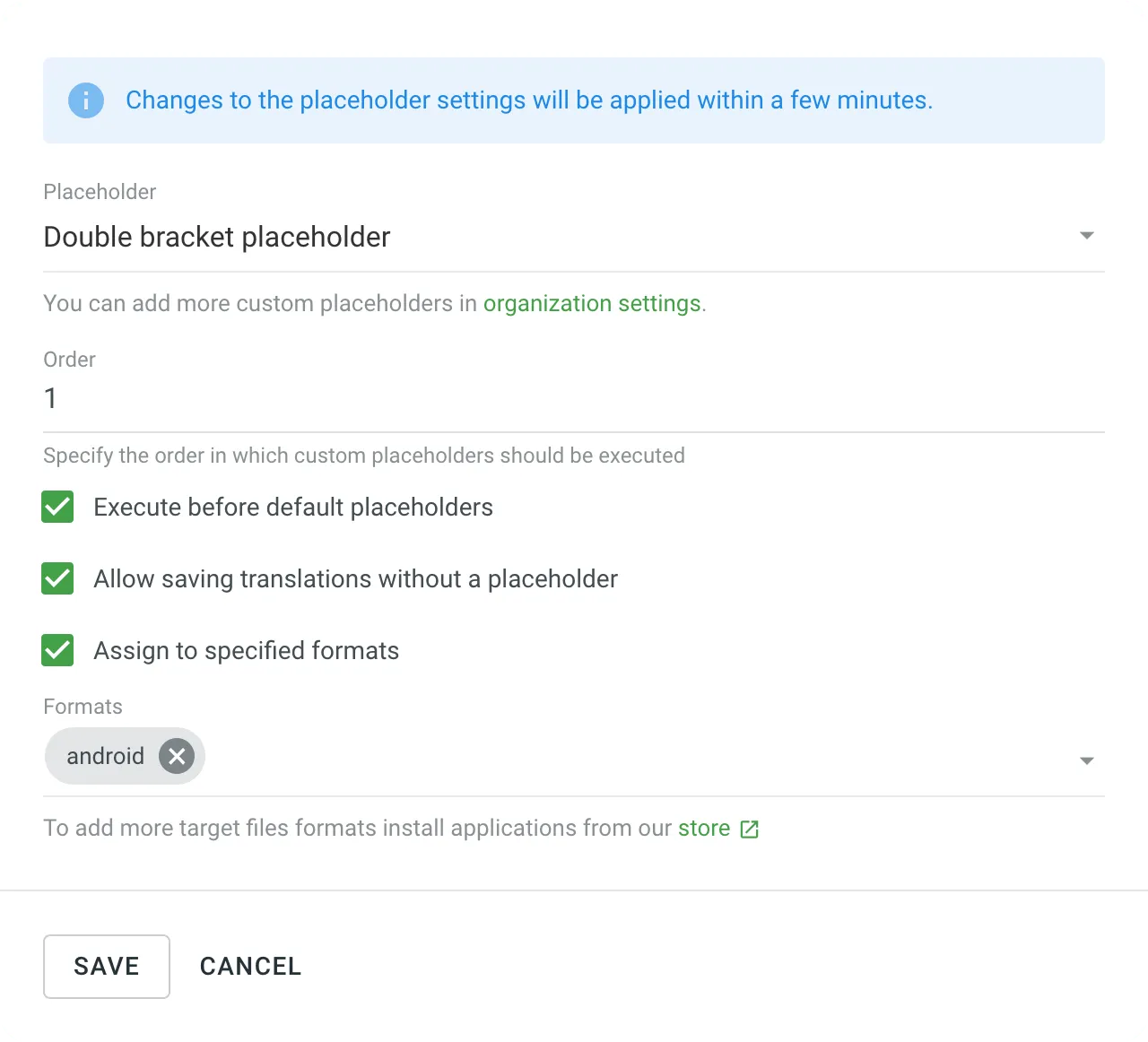
# Label Settings
> Use labels in your project to easily organize your resources
Use labels in your project to easily organize resources (e.g., screenshots, strings, etc.) by specific topics. Once you add labels, you can filter items by those labels. If you already use labels for your source strings, you can use the same labels for screenshots. ## [Managing Project Labels](#managing-project-labels) [Section titled “Managing Project Labels”](#managing-project-labels) To create, edit, or remove project labels, follow these steps: 1. Open your project **Settings** and navigate to the **Labels** section. 2. In the appeared screen, add new labels and edit or remove existing ones.  To edit or remove a label, click (or right-click) on the label you want to edit or remove and select the appropriate action. Use the **Search** field above the label list to quickly find specific labels. Caution Labels are case insensitive (e.g., `Label` and `label` are treated as identical). ## [See Also](#see-also) [Section titled “See Also”](#see-also) [Adding Labels to Strings ](/enterprise/string-management/#labels) [Adding Labels to Screenshots ](/enterprise/screenshots/#labels)
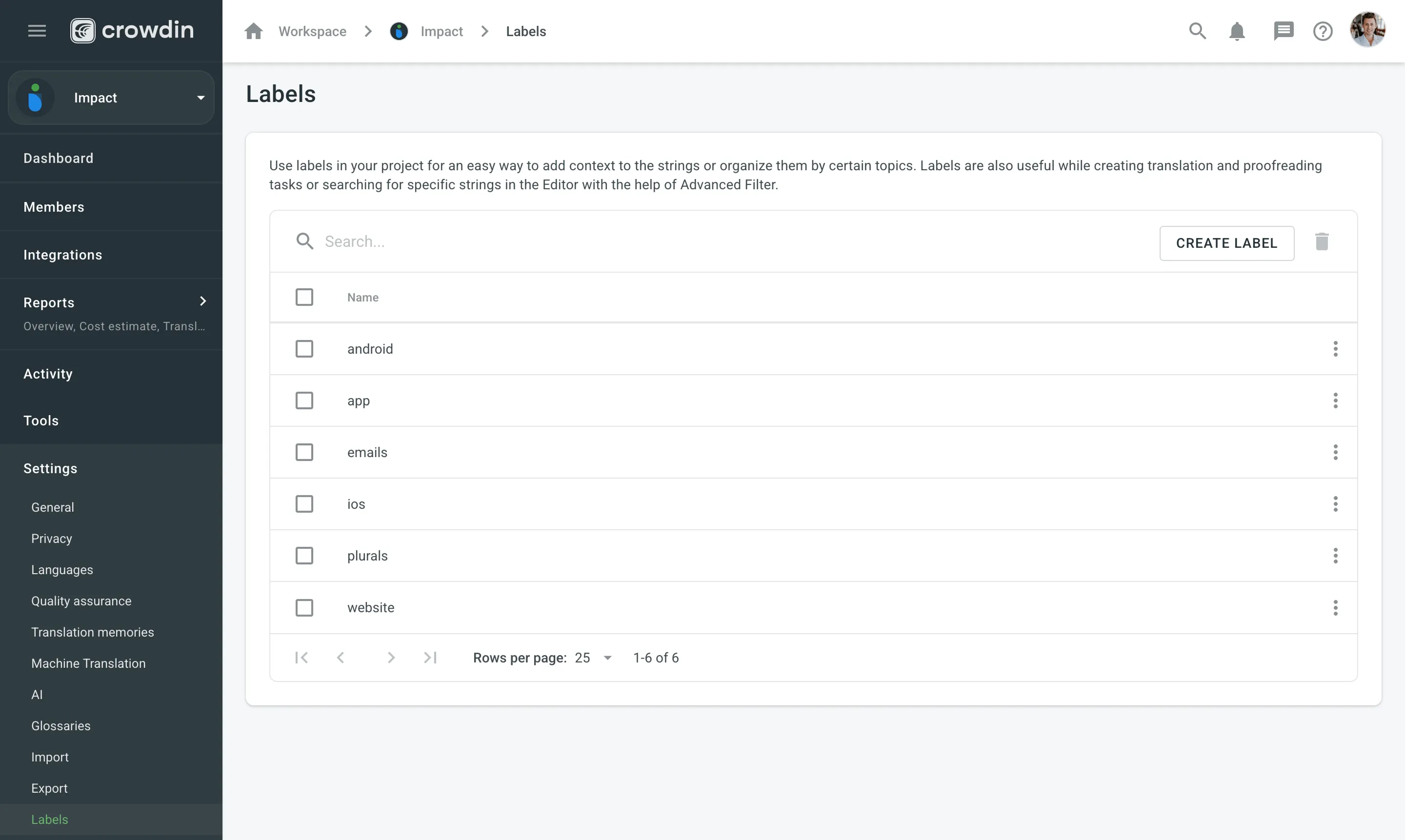
# Language Settings
> Manage your project source and target languages
In the **Languages** section, you can manage your project source and target languages and configure language mapping to use custom language codes. ## [Source Language](#source-language) [Section titled “Source Language”](#source-language) The source language is the language you’re translating from. If you want to change the source language for your project, select a new language from the drop-down list and click **Save**. Here are a few points you should be aware of when changing the project’s source language: * Please note that there might be a plural form mismatch for imported strings depending on the new source language. For example, some plural forms might not be displayed in the Editor, or some plural form translations might be used in other ones on translation export. We recommend updating the source files if the new source language has different plural forms than the initial one. * If you had an opened browser tab with the Editor during the source language update, you might need to refresh it for changes to take effect and continue translating from the new source language. ## [Target Languages](#target-languages) [Section titled “Target Languages”](#target-languages) The **Target Languages** section allows you to add or remove target languages in your project. You can update your target languages anytime. To add or remove target languages in your project, follow these steps: 1. Open your project and go to **Settings > Languages**. 2. In the **Target Languages** section, you can make the following changes: * Select the languages you want to add to the project in the left panel. * Click on the languages you want to remove from the project in the right panel. 3. Click **Update**.  ## [Language Mapping](#language-mapping) [Section titled “Language Mapping”](#language-mapping) Add custom language codes and use them for translation files export. This will keep the structure of exported files consistent. For example, in the screenshot below two custom codes are set for French and German languages. If any of custom placeholders (3 letters codes) is used during [file export](/enterprise/file-management/#file-export) the file name will include these specific language codes (fra, ger).  ## [Adding Custom Languages](#adding-custom-languages) [Section titled “Adding Custom Languages”](#adding-custom-languages) Custom languages are managed at the Organization level. See the [Organization Settings](/enterprise/organization-settings/) section for more information. ## [See Also](#see-also) [Section titled “See Also”](#see-also) [Supported Languages ](/developer/language-codes/)Explore the list of languages supported by Crowdin Enterprise.
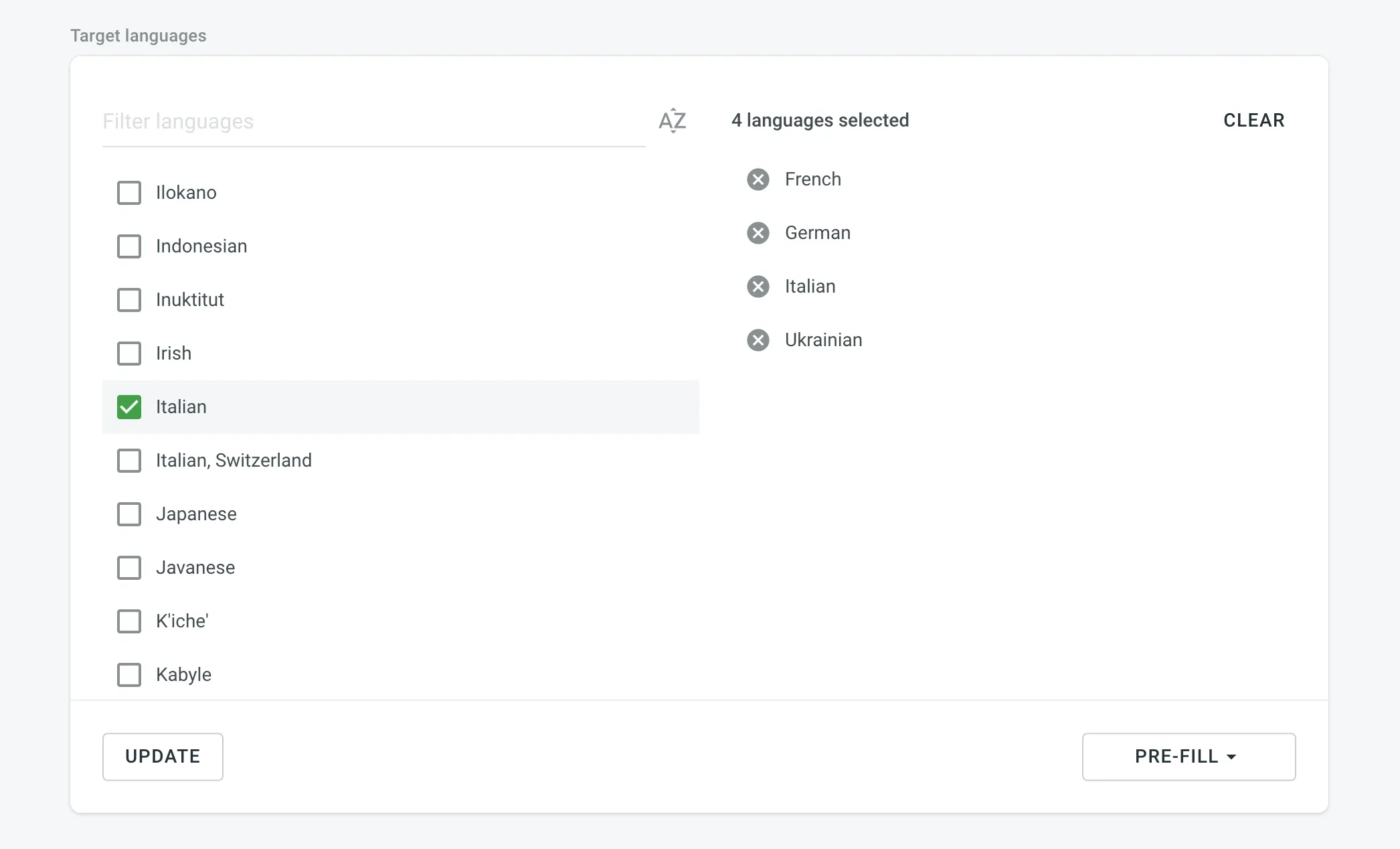
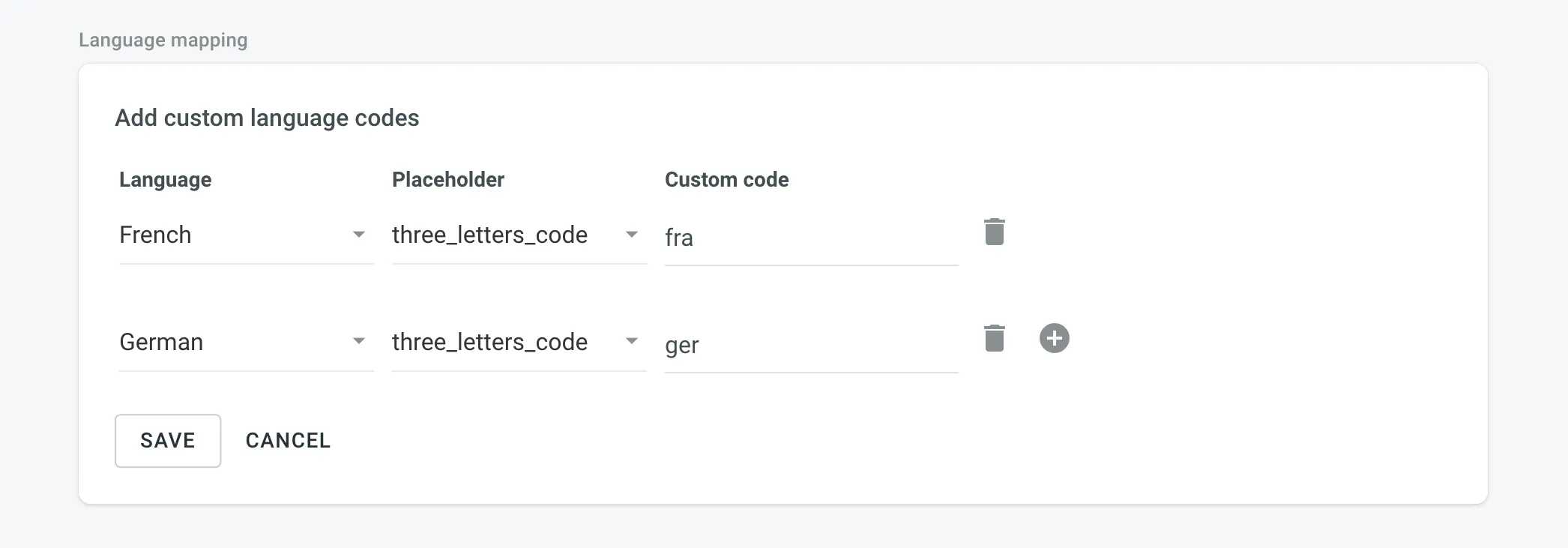
# Machine Translation Settings
> Configure machine translation settings for your project
In the **Machine Translation** section, you can manage the following settings: * **Show machine translation suggestions** – enable MT suggestions from machine translation engines such as Microsoft Translator, Google Translate, and others to be displayed in the Editor. ## [See Also](#see-also) [Section titled “See Also”](#see-also) [MT Engines ](https://store.crowdin.com/categories/machine-translation)Explore the list of supported machine translation engines and learn how to configure them. [Machine Translation ](/enterprise/machine-translation/)Learn how to configure machine translation engines. [Pre-Translation ](/enterprise/pre-translation/)Speed up the translation process and ease the work of translators.
# Parser Configuration Settings
> Configure import and export behavior for supported file formats
By default, Crowdin Enterprise uses a predefined set of import and export parameters for each supported file format. The Parser configuration feature lets you change the default import and export behavior predefined for file formats supported by Crowdin Enterprise. Parser configuration in a specific project is applied only to files stored in this project. You can set the parser configuration for all files of a certain format or single files. Once you save the parser configuration for some file format, you can upload source files to your project, and Crowdin Enterprise will apply your settings accordingly. You can configure import and export behavior for the following formats: Java Properties, Generic XML, DITA, AsciiDoc, Plain text, MadCap Flare, HTML, Office documents, Adobe FrameMaker, Adobe InDesign, Markdown, and MediaWiki.  Caution Some parser settings may be unavailable in [string-based](/enterprise/creating-project/#string-based-project) projects. ## [Parser Configuration Parameters](#parser-configuration-parameters) [Section titled “Parser Configuration Parameters”](#parser-configuration-parameters) Some parameters are common to all formats, while others are format-specific. In the table below, you can see the available parser parameters and formats they could be configured for. | Parameter | Description | Format | | --------------------------------- | -------------------------------------------------------------------------------------------------------------------------------------------------------------------------------------------------------------------------------------------------------------------------------------------------------------------------------------------------------------------------------------------------- | ------------------------------------------------------------------------------------------------------------------------------------ | | Content segmentation | On import, the source file’s content will be split into shorter text segments using predefined segmentation rules (SRX 2.0). | Generic XML, DITA, AsciiDoc, MadCap Flare, HTML, Office documents, Adobe FrameMaker, Adobe InDesign, Markdown | | Custom segmentation rules | Defines your own segmentation rules.Read more about [Custom Segmentation](/custom-segmentation/). | Generic XML, DITA, AsciiDoc, Plain text, MadCap Flare, HTML, Office documents, Adobe FrameMaker, Adobe InDesign, Markdown, MediaWiki | | Excluded elements | Defines a list of CSS style selectors for elements that should not be available for translation (e.g., code, pre > code, .code-block). Applicable only to block elements. Inline elements are ignored. | HTML, HTML with Front Matter | | Excluded front matter elements | Defines a list of front matter elements that should not be available for translation (e.g., keywords, “internal.description”, tags). The path elements should be delimited by a period. The keys containing a period must be enclosed in quotation marks. | HTML with Front Matter, MDX | | Exclude code blocks | Defines whether to import code blocks. Applicable only to code blocks. Inline elements with code are ignored. | MDX | | Translate content | Texts stored inside the tags will be available for translation. | Generic XML | | Translate attributes | Tag attributes will be available for translation. | Generic XML | | Translatable elements | Defines the specific nodes and attributes to be available for translation. | Generic XML | | Escape single quote | Defines the behavior regarding a single quote escaping in exported translations. Available options:- Do not escape single quote - Escape single quote by backslash (`It's okay`⇒`It\'s okay`) - Escape single quote by another single quote (`It's okay`⇒`It''s okay`) - Escape single quote by another single quote only in strings containing variables `{0}` (`{0} it's okay`⇒`{0} it''s okay`) | Java Properties | | Escape special characters | Any special characters (i.e., `=`, `:`, `!`, `#`) will be escaped by a backslash `\` in exported translations. | Java Properties | | Clean tags aggressively | Additional formatting tags related to text spacing will be removed on import. Useful when translating Office documents converted from other formats (e.g., PDF, etc.), and the conversion introduced lots of unnecessary formatting tags. | Office documents | | Translate hyperlink URLs | Hyperlink URLs will be available for translation. | Office documents | | Translate hidden text | The hidden text will be available for translation. | Office documents | | Translate hidden rows and columns | The hidden rows and columns will be available for translation. | Office documents | | Import hidden slides | The hidden slides will be available for translation. | Office documents | | Import notes | The slide notes will be available for translation. | Office documents | ## [Parser Configuration for All Project Files of a Specific Format](#parser-configuration-for-all-project-files-of-a-specific-format) [Section titled “Parser Configuration for All Project Files of a Specific Format”](#parser-configuration-for-all-project-files-of-a-specific-format) To set the preferred parser configuration for all files of a specific format, follow these steps: 1. Open your project and go to **Settings > Parser configuration**. 2. Choose the needed file format and click Edit. 3. Set the preferred settings. 4. Click **Save**. To add a new file format, click **Add Apps** and install the required format. ## [Parser Configuration for a Single File](#parser-configuration-for-a-single-file) [Section titled “Parser Configuration for a Single File”](#parser-configuration-for-a-single-file) In some cases, you might need to set the parser configuration not for all files of some file format but just for a single file. To set the parser configuration for a single file, follow these steps: 1. Open your project and go to **Sources > Files**. 2. Double-click on the needed file. 3. In the appeared dialog, switch to the **Parser configuration** tab. 4. Set the preferred settings. 5. Click **Save**. Once you save the file parser configuration, Crowdin Enterprise will reimport this file and apply your settings. Read more about [file management](/enterprise/file-management/) in Crowdin Enterprise. ## [Post-processing Files with Nested Content](#post-processing-files-with-nested-content) [Section titled “Post-processing Files with Nested Content”](#post-processing-files-with-nested-content) Sometimes, you might work with files that contain strings in a different format. A common example is a JSON file where some string values contain HTML content. The standard parser configuration isn’t designed for these nested or cascading scenarios. To properly process such files, you need to implement a custom Crowdin App that uses the File Post-Import Processing Module. This method, sometimes referred to as cascade processing, allows your app to intercept imported strings and instruct Crowdin Enterprise to re-process specific ones using a different parser. For instance, you can tell Crowdin Enterprise to parse a string from a JSON file as HTML, ensuring that HTML tags are correctly handled and not exposed to translators as plain text. To handle files with nested content, you can install the Cascade Importer from the Crowdin Store or, for more custom scenarios, build your own. [Cascade Importer App ](https://store.crowdin.com/cascade-importer)Automatically detect and re-process strings with nested content. The recommended solution for most projects. [Crowdin Apps Quick Start ](/developer/crowdin-apps-quick-start/)A step-by-step guide for creating custom Crowdin apps. Covers environment setup and initial development. [File Post-Import Processing Module ](/developer/crowdin-apps-module-file-post-import-processing/)Technical documentation on how to build an app that can intercept and modify strings after the initial file import.
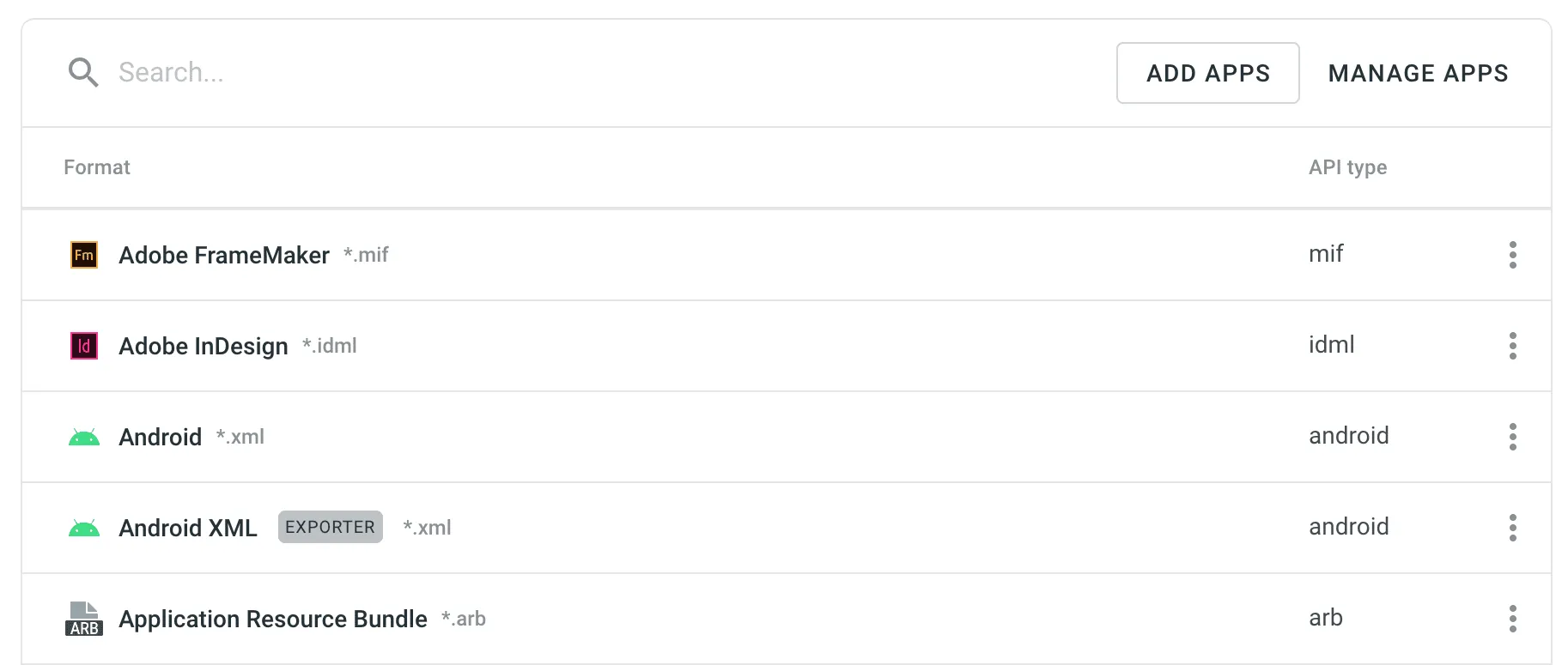
# Privacy Settings
> Configure the content visibility and notifications
In the **Privacy** section of the Project Settings, you can manage the visibility of your project and its contents. You can also configure the notifications sent to project participants. ## [Translations](#translations) [Section titled “Translations”](#translations) * **Allow Offline Translation** – allow translators to download source files to their machines for offline translation and upload translations back into the project. The project owner and managers can always download sources and upload translations, not depending on the option status. * **Allow proofreaders to access hidden strings** – allow proofreaders to work with hidden strings. Members with manager permissions or higher can always work with hidden strings, not depending on the option status. * **Task-based access control** – allow project members to work with tasks they are assigned to, even if they do not have full access to the language in the project. ## [Glossary Access Settings](#glossary-access-settings) [Section titled “Glossary Access Settings”](#glossary-access-settings) Control the level of access that project members have over glossary terms. Members with manager permissions or higher always have full control over glossary terms, regardless of these settings. Configure the preferred glossary access level with the following options: * **Read only** – allow members to view existing glossary terms without the possibility to modify them. This option provides access for reference only. * **Manage drafts** – allow members to view, add, edit, and delete draft glossary terms, and view approved terms. This option allows members to contribute to drafts without altering approved terms. * **Full access** – allow members to view, add, edit, and delete glossary terms, as well as edit concept details. This option provides members with full control over glossary terms and their details. ## [Task Cross-Review New](#task-cross-review) [Section titled “Task Cross-Review ”New](#task-cross-review) Require approval from selected managers or the owner before contributors can start working on a task. This feature adds an additional review step, helping maintain accountability and oversight in task workflows. Read more about [Task Cross-Review](/enterprise/tasks/#task-cross-review). ### [Configuring Task Cross-Review](#configuring-task-cross-review) [Section titled “Configuring Task Cross-Review”](#configuring-task-cross-review) To enable and configure Task Cross-Review, follow these steps: 1. Enable the **Task Cross-Review** option in the **Tasks** section. 2. Select at least one manager responsible for approving tasks. You can search for managers by name, username, or email. 3. Click **Save** to apply the changes. New tasks created after enabling **Task Cross-Review** will require approval, while existing tasks remain unaffected. ## [Notifications](#notifications) [Section titled “Notifications”](#notifications) Project notifications are disabled by default. Enable the necessary notifications for an agile translation process. Such approach helps to avoid creating additional tasks for every contributor. * **Notify translators about new strings** – translators will receive an email notification about newly added content for translation each time after the update. The **Receive emails** option should be activated in the translator’s profile. * **Notify project managers and developers about new strings** – project managers will receive an email notification about newly added content for translation each time after the update. * **Notify project managers and developers about language translation/proofreading completion** – project managers will receive the notification when some target language (all source files) is fully translated or fully proofread.
# Quality Assurance Settings
> Configure QA checks to ensure the quality of translations
The main aim of quality assurance (QA) checks is to help you efficiently handle different language-specific aspects in translations and ensure they are formatted the same way as the source strings and will fit the UI just as well. Some typical QA check issues include missed commas, extra spaces, or typos. With QA checks, issues that should be fixed will be highlighted on the Proofread workflow step. QA checks help to detect some common mistakes easily and quickly. It’s recommended to review and resolve all QA check issues before building your project and downloading translations.  In the **Quality Assurance** section, you can manage the types of QA issues to be highlighted in the Editor during the translation process. ## [Configure QA Checks](#configure-qa-checks) [Section titled “Configure QA Checks”](#configure-qa-checks) By default, QA checks are enabled. To select the needed QA checks in your project, follow these steps: 1. Open your project and go to **Settings > Quality assurance**. 2. Select the QA check types according to your preferences. 3. For each selected QA check type, choose whether it should be possible to save translations with QA issues by selecting one of two options: **Error** and **Warning**. **Warning** – translators are notified about QA issues with suggestions for fixes, but they can still save the translation using the **Save anyway** button. **Error** – translators are notified about QA issues with suggestions for fixes, and they cannot save the translation until all issues are resolved.  Use the **Consider as fixed** option to define how many approvals a translation must have before its QA issues are automatically treated as resolved. When a translation reaches the specified number of approvals, Crowdin Enterprise clears any flagged QA issues for that string. Once enabled, QA checks will work in the background and scan the translations for potential QA issues. [Custom Quality Assurance Checks ](/enterprise/custom-qa-checks/)Learn how to create custom QA checks. ## [Spell Checker Ignore List](#spell-checker-ignore-list) [Section titled “Spell Checker Ignore List”](#spell-checker-ignore-list) If your project contains some uncommon words that are not recognized by the Spell checker, you can add them to the Ignore list to exclude them from being checked. This is useful for project-specific terminology, like brand names or proper nouns (e.g., `MyApp`), which you might expect not to be flagged as errors. Since the Spell checker and Glossary are separate features, adding terms to the Glossary does not automatically add them to the Spellcheck ignore list. Adding them here is the correct way to prevent them from being flagged.  To review the words added to the Ignore list for the Spell checker, follow these steps: 1. Open your project and go to **Settings > Quality assurance**. 2. Click *Ignore list* on the top right side. In the opened window you can see the list of words added to the ignore list. You can filter or remove them from the list if necessary. ## [QA Check Parameters](#qa-check-parameters) [Section titled “QA Check Parameters”](#qa-check-parameters) **Omissions** – strings that lack or have excessive translations. * Source is empty but the translation is not * Translation is empty but the source is not **Translation length limit** – translations that are longer than the limit of characters you set. **Tags** – strings that use HTML might lack some opening or closing tags in translations. * Inconsistent tags in the source and translation * ID attributes consistency * CDATA tag consistency **Spacing** – multiple spaces in a row, missing spaces. * Spaces around special symbols * Start and end newline characters * Start and end spaces * Multiple spaces in succession * Non-breaking spaces **Variables** – placeholders used in a translation match placeholders used in the source string. * Common variables * Python, Java, .NET, C/C++, Ruby on Rails, Twig, PHP, Freemaker variable placeholders * Custom variables (per request) **Punctuation** – punctuation mistakes or differences in the punctuation marks. * Inconsistent punctuation in source and translation * Spacing before and after punctuation marks **Character case** – the lower or upper case that used differently in source and translated strings. * Initial capitalization * Unexpected multiple capitalized characters in succession **Special characters** – new paragraphs, currency signs, and other special characters that used differently in translated strings. * Bracket consistency * Markup language entities * Quotes and quote escapes **Open translation issues by project members** – show reported translation issues on the Proofread workflow step. **Spelling mistakes** – underline misspelled words. Limitations Currently available for specific languages only. **ICU Markup syntax check** – the correct usage of the ICU message syntax in translations. **Consistent terminology** – checks whether the source words are translated accordingly to the respective glossary terms. Limitations Currently available for English, German, Spanish, French, Italian, Dutch, Norwegian, Norwegian Bokmal, Polish, Russian, Swedish, Ukrainian, Japanese, Korean, Chinese Simplified, and Turkish. **Duplicate** – translations that duplicate already existing translations. **FTL Markup syntax check** – the correct usage of the FTL syntax in translations. **Android Markup syntax check** – the correct usage of the Android syntax in translations. **Numbers mismatch** – checks for inconsistencies or missing numbers between the source and translations. **AI-powered check** – uses AI to detect translation issues, improving accuracy and ensuring translations meet project-specific quality standards. Requires configuring an AI prompt with defined evaluation criteria. Read more about [Configuring AI-powered check](/enterprise/crowdin-ai/#setting-up-ai-qa-check). **Outdated translation** – flags translations that may need to be revised after their corresponding source strings have been modified.
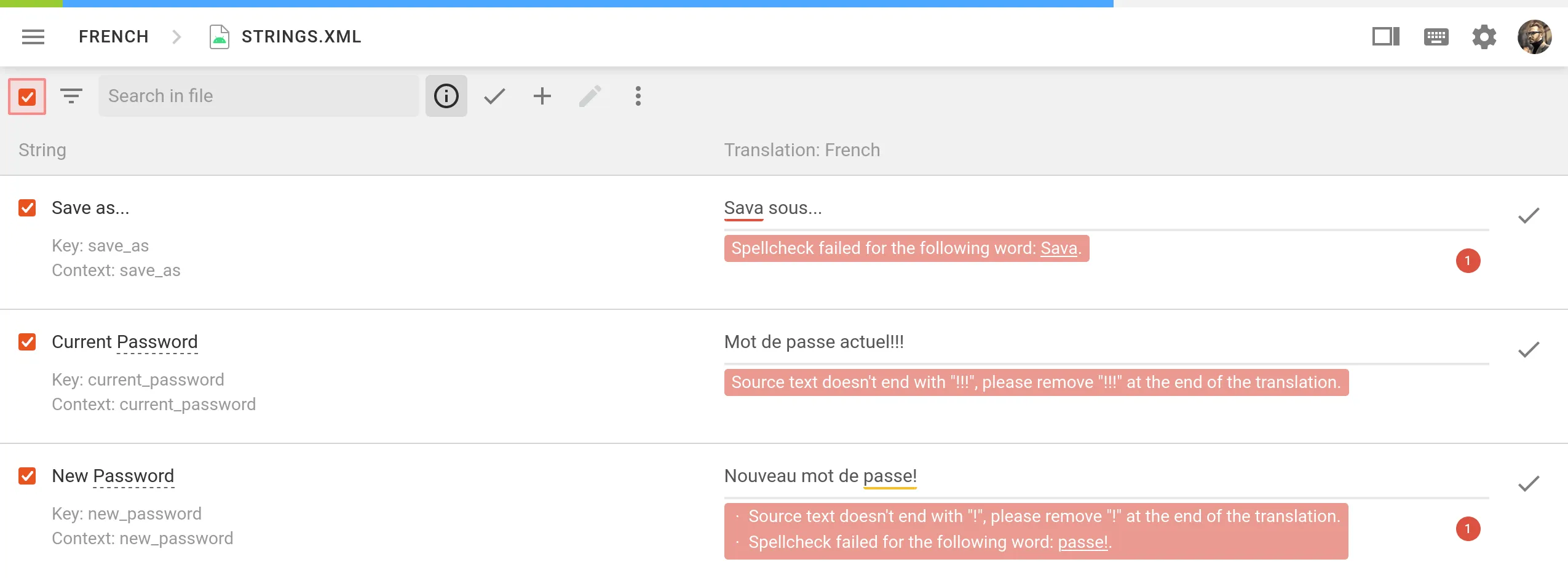
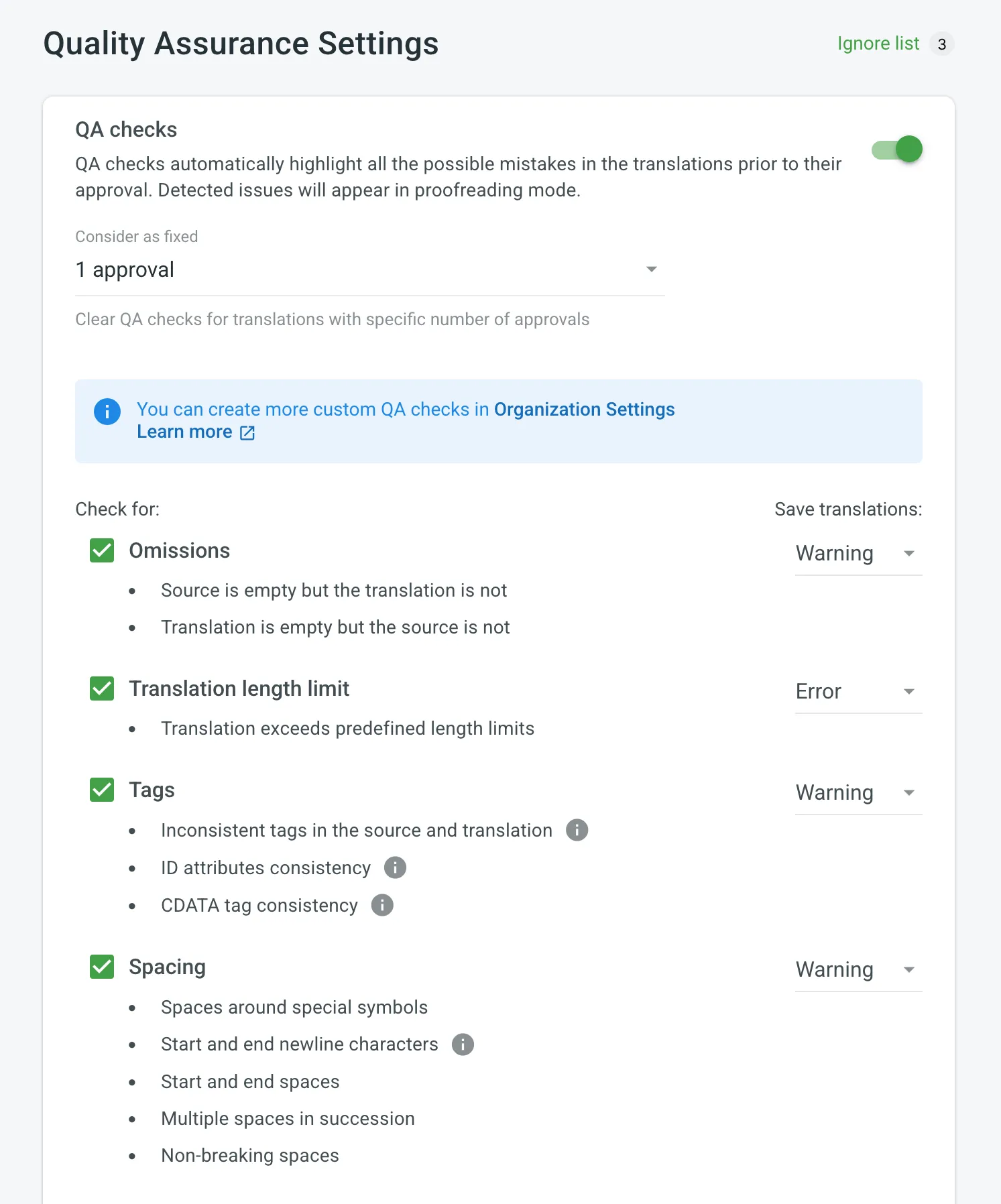
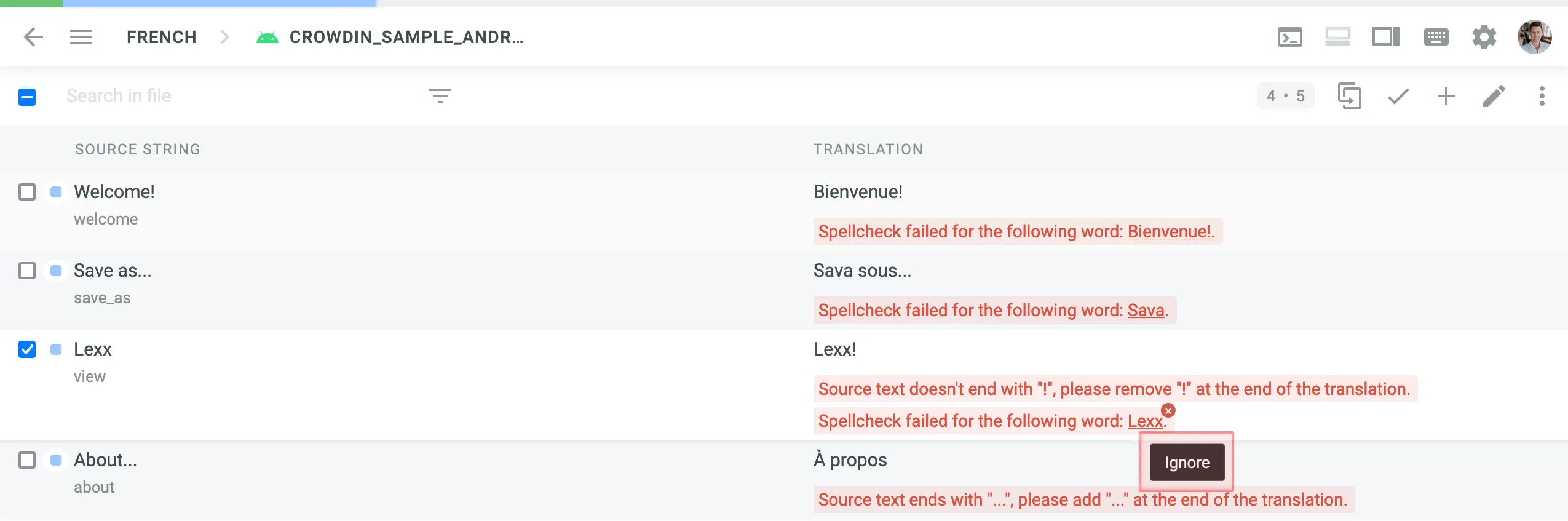
# Translation Memory Settings
> Configure and assign Translation Memories for your project
The project TM is automatically created for each project. By default, every approved or last added translation is saved to the project TM. This behavior can be customized to save only approved translations. * **Auto-substitution** – the feature substitutes the non-translatable elements (such as tags, HTML entities, placeholders, numbers, and more) in TM translation suggestions with the ones used in the source text. The feature improves the TM suggestions applied during pre-translation and those shown as translation suggestions in the Editor. Improved suggestions are included in the Translation Costs report, and improvable ones are included in the Costs Estimation report. * **TM Suggestions for Dialects** – the feature allows you to enable the displaying and use of TM suggestions from the primary language for dialects if no dialect-specific suggestions are available. * **Save only approved suggestion to Translation Memory** – when selected, translations are saved to the project default TM only after they are approved. This option is especially useful for crowdsourced projects where you want to ensure only reviewed translations are stored in the TM. * **TM Match Context Type** – the feature allows you to choose what should be considered as string context when suggesting Perfect (101%) match Translation Memory (TM) suggestions. You can choose between the following options: * Key and Context – when selected, the system considers both the key and context of strings for suggesting Perfect match TM suggestions. This mode is particularly useful for key-value file formats. * Auto – when selected, the system automatically applies the most suitable context consideration mode based on your file format. * Previous and next segment – when selected, the system considers the segments immediately preceding and following the current segment for context. Most applicable to HTML-based and other formats without a defined key-value structure. Read more about [TM Auto-Substitution](/enterprise/translation-memory/#tm-auto-substitution). ## [Penalties](#penalties) [Section titled “Penalties”](#penalties) In the **Penalties** section, you can configure penalties that decrease the match percentage of TM suggestions based on specific conditions. This feature helps when you want to fine-tune the relevance of TM suggestions to your specific requirements.  You can configure the penalties using the following options: * **Auto-substitution Applied** – penalize TM suggestions to which an auto-substitution was applied. * **Multiple Identical TM Matches** – penalize TM suggestions where multiple identical TM matches are found. * **TM Priority Less Than** – penalize TM suggestions that originate from a TM with a priority lower than a specified value. Besides a penalty value, you can also set the preferred TM priority threshold. * **TM Suggestion Last Modified More Than** – penalize TM suggestions that were last modified more than a specified number of months ago. Besides a penalty value, you can also set the threshold in months. * **TM Suggestion Last Used More Than** – penalize TM suggestions that were last used more than a specified number of months ago. Besides a penalty value, you can also set the threshold in months. ## [Assigning TM](#assigning-tm) [Section titled “Assigning TM”](#assigning-tm) To assign a TM to your project, in the **Assigned Translation Memories** section, select the needed TMs from the list.  ## [Prioritizing TM](#prioritizing-tm) [Section titled “Prioritizing TM”](#prioritizing-tm) When you assign a few TMs to the project, you can set the needed priority for each of them. As a result, TM suggestions from the TM with the higher priority will be displayed in the first place. The default TM priority value is set to 1. A higher number has a higher priority (for example, 5 has a higher priority than 1). For example, if you assigned four TMs to your project, you can set the priority of 4 to the most important TM, the one that should be used in the first place. And respectively set lower priorities to other TMs. To set the priority for TMs, in the **Assigned Translation Memories** section, set the preferred priority for assigned TMs from the respective drop-down list.  ## [Changing Default TM](#changing-default-tm) [Section titled “Changing Default TM”](#changing-default-tm) To change your project’s default TM, in the **Assigned Translation Memories** section, click the icon next to the needed TM in the list.
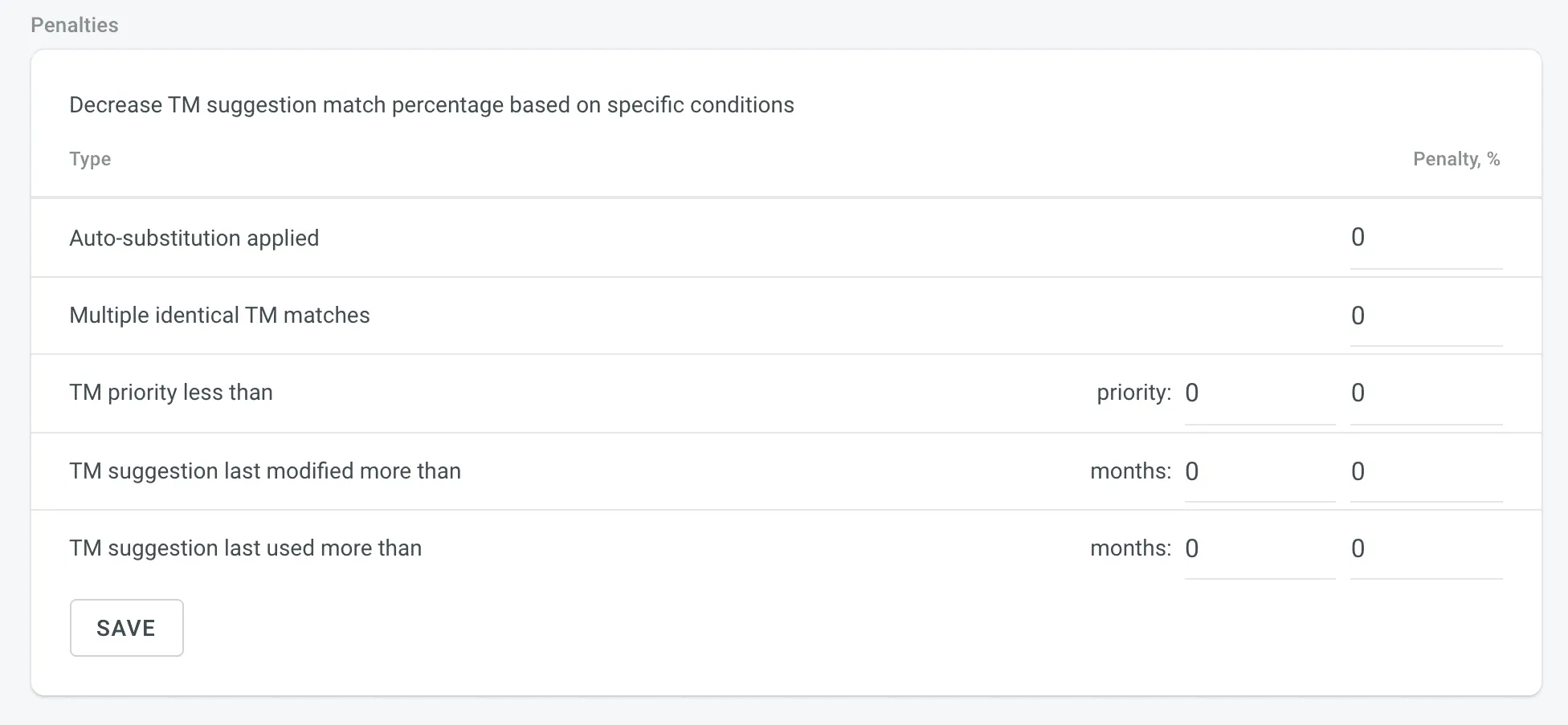
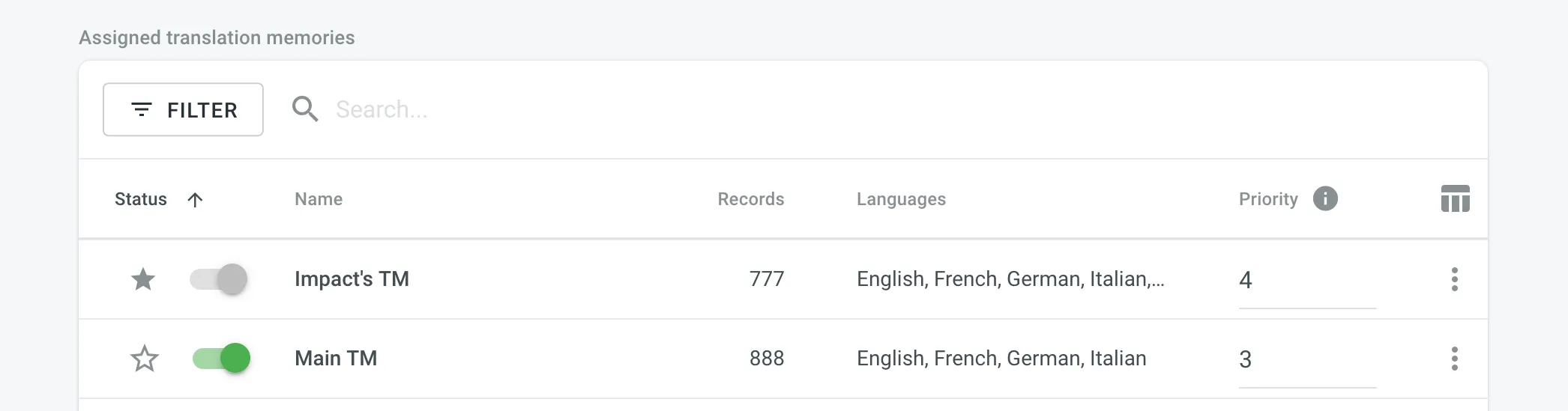
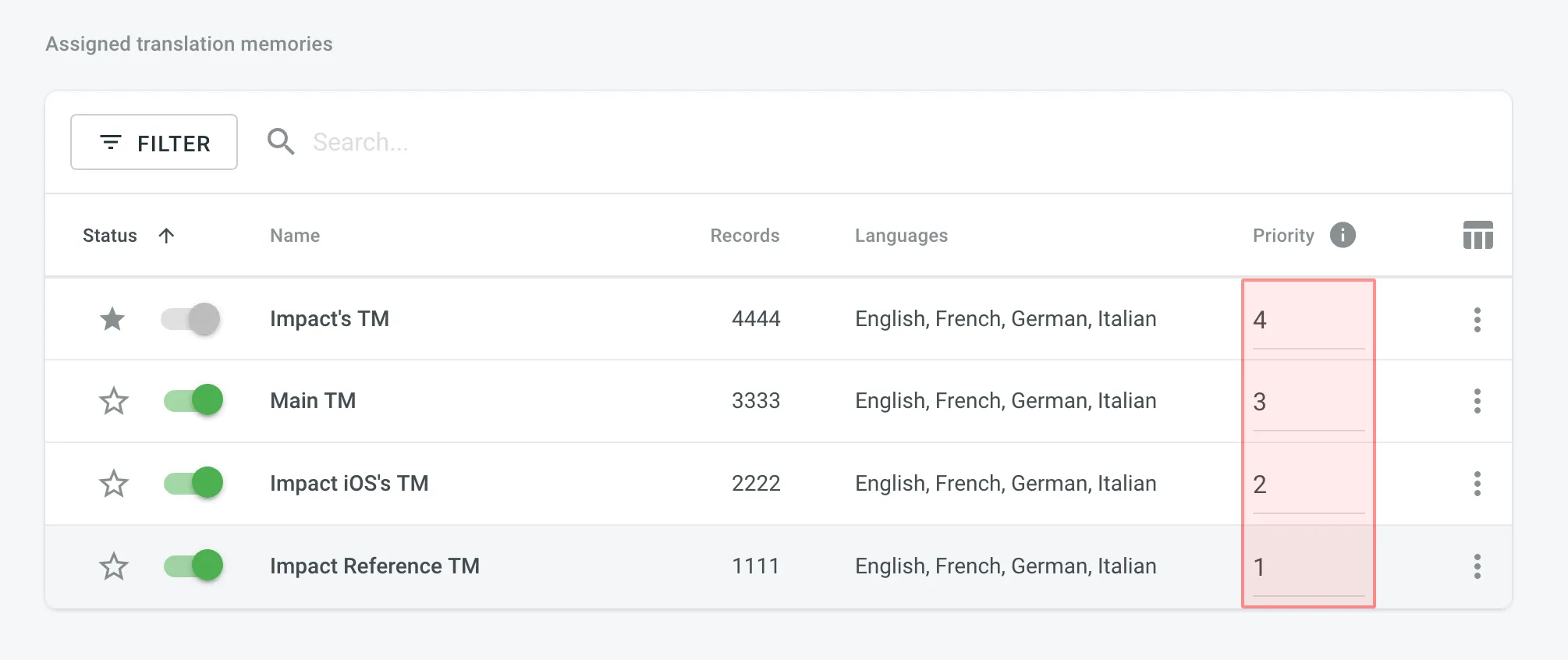
# Roles
> Learn about the roles and permissions that users can have in Crowdin Enterprise
Roles in Crowdin Enterprise define the level of access and control users have within the platform. By assigning roles, you can manage user permissions across the Editor, project settings, and organization settings. Below you can find descriptions of each role and its associated permissions. ## [Owner](#owner) [Section titled “Owner”](#owner) Owner is the user who created the organization and has complete control over it. The owner can invite users to the organization and manage their access, configure organization settings, manage vendors, create projects and groups, work with source and translation files, set up integrations, and more. ## [Admin](#admin) [Section titled “Admin”](#admin) Admin has similar rights to the organization owner, with full access to the organization, including inviting and managing users, configuring organization settings, and creating and managing projects and groups. Admin can’t delete the organization or transfer ownership. **Use case:** Suitable for trusted team members who need full access to manage the organization, its projects, and settings, without the ability to delete the organization. ## [Manager](#manager) [Section titled “Manager”](#manager) Manager has a more focused scope of control that depends on their assignment at various levels. Based on the [Permission granularity](/enterprise/permissions-granularity-mode/#permissions) settings, Managers can be assigned at the organization, group, subgroup, or project levels. They inherit access to all child entities within their assigned parent entity (i.e., organization, group, or subgroup). Managers can’t manage vendors, invite or manage users at the organization level, or configure organization settings. ### [Workspace Manager](#workspace-manager) [Section titled “Workspace Manager”](#workspace-manager) Workspace Manager can create and manage projects across the entire organization (including inviting people to projects and managing resources). They also have access to all groups and subgroups. **Use case:** Suitable for users responsible for maintaining consistency across multiple projects in the organization. If permission granularity is disabled, Workspace Manager can be assigned using the **Workspace manager** toggle in the **User details**. If enabled, the organization’s workspace is treated as a root group, and the role is granted by assigning the user to manage the root group from the **Groups** tab in the **User details**. ### [Group Manager](#group-manager) [Section titled “Group Manager”](#group-manager) Group Manager can create and manage projects within a specific group (including inviting people to projects and managing resources). They also inherit manager access to all subgroups within the assigned group. **Use case:** Suitable for users responsible for managing a group of projects and ensuring consistency within that group. Group managers can be assigned only when permission granularity is enabled. In that case, organization owners and admins can assign users to manage specific groups or subgroups from the **Groups** tab in the **User details**. ### [Project Manager](#project-manager) [Section titled “Project Manager”](#project-manager) Project Managers are responsible for the management of individual projects. Within those projects, they can manage project members, tasks, and resources, etc., but do not have access to settings or resources outside of their assigned projects. **Use case:** Suitable for users who need to focus only on managing specific projects without broader organizational responsibilities. ### [Developer / Translation Requestor](#developer--translation-requestor) [Section titled “Developer / Translation Requestor”](#developer--translation-requestor) Developer / Translation Requestor can upload source files, edit translatable text, connect integrations, and access the API. They don’t have permissions to manage project members, tasks, or reports. **Use case:** Suitable for users handling the technical aspects of localization, such as file management, integration setup, or automation. ### [Language Coordinator](#language-coordinator) [Section titled “Language Coordinator”](#language-coordinator) Language Coordinator can manage certain project features only for their assigned languages. They can translate and approve strings, manage project members and teams, generate project reports, create tasks, and pre-translate content. Language Coordinators cannot access other project settings such as source files, integrations, or project configurations. **Use case:** Suitable for users coordinating translations across specific project languages. ## [Contributor](#contributor) [Section titled “Contributor”](#contributor) Contributor is a general term for both Translators and Proofreaders who primarily work in the Editor. They can view projects, tasks, and workflow steps they are assigned to, access the Editor on corresponding workflow steps, generate personal translation reports, and communicate with other project members. ### [Proofreader](#proofreader) [Section titled “Proofreader”](#proofreader) Proofreader can translate and approve strings within assigned projects. They do not have access to project settings or management functions. **Use case:** Suitable for users focused on finalizing translations and ensuring quality. ### [Translator](#translator) [Section titled “Translator”](#translator) Translator can add translations and vote on suggestions made by others. They do not have the ability to approve translations or access project settings. **Use case:** Suitable for users responsible for providing translations without additional management responsibilities. ## [Vendor](#vendor) [Section titled “Vendor”](#vendor) Vendors are separate organizations that provide professional translation services. After you invite a vendor to your project, their organization receives a copy of the assigned workflow step in the *Incoming Projects* section of their workspace. This setup is commonly used when outsourcing translations to external teams while keeping the workflow and quality control within Crowdin Enterprise.
# SAML single sign-on
> Learn how to set up SAML SSO for your organization
SAML single sign-on (SSO) gives users access to Crowdin Enterprise through an identity provider (IDP) of your choice. The benefits of SAML authentication include: * **Standardization:** SAML is a standard format that allows seamless interoperability between systems, independent of implementation. * **Improved user experience:** Users can access Crowdin Enterprise using your organization’s identity provider without additional authentication, allowing them to use only one set of login details. * **Increased security:** SAML is a security standard for logging into applications, which provides a single point of authentication, keeping user credentials within the firewall boundary. ## [Configure your identity provider](#configure-your-identity-provider) [Section titled “Configure your identity provider”](#configure-your-identity-provider) To get started, you’ll need to set up a connection (or connector) for Crowdin Enterprise with your IDP (for example, [Auth0](https://auth0.com/docs/protocols/saml/saml-idp-generic#2-configure-auth0-as-idp), [Google Workspace (SAML)](https://support.google.com/a/answer/6087519?hl=en), [Okta](https://developer.okta.com/docs/guides/saml-application-setup/overview/), and others). [Configure SAML for Google Workspace ](#google-workspace) [Configure SAML for Microsoft Azure ](#microsoft-azure) [Configure SAML for Okta ](#okta) [Configure SAML for OneLogin ](#onelogin) [Configure SAML for Auth0 ](#auth0) ## [Set up SAML SSO for Crowdin Enterprise](#set-up-saml-sso-for-crowdin-enterprise) [Section titled “Set up SAML SSO for Crowdin Enterprise”](#set-up-saml-sso-for-crowdin-enterprise) Once you configured your identity provider, an Organization admin can enable the SAML SSO feature in Crowdin Enterprise **Organization Settings**. 1. Click on your profile picture in the upper-right corner and select **Organization Settings**. 2. Switch to the **Authentication** section on the left sidebar and click on the **SAML** authentication method at the bottom of the page.  3. Paste your credentials from your IDP and click **Save**.  4. Take the credentials from the **SAML Single Sign-On** page and paste them into the IDP settings.  5. Set the preferred configurations in the [Settings](#saml-settings) and [Advanced options](#saml-advanced-options) sections depending on the configurations on the IDP side and click **Save**.  6. Go back to the **Authentication** page and enable the SAML authentication method. 7. As a result, on the login page, users will be able to use SAML for logging into your Crowdin Enterprise organization. ## [SAML Settings](#saml-settings) [Section titled “SAML Settings”](#saml-settings) The SAML **Settings** section provides you with different options that let you fine-tune your SAML behavior. * **Provider name** – the name of the SAML authentication method that will be displayed on your Crowdin Enterprise login page. * **Update member accounts at each login** – select whether you’d like the configured account attributes to be synced from IDP at each login of the organization member. These attributes are synced from IDP during the account creation. * **Enforce SAML** – select whether organization members with emails on the domains configured in the **Email domains** can use only SAML SSO to log in. * **Restrict members to change their account email** – select whether you’d like to restrict members to change their Crowdin Enterprise emails. * **Email domains** – email domains related to organization members that use SAML SSO to log in. * **Enable SLO** – select whether organization members should be logged out of IDP when logging out of your Crowdin Enterprise organization. ## [SAML Advanced Options](#saml-advanced-options) [Section titled “SAML Advanced Options”](#saml-advanced-options) * **AuthnContextClassRef** – authentication method used in SAML request. By default, it’s authentication via username and password over a protected session. * **Service Provider Issuer** – globally unique name for a Crowdin Enterprise Service Provider. By default, it’s your organization’s SAML metadata URL. * **Sign AuthRequest** – select whether to sign the authorization request to your IDP. The following options allow you to choose how the SAML response from your IDP is signed. Use at least one option. * **Responses signed** - Indicates a requirement for the SAML Responses received by Crowdin Enterprise to be signed. * **Assertions signed** - Indicates a requirement for the SAML Assertions received by Crowdin Enterprise to be signed. * **Sign SLO request** - Indicates a requirement for the Single Logout (SLO) requests sent to your identity provider to be signed. ## [Mapping SAML Attributes](#mapping-saml-attributes) [Section titled “Mapping SAML Attributes”](#mapping-saml-attributes) You can map attributes in the IDP response to user attributes used in Crowdin Enterprise. See the available attributes in the following table. | Parameter | Details | | ----------- | --------------------------------------------------------------------------------- | | `firstName` | **Type:** `string` **Description:** The first name of the user stored on the IDP. | | `lastName` | **Type:** `string` **Description:** The last name of the user stored on the IDP. | | `timeZone` | **Type:** `string` **Description:** The timezone of the user. | | `avatar` | **Type:** `string` **Description:** The absolute URL to user’s profile picture. | ## [What you get when SAML SSO is enabled](#what-you-get-when-saml-sso-is-enabled) [Section titled “What you get when SAML SSO is enabled”](#what-you-get-when-saml-sso-is-enabled) Any users already logged in after you’ve set up and enabled the SAML SSO will remain logged in. Further on, users that chose SAML as their login method will log into your Crowdin Enterprise organization with their IDP account. If there is no account for some user in your organization, an account will be created automatically during the login process into your Crowdin Enterprise organization. ## [Configuring SAML SSO for Google Workspace](#google-workspace) [Section titled “Configuring SAML SSO for Google Workspace”](#google-workspace) To set up Crowdin Enterprise SAML SSO in your Google Workspace, follow the steps below. #### [Set up Crowdin Enterprise SAML app](#setup-google) [Section titled “Set up Crowdin Enterprise SAML app”](#setup-google) 1. Open the Google Admin console using an administrator account. 2. From the Admin console *Home* page, go to **Apps > SAML apps**. 3. Click **Add** at the bottom right. 4. Click **Set up my own custom app**. The *Google IdP Information* window opens and the *SSO URL* and *Entity ID* fields automatically populate. 5. Copy the *SSO URL*, *Entity ID*, and download the certificate. 6. In a separate browser tab or window, log in to your Crowdin Enterprise Organization, open the *Organization Settings* > *Authentication* page, and click on SAML at the bottom of the *Authentication methods* list. 7. Enter the information you copied in Step 5 (paste the *SSO URL* in the *SAML SSO Endpoint* field, *Entity ID* in the *Identity Provider Issuer* field, and drag and drop your certificate file to the *Public Certificate* field), click **Save** and then return to the Google Admin console. 8. Click **Next**. 9. In the *Basic information* window, add an application name (for example *Crowdin Enterprise*) and optionally add a description. 10. *(Optional)* Upload a PNG or GIF file to serve as an icon for your Crowdin Enterprise SSO app. The icon image should be 256 pixels square. You can find the Crowdin icon on the [Using the Crowdin Logo](/using-logo/) page. 11. Click **Next**. 12. In the *Service Provider Details* window, you need to enter an *ACS URL*, *Entity ID*, leave the *Start URL* empty, leave the *Signed Response* box cleared, and set the *Name ID Format* to *PERSISTENT*. 13. Switch to your Crowdin Enterprise *Organization Settings* > *Authentication* > SAML where all the values for Step 12 could be found. 14. Copy and paste the *SAML SSO Endpoint* in the *ACS URL* field, *Service Provider Issuer* in the *Entity ID* field in your Google Admin console, clear the *Responses signed* option, and click **Save**. 15. Select SAML in the *Authentication methods* list so that your users could use it as the desired authentication method to log in to your Crowdin Enterprise organization from the login page. 16. Switch to your Google Admin console and click **Next**. 17. Click **Finish** on the *Attribute Mapping* page. 18. In the *Setting up SSO for Crowdin Enterprise* window, click **OK**. #### [Enable Crowdin Enterprise SAML app](#enable-google) [Section titled “Enable Crowdin Enterprise SAML app”](#enable-google) 1. From the Admin console *Home* page, go to **Apps > SAML apps**. 2. Select your new Crowdin Enterprise SAML app. 3. At the top right of the gray box, click **Edit Service** . 4. To turn service on or off for everyone in your organization, click **On for everyone** or **Off for everyone**, and then click **Save**. 5. To turn service on or off only for users in an organizational unit: * On the left, select the organizational unit. * Select **On** or **Off** and then click **Save**. Read more about the [organizational structure of Google Workspace](https://support.google.com/a/answer/4352075). 6. To turn service on for a set of users across or within organizational units, select an access group. For details, go to [turn on a service for a group](https://support.google.com/a/answer/9050643). 7. Ensure that the email addresses your users use to log in to the SAML app match the email addresses they use to log in to your Google domain. #### [Test SSO](#test-sso-google) [Section titled “Test SSO”](#test-sso-google) 1. Open the single sign-on URL for your new Crowdin Enterprise SAML app by clicking on the Crowdin Enterprise in the Google apps menu. Crowdin Enterprise could be found in the app list along with Google Drive, Gmail, and others. You should be automatically redirected to the Google login page. 2. Enter your login credentials. After your login credentials are authenticated, you’re automatically redirected to Crowdin Enterprise. ## [Configuring SAML SSO for Microsoft Azure](#microsoft-azure) [Section titled “Configuring SAML SSO for Microsoft Azure”](#microsoft-azure) To set up Crowdin Enterprise SAML SSO in your Microsoft Azure, follow the steps below. #### [Add Confluence SAML SSO by Microsoft from the Gallery](#add-confluence-saml-sso-by-microsoft-from-the-gallery) [Section titled “Add Confluence SAML SSO by Microsoft from the Gallery”](#add-confluence-saml-sso-by-microsoft-from-the-gallery) 1. Open the [Azure portal](https://portal.azure.com/) using an administrator account. 2. On the left navigation panel, select the *Microsoft Entra ID* service. 3. Click on the *Manage* section and select *Enterprise applications* from the list. You’ll be redirected to *Enterprise applications > All applications*. 4. To add a new application, click New application. 5. In the *Search application* field, type **Confluence SAML SSO by Microsoft**. 6. Select **Confluence SAML SSO by Microsoft** from the results panel and then click **Create**. Wait a few seconds while the app is being added. #### [Configure Microsoft Entra ID SSO](#configure-microsoft-entra-id-sso) [Section titled “Configure Microsoft Entra ID SSO”](#configure-microsoft-entra-id-sso) ##### [Configurations on the Azure Portal](#configurations-on-the-azure-portal) [Section titled “Configurations on the Azure Portal”](#configurations-on-the-azure-portal) Follow these steps to set up Microsoft Entra ID SSO in the Azure portal: 1. As soon as the application is added, you’ll be redirected to its *Overview* page. On the **Confluence SAML SSO by Microsoft** application *Overview* page, find the *Manage* section and select *Single sign-on*. 2. On the *Select a single sign-on method* page, select **SAML**. 3. You are now on the *Set up single sign-on with SAML* page. The following configurations will be happening in the different sections of this page. ###### [Basic SAML Configuration](#basic-saml-configuration) [Section titled “Basic SAML Configuration”](#basic-saml-configuration) 1. Click on the *Basic SAML Configuration* section. 2. Enter your Crowdin Enterprise service provider details here and click **Save**. * *Identifier (Entity ID)*: `https://accounts.crowdin.com/saml2/{your-organization-name}/metadata` * *Reply URL (Assertion Consumer Service URL)*: `https://accounts.crowdin.com/saml2/{your-organization-name}/acs` * *Sign on URL*: `https://accounts.crowdin.com/saml2/{your-organization-name}/login` ###### [Attributes & Claims](#attributes--claims) [Section titled “Attributes & Claims”](#attributes--claims) 1. Click on the *Attributes & Claims* section. 2. Click on the claim in the *Required claim* section. 3. On the *Manage claim* page, select **Persistent** for the *Name identifier format* and select **user.mail** for the *Source attribute*, click **Save**. ###### [SAML Certificates](#saml-certificates) [Section titled “SAML Certificates”](#saml-certificates) 1. Click on the *SAML Certificates* section. 2. Select **Sign SAML response and assertion** for the *Signing Option* and click **Save**. 3. Click **Download** toward the *Certificate (Base64)* from the *SAML Certificates* section. ###### [Set up Confluence SAML SSO by Microsoft](#set-up-confluence-saml-sso-by-microsoft) [Section titled “Set up Confluence SAML SSO by Microsoft”](#set-up-confluence-saml-sso-by-microsoft) 1. Go to the *Set up Confluence SAML SSO by Microsoft* section. 2. Copy the *Login URL*, *Microsoft Entra Identifier*, *Logout URL*. ##### [Configurations in Crowdin Enterprise](#configurations-in-crowdin-enterprise) [Section titled “Configurations in Crowdin Enterprise”](#configurations-in-crowdin-enterprise) 1. In a separate browser tab or window, log in to your Crowdin Enterprise Organization, open the *Organization Settings* > *Authentication* page, and click on SAML at the bottom of the *Authentication methods* list. 2. Enter the information you copied in the Azure portal and click **Save**. * Paste the *Login URL* in the *SAML SSO Endpoint* field. * Paste *Microsoft Entra Identifier* in the *Identity Provider Issuer* field. * Paste *Logout URL* in the *SAML SLO Endpoint* field. * Drag and drop your certificate file to the *Public Certificate* field. 3. You’ll be redirected back to the *Organization Settings* > *Authentication* page. Select the checkbox next to the SAML in the bottom of the *Authentication methods* list so that your users could use it as the desired authentication method to log in to your Crowdin Enterprise organization from the login page. ##### [Authentication Method Settings](#authentication-method-settings) [Section titled “Authentication Method Settings”](#authentication-method-settings) Depending on the authentication method you use in the Azure portal, in some cases, it might be necessary to change the default value for the `AuthnContextClassRef` parameter on the *SAML Single Sign-On* page in Crowdin Enterprise. To allow all possible authentication methods, change `AuthnContextClassRef` parameter to the `unspecified` value. #### [Assign Users](#assign-users-azure) [Section titled “Assign Users”](#assign-users-azure) In this section, you’ll enable users to use Azure single sign-on by granting access to your Crowdin Enterprise Organization. 1. In the Azure portal, select Enterprise Applications, and then select All applications. 2. In the applications list, select **Confluence SAML SSO by Microsoft**. 3. In the app’s overview page, find the *Manage* section, and select *Users and groups*. 4. Click **Add user/group**, then on the *Add Assignment* pane, click *None Selected* under *Users and groups*. 5. In the *Users and groups* dialog, select your own account from the *Users* list to be able to test the SAML SSO, then click the **Select** button at the bottom of the screen, then click **Assign**. In the same way, you’ll be able to assign more users anytime. #### [Test SSO](#test-sso-azure) [Section titled “Test SSO”](#test-sso-azure) 1. On the **Confluence SAML SSO by Microsoft** application *Overview* page, find the *Manage* section and select *Single sign-on*. 2. Scroll down to the *Test single sign-on with Confluence SAML SSO by Microsoft* section and click **Test**. 3. On the right-side pane, click **Sign in as current user**. After your login credentials are authenticated, you’re automatically redirected to Crowdin Enterprise. ## [Configuring SAML SSO for Okta](#okta) [Section titled “Configuring SAML SSO for Okta”](#okta) To set up Crowdin Enterprise SAML SSO in your Okta, follow the steps below. #### [Set up Crowdin Enterprise SAML App](#setup-okta) [Section titled “Set up Crowdin Enterprise SAML App”](#setup-okta) 1. Open the Okta Dashboard using an administrator account. 2. From the Dashboard page, go to **Applications**. 3. Click **Add Application**. 4. Click **Create New App**. 5. In the *Create a New Application Integration* dialog, set *Platform* to *Web* and *Sign on method* to *SAML 2.0*, click **Create**. 6. On the *Create SAML Integration* page, add an application name (for example *Crowdin Enterprise*) on the *General Settings* step. 7. *(Optional)* Upload a PNG, JPG, or GIF file to serve as a logo for your Crowdin Enterprise SSO app. The image should have dimensions less than 1400x400px and be less than 100k in size. You can find the Crowdin icon on the [Using the Crowdin Logo](/using-logo/) page. 8. Keep the *App visibility* options cleared, click **Next**. 9. On the *Configure SAML* step > *SAML Settings* section, you need to enter *Single sign on URL*, *Audience URI (SP Entity ID)*, leave the *Default RelayState* empty, set the *Name ID Format* to *Persistent*, *Application username* to *Email*, click **Next**.*Single sign on URL*: `https://accounts.crowdin.com/saml2/{your-organization-name}/acs`\ *Audience URI (SP Entity ID)*: `https://accounts.crowdin.com/saml2/{your-organization-name}/metadata` 10. On the *Feedback* step, select the **I’m an Okta customer adding an internal app** option, click **Finish**. 11. After you finished setting up the app on the Okta’s side, you’ll be redirected to the app’s *Sign On* tab. In the *Settings* section, click **View SAML setup instructions**. 12. In the new browser tab, you’ll see the credentials that need to be specified in your Crowdin Enterprise *Organization Settings* > *Authentication* page > SAML. 13. Copy the *Identity Provider Single Sign-On URL*, *Identity Provider Issuer*, and download the certificate. 14. In a separate browser tab or window, log in to your Crowdin Enterprise Organization, open the *Organization Settings* > *Authentication* page, and click on SAML at the bottom of the *Authentication methods* list. 15. Enter the information you copied in Step 13 (paste the *Identity Provider Single Sign-On URL* in the *SAML SSO Endpoint* field, *Identity Provider Issuer* in the *Identity Provider Issuer* field, and drag and drop your certificate file to the *Public Certificate* field), click **Save**. 16. Select the checkbox next to SAML in the *Authentication methods* list so that your users could use it as the desired authentication method to log in to your Crowdin Enterprise organization from the login page. #### [Assign Users](#assign-users-okta) [Section titled “Assign Users”](#assign-users-okta) In this section, you’ll enable users to use Okta single sign-on by granting access to your Crowdin Enterprise Organization. 1. Open your Okta Dashboard using an administrator account and go to **Applications**. 2. Click on your new Crowdin Enterprise SAML app. 3. Switch to the *Assignments* tab, click **Assign**, and select **Assign to Groups**. 4. In the *Assign Crowdin Enterprise to Groups* dialog, click **Assign** on **Everyone** to enable Crowdin Enterprise SAML app to all users in your organization, click **Done**. Alternatively, you can assign separate groups or individual users. #### [Test SSO](#test-sso-okta) [Section titled “Test SSO”](#test-sso-okta) 1. On the Crowdin Enterprise [login page](https://accounts.crowdin.com/), select your organization and click **Log in**. 2. Click on **SAML**. You should be automatically redirected to the Okta login page. 3. Enter your login credentials. After your login credentials are authenticated, you’re automatically redirected to Crowdin Enterprise. ## [Configuring SAML SSO for OneLogin](#onelogin) [Section titled “Configuring SAML SSO for OneLogin”](#onelogin) To set up Crowdin Enterprise SAML SSO in your OneLogin, follow the steps below. #### [Add OneLogin SAML Test (IdP) from the App Catalog](#add-onelogin-saml-test-idp-from-the-app-catalog) [Section titled “Add OneLogin SAML Test (IdP) from the App Catalog”](#add-onelogin-saml-test-idp-from-the-app-catalog) 1. Open the OneLogin Admin Console using an administrator account. 2. From the Admin Console page, go to *Applications*. 3. To add a new application, click **Add App**. 4. On the *Find Applications* page, type **OneLogin SAML Test (IdP)** in the search box. 5. Select **OneLogin SAML Test (IdP)** from the search results list. Wait a few seconds while the app is being added. 6. Update or rename the *Display Name* (for example to *Crowdin Enterprise*). 7. (Optional) Replace default app icons with a PNG or SVG file for your Crowdin Enterprise SSO app. You can find the Crowdin icon on the [Using the Crowdin Logo](/using-logo/) page, click **Save**. 8. You are now in the *Info* tab. Click the *Configuration* tab. Enter your Crowdin Enterprise service provider details here and click **Save** to proceed.*SAML Consumer URL*: `https://accounts.crowdin.com/saml2/{your-organization-name}/acs`\ *SAML Audience*: `https://accounts.crowdin.com/saml2/{your-organization-name}/metadata`\ *SAML Recipient*: `https://accounts.crowdin.com/saml2/{your-organization-name}/acs`\ *SAML Single Logout URL*: `https://accounts.crowdin.com/saml2/{your-organization-name}/slo`\ *ACS URL Validator*: `^https:\/\/accounts\.crowdin\.com\/saml2\/{your-organization-name}\/acs$` 9. Navigate to the *SSO* tab in OneLogin and copy the *Issuer URL*, *SAML 2.0 Endpoint (HTTP)*, and X.509 Certificate. To copy the X.509 certificate, click **View Details**. 10. In a separate browser tab or window, log in to your Crowdin Enterprise Organization, open the *Organization Settings* > *Authentication* page, at the bottom of the *Authentication methods* list click on SAML. 11. Enter the information you copied in Step 8 (paste the *Issuer URL* in the *Identity Provider Issuer* field, *SAML 2.0 Endpoint (HTTP)* in the *SAML SSO Endpoint* field, and X.509 certificate to the *Public Certificate* field), click **Save**. 12. Select the checkbox next to SAML in the *Authentication methods* list so that your users could use it as the desired authentication method to log in to your Crowdin Enterprise organization from the login page. #### [Assign Users](#assign-users-onelogin) [Section titled “Assign Users”](#assign-users-onelogin) In this section, you’ll grant users access to your new Crowdin Enterprise SAML SSO app. 1. Open the OneLogin Admin Console using an administrator account. 2. From the Admin Console page, go to *Applications*. 3. Click on your new Crowdin Enterprise SAML SSO app. 4. Navigate to the *Access* tab and specify the roles that should have access to this app. If you don’t have the necessary role you can add a new role via *Users* > *Roles* specifying access to the needed apps. You can assign users to a new role via *Users* page. #### [Test SSO](#test-sso-onelogin) [Section titled “Test SSO”](#test-sso-onelogin) 1. On the Crowdin Enterprise [login page](https://accounts.crowdin.com/), select your organization and click **Log in**. 2. Click on **SAML**. You should be automatically redirected to the OneLogin login page. 3. Enter your login credentials. After your login credentials are authenticated, you’re automatically redirected to Crowdin Enterprise. ## [Configuring SAML SSO for Auth0](#auth0) [Section titled “Configuring SAML SSO for Auth0”](#auth0) To set up Crowdin Enterprise SAML SSO in your Auth0, follow the steps below. #### [Set up Crowdin Enterprise SAML App](#setup-auth0) [Section titled “Set up Crowdin Enterprise SAML App”](#setup-auth0) 1. Open the Auth0 Management Dashboard using an administrator account. 2. From the *Dashboard*, go to *Applications*. 3. Click **+ CREATE APPLICATION** on the right. 4. In the **Name** field, specify an application name (for example *Crowdin Enterprise*), select the **Regular Web Applications** application type, click **CREATE**. 5. Go back to *Dashboard* > *Applications*. 6. Find the row for the application you just created, and click on the Settings icon to the right of the application name. 7. *(Optional)* Specify the URL for your Crowdin Enterprise SSO app logo in the **Application Logo** field. You can find the Crowdin icon on the [Using the Crowdin Logo](/using-logo/) page. 8. Switch to the **Addons** tab. 9. Click on **SAML2 WEB APP**. 10. In the appeared dialog, specify the **Application Callback URL**.*Application Callback URL*: `https://accounts.crowdin.com/saml2/{your-organization-name}/acs` 11. In the **Settings** paste the following snippet ```json { "nameIdentifierProbes": [ "http://schemas.xmlsoap.org/ws/2005/05/identity/claims/emailaddress" ] } ``` This way the **NameID** would be set to the user email address. 12. Scroll down and click **ENABLE**. 13. Scroll up and switch to the **Usage** tab. 14. In the **Usage** tab, you’ll see the credentials that need to be specified in your Crowdin Enterprise *Organization Settings* > *Authentication* page > SAML. 15. Copy the *Issuer*, *Identity Provider Login URL*, and download the certificate. 16. In a separate browser tab or window, log in to your Crowdin Enterprise Organization, open the *Organization Settings* > *Authentication* page, and click on SAML at the bottom of the *Authentication methods* list. 17. Enter the information you copied in Step 14 (paste the *Issuer* in the *Identity Provider Issuer* field, *Identity Provider Login URL* in the *SAML SSO Endpoint* field, and drag and drop your certificate file to the *Public Certificate* field), click **Save**. 18. Select the checkbox next to SAML in the *Authentication methods* list so that your users could use it as the desired authentication method to log in to your Crowdin Enterprise organization from the login page. #### [Manage Access to Crowdin Enterprise SAML App](#manage-access-to-crowdin-enterprise-saml-app) [Section titled “Manage Access to Crowdin Enterprise SAML App”](#manage-access-to-crowdin-enterprise-saml-app) By default, all users associated with a single Auth0 tenant are shared between the tenant’s applications (and therefore have access to the applications). If necessary you can restrict some users’ access to the application using [rules](https://auth0.com/docs/rules). See [this rule as an example](https://github.com/auth0/rules/blob/aeaf93bc058408e260192d0941a688963449d6be/src/rules/simple-user-whitelist-for-app.js). #### [Test SSO](#test-sso-auth0) [Section titled “Test SSO”](#test-sso-auth0) 1. On the Crowdin Enterprise [login page](https://accounts.crowdin.com/), select your organization and click **Log in**. 2. Click on **SAML**. You should be automatically redirected to the Auth0 login page. 3. Enter your login credentials. After your login credentials are authenticated, you’re automatically redirected to Crowdin Enterprise.
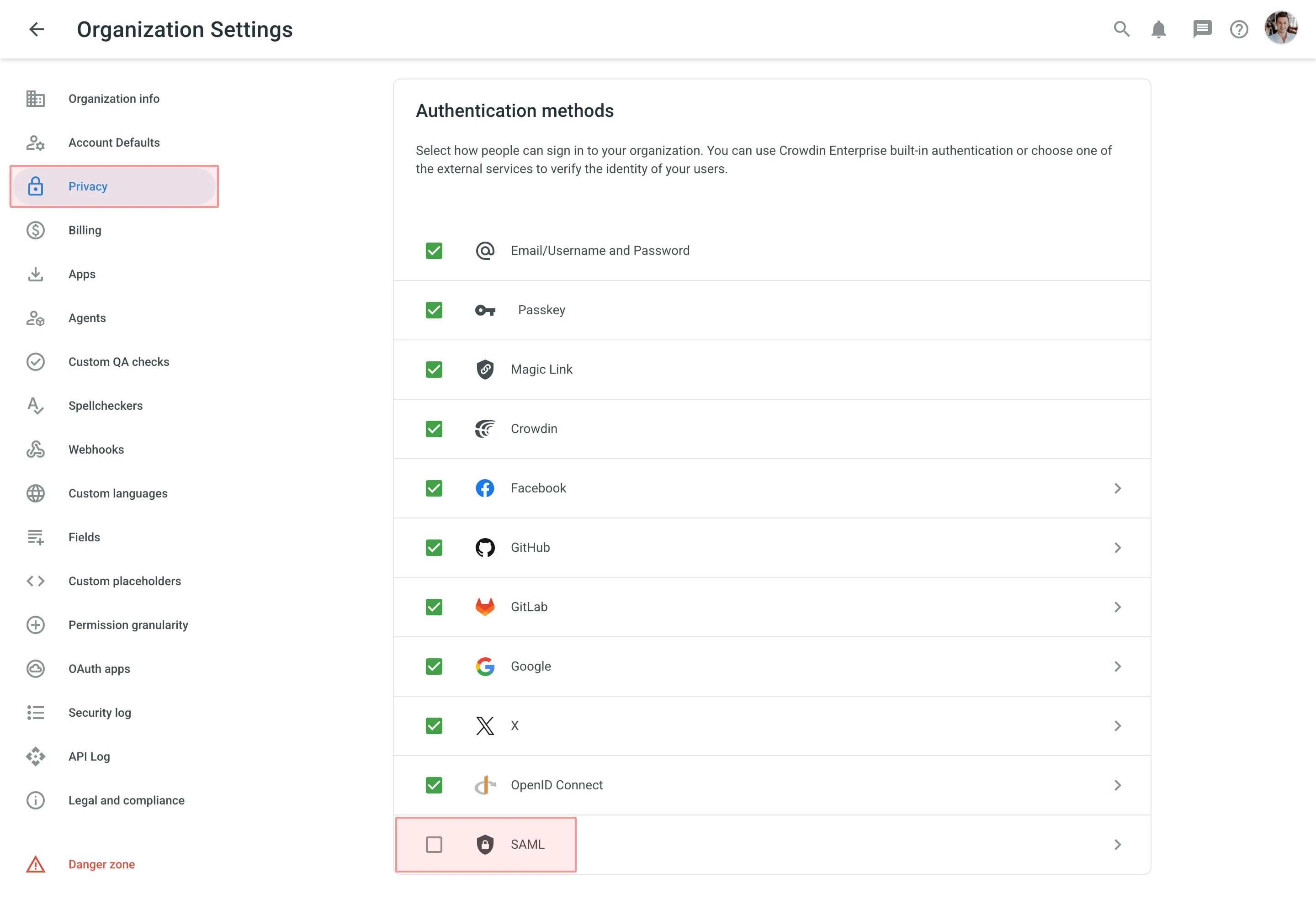
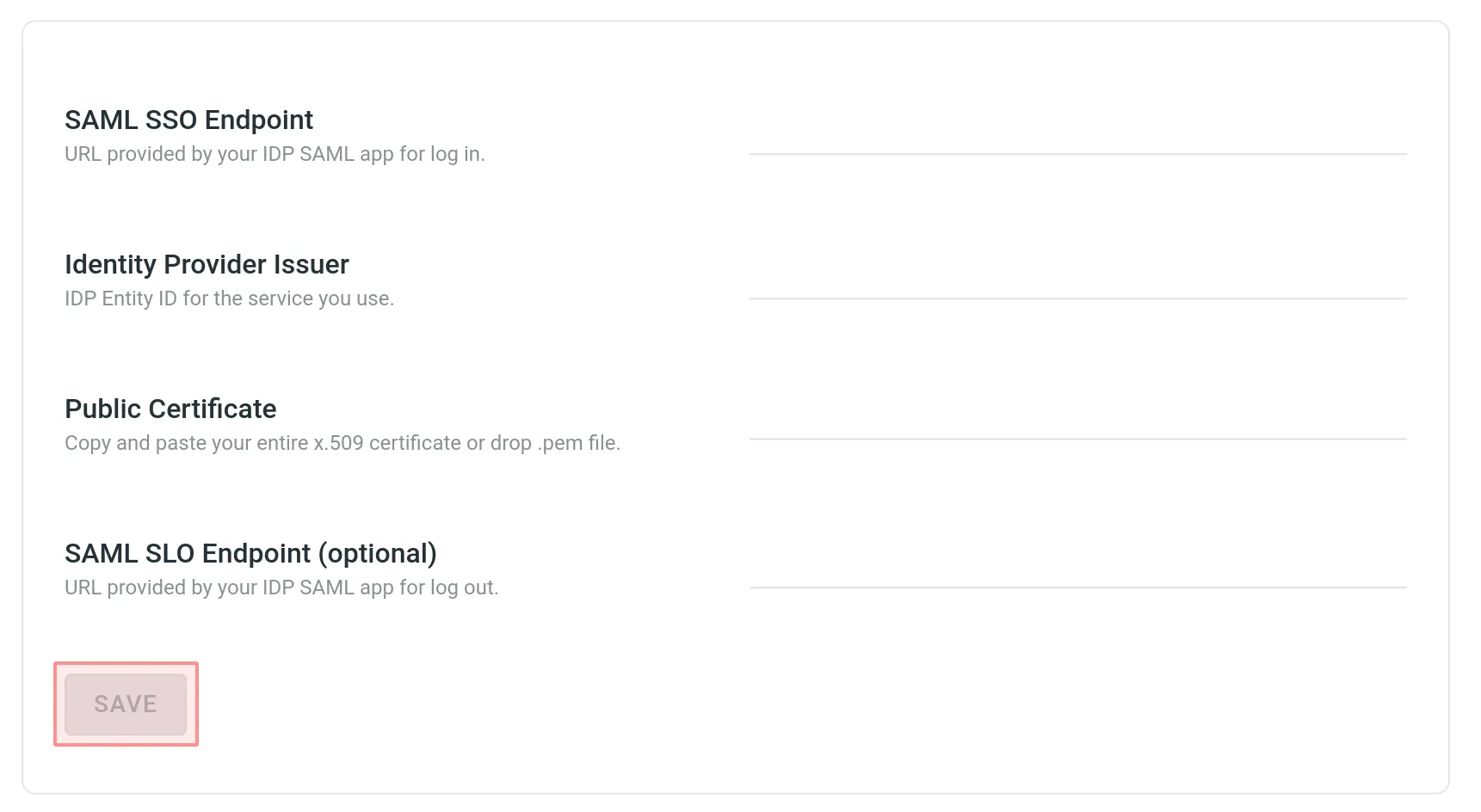
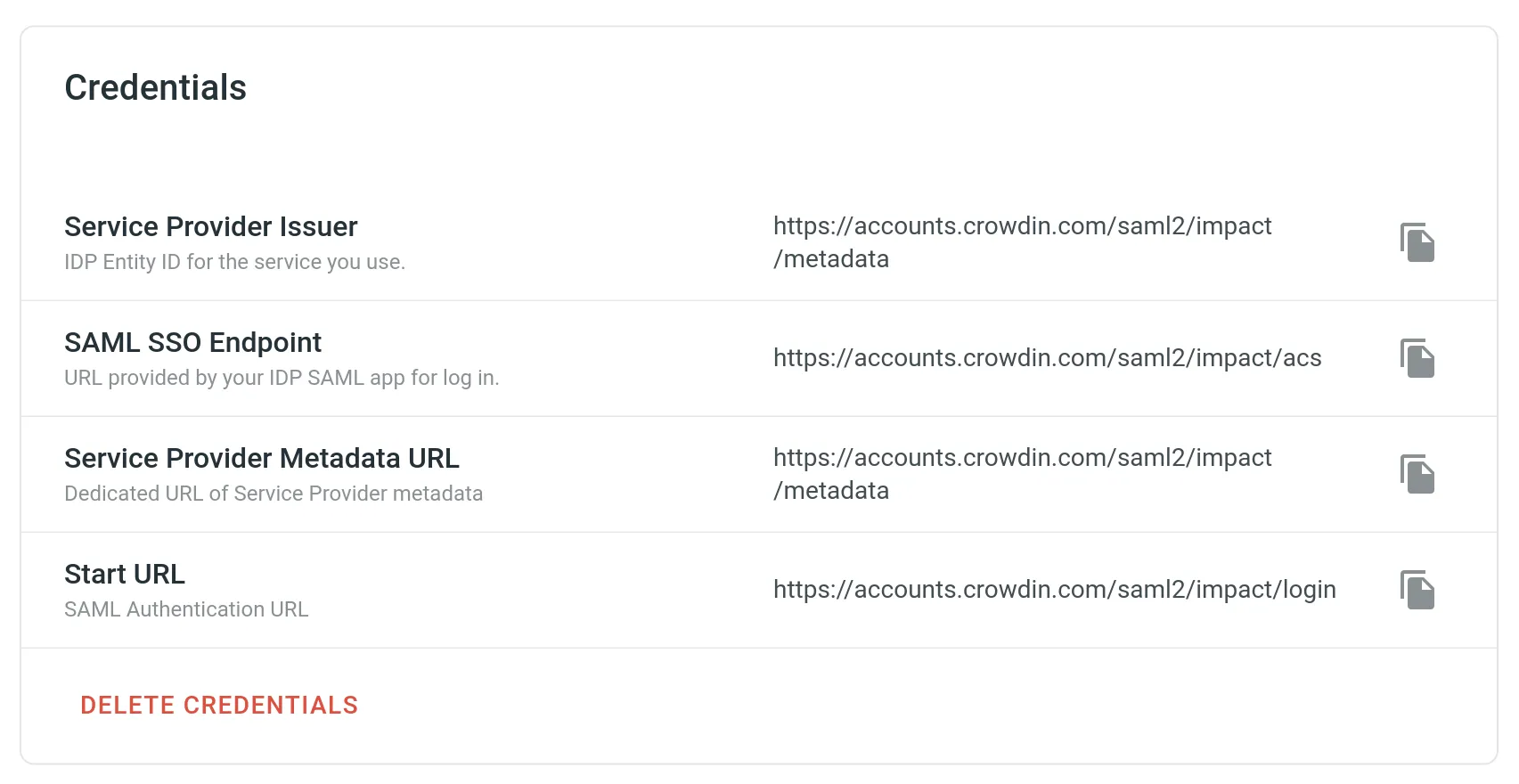
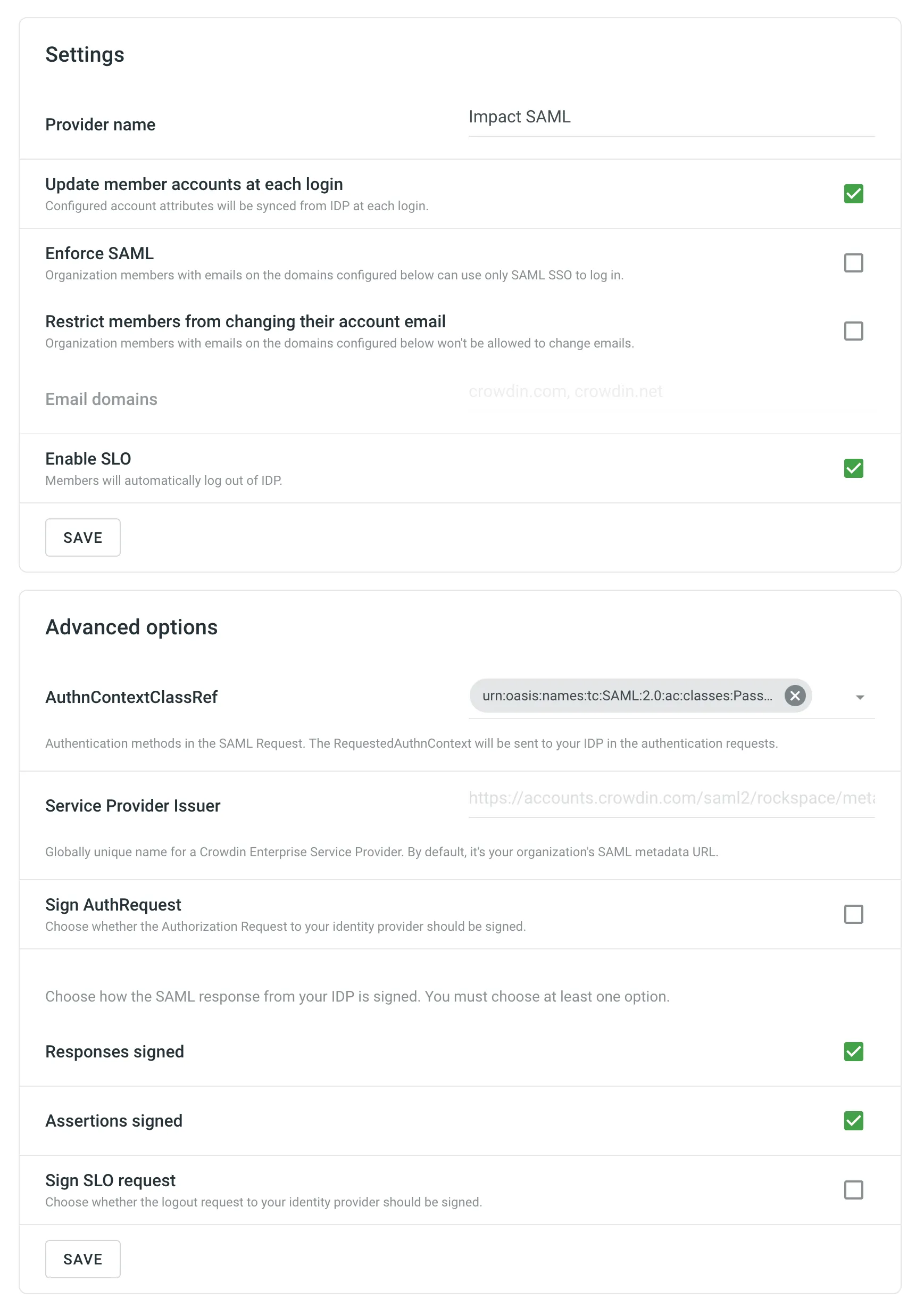
# Screens Translation
> Learn how to translate text directly from screenshots in the Editor for maximum context
**Screens Translation** is a feature that changes your localization workflow from translating lists of text files to translating text directly from your app or website’s screenshots. By providing maximum visual context, this approach helps you produce higher-quality translations and can reduce the need for extensive localization quality assurance (QA). This mode can be used with final screenshots or even with initial mockups and designs, allowing translation to begin before development is complete. This view is enabled by a project manager in the project’s [**Settings > General > Project Language Page View**](/enterprise/project-settings/#project-language-page-view) section. When enabled, the screenshots will be displayed on the project’s language page instead of the traditional file list. ## [Screenshots Translation Workflow](#screenshots-translation-workflow) [Section titled “Screenshots Translation Workflow”](#screenshots-translation-workflow) Once this feature is enabled for your project, your translation workflow shifts from navigating file lists to working directly with visual screens. You’ll open a screen in the Editor, interact with highlighted tags overlaid on the image to load the corresponding strings, and translate them with full visual context. You can also use preview options to check string statuses or see your translations directly on the screen design. ### [Translating Screenshots in the Editor](#translating-screenshots-in-the-editor) [Section titled “Translating Screenshots in the Editor”](#translating-screenshots-in-the-editor) Here’s a step-by-step guide on how to translate using screens: 1. Open the project and go to the **Dashboard** tab. 2. Select the target language. 3. On the language page, you will see a list of the project’s screenshots instead of usual source files. Click on the needed screenshot to open it in the Editor. 4. You’ll see the full screenshot in the preview panel with text elements on the screenshot highlighted with colored tags. 5. Click on any highlighted tag on the image. The tag will turn yellow, and the Editor will automatically load the corresponding source string. 6. Enter your translation in the text area and click **Save**. 7. You can continue clicking other tags on the screenshot to translate them in order.  ### [Screenshot Preview Options](#screenshot-preview-options) [Section titled “Screenshot Preview Options”](#screenshot-preview-options) When translating from a screenshot, the preview panel provides special display options to help you track your progress and visualize the final result. You can toggle the following views using the preview control icons located in upper-right corner of the preview panel: * **Highlight Statuses**: Click this icon to show the status of each string directly on the screenshot. The colored borders around the tagged text indicate the string’s state: * **Red**: Untranslated * **Blue**: Translated * **Green**: Approved * **Yellow**: Currently selected for translation * **Show Translation Preview**: Click this icon to replace the source text on the screenshot with your saved translations. This allows you to instantly preview how your translations will look in the final UI. * **Scale Toggle**: Click this icon to toggle between a zoomed-in and zoomed-out view of the screen, helping you focus on specific areas or see the overall layout. ## [Screens Translation vs. In-Context](#screens-translation-vs-in-context) [Section titled “Screens Translation vs. In-Context”](#screens-translation-vs-in-context) While both features provide context, Screens Translation offers some unique advantages: * **No Setup Required**: Unlike the In-Context tool, you don’t need to integrate your live application or learn how to navigate it. * **Works with Mockups**: You can translate from static designs or mockups even before the application is built (e.g., using designs uploaded via the Crowdin plugins for [Figma](/enterprise/figma-plugin/), [Sketch](/enterprise/sketch-plugin/), or [Adobe XD](/enterprise/adobe-xd-plugin/)), allowing localization to happen earlier in the development process. * **Consistent Performance**: Translating screenshot by screenshot is often faster than navigating a live application, as you don’t need to search for the specific page or state where a string appears. ## [See Also](#see-also) [Section titled “See Also”](#see-also) [Screenshots ](/enterprise/screenshots/)Learn how managers can upload and tag screenshots. [Figma Plugin ](/enterprise/figma-plugin/#uploading-tagged-screenshots-to-crowdin)Learn how managers can upload tagged designs for translation directly from Figma. [Project Settings ](/enterprise/project-settings/#project-language-page-view)Learn how managers configure the Language Page View to enable this feature. [Automating Screenshot Management ](/developer/automating-screenshot-management/)Learn how developers can automate screenshot generation using In-Context and Playwright.
# Screenshots
> Provide translators with additional context for the source strings
Screenshots are a great way to provide translators with additional context for the source strings in your project and, as a result, get more relevant and consistent translations. With screenshots, your team can see which strings are used together on the same page, whether short texts stand for titles, buttons, etc. Tag source strings to the screenshots to display them to translators in the Editor in the context section below the source string.  ## [Upload Screenshots](#upload-screenshots) [Section titled “Upload Screenshots”](#upload-screenshots) To upload screenshots into your project, follow these steps: 1. Open your project and select **Screenshots** on the left sidebar. 2. Drag images from your machine, or click **Upload**.  ## [Tag Strings](#tag-strings) [Section titled “Tag Strings”](#tag-strings) To show translators where certain strings are located in the UI tag strings on the screenshots. In Crowdin Enterprise, you can tag strings using the following methods: * Auto tag * Text recognition * Drag and drop ### [Tag Strings Automatically](#tag-strings-automatically) [Section titled “Tag Strings Automatically”](#tag-strings-automatically) Texts within an image will be detected automatically. Then the matching strings will be searched in the project according to the selected filter. As a result, the ones found will be tagged on the screenshot. 1. Open the screenshot with a double click or right-click on the screenshot and select **Edit**. 2. Click . 3. Once the strings are added, click **Save**.  To tag strings automatically on a single screenshot without opening it: 1. Right-click on the needed screenshot. 2. Select **Auto tag**. You can also tag strings automatically on multiple screenshots at once: 1. Select multiple screenshots by holding `Ctrl` or `Shift` . 2. Click . If you use In-Context, you might find helpful its integrated feature for taking screenshots of the website pages. [Adding Screenshots via In-Context ](/developer/in-context-localization/#adding-screenshots-via-in-context)In-Context Localization is a feature that allows you to preview your website or application in Crowdin and translate strings directly in the context. ### [Tag Strings with Text Recognition](#tag-strings-with-text-recognition) [Section titled “Tag Strings with Text Recognition”](#tag-strings-with-text-recognition) The system will search for a string that matches the text you select among all the strings in your project. If several similar strings are found, you will see all of them and be able to select the best-matching one. 1. Open the screenshot with a double click or right-click on the screenshot and select **Edit**. 2. Highlight the text on the screenshot. 3. Once finished tagging all the strings, click **Save**.  ### [Tag Strings Manually](#tag-strings-manually) [Section titled “Tag Strings Manually”](#tag-strings-manually) Drag the listed strings to the text on the screenshot manually. 1. Open the screenshot with a double click or right-click on the screenshot and select **Edit**. 2. Sort and filter the listed strings. You can select all or specific files and search strings by text or context. 3. Drag the needed string from the list in the right panel to the corresponding text on the screenshot. Alternatively, click on the strings to tag them in the screenshot without specifying the exact place where they should appear. 4. *(Optional)* To view additional string details or edit them: * Click the button above the string list to show more details (file name and string context). * Hover over a string and click the to open the **Edit String** dialog. You can: * Update the identifier. * Update the source text. * Add or update the context. * Add or update the labels. * Set the **Max. length of the translated text**. * Click **Save** after making the changes. 5. Click **Save** when you finish tagging. Read more about [String Editing](/enterprise/string-management/#string-editing). To tag all the strings from the selected file to your screenshot, follow these steps: 1. Select the file you need. 2. Click **Tag All** > **Save**. ### [Drag and Scroll Screenshots](#drag-and-scroll-screenshots) [Section titled “Drag and Scroll Screenshots”](#drag-and-scroll-screenshots) When tagging high-resolution screenshots, you can hold `Ctrl` to drag and scroll the screenshot with a mouse revealing the remaining part. ### [Removing Tagged Strings from Screenshot](#removing-tagged-strings-from-screenshot) [Section titled “Removing Tagged Strings from Screenshot”](#removing-tagged-strings-from-screenshot) If you need to remove all the strings tagged on the screenshot, click **Clear**. ## [Labels](#labels) [Section titled “Labels”](#labels) Use labels in your project for an easy way to organize screenshots by certain topics. Once you add labels to your screenshots, you can filter them by added labels. If you already use labels for your source strings, you can also use the same labels for screenshots. [Managing Project Labels ](/enterprise/project-settings/labels/)Learn how to make your Crowdin Enterprise project labels. ### [Adding Labels to Screenshots](#adding-labels-to-screenshots) [Section titled “Adding Labels to Screenshots”](#adding-labels-to-screenshots) There are a few possible ways you can add labels to the screenshots. ##### [Add labels to one screenshot at a time](#add-labels-to-one-screenshot-at-a-time) [Section titled “Add labels to one screenshot at a time”](#add-labels-to-one-screenshot-at-a-time) 1. Open the screenshot with a double-click. 2. Click . 3. Select needed labels in the **Labels** field. 4. Click **Save**.  ##### [Add labels to multiple screenshots](#add-labels-to-multiple-screenshots) [Section titled “Add labels to multiple screenshots”](#add-labels-to-multiple-screenshots) 1. Select multiple screenshots you want to add the same labels to holding `Ctrl` or `Shift` . 2. Click . 3. Select needed labels in the list. 4. Click **Apply**.  ## [Update Screenshots](#update-screenshots) [Section titled “Update Screenshots”](#update-screenshots) You can upload a new screenshot that will replace the current one. The already tagged strings that are relevant would remain tagged. If the text on the screenshot changed its location, strings would remain tagged but on the new locations. To update the screenshot, follow these steps: 1. Open the screenshot with a double click or right-click on the screenshot and select **Edit**. 2. Click and select a new screenshot from your machine or use Drag\&Drop. 3. Click **Save**. ## [Rename Screenshots](#rename-screenshots) [Section titled “Rename Screenshots”](#rename-screenshots) To rename a screenshot, follow these steps: 1. Right-click on the needed screenshot and select **Rename**. 2. Specify a new name. 3. Click **Save**. ## [Download Screenshots](#download-screenshots) [Section titled “Download Screenshots”](#download-screenshots) You can download screenshots and reuse them in other projects or elsewhere. To download screenshots, follow these steps: 1. Select one or multiple screenshots holding `Ctrl` or `Shift` . 2. Click **Download**. Alternatively, right-click on the needed screenshot and select **Download**. ## [Delete Screenshots](#delete-screenshots) [Section titled “Delete Screenshots”](#delete-screenshots) To delete a screenshot, follow these steps: 1. Select one or multiple screenshots holding `Ctrl` or `Shift` . 2. Click **Delete**. ## [See Also](#see-also) [Section titled “See Also”](#see-also) [Project Settings ](/enterprise/project-settings/#project-language-page-view)Configure your project's Language Page View to enable screenshot translation. [Screens Translation ](/enterprise/screens-translation/)Learn how to translate strings directly from your tagged screenshots in the Editor.
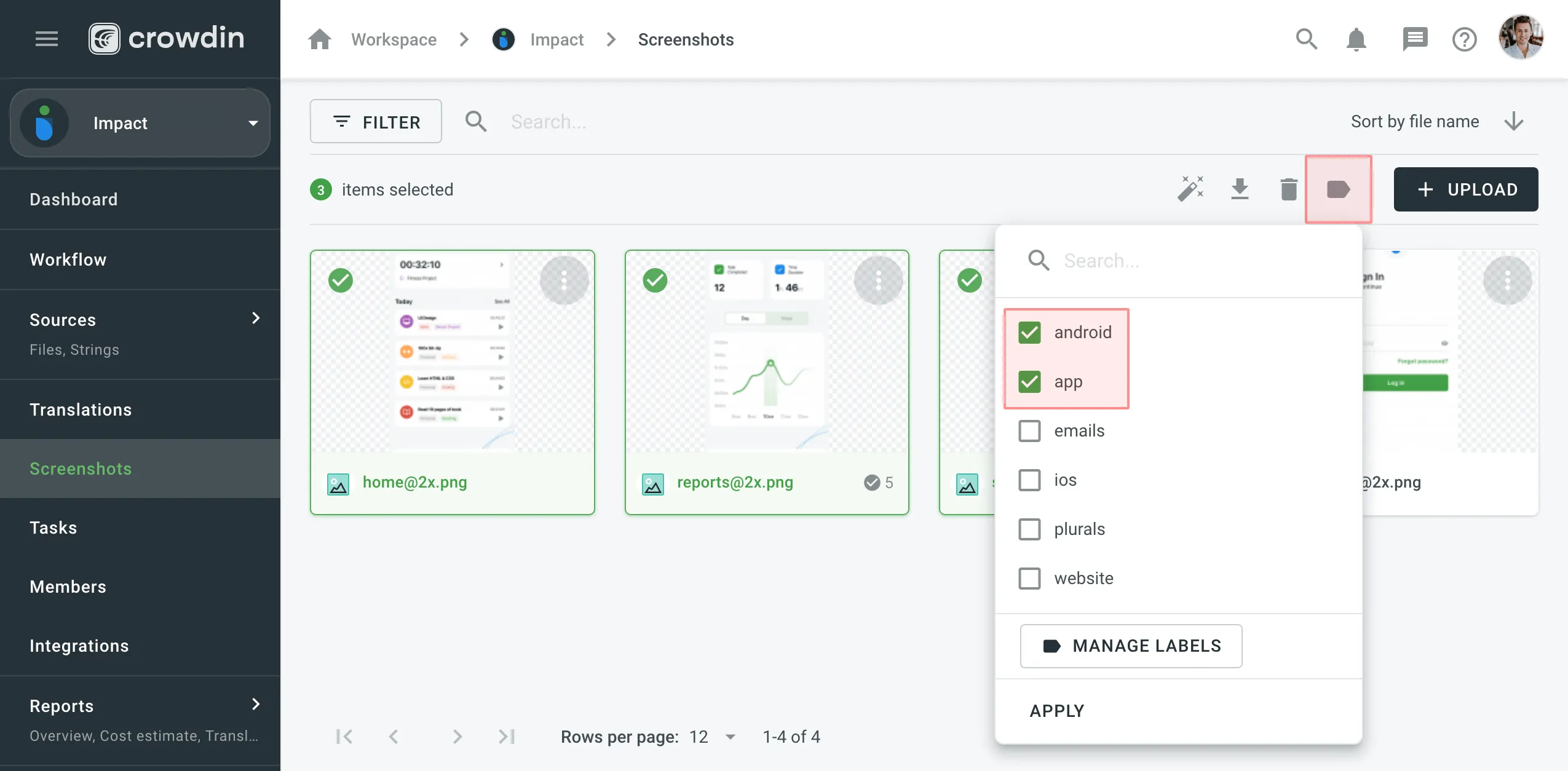
# Security
> Configure security settings for your organization
The **Security** page provides you with various security and authentication settings for your Crowdin Enterprise organization. You can set up how people can join your organization, what authentication methods can be used to log in, and manage API token and session policies. To configure your security settings, follow these steps: 1. Click on your profile picture in the upper-right corner and select **Organization Settings**.  2. Switch to the **Security** section on the left sidebar. ## [Security Options](#security-options) [Section titled “Security Options”](#security-options) Configure advanced security settings such as **Allow Signup**, **Admin-Managed Invitations**, **Two-Factor Authentication**, **Device Verification**, personal token creation and lifetime, session timeouts, and **IP Allowlist**. #### [Allow Signup](#allow-signup) [Section titled “Allow Signup”](#allow-signup) Select whether people will be able to join the organization without prior invitation via email or a shareable link. After the registration, admins and project managers will be able to manage organization members’ permissions. #### [Admin-Managed Invitations](#admin-managed-invitations) [Section titled “Admin-Managed Invitations”](#admin-managed-invitations) Restrict the ability to invite new members to the organization to administrators only. When this option is enabled, project managers can still invite users who are already part of the organization to join their projects but won’t be able to add new users to the organization. This option is useful when you want to maintain stricter control over who joins your organization, especially in regulated environments or when managing access centrally through a small group of administrators. #### [Two-Factor Authentication](#two-factor-authentication) [Section titled “Two-Factor Authentication”](#two-factor-authentication) Two-factor authentication ensures an additional level of security for your Crowdin Enterprise organization. Once you enable it, all organization members will be asked to set up two-factor authentication for their accounts. From this point, on each login, along with a username and password, organization members will use an authentication code. #### [Device Verification](#device-verification) [Section titled “Device Verification”](#device-verification) Add an extra security step when users log in from a new device. Once enabled, Crowdin Enterprise will require device verification via email before granting access to your organization. This helps ensure that only authorized users can access your organization, even if their login credentials are compromised. Device verification is triggered when: * A user logs in from an unrecognized device. * A user clears their browser cookies or switches browsers. Device verification can be bypassed if: * [Two-factor authentication](#two-factor-authentication) (2FA) is enabled and configured for the user’s account. In this case, device verification is not enforced since 2FA already provides strong authentication. * Your organization uses external authentication through your own identity provider and doesn’t rely on email verification. #### [Allow Personal Token Creation New](#allow-personal-token-creation) [Section titled “Allow Personal Token Creation ”New](#allow-personal-token-creation) Enable this option to allow organization members to generate their own personal access tokens for authenticating with the API. When disabled, members will not be able to create new tokens. #### [Maximum Token Lifetime New](#maximum-token-lifetime) [Section titled “Maximum Token Lifetime ”New](#maximum-token-lifetime) Set a maximum number of days a new token can be valid for. This policy applies only to tokens created after the setting is saved and does not affect previously created tokens. You can set a specific number of days (from 1 to 365) or select **Never expires**. #### [Idle Session Timeout New](#idle-session-timeout) [Section titled “Idle Session Timeout ”New](#idle-session-timeout) Automatically log out members after they have been inactive for a selected period. * **20 minutes**: The shortest timeout. The **Remember me** option will not be available on the login page. * **8 hours, 24 hours, 7 days, 30 days**: For users who click **Remember me** upon login, the system will log them out after this period of inactivity. #### [IP Allowlist](#ip-allowlist) [Section titled “IP Allowlist”](#ip-allowlist) Grant access to your Crowdin Enterprise organization only to connections from allowed IP addresses. With this feature, you can specify a list of IP addresses that can access your Crowdin Enterprise organization. For example, you can use IP Allowlist to grant access only to connections from your corporate network while blocking all other connections from IP addresses that don’t belong to your IP Allowlist. Once the IP Allowlist is enabled, Crowdin Enterprise starts filtering all connections both via UI and API. To start using the IP Allowlist, first form the list of IP addresses and ranges that should have access to your organization using CIDR notation. Read more about [CIDR notation](https://en.wikipedia.org/wiki/Classless_Inter-Domain_Routing#CIDR_notation). IP Allowlist can contain an unlimited number of IP addresses and ranges that can access your Crowdin Enterprise organization via UI and API. Once you collected all of the IP addresses and ranges that should be added to the IP Allowlist, [Contact Support Team](https://crowdin.com/contacts) to enable the IP Allowlist for your organization. If you need to edit or remove some records from your IP Allowlist, contact Support Team with the respective request. ## [Authentication Methods](#authentication-methods) [Section titled “Authentication Methods”](#authentication-methods) The Authentication methods section allows you to select how members can log into your Crowdin Enterprise organization. Hence, people still have time to set up other authentication methods. When you re-enable some of the earlier disabled authentication methods, they will immediately become available to the organization members. * *Email/Username and Password* – members can use their email or Crowdin Enterprise username along with a password to log in. * *Passkey* – members can log in using secure passkeys for passwordless authentication experience and enhanced account protection. * *Magic Link* – members can request a one-time authentication link that will be sent to their emails. * *Crowdin* – members can log in with their Crowdin account. * *Facebook* – members can log in with their Facebook account. * *GitHub* – members can log in with their GitHub account. * *GitLab* – members can log in with their GitLab account. * *Google* – members can log in with their Google account. * *X* – members can log in with their X account. * *Open ID Connect* – members can log in with their Open ID account. * *SAML* – members can log in with their IDP account. ## [Custom Auth Applications](#custom-auth-applications) [Section titled “Custom Auth Applications”](#custom-auth-applications) The Facebook, GitHub, GitLab, Google, and X SSO allow you to use the default preconfigured Crowdin Enterprise global auth application, or you can set up your own custom auth application. To configure your custom auth application, follow these steps: 1. Click on your profile picture in the upper-right corner and select **Organization Settings**. 2. Switch to the **Security** section on the left sidebar. 3. Scroll down to the Authentication methods section and click on the needed SSO you’d like to set up the custom auth application for. 4. Select **Custom auth application** and paste your credentials from your custom auth application and click **Save**.  5. Copy the **Redirect URL** from the **Auth Settings** page and paste it into your custom auth application settings. Similar configuration flow is also applicable to the [OpenID Connect](/enterprise/oidc/) authentication method. ## [See Also](#see-also) [Section titled “See Also”](#see-also) [SAML Single Sign-On ](/enterprise/saml/)Learn how to set up SAML SSO for your organization.
# Sketch Plugin
> Start localizing at the design stage
With the Crowdin plugin for Sketch, you can use texts from Crowdin Enterprise in your designs to save time for both designers and developers. These could include original or translated texts. If necessary, you can add new ones (e.g., dialog titles, button labels) and send them to translators in Crowdin Enterprise. ## [Use Cases](#use-cases) [Section titled “Use Cases”](#use-cases) * Quickly generate multilingual creative assets. * Translate mockups and test them in different languages before the programming starts. * Stop using ‘Lorem Ipsum’, add real texts from Crowdin Enterprise to your prototypes instead. * Create and upload source strings from your designs to your Crowdin Enterprise project. This way, uploaded strings could be used by developers, which reduces time spent on development. * Upload tagged screenshots to your Crowdin Enterprise project. ## [Installation](#installation) [Section titled “Installation”](#installation) You can [download the latest release](https://github.com/crowdin/sketch-crowdin) from our GitHub repository. 1. Download the installation file. 2. Unzip it. 3. Double-click on the *sketch-crowdin.sketchplugin* file for auto installation. Crowdin plugin for Sketch can also be installed with [Sketch Runner](https://sketchrunner.com/). ## [Configuration](#configuration) [Section titled “Configuration”](#configuration) ### [Setting up Credentials](#setting-up-credentials) [Section titled “Setting up Credentials”](#setting-up-credentials) To specify your Crowdin Enterprise credentials in Sketch, follow these steps: 1. Click **Plugins > Crowdin**. 2. Switch to **Settings**. 3. Provide your Personal Access Token. 4. Specify your organization domain name. 5. Click **Connect to Crowdin**.  To generate a new token in Crowdin Enterprise, follow these steps: 1. Go to **Account Settings > Access tokens**, and click **New Token**. 2. Specify *Token Name* select *Scopes* and *Projects*, click **Create**. ### [Selecting a Project](#selecting-a-project) [Section titled “Selecting a Project”](#selecting-a-project) To select the Crowdin Enterprise project you’d like to work with, click the **Select Project** drop-down menu in **Settings**, and select a project from the list. Later on, you can use the same drop-down menu to switch to another project if needed. Additionally, you can select the specific branch your content will be uploaded to.  ## [UI Localization](#ui-localization) [Section titled “UI Localization”](#ui-localization) Use the *Strings* tab when localizing UI and working on dynamic pages with your development and marketing teams. In this tab, you can add source strings from Crowdin Enterprise to your designs in Sketch in a click. After the texts are used in the designs, you can automatically upload tagged screenshots for translators’ reference back to Crowdin Enterprise. ### [Using Source Strings from Crowdin in Sketch](#using-source-strings-from-crowdin-in-sketch) [Section titled “Using Source Strings from Crowdin in Sketch”](#using-source-strings-from-crowdin-in-sketch) 1. Open the Crowdin plugin for Sketch. 2. In the *Strings* tab, use the *Search* field to find the specific copy. You can search strings by source text, string identifier, or context. 3. Select the text layer you want to add text to and click on the needed string.  After using the source strings from Crowdin Enterprise in your designs, you can [preview translations](#previewing-strings) for these strings in Sketch and [upload screenshots](#uploading-tagged-screenshots-to-crowdin) for them to your Crowdin Enterprise project. ### [Adding Source Strings from Sketch to Crowdin](#adding-source-strings-from-sketch-to-crowdin) [Section titled “Adding Source Strings from Sketch to Crowdin”](#adding-source-strings-from-sketch-to-crowdin) You can add the strings that are already used in the designs or create and add completely new strings. 1. Open the Crowdin plugin for Sketch. 2. To add the strings used in the designs, select the whole artboard, multiple artboards, or the needed strings on the artboards. Alternatively, skip this step if you want to add a new string. 3. In the *Strings* tab, click **Add String**. 4. In the appeared dialog, fill in the required fields. 5. (Optional) To add labels to the strings, alternately select them from the **Label** drop-down menu and click **Save**.  To add the same strings into multiple files in Crowdin Enterprise, alternately select the needed files from the **File** drop-down menu. If some artboards contain hidden elements that should not be added to Crowdin Enterprise, clear the **Push hidden elements** option. Added strings will be transferred to your Crowdin Enterprise project and also will be displayed in the list of the **Strings** tab. You can edit or delete the strings from the same list anytime. The respective changes will also be applied to the strings in your Crowdin Enterprise project. ### [Key Naming Pattern Settings](#key-naming-pattern-settings) [Section titled “Key Naming Pattern Settings”](#key-naming-pattern-settings) To simplify adding strings from Sketch to the Crowdin Enterprise project, you can set up the desired key naming pattern for the source string identifiers in the plugin settings. The Crowdin plugin for Sketch will suggest the string identifiers for new strings based on the selected pattern. While adding new source strings, you can always edit the suggested identifier to the preferred look. To select the key naming pattern, follow these steps: 1. Open the Crowdin plugin for Sketch. 2. Switch to **Settings**. 3. In the *Key naming pattern* section, select the preferred option from the drop-down menu. ### [Uploading Tagged Screenshots to Crowdin](#uploading-tagged-screenshots-to-crowdin) [Section titled “Uploading Tagged Screenshots to Crowdin”](#uploading-tagged-screenshots-to-crowdin) 1. Open the Crowdin plugin for Sketch. 2. In the *Strings* tab, use texts from the Crowdin Enterprise project in your designs. Click **Upload Screenshots** to upload screenshots of the artboards that include the used texts. 3. To update screenshots on Crowdin Enterprise, click **Upload Screenshots** again.  Read more about [Screenshots](/enterprise/screenshots/). ### [Previewing Strings](#previewing-strings) [Section titled “Previewing Strings”](#previewing-strings) Preview translations from Crowdin Enterprise for the strings used in the designs in Sketch. You can preview translations in the new frames or the original ones. When previewing translations in the new frames, you can populate them with the actual translations or with string keys for further use by developers. To preview strings populated with translations, follow these steps: 1. Open the Crowdin plugin for Sketch. 2. In the *Strings* tab, *Preview Strings* section, select *Preview in duplicated artboards* or *Preview in the current artboards*. 3. Select *Create with language*. 4. Select the target language you want to preview translations for. You can also choose *All languages*. 5. Choose the content you want to preview in Sketch. Select *Page* or *Artboard*.  To preview strings populated with key names, follow these steps: 1. Open the Crowdin plugin for Sketch. 2. In the *Strings* tab, *Preview Strings* section, select *Preview in duplicated artboards*. 3. Select *Create with key names*. 4. Choose the content you want to preview in Sketch. Select *Page* or *Artboard*.  ## [Marketing Visuals Localization](#marketing-visuals-localization) [Section titled “Marketing Visuals Localization”](#marketing-visuals-localization) Use the *Translation* tab to localize static pages, like brochures and banners. In this tab, you can send texts with context for translators to Crowdin Enterprise and upload translated copies back to Sketch. ### [Sending Texts for Translation to Crowdin](#sending-texts-for-translation-to-crowdin) [Section titled “Sending Texts for Translation to Crowdin”](#sending-texts-for-translation-to-crowdin) You can send text for translation either from selected or all artboards from a Sketch file. Translators will work with those texts in the list view and use designs as an additional context for even higher translation quality. In Crowdin Enterprise, a root folder *Sketch plugin* will be created. It will contain a subfolder named after your Sketch file with HTML files for each artboard inside. If needed, you can disable content segmentation in the plugin **Settings** so the long texts will not be split into sentences. To send Sketch designs for translation, follow these steps: 1. Open the necessary Sketch file. 2. Go to **Plugins > Crowdin**. 3. In the *Translation* tab, *Send Texts* section, select content you’d like to translate. Select *Page* or *Artboard*.  When the source files are uploaded to your Crowdin Enterprise project, you can invite contributors to translate and proofread them. Read more about [translation strategies](/enterprise/translation-strategies/). ### [Uploading Translations from Crowdin to Sketch](#uploading-translations-from-crowdin-to-sketch) [Section titled “Uploading Translations from Crowdin to Sketch”](#uploading-translations-from-crowdin-to-sketch) You can synchronize texts between Sketch and Crowdin Enterprise projects whenever you want to test the translated copy inside Sketch or generate multilingual assets. To upload translated copies to Sketch, follow these steps: 1. Open the necessary Sketch file. 2. Go to **Plugins > Crowdin**. 3. In the *Translation* tab, *Get Translations* section, select the target language you want to upload translations for. You can also Select *All languages*. 4. Select the content you want to preview in Sketch. Select *Page* or *Artboard*.  After uploading translations to Sketch, the modified file will contain a separate artboard with translations for each target language. The newly uploaded translated versions won’t override the ones you uploaded previously. You can always delete the translated copies you no longer need. If you’d like the newly uploaded translated versions to override the previously uploaded ones, open the plugin **Settings** and select **Override existing translations**.
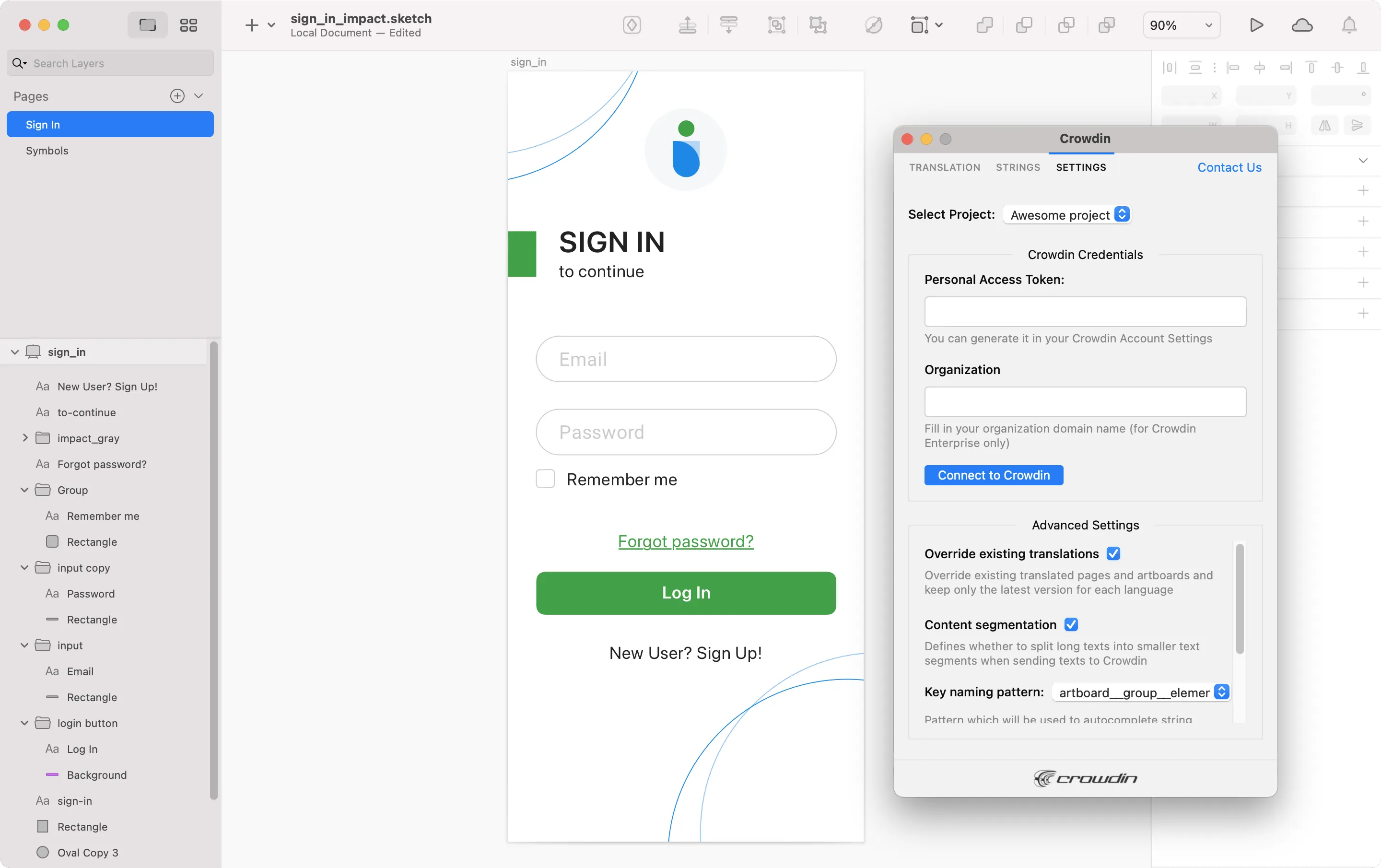
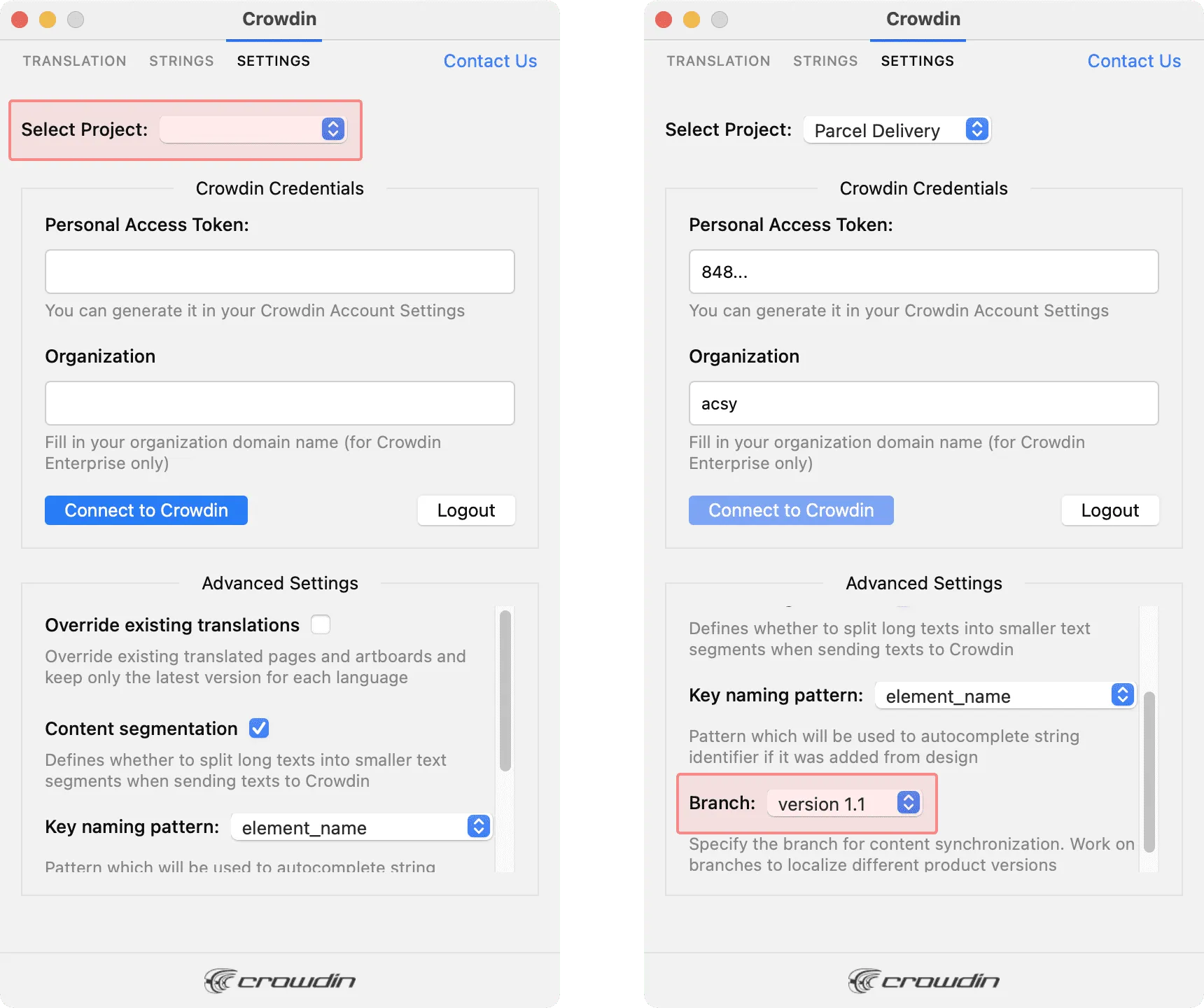
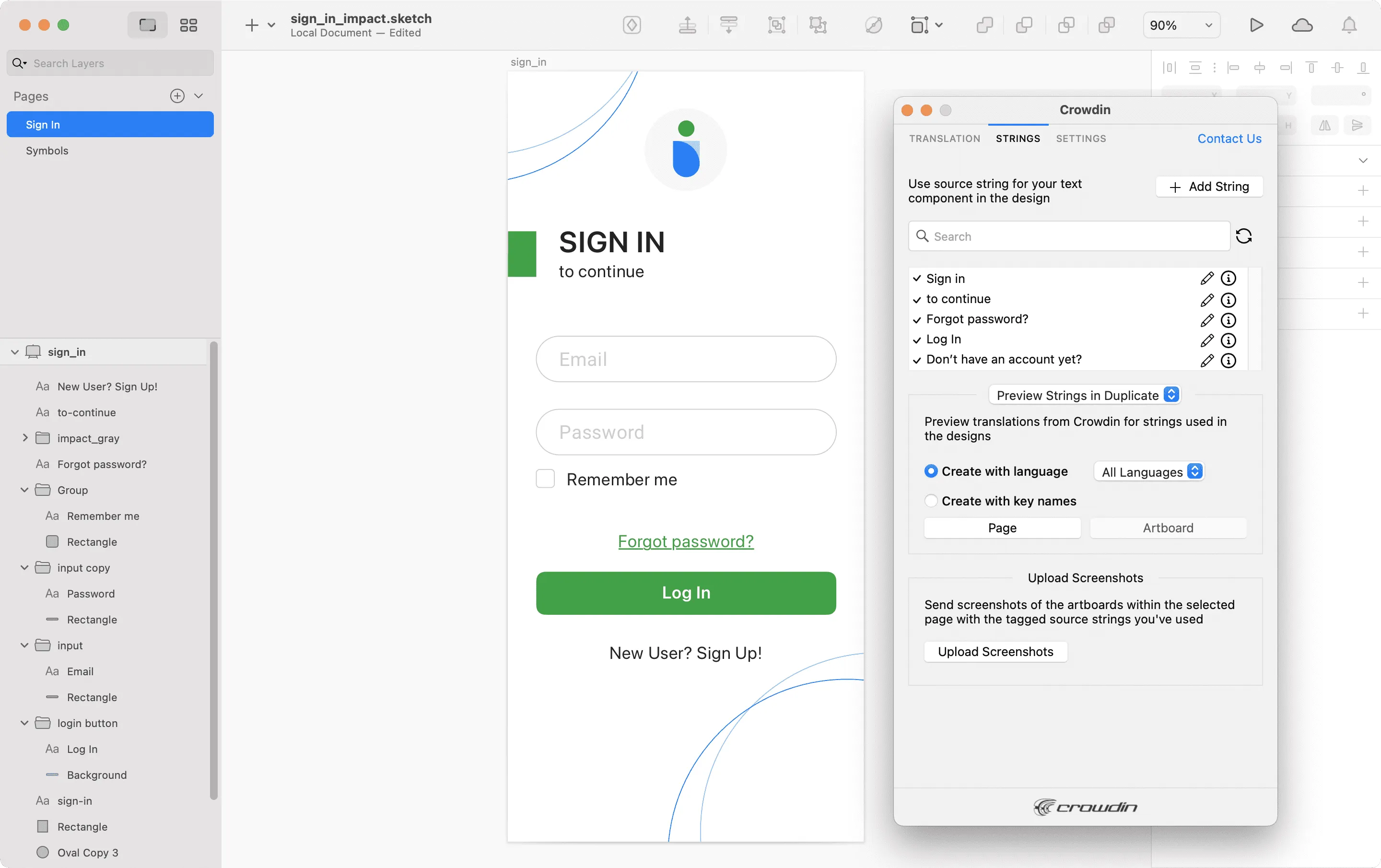
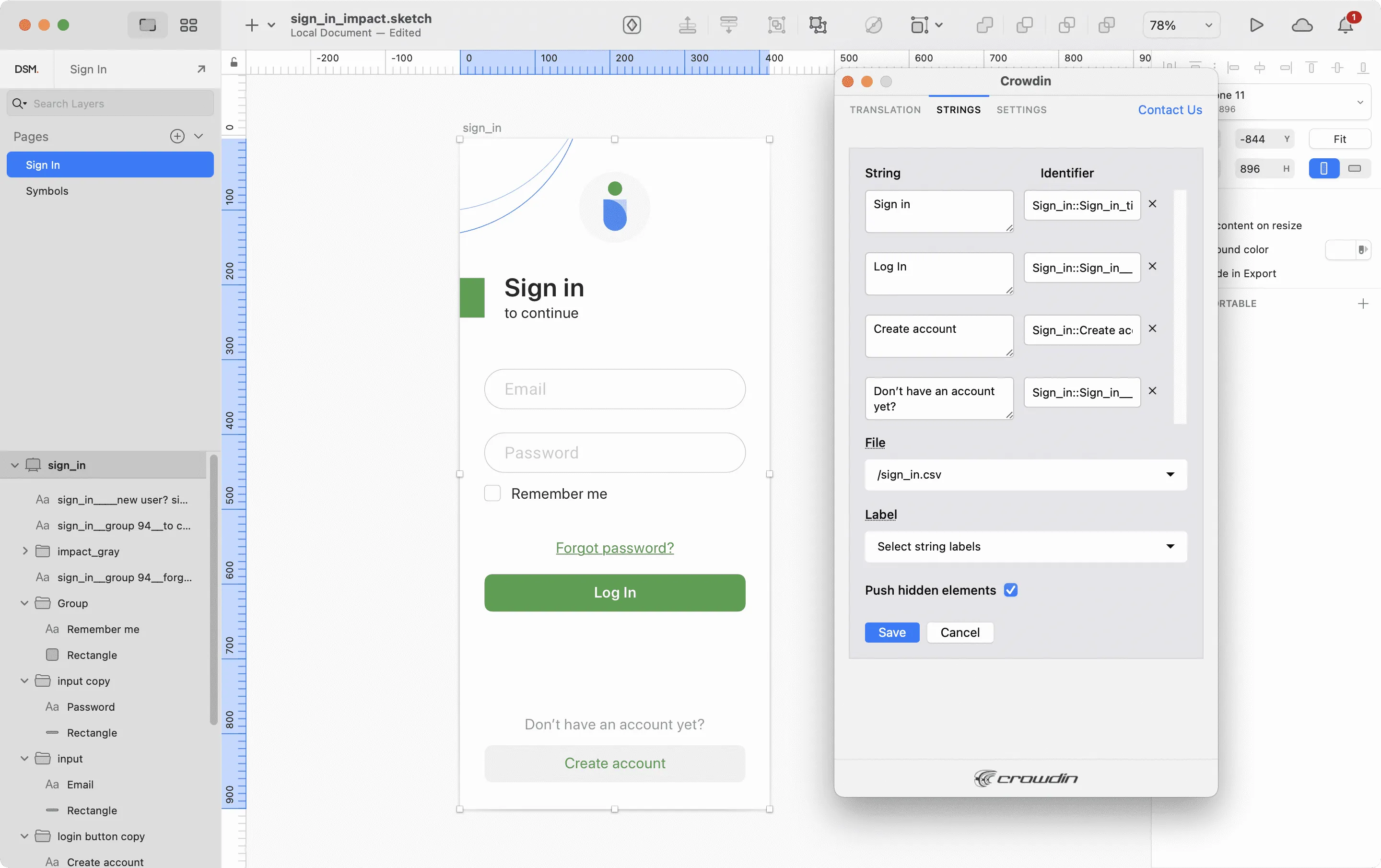
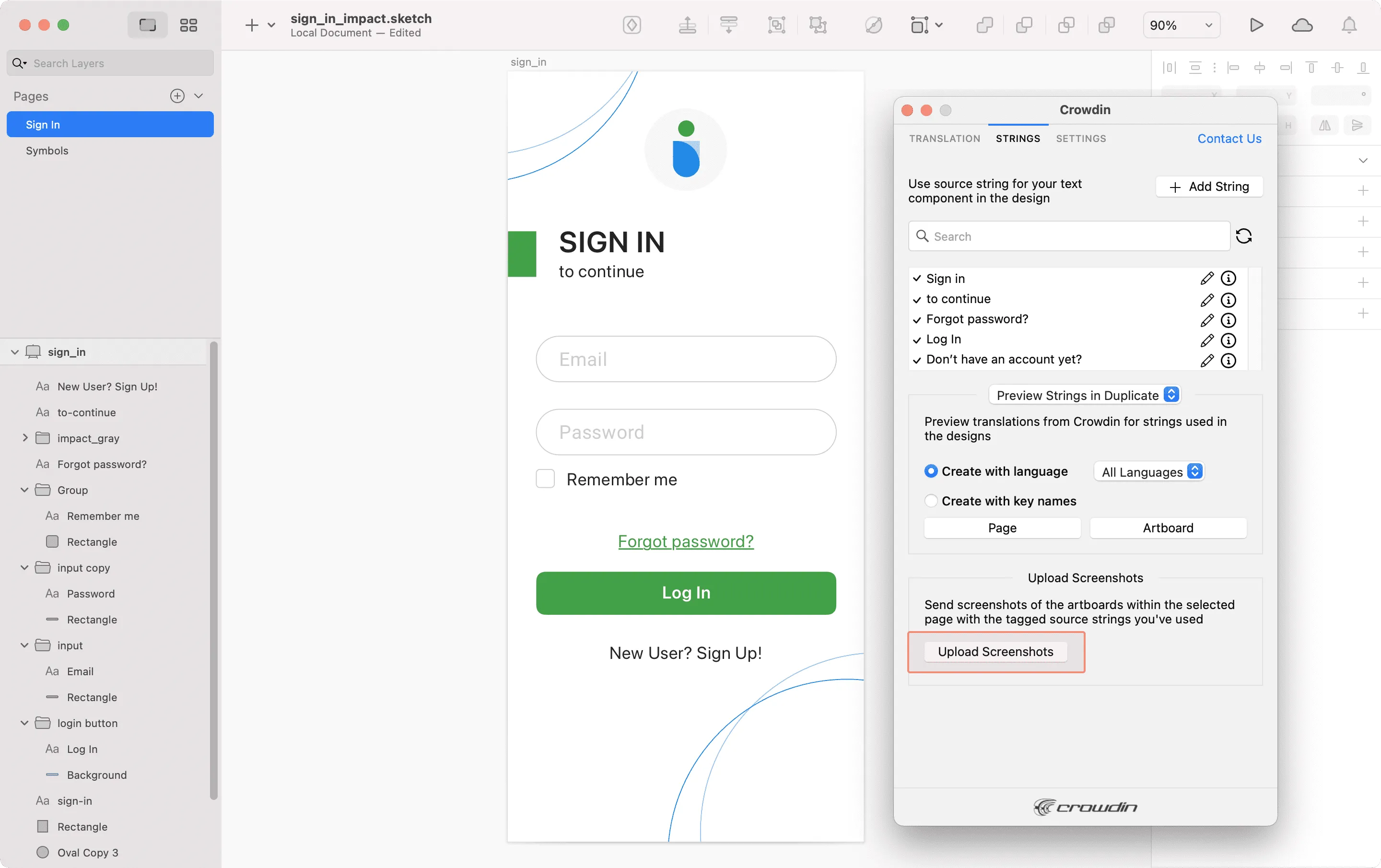
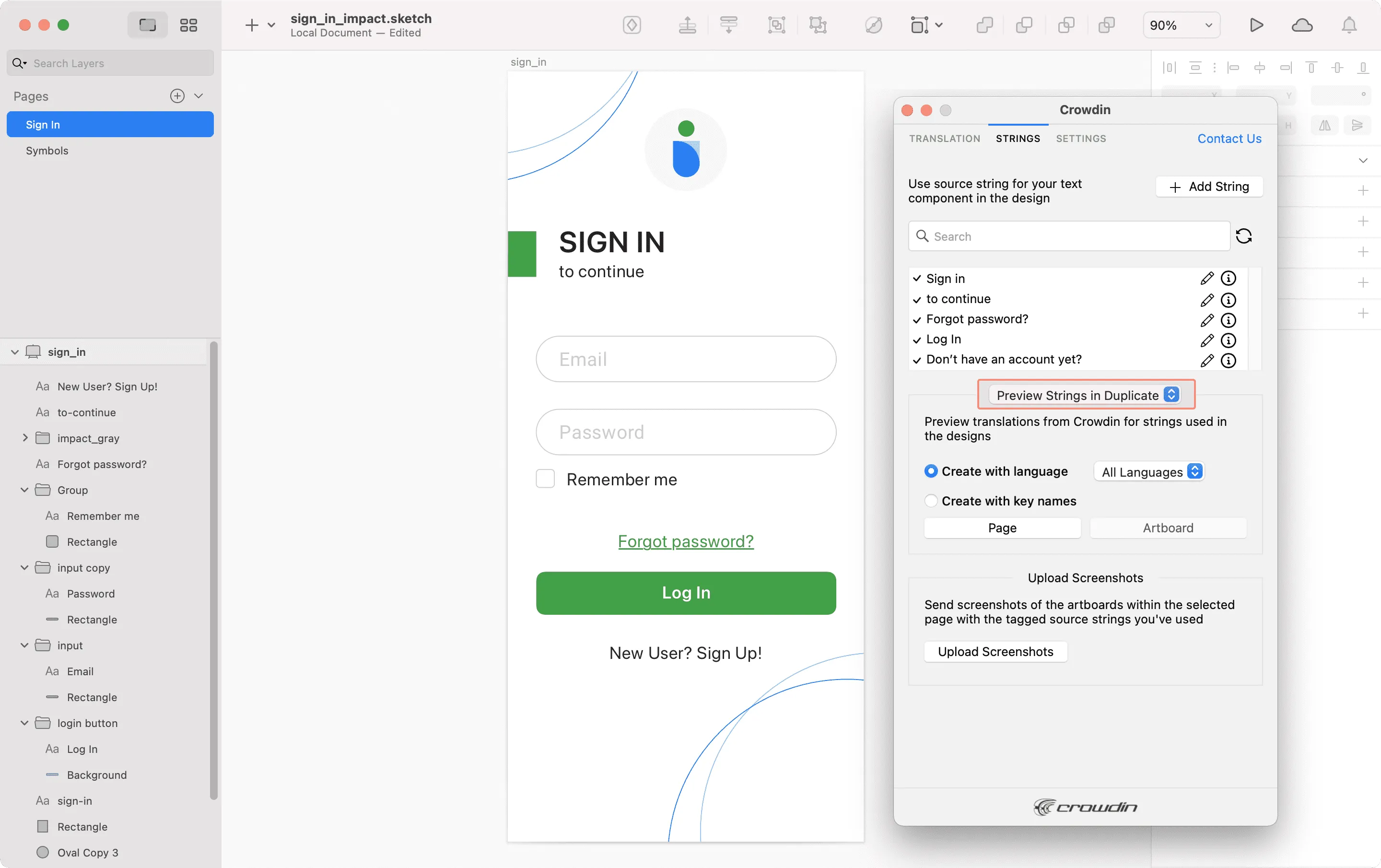
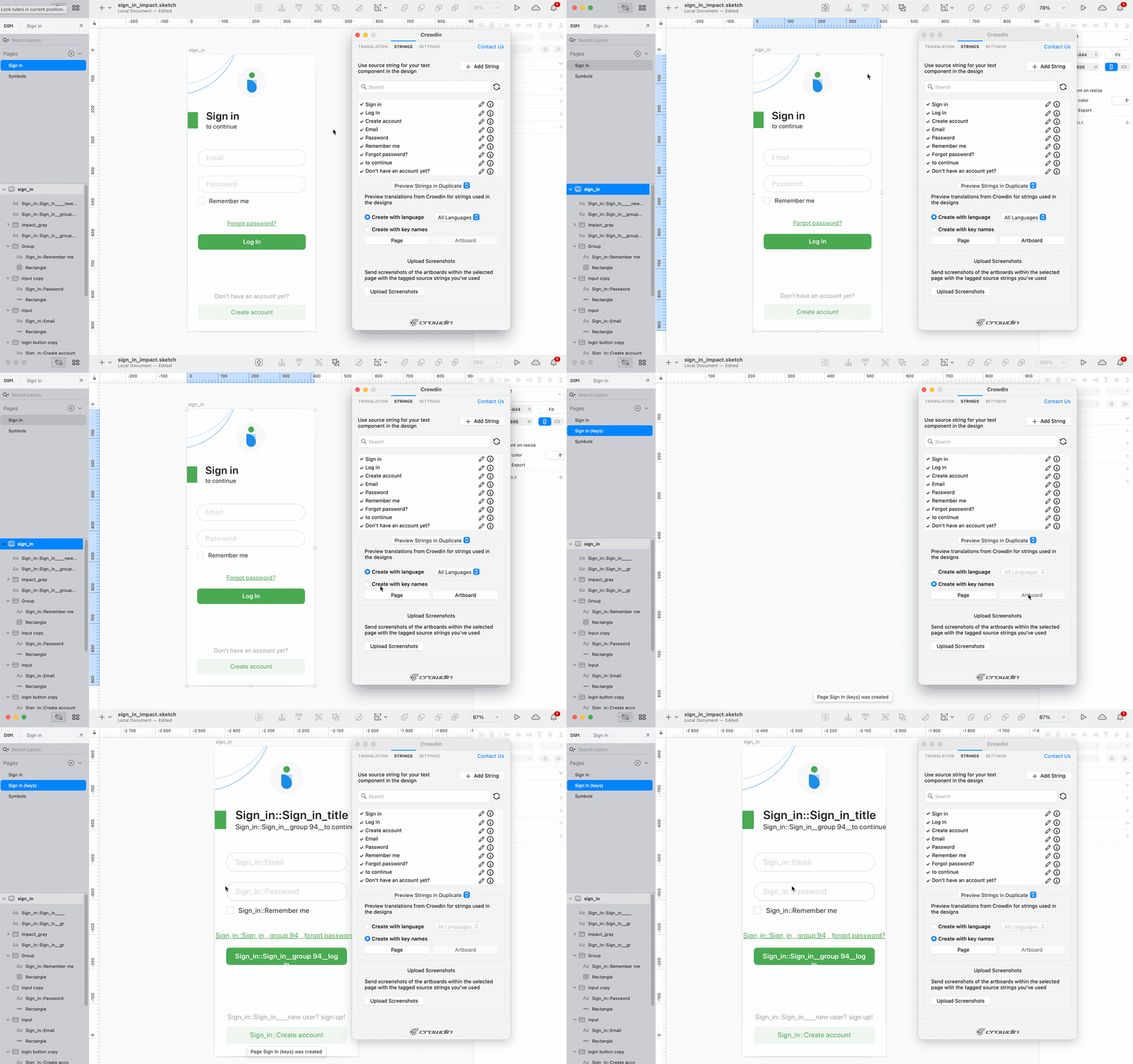
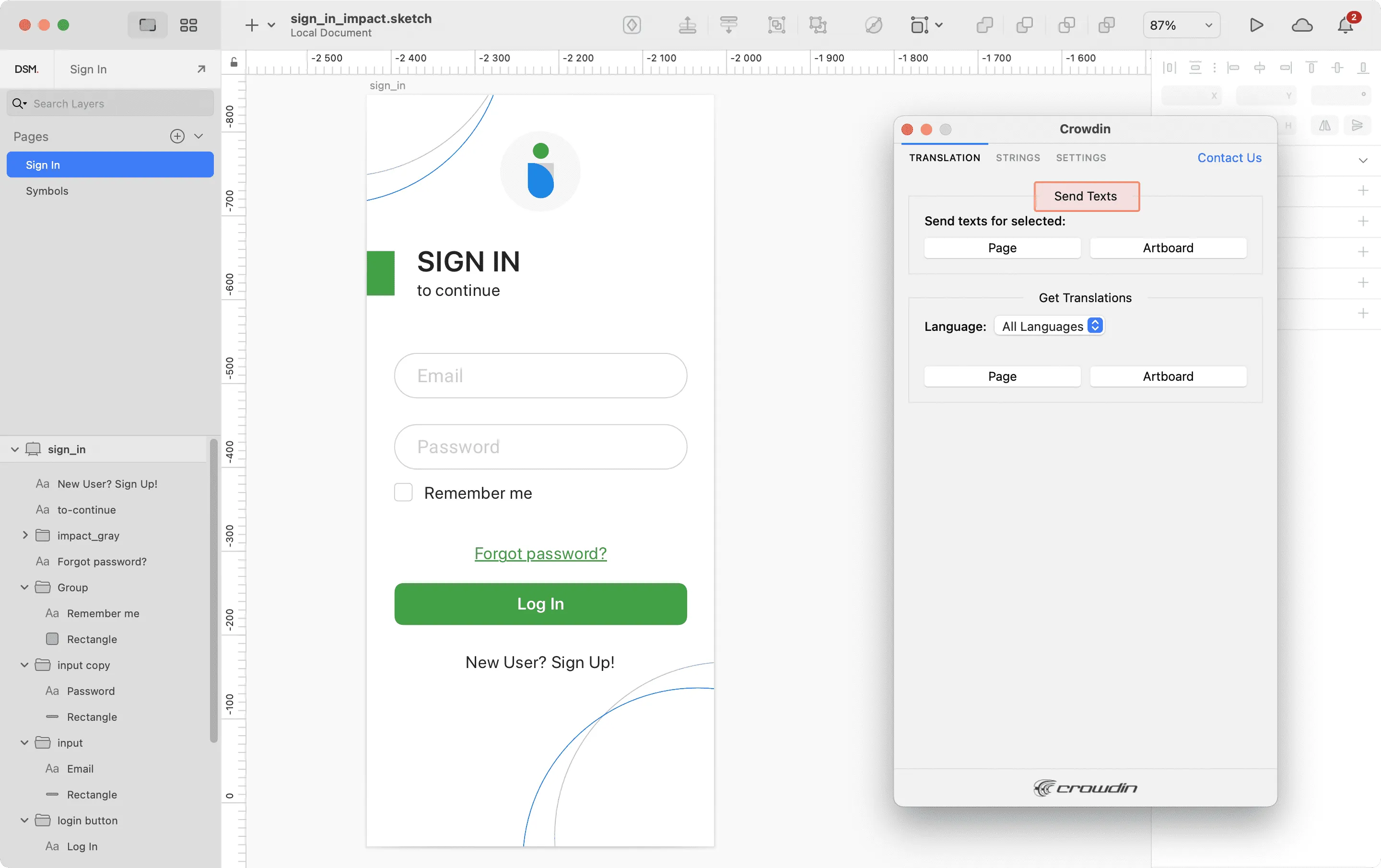
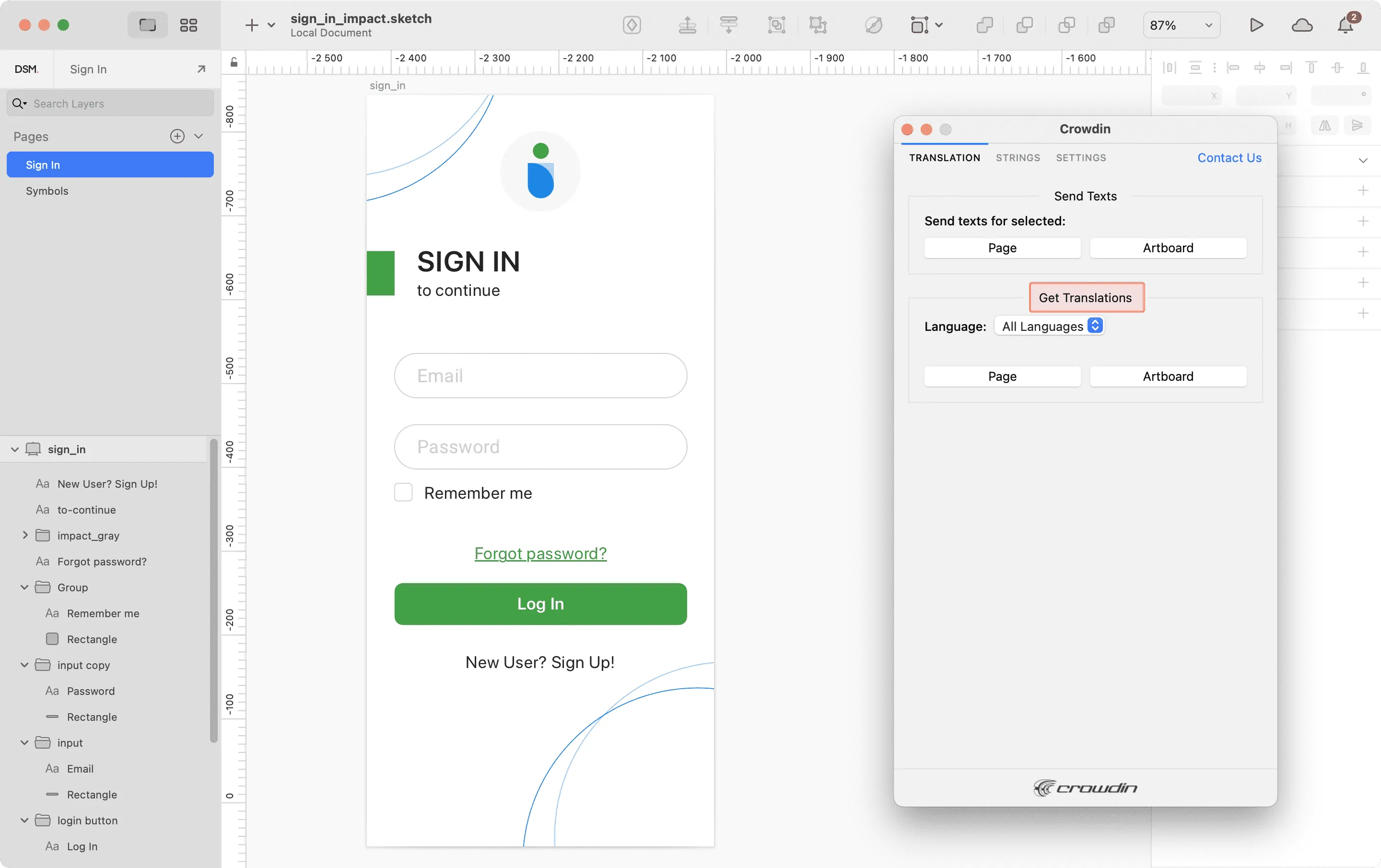
# Source Text Review
> Review and correct source texts before the start of translation
Source Text Review is a workflow step used to review and correct source texts for grammar, consistency, formatting, and style before translation begins. This step is particularly useful when your [translation strategy](/enterprise/translation-strategies/) involves hired professional translators, as reviewed and corrected source texts help prevent unnecessary translation costs and improve the overall quality. [Workflow Overview ](/enterprise/workflows/) ## [Adding Source Text Review Step to Your Workflow](#adding-source-text-review-step-to-your-workflow) [Section titled “Adding Source Text Review Step to Your Workflow”](#adding-source-text-review-step-to-your-workflow) Source Text Review is available as a workflow step that can be added in the Workflow Editor or in the Workflow template editor. Once added, the step becomes available to all managers working on the project.  ## [Reviewing Source Texts in Your Project](#reviewing-source-texts-in-your-project) [Section titled “Reviewing Source Texts in Your Project”](#reviewing-source-texts-in-your-project) Once you add the Source Text Review step to your project’s workflow, a corresponding section appears on the project’s **Dashboard** page. Click **Review** to open the Editor in Review mode.  In Review mode, go through the source texts and make corrections where needed. If the source text is correct, click **Approve**. The string will be marked **Done** and will immediately appear on the next workflow step. If the source text requires edits, enter the corrected version and click **Save**. The string will get approved automatically and be marked **Pending**, meaning the source file requires an update with the reviewed texts.  ## [Applying Reviewed Texts](#applying-reviewed-texts) [Section titled “Applying Reviewed Texts”](#applying-reviewed-texts) To apply all reviewed texts to the source files, go to the **Dashboard** page and click **Apply reviewed**. If any of your corrections (**New strings**) differ from the original source text (**Current strings**), the **Keep translations for changed strings** dialog will appear. This dialog gives you precise control over which existing translations and approvals are kept for the strings you’ve modified. In this dialog, review the list of changed strings: * **Keep Translations**: Select the checkbox for each string for which you want to preserve the existing translations. If you *do not* select a string, its existing translations will be removed when the source text is updated. * **Keep approvals**: Select this option at the bottom to also preserve the approvals for the translations you’ve chosen to keep. Click **Update File** to confirm your selection and complete the update. After the source file update, the corrected strings will be marked **Done** and be available on the next workflow step. When all strings are reviewed, the Source Text Review progress reaches 100%. Optionally, click **Download reviewed** on the **Dashboard** page to export the reviewed source file and update your local version if needed.
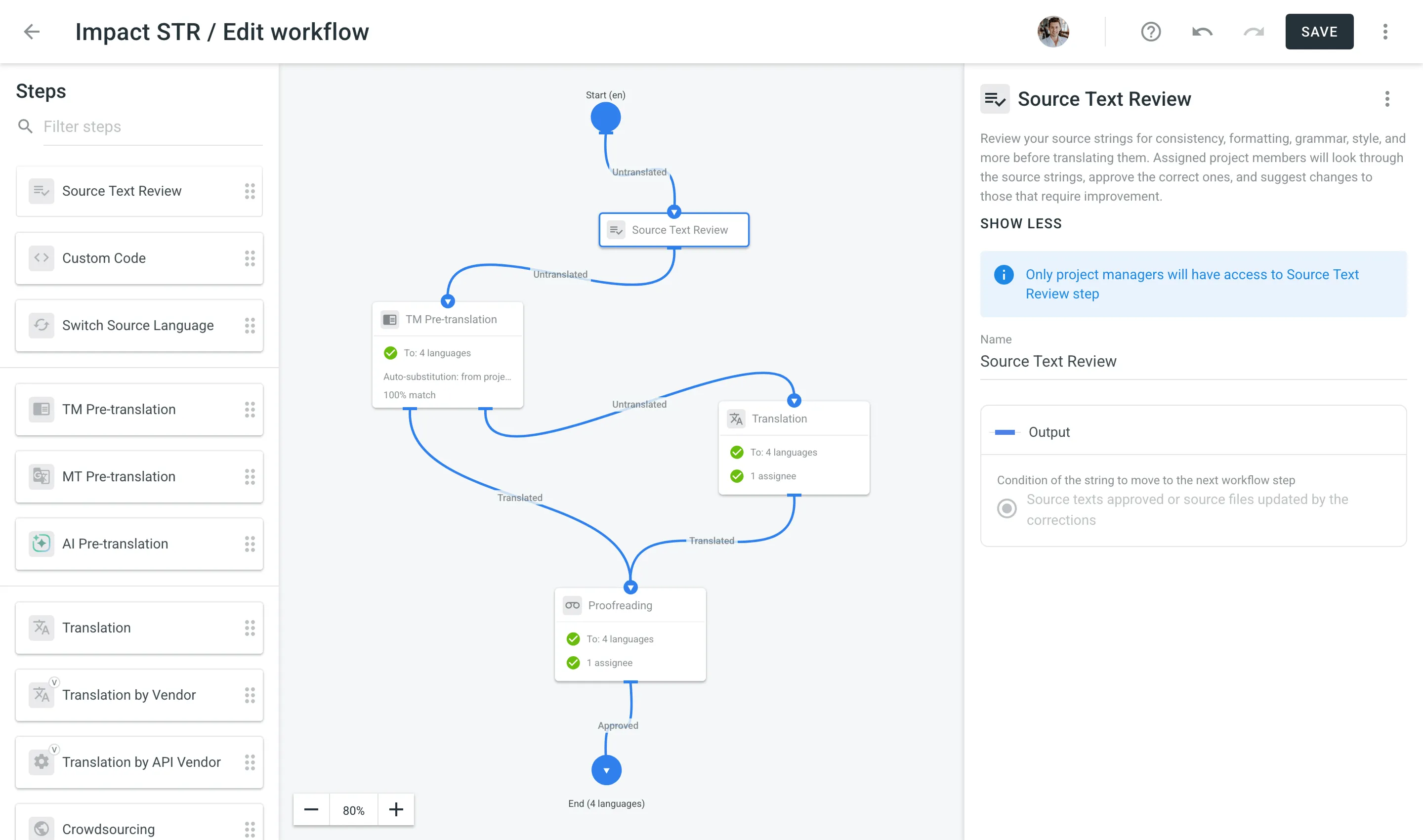
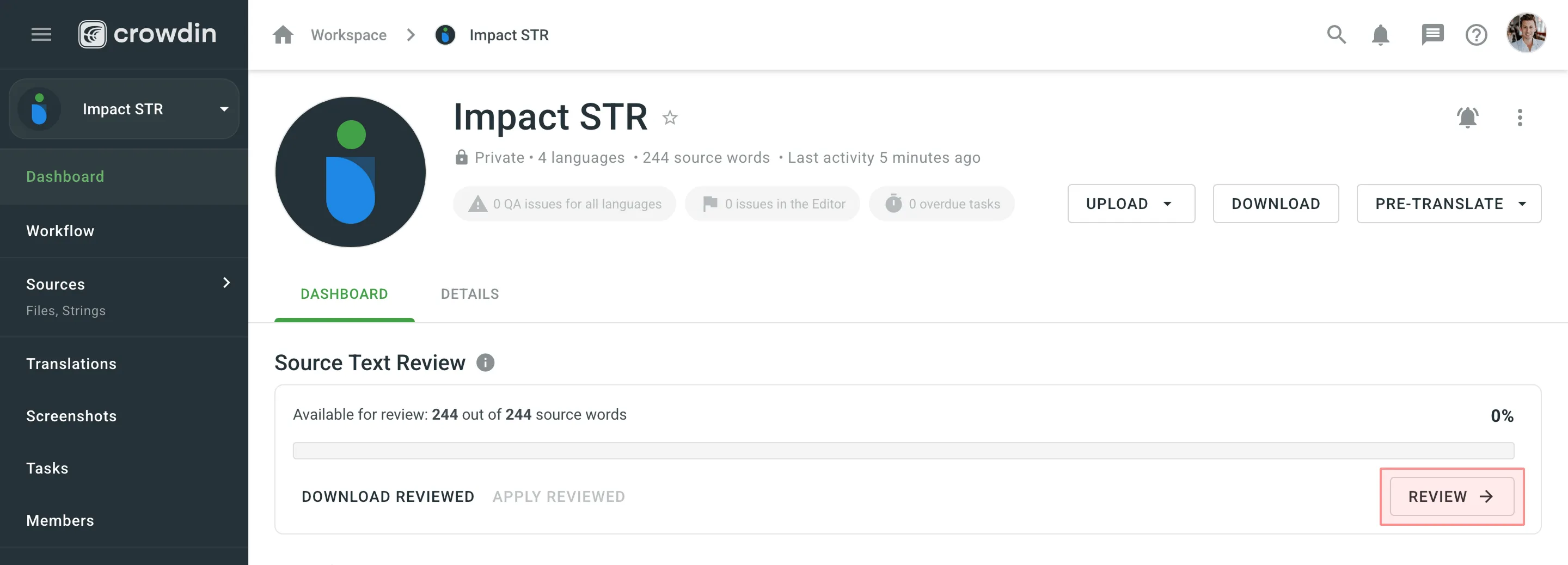
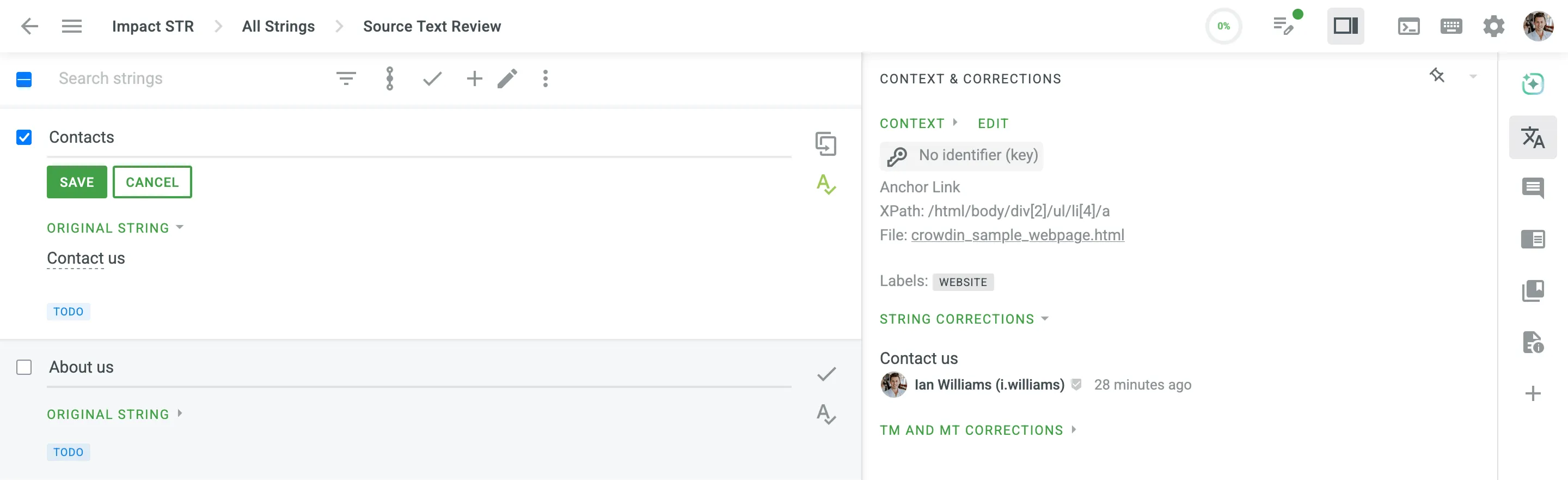
# String Management
> Manage source strings in your translation project
You can view all the project’s strings and manage strings settings via **Sources > Strings**. ## [Changing Strings Visibility](#changing-strings-visibility) [Section titled “Changing Strings Visibility”](#changing-strings-visibility) If some strings contain data that is not supposed to be translated (e.g., placeholders, other technical entities), you can hide them from translators. To do this: 1. Open your project and go to **Sources > Strings**. 2. Select the necessary strings by clicking the checkbox next to each one. 3. Click .  ## [Filtering Strings](#filtering-strings) [Section titled “Filtering Strings”](#filtering-strings) By default, all source strings of the project are displayed in **Sources > Strings**. If necessary, you can filter out strings using the available filter options (Issues: All, With unresolved issues, Without unresolved issues; Comments: All, With comments, Without comments; Screenshots: All, With screenshots, Without screenshots; Visibility: All, Visible only and Hidden only) and project labels.  ## [Adding Strings](#adding-strings) [Section titled “Adding Strings”](#adding-strings) You can add strings to your projects directly in Crowdin Enterprise. To add a new string, follow these steps: * File-based project 1. Open your project and go to **Sources > Strings**. 2. Click **Add String**. 3. In the appeared dialog, enter the necessary details for the string: * *String* – specify the text that needs translation. * *(Optional)* *Plurals* – select this option to add plural forms and enter the text for each form based on the project’s source language requirements. * *Identifier* – specify a unique key for the string, often used for referencing the translated text in the application. * *(Optional)* *Context* – add additional information to help translators understand the intended meaning. * *(Optional)* [*Labels*](#labels) – specify labels to organize strings or provide extra context. * *(Optional)* *Maximum Translation Length* – set a character limit for the translation. * *(Optional)* File-specific identifiers – specify unique keys for each file format when adding the string to multiple files. This ensures that the string meets the different identifier requirements based on the file formats it will be used in. * *Files* – choose the source files where this string should be added. 4. Click **Add** to add the new string to your project. * String-based project 1. Open your project and go to the **Strings** tab. 2. Click **Add String**. 3. In the appeared dialog, enter the necessary details for the string: * *Branches* – choose the branches where this string should be added. * *String* – specify the text that needs translation. You can leave this field empty to create placeholder strings for future content or development purposes. * *(Optional)* *Plurals* – select this option to add plural forms and enter the text for each form based on the project’s source language requirements. * *Identifier* – specify a unique key for the string, often used for referencing the translated text in the application. * *(Optional)* *Context* – add additional information to help translators understand the intended meaning. * *(Optional)* [*Labels*](#labels) – specify labels to organize strings or provide extra context. * *(Optional)* *Maximum Translation Length* – set a character limit for the translation. * *(Optional)* File-specific identifiers – specify unique keys for each branch when adding the string to multiple branches. This ensures that the string meets the different identifier requirements based on the file formats it will be used in. 4. Click **Add** to add the new string to your project. Read more about [project types](/enterprise/creating-project/#project-types). Limitations The maximum identifier length is 512 characters. ## [String Editing](#string-editing) [Section titled “String Editing”](#string-editing) You can add context to the string, add or remove labels, set the max. length of the translation. Once the translation limits are exceeded, the system notifies the contributor that the translation should be shorter.  To edit some particular word or phrase that appears in multiple source strings, you can use the **Find and replace** feature in **Sources > Strings**. Caution When editing the identifier of a string contained in a group of strings (string array for Android XML, segments for XLIFF), the existing translations will be removed for all group strings but the edited one. ### [Formats That Support Online Editing](#formats-that-support-online-editing) [Section titled “Formats That Support Online Editing”](#formats-that-support-online-editing) Some file formats allow editing (adding, deleting, and modifying) of the source text and string identifiers directly in Crowdin Enterprise, so you can make the necessary corrections without having to update the source file via **Sources > Files**. The following file formats support editing the source text and string identifiers directly in Crowdin: * [Android XML](https://store.crowdin.com/android-xml) * [iOS Strings](https://store.crowdin.com/strings) * [Apple Strings Catalog](https://store.crowdin.com/string_catalog) * [JSON](https://store.crowdin.com/json) * [i18next JSON](https://store.crowdin.com/i18next-json) * [Chrome JSON](https://store.crowdin.com/chrome-json) * [XLIFF 1.2](https://store.crowdin.com/xliff) * [XLIFF 2.0](https://store.crowdin.com/xliff2.0) * [Angular XLF](https://store.crowdin.com/angular) * [GNU Gettext PO](https://store.crowdin.com/gnu-gettext) * [Unreal Engine Gettext PO](https://store.crowdin.com/gettext-unreal) * [YAML](https://store.crowdin.com/yaml) * [RESX](https://store.crowdin.com/resx) * [CSV](https://store.crowdin.com/csv) * [XLSX](https://store.crowdin.com/xlsx-excel) * [ARB](https://store.crowdin.com/arb) * [Java Properties](https://store.crowdin.com/java-properties) * [Properties Play](https://store.crowdin.com/properties-play) * [Properties XML](https://store.crowdin.com/properties-xml) ### [Labels](#labels) [Section titled “Labels”](#labels) Use labels in your project for an easy way to add context to the strings or organize them by certain topics. Labels are also useful while creating translation and proofreading tasks or searching for specific strings in the Editor with the help of [Advanced Filter](/enterprise/online-editor/#advanced-filter). [Managing Project Labels ](/enterprise/project-settings/labels/)Learn how to make your Crowdin project labels. There are a few possible ways you can add labels to the strings. ##### [Add labels to one string at a time via the *Edit String* dialog](#add-labels-to-one-string-at-a-time-via-the-edit-string-dialog) [Section titled “Add labels to one string at a time via the Edit String dialog”](#add-labels-to-one-string-at-a-time-via-the-edit-string-dialog) 1. Right-click on the string in the list and select **Edit**. 2. Select needed labels in the *Labels* field. 3. Click **Save**.  ##### [Add labels to multiple strings via the *Manage Strings Labels* dialog](#add-labels-to-multiple-strings-via-the-manage-strings-labels-dialog) [Section titled “Add labels to multiple strings via the Manage Strings Labels dialog”](#add-labels-to-multiple-strings-via-the-manage-strings-labels-dialog) 1. Select a few strings you want to add the same labels to. 2. Click . 3. Select needed labels from the list. 4. Click **Apply**.  ##### [Add labels to the source strings in CSV and XLSX files using a dedicated column for labels](#add-labels-to-the-source-strings-in-csv-and-xlsx-files-using-a-dedicated-column-for-labels) [Section titled “Add labels to the source strings in CSV and XLSX files using a dedicated column for labels”](#add-labels-to-the-source-strings-in-csv-and-xlsx-files-using-a-dedicated-column-for-labels) Read more about [Configuring Columns for Import](/enterprise/csv-xlsx-configuration/#columns-configuration).
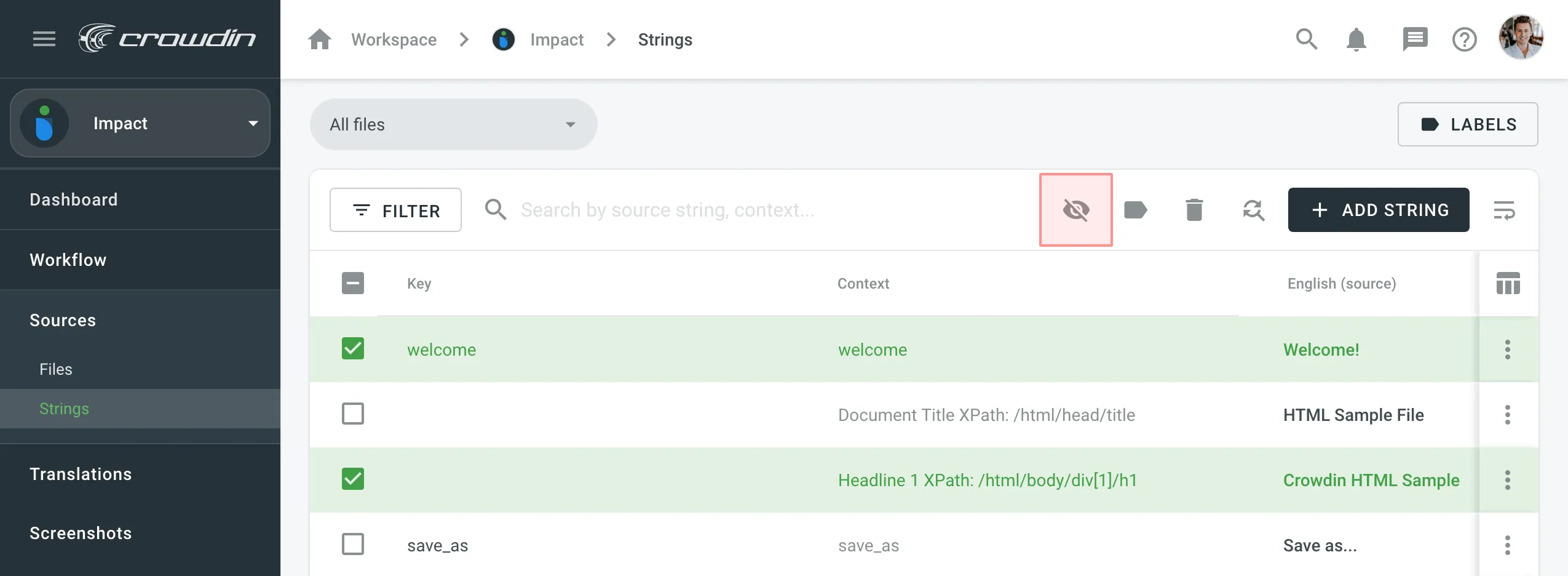
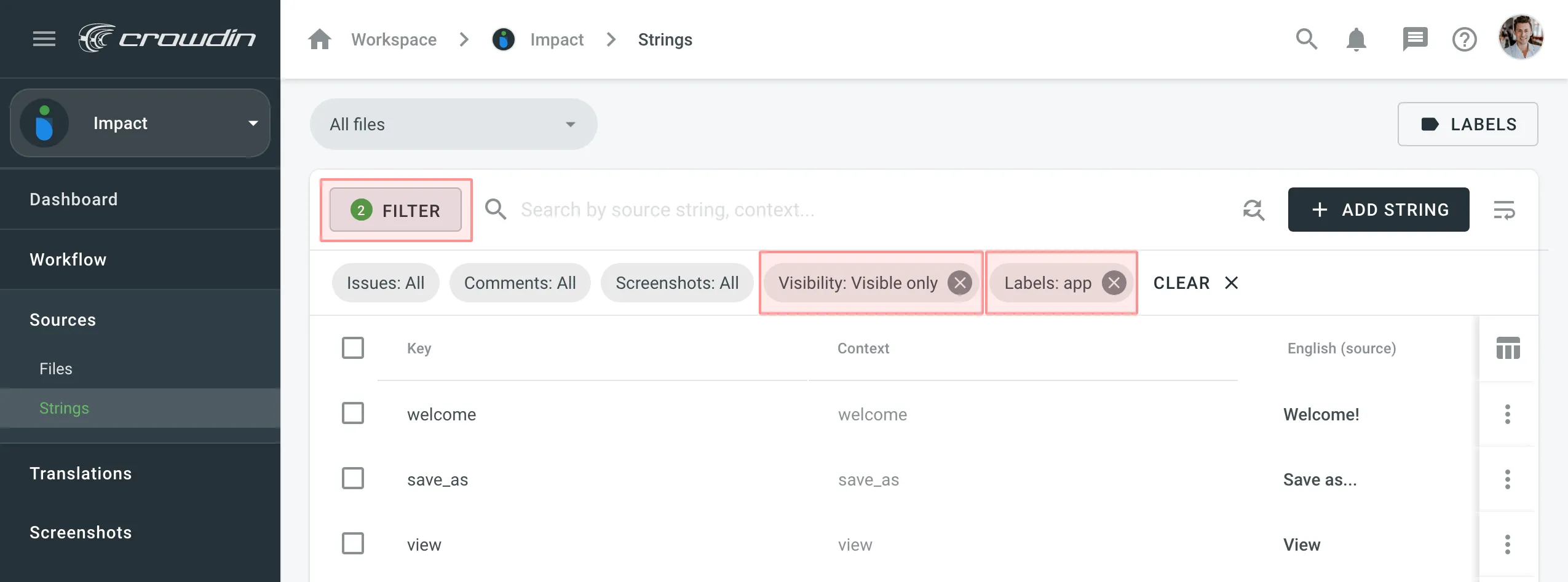
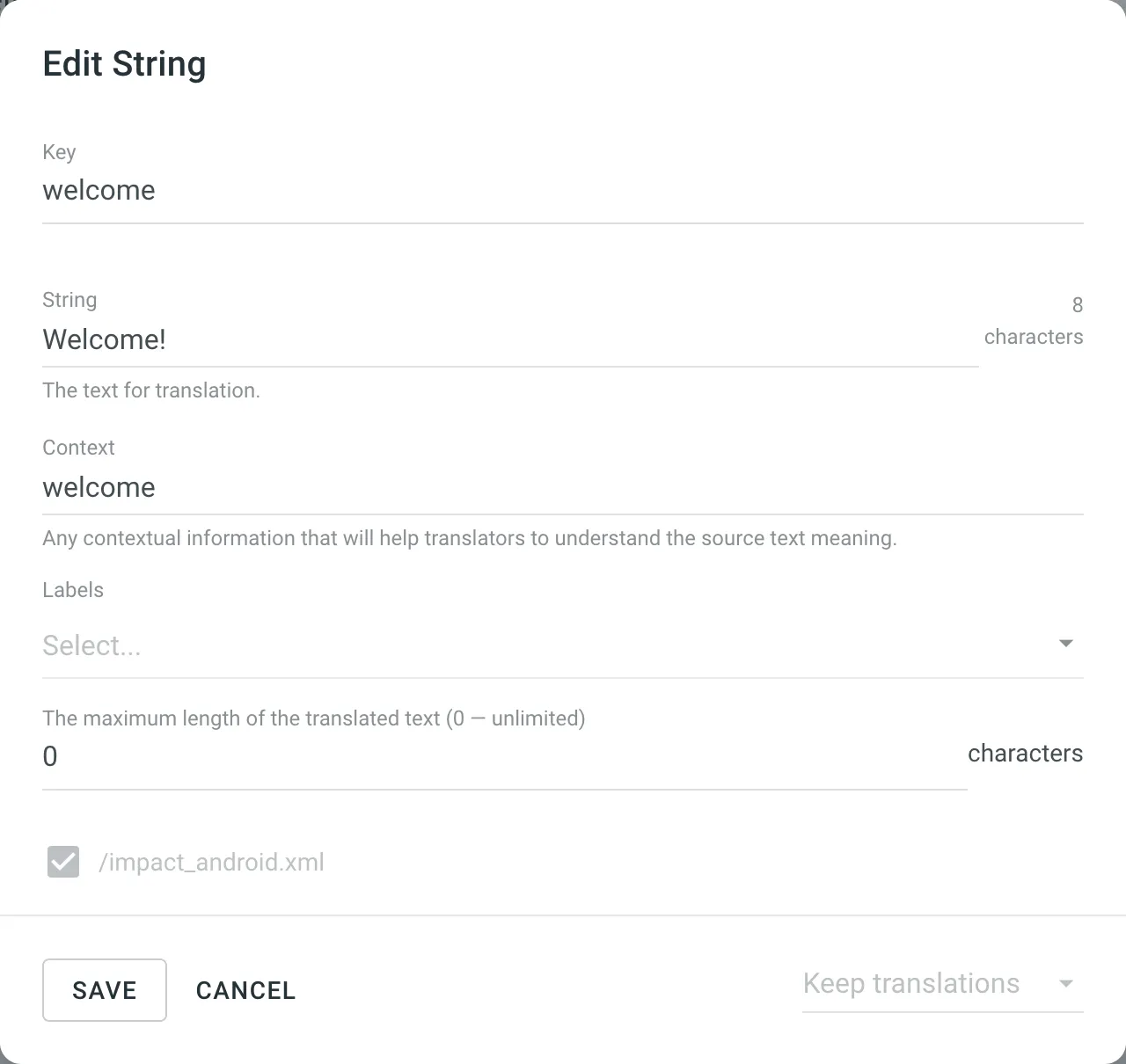
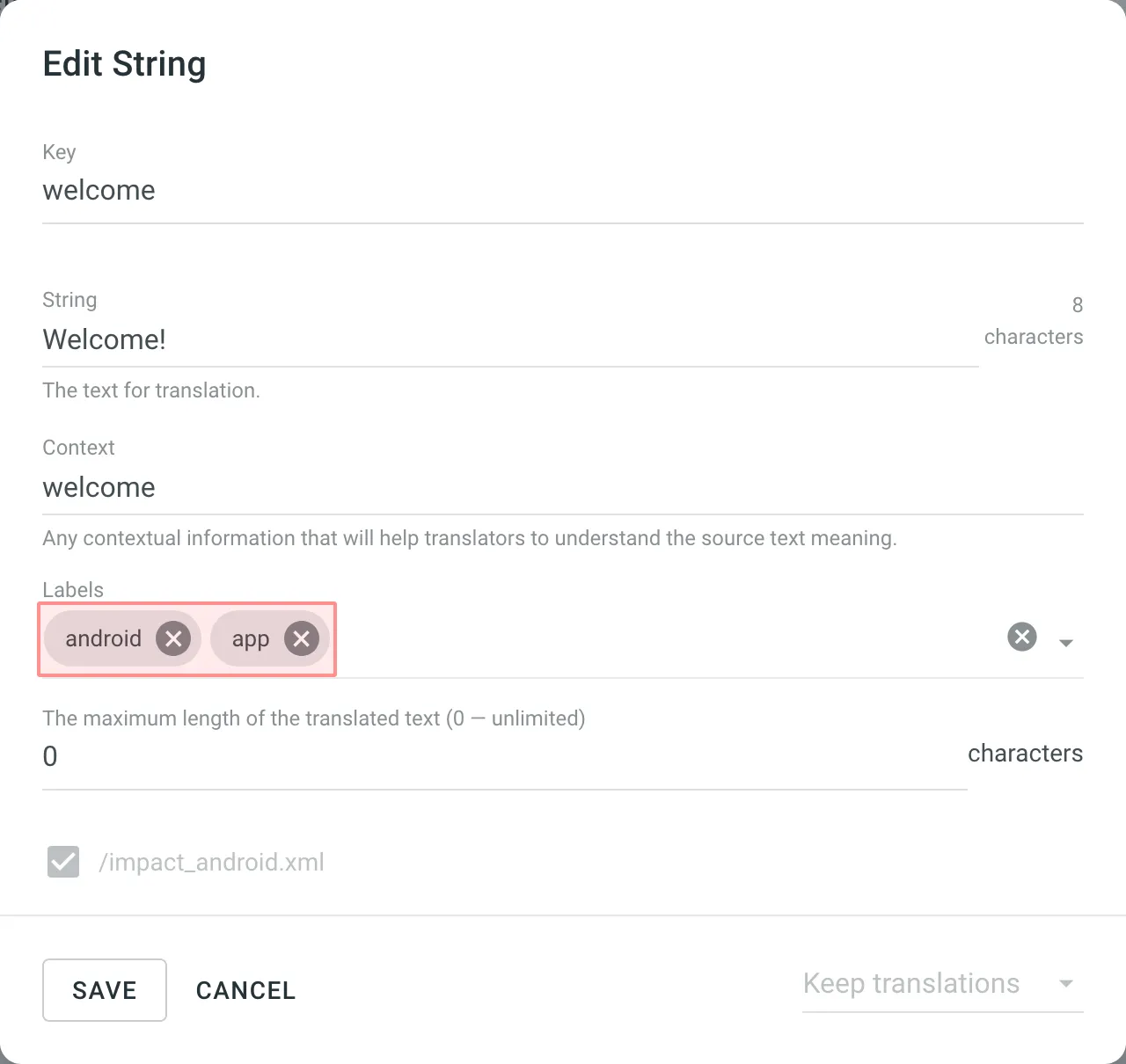
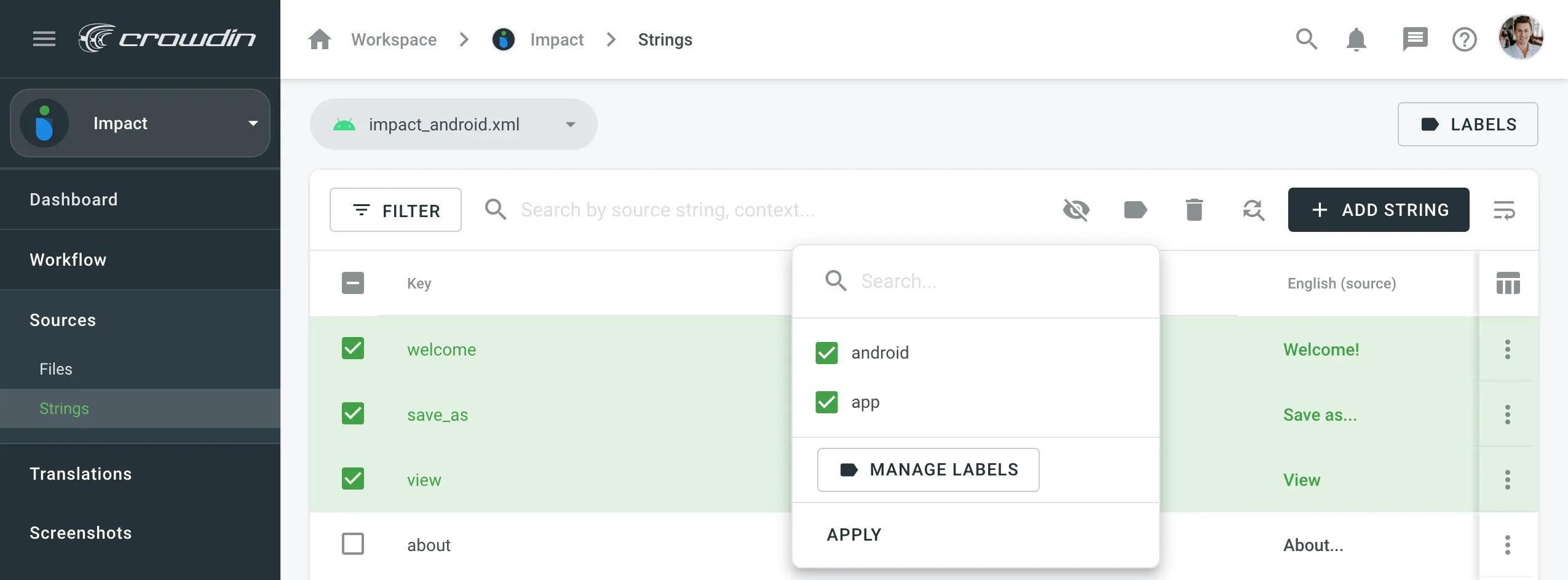
# Supported Formats
> Explore the list of localization formats supported by Crowdin
Crowdin supports a wide range of localization formats, including but not limited to files for mobile, software, documents, subtitles, and graphic assets. ## [Localization Formats and Documents](#localization-formats-and-documents) [Section titled “Localization Formats and Documents”](#localization-formats-and-documents) * Mobile application formats * Web and desktop software formats * Documentation and video subtitles  50 Supported Formats [View on Store ](https://store.crowdin.com/categories/file-formats) ## [Graphics and Assets](#graphics-and-assets) [Section titled “Graphics and Assets”](#graphics-and-assets) Localize images associated with your product to improve your product’s user experience. 1. Upload graphics to Crowdin. 2. Add all the necessary references for a translator to understand how these graphics should be handled. 3. Wait for translators to upload localized files. 4. Download the localized graphics and use them in production.  ## [Converted File Formats](#converted-file-formats) [Section titled “Converted File Formats”](#converted-file-formats) On import, some file formats are automatically converted into other formats to be further parsed and processed. You can see the list of the initial file formats and the file formats they’re being converted into in the table below. | Initial file format | Converted file format | | ------------------- | --------------------- | | DOC | DOCX | | PPT | PPTX | | RTF | DOCX | | PDF | DOCX | ## [Custom Services](#custom-services) [Section titled “Custom Services”](#custom-services) ## [Custom File Formats](#custom-file-formats) [Section titled “Custom File Formats”](#custom-file-formats) File formats that are not officially supported will be recognized as plain text files (if they contain text) or as graphic assets. Our team can add special code to support your original file formats and ensure that translators see only translatable text rather than the entire file content. This approach allows you to manage custom file formats more effectively. [Contact](https://crowdin.com/contacts) our support team to start working with custom file formats in your project. Alternatively, you can implement support for a custom format yourself by developing a [Crowdin app](/developer/crowdin-apps-about/) incorporating the [Custom File Format](/developer/crowdin-apps-module-custom-file-format/) module. ## [Custom File Export](#custom-file-export) [Section titled “Custom File Export”](#custom-file-export) By default, we export the translations in the same format as the source files. For example, if you upload an XML file to Crowdin, you’ll have the XML file exported. Our developers can create a special processor if you want to configure custom settings for your file export. For example, you upload a key-value file that doesn’t support [string editing](/enterprise/string-management/) by default and want to modify it directly in Crowdin. We can temporarily convert your file to CSV file format to allow you to add strings online. The exported file will remain in the original format. [Contact](https://crowdin.com/contacts) our support team, and we’ll gladly help you set custom export options based on your needs. ## [Custom Placeholders](#custom-placeholders) [Section titled “Custom Placeholders”](#custom-placeholders) Crowdin supports all the placeholders typical for the supported file formats. They are all automatically highlighted in the Editor, so translators know that they shouldn’t be translated. Even if the translator tries to save the translation with some modified or missing placeholder, enabled QA checks will notify the translator about the mistake. As various file formats allow the creation of custom placeholders, we can also add support for the custom ones you use in your project. To request the support of your custom placeholders, [contact](https://crowdin.com/contacts) our support team.

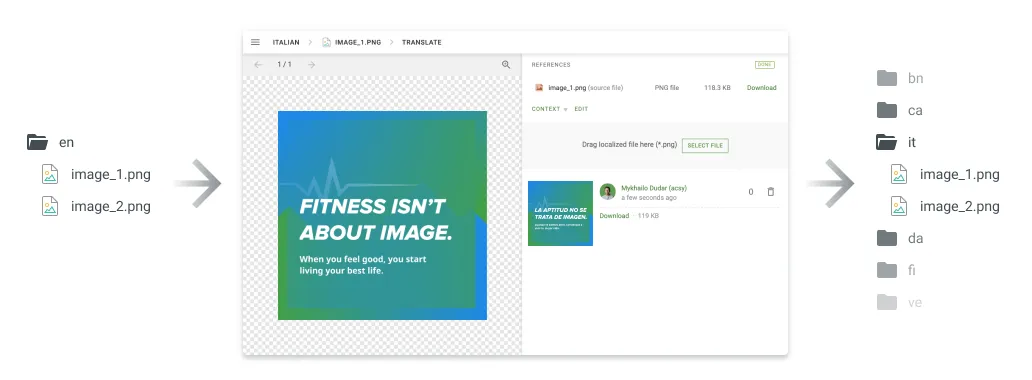
# Project Tasks
> Create and assign tasks for translating or proofreading content
Create and assign tasks for translating or proofreading content to specific project members or vendors. You can set due dates, split words among assignees, receive notifications about task changes and updates, and discuss tasks with other project members in the comments. ## [Creating New Task](#creating-new-task) [Section titled “Creating New Task”](#creating-new-task) To create a new task, follow these steps: * File-based project 1. Open your project and select **Tasks** on the left sidebar. 2. Click **New task**.  3. Set the task parameters: * *Type* – select between *Translate by own translators*, *Proofread by own proofreaders*, *Translate by vendor*, and *Proofread by vendor*. * *Workflow step* – select the necessary step from the project workflow. * *[Create a pending proofreading task](#sequential-tasks)* (only for translation tasks) – creates a separate proofreading task that starts once the translation is completed. * Type – select *Proofread by own proofreaders* or *Proofread by vendor*. * *Workflow step* – select the workflow step for a pending proofreading task. * *[Preceding task](#sequential-tasks)* (only for proofreading tasks) – link the task to a previously created translation task to inherit its scope and language settings. * *Skip strings already included in other tasks* – skip strings that are already assigned to other tasks. * *[Create Cost Estimate Report](#generating-cost-estimate-report-for-tasks)* – automatically generate a cost estimate based on selected content and the rates template. * *Rates template* – select the template to be used for calculating the estimate. * *String filters* – filter which strings should be included in the task: * *Strings* – select whether to include *All ToDo strings on the selected step*, only those modified within a specific period, or only those with translations updated within a specific period (only for proofreading tasks). * *Filter by labels* (optional) – select one or more labels to include only strings with the specified labels. Then, select the match rule: * *All selected labels* – includes only strings that have all selected labels (AND logic). * *Any selected label* – includes strings that have at least one of the selected labels (OR logic). * *Exclude by labels* (optional) – select one or more labels to exclude strings with the specified labels. Then, select the match rule: * *All selected labels* – excludes only strings that have all selected labels (AND logic). * *Any selected label* – excludes strings that have at least one of the selected labels (OR logic). * *Include pre-translated strings only* (only for proofreading tasks) – include only strings that were previously pre-translated. * *Due Date* (optional) – set a deadline. * *Files* – select files to include in the task. * *Languages* – select target languages (a separate task will be created for each selected language). The *Words to do* column shows the total number of words added to the task. * Click **Assign** to assign users to the task for each language separately. * *(Optional)* Use a saved [template](#task-templates) to apply language and member assignment settings, or save the current configuration for future use. * *Title* – specify the name of the task that will be visible to translators or proofreaders. * *Description* (optional) – add any additional details that may be helpful. 4. Click **Create**.  * String-based project 1. Open your project and select **Tasks** on the left sidebar. 2. Click **New task**.  3. Set the task parameters: * *Type* – select between *Translate by own translators*, *Proofread by own proofreaders*, *Translate by vendor*, and *Proofread by vendor*. * *Workflow step* – select the necessary step from the project workflow. * *[Create a pending proofreading task](#sequential-tasks)* (only for translation tasks) – creates a separate proofreading task that starts once the translation is completed. * Type – select *Proofread by own proofreaders* or *Proofread by vendor*. * *Workflow step* – select the workflow step for a pending proofreading task. * *[Preceding task](#sequential-tasks)* (only for proofreading tasks) – link the task to a previously created translation task to inherit its scope and language settings. * *Skip strings already included in other tasks* – skip strings that are already assigned to other tasks. * *[Create Cost Estimate Report](#generating-cost-estimate-report-for-tasks)* – automatically generate a cost estimate based on selected content and the rates template. * *Rates template* – select the template to be used for calculating the estimate. * *String filters* – filter which strings should be included in the task: * *Strings* – select whether to include *All ToDo strings on the selected step*, only those modified within a specific period, or only those with translations updated within a specific period (only for proofreading tasks). * *Filter by labels* (optional) – select one or more labels to include only strings with the specified labels. Then, select the match rule: * *All selected labels* – includes only strings that have all selected labels (AND logic). * *Any selected label* – includes strings that have at least one of the selected labels (OR logic). * *Exclude by labels* (optional) – select one or more labels to exclude strings with the specified labels. Then, select the match rule: * *All selected labels* – excludes only strings that have all selected labels (AND logic). * *Any selected label* – excludes strings that have at least one of the selected labels (OR logic). * *Include pre-translated strings only* (only for proofreading tasks) – include only strings that were previously pre-translated. * *Due Date* (optional) – set a deadline. * *Branches* – select branches to include in the task. * *Languages* – select target languages (a separate task will be created for each selected language). The *Words to do* column shows the total number of words added to the task. * Click **Assign** to assign users to the task for each language separately. * *(Optional)* Use a saved [template](#task-templates) to apply language and member assignment settings, or save the current configuration for future use. * *Title* – specify the name of the task that will be visible to translators or proofreaders. * *Description* (optional) – add any additional details that may be helpful. 4. Click **Create**.  Read more about [project types](/enterprise/creating-project/#project-types). ### [Splitting Content](#splitting-content) [Section titled “Splitting Content”](#splitting-content) Splitting content between several members allows you to speed up the translation or proofreading process. While in string-based and file-based projects this option is called differently (i.e., **Split strings** and **Split files**), the basic principle of its behavior remains the same. To split content between several members select **Split files** (in file-based project) or **Split strings** (in file-based project) in the **Assign users** dialog. You can set the approximate amount of words for each assignee.  ### [Generating Cost Estimate Report for Tasks](#generating-cost-estimate-report-for-tasks) [Section titled “Generating Cost Estimate Report for Tasks”](#generating-cost-estimate-report-for-tasks) To automatically estimate the cost of translation or proofreading for a task, select the **Create Cost Estimate Report** option during task creation. Once selected, a required [**Rates Template**](/enterprise/project-reports/#rate-templates) drop-down will appear. Choose a saved template to calculate the cost estimate based on the selected strings or files. After the task is created, a Cost Estimate report will be generated automatically and become available in the [Archive](/enterprise/project-reports/#archive) section. The estimated cost will also be displayed on the task card in the Board section. You can open the task to view the **Estimated Cost** section, which includes the following details: * The calculated cost based on the selected rates template * A clickable report title (e.g., Report #123) that links to the full report in the Archive section * The report generation date If the task scope changes (e.g., files or strings are modified), a new Cost Estimate report will be generated automatically to reflect the updated estimate. ### [Task Templates](#task-templates) [Section titled “Task Templates”](#task-templates) Use task templates to save the configuration of the **Languages** section, including target languages and member assignments. Templates help you quickly apply these configurations when creating new tasks, saving time and ensuring consistency. #### [Saving Templates](#saving-templates) [Section titled “Saving Templates”](#saving-templates) To save the language and member assignment settings as a template, follow these steps: 1. In the **Languages** section, click **Save as**. 2. Select **New template** from the drop-down menu. 3. In the dialog that appears, enter a name for your template. 4. Click **Save**. Your template is now saved and available for future tasks.  #### [Applying Templates](#applying-templates) [Section titled “Applying Templates”](#applying-templates) To apply a saved template to a new task, follow these steps: 1. In the **Languages** section, click on the template name to apply it immediately. 2. Alternatively, click next to the template name and select **Apply**. #### [Managing Templates](#managing-templates) [Section titled “Managing Templates”](#managing-templates) To rename or delete a saved template, follow these steps: 1. In the **Languages** section, click next to the template name. 2. Select one of the following options: * **Rename** – Enter a new name for your template. * **Delete** – Permanently remove the template.  ## [Project Tasks](#project-tasks) [Section titled “Project Tasks”](#project-tasks) In the **Tasks** section, you can view all the project tasks in the following two sections: **Board**, **All Tasks**. ### [Board](#board) [Section titled “Board”](#board) In the **Board** section, tasks are organized into three columns: To Do, In Progress, and Done. This layout provides a clear view and visualization of the current status of all tasks. Within each column, tasks are further grouped by target languages. Each target language group can be collapsed to hide task cards or expanded to display them. This feature is particularly useful for decluttering the view and focusing on specific languages. Use the **Search** field to search for tasks by name or [filter tasks](#filtering-tasks) using various filter options. To view the task details, open it by clicking on the task name.  ### [All Tasks](#all-tasks) [Section titled “All Tasks”](#all-tasks) The **All Tasks** section provides a list view of all project tasks. It is particularly useful for efficiently managing large volumes of tasks. From this view, you can select multiple tasks to perform bulk actions, such as changing assignees, updating statuses, or deleting tasks. Similar to the **Board** section, the **All Tasks** view also allows you to use the **Search** field and [filter](#filtering-tasks). Additionally, you can sort the task list in ascending or descending order using the available sort options (ID, Created at, Resolved at, Due Date). #### [Generating Reports for Multiple Tasks](#generating-reports-for-multiple-tasks) [Section titled “Generating Reports for Multiple Tasks”](#generating-reports-for-multiple-tasks) From the **All Tasks** view, you can generate a **Cost Estimate** or **Translation Cost** report for one or more specific tasks. This allows you to quickly assess costs without having to manually select tasks on the report generation page. To generate a report for selected tasks, follow these steps: 1. In the **All Tasks** view, select the desired tasks using the checkboxes. You can use filters to narrow down the list before selection. 2. Click in the upper-right corner. 3. Select **Cost estimate** or **Translation cost** from the drop-down menu. You will then be redirected to the corresponding report generation page with the selected tasks pre-filled, where you can configure and generate the report. ### [Editing Task](#editing-task) [Section titled “Editing Task”](#editing-task) To change the task details, follow these steps: 1. Open your project and select **Tasks** on the left sidebar. 2. In the **Board** or **All tasks** section, click (or right-click) on the task you want to change and select **Edit**.  3. Make the necessary edits and click **Save**. ### [Filtering Tasks](#filtering-tasks) [Section titled “Filtering Tasks”](#filtering-tasks) By default, all project tasks are displayed in the **Tasks** section either in the **Board** or **All Tasks** sections. If necessary, you can filter tasks using the available filter options: * Target language: All languages or particular language. * Assignee: All users or particular user. * Created by: All users or particular user. * Due date: All, Overdue now, Custom range. * Created: All, Custom range. * Type: All types, Translate by own translators, Proofread by own proofreaders, Translate by vendor, Proofread by vendor. * Workflow step: All, No workflow step, or particular workflow step. * File: All files or particular file or folder. * Status: All statuses, To Do, In Progress, Done, Closed.  ### [Changing Task Status](#changing-task-status) [Section titled “Changing Task Status”](#changing-task-status) To change the task status in the **Board** section, select the task assigned to you and drag it to the column with the status you need.  To change the task status in the **All Tasks** section, select the needed task, click **Change status**, and select the new status. Alternatively, in either of the two sections, you can change the task status directly in the task itself using the **Status** drop-down menu and selecting needed statuses. ### [Closing Task](#closing-task) [Section titled “Closing Task”](#closing-task) To close the task when it’s finished, move it to the **Done** column and click **Close Task**.  To view the list of closed tasks, open the **All Tasks** section and use the filter **Status: Closed**. ## [Sequential Tasks](#sequential-tasks) [Section titled “Sequential Tasks”](#sequential-tasks) Sequential tasks streamline the management of translation and proofreading processes in a structured, step-by-step manner. This feature is particularly useful for managing content that requires translation followed by proofreading, ensuring a smooth workflow. Once created, sequential tasks are represented on the Tasks Board, displaying both the translation task and its linked pending proofreading task.  ### [Key Approaches](#key-approaches) [Section titled “Key Approaches”](#key-approaches) The concept of sequential tasks is based on two primary approaches: * **Creating a translation task with its associated pending proofreading task:** * Start by creating a translation task and specifying the target languages and work scope. * Select **Create a pending proofreading task** to generate the associated proofreading task. You can set separate due dates for the translation and proofreading tasks if needed.  * While translators work on the translation task, the linked proofreading task remains pending. * When the translation task is completed, the status of the associated proofreading task changes from Pending to To Do. Proofreaders will then receive notifications that it’s ready for review. * **Creating a proofreading task and linking it to a translation task:** * Create a proofreading task and select the translation task you want to link it with from the **Preceding task** drop-down menu. You can link it to either a completed or an active translation task.  * The languages and work scope are automatically inherited from the linked translation task. * The proofreading task remains pending until the linked translation task is completed. * As with the first approach, proofreaders receive notifications when the proofreading task is ready for review. ### [Task Types Supported](#task-types-supported) [Section titled “Task Types Supported”](#task-types-supported) Sequential tasks are available for the following task types: * Translate by own translators * Proofread by own translators * Translate by vendor * Proofread by vendor ### [Sequential Task Management](#sequential-task-management) [Section titled “Sequential Task Management”](#sequential-task-management) * When editing a pending proofreading task, changes are limited to fields that do not affect the scope of the task. * Pending proofreading tasks can be deleted if necessary. In this case, linked translation tasks are preserved. * Deleting a translation task with an associated sequential proofreading task results in the deletion of both tasks simultaneously. ## [Task Cross-Review New](#task-cross-review) [Section titled “Task Cross-Review ”New](#task-cross-review) The **Task Cross-Review** feature helps ensure proper oversight in task workflows by requiring approval before contributors can start working. It’s especially beneficial for teams with internal approval processes, such as budget approvals, where tasks must be reviewed and approved by designated managers or the owner. By adding an extra layer of accountability, this feature ensures tasks don’t move forward without proper review.  ### [How Task Cross-Review Works](#how-task-cross-review-works) [Section titled “How Task Cross-Review Works”](#how-task-cross-review-works) When **Task Cross-Review** is enabled: * During task creation, a notification informs the user that the task will require approval from eligible project members (selected managers or the owner) before assigned members can start working. * On the Board, tasks awaiting approval display an alert indicating they are pending review from selected managers or the owner, making them easy to identify. * In the task details view, an alert states, *“The task is currently pending review from selected managers or the owner,”* and the task is labeled with the status **For Approval**. Only selected managers or the owner can approve the task. The manager who created the task cannot approve it, but the owner can always approve their own tasks. Once approved, the task status changes to **To Do**, indicating that contributors can begin work. Read more about [configuring Task Cross-Review](/enterprise/project-settings/privacy/#configuring-task-cross-review). ## [See Also](#see-also) [Section titled “See Also”](#see-also) [Task-based access control ](/enterprise/project-settings/privacy/#translations)Allow project members to work with tasks they are assigned to, even if they do not have full access to the language in the project. [User Tasks ](/enterprise/user-tasks/)Learn how to view, filter, and manage tasks assigned to you.
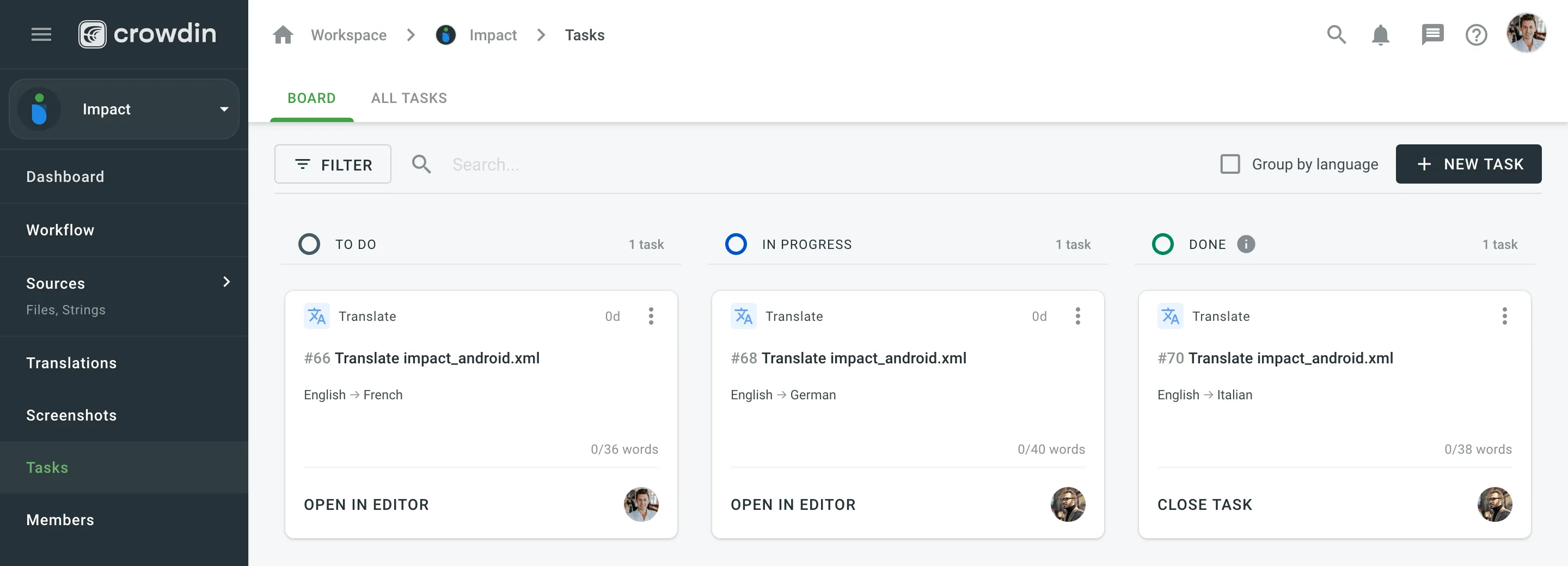
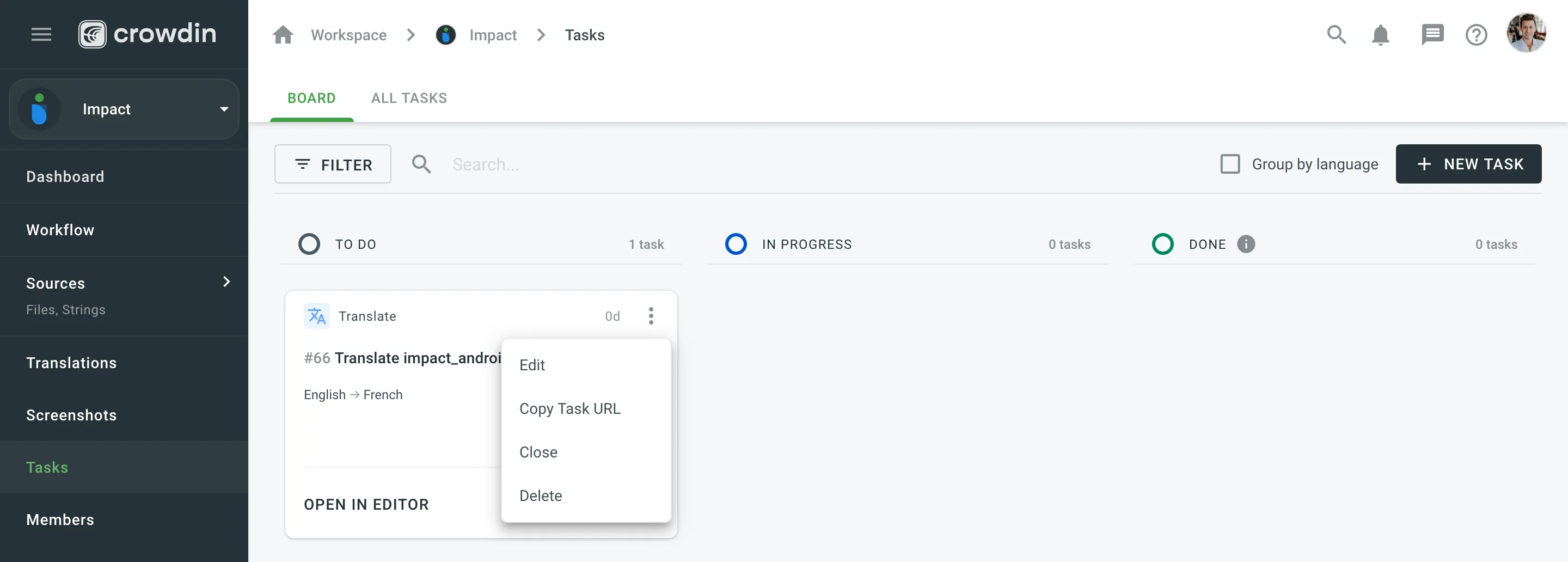
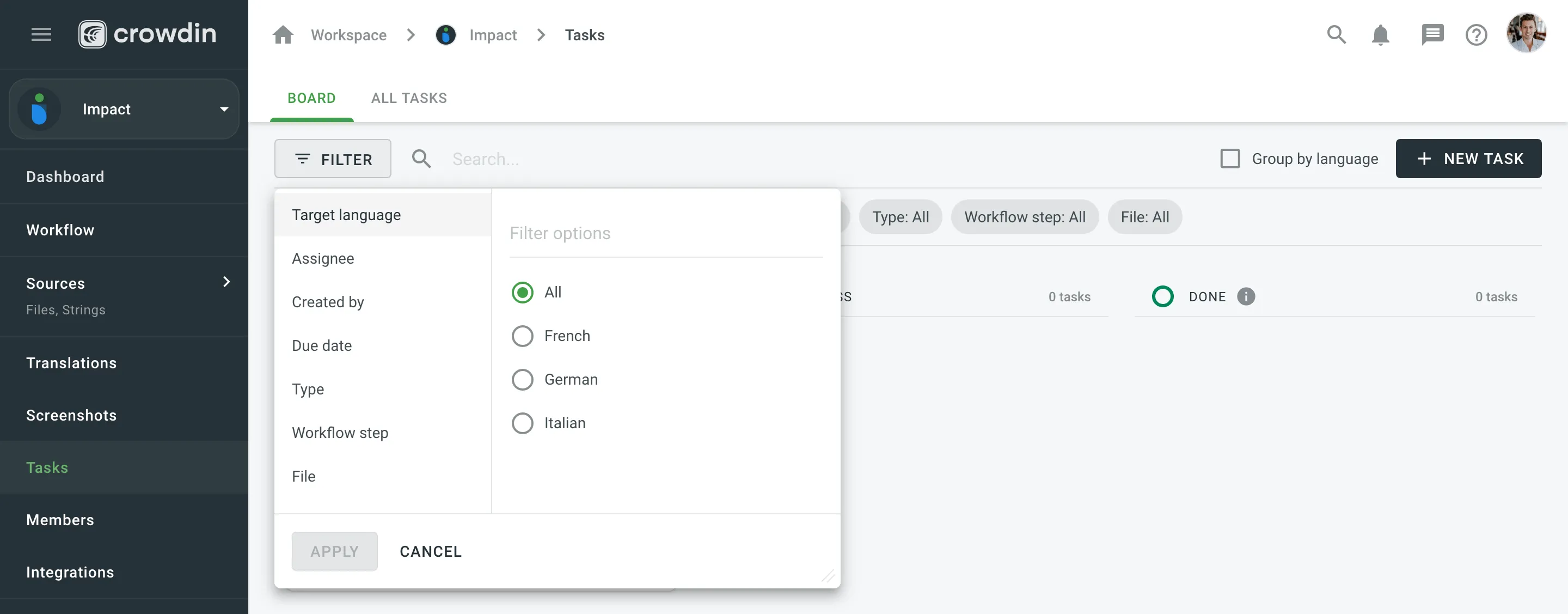
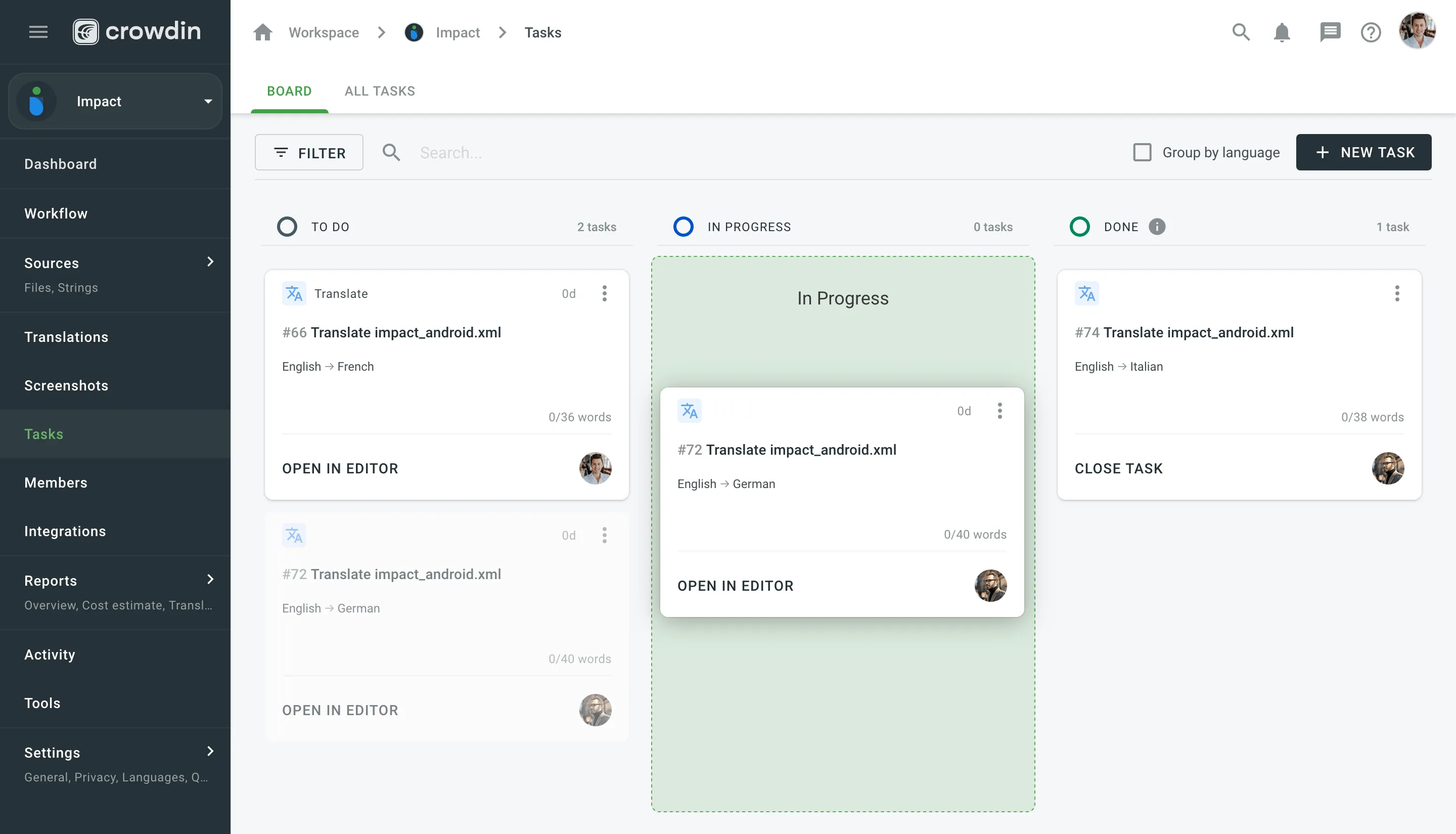
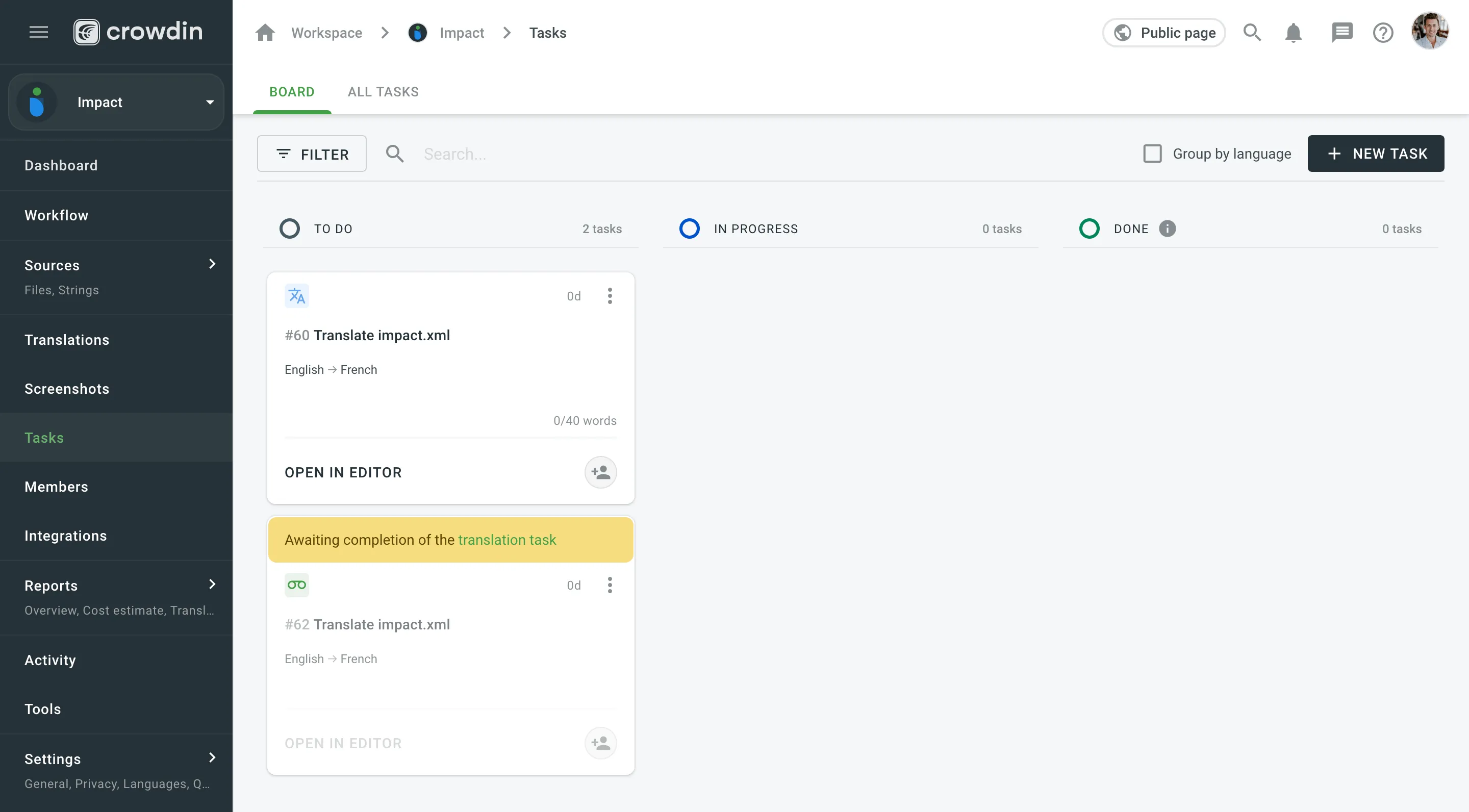
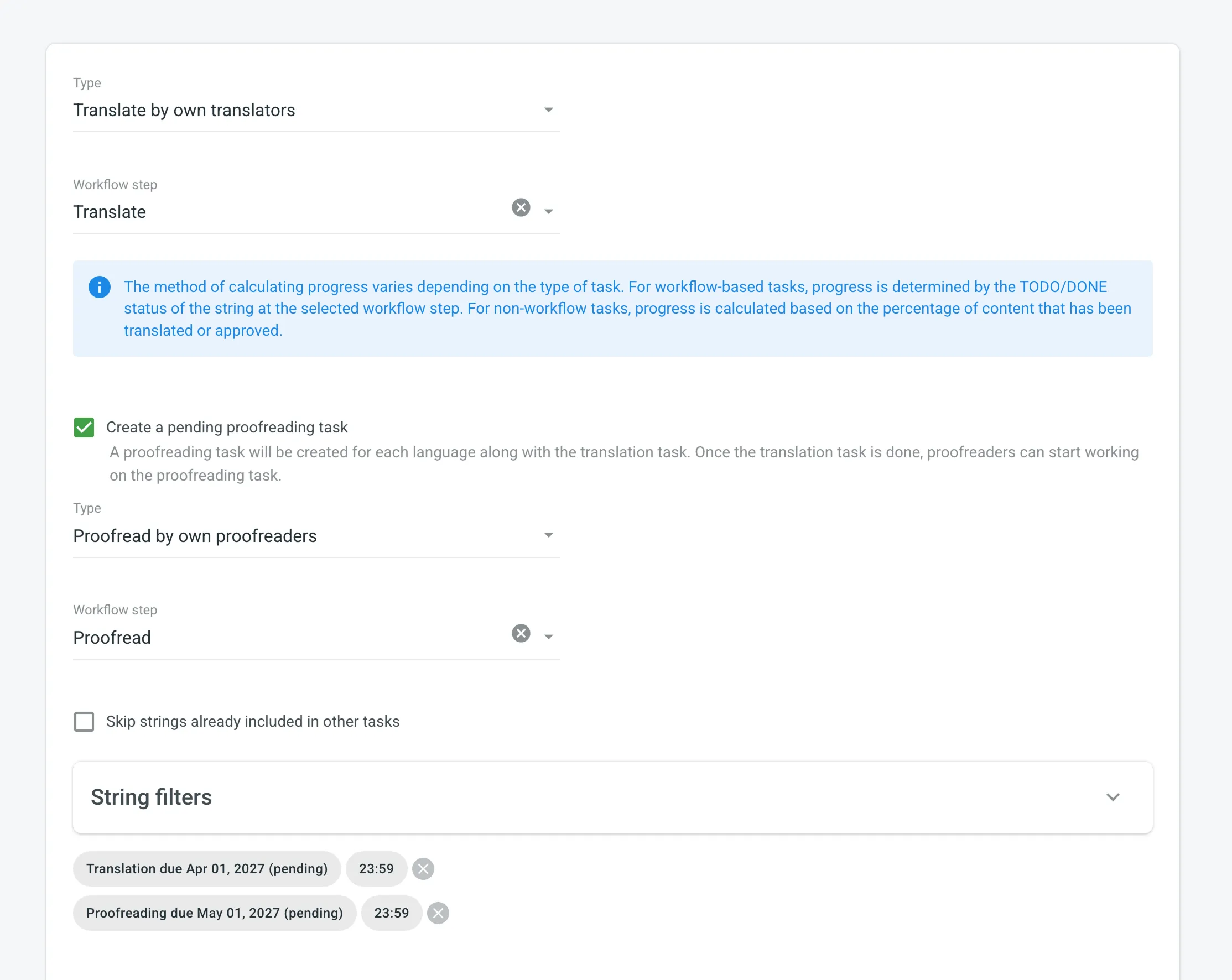
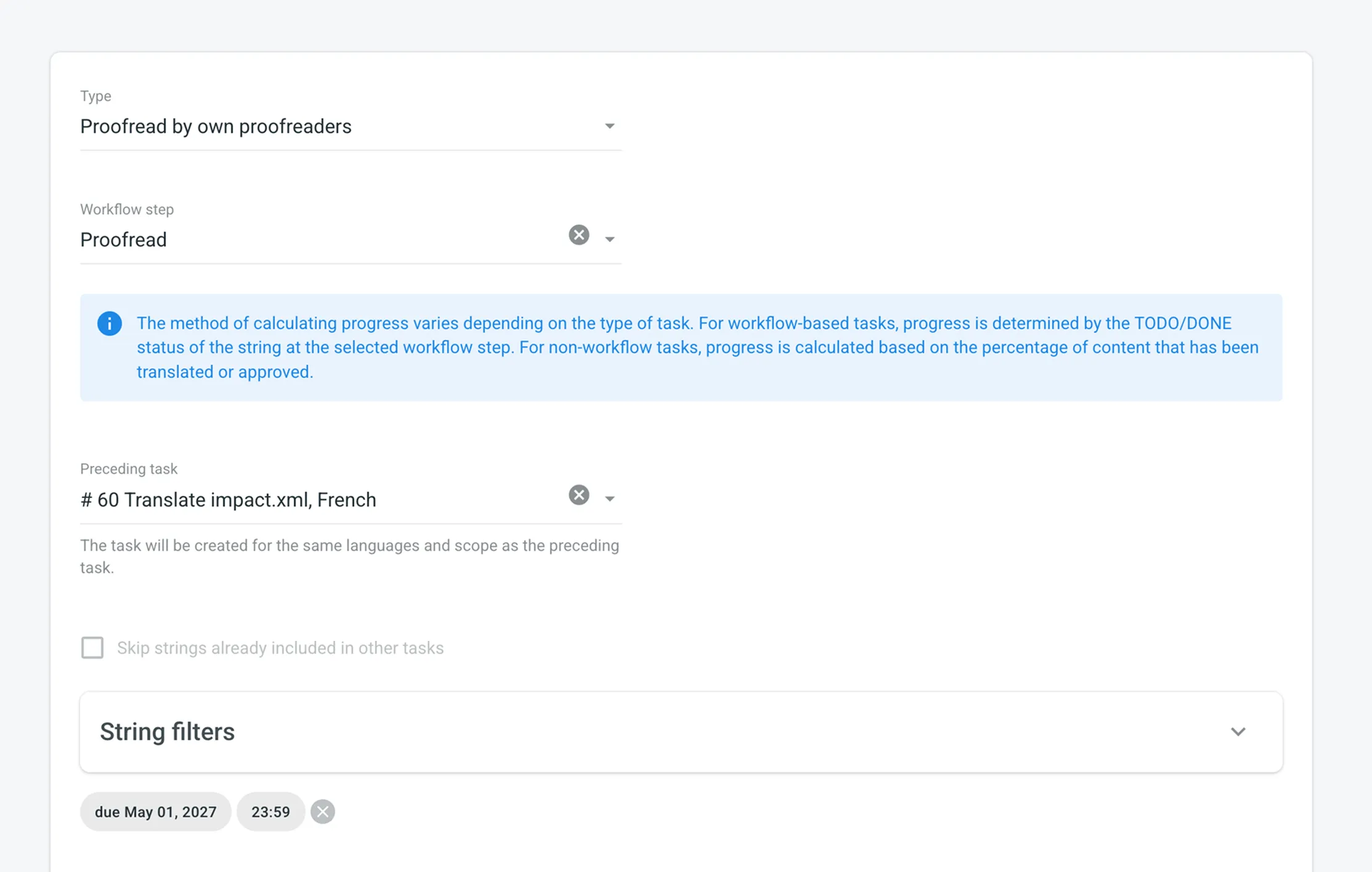
# Teams
> Organize members of your organization into teams to simplify user management
Organize members of your organization into teams to simplify people management in projects, workflow steps, and tasks. Teams help you invite tens or even hundreds of members to the project in a few clicks. So inviting a team to the project becomes as easy as inviting a single person. ## [Use Cases](#use-cases) [Section titled “Use Cases”](#use-cases) * Create language-specific teams of members. You’ll be able to assign a whole team to the needed target language on the workflow steps of your projects. * Assign teams to translation or proofreading tasks. * Add a member to the team to automatically grant access to all projects the team participates in. ## [Creating Teams](#creating-teams) [Section titled “Creating Teams”](#creating-teams) To create a team, follow these steps: 1. Open your organization’s **Workspace** and select **Users** on the left sidebar. 2. Switch to the **Teams** tab. 3. Click **Create** in the lower-right corner.  4. Name your team and select the needed members. 5. Click **Create**.  ## [Managing Teams](#managing-teams) [Section titled “Managing Teams”](#managing-teams) Managing organization teams in Crowdin Enterprise involves various operations such as managing permissions and team members, contacting teams, and deleting teams. Below you can find instructions for each operation. ### [Viewing and Searching Teams](#viewing-and-searching-teams) [Section titled “Viewing and Searching Teams”](#viewing-and-searching-teams) Once you open the **Users** page, you can switch to the **Teams** tab to view and search for teams. You can view the list of existing organization teams (one team per row). To search for a particular team, type the team name in the **Search** field. To change the sorting order, click on the **Name** column heading.  ### [Viewing Team Details](#viewing-team-details) [Section titled “Viewing Team Details”](#viewing-team-details) To view and manage team details, follow these steps: 1. Open your organization’s **Workspace** and select **Users** on the left sidebar. 2. Switch to the **Teams** tab. 3. Double-click on the team or right-click and select **Open** from the menu. 4. In the team details, you can perform various actions: * **Members**: view and manage team members. * **Projects and Roles**: view and manage team participation in organization projects and their roles in these projects. * **Groups**: (only for [Permission granularity](/enterprise/permissions-granularity-mode/#permissions) mode) view and manage the groups which are managed by a team. * Use the left panel to rename the team, view basic information, team members number, creation date, and add new members.  ### [Changing Permissions](#changing-permissions) [Section titled “Changing Permissions”](#changing-permissions) To change team permissions, follow these steps: 1. Open your organization’s **Workspace** and select **Users** on the left sidebar. 2. Switch to the **Teams** tab. 3. Select one or multiple teams for which you want to change the permissions. 4. Click **Permissions** in the upper-right corner or right-click on the team and change **Permissions** from the menu. 5. Select either **Add project permissions** or **Remove project permissions**. 6. In the appeared dialog, configure the permissions you want to add or remove and confirm the changes. ### [Editing Teams](#editing-teams) [Section titled “Editing Teams”](#editing-teams) To edit (e.g., rename a team, add new or remove current team members) a team, follow these steps: 1. Open your organization’s **Workspace** and select **Users** on the left sidebar. 2. Switch to the **Teams** tab. 3. Right-click on the needed team and select the option from the context menu. Once you edit a team (add a new member or remove one of the current ones), the changes will be applied automatically to all the projects this team participates in. ### [Deleting Teams](#deleting-teams) [Section titled “Deleting Teams”](#deleting-teams) To delete teams from the organization, follow these steps: 1. Open your organization’s **Workspace** and select **Users** on the left sidebar. 2. Switch to the **Teams** tab. 3. Select one or multiple teams that you want to delete. 4. Click or right-click on the selected teams and select **Delete** from the menu. 5. Confirm the deletion. Once you delete a team, all its members will also be deleted from all projects this team participated in. ## [Assigning Teams](#assigning-teams) [Section titled “Assigning Teams”](#assigning-teams) ### [Assigning Teams to Workflow Step](#assigning-teams-to-workflow-step) [Section titled “Assigning Teams to Workflow Step”](#assigning-teams-to-workflow-step) You can assign a team to the workflow step of your project in the workflow editor or the Workflow template editor. Read more about [Workflows](/enterprise/workflows/). ### [Inviting Teams to the Project](#inviting-teams-to-the-project) [Section titled “Inviting Teams to the Project”](#inviting-teams-to-the-project) You can invite a team to the project via the **Members** section and provide the necessary access level the same way as you do it for a single person. Read more about [inviting people to the project](/enterprise/inviting-people/#inviting-people-to-a-project). After you invited a team to the project, you can remove one or few people from the project members list. In this case, the deleted member will remain in the team and on next invitations to the projects will be listed among project participants. ### [Assigning Team to the Task](#assigning-team-to-the-task) [Section titled “Assigning Team to the Task”](#assigning-team-to-the-task) While creating a translation or proofreading task, you can assign it to the team. Optionally, you can use the *Split files* option to split translatable content between team members. Read more about [Creating a Task](/enterprise/tasks/#creating-new-task). ## [Team Permissions](#team-permissions) [Section titled “Team Permissions”](#team-permissions) When you invite an individual member to a project who also participates in a team, and later on, you invite this team to the project as well, the personal permissions of this member might be overridden by the team permissions. For example, if the member initially had permissions only for the translation step of French, and then the whole team was granted permissions for the translation and proofreading steps of French, German, and Italian, this particular member will also receive the higher permissions.
# Translation by API Vendor
> Order professional translations from vendors integrated via API
Translation by API Vendor is a workflow step used to order translations from vendors integrated with Crowdin Enterprise via API. It helps automate the translation process by enabling manual or scheduled order placement, with translations delivered directly to your project. [Workflow Overview ](/enterprise/workflows/) [Vendors ](/enterprise/vendors/) ## [Adding API Vendor to the Organization](#adding-api-vendor-to-the-organization) [Section titled “Adding API Vendor to the Organization”](#adding-api-vendor-to-the-organization) To use this workflow step, first add a supported API vendor (e.g., Gengo) to your organization. 1. Open your organization’s **Workspace** and select **Store** on the left sidebar. 2. Switch to the **Vendors** tab and click **Invite** for Gengo. 3. In the appeared dialog, keep **Vendor as organization** selected and click **Invite**.  4. Go back to your **Workspace**, select **Vendors** on the left sidebar, and click **Gengo**. 5. Click **Set up account**. 6. In the appeared dialog, paste your Gengo API keys from your Gengo [Account settings > API settings](https://gengo.com/account/api_settings/) and click **Done**. ## [Adding Translation by API Vendor Step to Your Workflow](#adding-translation-by-api-vendor-step-to-your-workflow) [Section titled “Adding Translation by API Vendor Step to Your Workflow”](#adding-translation-by-api-vendor-step-to-your-workflow) You can add the *Translation by API Vendor* step in the workflow editor or the workflow template editor. In the step settings, select the vendor (e.g., Gengo) from the *Vendor* drop-down. If needed, adjust additional options like *Expertise*, *Tone*, and *Purpose* to match your requirements.  ## [Ordering Translations from API Vendor](#ordering-translations-from-api-vendor) [Section titled “Ordering Translations from API Vendor”](#ordering-translations-from-api-vendor) Once the step is added to your project workflow, the *API Vendor* tab becomes available in the **Workflow** section of the project. To order translations, follow these steps: 1. Open your project and go to **Workflow > API Vendor**. 2. Choose the target languages. 3. Click **Create order**.  4. *(Optional)* Enable **Automatically order translations (every hour)** if you want translation orders to be sent periodically without manual action. As soon as the translations are completed by the vendor, they will be delivered back into the project automatically. ## [Orders History](#orders-history) [Section titled “Orders History”](#orders-history) To track past orders, scroll down to the **Orders history** section on the **Workflow > API Vendor** page. This section shows each order’s language, word count, status, and price. For more detailed order information, click the specific order entry.  You can also view orders across all your projects by going to **Workspace > Vendors** and selecting the needed vendor (e.g., Gengo). On the **Orders** tab, use the available filters (e.g., Project, Language, Status, Created) to narrow down the results and check relevant order details.
# Translation Consistency
> Hints regarding how the source words were previously translated
Translation consistency is a feature designed to provide translators with informative hints regarding how the source words were previously translated. These hints show previous translations for individual words and the number indicating how many times each translation was used in the project. As the feature’s name states, its main task is to improve the consistency of translations within the project. As a result, you get higher-quality translations that will be used in your applications, websites, etc. ## [Overview](#overview) [Section titled “Overview”](#overview) Translation consistency is handled by an experimental machine learning technology. As soon as you start translating your project, machine learning algorithms engage, and the system shows previous translations for the source words and how often they were used in the project. The previous translation lists are formed based on the translations with the highest priority (approved, most voted, or last added ones) within the project. ## [Using Translation Consistency in Editor](#using-translation-consistency-in-editor) [Section titled “Using Translation Consistency in Editor”](#using-translation-consistency-in-editor) Hover over the source words underlined with the light dashed line to see the previous translations formed by the translation consistency feature. You can also search previous translations for specific source words using the *Search TM* tab.  ## [Supported Languages](#supported-languages) [Section titled “Supported Languages”](#supported-languages) Currently, translation consistency is available for the following source and target languages: **Source languages** * English * English, United States * English, United Kingdom **Target Languages** * Czech * Danish * Dutch * Finnish * French * German * Italian * Norwegian * Norwegian Bokmal * Polish * Portuguese * Romanian * Russian * Spanish * Swedish * Ukrainian New languages are added regularly.
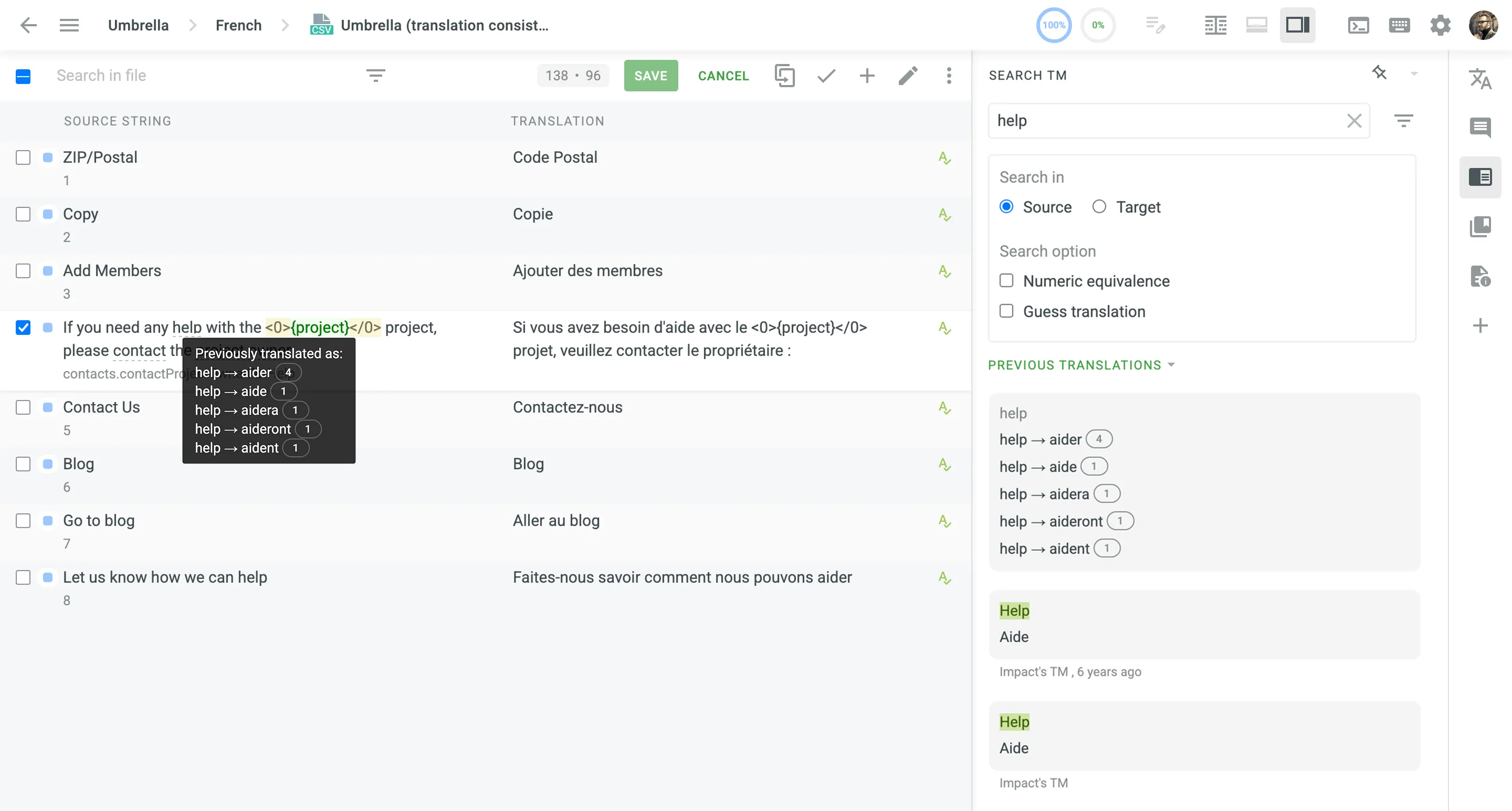
# Translation Memory
> Learn how to manage Translation Memories in Crowdin Enterprise
A Translation Memory (TM) is a database that stores translation units, which are segments of source text paired with their corresponding translations in different languages. It improves and speeds up the translation process by providing suggestions for identical or similar strings in your projects. A project TM is created automatically for each Crowdin Enterprise project. By default, each translation made within the project is automatically added to the project’s TM. This behavior can be customized in the [project settings](/enterprise/project-settings/translation-memories/) to save only approved translations. ## [Creating TM](#creating-tm) [Section titled “Creating TM”](#creating-tm) In addition to the project TMs that are automatically created with each project, you can create separate TMs and populate them with content by uploading your existing TMs in TMX, XLSX, or CSV formats. These TMs can then be assigned to the relevant projects as needed. To create a TM, follow these steps: 1. Open your organization’s **Workspace** and select **Translation memories** on the left sidebar. 2. At the bottom right, click **Create**.  3. In the appeared dialog, name your TM and select a default language that will be displayed first in the table of translation units. 4. *(Optional)* Click **Select files** to upload your existing TM. You can skip this step and upload a TM later. 5. Click **Create**.  [Assigning TM ](/enterprise/project-settings/translation-memories/#assigning-tm) [Prioritizing TM ](/enterprise/project-settings/translation-memories/#prioritizing-tm) [Changing Default TM ](/enterprise/project-settings/translation-memories/#changing-default-tm) ## [Managing Translation Units and Segments](#managing-translation-units-and-segments) [Section titled “Managing Translation Units and Segments”](#managing-translation-units-and-segments) You can create translation units from scratch, edit and delete existing translation units or segments of a particular TM or all available TMs. [Translation Memory Generator ](https://store.crowdin.com/tmg)Use this app to create a TM based on the translated Crowdin Enterprise project. ### [Creating Translation Units](#creating-translation-units) [Section titled “Creating Translation Units”](#creating-translation-units) To create a translation unit, follow these steps: 1. Open your organization’s **Workspace** and select **Translation memories** on the left sidebar. Alternatively, open your project and go to **Settings > Translation memories**. 2. Select the needed TM and click **View Records**. 3. Click **Add Translation Unit**.  4. In the appeared dialog, select the language from the drop-down menu and type the translation of the segment. 5. Click **Add segment** to add more translations for the translation unit. 6. Click **Save**.  ### [Viewing and Filtering Translation Units and Segments](#viewing-and-filtering-translation-units-and-segments) [Section titled “Viewing and Filtering Translation Units and Segments”](#viewing-and-filtering-translation-units-and-segments) Once you open a translation memory, you can view and filter its translation units and segments using either the Translation Units or Segments pages. On the Translation Units page, you can view TM content grouped as translation units (one translation unit per row, each segment displayed in a separate language column).  On the Segments page, you can view TM content as individual segments (one segment per row) with the following details: * Segment – Contains either source or target language text. * Language – The segment’s language (e.g., French, Spanish). * Usage count – Specifies the number of times a segment has been used. * Created – The date the segment was first added to the TM. * Last modified – The most recent date the segment was edited. * Author – The user who added the segment to the TM.  By default, all translation units and segments are displayed in the Translation Units and Segments pages. To filter the translation units or segments displayed, click and use the available filter options: * Created: All, Custom Range. * Modified: All, Custom Range. * Author: All, particular user. * Languages (Specific to the Segments page): All, particular language. * Usage (Specific to the Segments page): All, Used, Unused. To sort translation units or segments, click the column header you want to sort by: * Translation Units page – click a language column (e.g., English, French, etc.) to sort the translation units by that language’s text. * Segments page – click the Segment column to sort by segment text. Click once to sort in ascending order and click again to sort in descending order. ### [Editing Translation Units](#editing-translation-units) [Section titled “Editing Translation Units”](#editing-translation-units) You can edit both the source and translation parts of the existing translation unit. To edit a translation unit, follow these steps: 1. Open your organization’s **Workspace** and select **Translation memories** on the left sidebar. Alternatively, open your project and go to **Settings > Translation memories**. 2. Click on the needed TM. Alternatively, click **All Records** to view translation units of all available TMs in one list. 3. Hover over a translation unit and click to open it. 4. In the appeared dialog, edit or delete the segments of the needed languages. For each segment, you can see additional details like the language, creation date, update date, and, if available, the name of the contributor who originally submitted the translation. 5. Click **Save**.  In addition to editing translation units via the **Translation memories** page, you can also do it in the Editor. Read more about [Editing TM Suggestions in the Editor](/enterprise/online-editor/#editing-tm-suggestions-in-the-editor). Another way to edit translation units in your TM is to download it (e.g., in TMX format), make the necessary changes locally on your device, and then reupload the modified TM back to Crowdin. Depending on what you modify in your TM, there could be different outcomes: * If you edit both the source and translation segments of a translation unit, then when you upload the TM to Crowdin, the locally modified translation unit will be treated as new upon re-upload, leaving the original translation unit unchanged. * If you only edit the translation segment of a translation unit, then when you upload the TM to Crowdin, the locally modified translation segment will be added as an alternative version segment to the existing translation unit, keeping the original translation intact but providing another option. If you want to have only the modified version of the translation units, follow these steps: 1. [Download](#downloading-tm-for-offline-management) the complete version of your TM to your device. 2. Make the necessary changes locally on your device. 3. Completely [clear the content of your TM](#deleting-translation-units-and-segments) in Crowdin. 4. [Upload](#downloading-and-uploading-tm) your locally modified TM to Crowdin. ### [Replacing in Segments](#replacing-in-segments) [Section titled “Replacing in Segments”](#replacing-in-segments) You can easily find and replace translations in segments within a selected TM using the *Find & Replace* feature. To replace current translations with the new ones, follow these steps: 1. Open your organization’s **Workspace** and select **Translation memories** on the left sidebar. Alternatively, open your project and go to **Settings > Translation memories**. 2. Click on the needed TM. 3. Click . 4. In the appeared dialog, select the language in which you want to search. *(Optional)* Use filters if necessary. 5. Enter the word, phrase, or sentence you want to substitute and the text to replace it with. *(Optional)* Use the *Match case* and *Exact match* options to refine the search results. 6. Click **Find** to preview the segments that will be replaced.  7. Select the segments you want to replace and click **Replace Selected** to finish. ### [Deleting Translation Units and Segments](#deleting-translation-units-and-segments) [Section titled “Deleting Translation Units and Segments”](#deleting-translation-units-and-segments) You can delete one, multiple, or all the translation units or segments at once. To delete all the translation units from TM, follow these steps: 1. On the Translation Units page, select the top checkbox above the translation unit list. 2. Confirm the selection of all translation units. 3. Click .  To delete all the segments from TM for only one particular language, follow these steps: 1. On the Segments page, click and select the needed language. 2. Select the top checkbox above the segment list. 3. Confirm the selection of all segments. 4. Click .  When dealing with the removal of translation units and translations, there could be three possible outcomes: * When deleting a translation unit from TM, the related translation won’t be deleted for a string in your Crowdin Enterprise project. * When you cancel the translation activity for a string on the **Activity** page, the translation for a string will be deleted, but the related translation unit will be preserved in TM. * When deleting a translation for a string in the Editor, both the translation and the related translation unit will be deleted. [TM Cleaner App ](https://store.crowdin.com/tm_cleaner_app)Use this app to clean your TM from duplicates and outdated translation units. ## [Downloading and Uploading TM](#downloading-and-uploading-tm) [Section titled “Downloading and Uploading TM”](#downloading-and-uploading-tm) To download or upload TMs, follow these steps: 1. Open your organization’s **Workspace** and select **Translation memories** on the left sidebar. Alternatively, open your project and go to **Settings > Translation memories**. 2. Click on the needed TM. 3. Click and select **Download** or **Upload**.  The owner, admins and managers can download and upload TM in the following file formats: TMX, XLSX, or CSV. Limitations The maximum file size is 2 GB for TMX and 200 MB for XLSX and CSV. If your file exceeds these limits, it is recommended to split it into several smaller files, and upload them one at a time. If you upload a TM in CSV or XLS/XLSX file formats, match columns with the corresponding languages in the configuration dialog.  ### [Automatic Column Identification for TM in CSV and XLSX File Formats](#automatic-column-identification-for-tm-in-csv-and-xlsx-file-formats) [Section titled “Automatic Column Identification for TM in CSV and XLSX File Formats”](#automatic-column-identification-for-tm-in-csv-and-xlsx-file-formats) Once you upload your TM file in CSV or XLSX formats, the system automatically detects the file scheme based on the column names specified in the first row. The identification is performed in a case-insensitive manner. Columns that weren’t detected automatically will be left as **Not chosen** for manual configuration. Automatic column identification is especially helpful when you upload TM spreadsheets that contain many languages. To get the most out of the automatic column detection, we recommend that you name the language columns in your CSV or XLSX TM files using the values displayed below: * [Language name](/developer/language-codes/) (e.g., Ukrainian) * [Crowdin language code](/developer/language-codes/) (e.g., uk) * Locale (e.g., uk-UA) * Locale with underscore (e.g., uk\_UA) * Language code ISO 639-1 (e.g., uk) * Language code ISO 639-2/T (e.g., ukr) To redetect the TM file scheme, click **Detect Configuration**. ### [Downloading TM for Offline Management](#downloading-tm-for-offline-management) [Section titled “Downloading TM for Offline Management”](#downloading-tm-for-offline-management) When downloading a TM from Crowdin Enterprise in TMX format, you can get some additional metadata that might be useful for different usage scenarios with offline tools. Additional TM attributes provided by translation memory downloaded in TMX format: * `x-crowdin-metadata` – String identifier hash. * `creationid` – Translation author’s full name and username in Crowdin Enterprise. * `creationdate` – The date the translation was originally created. * `changeid` – Full name and username of the person who updated a translation. * `changedate` – The date the translation was last updated. * `usagecount` – Translation suggestion’s number of usages in Crowdin Enterprise. * `lastusagedate` – The last date a translation suggestion was used in Crowdin Enterprise. Often translation vendors that work in Crowdin Enterprise export TMs from projects to manage them for their clients in various desktop applications (e.g., for cleaning TMs from irrelevant translations and further reimport back to Crowdin Enterprise). The TM attributes listed above allow better navigation and filtering of TM segments based on different criteria. Also, you might use cleaned and refreshed TMs to train MT engines only on product-specific data to ensure a higher quality of translations as a result. ## [Sharing TMs](#sharing-tms) [Section titled “Sharing TMs”](#sharing-tms) Using the shared TMs, you can pre-translate any of the projects in your organization. Also, TM suggestions from all TMs will appear in the Editor. To share TMs between all of the projects in your organization, follow these steps: 1. Open your organization’s **Workspace** and select **Translation memories** on the left sidebar. 2. Select **Share Translation Memories**.  ## [Applying Translation Memory via Pre-translation](#applying-translation-memory-via-pre-translation) [Section titled “Applying Translation Memory via Pre-translation”](#applying-translation-memory-via-pre-translation) Pre-translation via TM allows you to leverage a configurable (40% to 100% match ratio) and Perfect matches. [TM Match Calculation ](#tm-match-calculation) [Pre-translation ](/enterprise/pre-translation/) ### [Prioritizing TM Suggestions during the Pre-translation via TM](#prioritizing-tm-suggestions-during-the-pre-translation-via-tm) [Section titled “Prioritizing TM Suggestions during the Pre-translation via TM”](#prioritizing-tm-suggestions-during-the-pre-translation-via-tm) During the pre-translation via TM, the system considers multiple parameters to select the most relevant TM suggestion. If the system finds only one suitable TM suggestion for a string, it will be applied during the pre-translation via TM. If the system finds two or more TM suggestions for one string, they will be sorted based on multiple parameters and applies the most suitable one. The following parameters are listed in the order the system uses them to decide which TM suggestion works better. If the decision can’t be made using the first parameter (i.e., two TM suggestions with 100% match), the system will use the next parameter until the decision is made. 1. Relevance – also known as TM match. Read more about [TM Match Calculation](#tm-match-calculation). 2. Auto-Substitution usage – verifying whether the TM suggestion was improved by the auto-substitution. Read more about [Auto-substitution](#tm-auto-substitution). 3. Assigned TM Priority – the priority of the TM a TM suggestion is stored in. Read more about [Prioritizing TM](/enterprise/project-settings/translation-memories/#prioritizing-tm). 4. Primary or dialect language – the primary or dialect language usage in TM suggestion’s source text (e.g., a TM suggestion from English will have a higher priority than English, Canada). 5. TM suggestion creation date – the date a TM suggestion was created (a TM suggestion with a more recent creation date will have a higher priority). To better understand how TM suggestions are prioritized during the pre-translation via TM, let’s go through a few hypothetical scenarios. Let’s imagine you have an untranslated string in your project with the following source text `Welcome!`. Once you run the pre-translation via TM, the system starts to search for TM suggestions in your TMs. * The system finds two TM suggestions with the source text `Welcome` and `Welcome!`. The translation from the `Welcome!` TM suggestion will be used since it has a higher TM match. * The system finds two TM suggestions: `Welcome!` and `Welcome!`. Both have the same source text, so the system checks whether the auto-substitution was used to improve these TM suggestions and picks the one that wasn’t improved by the auto-substitution. * The system finds two TM suggestions: `Welcome!` and `Welcome!`. Both have the same source text, and both weren’t improved by the auto-substitution. Then the system checks the priority of the TMs these TM suggestions are stored in and picks the one stored in the TM with higher priority. * The system finds two TM suggestions: `Welcome!` and `Welcome!`. Both have the same source text, both weren’t improved by the auto-substitution, and both are stored in the TMs with the same priority. Then the system checks the source languages of the TM suggestions and picks the one that uses the primary language. * The system finds two TM suggestions: `Welcome!` and `Welcome!`. Both have the same source text, both weren’t improved by the auto-substitution, both are stored in the TMs with the same priority, and both use primary source languages. Then the system checks the TM suggestion creation date and picks the one with the latest date. In rarer cases, there could be a situation when two or more TM suggestions are identical based on all the parameters listed above. In this case, the system picks the first one among identical. To improve accuracy, Crowdin minimizes the influence of HTML tags when determining TM matches. Instead of matching based on the original strings, the matching is conducted on strings where HTML tags are replaced with placeholders, similar to the behavior in the Editor. For example, a string `Hello world!` will match 100% with a string `Hello world!`. ## [TM Suggestions for Dialect Languages in the Editor](#tm-suggestions-for-dialect-languages-in-the-editor) [Section titled “TM Suggestions for Dialect Languages in the Editor”](#tm-suggestions-for-dialect-languages-in-the-editor) When the [**TM Suggestions for Dialects**](/enterprise/project-settings/translation-memories/) option is enabled, Crowdin will show TM suggestions from the primary language for dialect languages in the Editor. For instance, if you have Spanish and Spanish, Argentina as your target languages, and the option is enabled, the Editor will display TM suggestions from Spanish for Spanish, Argentina (indicated as “English -> Spanish” in the TM and MT Suggestions section). However, this behavior does not apply to the **Search TM** functionality. If you search for TM suggestions from the primary language in the Search TM tab while working with a dialect language, you will not find any results. ## [TM Match Calculation](#tm-match-calculation) [Section titled “TM Match Calculation”](#tm-match-calculation) Crowdin Enterprise calculates the TM match by comparing the source string to be translated and TM’s existing segments. There are three main types of TM matches: * Perfect Match - TM segment’s text and context completely match the source string * 100% Match - TM segment’s text matches the source string, but the context is different * Fuzzy Match (99% and less) - TM segment’s text is different to a certain extent compared to the source string If the calculations for Perfect and 100% TM match is relatively straightforward, the fuzzy matches’ calculation may not be so obvious. There are multiple different factors that affect the calculation of fuzzy matches, for example: * Word order * Punctuation * Formatting tags * Matches that are longer than the source string  ## [TM Auto-Substitution](#tm-auto-substitution) [Section titled “TM Auto-Substitution”](#tm-auto-substitution) Auto-Substitution is aimed to increase the benefit of using the translation memory (TM) by suggesting translations with a higher similarity match. The feature substitutes the non-translatable elements (such as tags, HTML entities, placeholders, numbers, and more) in translations suggested by TM by the ones used in the source strings. To enable the Auto-substitution feature, open your project and go to **Settings > Translation Memories**. ### [Non-translatable Elements that can be Auto-substituted](#non-translatable-elements-that-can-be-auto-substituted) [Section titled “Non-translatable Elements that can be Auto-substituted”](#non-translatable-elements-that-can-be-auto-substituted) Auto-substitution feature can substitute the following non-translatable elements: | Non-translatable elements | Source string example | TM suggestion (German) | Improved TM suggestion | | ------------------------------------------------- | ------------------------------------------------- | -------------------------------------------------- | --------------------------------------------------- | | Tags | `Help` | `Hilfe` | `Hilfe` | | HTML entities | `Currency €` | `Währung ¥` | `Währung €` | | Line breaks | `Profile` | `Profil
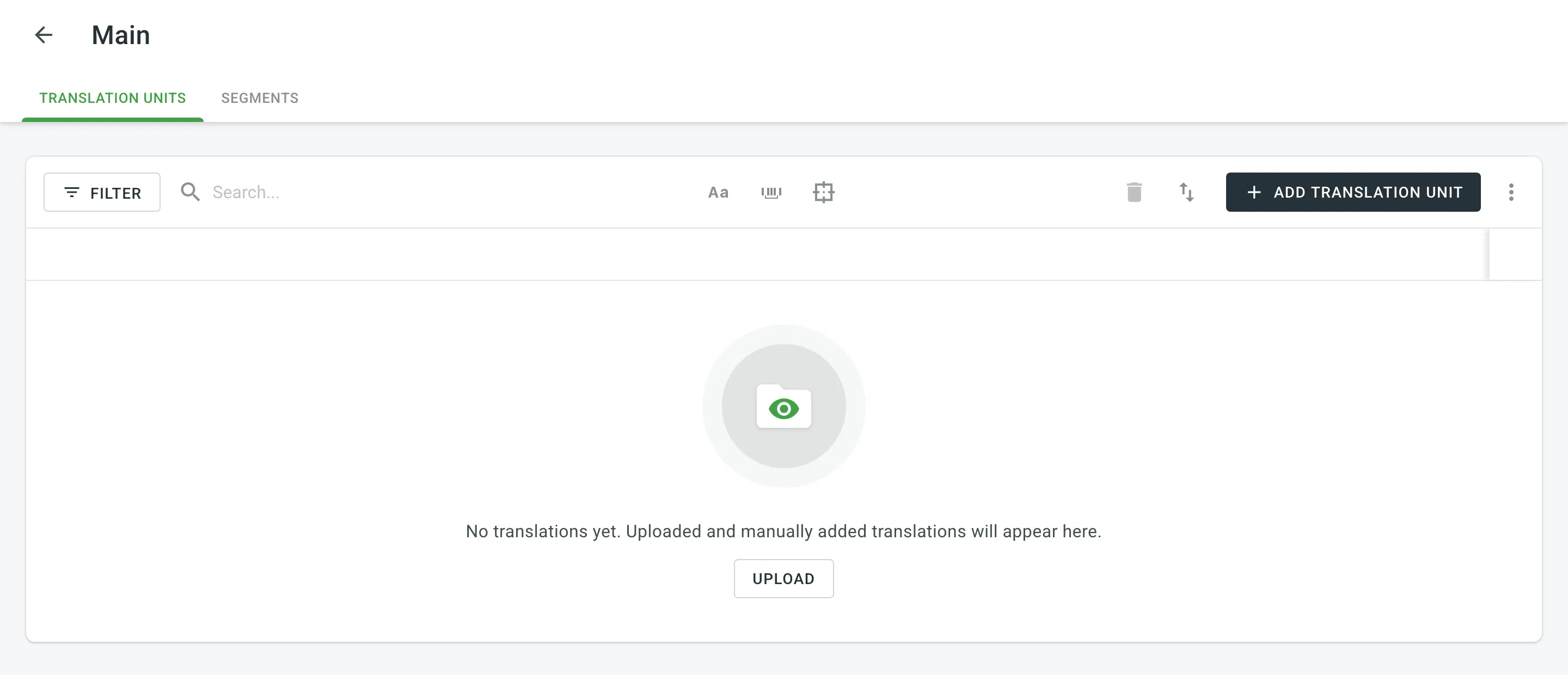
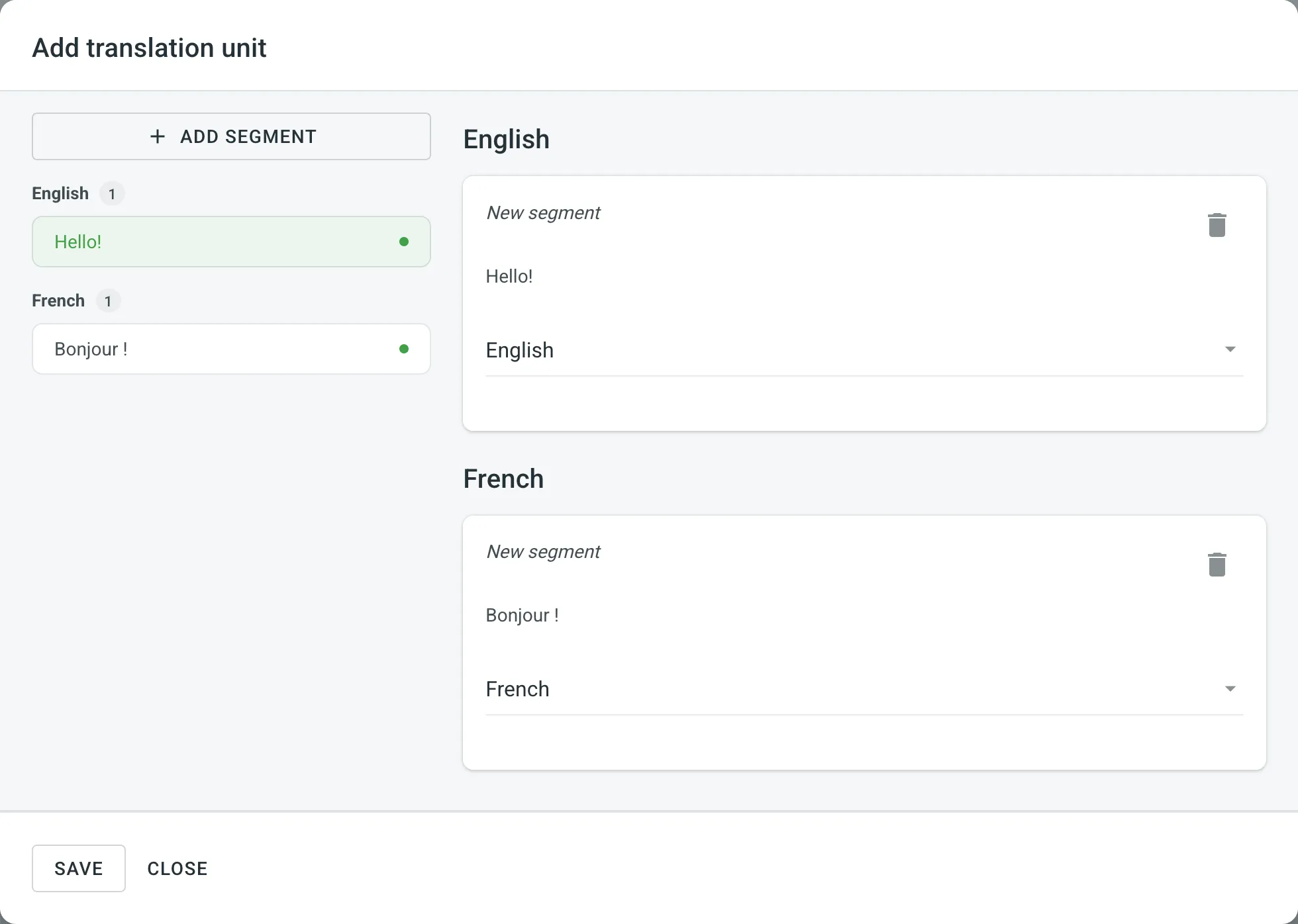
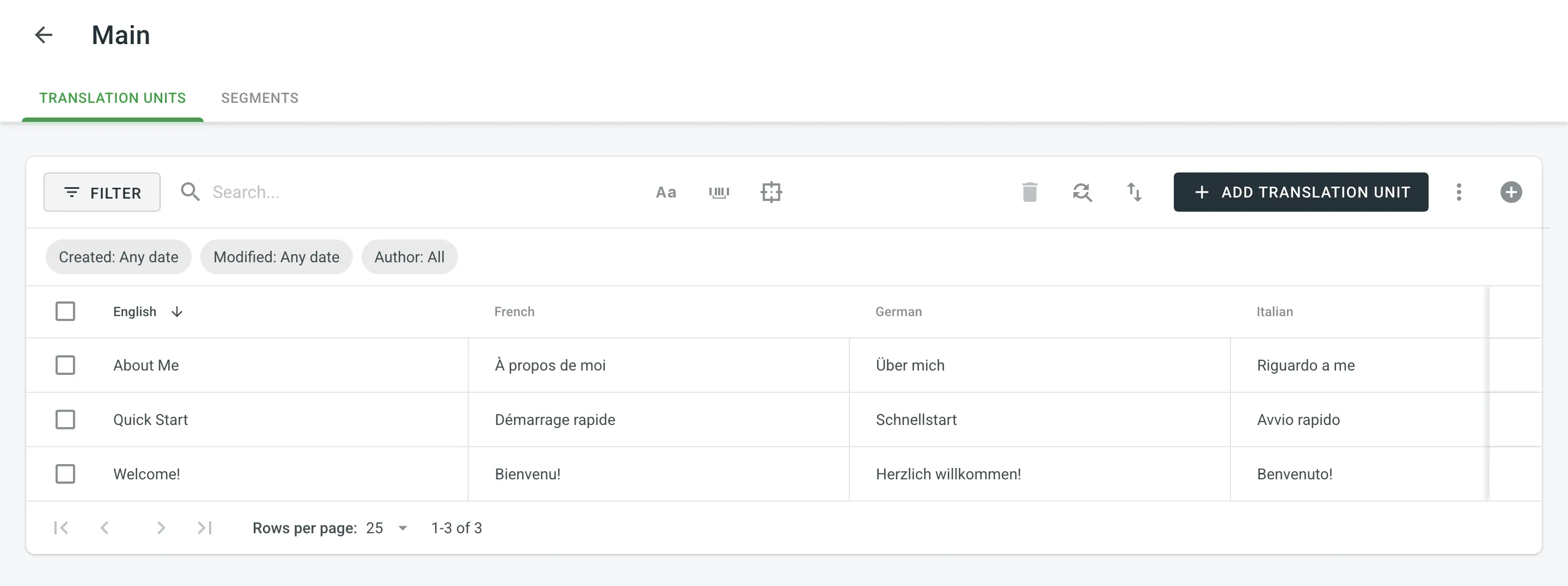
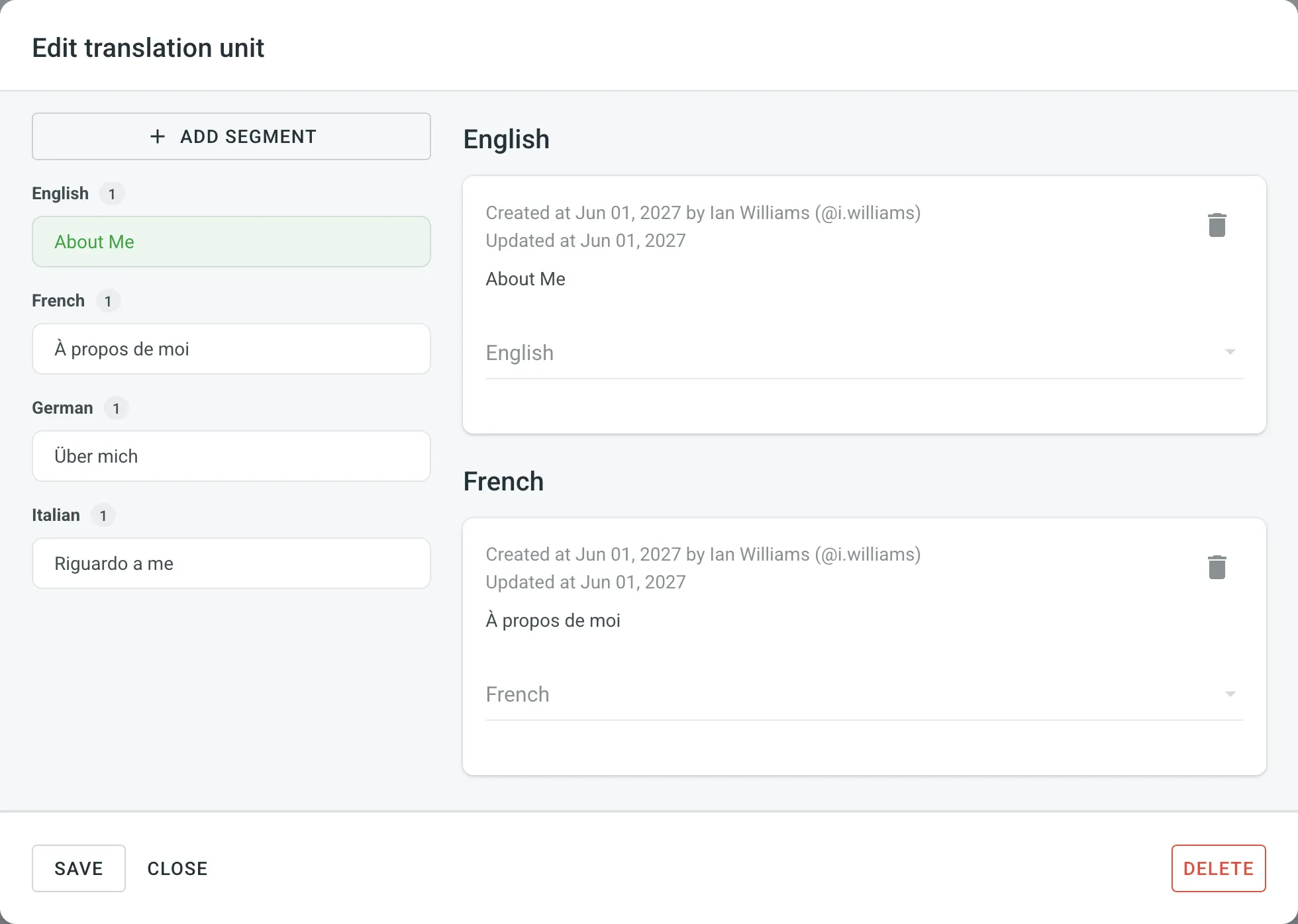
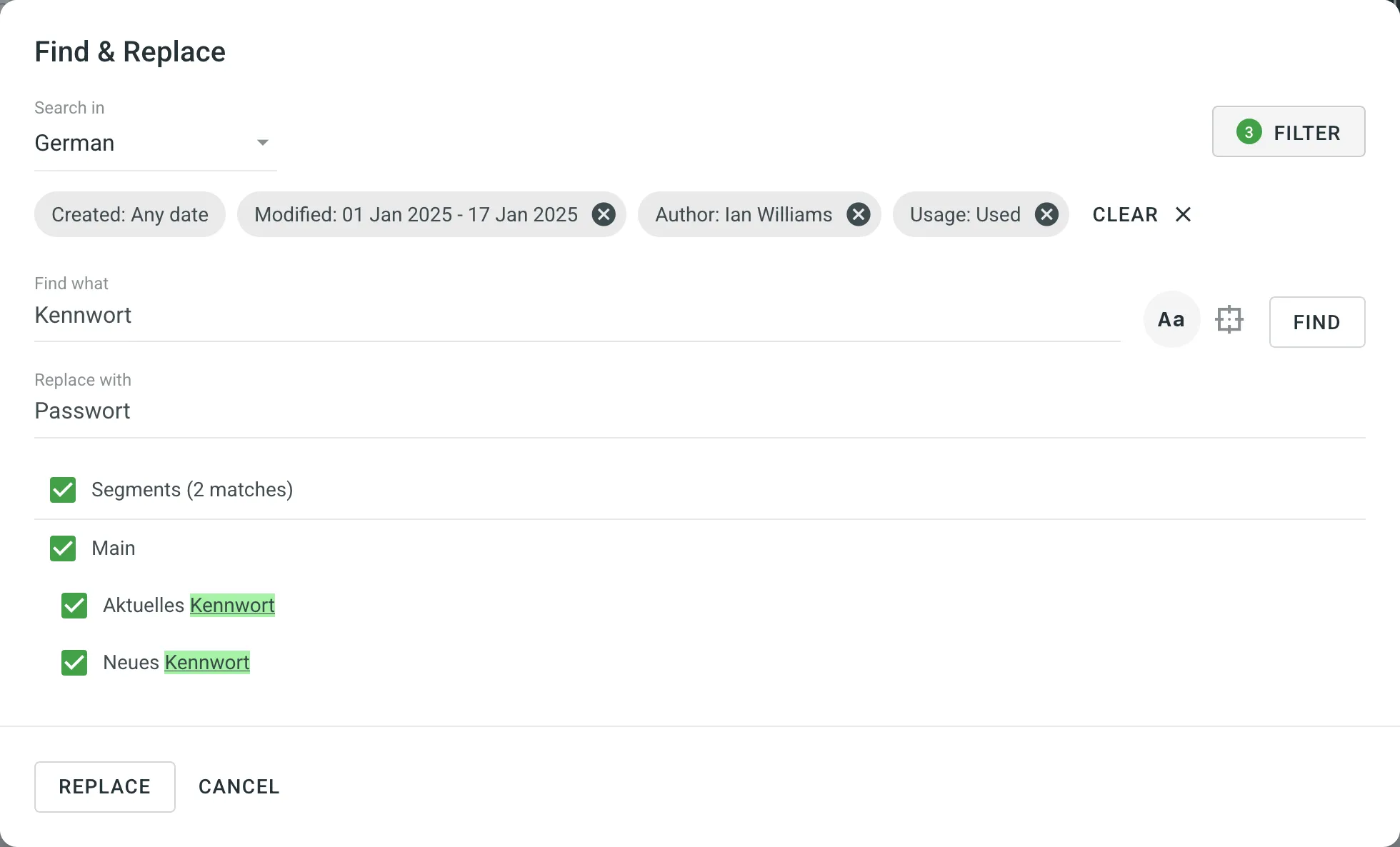
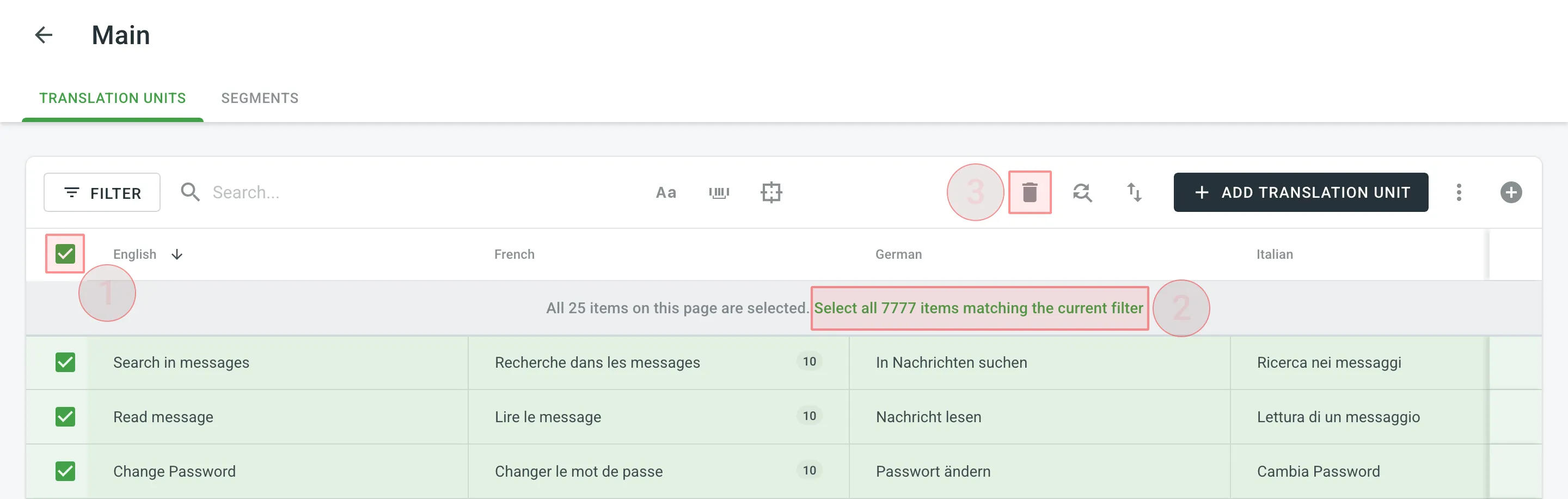
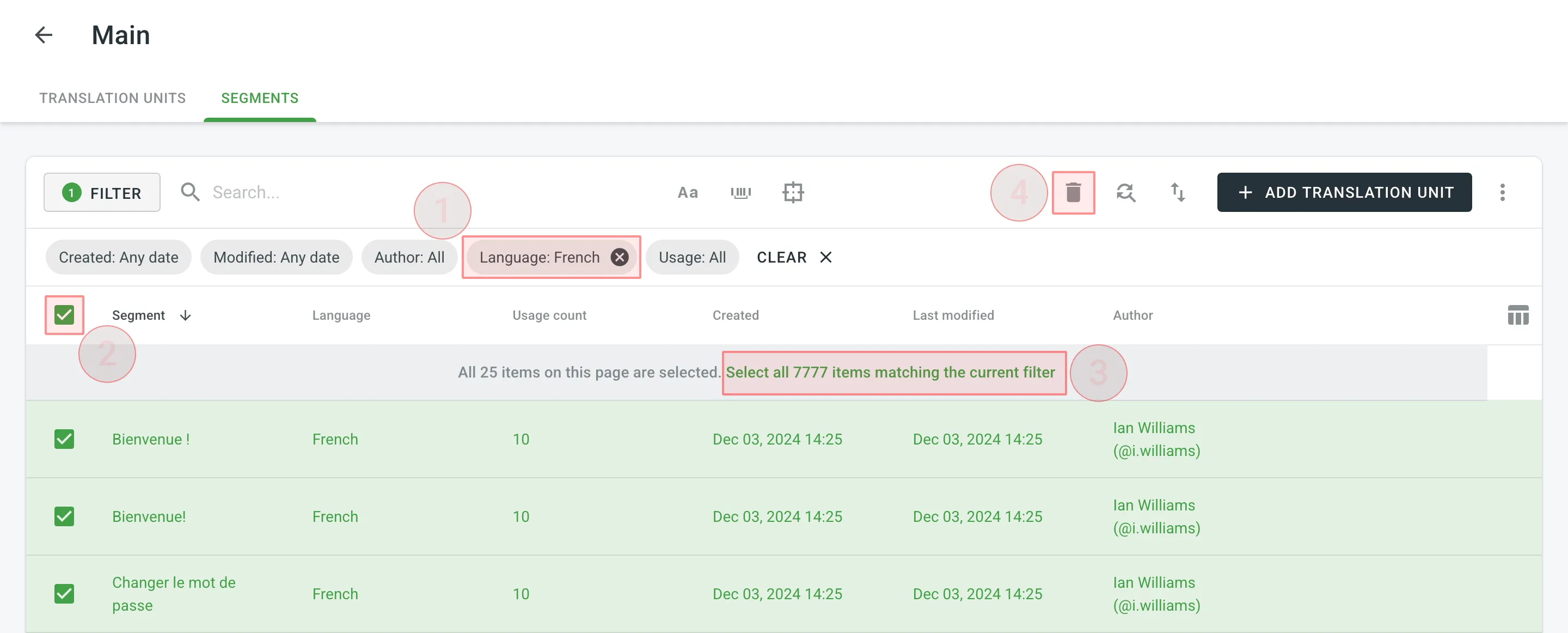
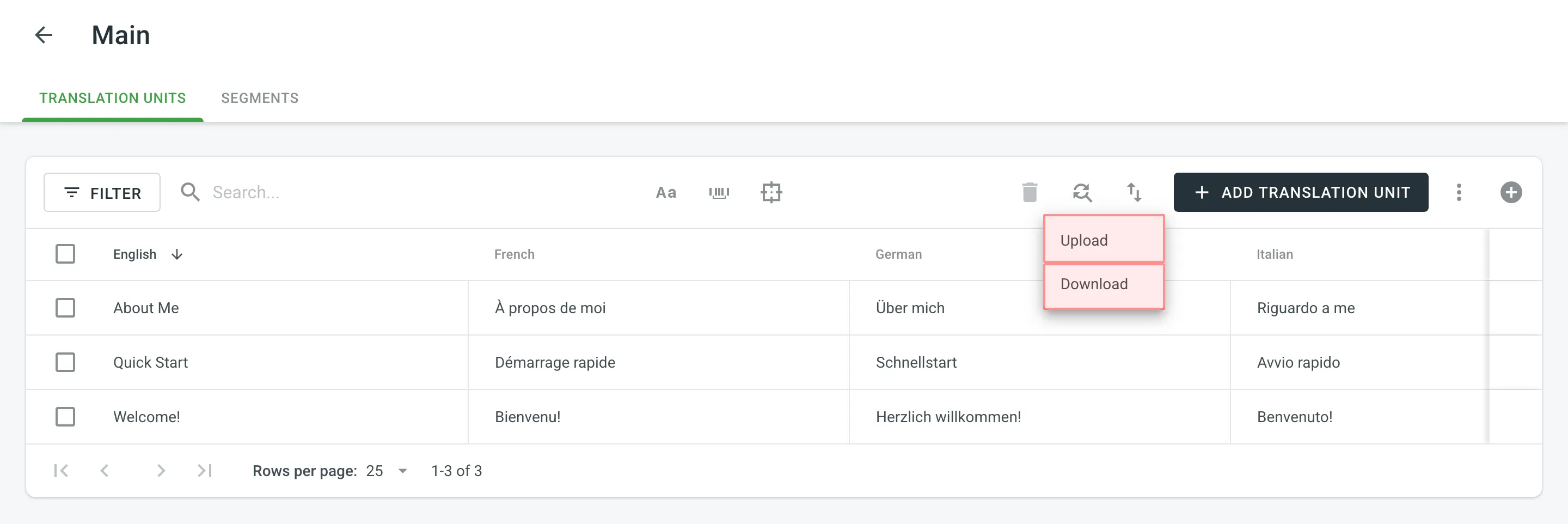
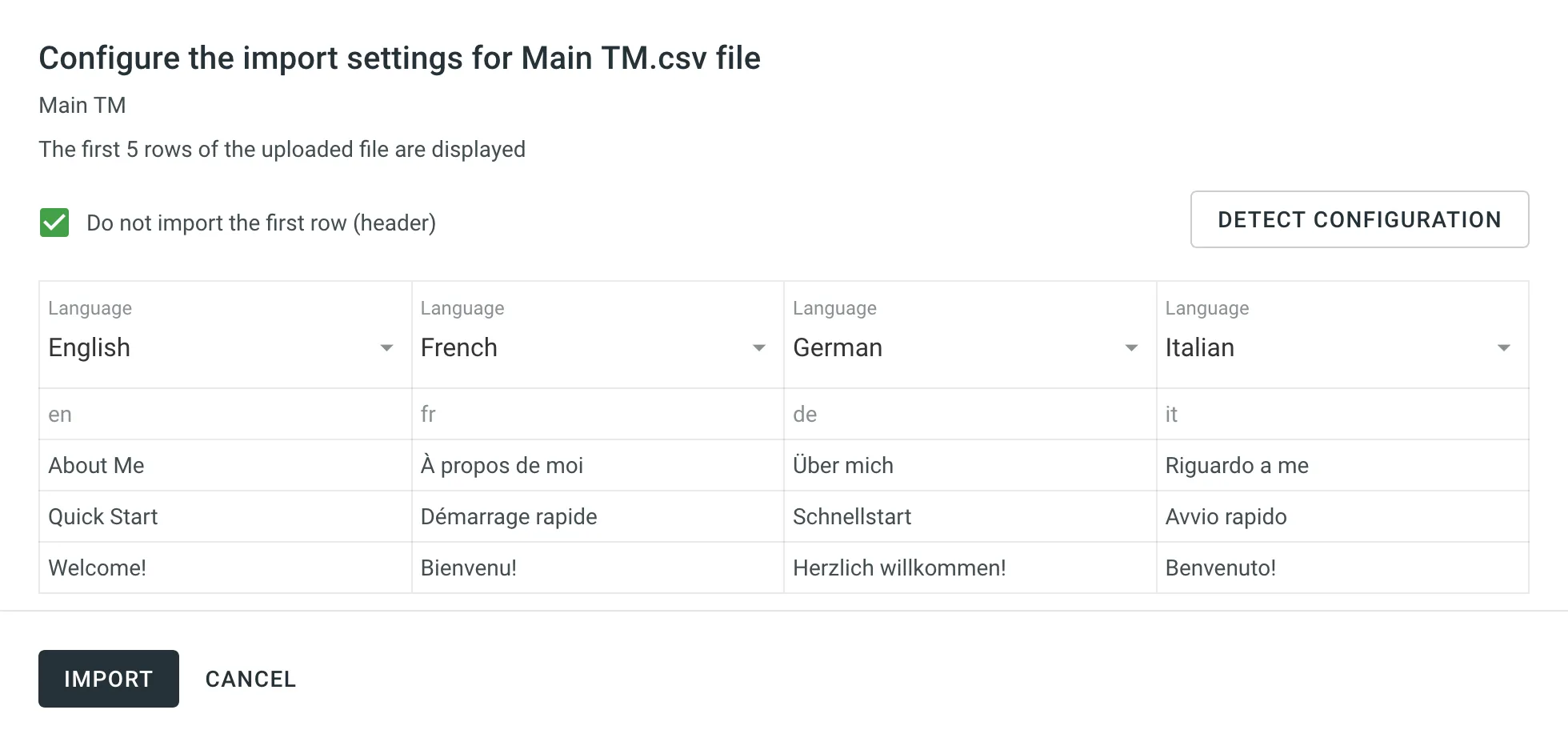
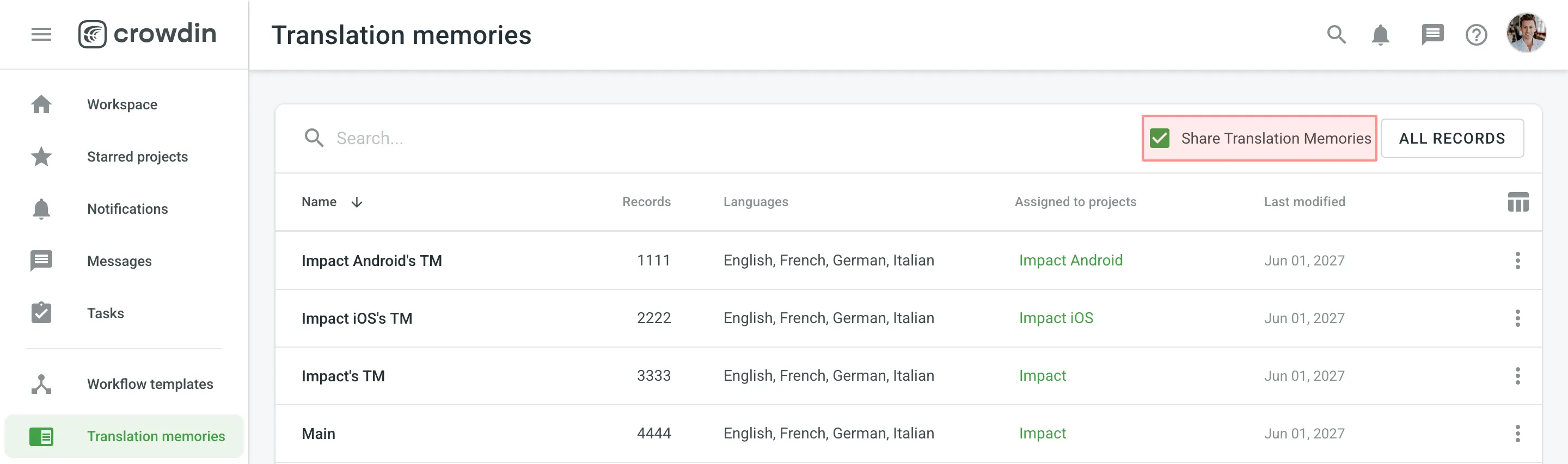
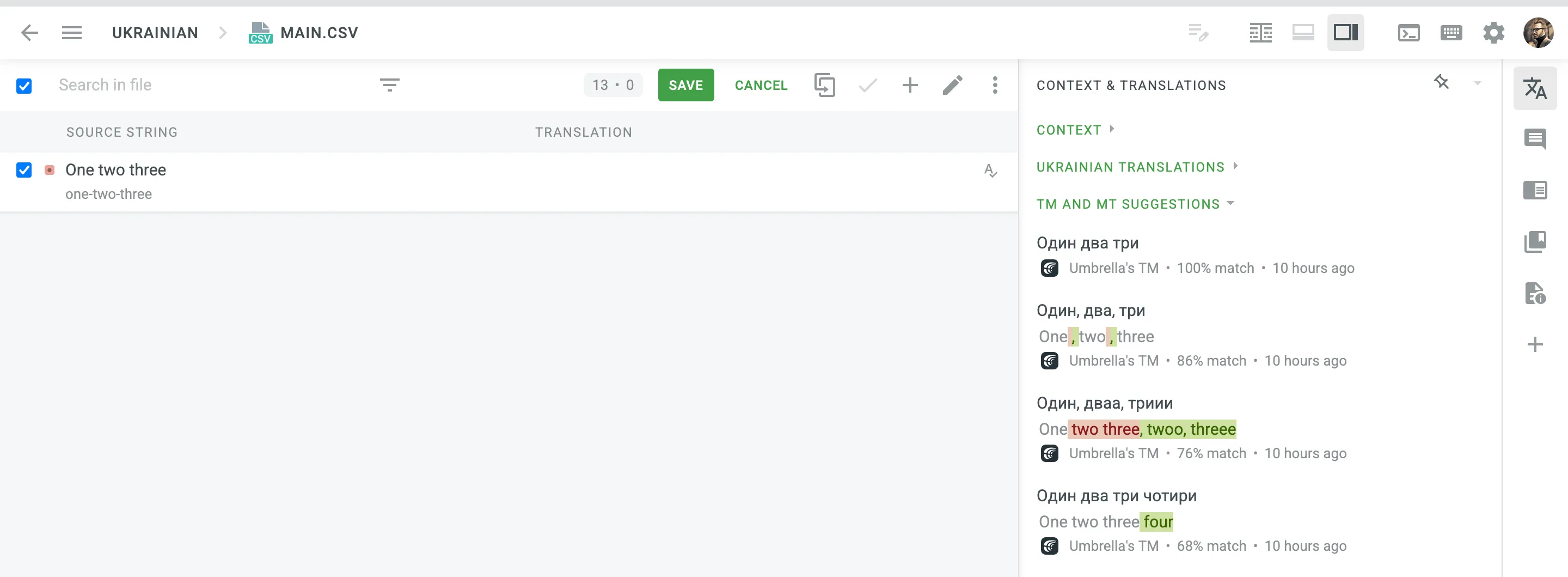
` | `Profil` | | Escape sequences (\r\n, \r, \n, \t, unicode, hex) | `Translation \x42` | `Übersetzung \u4242` | `Übersetzung \x42` | | Non-escaped equivalents of \r\n, \r, \n, \t | `Translated by \n TM` | `Übersetzt vom Übersetzungsspeicher` | `Übersetzt vom \n Übersetzungsspeicher` | | Placeholders | `Example %s` | `Beispiel %1$s` | `Beispiel %s` | | Numbers | `Attempt 2` | `Versuch 5` | `Versuch 2` | | Letter case | `Log in` | `einloggen` | `Einloggen` | | Special characters | `Help?` | `Hilfe!` | `Hilfe?` | | URLs | `More Information: https://crowdin.com/features` | `Weitere Infos: https://crowdin.com/` | `Weitere Infos: https://crowdin.com/features` | | ICU syntax | `Get {discountPercent, number, percent} discount` | `Erhalte {discountValue, number, currency} Rabatt` | `Erhalte {discountPercent, number, percent} Rabatt` | ### [Auto-substitution for Pre-translation](#auto-substitution-for-pre-translation) [Section titled “Auto-substitution for Pre-translation”](#auto-substitution-for-pre-translation) Once you enable the TM auto-substitution, you can leverage improved TM suggestions during [pre-translation](/enterprise/pre-translation/). Be sure to set a minimum match ratio to 100%. This will result in including 100% TM matches along with the ones improved to 100% by TM auto-substitution. ### [Auto-substitution for TM Suggestions](#auto-substitution-for-tm-suggestions) [Section titled “Auto-substitution for TM Suggestions”](#auto-substitution-for-tm-suggestions) With the Auto-substitution feature, translators can see the improved TM suggestions in the Editor. The percentage below the improved suggestion shows the match percentage of the original TM suggestion and the improved one.  ### [Penalized TM Suggestions](#penalized-tm-suggestions) [Section titled “Penalized TM Suggestions”](#penalized-tm-suggestions) In some cases, you may want to apply penalties to TM suggestions to reduce their match percentage based on specific conditions. For example, you can set up a penalty for TM suggestions improved by the auto-substitution feature to prioritize exact matches over improved ones. The percentage below the improved and penalized suggestion shows the match percentage of the improved TM suggestion and the penalized one. Hover the cursor over the percentage to see more details.  Read more about [TM Suggestion Penalties](/enterprise/project-settings/translation-memories/#penalties). ### [Cost Reports](#cost-reports) [Section titled “Cost Reports”](#cost-reports) Once the feature is enabled, it will affect how the [Costs Estimate](/enterprise/project-reports/#cost-estimate) and [Translation Cost](/enterprise/project-reports/#translation-cost) reports are calculated. **Costs Estimate** report would count TM suggestions that can potentially be improved by the auto-substitution feature based on the highest similarity match to which those strings can be improved. For example, a match that can be improved from a 75% match to a 100% match would be considered a 100% match. **Translation Cost** report would count TM suggestions improved by the auto-substitution feature as regular TM suggestions. For example, a match improved from a 75% match to a 100% match would be considered a 100% match.
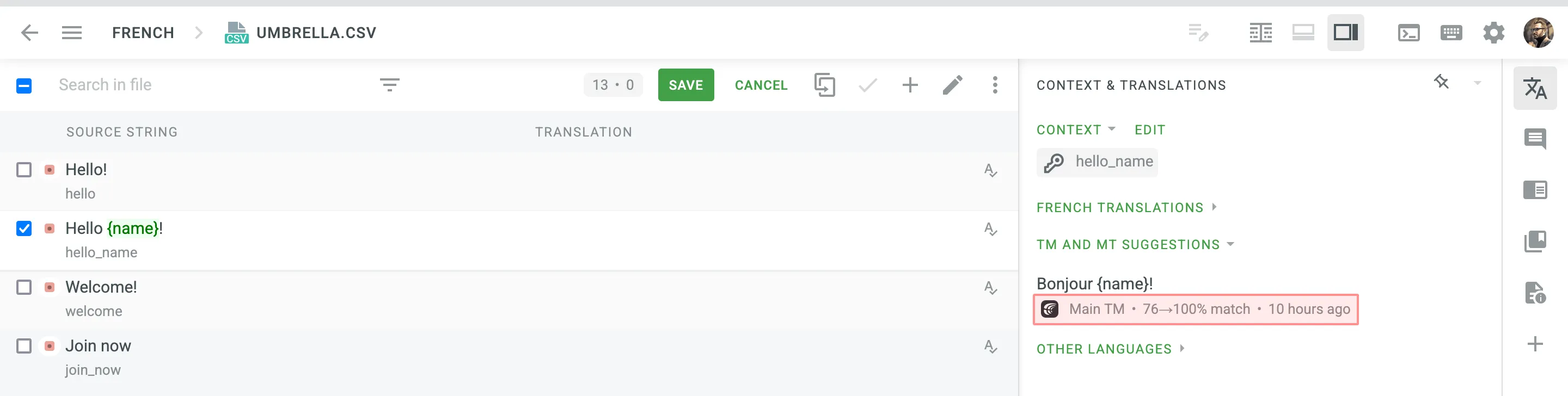
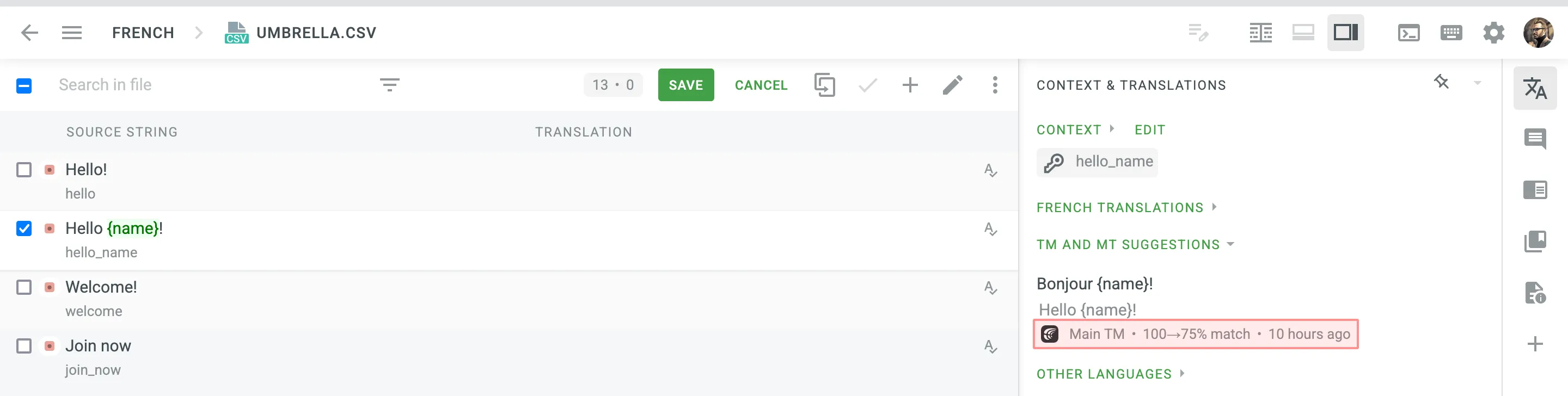
# Translation and Proofreading by Vendor
> Configure translation and proofreading by vendor in your project workflow
Translation by Vendor and Proofreading by Vendor are the workflow steps designed to get translations and approvals from vendors you cooperate with. [Workflow Overview ](/enterprise/workflows/) [Vendors ](/enterprise/vendors/) ## [Adding Translation by Vendor and Proofreading by Vendor to Your Workflow](#adding-translation-by-vendor-and-proofreading-by-vendor-to-your-workflow) [Section titled “Adding Translation by Vendor and Proofreading by Vendor to Your Workflow”](#adding-translation-by-vendor-and-proofreading-by-vendor-to-your-workflow) You can add Translation by Vendor and Proofreading by Vendor to your project workflow in the workflow editor or the Workflow template editor.  ## [Configuring Translation by Vendor and Proofreading by Vendor](#configuring-translation-by-vendor-and-proofreading-by-vendor) [Section titled “Configuring Translation by Vendor and Proofreading by Vendor”](#configuring-translation-by-vendor-and-proofreading-by-vendor) Once you added the Translation by Vendor workflow step to your project workflow, you can configure the following parameters: * **Name** – You can specify the needed name for the Translation by Vendor step. By default, it’s **Translation by Vendor**. * **Input** – Select which strings will be available for translation by the vendor. * **Untranslated strings** – Sends all strings that do not have any translations. * **Untranslated or auto pre-translated strings** – Sends all strings that do not have translations added by a person (i.e., untranslated strings and strings translated by AI, MT, or TM). * **Untranslated strings from the tasks on a Translation by Vendor workflow step** – Sends only untranslated strings that are part of a task assigned at this specific workflow step. This gives you granular control over which content is sent to the vendor, which is useful for managing budgets and batching work. * **Vendor** – Select the vendor you’d like to assign to the workflow step. Read more about [Inviting an Existing Organization to be Vendor](/enterprise/vendors/#inviting-an-existing-organization-to-be-a-vendor). * **Comment** (Optional) – Add a comment that will be visible to the assigned vendor. * **Languages** – Select the languages that require translations. You can also view the conditions of the string when it goes through the **Output** (string translated by vendor) and the **Skip** (string wasn’t translated by the vendor and skipped the workflow step).  Similar settings also apply to the **Proofreading by Vendor** workflow step. The difference is that in the **Input** parameter you can select the condition of the string to be available for proofreading by the vendor. You can choose between **Translated strings**, **Translated strings without approval**, and **Not approved strings from the tasks on a Proofreading by Vendor workflow step** options.  ### [Sending the Vendor Only the Content from the Tasks](#sending-the-vendor-only-the-content-from-the-tasks) [Section titled “Sending the Vendor Only the Content from the Tasks”](#sending-the-vendor-only-the-content-from-the-tasks) Both the Translation by Vendor and Proofreading by Vendor workflow steps let you control the content that will be sent to the vendor for translation and proofreading. This is especially useful when you have a defined budget for localization that should not be exceeded. First of all, you should configure the inputs of the Translation by Vendor and Proofreading by Vendor workflow steps by selecting the following options: * **Untranslated strings from the tasks on a Translation by Vendor workflow step** * **Not approved strings from the tasks on a Proofreading by Vendor workflow step** Then each time you’d like to send content to your vendor for translation and proofreading, you should create tasks selecting specific files on a specific workflow step. As a result, all the strings that meet the criteria configured on the Translation by Vendor and Proofreading by Vendor workflow steps will be included in the tasks and sent to the vendor. Read more about [Tasks](/enterprise/tasks/).
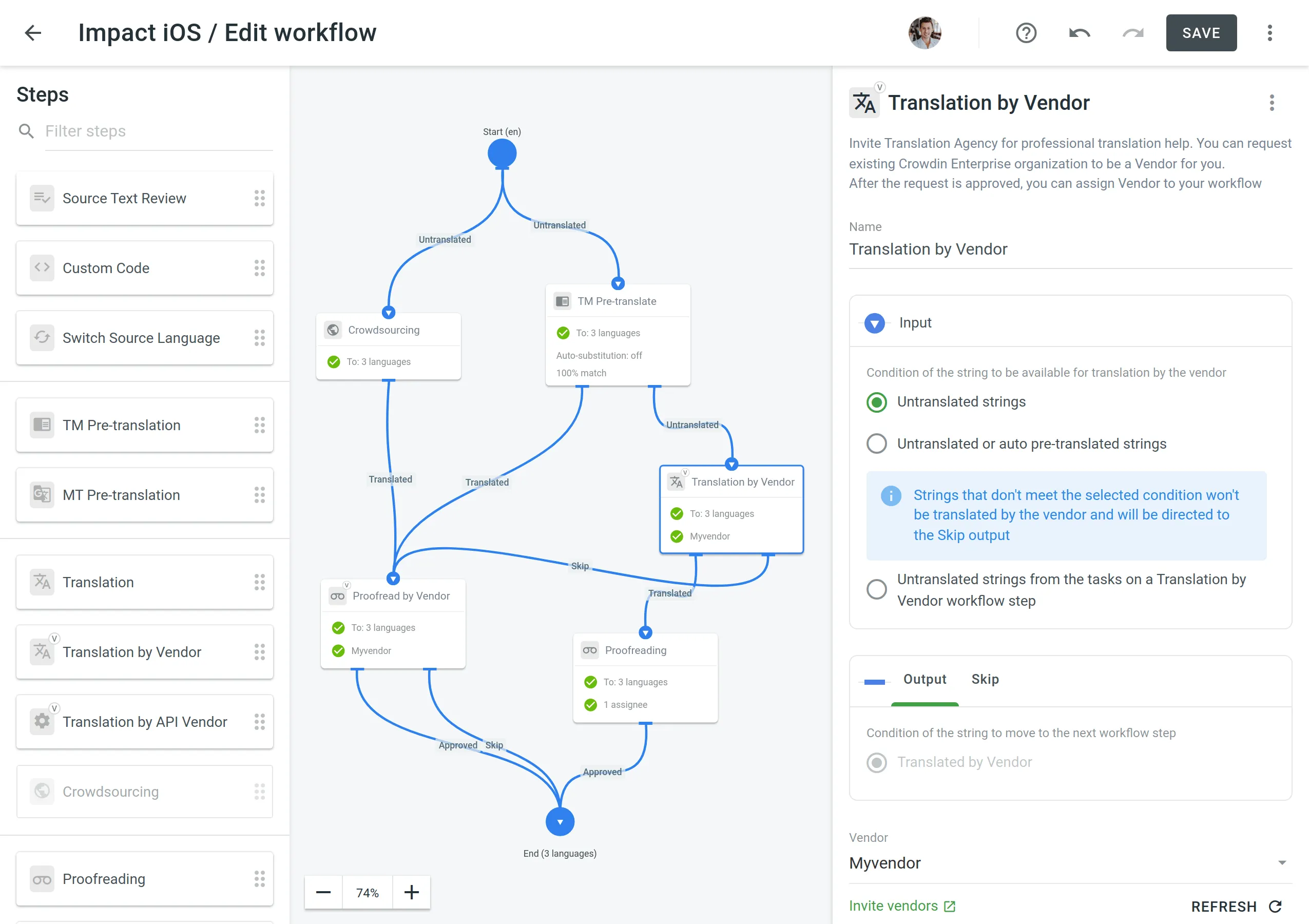
# Translation Strategies
> Approaches for translating and proofreading your content effectively
Once your organization is set up and your first project is created, choosing the right translation strategy is critical to ensuring effective and efficient localization. You need to decide who will translate and review the content added to your project, which can significantly impact the quality and turnaround time of your translations. Each project in Crowdin Enterprise has its own workflow, giving you the flexibility to combine different translation approaches according to your needs. Workflows allow you to optimize the translation process to different content types and localization requirements. Read more about [Workflows](/enterprise/workflows/). ## [Use Cases](#use-cases) [Section titled “Use Cases”](#use-cases) Use multiple translation methods in parallel or sequentially to find the winning combination for each project: * Assign in-house translators to the language pairs in which they specialize. Delegate translation into less common target languages to a translation agency. * Select a Translation Vendor from the Crowdin [Store](https://store.crowdin.com/). Assign them to both translation and proofreading workflow steps. * Pre-translate files using AI-powered tools or Machine Translation engines to assist your in-house translators. * Add the **TM Pre-translation** step to the project workflow to translate the same text used in different versions and parts of your product. * If you have an active community, choose **Crowdsourcing** as one of the workflow steps. Add **Proofreading** as the next step to review translations by professional linguists. ## [Assemble In-house Team of Translators](#assemble-in-house-team-of-translators) [Section titled “Assemble In-house Team of Translators”](#assemble-in-house-team-of-translators) You can invite translators and proofreaders you already work with to your organization or project. These could be: * In-house translators * Freelancers * Translators from the translation agencies you already work with When assembling your own team, invite each translator and proofreader individually and manage their permissions within your organization. You can assign specific workflow steps and target languages to ensure they only access the relevant resources. Read more about [Inviting People](/enterprise/inviting-people/) to an organization or project. ## [Send Request to a Translation Vendor](#send-request-to-a-translation-vendor) [Section titled “Send Request to a Translation Vendor”](#send-request-to-a-translation-vendor) Professional translation agencies can have separate organizations in Crowdin Enterprise. The collaboration between the organizations is based on client-vendor relations. You can choose a vendor from the Crowdin Store or invite the translation agency you already work with to be a vendor for you. For this, the agency should register a separate organization in Crowdin Enterprise. The good thing about cooperation with a Vendor organization is that there’s no need to invite each of the agency’s translators and proofreaders to your organization or project. You invite only the vendor organization, which receives a secured copy of the workflow steps it was assigned to as an incoming project. Once the incoming project is accepted, they will be able to assign their workflow and specific translators, which will not influence your project’s workflow in any way. All their translations will be marked as translations done by that vendor, not specific people. Professional translation services offer high-quality and efficient localization. These services are paid, so be sure to discuss rates and project costs with the vendor before starting the cooperation. Read more about [Inviting an Organization to be a Vendor](/enterprise/vendors/#inviting-an-existing-organization-to-be-a-vendor). ## [Pre-translate via AI, Machine Translation, or Translation Memory](#pre-translate-via-ai-machine-translation-or-translation-memory) [Section titled “Pre-translate via AI, Machine Translation, or Translation Memory”](#pre-translate-via-ai-machine-translation-or-translation-memory) AI-powered pre-translation tools, Machine Translation (MT) engines, and Translation Memory (TM) are all effective methods for pre-translating project files. Each method offers unique benefits for assisting human translators, speeding up localization, and reducing translation costs. After the pre-translation, human translators can review and refine these translations to ensure high-quality results. ### [AI-powered Pre-Translation](#ai-powered-pre-translation) [Section titled “AI-powered Pre-Translation”](#ai-powered-pre-translation) Crowdin Enterprise integrates with top AI providers such as OpenAI, Google Gemini, Microsoft Azure OpenAI, and more. AI-powered translations provide context-aware and high-quality translations that significantly enhance efficiency. You can expand your AI provider options by installing respective applications from the Crowdin [Store](https://store.crowdin.com/tags/ai). Read more about [Crowdin AI](/enterprise/crowdin-ai/). ### [Machine Translation (MT) Engines](#machine-translation-mt-engines) [Section titled “Machine Translation (MT) Engines”](#machine-translation-mt-engines) Crowdin Enterprise supports integration with the most popular MT engines, including Google Translate and AutoML Translation, Microsoft Translator, DeepL Pro, and Amazon Translate. Similarly to AI providers, you can add more MT engines of your choice from the Crowdin [Store](https://store.crowdin.com/tags/mt). Read more about the [Machine Translation engines](/enterprise/machine-translation/). ### [Translation Memory (TM)](#translation-memory-tm) [Section titled “Translation Memory (TM)”](#translation-memory-tm) Translation Memory stores source strings and their translations into various languages. TM is automatically created for each Crowdin Enterprise project, and you can also upload your existing TMs. TM pre-translation helps you speed up the translation process by leveraging previously translated content, which is especially useful for translating repeated or similar strings, thereby reducing translation costs. Read more about [Translation Memory](/enterprise/translation-memory/). ## [Engage Your Community](#engage-your-community) [Section titled “Engage Your Community”](#engage-your-community) Crowdsourcing is a localization practice that engages your product’s community to translate your content. Translations made by community members can be reviewed by professional linguists or go directly to production. Invite your community via social media or other communication channels you use. Read more about [Crowdsourcing](/enterprise/crowdsourcing/).
# Uploading Source Files
> Learn how to upload source files to your project for translation
Once you’ve [created a project](/enterprise/creating-project/), the next step would be preparing source files for upload. Crowdin Enterprise supports a wide range of [file formats](/enterprise/supported-formats/), including Android XML, iOS Strings, XML, JSON, etc. When you have your files prepared, you can add them to your Crowdin Enterprise project for translation. Crowdin Enterprise offers a few options for adding content to a project: * Manually via the web interface (UI). * Integrate your Crowdin Enterprise project with the tools you already use. Explore available integrations on the [Crowdin Store](https://store.crowdin.com/). * Use the [API](/developer/api/) or [Developer Tool](/developer/dev-tools/) of your choice. Usually, this task is accomplished by developers. You can [invite your colleague developer](/enterprise/inviting-people/) to assist you with this step. You can also use Crowdin sample files to test the translation workflows before starting your project with the actual source files. ## [Uploading Files](#uploading-files) [Section titled “Uploading Files”](#uploading-files) To upload files via the web interface, follow these steps: * File-based project 1. Open your project and go to **Sources > Files**. 2. Drag and drop files from your machine anywhere within the **Files** section — to the root of the project or directly into an existing folder. You can upload ZIP archives if you want to add a structured set of folders and files. 3. *(Optional)* Click **Upload Files** or **File** and select **Upload** to add files, **Use Samples** to test translation workflows, **Set Up Integration** to synchronize content automatically, or **Invite Developer / Translation Requestor** if content uploads will be handled by your developer teammate. You can also click **File** to access additional options, such as **Create String Vault** (adds an empty CSV file) or another **Set Up Integration** shortcut.  * String-based project 1. Open your project and select **Upload** on the left sidebar. 2. Select the target branch to which you’re uploading source files. By default, the `main` branch is selected. Create new branches if needed. 3. Drag and drop files from your machine, or click **Select Files**. You can also upload ZIP archives if you want a set of files to be added. 4. Crowdin Enterprise automatically tries to detect whether you’re uploading source content or translations. Verify the detection is correct and adjust the language settings if needed (e.g., English (source) should be selected for source files if the project’s source language is English). 5. *(Optional)* In the **Source files** section, to the right of the uploaded file list, configure [advanced source file import settings](#advanced-import-settings). 6. Click **Upload** to finish uploading the source content.  Read more about [project types](/enterprise/creating-project/#project-types). Limitations The maximum file size is 100 MB. If your file exceeds this limit, it is recommended to split it into several smaller files, and upload them one at a time. ### [XML, CSV, and XLSX Files](#xml-csv-and-xlsx-files) [Section titled “XML, CSV, and XLSX Files”](#xml-csv-and-xlsx-files) Some file formats, such as XML, CSV, XLSX, and others, might require additional configuration. * [CSV/XLSX File Configuration](/enterprise/csv-xlsx-configuration/) * [XML File Configuration](/enterprise/xml-configuration/) * [Parser Configuration](/enterprise/project-settings/parser-configuration/) Limitations The XLSX/XLS file size is limited to 2 000 000 cells. ### [HTML Files with Relative URLs](#html-files-with-relative-urls) [Section titled “HTML Files with Relative URLs”](#html-files-with-relative-urls) To display images and styles in the HTML file used outside of the website, where it belongs, add the ` ` tag to specify the base URL/target for all relative URLs in a document. ```html
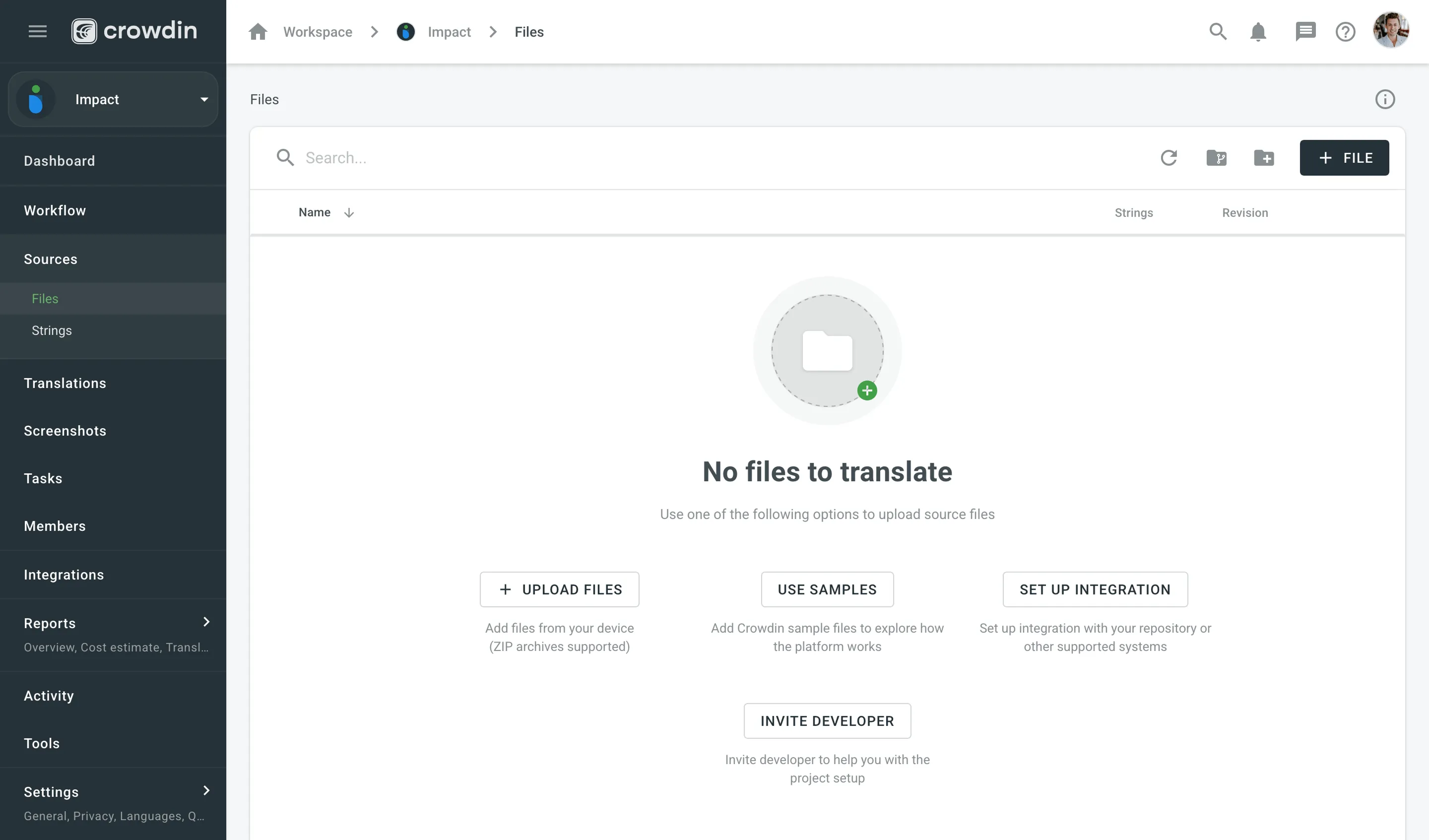
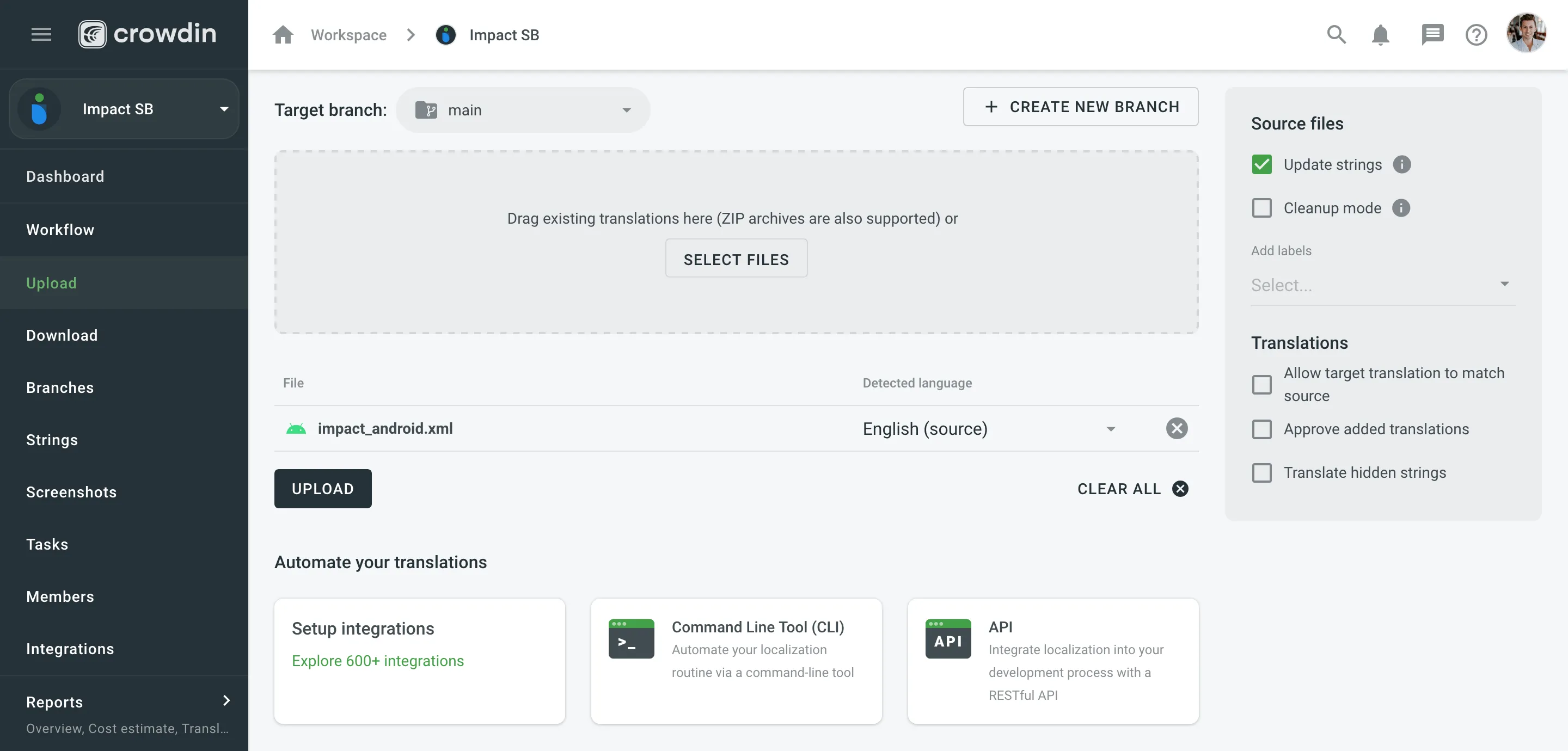
Please note that we only specified a relative address for the image. Since we specified a base URL in the head section, the browser will look for the image at "https://www.w3schools.com/images/stickman.gif".
``` Once you add the ` ` tag, translators will see images in the HTML files when translating in the Editor.  Limitations HTML files are not supported in [string-based](/enterprise/creating-project/#string-based-project) projects. ## [Advanced Import Settings](#advanced-import-settings) [Section titled “Advanced Import Settings”](#advanced-import-settings) You can configure the desired system behavior for uploaded source files in string-based projects using the available options: * **Update strings** – update strings with the same identifiers. By default, this option is selected. * **Cleanup mode** – remove previously uploaded strings not present in the newly uploaded file. By default, this option is cleared. * **Add labels** – tag uploaded strings with the selected labels. When uploading source files, Crowdin also adds system labels that include the source file name. ## [See Also](#see-also) [Section titled “See Also”](#see-also) [Uploading Existing Translations ](/enterprise/uploading-translations/)Learn how to upload existing translations to your project. [File Management ](/enterprise/file-management/)Manage and configure source files in your project. [Versions Management ](/enterprise/version-management/)Learn how to manage different versions of your project. [Import Settings ](/enterprise/project-settings/import/)Configure how placeholders, duplicates, and word counts are handled.
# Uploading Existing Translations
> Learn how to upload existing translations to your project
If you have some existing translations, you can upload them to your project in Crowdin Enterprise. For [file-based](/enterprise/creating-project/#file-based-project) projects, this can be done through the **Translations** section or directly from a specific file in the Editor. For [string-based](/enterprise/creating-project/#string-based-project) projects, use the **Upload** section or access the target language in the Editor to upload XLIFF translations. The best practice is to upload translated files with the key-value structure. Limitations The maximum file size is 100 MB. If your file exceeds this limit, it is recommended to split it into several smaller files, and upload them one at a time. ## [Uploading Translations via Project page](#uploading-translations-via-project-page) [Section titled “Uploading Translations via Project page”](#uploading-translations-via-project-page) To upload translations to your project, follow these steps: * File-based project 1. Open your project and select **Translations** on the left sidebar. 2. Click **Upload existing translations** to expand the respective section.  3. Drag and drop files from your machine, or click **Select Files**. You can upload ZIP archives to add multiple folders and files. 4. Crowdin Enterprise automatically matches uploaded translations with appropriate source files and languages. Check it manually to make sure everything is matched correctly. 5. *(Optional)* Configure the system behavior toward the uploaded translations using the advanced import settings.  6. Click **Import** to apply the translations to the source files. * String-based project 1. Open your project and select **Upload** on the left sidebar. 2. Drag and drop files from your machine, or click **Select Files**. You can also upload ZIP archives if you want a set of files to be added. 3. Crowdin Enterprise automatically tries to detect the target language to which you’re uploading translations. Check it manually to make sure target languages are matched correctly towards translation files. 4. *(Optional)* In the **Translations** section, to the right of the uploaded file list, configure advanced translation import settings. 5. Click **Upload** to apply translations to the source strings.  ## [Uploading Translations via Language Page](#uploading-translations-via-language-page) [Section titled “Uploading Translations via Language Page”](#uploading-translations-via-language-page) * File-based project 1. Select the language on the project page. 2. Click next to the file translations should be uploaded to. 3. Select **Upload Translations**.  * String-based project Limitations Uploading Translations via Language Page is not supported in [string-based](/enterprise/creating-project/#string-based-project) projects. ## [Uploading Translations via Editor](#uploading-translations-via-editor) [Section titled “Uploading Translations via Editor”](#uploading-translations-via-editor) To upload a file with translations via [Online Editor](/enterprise/online-editor/), follow these steps: 1. Click on the Main menu in the upper-left corner. 2. Go to **File > Upload Translations**.  If you are in the [Multilingual (Grid)](/enterprise/online-editor/#multilingual-mode-grid) mode of the Editor, click the drop-down arrow next to a target language’s column and select **Upload Translations**.  ## [Uploading XLIFF Translations](#uploading-xliff-translations) [Section titled “Uploading XLIFF Translations”](#uploading-xliff-translations) You can do the offline translation for all file formats, having downloaded existing content in the XLIFF format. As soon as the offline translations are finished, use **Upload XLIFF Translations**. To upload XLIFF translations for all files for a specific target language, follow these steps: 1. Select the language on the project page. 2. Click in the upper-right corner and select **Upload XLIFF Translations**.  For string-based projects, you can upload XLIFF translations using the [Online Editor](#uploading-translations-via-editor). ## [Key-value Formats](#key-value-formats) [Section titled “Key-value Formats”](#key-value-formats) You can easily upload translations for source files with a key-value structure. This includes the following file formats: Android XML, macOS/iOS Strings, Stringsdict, JSON, Chrome JSON, GO JSON, i18next JSON, FBT JSON, XLIFF, XLIFF 2.0, Java Properties, Play Properties, Java Properties XML, RESX, RESW, RES JSON, YAML, INI, Joomla INI, JS, FJS, PO, TS, QT TS, TOML, Coffee, XAML, SRT, VTT, VTT2, SBV, SVG, DTD, CSV, RC, WXL, Haml, XLSX, PLIST, PHP, ARB, VDF. The system maps uploaded translations according to the string keys. ## [Text and HTML-based Formats](#text-and-html-based-formats) [Section titled “Text and HTML-based Formats”](#text-and-html-based-formats) For files that do not have a defined structure, translation upload is handled by an experimental machine learning technology. This includes the following file formats: HTML, Front Matter HTML, Markdown, Front Matter Markdown, TXT, Generic XML, Web XML, DOCX, HAML, IDML, DITA, Wiki, and ADOC. To achieve the best results, we recommend uploading translation files with the same or as close as possible file structure as in source files. Currently, this feature is available for the following languages (not depending on the language pair combination): Arabic, Chinese Simplified, Chinese Traditional, English, French, German, Italian, Japanese, Korean, Dutch, Polish, Portuguese, Portuguese Brazilian, Spanish, Thai, Turkish, and Russian. [Translation Alignment (AI) ](https://store.crowdin.com/translation-alignment)Use this AI-powered app to automatically align translations as you upload them. It intelligently matches source and target texts, even in complex files (e.g., DOCX, PDF) where the string order differs. [Document Aligner ](https://store.crowdin.com/aligner)Use this app to align your source and translated file and create an editable XLSX Translation Memory for further use in Crowdin. ## [Upload Summary](#upload-summary) [Section titled “Upload Summary”](#upload-summary) After uploading a translation file, an initial summary appears showing the basic import statistics (e.g., Imported, Approved, Skipped). Depending on where you upload the file, this initial summary will look slightly different: * **From the Translations tab:** A pop-up notification will appear with a **View Detailed Report** button. * **From a language page or the Editor:** A dialog window will appear with **Close**, **View Detailed Report**, and **Reload** buttons. Click **Reload** to update the translation progress displayed on the page. ### [Detailed Report (Import Translations Statistic)](#detailed-report-import-translations-statistic) [Section titled “Detailed Report (Import Translations Statistic)”](#detailed-report-import-translations-statistic) From the initial summary, click **View Detailed Report** to open the **Import Translations Statistic** dialog. This report provides a full breakdown of the import and is organized into three clickable tabs at the top: * **Translations added** * **Translations approved** * **Translations skipped** You can click on each tab to view details for the affected files and languages. The **Translations skipped** tab provides a categorized breakdown of all translations that were not imported. Common reasons for skipped translations include: * **Translation equals source** – The translation was identical to the source text. * **Hidden strings** – The translations were for strings that are currently hidden in the project. * **QA check** – The translation failed one or more quality assurance checks. The report will show a sub-list of the specific QA issue types (e.g., *Duplicate translation*, *Numbers mismatch*, etc.) based on the QA checks configured in [**Settings > QA Checks**](/enterprise/project-settings/qa-checks/#qa-check-parameters). For advanced troubleshooting, click the **Service Logs** link in the top-right corner of the **Import Translations Statistic** dialog. This will redirect you to the **Upload translations Log Details** page (located in **Tools > Service Logs**), which displays the technical details of the import, including a message, date/time, and details in JSON format.
# User Access Tokens
> View and revoke personal access tokens created by your Crowdin Enterprise organization members
As an organization owner or admin, you can view and manage all personal access tokens (PATs) created by your organization’s members from a single, centralized page. This allows you to monitor API usage and enhance security by revoking tokens when necessary. To manage access tokens of your organization, go to **Organization Settings > User access tokens**. ## [Managing User Access Tokens](#managing-user-access-tokens) [Section titled “Managing User Access Tokens”](#managing-user-access-tokens) The **User access tokens** page displays a list of all active personal access tokens within your organization.  The table provides the following information for each token: * **Name**: The descriptive name given to the token upon creation. * **Token**: A partially masked version of the token for identification. * **Created By**: The organization member who generated the token. * **Created**: The date the token was created. * **Last used**: The date the token was last used to make an API request. * **Expires**: The token’s expiration date. A value of “never” indicates the token does not expire. ### [Revoking a User Access Token](#revoking-a-user-access-token) [Section titled “Revoking a User Access Token”](#revoking-a-user-access-token) You can revoke any member’s personal access token at any time. This is useful if a token is compromised, associated with a former employee, or no longer needed. To revoke a token, follow these steps: 1. Go to **Organization Settings > User access tokens**. 2. Find the token you wish to revoke in the list and click **Revoke** next to it. Revocation is Immediate Revoking a token is a permanent action. Once revoked, the token can no longer be used to access the API, which may break any applications or scripts that rely on it. Read more about [Access Tokens](/enterprise/account-settings/#access-tokens).
# User Tasks
> Learn how to view, filter, and manage tasks assigned to you
The Tasks is one of the essential tools for managing the localization process in Crowdin Enterprise. As a contributor (translator or proofreader), you can view and manage your assigned tasks, track progress, access content assigned within the task, and communicate with project managers or other contributors. ## [Task Notifications](#task-notifications) [Section titled “Task Notifications”](#task-notifications) To stay informed about new task notifications and the latest task updates, enable the Task event type in your account’s Notifications settings. You’ll receive notifications about any updates or changes to your tasks. These might include: * A task being assigned to you. * A task deleted. * Changes to task details like due dates, content, or status. * Mentions and comments related to the task. There are four channels through which you can receive notifications. You can enable the ones that work best for you and disable unnecessary ones. Read more about [Notifications](/enterprise/account-settings/#notifications). ## [Managing Assigned Tasks](#managing-assigned-tasks) [Section titled “Managing Assigned Tasks”](#managing-assigned-tasks) You can view, filter, and manage tasks assigned to you, allowing for efficient tracking and completion of your work in Crowdin Enterprise.  ### [Viewing and Filtering Assigned Tasks](#viewing-and-filtering-assigned-tasks) [Section titled “Viewing and Filtering Assigned Tasks”](#viewing-and-filtering-assigned-tasks) To view and filter all tasks assigned to you, go to your **Workspace** and select **Tasks** on the left sidebar. On the **Tasks** page, you can view tasks with the following details: * Type Icon ( or ) – indicates whether the task is for Translation or Proofreading. * ID – the unique identifier for the task. * Name – the title of the task. * Due date – the deadline for task completion, if specified by the project manager. * Source and target languages – The languages involved in the task. * Words left – the number of words left to be translated or proofread. * Progress bar – the visual representation of task progress. * Time since creation – the number of days or weeks since the task was created. * Status – the current status of the task. * Assignees – the users assigned to the task. By default, all tasks are displayed on the Tasks page. To filter the tasks displayed, click and use the available filter options: * Projects: All, specific projects. * Source language: All, specific language. * Target language: All, specific language. * Assignee: All, Assigned to me, specific user. * Created by: All, By me, specific user. * Due date: All, Overdue now, Custom range. * Created: All, Custom range. * Type: All, Translate by own translators, Proofread by own proofreaders, Translate by vendor, Proofread by vendor. * Status: To Do, In Progress, Done, Closed, Pending, For Approval. To search for a particular task, type its name in the **Search** field. To sort tasks, click **Sort by** and select one of the available options: * ID * Date created * Resolve date * Due date ### [Viewing Task Details](#viewing-task-details) [Section titled “Viewing Task Details”](#viewing-task-details) Before starting your work on a task, you can review task details to understand its scope. To view task details, follow these steps: 1. Go to your **Workspace** and select **Tasks** on the left sidebar. 2. Click on the task you want to view. The task will open directly within the project it’s associated with. Alternatively, you can access your assigned tasks by navigating to the specific project’s **Tasks** section and selecting yourself using the **Assignee** filter parameter. Click on any task in your list to view its details. In addition to the details available when [viewing all of your assigned tasks](#viewing-and-filtering-assigned-tasks), you will also see these details: * Created by – the user who created the task. * Date created – when the task was created. * Started and resolved dates – timestamps indicating when you started and completed the task. * Files – files associated with the task. * Members – details like the number of words assigned to and remaining for each member. You can also open the task in the Editor by clicking the appropriate button. If you prefer to work offline, click in the upper-right corner and select **Export as XLIFF**. When you are finished translating, use **Upload XLIFF translations** to upload your translations. ### [Starting and Working on Your Tasks](#starting-and-working-on-your-tasks) [Section titled “Starting and Working on Your Tasks”](#starting-and-working-on-your-tasks) Once you’re ready to start working on a task: 1. Click on the task to open it. 2. Review the strings or files assigned to you. 3. Click **Open in Editor** to start translating or proofreading as needed. As you work on the task, change its status from **To Do** to **In Progress**. Once your work is complete, update the status to **Done**. [Working on Tasks in the Editor ](/enterprise/online-editor/#tasks-in-the-editor)Learn how to efficiently handle your translation and proofreading tasks in the Editor. [Changing Tast Status ](/enterprise/tasks/#changing-task-status)Learn how to update task statuses to keep track of your progress. ## [Discussions and Comments](#discussions-and-comments) [Section titled “Discussions and Comments”](#discussions-and-comments) If you encounter issues or need assistance with your assigned task, leave a comment in the **Comments** section for project managers or other contributors to see and respond. ## [Logging Time Spent on a Task](#logging-time-spent-on-a-task) [Section titled “Logging Time Spent on a Task”](#logging-time-spent-on-a-task) As a contributor, you can log the time you spend on a task directly in the task comments. This logged time is used for generating the **Time Spent** report, which helps project managers calculate the cost of work based on hourly rates. You can also generate your own **Time Spent** report to track your contributions for tasks you’ve been assigned. To log your time, follow these steps: 1. Open the task you are working on and go to the **Comments** section. 2. Click and enter the time you spent using a format like `1h 15m 15s`. 3. *(Optional)* Add a text comment to your log entry. 4. Click **Send**. ## [Splitting Tasks](#splitting-tasks) [Section titled “Splitting Tasks”](#splitting-tasks) If a large task needs to be divided among multiple contributors, your project manager may split the content. You’ll receive only a portion of the task to work on. Focus on completing your assigned section and mark it as done when finished. ## [Sequential Tasks](#sequential-tasks) [Section titled “Sequential Tasks”](#sequential-tasks) In some cases, tasks may be part of a sequence where one needs to be completed before the next can begin. For example: * You may complete a translation task, after which a proofreading task becomes available. * If you’re assigned a proofreading task linked to a translation task, it will remain pending until the translation is finished. Sequential tasks help streamline the process, ensuring that each step is completed in the correct order. Read more about [Sequential Tasks](/enterprise/tasks/#sequential-tasks). ## [Q\&A](#qa) [Section titled “Q\&A”](#qa)
# Vendors
> Learn how to work with vendors in Crowdin Enterprise
A vendor is an external organization that provides professional translation services. In Crowdin Enterprise, you can cooperate with vendors in two ways: * Add a vendor’s manager to your organization – recommended if you work with a single translation agency. After joining your organization, the vendor’s manager can manage the entire localization process for you, including assigning translators, managing context, and generating reports. * Invite an existing organization to be your vendor – a good option if you plan to work with multiple translation agencies. Once connected, you can assign vendors to specific workflow steps in your projects. ## [Adding a Vendor’s Manager to Your Organization](#adding-a-vendors-manager-to-your-organization) [Section titled “Adding a Vendor’s Manager to Your Organization”](#adding-a-vendors-manager-to-your-organization) To invite a vendor’s manager to your organization, follow these steps: 1. Open your organization’s **Workspace** and select **Vendors** on the left sidebar. 2. Click **Add vendor’s manager** in the center of the page. You’ll be redirected to the **Users** page with the **Invite people** dialog open. 3. Enter the email of the vendor’s manager you want to invite. 4. Make sure **Workspace manager** is selected to grant the necessary permissions for managing the localization process. 5. *(Optional)* Add a message if needed. 6. Click **Send invite**.  ## [Inviting an Existing Organization to Be a Vendor](#inviting-an-existing-organization-to-be-a-vendor) [Section titled “Inviting an Existing Organization to Be a Vendor”](#inviting-an-existing-organization-to-be-a-vendor) When you assign a workflow step to a vendor, the vendor organization receives a copy of the step in their **Incoming Projects** section. After accepting the invitation, they can configure their own workflows and invite contributors as needed. To invite a vendor organization, follow these steps: 1. Open your organization’s **Workspace** and select **Vendors** on the left sidebar. 2. Click **Invite vendor** in the center of the page. 3. In the **Invite vendor** dialog, enter the subdomain of the existing Crowdin Enterprise organization. 4. *(Optional)* Add a message to provide additional context. 5. Click **Invite**.  6. Alternatively, click **Get a shareable link** and send it to the vendor manually. ## [See Also](#see-also) [Section titled “See Also”](#see-also) [Translation and Proofreading by Vendor ](/enterprise/translation-proofreading-by-vendor/)Configure translation and proofreading by vendor in your project workflow.
# Version Management
> Learn how to manage different versions of your project
Maintain an agile localization process and prevent translation delays for added texts or new product features. Integrate your project branches with Crowdin Enterprise and allow translators to access all new texts immediately. When several people work on product development, branches help manage different content versions. If you have a continuous project, you can add project branches to Crowdin Enterprise and allow translators to translate the texts in parallel with development to prevent deployment delays. Branches in Crowdin Enterprise look like regular folders marked with a specific icon and have special behavior for duplicate strings. Example of branch structure in Crowdin Enterprise:  ## [Managing Branches](#managing-branches) [Section titled “Managing Branches”](#managing-branches) You can create, clone, merge, rename, prioritize, protect, or delete branches in Crowdin Enterprise to streamline localization alongside development. Use the available UI options, API, or CLI depending on your workflow and project type. ### [Creating Branches](#creating-branches) [Section titled “Creating Branches”](#creating-branches) You can create branches manually using the web interface (UI), automatically by connecting your project to a version control system, or by using CLI or API. The method you choose may depend on your project type or integration preferences. #### [Creating Branches via VCS Integration](#creating-branches-via-vcs-integration) [Section titled “Creating Branches via VCS Integration”](#creating-branches-via-vcs-integration) Integrate Crowdin projects with [GitLab](/enterprise/gitlab-integration/), [GitHub](/enterprise/github-integration/), [Bitbucket](/enterprise/bitbucket-integration/), or [Azure Repos](/enterprise/azure-repos-integration/). When you select branches for localization in your VCS, they’ll be created automatically in Crowdin. #### [Creating Branches via Web Interface](#creating-branches-via-web-interface) [Section titled “Creating Branches via Web Interface”](#creating-branches-via-web-interface) To create branches via the web interface (UI), follow these steps: * File-based project 1. Open your project and go to **Sources > Files**. 2. Click **New Version Branch**. 3. In the appeared dialog, enter the branch name. 4. In the **Duplicate Strings** section, select how duplicated strings should be handled. 5. Click **Create** to finish. * String-based project 1. Open your project and go to the **Branches** tab. 2. Click **New Version Branch**. 3. In the appeared dialog, enter the branch name. 4. Select **Create empty branch** or **Clone existing branch**. 5. If cloning, select the source branch from the dropdown that appears. 6. Click **Create** to finish. Caution The first files you upload to the Crowdin Enterprise project must contain all the original strings and should be placed in the corresponding branch. For all article examples, a branch with original texts is named **Master**. #### [Branch Creation using API](#branch-creation-using-api) [Section titled “Branch Creation using API”](#branch-creation-using-api) You can use the Crowdin Enterprise API to programmatically create branches. The available method depends on the project type: * [Add Branch (File-based)](https://support.crowdin.com/developer/enterprise/api/v2/#tag/Source-Files/operation/api.projects.branches.post) * [Add Branch (String-based)](https://support.crowdin.com/developer/enterprise/api/v2/string-based/#tag/Branches/operation/api.projects.branches.post) #### [Branch Management using CLI](#branch-management-using-cli) [Section titled “Branch Management using CLI”](#branch-management-using-cli) With the Crowdin CLI, you can manage branches directly from your local environment, using the dedicated commands. You can also create a branch automatically during file upload. Read more about [Branch Management with CLI](https://crowdin.github.io/crowdin-cli/commands/crowdin-branch). ### [Protected Branches](#protected-branches) [Section titled “Protected Branches”](#protected-branches) For string-based projects, you can make specific branches protected (e.g., your `main` or `production` branch) to ensure content stability. When the **Enable Protection** option is active for a branch, direct modifications to its content are restricted. The following actions are not allowed in a protected branch: * Uploading new source content. * Deleting existing source content. * Adding translations or approvals directly to strings in that branch. #### [Working with Protected Branches](#working-with-protected-branches) [Section titled “Working with Protected Branches”](#working-with-protected-branches) The primary workflow for protected branches involves performing all content updates and translations in a separate branch (e.g., a cloned `dev` branch) and then merging those changes into the protected branch. Crowdin Enterprise provides visual indicators when you are viewing a protected branch: * **Upload Tab**: If you select a protected branch as the target, a blue note appears: “The uploading of files to protected branches is not allowed.” * **Strings Tab**: A yellow note appears: “You have currently selected a protected branch. No operations with strings are allowed.” * **Editor**: If you attempt to edit a string, the input fields will be disabled. Hovering over the translation field displays the tooltip: “Not allowed for strings from protected branch.” To update a protected branch, follow these steps: 1. [Clone](#cloning-branches) the protected branch (e.g., create `dev` from `main`). 2. Perform necessary actions in the cloned branch (upload source files, add translations, approve strings). 3. [Merge](#merging-branches) the cloned branch back into the protected branch. Limitations Protected branches are only available for [string-based](/creating-project/#string-based-project) projects. ### [Cloning Branches](#cloning-branches) [Section titled “Cloning Branches”](#cloning-branches) You can create a copy of an existing branch using the **New Version Branch** dialog or the **Clone** option in the context menu. To clone a branch, follow these steps: 1. Open your project and go to the **Branches** tab. 2. Do one of the following: * Click **New Version Branch**. * Hover over the needed branch, click (or right-click), and select **Clone**. 3. In the appeared dialog, enter the name for the new branch. 4. If cloning via **New Version Branch**, select **Clone existing branch** and choose the source branch from the dropdown. 5. Click **Create** to finish. Limitations Branch cloning is only available for [string-based](/enterprise/creating-project/#string-based-project) projects. ### [Merging Branches](#merging-branches) [Section titled “Merging Branches”](#merging-branches) You can merge one branch into another directly from the **Branches** tab using the context menu. During the merge process, Crowdin Enterprise displays a summary of changes (i.e., source text updates and new translations), allowing you to select exactly which changes to accept before completing the merge. 1. In the **Branches** tab, hover over the source branch you want to merge. 2. Click (or right-click), and select **Merge**. 3. In the appeared dialog, choose the target branch to merge into. 4. Click **Continue** to proceed to the **Merge summary** page. #### [Understanding the Merge Summary](#understanding-the-merge-summary) [Section titled “Understanding the Merge Summary”](#understanding-the-merge-summary) The **Merge summary** page displays a two-column comparison of all differences between the target branch (e.g., `main`) and the source branch (e.g., `dev`). At the top, you’ll see a summary: **You requested to merge `{source_branch}` into `{target_branch}`. Select the changes you accept before merging:**. The branch titles in this message are clickable links that open all strings for that specific branch in the Editor. In the upper-right corner, next to the filter, you’ll also see a high-level summary of the changes, with counters for: * **Deleted strings** * **Added strings** * **Changed strings** * **Conflicted strings** **Reviewing Translation Changes** If a string has no changes to the source text but includes new translations, it will appear in the list. You can expand the string details using the arrow icon to view the specific translation changes: * **New Translations**: Highlighted in green with a sign. * **Deleted Translations**: If a translation was removed in the source branch, it will appear highlighted in red. * **Approvals**: If a translation is approved in the source branch, it will display a **Approved** label. * **Metadata**: You can see the vote rating and the **Date added** for the translation. **Key features of this page:** * **Selective Merging**: You must manually select each change (added, changed, or removed string) that you want to apply to the target branch. A counter (e.g., **1 of 4 selected**) in the upper-left corner tracks your selections. * **No Implicit Merges**: Only the strings you manually select on the Merge summary page will be merged. If you do not select a string, no changes (neither source nor translation) will be applied to the target branch. * **String Details**: Each string in the list displays its context, maximum length (if set), and a timestamp shows when that string was last modified. * **Open in Editor**: Hover over a string to see the **Open in Editor** link, which opens that string in a new tab. #### [Filtering Changes](#filtering-changes) [Section titled “Filtering Changes”](#filtering-changes) To filter the list to review specific types of changes, click in the upper-right corner and select the preferred filter option. Available filter options: * **All changes**: Shows all differences (source and translation) between the branches. * **Added strings**: Shows only strings that exist in the source branch but not the target. * **Deleted strings**: Shows only strings that exist in the target branch but were removed in the source. * **Changed strings**: Shows strings that were modified in the source branch (including translation updates). * **Conflicted strings**: Shows strings where the content differs between branches in a way that requires attention. This includes strings modified in both branches, or strings that are newer in the target branch than in the source branch. Caution Pay close attention to **Conflicted strings**. If a string was updated in the target branch (e.g., `main`) after the source branch was created, selecting it for merge will **overwrite** the newer version in the target branch with the older version from the source branch. #### [Completing the Merge](#completing-the-merge) [Section titled “Completing the Merge”](#completing-the-merge) Once you have selected all the changes you want to apply, you can finalize the merge. At the bottom of the page, you’ll find: * **Delete {source\_branch} after merge** (Optional): Select this to automatically delete the source branch (e.g., `dev`) after its changes are successfully merged. This is useful for cleaning up temporary feature branches. Leave it unselected if you plan to continue working on the source branch. * **Merge**: Click this to apply all selected changes to the target branch. This button remains disabled until you select at least one change (an added, changed, or deleted string, or changes to translations) from the list. Once the merge is complete, translations, approvals, and votes from both branches will be combined for the strings you selected. Limitations Branch merging is only available for [string-based](/enterprise/creating-project/#string-based-project) projects. ### [Prioritizing Branches](#prioritizing-branches) [Section titled “Prioritizing Branches”](#prioritizing-branches) You can set priorities to branches in file-based projects to help translators focus on the most important content first. Branches appear sorted by priority on the language page and in the Editor. Available priorities: * – low * – medium * – high To set a priority for your branches, follow these steps: 1. Open your project and go to **Sources > Files**. 2. Click the arrow icon next to the needed branch to set the preferred priority. Limitations Branch prioritization is only available for [file-based](/creating-project/#file-based-project) projects. ### [Other Actions from the Context Menu](#other-actions-from-the-context-menu) [Section titled “Other Actions from the Context Menu”](#other-actions-from-the-context-menu) In addition to cloning and merging, the context menu for each branch includes the following options: * **Rename** – Allows you to change the name of the selected branch. * **Cost Estimate** – Opens the cost estimation dialog scoped to the branch. * **Delete** – Permanently deletes the branch from the project. Use with caution. ## [Duplicates](#duplicates) [Section titled “Duplicates”](#duplicates) Because branches are different versions of the same product feature, their localization content is usually duplicated. To help translators translate versions consistently and avoid additional translation costs, Crowdin Enterprise offers the **Show within a version branch** option, which hides duplicate strings between branches. When this option is applied, only the original strings (usually from the master branch) need to be translated. All duplicates in other branches automatically receive translations from those originals. * File-based project In file-based projects, you can configure how duplicates are handled in **Settings > Import > Source Strings**. If your source files contain clear identifiers (keys), it’s recommended to use the *Strict* version of the **Show within a version branch** option. Otherwise, the *Regular* option will work well for most use cases.  * String-based project In string-based projects, the **Show within a version branch (regular detection)** behavior is applied automatically and cannot be changed. This ensures translations are reused between branches without requiring any additional configuration. Read more about [Duplicates settings](/enterprise/project-settings/import/#duplicate-strings). ## [Suggested Workflow](#suggested-workflow) [Section titled “Suggested Workflow”](#suggested-workflow) To ensure smooth collaboration between developers and translators, version branches in Crowdin Enterprise can be used in different ways depending on how you manage source content and what project type you’re using. ### [Managing Content Outside Crowdin Enterprise](#managing-content-outside-crowdin-enterprise) [Section titled “Managing Content Outside Crowdin Enterprise”](#managing-content-outside-crowdin-enterprise) In both file-based and string-based projects, you can treat your external system (e.g., file storage or version control) as the source of truth. In this setup: * Source files are managed and updated outside of Crowdin Enterprise. * You upload project content using the web interface (UI), API, CLI, or integrations. * Selected branches are created in Crowdin Enterprise accordingly. * Translations are delivered back to your system once completed. To implement this approach for your Crowdin Enterprise project, we recommend the following workflow: 1. Upload your project files to the Crowdin Enterprise project using one of the [available methods](#creating-branches). 2. In file-based projects, open your project and go to **Settings > Import > Source Strings**. 3. Set the **Duplicates** option to **Show within a version branch**. The screenshot below visualizes how this workflow works in practice. All texts from *Master*, *Branch 1*, and *Branch 2* are transferred to the translation server immediately after they appear, even though the branches are not merged into the *Master* branch yet.  ### [Managing Content in Crowdin Enterprise (String-based Projects Only)](#managing-content-in-crowdin-enterprise-string-based-projects-only) [Section titled “Managing Content in Crowdin Enterprise (String-based Projects Only)”](#managing-content-in-crowdin-enterprise-string-based-projects-only) For string-based projects, you can also manage branches directly in Crowdin Enterprise without relying on an external system to define structure or content updates. In this setup: * Source content can be added the web interface (UI), API, CLI, or integrations. * Version branches are created, cloned, and merged within Crowdin Enterprise using the UI or API. * Translations are optionally synced back to any connected integration, if used. This approach gives more flexibility for teams who prefer to organize content and manage version flows entirely within Crowdin Enterprise. ### [Translation Download](#translation-download) [Section titled “Translation Download”](#translation-download) Translations from all version branches are placed in one ZIP archive when downloaded through the web interface. Use the CLI or API to download the translations for each branch individually. #### [Translation Download using API](#translation-download-using-api) [Section titled “Translation Download using API”](#translation-download-using-api) To download translations of the specific version branch with API, you can use the following API methods: * [Build Project Translation](/developer/enterprise/api/v2/#operation/api.projects.translations.builds.post) - make sure to use the `EnterpriseTranslationCreateProjectBuildForm` schema. * [Check Project Build Status](/developer/enterprise/api/v2/#operation/api.projects.translations.builds.get). * [Download Project Translations](/developer/enterprise/api/v2/#operation/api.projects.translations.builds.download.download). #### [Translation Download using CLI](#translation-download-using-cli) [Section titled “Translation Download using CLI”](#translation-download-using-cli) Download translations of the specific version branch: ```shell crowdin download -b branch_name ``` Read more about [`crowdin download` command](https://crowdin.github.io/crowdin-cli/commands/crowdin-download). ### [Merging Branches Outside Crowdin Enterprise](#merging-branches-outside-crowdin-enterprise) [Section titled “Merging Branches Outside Crowdin Enterprise”](#merging-branches-outside-crowdin-enterprise) The *Master* branch will contain new texts from the *Feature* branches as soon as they are merged. While synchronizing with Crowdin Enterprise, texts in the *Master* branch are populated with translations from the appropriate branch. After synchronizing the updated *Master* branch with Crowdin Enterprise, you can remove the *Feature* branch from Crowdin Enterprise. All translations stored in the *Master* branch will remain. This approach is commonly used in file-based projects but can also apply to string-based ones if content is managed outside of Crowdin Enterprise.  ### [Branch Translation Verification](#branch-translation-verification) [Section titled “Branch Translation Verification”](#branch-translation-verification) You can verify translations on production using only the *Feature* branch before changes are merged with your *Master* branch. Such test deployment allows you to quickly revert to the original Master branch version if needed. 
# Webhooks
> Integrate Crowdin with your services by configuring webhooks
Webhooks notify and help you collect information about the key events that happen in your Crowdin Enterprise project, like completed translations or proofreading. After you configure a webhook, Crowdin Enterprise will start sending POST or GET requests with data to the webhook URL via HTTP. ## [Use Cases](#use-cases) [Section titled “Use Cases”](#use-cases) You can add webhooks to build integrations with the services or with your backend. For example: * Set up a webhook to send notifications to the system you use. * Pass information to the third-party services with the specific request requirements (for example, HTTP method, content type). * Create custom integrations with Crowdin Enterprise. ## [Events](#events) [Section titled “Events”](#events) You can configure webhooks for different events that occur in the project, e.g., when a file is translated, proofread, or when a string is added or updated. Read more about [Webhook Events](/developer/webhooks/#events) on Crowdin Developer Portal. ## [Adding Webhooks](#adding-webhooks) [Section titled “Adding Webhooks”](#adding-webhooks) To configure webhooks in Crowdin Enterprise, follow these steps: 1. Open your project and go to the **Tools** tab (for Organization-level webhooks, open your **Organization Settings**). 2. Select **Webhooks** and click **Create**.  You will need to provide the following information to register a webhook: * The webhook name (for example, “New translation added”). * The events to post to the URL. You can select either one event or a specific set of events. * The URL to which the webhook callbacks are sent as direct requests. Redirects are not supported and will result in a failed delivery. The endpoint must return a 2XX response within 30 seconds. * The request method that indicates the desired action to be performed for a given resource (use either GET or POST). * The content type for the POST request method (`multipart/form-data`, `application/json`, or `application/x-www-form-urlencoded`). * For the `application/json` content type, you can select **Batch webhooks** to merge multiple events into a single request. Optionally, you can add special headers to your webhook. They can be used for additional security, as an authorization method, and more. For example, if you add headers, your webhook endpoint can check them to ensure that information is coming from Crowdin Enterprise. Limitations You can configure up to 20 webhook endpoints for project-level events. Depending on your approach to webhooks management, you might need to add dedicated Crowdin Enterprise IP addresses to your firewall to allow Crowdin Enterprise to open the pre-configured webhook URLs. Read more about [IP Addresses](/developer/ip-addresses/#webhooks-ai-providers-and-mt-engines). ## [Custom Payloads](#custom-payloads) [Section titled “Custom Payloads”](#custom-payloads) Each event type in Crowdin Enterprise has a specific payload format with the relevant event information. You can customize the webhook payload to add and organize the elements the way your system requires. To check the event’s possible variables, hover over the *Info* icon in the *Payload* section’s right upper corner. ## [Edit or Delete Webhooks](#edit-or-delete-webhooks) [Section titled “Edit or Delete Webhooks”](#edit-or-delete-webhooks) You can access the list of all existing webhooks within a specific project. You will be able to edit or delete webhooks right from the list of webhooks displayed.  ## [Activities](#activities) [Section titled “Activities”](#activities) After the events are triggered, you will be able to review the activity of each webhook separately. Use the filter to review all or only unsuccessful webhook notifications.  Alternatively, you can review the full list of sent webhooks in the **Tools > Webhooks Log**. Filter webhook notifications by result (Any or Unsuccessful), event types, or name.  ## [Failing Webhooks](#failing-webhooks) [Section titled “Failing Webhooks”](#failing-webhooks) Webhooks that fail 100 or more times in the last 24 hours with response codes in the 4xx or 5xx ranges are automatically disabled. ### [Disabled Webhooks](#disabled-webhooks) [Section titled “Disabled Webhooks”](#disabled-webhooks) Disabled webhooks are listed in the **Webhooks** section with a cleared check mark, indicating that they are currently inactive due to persistent failures. To discover more about failed webhooks, navigate to the **Calls History > Unsuccessful** section. Here you can explore detailed information about the issues encountered by each failed webhook. ### [Manual Re-enabling](#manual-re-enabling) [Section titled “Manual Re-enabling”](#manual-re-enabling) Once you have identified and resolved the cause of the webhook failures, you can manually re-enable the webhooks to restore their functionality. In the **Webhooks** section, locate the disabled webhook and select it for re-enabling. ## [Sending Webhooks to Slack](#sending-webhooks-to-slack) [Section titled “Sending Webhooks to Slack”](#sending-webhooks-to-slack) With the help of Crowdin Enterprise webhooks, you can send notifications about pre-configured event types directly to a specific Slack channel. To configure the webhooks’ sending to Slack, you’d need to create a simple Slack app. Read more about [Sending messages to Slack using Incoming Webhooks](https://api.slack.com/messaging/webhooks). As soon as you create and configure your Slack app, you’ll have a Webhook URL that should be used for the Webhooks configuration in Crowdin Enterprise.
# Word Counter
> Learn how Crowdin counts words in your files
Below are the principles due to which Crowdin counts words: * A word is a combination of letters, punctuation marks, and special characters (e.g.:@ # $ % ^ & \* – \_ \` ‘ “) followed by space. * A sequence of punctuation marks or special characters is not considered a word. * By default, HTML tags are considered separate words for most formats, except the following ones: HTML, Front Matter HTML, HAML, MD, Front Matter MD, XML, WEBXML, IDML, XLIFF, XLIFF 2.0, ADOC, DOCX, MIF, DITA. You can change the default word count settings in your project’s **Settings > Import > Word count**. * URLs (e.g. `https://crowdin.com`) and emails (e.g. `support@crowdin.com`) are considered one word. * Hieroglyphs in Chinese, Japanese, and other hieroglyphic languages are counted as one word/hieroglyph. For example, “ライフ・イン・トウキョウ。” is counted as ten words. Other examples of how the words are counted: | **String** | **Words** | | --------------------------------------------- | ---------------------------------------- | | Number is -123.45 | 3 | | `here` | 1 / 7 (if non-HTML-based format is used) | | 0 – 1 at 2 | 4 | | two-in-one | 1 | | 2-in-one | 1 | | two-in-1 | 1 | | `%file_type%` | 1 | | hello?world | 1 | | hello ? world | 2 | | `☂ ☃ ☀⚤` | 0 | | © %company% | 1 | | 01/01/1980 | 3 | | Monday, August 8, 2011 | 4 | | `https://ka-graphie.example.com/6d8b.png` | 1 | | Let’s look | 2 | | Let’s look | 3 (another type of apostrophe is used) | | Word(s) | 2 | ## [Translatable HTML Attributes](#translatable-html-attributes) [Section titled “Translatable HTML Attributes”](#translatable-html-attributes) When working with HTML-based file formats, depending on the file structure, some HTML attribute values may be considered translatable while others not. You can see the list of attributes and situations when their values are considered translatable in the table below. | **Attribute** | **Details** | **Example** | | ------------- | ------------------------------------------------------------------------------------------------------------------------------------------------------ | ------------------------------------------------------------- | | `title` | translatable if contained in any HTML tag | `Text
` | | `src` | translatable if contained in `img`, `iframe`, `embed`, `video`, `audio`, `source`\*, `track`\* tags \* – if nested in the parent tags `video`, `audio` | `` | | `href` | translatable if contained in `a` tag | `Site name` | | `data` | translatable if contained in `object` tag | `` | | `value` | translatable if contained in `input`, `button` tags | `` | | `placeholder` | translatable if contained in `input`, `textarea` tags | `` | | `alt` | translatable if contained in `img` tag | `
` | | `label` | translatable if contained in `optgroup`, `track`\* tags \* – if nested in the parent tags `video`, `audio` | `
` into `\<\/h1\>`. * The second module checks if all closing tags are present and adds them if they are missing. The processing order of these modules will lead to different results: * If the HTML tag escaping module runs first, followed by the tag verification module, the output might be: * `Hello World!` => `\Hello World!` => `\Hello World!
` * If the order is reversed, with the tag verification module running first, the output will be: * `Hello World!` => `Hello World!
` => `\Hello World!\<\/h1\>` Caution When multiple file-processing modules of the same type (e.g., `file-post-export`) share identical order value, unexpected behavior may occur. In such cases, the system selects which module to execute first based on the installation date of file-processing apps, potentially disrupting the intended processing sequence. Therefore, it is recommended to adjust the identical order values to ensure that files are processed in the desired sequence. ### [Editing File Processor settings](#editing-file-processor-settings) [Section titled “Editing File Processor settings”](#editing-file-processor-settings) To Edit the File Processor settings, follow these steps: 1. Open your project and go to the **Settings > File Processors** tab. 2. Click toward the needed processor and select **Edit**. 3. Make the necessary changes and click **Submit**. The processor settings may vary depending on the processor you are using.
# Glossary Settings
> Configure and manage glossaries for your project
With a glossary, you can create, store, and manage all the project terminology in one place. The main aim of terminology is to explain some specific terms or the ones often used in the project to be translated properly and consistently. Read more about [Glossary](/glossary/). ## [Assigning Glossary](#assigning-glossary) [Section titled “Assigning Glossary”](#assigning-glossary) To assign a glossary to your project, in the **Glossaries** section, select the needed glossaries from the list.  ## [Changing Default Glossary](#changing-default-glossary) [Section titled “Changing Default Glossary”](#changing-default-glossary) To change your project’s default glossary, in the **Glossaries** section, click the icon next to the needed glossary in the list.
# Import Settings
> Configure how placeholders, duplicates, and word counts are handled
In the **Import** section of the Project Settings, you can configure how Crowdin should handle placeholders, duplicate strings, and word counts in your project. ## [Source Strings](#source-strings) [Section titled “Source Strings”](#source-strings) Improve the translation consistency and streamline your workflow by unifying placeholders and handling duplicate strings. ### [Unify Placeholders](#unify-placeholders) [Section titled “Unify Placeholders”](#unify-placeholders) Enable the transformation of the placeholders to the unified format to improve the work with TM suggestions. On export, the placeholders in translations are transformed back to the original format. If your project contains iOS strings, iOS XLIFF, and Android XML files, you can enable the **Unify placeholders** option, and the system will transform placeholders into a unified look. For example, Crowdin will make the Android string `Hello, %s!`, and the iOS string `Hello, %@!` look in the Editor this way: `Hello, [%s]!`. This option is beneficial when you work with TM since TM suggestions from iOS strings, iOS XLIFF, and Android XML will be completely interchangeable. Crowdin will transform the translation placeholders back to the original format on export. This option only applies to iOS strings, iOS XLIFF, and Android XML formats. ### [Duplicate Strings](#duplicate-strings) [Section titled “Duplicate Strings”](#duplicate-strings) You can save time by translating all duplicates with the same translation and hiding these instances from translators. This can affect accuracy. Crowdin’s localization process is based on translating source strings to the defined target languages. Source strings are uploaded to the system in localization files. Each unique source string first uploaded or added (for CSV and other formats supporting [string editing](/string-management/#string-editing)) in Crowdin is considered a master string. All other strings that are identical to the master string but were uploaded or created later are considered duplicate strings. #### [Duplicate Strings Management](#duplicate-strings-management) [Section titled “Duplicate Strings Management”](#duplicate-strings-management) If your project contains duplicated strings, you can choose how the system should treat them using the following options: * **Show** – translators will translate each instance (string) separately. Duplicate strings won’t be hidden. * **Show, but auto-translate them** – duplicate strings will be automatically translated but remain visible to translators. Once the master string is translated, its translation is automatically shared with all duplicates. Translators can review and re-translate each duplicate with their own translation as needed. If a unique translation is provided for a specific duplicate, it will override the shared translation for that string alone, allowing for precise context-specific translations without affecting the other duplicates. If a translator removes a duplicate’s unique translation, it will be automatically translated with a translation from a master string. * **Show within a version branch (regular detection)** – duplicates will be hidden only between [version branches](/version-management/). * **Show within a version branch (strict detection)** – duplicates will be hidden only between version branches. * **Hide (regular detection)** – all duplicates will share the same translation. * **Hide (strict detection)** – all duplicates will share the same translation. Regular duplicate detection – when comparing strings, Crowdin considers only source texts. Strict duplicate detection – when comparing strings, Crowdin considers both string identifiers (keys) and source texts. #### [Show all duplicates](#show-all-duplicates) [Section titled “Show all duplicates”](#show-all-duplicates) When this option is selected, all duplicate strings will be visible to translators. Each duplicate will require a separate translation. 💡 **Use case**: works perfectly for projects where the same words might have various meanings depending on the context. #### [Show, but auto-translate duplicates](#show-but-auto-translate-duplicates) [Section titled “Show, but auto-translate duplicates”](#show-but-auto-translate-duplicates) When this option is selected, all duplicate strings are shown and automatically translated. Once the master string is translated, its translation is automatically shared among all duplicates. This allows translators to review and re-translate duplicate strings if necessary. 💡 **Use case**: works excellently if you want to save time but still require automatic translations to be reviewed. To better illustrate how the **Show, but auto-translate them** option works, consider the following five-string JSON file: two strings are unique, and three strings have identical source text. ```json { "hello": "Hello", "welcome": "Welcome!", "save1": "Save", "save2": "Save", "save3": "Save" } ``` Upon importing this file, the system marks the first of these identical strings (`"save1": "Save"`) as the master string with the “Master” marking, while the subsequent two identical strings (`"save2": "Save"` and `"save3": "Save"`) are labeled as duplicates of this master string with the “Duplicate” marking. Once you set the Duplicate strings option to **Show, but auto-translate them**, the system keeps all five strings visible to translators and for the master string and its two duplicates, automatic translation propagation is enabled. This means that translations are automatically shared from the master string to its duplicates. Let’s consider the following scenarios: * *Master string is translated first* – the system immediately propagates the translation of the master string to its duplicates. As a result, all three identical strings (the master string and its two duplicates) are displayed with translations. However, translators can review and re-translate each duplicate with their own translation as needed. If a unique translation is provided for a specific duplicate, it will override the shared translation for that string alone, allowing for precise context-specific translations without affecting the other duplicates. If a translator removes a duplicate’s unique translation, it will be automatically translated with a translation from a master string. * *One of the duplicates is translated first* – the system does not propagate the translation of the duplicate to the master string or the other duplicate. Consequently, one duplicate string is displayed with a translation, while the master string and the other duplicate remain untranslated. #### [Show within a version branch. Duplicates will be hidden only between version branches](#show-within-a-version-branch-duplicates-will-be-hidden-only-between-version-branches) [Section titled “Show within a version branch. Duplicates will be hidden only between version branches”](#show-within-a-version-branch-duplicates-will-be-hidden-only-between-version-branches) When this option is selected, only the master strings that were originally uploaded to the system will be available for translation. All duplicate strings will automatically get the translations of the original strings and will be hidden in all version branches. This option is available in two versions: regular duplicate detection, strict duplicate detection. If your source files contain strings with apparent identifiers (keys), it’s better to use a *strict* version of this option. In other cases, feel free to use a *regular* one. Here are a few things to keep in mind: * The system always checks the path to the string throughout the branches. For example, even if the strings are the same in different version branches (`branch1` and `branch2`), but their paths are different (branch1 - `/localization/android.xml` and branch2 - `/localization/apps/android.xml`), they won’t be recognized as duplicates. * This option works only for the strings located in the files that have the same format. For example, if there is the same string in `android.xml` and `ios.strings` files, it won’t be recognized as a duplicate. 💡 **Use case**: works perfectly for continuous projects with various version branches. Allows translators to work with unique strings in separate branches. #### [Hide all duplicates](#hide-all-duplicates) [Section titled “Hide all duplicates”](#hide-all-duplicates) When this option is selected, the system spots the duplicate strings in all files. Only the master strings that were originally uploaded are visible and should be translated. The hidden duplicate strings will automatically share the translations from the corresponding master strings. This option is available in two versions: regular duplicate detection, strict duplicate detection. If your source files contain strings with apparent identifiers (keys), it’s better to use a *strict* version of this option. In other cases, feel free to use a *regular* one. 💡 **Use case**: works great for projects with narrow scopes where all duplicates share the same context. ## [Word count](#word-count) [Section titled “Word count”](#word-count) You can set the preferred way Crowdin should count words in your project. Specifically, it applies to whether HTML tags should be counted as regular words or not. By default, Crowdin considers HTML tags as regular words for most of the supported formats, excluding the following ones: HTML, Front Matter HTML, HAML, MD, Front Matter MD, XML, WEBXML, IDML, XLIFF, XLIFF 2.0, ADOC, DOCX, DITA. * **Auto (default)** – HTML tags will be counted as regular words or skipped depending on the source file format. * **Count tags** – all HTML tags will be counted as regular words. * **Skip tags** – all HTML tags won’t be counted. More information about Crowdin [Word Counter](/word-counter/).
# Label Settings
> Use labels in your project to easily organize your resources
Use labels in your project to easily organize resources (e.g., screenshots, strings, etc.) by specific topics. Once you add labels, you can filter items by those labels. If you already use labels for your source strings, you can use the same labels for screenshots. ## [Managing Project Labels](#managing-project-labels) [Section titled “Managing Project Labels”](#managing-project-labels) To create, edit, or remove project labels, follow these steps: 1. Open your project **Settings** tab. 2. Select the **Labels** section. 3. In the appeared screen, add new labels and edit or remove existing ones.  To edit or remove a label, click on the label you want to edit or remove and select the appropriate action. Use the **Search** field above the label list to quickly find specific labels. Caution Labels are case insensitive (e.g., `Label` and `label` are treated as identical). ## [See Also](#see-also) [Section titled “See Also”](#see-also) [Adding Labels to Strings ](/string-management/#labels) [Adding Labels to Screenshots ](/screenshots/#labels)
# Language Settings
> Manage your project source and target languages
In the Languages section, you can manage your project source and target languages and configure language mapping to use custom language codes. ## [Source Language](#source-language) [Section titled “Source Language”](#source-language) The source language is the language you’re translating from. If you want to change the source language for your project, select a new language from the drop-down list and click **Update**. Here are a few points you should be aware of when changing the project’s source language: * Please note that there might be a plural form mismatch for imported strings depending on the new source language. For example, some plural forms might not be displayed in the Editor, or some plural form translations might be used in other ones on translation export. We recommend updating the source files if the new source language has different plural forms than the initial one. * If you had an opened browser tab with the Editor during the source language update, you might need to refresh it for changes to take effect and continue translating from the new source language. ## [Target Languages](#target-languages) [Section titled “Target Languages”](#target-languages) The **Target Languages** section allows you to add or remove target languages in your project, copy the target languages list from one project to another, and add custom languages. You can update your target languages anytime. To add or remove target languages in your project, follow these steps: 1. Open your project and go to **Settings > Languages**. 2. In the **Target Languages** section, you can make the following changes: * Select the languages you want to add to the project in the left panel. * Click on the languages you want to remove from the project in the right panel. 3. Click **Save**.  ### [Copying Target Languages](#copying-target-languages) [Section titled “Copying Target Languages”](#copying-target-languages) If you translate multiple projects into the same target languages, you can copy the target languages list from one project to another in a few clicks: 1. Open your project and go to **Settings > Languages**. 2. In the **Target Languages** section, click **Pre-fill** and select **Copy From Project…**. 3. Select the project you’d like to copy target languages from and click **Choose**.  4. Click **Save**. ### [Adding Custom Languages](#adding-custom-languages) [Section titled “Adding Custom Languages”](#adding-custom-languages) If you’d like to translate your project into rare or less common target languages that are not officially supported at the moment, you can still add them as custom languages. To add a custom language, follow these steps: 1. Open your project and go to **Settings > Languages**. 2. In the **Target Languages** section, click **Custom Languages**.  3. Click **Add**. 4. Specify a language name. 5. If your custom language is a dialect of any of the supported languages, select it from **The dialect of** drop-down menu. 6. Fill in language code fields. 7. Set the preferred text direction and plural forms options. 8. Click **Save**.  ### [Adding Custom Language Codes](#adding-custom-language-codes) [Section titled “Adding Custom Language Codes”](#adding-custom-language-codes) To add language mapping, follow these steps: 1. Open your project and go to **Settings > Languages**. 2. Scroll down to the **Add custom language codes** section. 3. Click **Language Mapping**. 4. Choose the necessary language and placeholder. 5. Add custom code. 6. You can map as many languages as you need. Click **Add Mapping** to add another custom code. 7. Click **Save**.  ## [See Also](#see-also) [Section titled “See Also”](#see-also) [Supported Languages ](/developer/language-codes/)Explore the list of languages supported by Crowdin.
# Machine Translation Settings
> Configure machine translation settings for your project
In the **Machine Translation** section, you can manage the following settings: * **Show machine translation suggestions** – enable MT suggestions from machine translation engines such as Microsoft Translator, Google Translate, and others to be displayed in the Editor. ## [See Also](#see-also) [Section titled “See Also”](#see-also) [MT Engines ](https://store.crowdin.com/categories/machine-translation)Explore the list of supported machine translation engines and learn how to configure them. [Machine Translation ](/machine-translation/)Learn how to configure machine translation engines. [Pre-Translation ](/pre-translation/)Speed up the translation process and ease the work of translators.
# Parser Configuration Settings
> Configure import and export behavior for supported file formats
By default, Crowdin uses a predefined set of import and export parameters for each supported file format. The Parser configuration feature lets you change the default import and export behavior predefined for file formats supported by Crowdin. Parser configuration in a specific project is applied only to files stored in this project. You can set the parser configuration for all files of a certain format or single files. Once you save the parser configuration for some file format, you can upload source files to your project, and Crowdin will apply your settings accordingly. You can configure import and export behavior for the following formats: Java Properties, Generic XML, DITA, AsciiDoc, Plain text, MadCap Flare, HTML, Office documents, Adobe FrameMaker, Adobe InDesign, Markdown, and MediaWiki.  Caution Some parser settings may be unavailable in [string-based](/creating-project/#string-based-project) projects. ## [Parser Configuration Parameters](#parser-configuration-parameters) [Section titled “Parser Configuration Parameters”](#parser-configuration-parameters) Some parameters are common to all formats, while others are format-specific. In the table below, you can see the available parser parameters and formats they could be configured for. | Parameter | Description | Format | | --------------------------------- | -------------------------------------------------------------------------------------------------------------------------------------------------------------------------------------------------------------------------------------------------------------------------------------------------------------------------------------------------------------------------------------------------- | ------------------------------------------------------------------------------------------------------------------------------------ | | Content segmentation | On import, the source file’s content will be split into shorter text segments using predefined segmentation rules (SRX 2.0). | Generic XML, DITA, AsciiDoc, MadCap Flare, HTML, Office documents, Adobe FrameMaker, Adobe InDesign, Markdown | | Custom segmentation rules | Defines your own segmentation rules.Read more about [Custom Segmentation](/custom-segmentation/). | Generic XML, DITA, AsciiDoc, Plain text, MadCap Flare, HTML, Office documents, Adobe FrameMaker, Adobe InDesign, Markdown, MediaWiki | | Excluded elements | Defines a list of CSS style selectors for elements that should not be available for translation (e.g., code, pre > code, .code-block). Applicable only to block elements. Inline elements are ignored. | HTML, HTML with Front Matter | | Excluded front matter elements | Defines a list of front matter elements that should not be available for translation (e.g., keywords, “internal.description”, tags). The path elements should be delimited by a period. The keys containing a period must be enclosed in quotation marks. | HTML with Front Matter, MDX | | Exclude code blocks | Defines whether to import code blocks. Applicable only to code blocks. Inline elements with code are ignored. | MDX | | Translate content | Texts stored inside the tags will be available for translation. | Generic XML | | Translate attributes | Tag attributes will be available for translation. | Generic XML | | Translatable elements | Defines the specific nodes and attributes to be available for translation. | Generic XML | | Escape single quote | Defines the behavior regarding a single quote escaping in exported translations. Available options:- Do not escape single quote - Escape single quote by backslash (`It's okay`⇒`It\'s okay`) - Escape single quote by another single quote (`It's okay`⇒`It''s okay`) - Escape single quote by another single quote only in strings containing variables `{0}` (`{0} it's okay`⇒`{0} it''s okay`) | Java Properties | | Escape special characters | Any special characters (i.e., `=`, `:`, `!`, `#`) will be escaped by a backslash `\` in exported translations. | Java Properties | | Clean tags aggressively | Additional formatting tags related to text spacing will be removed on import. Useful when translating Office documents converted from other formats (e.g., PDF, etc.), and the conversion introduced lots of unnecessary formatting tags. | Office documents | | Translate hyperlink URLs | Hyperlink URLs will be available for translation. | Office documents | | Translate hidden text | The hidden text will be available for translation. | Office documents | | Translate hidden rows and columns | The hidden rows and columns will be available for translation. | Office documents | | Import hidden slides | The hidden slides will be available for translation. | Office documents | | Import notes | The slide notes will be available for translation. | Office documents | ## [Parser Configuration for All Project Files of a Specific Format](#parser-configuration-for-all-project-files-of-a-specific-format) [Section titled “Parser Configuration for All Project Files of a Specific Format”](#parser-configuration-for-all-project-files-of-a-specific-format) To set the preferred parser configuration for all files of a specific format, follow these steps: 1. Open your project and go to **Settings > Parser configuration**. 2. Choose the needed file format and click Edit. 3. Set the preferred settings. 4. Click **Save**. To add a new file format, click **Add Apps** and install the required format. ## [Parser Configuration for a Single File](#parser-configuration-for-a-single-file) [Section titled “Parser Configuration for a Single File”](#parser-configuration-for-a-single-file) In some cases, you might need to set the parser configuration not for all files of some file format but just for a single file. To set the parser configuration for a single file, follow these steps: 1. Open your project and go to **Sources > Files**. 2. Double-click on the needed file. 3. In the appeared dialog, switch to the **Parser configuration** tab. 4. Set the preferred settings. 5. Click **Save**. Once you save the file parser configuration, Crowdin will reimport this file and apply your settings. Read more about [file management](/file-management/) in Crowdin. ## [Post-processing Files with Nested Content](#post-processing-files-with-nested-content) [Section titled “Post-processing Files with Nested Content”](#post-processing-files-with-nested-content) Sometimes, you might work with files that contain strings in a different format. A common example is a JSON file where some string values contain HTML content. The standard parser configuration isn’t designed for these nested or cascading scenarios. To properly process such files, you need to implement a custom Crowdin App that uses the File Post-Import Processing Module. This method, sometimes referred to as cascade processing, allows your app to intercept imported strings and instruct Crowdin to re-process specific ones using a different parser. For instance, you can tell Crowdin to parse a string from a JSON file as HTML, ensuring that HTML tags are correctly handled and not exposed to translators as plain text. To handle files with nested content, you can install the Cascade Importer from the Crowdin Store or, for more custom scenarios, build your own. [Cascade Importer App ](https://store.crowdin.com/cascade-importer)Automatically detect and re-process strings with nested content. The recommended solution for most projects. [Crowdin Apps Quick Start ](/developer/crowdin-apps-quick-start/)A step-by-step guide for creating custom Crowdin apps. Covers environment setup and initial development. [File Post-Import Processing Module ](/developer/crowdin-apps-module-file-post-import-processing/)Technical documentation on how to build an app that can intercept and modify strings after the initial file import.
# Pre-Translate Settings
> Configure the automatic pre-translation of new content in project
In the **Pre-translate** section of the Project Settings, you can configure the automatic pre-translation of new content uploaded to the project. You can choose to use translation memory, machine translation engines, or AI-powered translations to pre-translate the content.  When the **Pre-translate New Content Automatically** is enabled, Pre-translate will be triggered when new content is uploaded, when target languages are changed, and when file settings are changed. ## [TM Pre-translate](#tm-pre-translate) [Section titled “TM Pre-translate”](#tm-pre-translate) You can enable and configure the automatic pre-translation via TM. When enabled, the system will automatically apply translations from your TM in the following cases: when there is newly uploaded content, when target languages change, or after file settings are modified. * **Match Ratio** – select TM Match type of TM suggestions that should be applied during automatic pre-translation: * 100% Match * Perfect Match * **Approve Added Translations** – select whether to approve new translations. Further configure it with the following options: * With perfect match – approves only Perfect match translations. * With perfect match (approved previously) – approve Perfect match translations that were previously approved. * All (skip auto-substituted suggestions) – approve all except auto-substituted translations. * All – approve all new translations added during the pre-translation. Read more about [Translation Memory](/translation-memory/). ## [MT Pre-translate](#mt-pre-translate) [Section titled “MT Pre-translate”](#mt-pre-translate) Enable and configure the automatic pre-translation via MT. When enabled, the system will automatically apply translations provided by the selected MT engine in the following cases: when there is newly uploaded content, when target languages change, or after file settings are modified. You can configure the automatic pre-translation via MT by selecting the preferred MT engine and specifying all or selected project languages. Read more about [Machine Translation](/machine-translation/). ## [AI Pre-translate](#ai-pre-translate) [Section titled “AI Pre-translate”](#ai-pre-translate) Enable and configure automatic pre-translation via AI. When enabled, the system will automatically apply translations provided by the selected AI engine in the following cases: when new content is uploaded, when target languages change, or after file settings are modified. You can choose your preferred AI prompt and specify all or selected project languages. You can configure several different prompts for different languages. Click the plus button to configure a new prompt for AI Pre-translation. Read more about [Crowdin AI](/crowdin-ai/).
# Privacy & Collaboration Settings
> Configure your project's privacy, access, and collaboration rules.
In the **Privacy & collaboration** section of the project **Settings** tab, you can configure your project’s security and access rules, set glossary permissions, and manage team notifications. ## [Privacy](#privacy) [Section titled “Privacy”](#privacy) This section controls your project’s visibility, member access, and general collaboration settings. * **Two-factor authentication** – Define which roles are required to have two-factor authentication (2FA) enabled to access the project. Users can enable 2FA in their **Account Settings > Account** tab. This role-based option provides the following configurations: * **Turned off** – Two-factor authentication is not required (default). * **All project members** – Requires all project members to enable 2FA. * **Managers** – Requires only members with the Manager role to enable 2FA. * **Developers / Translation Requestors** – Requires only members with the Developer / Translation Requestor role to enable 2FA. You can select the **Managers** and **Developers / Translation Requestors** options individually or together. After selecting your preferred categories, click **Update** to save changes. * **Project Visibility** – Set the preferred visibility for your project: * **Public project** – Visible to everyone. The project will appear in the global Crowdin search results and be indexed by search engines. * **Private project** – Visible only to the invited project members. * **Moderated project joining** – When enabled, users can become translators for a specific language only after their join request is approved by a manager or language coordinator. * For **Public projects**, this setting is optional. You can enable it to review and approve new members before they can start contributing. * For **Private projects**, this setting is enabled by default and cannot be changed. All project members must be invited, and this setting ensures their access to specific languages is properly managed upon joining. * **Task-based access control** – Project members can be assigned specific translation or proofreading tasks for languages without having permanent access to them. This allows you to invite contributors to work only on the content within a task. * **Allow offline translation** – Allows translators to download source files to their machines and upload translations back into the project. Project owner and managers can always download sources and upload translations. * **Allow proofreaders to access hidden strings** – Allows proofreaders to work with hidden strings. Project owner and managers can always access hidden strings. ## [Glossary Access Settings](#glossary-access-settings) [Section titled “Glossary Access Settings”](#glossary-access-settings) Control the level of access that project members have over glossary terms. Project owner and managers always have full control, regardless of these settings. * **Read only** – Members can view existing glossary terms but cannot make any changes. This option provides access for reference only. * **Manage drafts** – Members can view, add, edit, and delete draft glossary terms, and can also view approved terms. This allows members to contribute to drafts without altering the official, approved terminology. * **Full access** – Members can view, add, edit, and delete glossary terms and edit concept details. This provides members with full control over the project glossary. ## [Notifications](#notifications) [Section titled “Notifications”](#notifications) Enable email notifications to keep project members informed about new content and progress, which helps you avoid creating a separate task for each update. * **Notify translators about new strings** – Translators will receive an email notification whenever new content for translation is added to the project. * **Notify project managers and developers about new strings** – Project managers will receive an email notification whenever new content for translation is added to the project. * **Notify project managers and developers about language translation/proofreading completion** – Project managers will receive a notification when a target language is fully translated or proofread.
# QA Check Settings
> Configure QA checks to ensure the quality of translations
The main aim of quality assurance (QA) checks is to help you efficiently handle different language-specific aspects in translations and ensure they are formatted the same way as the source strings and will fit the UI just as well. Some typical QA check issues include missed commas, extra spaces, or typos. With QA checks, a proofreader will see all those kinds of issues that should be fixed, as they will be highlighted in the Side-by-Side mode in the Editor. QA checks help to detect some common mistakes easily and quickly. It’s recommended to review and resolve all QA check issues before building your project and downloading translations.  In the **QA Checks** section, you can manage the types of QA issues to be highlighted in the Editor during the translation process. ## [Configure QA Checks](#configure-qa-checks) [Section titled “Configure QA Checks”](#configure-qa-checks) By default, QA checks are enabled. To select the needed QA checks in your project, follow these steps: 1. Open your project and go to **Settings > QA Checks**. 2. Ensure that **Enable QA Checks** is selected.  3. Select the QA check types according to your preferences. 4. For each selected QA check type, choose whether it should be possible to save translations with QA issues by selecting one of two options: **Error** and **Warning**. * **Warning** – translators are notified about QA issues with suggestions for fixes, but they can still save the translation using the **Save anyway** button. * **Error** – translators are notified about QA issues with suggestions for fixes, and they cannot save the translation until all issues are resolved. 5. Scroll down to the bottom of the QA Checks list and click **Save**.  Once enabled, QA checks will work in the background and scan the translations for potential QA issues. ## [QA Check Parameters](#qa-check-parameters) [Section titled “QA Check Parameters”](#qa-check-parameters) **Empty translation** – strings that lack translation. **Length issues** – translated strings that are longer than the limit of characters you set. **Tags mismatch** – strings containing HTML tags might lack some opening or closing tags in translations. **Spaces mismatch** – multiple spaces in a row, missing spaces. **Variables mismatch** – placeholders that lack some parts of code or have the odd ones. **Punctuation mismatch** – punctuation mistakes or differences in the punctuation marks. **Character case mismatch** – lower or upper case used differently in source and translated strings. **Special characters mismatch** – new paragraphs, currency signs, and other special characters used differently in source and translated strings. **“Incorrect translation” issues** – created issues with the “current translation is wrong” tag. **Spelling mistakes** – words that aren’t present in the dictionaries Crowdin supports. Limitations Currently available for specific languages only. **ICU syntax** – the correct usage of ICU message syntax in translations. **Consistent terminology** – checks whether the source words are translated accordingly to the respective glossary terms. Limitations Currently available for English, German, Spanish, French, Italian, Dutch, Norwegian, Norwegian Bokmal, Polish, Russian, Swedish, Ukrainian, Japanese, Korean, Chinese Simplified, and Turkish. **Duplicate translation** – translations that duplicate already existing translations. **FTL syntax** – the correct usage of the FTL syntax in translations. **Android syntax** – the correct usage of the Android syntax in translations. **Numbers mismatch** – checks for inconsistencies or missing numbers between the source and translations. **AI-powered check** – uses AI to detect translation issues, improving accuracy and ensuring translations meet project-specific quality standards. Requires configuring an AI prompt with defined evaluation criteria. Read more about [Configuring AI-powered check](/crowdin-ai/#setting-up-ai-qa-check). **Outdated translation** – flags translations that may need to be revised after their corresponding source strings have been modified. ## [QA Status Options](#qa-status-options) [Section titled “QA Status Options”](#qa-status-options) OFF – when it’s not enabled. IN PROGRESS – while it’s working. NO ISSUES – when it found no mistakes. ISSUES FOUND – when it found some mistakes. ## [More Information On Found Issues](#more-information-on-found-issues) [Section titled “More Information On Found Issues”](#more-information-on-found-issues) If the QA check status is *Issues Found*, you can click on it, then click **View Issues** to get detailed information on the found issues.  In the unfolded language details section, you will see the number of issues found. To see them in detail, click **Suggestions with QA issues**.  After it, you will be redirected to the [Side-by-Side mode](/online-editor/#side-by-side-mode) of the Editor to check the list of strings with QA issues. You can approve the existing translations if they are supposed to be the way they are or make changes and then approve the translations. ## [Spell Checker Ignore List](#spell-checker-ignore-list) [Section titled “Spell Checker Ignore List”](#spell-checker-ignore-list) If your project contains some uncommon words that are not recognized by the Spell checker, you can add them to the Ignore list to exclude them from being checked. This is useful for project-specific terminology, like brand names or proper nouns (e.g., `MyApp`), which you might expect not to be flagged as errors. Since the Spell checker and Glossary are separate features, adding terms to the Glossary does not automatically add them to the Spellcheck ignore list. Adding them here is the correct way to prevent them from being flagged.  To review the words added to the Ignore list for the Spell checker, follow these steps: 1. Open your project and go to **Settings > QA Checks**. 2. Click *Spellcheck Ignore list* at the bottom of the page. In the opened window you can see the list of words added to the ignore list. You can filter or remove them from the list if necessary.
# Translation Memory Settings
> Configure and assign Translation Memories for your project
The project TM is automatically created for each project. By default, every approved or last added translation is saved to the project TM. This behavior can be customized to save only approved translations. * **Enable Auto-Substitution** – the feature substitutes the non-translatable elements (such as tags, HTML entities, placeholders, numbers, and more) in TM translation suggestions with the ones used in the source text. The feature improves the TM suggestions applied during pre-translation and those shown as translation suggestions in the Editor. Improved suggestions are included in the Translation Costs report, and improvable ones are included in the Costs Estimation report. * **TM Suggestions for Dialects** – the feature allows you to display and use TM suggestions from the primary language for dialects if no dialect-specific suggestions are available. * **Use global Translation Memory** – translators will have access to the Global Translation Memory, where all translations from the projects with this feature enabled are stored. * **Save only approved suggestion to Translation Memory** – when selected, translations are saved to the project default TM only after they are approved. This option is especially useful for public or crowdsourced projects where you want to ensure only reviewed translations are stored in the TM. * **TM Match Context Type** – the feature allows you to choose what should be considered as string context when suggesting Perfect (101%) match Translation Memory (TM) suggestions. You can choose between the following options: * Key and Context – when selected, the system considers both the key and context of strings for suggesting Perfect match TM suggestions. This mode is particularly useful for key-value file formats. * Auto – when selected, the system automatically applies the most suitable context consideration mode based on your file format. * Previous and next segment – when selected, the system considers the segments immediately preceding and following the current segment for context. Most applicable to HTML-based and other formats without a defined key-value structure. Read more about [TM Auto-Substitution](/translation-memory/#tm-auto-substitution). ## [Penalties](#penalties) [Section titled “Penalties”](#penalties) In the **Penalties** section, you can configure penalties that decrease the match percentage of TM suggestions based on specific conditions. This feature helps when you want to fine-tune the relevance of TM suggestions to your specific requirements.  You can configure the penalties using the following options: * **Auto-substitution Applied** – penalize TM suggestions to which an auto-substitution was applied. * **Multiple Identical TM Matches** – penalize TM suggestions where multiple identical TM matches are found. * **TM Priority Less Than** – penalize TM suggestions that originate from a TM with a priority lower than a specified value. Besides a penalty value, you can also set the preferred TM priority threshold. * **TM Suggestion Last Modified More Than** – penalize TM suggestions that were last modified more than a specified number of months ago. Besides a penalty value, you can also set the threshold in months. * **TM Suggestion Last Used More Than** – penalize TM suggestions that were last used more than a specified number of months ago. Besides a penalty value, you can also set the threshold in months. ## [Assigning TM](#assigning-tm) [Section titled “Assigning TM”](#assigning-tm) To assign a TM to your project, in the **Assigned Translation Memories** section, select the needed TMs from the list.  ## [Prioritizing TM](#prioritizing-tm) [Section titled “Prioritizing TM”](#prioritizing-tm) When you assign a few TMs to the project, you can set the needed priority for each of them. As a result, TM suggestions from the TM with the higher priority will be displayed in the first place. The default TM priority value is set to 1. A higher number has a higher priority (for example, 5 has a higher priority than 1). For example, if you assigned four TMs to your project, you can set the priority of 4 to the most important TM, the one that should be used in the first place. And respectively set lower priorities to other TMs. To set the priority for TMs, in the **Assigned Translation Memories** section, set the preferred priority for assigned TMs from the respective drop-down list.  ## [Changing Default TM](#changing-default-tm) [Section titled “Changing Default TM”](#changing-default-tm) To change your project’s default TM, in the **Assigned Translation Memories** section, click the icon next to the needed TM in the list.
# Roles
> Learn about the roles and permissions that users can have in Crowdin
Roles in Crowdin define the level of access and control users have within the platform. By assigning roles, you can manage user permissions across the Editor, project settings, and resources. Below you can find descriptions of each role and its associated permissions. ## [Owner](#owner) [Section titled “Owner”](#owner) Owner is the user who created the project and has complete control over it. The owner can invite users to the project and manage their access, work with source and translation files, configure project settings, and manage account-level resources such as AI providers, MT engines, and more. ## [Manager](#manager) [Section titled “Manager”](#manager) Manager has similar rights to the project owner within assigned projects. They can manage project members, files, localization resources (i.e., TMs and Glossaries), tasks, integrations, reports, and other project-specific resources. Managers can’t delete projects or configure the project owner’s account-level resources such as AI providers or MT engines. **Use case:** Suitable for trusted team members who manage the full localization process within specific projects. ## [Developer / Translation Requestor](#developer--translation-requestor) [Section titled “Developer / Translation Requestor”](#developer--translation-requestor) Developer / Translation Requestor can upload source files, edit translatable text, connect integrations, and access the API. They don’t have permissions to manage project members, tasks, or reports. **Use case:** Suitable for users handling the technical aspects of localization, such as file management, integration setup, or automation. ## [Language Coordinator](#language-coordinator) [Section titled “Language Coordinator”](#language-coordinator) Language Coordinator can manage certain project features only for their assigned languages. They can translate and approve strings, manage project members and join requests, generate project reports, create tasks, and pre-translate content. Language Coordinators cannot access other project settings such as source files, integrations, or project configurations. **Use case:** Suitable for users coordinating translations across specific project languages. ## [Proofreader](#proofreader) [Section titled “Proofreader”](#proofreader) Proofreader can translate and approve strings within assigned projects. They do not have access to project settings or management functions. **Use case:** Suitable for users focused on finalizing translations and ensuring quality. ## [Translator](#translator) [Section titled “Translator”](#translator) Translator can add translations and vote on suggestions made by others. They do not have the ability to approve translations or access project settings. **Use case:** Suitable for users responsible for providing translations without additional management responsibilities. ## [Blocked](#blocked) [Section titled “Blocked”](#blocked) Blocked users cannot access the project and are restricted from performing any actions. **Use case:** Used when a user’s access to the project needs to be revoked. ## [See Also](#see-also) [Section titled “See Also”](#see-also) [Changing Roles ](/project-members/#changing-role)Learn how to change the role of a project member.
# Screens Translation
> Learn how to translate text directly from screenshots in the Editor for maximum context
**Screens Translation** is a feature that changes your localization workflow from translating lists of text files to translating text directly from your app or website’s screenshots. By providing maximum visual context, this approach helps you produce higher-quality translations and can reduce the need for extensive localization quality assurance (QA). This mode can be used with final screenshots or even with initial mockups and designs, allowing translation to begin before development is complete. This view is enabled by a project manager in the project’s [**Settings > General > Project Language Page View**](/project-settings/#project-language-page-view) section. When enabled, the screenshots will be displayed on the project’s language page instead of the traditional file list. ## [Screenshots Translation Workflow](#screenshots-translation-workflow) [Section titled “Screenshots Translation Workflow”](#screenshots-translation-workflow) Once this feature is enabled for your project, your translation workflow shifts from navigating file lists to working directly with visual screens. You’ll open a screen in the Editor, interact with highlighted tags overlaid on the image to load the corresponding strings, and translate them with full visual context. You can also use preview options to check string statuses or see your translations directly on the screen design. ### [Translating Screenshots in the Editor](#translating-screenshots-in-the-editor) [Section titled “Translating Screenshots in the Editor”](#translating-screenshots-in-the-editor) Here’s a step-by-step guide on how to translate using screens: 1. Open the project and go to the **Dashboard** tab. 2. Select the target language. 3. On the language page, you will see a list of the project’s screenshots instead of usual source files. Click on the needed screenshot to open it in the Editor. 4. You’ll see the full screenshot in the preview panel with text elements on the screenshot highlighted with colored tags. 5. Click on any highlighted tag on the image. The tag will turn yellow, and the Editor will automatically load the corresponding source string. 6. Enter your translation in the text area and click **Save**. 7. You can continue clicking other tags on the screenshot to translate them in order.  ### [Screenshot Preview Options](#screenshot-preview-options) [Section titled “Screenshot Preview Options”](#screenshot-preview-options) When translating from a screenshot, the preview panel provides special display options to help you track your progress and visualize the final result. You can toggle the following views using the preview control icons located in upper-right corner of the preview panel: * **Highlight Statuses**: Click this icon to show the status of each string directly on the screenshot. The colored borders around the tagged text indicate the string’s state: * **Red**: Untranslated * **Blue**: Translated * **Green**: Approved * **Yellow**: Currently selected for translation * **Show Translation Preview**: Click this icon to replace the source text on the screenshot with your saved translations. This allows you to instantly preview how your translations will look in the final UI. * **Scale Toggle**: Click this icon to toggle between a zoomed-in and zoomed-out view of the screen, helping you focus on specific areas or see the overall layout. ## [Screens Translation vs. In-Context](#screens-translation-vs-in-context) [Section titled “Screens Translation vs. In-Context”](#screens-translation-vs-in-context) While both features provide context, Screens Translation offers some unique advantages: * **No Setup Required**: Unlike the In-Context tool, you don’t need to integrate your live application or learn how to navigate it. * **Works with Mockups**: You can translate from static designs or mockups even before the application is built (e.g., using designs uploaded via the Crowdin plugins for [Figma](/figma-plugin/), [Sketch](/sketch-plugin/), or [Adobe XD](/adobe-xd-plugin/)), allowing localization to happen earlier in the development process. * **Consistent Performance**: Translating screenshot by screenshot is often faster than navigating a live application, as you don’t need to search for the specific page or state where a string appears. ## [See Also](#see-also) [Section titled “See Also”](#see-also) [Screenshots ](/screenshots/)Learn how managers can upload and tag screenshots. [Figma Plugin ](/figma-plugin/#uploading-tagged-screenshots-to-crowdin)Learn how managers can upload tagged designs for translation directly from Figma. [Project Settings ](/project-settings/#project-language-page-view)Learn how managers configure the Language Page View to enable this feature. [Automating Screenshot Management ](/developer/automating-screenshot-management/)Learn how developers can automate screenshot generation using In-Context and Playwright.
# Screenshots
> Provide translators with additional context for the source strings
Screenshots are a great way to provide translators with additional context for the source strings in your project and, as a result, get more relevant and consistent translations. With screenshots, your team can see which strings are used together on the same page, whether short texts stand for titles, buttons, etc. [Translate Your UI with Crowdin's Screen Translation Feature ](https://crowdin.com/translate-ui-with-crowdin)Crowdin's Screen Translation simplifies UI localization by allowing users to translate interface elements with a real-time preview of your app design. Tag source strings to the screenshots to display them to translators in the Editor in the context section below the source string.  ## [Upload Screenshots](#upload-screenshots) [Section titled “Upload Screenshots”](#upload-screenshots) To upload screenshots into your project, follow these steps: 1. Open your project and go to the **Screenshots** tab. 2. Drag images from your machine, or click **Upload**.  ## [Tag Strings](#tag-strings) [Section titled “Tag Strings”](#tag-strings) To show translators where certain strings are located in the UI tag strings on the screenshots. In Crowdin, you can tag strings using the following methods: * Auto tag * Text recognition * Drag and drop ### [Tag Strings Automatically](#tag-strings-automatically) [Section titled “Tag Strings Automatically”](#tag-strings-automatically) Texts within an image will be detected automatically. Then the matching strings will be searched in the project according to the selected filter. As a result, the ones found will be tagged on the screenshot. 1. Open the screenshot with a double-click. 2. Click . 3. Once the strings are tagged on the screenshot, click **Save**.  To tag strings automatically on a single screenshot without opening it: 1. Click on the needed screenshot. 2. Select **Auto tag**. You can also tag strings automatically on multiple screenshots at once: 1. Select multiple screenshots by holding `Ctrl` or `Shift` . 2. Click **Auto tag**. If you use In-Context, you might find helpful its integrated feature for taking screenshots of the website pages. [Adding Screenshots via In-Context ](/developer/in-context-localization/#adding-screenshots-via-in-context)In-Context Localization is a feature that allows you to preview your website or application in Crowdin and translate strings directly in the context. ### [Tag Strings with Text Recognition](#tag-strings-with-text-recognition) [Section titled “Tag Strings with Text Recognition”](#tag-strings-with-text-recognition) The system will search for a string that matches the text you select among all the strings in your project. If several similar strings are found, you will see all of them and be able to select the best-matching one. 1. Open the screenshot with a double-click. 2. Highlight the text on the screenshot. 3. Once finished tagging all the strings, click **Save**.  If text highlighting is inactive, the **Text recognition** feature might be unavailable for your project’s source language. ### [Tag Strings Manually](#tag-strings-manually) [Section titled “Tag Strings Manually”](#tag-strings-manually) Drag the listed strings to the text on the screenshot manually. 1. Open the screenshot with a double-click. 2. Click **Strings** to open the string list panel. 3. Sort and filter the listed strings. You can select all or specific files and search strings by text or context. 4. Drag the needed string from the list in the right panel to the corresponding text on the screenshot. Alternatively, click on the strings to tag them in the screenshot without specifying the exact place where they should appear. 5. *(Optional)* To view additional string details or edit them: * Click the button above the string list to show more details (file name and string context). * Hover over a string and click the to open the **Edit String** dialog. You can: * Update the identifier. * Update the source text. * Add or update the context. * Add or update the labels. * Set the **Max. length of the translated text**. * Click **Save** after making the changes. 6. Click **Save** when you finish tagging. Read more about [String Editing](/string-management/#string-editing).  To tag all the strings from the selected file to your screenshot, follow these steps: 1. Select the file you need. 2. Click **Tag All** > **Save**. ### [Drag and Scroll Screenshots](#drag-and-scroll-screenshots) [Section titled “Drag and Scroll Screenshots”](#drag-and-scroll-screenshots) When tagging high-resolution screenshots, you can hold `Ctrl` to drag and scroll the screenshot with a mouse revealing the remaining part. Alternatively, click to drag and scroll the screenshot without holding `Ctrl` . ### [Removing Tagged Strings from Screenshot](#removing-tagged-strings-from-screenshot) [Section titled “Removing Tagged Strings from Screenshot”](#removing-tagged-strings-from-screenshot) If you need to remove all the strings tagged on the screenshot, click . ## [Labels](#labels) [Section titled “Labels”](#labels) Use labels in your project for an easy way to organize screenshots by certain topics. Once you add labels to your screenshots, you can filter them by added labels. If you already use labels for your source strings, you can also use the same labels for screenshots. [Managing Project Labels ](/project-settings/labels/)Learn how to make your Crowdin project labels. ### [Adding Labels to Screenshots](#adding-labels-to-screenshots) [Section titled “Adding Labels to Screenshots”](#adding-labels-to-screenshots) There are a few possible ways you can add labels to the screenshots. ##### [Add labels to one screenshot at a time](#add-labels-to-one-screenshot-at-a-time) [Section titled “Add labels to one screenshot at a time”](#add-labels-to-one-screenshot-at-a-time) 1. Open the screenshot with a double-click. 2. Click . 3. Select needed labels in the **Labels** field. 4. Click **Save**.  ##### [Add labels to multiple screenshots](#add-labels-to-multiple-screenshots) [Section titled “Add labels to multiple screenshots”](#add-labels-to-multiple-screenshots) 1. Select multiple screenshots you want to add the same labels to holding `Ctrl` or `Shift` . 2. Click **Labels**. 3. Select needed labels in the **Labels to be added** field. 4. Click **Save**.  ## [Update Screenshots](#update-screenshots) [Section titled “Update Screenshots”](#update-screenshots) You can upload a new screenshot that will replace the current one. The already tagged strings that are relevant would remain tagged. If the text on the screenshot changed its location, strings would remain tagged but on the new locations. To update the screenshot, follow these steps: 1. Open the screenshot with a double-click. 2. Click and select a new screenshot from your machine or use Drag\&Drop. 3. Click **Save**. ## [Rename Screenshots](#rename-screenshots) [Section titled “Rename Screenshots”](#rename-screenshots) To rename a screenshot, follow these steps: 1. Click on the needed screenshot and select **Rename**. 2. Specify a new name. 3. Press `Enter` . ## [Download Screenshots](#download-screenshots) [Section titled “Download Screenshots”](#download-screenshots) You can download screenshots and reuse them in other projects or elsewhere. To download screenshots, follow these steps: 1. Select one or multiple screenshots holding `Ctrl` or `Shift` . 2. Click **Download**. Alternatively, click on the needed screenshot and select **Download**. ## [Delete Screenshots](#delete-screenshots) [Section titled “Delete Screenshots”](#delete-screenshots) To delete a screenshot, follow these steps: 1. Select one or multiple screenshots holding `Ctrl` or `Shift` . 2. Click **Delete screenshot**. ## [See Also](#see-also) [Section titled “See Also”](#see-also) [Project Settings ](/project-settings/#project-language-page-view)Configure your project's Language Page View to enable screenshot translation. [Screens Translation ](/screens-translation/)Learn how to translate strings directly from your tagged screenshots in the Editor.
# Information Security Policy
> Crowdin Information Security Policy objectives and basic principles
Crowdin Information Security Policy (hereinafter the Policy) defines the objectives and basic principles of information security. Information security means implementation and maintenance of the appropriate level of its properties. The Policies requirements apply to the entire Crowdin organization and all business processes, and are available mandatory for all Personnel as well as those involved in these business processes. Compliance with the requirements of the Policy is an important aspect for achieving Crowdin’s strategic goals and objectives. Crowdin information security policy meets the requirements of ISO / IEC 27001: 2022. This policy sets up: * The context of the Organization * Internal and external issues relevant to the purpose of Crowdin * Interested parties that are relevant to the Information security management systems (hereinafter ISMS) * The requirements of these interested parties relevant to the ISMS * Information security objectives * Information security policy commitments * Responsibilities for Information Security * Measurement Information security processes are described, formally defined and approved, Crowdin’s guidance in the form of standards, policies, regulations and other internal regulatory documents. ## [Context of the organization](#context-of-the-organization) [Section titled “Context of the organization”](#context-of-the-organization) According to ISO, defining the context of an Organization is a “business environment”, “a combination of internal and external factors and conditions that may influence the organization’s approach to its products, services and investments and interested parties”. Crowdin is a product company with more than 2 million user accounts. Crowdin’s software solution empowers companies of any shape and size to accelerate their growth by reaching people who speak different languages. Crowdin team works passionately toward a shared goal: to expand the potential of agile localization. From day one till now, Crowdin’s mission has always been to keep it simple and wow Crowdin’s customers with an outstanding user experience and the latest technology solutions. Crowdin’s main industrial sector is Software as a service. The purpose of the ISMS is to ensure that Crowdin is still able to meet its defined business objectives and comply with its policies in the face of potential and actual security incidents. Policies have been set by the organization in a variety of areas and these must be taken account of during the information security planning process to ensure that they are met. The main relevant policies are: * Business Continuity Plan * Information Security Management Framework * Risk Assessment and Treatment Methodology * Incident Response Plan * Acceptable Use Policy * Access Control Policy * Clear Desk and Clear Screen Policy * Control Against Malware Policy * Cryptography Policy * Human Resources Security Policy * Information Backup Policy * Information Classification and Labeling Policy * IS Risk Management Policy * Logging and Monitoring Policy * Monitoring and evaluating the effectiveness of ISMS Policy * Network Security Policy * Password Policy * Physical Security Policy * Security in Development and Maintenance Processes Policy * Segregation of Duties Policy * Supplier Relationship Security Policy * Workstation Security Policy * Сhange Management Policy * Communication Procedure * Corrective and Preventive Actions Procedure * Disciplinary procedure * Document control procedure * Internal Audit Procedure * Inventory and assessment of information assets procedures * Maintaining confidentiality in the work * Management Review Procedure * Vulnerability Management Policy * Security in Customer Support Policy * Competitive Intelligence Ethics Policy * Remote Work Policy ## [Internal and external issues](#internal-and-external-issues) [Section titled “Internal and external issues”](#internal-and-external-issues) There are a number of internal and external issues that are relevant to the purpose of Crowdin and that affect the ability of the ISMS to achieve its intended outcomes. Internal issues: * Adopted standards, guidelines and models * Significant organizational changes * Governance and organizational structure * Contractual relationships * Resources and knowledge (e.g. capital, people, processes and technologies) * Relationship with staff and stakeholders, including partners and suppliers * etc. External issues: * Changes in technology * Government regulations and changes in the law * Competition * Economic shifts in the market * Supply chain * Society and culture * Interest and inflation rate * Data protection * Supporting technologies and infrastructure * Automation and artificial intelligence * Military conflicts and political changes * etc. These general internal and external issues will be considered in more detail as part of the risk assessment process and will be regularly reviewed and monitored. ## [The interested parties that are relevant to the ISMS of Crowdin have been determined below with their individual expectations.](#the-interested-parties-that-are-relevant-to-the-isms-of-crowdin-have-been-determined-below-with-their-individual-expectations) [Section titled “The interested parties that are relevant to the ISMS of Crowdin have been determined below with their individual expectations.”](#the-interested-parties-that-are-relevant-to-the-isms-of-crowdin-have-been-determined-below-with-their-individual-expectations) An interested party is defined as a person or organization that can affect, be affected by, or perceive themselves to be affected by a decision or activity. The following are defined as interested parties that are relevant to the ISMS: * Business Owners * Governance * Customers * Suppliers and partners * Regulatory bodies * Customer user groups * Personnel of the Organization * Contractors providing services to the Organization * Competitors * Investors * The media * Emergency Services * Auditor | Interested party | Expectations | Requirement | | -------------------------------------------------- | ---------------------------------------------------------------------------------------------------------------------------- | --------------------------------------------------------------------------------------------------------------------------------------------------------- | | Owners of the business | Effective information security influences the organization’s financial success | Return on capital | | Governance | Organizational reputation must be protected | Documentary and practical confirmation of the implementation of ISMS | | Customers, Customer user groups | The confidentiality, integrity and availability of data is secured at all times | ISMS ISO 27001 Certificate | | Suppliers and partners | Adhering to agreements and payment terms | Evidence of adhering to agreements and payment terms | | Regulatory bodies | The activities of the Organization comply with current legislation | Official confirmation of legal requirements (reports, certificates, etc.) | | Personnel of the Organization | Personal data security, social welfare benefits, appropriate remuneration, training & support, safe working environment etc. | Legislative documents and regulations, NDA terms & conditions, clear instructions on how to handle sensitive data etc. | | Contractors providing services to the Organization | Adhering to agreements and payment terms; Personal data security, social welfare benefits, appropriate remuneration | Evidence of adhering to agreements and payment terms; Legislative documents and regulations, NDA, clear instructions on how to handle sensitive data etc. | | Competitors | The Organization responding to rival marketing campaigns with its own initiatives and set prices competitively | Results of market monitoring | | Investors | Profitability, expected return on investment | Return on investment, Financial Statements | | The media | Transparency regarding security incidents | Coverage of data breaches and a wider public interest in the way organizations protect personal information | | Auditors | Expect that a proportionate level of security controls are in place at all times to protect assets | Documentary and practical confirmation of the implementation of ISMS | | Emergency Services | Safe working environment etc. | Fire Safety, First aid provision etc. | ## [Information security objectives:](#information-security-objectives) [Section titled “Information security objectives:”](#information-security-objectives) * Ensure compliance with the requirements of ISO / IEC 27001: 2022 which will allow Crowdin to be a certified company and trusted supplier for its customers. Ensure compliance with relevant laws, regulations (legislation of Estonia, Ukraine), contractual agreements, and organizational policies related to information security. * Ensure the availability, integrity and confidentiality of both customer and Personnel data, confidentiality of internal business processes. * Foster a Proactive Security Culture: To embed security awareness and responsibility into the daily actions of all Personnel, transforming the human element from the weakest link into the first line of defense. * Continuously reduce risks within the organization’s ISMS. * Ensure Business Resilience and Continuity: To build a robust ISMS that can withstand and rapidly recover from security incidents, minimizing disruption to business operations and protecting the organization’s reputation. This strategic objectives are supported by annual KPIs, described in more detail in the *ISMS-PL-Monitoring and evaluating the effectiveness of ISMS Policy* policy: * Availability time of the service (>99,95% yearly) * Reduce the number of critical and high-severity vulnerabilities found on external-facing systems by 30% a year. * Zero security incidents resulting in the confirmed breach of sensitive or regulated customer/corporate data. * 100% of active Personnel complete the mandatory annual security awareness training. * Successfully conduct at least one full disaster recovery test for critical business applications and reduce the Mean Time to Recover (MTTR) by 15% compared to the previous test. * Maintain ISO 27001 certification with zero major or minor non-conformities during the next surveillance audit. * Reduce the overall calculated risk score by 15% a year. ## [What will be done](#what-will-be-done) [Section titled “What will be done”](#what-will-be-done) Current policies, processes, and security measures will be continuously reviewed. Any gaps in alignment with ISO/IEC 27001:2022 standards will be identified and addressed. A proactive risk management strategy will be maintained. This strategy includes conducting regular risk assessments, vulnerability scans, and security audits. Identified risks will be analyzed, and continuous mitigation measures will be implemented. ## [What resources will be required](#what-resources-will-be-required) [Section titled “What resources will be required”](#what-resources-will-be-required) * Professionals with expertise in information security, data protection, and risk management. * Security technologies, including secure data storage solutions, device management solutions, encryption technologies, vulnerability assessment tools. * Skilled auditors and analysts to assess the effectiveness of implemented security measures and identify areas for improvement. * Access to up-to-date threat intelligence sources * Adequate budget allocation to support investments in security technologies, personnel, training programs, and processes improvements. ## [Who will be responsible](#who-will-be-responsible) [Section titled “Who will be responsible”](#who-will-be-responsible) The ISMS Committee has the final responsibility for Information Security Risks across Crowdin. Detailed information about the functions, regulation, duties and responsibilities of the ISMS Committee is in the Regulation on ISMS Committee. Managers/Head of Departments are responsible for information security within their departments/teams. They must ensure that the department/team has communicated their own informational security needs to the CISO. CISO is clearly accountable for the provision of appropriate, timely advice to the management to ensure that an effective information risk management framework is implemented, operated and maintained in alignment with the business strategy, the business and the legal requirements. All personnel, regardless of function, level and role, shall have explicit personal responsibilities for Information Security Management. Responsibilities are described in detail in the *ISMS-FR-Information Security Management Framework*, and in other corresponding policies. ## [When it will be completed](#when-it-will-be-completed) [Section titled “When it will be completed”](#when-it-will-be-completed) Continuous monitoring and improvement of ISMS will be an ongoing task to maintain compliance. Regular risk assessments and mitigation activities will be scheduled periodically. Vulnerability assessments will be conducted regularly as part of the organization’s ongoing security practices. Proactive measures will be implemented immediately upon identification of vulnerabilities to ensure continuous protection. The Incident Response Plan is annually reviewed, updated and tested to ensure its effectiveness in minimizing potential damage in the event of a security incident. ## [How the results will be evaluated](#how-the-results-will-be-evaluated) [Section titled “How the results will be evaluated”](#how-the-results-will-be-evaluated) The organization’s compliance with ISO/IEC 27001:2022 is evaluated through internal audit, management review, ISMS committee meetings, and annual external audits conducted by certification bodies. Key performance indicators defined will be closely monitored. Any security breaches or incidents will trigger immediate investigation and corrective action to ensure the security of customer and Personnel data, as well as our internal business processes. Monitoring and evaluating the effectiveness of ISMS processes is described in the *ISMS-PL-Monitoring and evaluating the effectiveness of ISMS Policy*.
# Sketch Plugin
> Start localizing at the design stage
With the Crowdin plugin for Sketch, you can use texts from Crowdin in your designs to save time for both designers and developers. These could include original or translated texts. If necessary, you can add new ones (e.g., dialog titles, button labels) and send them to translators in Crowdin. ## [Use Cases](#use-cases) [Section titled “Use Cases”](#use-cases) * Quickly generate multilingual creative assets. * Translate mockups and test them in different languages before the programming starts. * Stop using ‘Lorem Ipsum’, add real texts from Crowdin to your prototypes instead. * Create and upload source strings from your designs to your Crowdin project. This way, uploaded strings could be used by developers, which reduces time spent on development. * Upload tagged screenshots to your Crowdin project. ## [Installation](#installation) [Section titled “Installation”](#installation) You can [download the latest release](https://github.com/crowdin/sketch-crowdin) from our GitHub repository. 1. Download the installation file. 2. Unzip it. 3. Double-click on the *sketch-crowdin.sketchplugin* file for auto installation. Crowdin plugin for Sketch can also be installed with [Sketch Runner](https://sketchrunner.com/). ## [Configuration](#configuration) [Section titled “Configuration”](#configuration) ### [Setting up Credentials](#setting-up-credentials) [Section titled “Setting up Credentials”](#setting-up-credentials) To specify your Crowdin credentials in Sketch, follow these steps: 1. Click **Plugins > Crowdin**. 2. Switch to **Settings**. 3. Provide your Personal Access Token. 4. Click **Connect to Crowdin**.  To generate a new token in Crowdin, follow these steps: 1. Go to *Account Settings > API* tab, *Personal Access Tokens* section, and click **New Token**. 2. Specify *Token Name* and click **Create**. ### [Selecting a Project](#selecting-a-project) [Section titled “Selecting a Project”](#selecting-a-project) To select the Crowdin project you’d like to work with, click the **Select Project** drop-down menu in **Settings**, and select a project from the list. Later on, you can use the same drop-down menu to switch to another project if needed. Additionally, you can select the specific branch your content will be uploaded to.  ## [UI Localization](#ui-localization) [Section titled “UI Localization”](#ui-localization) Use the *Strings* tab when localizing UI and working on dynamic pages with your development and marketing teams. In this tab, you can add source strings from Crowdin to your designs in Sketch in a click. After the texts are used in the designs, you can automatically upload tagged screenshots for translators’ reference back to Crowdin. ### [Using Source Strings from Crowdin in Sketch](#using-source-strings-from-crowdin-in-sketch) [Section titled “Using Source Strings from Crowdin in Sketch”](#using-source-strings-from-crowdin-in-sketch) 1. Open the Crowdin plugin for Sketch. 2. In the *Strings* tab, use the *Search* field to find the specific copy. You can search strings by source text, string identifier, or context. 3. Select the text layer you want to add text to and click on the needed string.  After using the source strings from Crowdin in your designs, you can [preview translations](#previewing-strings) for these strings in Sketch and [upload screenshots](#uploading-tagged-screenshots-to-crowdin) for them to your Crowdin project. ### [Adding Source Strings from Sketch to Crowdin](#adding-source-strings-from-sketch-to-crowdin) [Section titled “Adding Source Strings from Sketch to Crowdin”](#adding-source-strings-from-sketch-to-crowdin) You can add the strings that are already used in the designs or create and add completely new strings. 1. Open the Crowdin plugin for Sketch. 2. To add the strings used in the designs, select the whole artboard, multiple artboards, or the needed strings on the artboards. Alternatively, skip this step if you want to add a new string. 3. In the *Strings* tab, click **Add String**. 4. In the appeared dialog, fill in the required fields. 5. (Optional) To add labels to the strings, alternately select them from the **Label** drop-down menu and click **Save**.  To add the same strings into multiple files in Crowdin, alternately select the needed files from the **File** drop-down menu. If some artboards contain hidden elements that should not be added to Crowdin, clear the **Push hidden elements** option. Added strings will be transferred to your Crowdin project and also will be displayed in the list of the **Strings** tab. You can edit or delete the strings from the same list anytime. The respective changes will also be applied to the strings in your Crowdin project. ### [Key Naming Pattern Settings](#key-naming-pattern-settings) [Section titled “Key Naming Pattern Settings”](#key-naming-pattern-settings) To simplify adding strings from Sketch to the Crowdin project, you can set up the desired key naming pattern for the source string identifiers in the plugin settings. The Crowdin plugin for Sketch will suggest the string identifiers for new strings based on the selected pattern. While adding new source strings, you can always edit the suggested identifier to the preferred look. To select the key naming pattern, follow these steps: 1. Open the Crowdin plugin for Sketch. 2. Switch to **Settings**. 3. In the *Key naming pattern* section, select the preferred option from the drop-down menu. ### [Uploading Tagged Screenshots to Crowdin](#uploading-tagged-screenshots-to-crowdin) [Section titled “Uploading Tagged Screenshots to Crowdin”](#uploading-tagged-screenshots-to-crowdin) 1. Open the Crowdin plugin for Sketch. 2. In the *Strings* tab, use texts from the Crowdin project in your designs. Click **Upload Screenshots** to upload screenshots of the artboards that include the used texts. 3. To update screenshots on Crowdin, click **Upload Screenshots** again.  Read more about [Screenshots](/screenshots/). ### [Previewing Strings](#previewing-strings) [Section titled “Previewing Strings”](#previewing-strings) Preview translations from Crowdin for the strings used in the designs in Sketch. You can preview translations in the new frames or the original ones. When previewing translations in the new frames, you can populate them with the actual translations or with string keys for further use by developers. To preview strings populated with translations, follow these steps: 1. Open the Crowdin plugin for Sketch. 2. In the *Strings* tab, *Preview Strings* section, select *Preview in duplicated artboards* or *Preview in the current artboards*. 3. Select *Create with language*. 4. Select the target language you want to preview translations for. You can also choose *All languages*. 5. Choose the content you want to preview in Sketch. Select *Page* or *Artboard*.  To preview strings populated with key names, follow these steps: 1. Open the Crowdin plugin for Sketch. 2. In the *Strings* tab, *Preview Strings* section, select *Preview in duplicated artboards*. 3. Select *Create with key names*. 4. Choose the content you want to preview in Sketch. Select *Page* or *Artboard*.  ## [Marketing Visuals Localization](#marketing-visuals-localization) [Section titled “Marketing Visuals Localization”](#marketing-visuals-localization) Use the *Translation* tab to localize static pages, like brochures and banners. In this tab, you can send texts with context for translators to Crowdin and upload translated copies back to Sketch. ### [Sending Texts for Translation to Crowdin](#sending-texts-for-translation-to-crowdin) [Section titled “Sending Texts for Translation to Crowdin”](#sending-texts-for-translation-to-crowdin) You can send text for translation either from selected or all artboards from a Sketch file. Translators will work with those texts in the list view and use designs as an additional context for even higher translation quality. In Crowdin, a root folder *Sketch plugin* will be created. It will contain a subfolder named after your Sketch file with HTML files for each artboard inside. If needed, you can disable content segmentation in the plugin **Settings** so the long texts will not be split into sentences. To send Sketch designs for translation, follow these steps: 1. Open the necessary Sketch file. 2. Go to **Plugins > Crowdin**. 3. In the *Translation* tab, *Send Texts* section, select content you’d like to translate. Select *Page* or *Artboard*.  When the source files are uploaded to your Crowdin project, you can invite contributors to translate and proofread them. Read more about [translation strategies](/translation-strategies/). ### [Uploading Translations from Crowdin to Sketch](#uploading-translations-from-crowdin-to-sketch) [Section titled “Uploading Translations from Crowdin to Sketch”](#uploading-translations-from-crowdin-to-sketch) You can synchronize texts between Sketch and Crowdin projects whenever you want to test the translated copy inside Sketch or generate multilingual assets. To upload translated copies to Sketch, follow these steps: 1. Open the necessary Sketch file. 2. Go to **Plugins > Crowdin**. 3. In the *Translation* tab, *Get Translations* section, select the target language you want to upload translations for. You can also Select *All languages*. 4. Select the content you want to preview in Sketch. Select *Page* or *Artboard*.  After uploading translations to Sketch, the modified file will contain a separate artboard with translations for each target language. The newly uploaded translated versions won’t override the ones you uploaded previously. You can always delete the translated copies you no longer need. If you’d like the newly uploaded translated versions to override the previously uploaded ones, open the plugin **Settings** and select **Override existing translations**.
# String Management
> Manage source strings in your translation project
You can view all the project’s strings and manage strings settings via **Sources > Strings**. ## [Changing Strings Visibility](#changing-strings-visibility) [Section titled “Changing Strings Visibility”](#changing-strings-visibility) If some strings contain data that is not supposed to be translated (e.g., placeholders, other technical entities), you can hide them from translators. To do this: 1. Open your project and go to **Sources > Strings**. 2. Select the necessary strings by clicking the checkbox next to each one. 3. Click **Hide**.  ## [Filtering Strings](#filtering-strings) [Section titled “Filtering Strings”](#filtering-strings) By default, all source strings of the project are displayed in **Sources > Strings**. If necessary, you can filter out strings using the available filter options (Issues: Show All, With Unresolved Issues, Without Unresolved Issues; Comments: Show All, With Comments, Without Comments; Screenshots: Show All, With Screenshots, Without Screenshots; Visibility: Show All, Hidden and Visible) and project labels.  ## [Adding Strings](#adding-strings) [Section titled “Adding Strings”](#adding-strings) You can add strings to your projects directly in Crowdin. To add a new string, follow these steps: * File-based project 1. Open your project and go to **Sources > Strings**. 2. Click **Add String**. 3. In the appeared dialog, enter the necessary details for the string: * *String* – specify the text that needs translation. * *(Optional)* *Plurals* – select this option to add plural forms and enter the text for each form based on the project’s source language requirements. * *Identifier* – specify a unique key for the string, often used for referencing the translated text in the application. * *(Optional)* *Context* – add additional information to help translators understand the intended meaning. * *(Optional)* [*Labels*](#labels) – specify labels to organize strings or provide extra context. * *(Optional)* *Maximum Translation Length* – set a character limit for the translation. * *(Optional)* File-specific identifiers – specify unique keys for each file format when adding the string to multiple files. This ensures that the string meets the different identifier requirements based on the file formats it will be used in. * *Files* – choose the source files where this string should be added. 4. Click **Add** to add the new string to your project. * String-based project 1. Open your project and go to the **Strings** tab. 2. Click **Add String**. 3. In the appeared dialog, enter the necessary details for the string: * *Branches* – choose the branches where this string should be added. * *String* – specify the text that needs translation. You can leave this field empty to create placeholder strings for future content or development purposes. * *(Optional)* *Plurals* – select this option to add plural forms and enter the text for each form based on the project’s source language requirements. * *Identifier* – specify a unique key for the string, often used for referencing the translated text in the application. * *(Optional)* *Context* – add additional information to help translators understand the intended meaning. * *(Optional)* [*Labels*](#labels) – specify labels to organize strings or provide extra context. * *(Optional)* *Maximum Translation Length* – set a character limit for the translation. * *(Optional)* File-specific identifiers – specify unique keys for each branch when adding the string to multiple branches. This ensures that the string meets the different identifier requirements based on the file formats it will be used in. 4. Click **Add** to add the new string to your project. Read more about [project types](/creating-project/#project-types). Limitations The maximum identifier length is 512 characters. ## [String Editing](#string-editing) [Section titled “String Editing”](#string-editing) You can add context to the string, add or remove labels, set the max. length of the translation. Once the translation limits are exceeded, the system notifies the contributor that the translation should be shorter.  To edit some particular word or phrase that appears in multiple source strings, you can use the **Find & Replace** feature in **Sources > Strings**. Caution When editing the identifier of a string contained in a group of strings (string array for Android XML, segments for XLIFF), the existing translations will be removed for all group strings but the edited one. ### [Formats That Support Online Editing](#formats-that-support-online-editing) [Section titled “Formats That Support Online Editing”](#formats-that-support-online-editing) Some file formats allow editing (adding, deleting, and modifying) of the source text and string identifiers directly in Crowdin, so you can make the necessary corrections without having to update the source file via **Sources > Files**. The following file formats support editing the source text and string identifiers directly in Crowdin: * [Android XML](https://store.crowdin.com/android-xml) * [iOS Strings](https://store.crowdin.com/strings) * [Apple Strings Catalog](https://store.crowdin.com/string_catalog) * [JSON](https://store.crowdin.com/json) * [i18next JSON](https://store.crowdin.com/i18next-json) * [Chrome JSON](https://store.crowdin.com/chrome-json) * [XLIFF 1.2](https://store.crowdin.com/xliff) * [XLIFF 2.0](https://store.crowdin.com/xliff2.0) * [Angular XLF](https://store.crowdin.com/angular) * [GNU Gettext PO](https://store.crowdin.com/gnu-gettext) * [Unreal Engine Gettext PO](https://store.crowdin.com/gettext-unreal) * [YAML](https://store.crowdin.com/yaml) * [RESX](https://store.crowdin.com/resx) * [CSV](https://store.crowdin.com/csv) * [XLSX](https://store.crowdin.com/xlsx-excel) * [ARB](https://store.crowdin.com/arb) * [Java Properties](https://store.crowdin.com/java-properties) * [Properties Play](https://store.crowdin.com/properties-play) * [Properties XML](https://store.crowdin.com/properties-xml) ### [Labels](#labels) [Section titled “Labels”](#labels) Use labels in your project for an easy way to add context to the strings or organize them by certain topics. Labels are also useful while creating translation and proofreading tasks or searching for specific strings in the Editor with the help of [Advanced Filter](/online-editor/#advanced-filter). [Managing Project Labels ](/project-settings/labels/)Learn how to make your Crowdin project labels. There are a few possible ways you can add labels to the strings. ##### [Add labels to one string at a time via the *Edit String* dialog](#add-labels-to-one-string-at-a-time-via-the-edit-string-dialog) [Section titled “Add labels to one string at a time via the Edit String dialog”](#add-labels-to-one-string-at-a-time-via-the-edit-string-dialog) 1. Click **Edit** on the string in the list. 2. Select needed labels in the *Labels* field.  3. Click **Save**. ##### [Add labels to multiple strings via the *Manage Strings Labels* dialog](#add-labels-to-multiple-strings-via-the-manage-strings-labels-dialog) [Section titled “Add labels to multiple strings via the Manage Strings Labels dialog”](#add-labels-to-multiple-strings-via-the-manage-strings-labels-dialog) 1. Select a few strings you want to add the same labels to. 2. Click **Labels**. 3. Select needed labels in the *Labels to be added* field.  4. Click **Save**. ##### [Add labels to the source strings in CSV and XLSX files using a dedicated column for labels](#add-labels-to-the-source-strings-in-csv-and-xlsx-files-using-a-dedicated-column-for-labels) [Section titled “Add labels to the source strings in CSV and XLSX files using a dedicated column for labels”](#add-labels-to-the-source-strings-in-csv-and-xlsx-files-using-a-dedicated-column-for-labels) Read more about [Configuring Columns for Import](/csv-xlsx-configuration/#columns-configuration).
# List of Sub-processors
> Learn about Crowdin's sub-processors and their purpose
Effective date: May 31, 2024 Crowdin provides a great deal of transparency regarding how we use your data, how we collect your data, and with whom we share your data. To that end, we provide this page, which details our sub-processors, how we use cookies, and where and how we perform any tracking on Crowdin. ## [Crowdin Sub-processors](#crowdin-sub-processors) [Section titled “Crowdin Sub-processors”](#crowdin-sub-processors) When we share your information with third party sub-processors, such as our vendors and service providers, we remain responsible for it. We work very hard to maintain your trust when we bring on new vendors, and we require all vendors to enter into data protection agreements with us that restrict their processing of Users’ Personal Information. | Sub-processor | Purpose and Description | Entity Country | | ------------------------ | ----------------------------------------------------------------- | ------------------------ | | Amazon Web Services | Hosting services, file storage and backup services | United States of America | | FastSpring | Subscription credit card payment processor | United States of America | | Google Workspace | Internal company infrastructure | United States of America | | Google Analytics | Website analytics and performance | United States of America | | Google Cloud | Screenshots Processing | United States of America | | HubSpot | Customer relations management | United States of America | | Apollo | Sales intelligence software | United States of America | | Help Scout | Customer support ticketing system | United States of America | | Amazon QuickSight | Business intelligence software | United States of America | | Xero | Corporate billing system | United States of America | | Atlassian Inc. - Jira | Proprietary issue tracking product developed by Atlassian | United States of America | | Slack Technologies, Inc. | Communication software | United States of America | | Crowdin LLC | Provides a portion of product services for Crowdin | Ukraine | | Sentry | Application monitoring and error management | United States of America | | Docusign | Service for storing signed documents | United States of America | | Open AI | Provides AI models in support of Crowdin’s AI/ML-powered features | Ireland | | Microsoft Corporation | Business analytics tool and a suite of ERP and CRM applications | United States of America | ## [Crowdin Feature Specific Sub-processors](#crowdin-feature-specific-sub-processors) [Section titled “Crowdin Feature Specific Sub-processors”](#crowdin-feature-specific-sub-processors) These are only available to Crowdin customers who have opted in to the use of certain Crowdin features. | Sub-processor | Purpose and Description | Entity Country | | --------------- | ----------------------------------------------------------------- | ------------------------ | | Google Gemini | Provides AI models in support of Crowdin’s AI/ML-powered features | United States of America | | Microsoft Azure | Provides AI models in support of Crowdin’s AI/ML-powered features | United States of America | | Mistral AI | Provides AI models in support of Crowdin’s AI/ML-powered features | France | | Anthropic | Provides AI models in support of Crowdin’s AI/ML-powered features | United States of America | | DeepL | Machine translation services | Germany | | Convertio | Processing of PDF files uploaded by users | Cyprus | ## [Sub-processor Updates](#sub-processor-updates) [Section titled “Sub-processor Updates”](#sub-processor-updates) Prior to engaging any sub-processors, we perform due diligence to evaluate their privacy, security and confidentiality practices, and execute an agreement with them that implements their obligations. When we bring on a new vendor or other sub-processor who handles our Users’ Personal Information, or remove a sub-processor, or we change how we use a sub-processor, we will update this page. If you have questions or concerns about a new sub-processor, we’d be happy to help. Also, if you’d like to be notified when we add a new sub-processor, please contact us and we’ll add you to the email list. Please contact us at
# Supported Formats
> Explore the list of localization formats supported by Crowdin
Crowdin supports a wide range of localization formats, including but not limited to files for mobile, software, documents, subtitles, and graphic assets. ## [Localization Formats and Documents](#localization-formats-and-documents) [Section titled “Localization Formats and Documents”](#localization-formats-and-documents) * Mobile application formats * Web and desktop software formats * Documentation and video subtitles  50 Supported Formats [View on Store ](https://store.crowdin.com/categories/file-formats) ## [Graphics and Assets](#graphics-and-assets) [Section titled “Graphics and Assets”](#graphics-and-assets) Localize images associated with your product to improve your product’s user experience. 1. Upload graphics to Crowdin. 2. Add all the necessary references for a translator to understand how these graphics should be handled. 3. Wait for translators to upload localized files. 4. Download the localized graphics and use them in production.  ## [Converted File Formats](#converted-file-formats) [Section titled “Converted File Formats”](#converted-file-formats) On import, some file formats are automatically converted into other formats to be further parsed and processed. You can see the list of the initial file formats and the file formats they’re being converted into in the table below. | Initial file format | Converted file format | | ------------------- | --------------------- | | DOC | DOCX | | PPT | PPTX | | RTF | DOCX | | PDF | DOCX | ## [Custom Services](#custom-services) [Section titled “Custom Services”](#custom-services) ## [Custom File Formats](#custom-file-formats) [Section titled “Custom File Formats”](#custom-file-formats) File formats that are not officially supported will be recognized as plain text files (if they contain text) or as graphic assets. Our team can add special code to support your original file formats and ensure that translators see only translatable text rather than the entire file content. This approach allows you to manage custom file formats more effectively. [Contact](https://crowdin.com/contacts) our support team to start working with custom file formats in your project. Alternatively, you can implement support for a custom format yourself by developing a [Crowdin app](/developer/crowdin-apps-about/) incorporating the [Custom File Format](/developer/crowdin-apps-module-custom-file-format/) module. ## [Custom File Export](#custom-file-export) [Section titled “Custom File Export”](#custom-file-export) By default, we export the translations in the same format as the source files. For example, if you upload an XML file to Crowdin, you’ll have the XML file exported. Our developers can create a special processor if you want to configure custom settings for your file export. For example, you upload a key-value file that doesn’t support [string editing](/string-management/#string-editing) by default and want to modify it directly in Crowdin. We can temporarily convert your file to CSV file format to allow you to add strings online. The exported file will remain in the original format. [Contact](https://crowdin.com/contacts) our support team, and we’ll gladly help you set custom export options based on your needs. ## [Custom Placeholders](#custom-placeholders) [Section titled “Custom Placeholders”](#custom-placeholders) Crowdin supports all the placeholders typical for the supported file formats. They are all automatically highlighted in the Editor, so translators know that they shouldn’t be translated. Even if the translator tries to save the translation with some modified or missing placeholder, enabled QA checks will notify the translator about the mistake. As various file formats allow the creation of custom placeholders, we can also add support for the custom ones you use in your project. To request the support of your custom placeholders, [contact](https://crowdin.com/contacts) our support team.
# Project Tasks
> Create and assign tasks for translating or proofreading content
Create and assign tasks for translating or proofreading content to specific project members or vendors. You can set due dates, split words among assignees, receive notifications about task changes and updates, and discuss tasks with other project members in the comments. ## [Creating New Task](#creating-new-task) [Section titled “Creating New Task”](#creating-new-task) To create a new task, follow these steps: * File-based project 1. Open your project and go to the **Tasks** tab. 2. Click **Create Task**.  3. Set the task parameters: * *Title* – specify the name of the task that will be visible to translators or proofreaders. * *Description* (optional) – add any additional details that may be helpful. * *Type* – select between *Translate by own translators*, *Proofread by own proofreaders*, *Translate by vendor*, and *Proofread by vendor*. * *[Create a pending proofreading task](#sequential-tasks)* (only for translation tasks) – creates a separate proofreading task that starts once the translation is completed. * *[Preceding task](#sequential-tasks)* (only for proofreading tasks) – link the task to a previously created translation task to inherit its scope and language settings. * *Skip strings already included in other tasks* – skip strings that are already assigned to other tasks. * *[Create Cost Estimate Report](#generating-cost-estimate-report-for-tasks)* – automatically generate a cost estimate based on selected content and the rates template. * *Rates template* – select the template to be used for calculating the estimate. * *String filters* – filter which strings should be included in the task: * *Strings* – select whether to include all untranslated or not approved strings, only those modified within a specific period, or only those with translations updated within a specific period (only for proofreading tasks). * *Filter by labels* (optional) – select one or more labels to include only strings with the specified labels. Then, select the match rule: * *All selected labels* – includes only strings that have all selected labels (AND logic). * *Any selected label* – includes strings that have at least one of the selected labels (OR logic). * *Exclude by labels* (optional) – select one or more labels to exclude strings with the specified labels. Then, select the match rule: * *All selected labels* – excludes only strings that have all selected labels (AND logic). * *Any selected label* – excludes strings that have at least one of the selected labels (OR logic). * *Include pre-translated strings only* (only for proofreading tasks) – include only strings that were previously pre-translated. * *Due Date* (optional) – set a deadline. * *Files* – select files to include in the task. * *Languages* – select target languages (a separate task will be created for each selected language). The *Untranslated Words* or *Not Approved Words* column shows the total number of words added to the task. * Click **Assign** to assign users to the task for each language separately. * *(Optional)* Use a saved [template](#task-templates) to apply language and member assignment settings, or save the current configuration for future use. 4. Click **Create Task**.  * String-based project 1. Open your project and go to the **Tasks** tab. 2. Click **Create Task**.  3. Set the task parameters: * *Title* – specify the name of the task that will be visible to translators or proofreaders. * *Description* (optional) – add any additional details that may be helpful. * *Type* – select between *Translate by own translators*, *Proofread by own proofreaders*, *Translate by vendor*, and *Proofread by vendor*. * *[Create a pending proofreading task](#sequential-tasks)* (only for translation tasks) – creates a separate proofreading task that starts once the translation is completed. * *[Preceding task](#sequential-tasks)* (only for proofreading tasks) – link the task to a previously created translation task to inherit its scope and language settings. * *Skip strings already included in other tasks* – skip strings that are already assigned to other tasks. * *[Create Cost Estimate Report](#generating-cost-estimate-report-for-tasks)* – automatically generate a cost estimate based on selected content and the rates template. * *Rates template* – select the template to be used for calculating the estimate. * *String filters* – filter which strings should be included in the task: * *Strings* – select whether to include all untranslated or not approved strings, only those modified within a specific period, or only those with translations updated within a specific period (only for proofreading tasks). * *Filter by labels* (optional) – select one or more labels to include only strings with the specified labels. Then, select the match rule: * *All selected labels* – includes only strings that have all selected labels (AND logic). * *Any selected label* – includes strings that have at least one of the selected labels (OR logic). * *Exclude by labels* (optional) – select one or more labels to exclude strings with the specified labels. Then, select the match rule: * *All selected labels* – excludes only strings that have all selected labels (AND logic). * *Any selected label* – excludes strings that have at least one of the selected labels (OR logic). * *Include pre-translated strings only* (only for proofreading tasks) – include only strings that were previously pre-translated. * *Due Date* (optional) – set a deadline. * *Branches* – select branches to include in the task. * *Languages* – select target languages (a separate task will be created for each selected language). The *Untranslated Words* or *Not Approved Words* column shows the total number of words added to the task. * Click **Assign** to assign users to the task for each language separately. * *(Optional)* Use a saved [template](#task-templates) to apply language and member assignment settings, or save the current configuration for future use. 4. Click **Create Task**.  Read more about [project types](/creating-project/#project-types). ### [Splitting Content](#splitting-content) [Section titled “Splitting Content”](#splitting-content) Splitting content between several members allows you to speed up the translation or proofreading process. While in string-based and file-based projects this option is called differently (i.e., **Split strings** and **Split files**), the basic principle of its behavior remains the same. To split content between several members select **Split files** (in file-based project) or **Split strings** (in file-based project) in the **Assign users** dialog. You can set the approximate amount of words for each assignee.  ### [Generating Cost Estimate Report for Tasks](#generating-cost-estimate-report-for-tasks) [Section titled “Generating Cost Estimate Report for Tasks”](#generating-cost-estimate-report-for-tasks) To automatically estimate the cost of translation or proofreading for a task, select the **Create Cost Estimate Report** option during task creation. Once selected, a required [**Rates Template**](/project-reports/#rate-templates) drop-down will appear. Choose a saved template to calculate the cost estimate based on the selected strings or files. After the task is created, a Cost Estimate report will be generated automatically and become available in the [Archive](/project-reports/#archive) section. The estimated cost will also be displayed on the task card in the Board section. You can open the task to view the **Estimated Cost** section, which includes the following details: * The calculated cost based on the selected rates template * A clickable report title (e.g., Report #123) that links to the full report in the Archive section * The report generation date If the task scope changes (e.g., files or strings are modified), a new Cost Estimate report will be generated automatically to reflect the updated estimate. ### [Task Templates](#task-templates) [Section titled “Task Templates”](#task-templates) Use task templates to save the configuration of the **Languages** section, including target languages and member assignments. Templates help you quickly apply these configurations when creating new tasks, saving time and ensuring consistency. #### [Saving Templates](#saving-templates) [Section titled “Saving Templates”](#saving-templates) To save the language and member assignment settings as a template, follow these steps: 1. In the **Languages** section, click **Save as**. 2. Select **New template** from the drop-down menu. 3. In the dialog that appears, enter a name for your template. 4. Click **Save**. Your template is now saved and available for future tasks.  #### [Applying Templates](#applying-templates) [Section titled “Applying Templates”](#applying-templates) To apply a saved template to a new task, follow these steps: 1. In the **Languages** section, click on the template name to apply it immediately. 2. Alternatively, click next to the template name and select **Apply**. #### [Managing Templates](#managing-templates) [Section titled “Managing Templates”](#managing-templates) To rename or delete a saved template, follow these steps: 1. In the **Languages** section, click next to the template name. 2. Select one of the following options: * **Rename** – Enter a new name for your template. * **Delete** – Permanently remove the template.  ## [Project Tasks](#project-tasks) [Section titled “Project Tasks”](#project-tasks) In the **Tasks** tab, you can view all the project tasks in the following two sections: **Board**, **All Tasks**. ### [Board](#board) [Section titled “Board”](#board) In the **Board** section, tasks are organized into three columns: To Do, In Progress, and Done. This layout provides a clear view and visualization of the current status of all tasks. Within each column, tasks are further grouped by target languages. Each target language group can be collapsed to hide task cards or expanded to display them. This feature is particularly useful for decluttering the view and focusing on specific languages. Use the **Search tasks** field to search for tasks by name or [filter tasks](#filtering-tasks) using various filter options. To view the task details, open it by clicking on the task name.  ### [All Tasks](#all-tasks) [Section titled “All Tasks”](#all-tasks) The **All Tasks** section provides a list view of all project tasks. It is particularly useful for efficiently managing large volumes of tasks. From this view, you can select multiple tasks to perform bulk actions, such as changing assignees, updating statuses, or deleting tasks. Similar to the **Board** section, the **All Tasks** view also allows you to use the **Search tasks** field and [filter](#filtering-tasks). Additionally, you can sort the task list in ascending or descending order using the available sort options (ID, Created at, Resolved at, Due Date). #### [Generating Reports for Multiple Tasks](#generating-reports-for-multiple-tasks) [Section titled “Generating Reports for Multiple Tasks”](#generating-reports-for-multiple-tasks) From the **All Tasks** view, you can generate a **Cost Estimate** or **Translation Cost** report for one or more specific tasks. This allows you to quickly assess costs without having to manually select tasks on the report generation page. To generate a report for selected tasks, follow these steps: 1. In the **All Tasks** view, select the desired tasks using the checkboxes. You can use filters to narrow down the list before selection. 2. Click in the upper-right corner. 3. Select **Cost estimate** or **Translation cost** from the drop-down menu. You will then be redirected to the corresponding report generation page with the selected tasks pre-filled, where you can configure and generate the report. ### [Editing Task](#editing-task) [Section titled “Editing Task”](#editing-task) To change the task details, follow these steps: 1. Open your project and go to the **Tasks** tab. 2. Click on the name of the task you want to change either in the **Board** or **All tasks** section. 3. Click in the upper-right corner and select **Edit**.  4. Make the necessary edits and click **Save**. ### [Filtering Tasks](#filtering-tasks) [Section titled “Filtering Tasks”](#filtering-tasks) By default, all project tasks are displayed in the **Tasks** tab either in the **Board** or **All Tasks** sections. If necessary, you can filter tasks using the available filter options: * Assignee: All users or particular user. * Created by: All users or particular user. * Language: All languages or particular language. * File: All files or particular file or folder. * Due date: All, Overdue now, Custom Range. * Created at: All, Today, Yesterday, Last 7 days, Last 30 days, This month, Last month, Custom Range. * Type: All types, Translate by own translators, Proofread by own proofreaders, Translate by vendor, Proofread by vendor. * Status: All statuses, To Do, In Progress, Done, Closed.  ### [Changing Task Status](#changing-task-status) [Section titled “Changing Task Status”](#changing-task-status) To change the task status in the **Board** section, select the task assigned to you and drag it to the column with the status you need.  To change the task status in the **All Tasks** section, select the needed task, click **Change status**, and select the new status. Alternatively, in either of the two sections, you can change the task status directly in the task itself using the respective buttons: To Do, In Progress, Done. ### [Closing Task](#closing-task) [Section titled “Closing Task”](#closing-task) To close the task when it’s finished, move it to the **Done** column and click **Close**.  To view the list of closed tasks, open the **All Tasks** section and use the filter **Status: Closed**. ## [Sequential Tasks](#sequential-tasks) [Section titled “Sequential Tasks”](#sequential-tasks) Sequential tasks streamline the management of translation and proofreading processes in a structured, step-by-step manner. This feature is particularly useful for managing content that requires translation followed by proofreading, ensuring a smooth workflow. Once created, sequential tasks are represented on the Tasks Board, displaying both the translation task and its linked pending proofreading task.  ### [Key Approaches](#key-approaches) [Section titled “Key Approaches”](#key-approaches) The concept of sequential tasks is based on two primary approaches: * **Creating a translation task with its associated pending proofreading task:** * Start by creating a translation task and specifying the target languages and work scope. * Select **Create a pending proofreading task** to generate the associated proofreading task. You can set separate due dates for the translation and proofreading tasks if needed.  * While translators work on the translation task, the linked proofreading task remains pending. * When the translation task is completed, the status of the associated proofreading task changes from Pending to To Do. Proofreaders will then receive notifications that it’s ready for review. * **Creating a proofreading task and linking it to a translation task:** * Create a proofreading task and select the translation task you want to link it with from the **Preceding task** drop-down menu. You can link it to either a completed or an active translation task.  * The languages and work scope are automatically inherited from the linked translation task. * The proofreading task remains pending until the linked translation task is completed. * As with the first approach, proofreaders receive notifications when the proofreading task is ready for review. ### [Task Types Supported](#task-types-supported) [Section titled “Task Types Supported”](#task-types-supported) Sequential tasks are available for the following task types: * Translate by own translators * Proofread by own translators * Translate by vendor: * Crowdin Language Services * Vendors that manage the translation process with a dedicated manager * Proofread by vendor: * Crowdin Language Services * BLEND * Vendors that manage the translation process with a dedicated manager ### [Sequential Task Management](#sequential-task-management) [Section titled “Sequential Task Management”](#sequential-task-management) * When editing a pending proofreading task, changes are limited to fields that do not affect the scope of the task. * Pending proofreading tasks can be deleted if necessary. In this case, linked translation tasks are preserved. * Deleting a translation task with an associated sequential proofreading task results in the deletion of both tasks simultaneously. ## [See Also](#see-also) [Section titled “See Also”](#see-also) [Task-based access control ](/project-settings/privacy-collaboration/#privacy)Allow project members to work with tasks they are assigned to, even if they do not have full access to the language in the project. [User Tasks ](/user-tasks/)Learn how to view, filter, and manage tasks assigned to you. [Crowdin Language Services ](/crowdin-language-services/)Order professional translations and proofreading services.
# Terms
> Crowdin Terms of Service
Last revised on July 20, 2020 ### [In This Article](#in-this-article) [Section titled “In This Article”](#in-this-article) * [1. DEFINITIONS](#1-definitions) * [2. AUTHORITY TO ENTER INTO THESE TERMS WITH SUPPLIER](#2-authority-to-enter-into-these-terms-with-supplier) * [3. MODIFICATIONS TO TERMS](#3-modifications-to-terms) * [4. OUR RESPONSIBILITIES](#4-our-responsibilities) * [5. USING THE CROWDIN SERVICES](#5-using-the-crowdin-services) * [6. PAYMENT](#6-payment) * [7. CLIENT DATA](#7-client-data) * [8. SERVICES](#8-services) * [9. DATA PROCESSING CONTRACT](#9-data-processing-contract) * [10. RESTRICTIONS](#10-restrictions) * [11. PRIVACY](#11-privacy) * [12. INTELLECTUAL PROPERTY RIGHTS](#12-intellectual-property-rights) * [13. THIRD-PARTY SITES, PRODUCTS AND SERVICES](#13-third-party-sites-products-and-services) * [14. DISCLAIMERS; NO WARRANTY](#14-disclaimers-no-warranty) * [15. INDEMNIFICATION](#15-indemnification) * [16. LIMITATION OF LIABILITY](#16-limitation-of-liability) * [17. TERMINATION OF THESE TERMS](#17-termination-of-these-terms) * [18. WHO YOU ARE CONTRACTING WITH](#18-who-you-are-contracting-with) * [19. GENERAL PROVISIONS](#19-general-provisions) *** Welcome to [www.crowdin.com](https://crowdin.com). These Terms of Service contain the terms and conditions that govern all use of our Platform (as defined below) and Services (as defined below) and all content, services and/or products available on or through the Platform (collectively, the “Crowdin Services”). The Crowdin Services are offered to you subject to your acceptance, without modification (other than Special Terms (as defined below) agreed by the parties pursuant to these Terms of Service), of all of the terms and conditions contained herein and all other operating rules, policies (including, without limitation, our [Privacy Policy](/privacy-policy/), the Guidelines (as defined below) and any future modifications thereof, and procedures that may be published from time to time on the Platform or made available to you on or through the Crowdin Services (collectively, the “Terms”). When accepted by you (as defined below), these Terms form a legally binding contract between you and Supplier (as defined below). If you are entering into these Terms on behalf of an entity, such as your employer or the company you work for, you represent that you have the legal authority to bind that entity. PLEASE READ THESE TERMS CAREFULLY. BY REGISTERING FOR, ACCESSING, BROWSING, AND/OR OTHERWISE USING THE CROWDIN SERVICES, YOU ACKNOWLEDGE THAT YOU HAVE READ, UNDERSTOOD, AND AGREE TO BE BOUND BY THESE TERMS. IF YOU DO NOT AGREE TO BE BOUND BY THESE TERMS, DO NOT ACCESS, BROWSE OR OTHERWISE USE THE PLATFORM OR THE CROWDIN SERVICES. Supplier may, in its sole discretion, elect to suspend or terminate access to, or use of the Crowdin Services to anyone who violates these Terms. If you register for a free trial of the Crowdin Services, the applicable provisions of these Terms will govern that free trial. The original language of these Terms is English. Supplier may make available translations for convenience. In case of conflicts between the original English version and any translation, the English version shall prevail. ## [1. DEFINITIONS](#1-definitions) [Section titled “1. DEFINITIONS”](#1-definitions) | | | | ------------------------------------ | ------------------------------------------------------------------------------------------------------------------------------------------------------------------------------------------------------------------------------------------------------------------------- | | Account | the primary means for accessing and using the Crowdin Services, subject to payment of a Fee designated in the selected Plan. | | Activity | translation and proofreading activities, builds, setting updates, source strings updates, comments, and issues, tasks that are associated with a Project. | | Authorization | the set of rights and privileges on the Web Site assigned to a User by a Client. | | Client | a natural or legal person who has accepted these Terms with the Supplier. | | Client Data | Files and any other digital data and information, including translations which are subjected to the Crowdin Services or otherwise inserted to the System by the Client. | | Content | any data and information, other than Client Data, available through Crowdin Services or contained within the structure of the System, articles, documents, brochures, presentations, pictures, images, audiovisual works, other informational materials owned by Crowdin. | | Crowdin Enterprise User | a natural or legal person who has accepted these Terms with the Supplier under Crowdin Enterprise. | | Fee | regular payment for using the activated Account. | | Files | documents of any kind (images, spreadsheets, text files, etc.) that are inserted to the System by the Client, and usually associated with particular Projects. | | Free Trial | temporary access for the purposes of trying out the Web Site and Crowdin Services in accordance with any selected Plan without paying a Fee. | | Guidelines | additional guidelines or rules applicable to specific features, applications, products, or services which may be posted from time to time on the Platform or otherwise made available on or through the Crowdin Services. | | Crowdin OÜ | Crowdin OÜ, a private limited company established under the laws of the Republic of Estonia, having its principal place of business at Mustamäe tee 44/1, Kristiine linnaosa, Tallinn, Harju maakond, Republic of Estonia, 10621 Register under code 14479905. | | Crowdin Materials | the visual interfaces, graphics, design, systems, methods, information, computer code, software, services, “look and feel”, organization, compilation of the content, code, data, and all other elements of the Crowdin Services. | | Crowdin Services | the Web Site, System, Content, Platform, and all content, services and/or products available on or through the Platform, subject to the plan selected by the Client. | | Plan | various criteria related to the use and functionality of the Crowdin Services and on which the Fee is based. | | Platform | the Crowdin Localization management application. | | Private Project | a Project for which the terms of participation are established by the Project Owner. | | Project | the planned set of interrelated Localization and translation tasks to be executed over a fixed period and within certain cost and other limitations. | | Project Owner | the Client that created the Project. | | Public Project With Open Policy | a Project which any Client can join without a confirmation from the Project Owner. Any Client Data posted may become public at the discretion of the Project Owner. | | Public Project with Moderated Policy | a Project which a Client can join only after the confirmation from the Project Owner. Any Client Data posted may become public at the discretion of the Project Owner. | | Reseller | third party entity that (i) purchases Crowdin Services from Supplier and resells such Crowdin Services to Clients, (ii) bills such Clients directly and (iii) provides such Clients with customer service. | | Special Terms | any particulars, specifications and conditions by which the parties have agreed to deviate from these Terms. | | Supplier | as the context requires, Crowdin OÜ. | | System | the integrated cloud computing solution for providing the Crowdin Services, including applications, software, hardware, data bases, interfaces, associated media, documentation, updates, new releases, and other components or materials provided therewith. | | User | a natural person granted with the Authorization to use the Account on behalf of a Client. | | Web Site | the compilation of all web documents (including images, php, and html files) made available via [www.crowdin.com](http://www.crowdin.com) or its sub domains or domains with identical names under other top domains and owned by Supplier. | | Workflow | the movement of tasks through a work process that ensures that specific Users perform activities in a specific sequence. | ## [2. AUTHORITY TO ENTER INTO THESE TERMS WITH SUPPLIER](#2-authority-to-enter-into-these-terms-with-supplier) [Section titled “2. AUTHORITY TO ENTER INTO THESE TERMS WITH SUPPLIER”](#2-authority-to-enter-into-these-terms-with-supplier) The use of the Crowdin Services is subject to acceptance of these Terms. To accept these Terms for itself or on behalf of a Client, a person must have the legal capacity to do so. In the case of an individual, the individual must be at least 18 years of age or have valid authorization from his/her legal representative or custodian. Special terms may apply for special education accounts (see section [GitHub Student Developer Pack. Special Educational Account Terms](/terms/#special-educational-account). In the case of a legal entity, the entity must be duly incorporated and in good standing. The Terms are accepted as soon as one of the following occurs first: the person has received the confirmation of the creation of the Account and necessary credentials from Supplier in order to log in to his/her/its Account; or for those Crowdin Services and parts of the Web Site the use of which is not dependent on creating an Account, upon the moment of gaining access to such services. You may not, without Supplier’s prior written consent, access the Crowdin Services (i) for production purposes, (ii) if you are a competitor of Crowdin, (iii) to monitor the availability, performance or functionality of the Crowdin Services or (iv) for other benchmarking or competitive purposes. Once accepted, these Terms remain effective until terminated as provided for herein. ### [2.1 GitHub Student Developer Pack. Special Educational Account Terms.](#special-educational-account) [Section titled “2.1 GitHub Student Developer Pack. Special Educational Account Terms.”](#special-educational-account) For the use of the Special Student Account, the person must be at least 13 years old and be a verified member of the GitHub Student Developer Pack. By using the Special Education Account, the person represents that he or she has a parent’s or guardian’s permission to use the Special Education Account and they jointly read and accepted these Terms and Conditions. ## [3. MODIFICATIONS TO TERMS](#3-modifications-to-terms) [Section titled “3. MODIFICATIONS TO TERMS”](#3-modifications-to-terms) Supplier reserves the right, at its sole discretion, to change, modify, add, or remove portions of the Terms at any time by posting such changes on or through the Platform or the Crowdin Services. Please check these Terms periodically for changes. Your continued use of the Crowdin Services after such changes have been posted as provided above constitutes your binding acceptance of such changes. Such amended Terms will automatically be effective upon the earlier of (i) your continued use of the Crowdin Services, or (ii) 30 days from posting of such modified Terms on or through the Platform. Notwithstanding the foregoing, the resolution of any dispute that arises between you and Supplier will be governed by the Terms in effect at the time such dispute arose. ## [4. OUR RESPONSIBILITIES](#4-our-responsibilities) [Section titled “4. OUR RESPONSIBILITIES”](#4-our-responsibilities) ### [4.1. Provision of Crowdin Services.](#41-provision-of-crowdin-services) [Section titled “4.1. Provision of Crowdin Services.”](#41-provision-of-crowdin-services) Supplier will (a) make the Crowdin Services, Content and Client Data available to a Client pursuant to these Terms, (b) provide applicable standard support for the Crowdin Services to Client at no additional charge, and/or upgraded support (for an additional charge, if applicable), (c) use commercially reasonable efforts to make the Crowdin Services available 24 hours a day, 7 days a week, except for: (i) planned downtime (of which Supplier shall give advance electronic notice as provided in the Guidelines), and (ii) any unavailability caused by circumstances beyond Supplier’s reasonable control, including, for example, an act of God, act of government, flood, fire, earthquake, civil unrest, act of terror, strike or other labor problem, Internet service provider failure or delay, or denial of service attack. ### [4.2. Protection of Client Data.](#42-protection-of-client-data) [Section titled “4.2. Protection of Client Data.”](#42-protection-of-client-data) Supplier will maintain administrative, physical, and technical safeguards for protection of the security, confidentiality, and integrity of Client Data, as described in the Guidelines. Those safeguards will include, but will not be limited to, measures for preventing access, use, modification or disclosure of Client Data by Supplier personnel except (a) to provide the Crowdin Services and prevent or address service or technical problems, (b) as compelled by law in accordance with Section 7.4 (Compelled Disclosure) below, or (c) as a Client or User expressly permit in writing. The Services may be performed using equipment or facilities located in the European Union, the United States, and Ukraine. The Supplier’s service providers located outside the EU are either Privacy Shield compliant or have executed Standard Contractual Clauses (as approved by the European Commission) that provide legal grounds for assuring that, when processed outside the European Union, the personal data of EU citizens when using the Crowdin Service will receive from the Supplier and its service providers located outside the EU an adequate level of protection within the meaning of Article 46 of Regulation (EU) 2016/679 (General Data Protection Regulation). By agreeing to these Terms, the Client grants the Supplier a general authorization in the meaning of Article 28 (2) of Regulation (EU) 2016/679 to engage processors for the purposes of providing the Crowdin Services. For more information about processors or if you want to subscribe to an email list and receive updates on the changes to the list of sub-processors, please see our [List of Sub-processors](/sub-processors/) ## [5. USING THE CROWDIN SERVICES](#5-using-the-crowdin-services) [Section titled “5. USING THE CROWDIN SERVICES”](#5-using-the-crowdin-services) ### [5.1 Establishing an Account.](#51-establishing-an-account) [Section titled “5.1 Establishing an Account.”](#51-establishing-an-account) Certain features, functions, parts or elements of the Crowdin Services can be used or accessed only by holders of an Account. The person who wishes to create an Account must: 1. complete the sign-up form on the Web Site or alternative process provided by a Reseller if access to the Crowdin Services is purchased from a Reseller; 2. and accept these Terms by clicking “Sign up” or other similar button. Each Client may have only one Account. If several persons need to use an Account on behalf of Client, Client must designate such persons as Users. Each such User shall be subject to the restrictions set forth in these Terms. If Client has designated Users and granted them Authorization, such Users will be deemed to be authorized to act on behalf of Client when using the Account. Supplier is not responsible for and shall have no liability for verifying the validity of Authorization of any User. However, Supplier may, in its discretion, request additional information or proof of the person’s credentials. If Supplier is not certain if a User has been granted Authorization, Supplier may, in its sole discretion, prevent such User from accessing the Crowdin Services and/or suspend or terminate the Account. A User may be associated with multiple Clients and Accounts. Blocking a User from one Account or Project will not remove the User from the Platform if he/she is connected to multiple Accounts. The Client and any User associated with an Account must provide Supplier with true, accurate, current, and complete information about the Client, Users and Account and keep it up to date. ### [5.2 Logging Into an Account.](#52-logging-into-an-account) [Section titled “5.2 Logging Into an Account.”](#52-logging-into-an-account) Client creates a username and password (“Login Credentials”) to be used to log in to its Account unless the Client uses the single sign-on feature or another service to log in. These Login Credentials must not be used by multiple persons. If Client has designated several Users, each User should create separate Login Credentials. Client and each User are responsible for keeping confidential all login credentials associated with an Account. Client must promptly notify Supplier of any disclosure, loss or unauthorized use of any Login Credentials. ### [5.3 Termination of Account.](#53-termination-of-account) [Section titled “5.3 Termination of Account.”](#53-termination-of-account) Client may terminate these Terms by terminating the Account at any time as provided in Section 17. Supplier shall permanently delete the Account within six months of the effective date of the termination. ### [5.4 Fees.](#54-fees) [Section titled “5.4 Fees.”](#54-fees) The use of an Account is subject to a Fee. Different rates apply to different Plans. The applicable Fee is charged in advance on monthly or annual payment intervals, unless agreed otherwise between parties. In case of cancellation by Supplier, Supplier shall refund due amount of money paid by the Client for the unused Software Services except the amounts of the discount provided to the Client for the Annual Subscription. If, after signing up, Client elects to upgrade to a more expensive Plan, the unused portion of any prepaid Fees shall be applied to the Fee of the more expensive Plan. All Fees are stated net and are exclusive of all taxes, VAT, levies, fees, withholdings, or duties applicable under any applicable law, unless stated otherwise stated herein. Client is solely responsible for the payment of such taxes, VAT, levies, fees, withholdings, or duties. The Client shall not make any deductions, withholdings or reduction of the Fees without first obtaining Supplier’s written consent. In the event the net amount received by Supplier is less than the Fee, Supplier shall have the right to stop providing the Services. ### [5.5 Changing Plans.](#55-changing-plans) [Section titled “5.5 Changing Plans.”](#55-changing-plans) Any Client has the right to upgrade or downgrade a current Plan at any time by selecting a new Plan among the collection of Plans determined by the Supplier. In such an event, the Client’s credit card on file with the Supplier will automatically be charged with a Fee for the next payment interval with the rate stipulated in the new Plan. Downgrading of the current Plan may cause the loss of features or capacity of the Account. ### [5.6 Free Trial.](#56-free-trial) [Section titled “5.6 Free Trial.”](#56-free-trial) A new Client may be entitled to a Free Trial, unless the Client has applied for the Account as a result of an ongoing marketing campaign organized by the Supplier in cooperation with its partners. The Client is not required to provide any credit card information during the period of Free Trial. If the period of Free Trial has expired, the Account will be automatically deactivated. In order to prevent deactivation or to reactivate the Account, the Client is required to select a suitable Plan and pay the first Fee. If the Client does not pay the first Fee within 2 weeks as of the expiry of the Free Trial, Supplier has the right to permanently delete the Account, including all Client Data therein. ## [6. PAYMENT](#6-payment) [Section titled “6. PAYMENT”](#6-payment) The following provisions are applicable only if you purchase access to the Crowdin Services directly from Supplier. If you purchase access to the Crowdin Services through a Reseller, the payment terms are set forth in the agreement with your Reseller. ### [6.1 Credit Card Authorization.](#61-credit-card-authorization) [Section titled “6.1 Credit Card Authorization.”](#61-credit-card-authorization) Supplier’s payment processing partner listed in the list of processors may seek pre-authorization of Client’s credit card account prior to your purchase of Crowdin Services in order to verify that the credit card is valid and has the necessary funds or credit available to cover your purchase. You authorize such credit card account to pay any amounts described herein, and authorize Supplier to charge all sums described in these Terms to such credit card account. You agree to provide Supplier updated information regarding your credit card account upon Supplier’s request and any time the information earlier provided is no longer valid. ### [6.2 Electronic Invoice.](#62-electronic-invoice) [Section titled “6.2 Electronic Invoice.”](#62-electronic-invoice) In case the Client is willing to pay via Purchase Order or Wire Transfer, the invoice for payment will be issued on request, all requests should be sent to . The electronic invoices are available only for annual and semi-annual payment intervals. Client must pay the invoice by the due date indicated on the invoice. ## [7. CLIENT DATA](#7-client-data) [Section titled “7. CLIENT DATA”](#7-client-data) ### [7.1 Uploading Client Data to Platform.](#71-uploading-client-data-to-platform) [Section titled “7.1 Uploading Client Data to Platform.”](#71-uploading-client-data-to-platform) If the Client uploads Client Data to the Platform, such Client Data and any processing of such Client Data must be in compliance with these Terms and applicable law. By uploading Client Data to the Platform and/or using Crowdin Services, the Client represents that the Client has all necessary legal rights, title and interest in and to the Client Data whether posted and/or uploaded by the Client or with Client’s authorization or made available on or through the Crowdin Services by Supplier. By uploading Client Data to the Platform, Client authorizes Supplier to process the Client Data. The Client is responsible for ensuring that: * the Client and any of the Users associated with the Account do not create, transmit, display or make otherwise available any Client Data that violates the terms of these Terms, the rights of Supplier or is harmful (for example viruses, worms, malware and other destructive codes), offensive, threatening, abusive, harassing, tortuous, defamatory, vulgar, obscene, invasive of another’s privacy, hateful or otherwise unlawful; * and the Client and all of the Users associated with the Account have the necessary rights to use the Client Data, including to insert it into the Platform and process it by means of the Account. * the Account or Client Data is not used for any illegal or unlawful activities. ### [7.2 No Guarantee of Accuracy.](#72-no-guarantee-of-accuracy) [Section titled “7.2 No Guarantee of Accuracy.”](#72-no-guarantee-of-accuracy) Supplier does not guarantee any accuracy with respect to any information contained in any Client Data, and strongly recommends that you think carefully about what you transmit, submit or post to or through the Crowdin Services. You understand that all information contained in Client Data is the sole responsibility of the person from whom such Client Data originated. This means that Client, and not Supplier, is entirely responsible for all Client Data that is uploaded, posted, transmitted, or otherwise made available through the Crowdin Services, as well as for any actions taken by the Suppliers or other Clients or Users or third parties as a result of such Client Data. Supplier has no obligations to monitor the use of or ensure that the Client Data does not infringe upon the intellectual property rights of other Clients, Users or third parties. Client or User (as the case may be) is solely responsible for securing all necessary rights to the Client Data. ### [7.3 Unlawful Client Data.](#73-unlawful-client-data) [Section titled “7.3 Unlawful Client Data.”](#73-unlawful-client-data) Supplier is not obliged to pre-screen, monitor or filter any Client Data or acts of its processing by the Client in order to discover any unlawful nature therein. However, if such unlawful Client Data or the action of its unlawful processing is discovered or brought to the attention of Supplier or if there is reason to believe that certain Client Data is unlawful, Supplier has the right to: * notify the Client of such unlawful Client Data; * demand that the Client bring the unlawful Client Data into compliance with these Terms and applicable law; * temporarily or permanently remove the unlawful Client Data from the Web Site or Account, restrict access to it, suspend it or delete it. If Supplier is presented convincing evidence that the Client Data is not unlawful, Supplier may, at its sole discretion, restore such Client Data, which was removed from the Account or access to which was restricted. In addition, in the event Supplier believes in its sole discretion Client Data violates applicable laws, rules or regulations or these Terms, Supplier may (but has no obligation), to remove such Client Data at any time with or without notice. Crowdin OÜ as the data processor will assist the Client as the data controller in meeting the Client’s obligations under Regulation (EU) 2016/679, providing subject access, and allowing data subjects to exercise their rights under Regulation (EU) 2016/679. ### [7.4 Compelled Disclosure.](#74-compelled-disclosure) [Section titled “7.4 Compelled Disclosure.”](#74-compelled-disclosure) Supplier may disclose a Client’s confidential information to the extent compelled by law to do so. In such instance, Supplier will use commercially reasonable efforts to provide Client with prior notice of the compelled disclosure (to the extent legally permitted) and Client shall provide reasonable assistance, at its cost, if Client wishes to contest the disclosure. If Supplier is compelled by law to disclose Client’s confidential information as part of a civil proceeding to which Supplier is a party, and Client is not contesting the disclosure, Client will reimburse Supplier for its reasonable cost of compiling and providing secure access to that confidential information. ## [8. SERVICES](#8-services) [Section titled “8. SERVICES”](#8-services) ### [8.1 Use of the Crowdin Services.](#81-use-of-the-crowdin-services) [Section titled “8.1 Use of the Crowdin Services.”](#81-use-of-the-crowdin-services) Subject to these Terms, and the payment of the applicable service Fee, Supplier grants Client and its authorized users a non-exclusive, non-transferable, non-sub-licensable license to use the Crowdin Services to: * collect, store and organize Client Data, such as add new Localization resources, create Projects and add Workflows into these Projects, generate reports based on Client Data, invite Translation Vendors into Projects and monitor translation progress, add Files to be offered for context through Localization process; * organize communication though Comments and Discussions; * add new Users and grant them Authorizations, assign Activities to a particular User; * modify and delete Client Data; * customize the standard features of the Crowdin Services; * receive reasonable help and guidance and from Supplier regarding the use of the Crowdin Services. ### [8.2 Technical Support.](#82-technical-support) [Section titled “8.2 Technical Support.”](#82-technical-support) Supplier shall provide reasonable technical support to Client and its authorized User at the reasonable request of the Client. Supplier shall respond to enquiries of support from a Client utilizing the contacts set forth below as soon as reasonably possible. The contacts for all enquiries of support are: chat application on the Web Page, or e-mail: Notwithstanding the foregoing, if you purchased access to the Crowdin Services from a Reseller, then first-line technical support will be provided by the Reseller and not by the Supplier. ### [8.3 Modifications to Service.](#83-modifications-to-service) [Section titled “8.3 Modifications to Service.”](#83-modifications-to-service) Supplier reserves the right to modify the Crowdin Services or any part or element thereof from time to time without prior notice, including, without limitation: * rebranding the Crowdin Services at its sole discretion; * ceasing providing or discontinuing the development any particular Crowdin Service or part or element of the Platform temporarily or permanently; * taking such action as is necessary to preserve Supplier’s rights upon any use of the Crowdin Services that may be reasonably interpreted as violation of Supplier’s intellectual property rights, distribution of Internet viruses, worms, Trojan horses, malware, and other destructive activities or illegal activity. As applicable, Client may be notified of such modifications when logging in to the Account. Modifications, including change in applicable rates for the Crowdin Services, will become effective thirty (30) days before the effective date of such modification. If the Client does not accept the modification, the Client shall notify Supplier or Reseller (if Client purchased access to the Crowdin Services from a Reseller) before the effective date of the modification, and these Terms will terminate on the effective date of the modification. The Client’s continued use of the Crowdin Services, or any part or element thereof, after the effective date of a modification shall indicate its consent to the modifications. Supplier shall not be liable to the Client or to any third party for any modification, suspension or discontinuance of the Crowdin Services, or any part or element thereof. ## [9. DATA PROCESSING CONTRACT](#9-data-processing-contract) [Section titled “9. DATA PROCESSING CONTRACT”](#9-data-processing-contract) For the purposes of Article 28 of Regulation (EU) 2016/679, these Terms constitute the data processing contract between the Client as the data controller and the Supplier as the data processor. The Client hereby instructs the Supplier to process the data as described in these Terms. ### [9.1 Subject matter and nature of processing.](#91-subject-matter-and-nature-of-processing) [Section titled “9.1 Subject matter and nature of processing.”](#91-subject-matter-and-nature-of-processing) The Supplier provides the Platform where the Client, as the data controller, can collect, store and organize the personal data of data subjects determined by the Client. The Platform has been designed to work as a Localization management tool but, to the extent not regulated by these Terms, the Client decides how they use the Platform. ### [9.2 Duration.](#92-duration) [Section titled “9.2 Duration.”](#92-duration) The Supplier will process data on behalf of the Client until the termination of the Crowdin Services in accordance with these Terms. Upon termination, Crowdin will store the Client’s data for a period of six months, should the Client wish to reopen the Account to resume the use of the Crowdin Services or to export Client Data, unless instructed otherwise by the Client. The Supplier deletes or returns all the personal data to the controller after the end of the provision of services relating to processing, and deletes existing copies unless Union or Member State law requires storage of the personal data. ### [9.3 Parties’ rights and obligations.](#93-parties-rights-and-obligations) [Section titled “9.3 Parties’ rights and obligations.”](#93-parties-rights-and-obligations) The Client’s rights and obligations regarding Client Data are provided in sections 4 through 10 of these Terms. The Supplier ensures that persons authorised to process the personal data have committed themselves to confidentiality or are under an appropriate statutory obligation of confidentiality. The Supplier takes all measures required pursuant to Article 32 of Regulation (EU) 2016/679. The Supplier undertakes to make available to the controller all information necessary to demonstrate compliance with their obligations and to allow for and contribute to audits, including inspections, conducted or mandated by the Client as the data controller. ## [10. RESTRICTIONS](#10-restrictions) [Section titled “10. RESTRICTIONS”](#10-restrictions) ### [10.1 Prohibited Activities.](#101-prohibited-activities) [Section titled “10.1 Prohibited Activities.”](#101-prohibited-activities) Client and its authorized Users may use the Crowdin Services and any part or element thereof only in the scope, with the means and for purposes as identified in these Terms and applicable law. By way of example, neither the Client nor any User may: * use the Crowdin Services or any part or element thereof to commit a crime, breach any applicable law or entice or invite others to carry out such illegal actions; * copy, duplicate, distribute, modify, adapt, hack, create derivative works, reverse engineer or decompile the Crowdin Services or any part or element thereof, or attempt to extract the source code thereof, unless (i) it is expressly allowed under applicable law, and (ii) to the extent that the Supplier is not permitted by that applicable law to exclude or limit the foregoing rights; * use the Crowdin Services or any part or element thereof unless it has agreed to these Terms. ### [10.2 Certain Uses Require Supplier Consent.](#102-certain-uses-require-supplier-consent) [Section titled “10.2 Certain Uses Require Supplier Consent.”](#102-certain-uses-require-supplier-consent) The Client or any User may not, without Supplier’s prior express written consent (e-mail, fax, Skype, etc.): * sell, resell, lease, license, sublicense, distribute, provide, disclose, divulge, exploit or otherwise grant Access or make the Crowdin Services available in whole or in part to any third perties, unless such third party is another authorized User of the same Client; * use the Crowdin Services or any part or element thereof in a scope, with means or for purposes other than those for which their functionality was created; * use the Crowdin Services or any part or element thereof by means of programs that send them automatic enquiries or requests, unless such program has been made available by Supplier; ## [11. PRIVACY](#11-privacy) [Section titled “11. PRIVACY”](#11-privacy) Supplier takes the privacy of its Clients and Users very seriously. Supplier’s [Privacy Policy](/privacy-policy/) is hereby incorporated into these Terms by reference. Please read the Privacy Policy carefully as it governs Supplier’s collection, use, and disclosure of Client’s or User’s personal information. ## [12. INTELLECTUAL PROPERTY RIGHTS](#12-intellectual-property-rights) [Section titled “12. INTELLECTUAL PROPERTY RIGHTS”](#12-intellectual-property-rights) ### [12.1 Crowdin’s Intellectual Property Rights in the Crowdin Services.](#121-crowdins-intellectual-property-rights-in-the-crowdin-services) [Section titled “12.1 Crowdin’s Intellectual Property Rights in the Crowdin Services.”](#121-crowdins-intellectual-property-rights-in-the-crowdin-services) The Crowdin Services, Crowdin Materials, Crowdin trade names and trademarks, and any parts or elements thereof are solely and exclusively owned and operated by Supplier and its third party vendors and hosting partners. Crowdin Materials are protected by copyright, trade dress, patent, trade secrets, and trademark laws, international conventions and treaties, and all other relevant intellectual property and proprietary rights laws. Supplier, its affiliates and licensors retains all right, title and interest in such Crowdin Services, Crowdin Materials, Crowdin trade names and trademarks, and any parts or elements. Your use of the Crowdin Services and Crowdin Materials, and any parts or elements does not grant to you any ownership right or intellectual property rights therein. Any commercial or promotional distribution, publishing or exploitation of the Crowdin Materials is strictly prohibited unless you have received the express prior written permission from Supplier or the otherwise applicable rights holder. Supplier reserves all rights to the Crowdin Services, Crowdin Materials and Crowdin trade names and trademarks not expressly granted in the Terms. ### [12.2 Content Owned by Crowdin.](#122-content-owned-by-crowdin) [Section titled “12.2 Content Owned by Crowdin.”](#122-content-owned-by-crowdin) Subject to these Terms and the payment of the applicable service Fee, Supplier grants Client and its authorized users a non-exclusive, non-transferable, non-sub-licensable license to download a single copy of any part of the Content solely for your personal, non-commercial use if you retain all copyright and proprietary notices that are contained in such part of the Content. You expressly acknowledge that you do not acquire any ownership rights by downloading any copyrighted material from or through the Platform or the Crowdin Services. You shall not copy, distribute or publish any Content or any information obtained or derived therefrom except as permitted on or through the Crowdin Services or as otherwise permitted by applicable law. ### [12.3 Client Data.](#123-client-data) [Section titled “12.3 Client Data.”](#123-client-data) 1. Special Terms apply to Crowdin Enterprise Users as specified in Section 12.3.3. Supplier may use Client Data in an aggregated or anonymized format for research, educational and other similar purposes. Supplier may not otherwise use or display Client Data without Client’s written consent. Supplier respects your right to exclusive ownership of your Client Data. Unless specifically permitted by you, your use of the Crowdin Services does not grant Supplier the license to use, reproduce, adapt, modify, publish or distribute the Client Data created by you or stored in your Account for Supplier’s commercial, marketing or any similar purpose. Client expressly grants Supplier the right to use and analyze aggregate system activity data associated with use of the Crowdin Services by Client and its Users for the purposes of optimizing, improving or enhancing the way the Crowdin Services operate, and to create new features and functionality in connection with the Crowdin Services in the sole discretion of Supplier. 2. Client is solely responsible for its own Client Data and the consequences of posting or publishing them on or through the Crowdin Services. In connection with Client Data, Client affirms, represents, and warrants that: (i) Client either owns its Client Data or has the necessary licenses, rights, consents, and permissions to use and authorize the Suppliers to display or otherwise use the Client Data under all patent, trademark, copyright, trade secrets, or other proprietary rights in and to your Client Data in a manner consistent with the intended features of the Crowdin Services and these Terms, and to grant the rights and license which are necessary to perform services hereunder, and (ii) Client Data, Supplier’s or any Crowdin Licensee’s use of such Client Data pursuant to these Terms, and Supplier’s or any Crowdin Licensee’s exercise of the license rights which are necessary to perform services hereunder. Client further affirms, represents, and warrants do that the Client does not and will not: (a) infringe, violate, or misappropriate any third-party right, including any copyright, trademark, patent, trade secret, moral right, privacy right, right of publicity, or any other intellectual property or proprietary right; (b) violate any applicable law or regulation anywhere in the world; or (c) require obtaining a license from or paying any fees and/or royalties by Supplier to any third party for the performance of any Crowdin Services Client has chosen to be performed by Supplier or for the exercise of any rights granted in these Terms, unless Client and Supplier otherwise agree. 3. Special Terms for Crowdin Enterprise Users. (For Crowdin Users Only) As part of your voluntary contribution to any Crowdin project, by agreeing to these terms, you are acknowledging and agreeing that your name, username and email address will become embedded and part of the project and organization, which may be available to organization admins. You understand the removal of this information would be impermissibly destructive to the project and the interests of all those who contribute, utilize, and benefit from it. Therefore, in consideration of your participation in any project, you understand that retaining your name, username and email address, as described above, does not require your consent and that the right of erasure, as spelled out in the GDPR Article 17 (1) b does not apply. The legal basis for our lawful processing of this personal data is Article 6 (1) f (“processing is necessary for the purposes of the legitimate interests pursued by the controller”). ### [12.4 Feedback.](#124-feedback) [Section titled “12.4 Feedback.”](#124-feedback) If Client or a User provides Suppliers with any comments, bug reports, feedback, or modifications for the Crowdin Services (“Feedback”), Supplier shall have the right to use such Feedback at its discretion, including, but not limited to the incorporation of such suggested changes into the Crowdin Services. Client or User (as applicable) hereby grants Supplier a perpetual, irrevocable, nonexclusive, royalty free license under all rights necessary to incorporate, publish, reproduce, distribute, modify, adapt, prepare derivative works of, publicly display, publicly perform, exploit and use your Feedback for any purpose. Supplier shall have the right to modify or remove any Feedback provided in the public areas of the Web Site if the Supplier deems, at its discretion, harmful, offensive, threatening, abusive, harassing, tortuous, defamatory, vulgar, obscene, invasive of another’s privacy, hateful or otherwise unlawful. ### [12.5. Public Projects.](#125-public-projects) [Section titled “12.5. Public Projects.”](#125-public-projects) Client or User (as the case may be) understands and agrees that any Client Data posted publicly and/or via Public Projects on the Crowdin Platform, may be viewed by others and Client or User agrees to allow others to view and use such Client Data. Client or User hereby grants Supplier and other Clients a perpetual, irrevocable, nonexclusive, royalty free license under all rights necessary to incorporate, publish, reproduce, distribute, modify, adapt, prepare derivative works of, publicly display, publicly perform, exploit and use such Client Data, unless otherwise is stated in a written contract between Client or User and a respective party. ### [12.6. Responsibilities of Project Owners.](#126-responsibilities-of-project-owners) [Section titled “12.6. Responsibilities of Project Owners.”](#126-responsibilities-of-project-owners) Project Owner is solely responsible for obtaining all necessary rights, licenses, agreements, authorizations and consents, by whatever name called, to display, publish, reproduce, distribute, modify, adapt, prepare derivative works of, perform, exploit, process and use all Client Data posted on the Project, regardless of whether it is posted by the Project Owner or a third party. ## [13. THIRD-PARTY SITES, PRODUCTS AND SERVICES](#13-third-party-sites-products-and-services) [Section titled “13. THIRD-PARTY SITES, PRODUCTS AND SERVICES”](#13-third-party-sites-products-and-services) The Crowdin Services may include links to other websites or services (“Linked Sites”) solely as a convenience to Clients. Unless otherwise specifically and explicitly indicated, Supplier does not endorse any such Linked Sites or the information, material, products, or services contained on or accessible through Linked Sites. Furthermore, Supplier makes no express or implied warranties with regard to the information, material, products, or services that are contained on or accessible through Linked Sites. ACCESS AND USE OF LINKED SITES, INCLUDING THE INFORMATION, MATERIAL, PRODUCTS, AND SERVICES ON LINKED SITES OR AVAILABLE THROUGH LINKED SITES, IS SOLELY AT YOUR OWN RISK. Any content referred to as community provided is provided by third parties and not developed or maintained by Crowdin. By using any community marked code or libraries in your software development, you acknowledge and agree that Crowdin is not in any way responsible for the performance or damages caused by such community provided code or library. ## [14. DISCLAIMERS; NO WARRANTY](#14-disclaimers-no-warranty) [Section titled “14. DISCLAIMERS; NO WARRANTY”](#14-disclaimers-no-warranty) UNLESS OTHERWISE EXPRESSLY STATED BY SUPPLIER, THE CROWDIN SERVICES, CROWDIN MATERIAL, AND ANY CONTENT, SERVICES, OR FEATURES MADE AVAILABLE IN CONJUNCTION WITH OR THROUGH THE CROWDIN SERVICES ARE PROVIDED “AS IS” AND “AS AVAILABLE” WITHOUT WARRANTIES OF ANY KIND EITHER EXPRESS OR IMPLIED. TO THE FULLEST EXTENT PERMISSIBLE PURSUANT TO APPLICABLE LAW, SUPPLIER AND ITS AFFILIATES DISCLAIM ALL WARRANTIES, STATUTORY, EXPRESS OR IMPLIED, INCLUDING, BUT NOT LIMITED TO, IMPLIED WARRANTIES OF MERCHANT ABILITY, FITNESS FOR A PARTICULAR PURPOSE, NON-INFRINGEMENT OF PROPRIETARY RIGHTS, CORRECTNESS, ACCURACY, AND RELIABILITY. UNLESS OTHERWISE EXPRESSLY STATED BY SUPPLIER, SUPPLIER AND ITS AFFILIATES DO NOT WARRANT THAT THE CROWDIN SERVICES AND ANY CONTENT, CLIENT DATA SERVICES, OR FEATURES MADE AVAILABLE IN CONJUNCTION WITH OR THROUGH THE CROWDIN SERVICES WILL BE UNINTERRUPTED OR ERROR-FREE, THAT DEFECTS WILL BE CORRECTED, OR THAT THE CROWDIN SERVICES AND ANY CONTENT, CLIENT DATA, SERVICES, OR FEATURES MADE AVAILABLE IN CONJUNCTION WITH OR THROUGH THE CROWDIN SERVICES OR THE SERVER THAT MAKES THEM AVAILABLE ARE FREE OF VIRUSES OR OTHER HARMFUL COMPONENTS. UNLESS OTHERWISE EXPRESSLY STATED BY SUPPLIER, SUPPLIER AND ITS AFFILIATES DO NOT WARRANT OR MAKE ANY REPRESENTATIONS REGARDING THE USE OR THE RESULTS OF THE USE OF THE PLATFORM, THE Crowdin SERVICES, Crowdin MATERIAL OR ANY LINKED SITES, IN TERMS OF CORRECTNESS, ACCURACY, RELIABILITY, OR OTHERWISE. THE LAWS OF CERTAIN COUNTRIES AND STATES DO NOT ALLOW LIMITATIONS ON IMPLIED WARRANTIES OR THE EXCLUSION OR LIMITATION OF CERTAIN DAMAGES. IF THESE LAWS APPLY TO YOU, SOME OR ALL OF THE ABOVE DISCLAIMERS, EXCLUSIONS, OR LIMITATIONS MAY NOT APPLY TO YOU, AND YOU MIGHT HAVE ADDITIONAL RIGHTS. ## [15. INDEMNIFICATION](#15-indemnification) [Section titled “15. INDEMNIFICATION”](#15-indemnification) You agree to defend, indemnify and hold harmless Supplier and its affiliates, and their respective directors, officers, employees and agents, from any claims, losses, damages, liabilities, including attorney’s fees, arising out of your use or misuse of the Crowdin Services, Crowdin Materials, representations made to the Supplier, its affiliates and/or third parties, violation of these Terms, violation of the rights of any other person or entity, or any breach of the foregoing representations, warranties, and covenants. Supplier reserves the right, at its own expense, to assume the exclusive defense and control of any matter for which you are required to indemnify Supplier, and you agree to cooperate with such defense of these claims. ## [16. LIMITATION OF LIABILITY](#16-limitation-of-liability) [Section titled “16. LIMITATION OF LIABILITY”](#16-limitation-of-liability) ### [16.1 No Liability:](#161-no-liability) [Section titled “16.1 No Liability:”](#161-no-liability) Supplier shall not be liable to the Client or User for any consequences resulting from: * any modifications in these Terms, calculation and rates of Fees, the Crowdin Services, Crowdin Material, or any part or element thereof (including but not limited to Account), * including any error, permanent or temporary interruption, discontinuance, suspension or other type of unavailability of the Crowdin Services or Crowdin Material; * deletion of, corruption of, or failure to store any Client Data; * use of Client Data by the Client or any of the Users associated with the Account; * upgrading or downgrading the current Plan; * any disclosure, loss or unauthorized use of the login credentials of Client or any authorized User due to Client’s failure to keep them confidential; * the Client’s use of the Account or the Crowdin Services by means of browsers other than those accepted or supported by the Supplier; * the application of any remedies against the Client or authorized Users by the Supplier, for example if the Client or User has committed a crime or conducted a breach of applicable law by using the Crowdin Services or any part or element thereof; * the differences between technologies and platforms used for access, for example if certain features, functions, parts or elements of the Crowdin Services are designed for use on a personal computer or laptop and do not function on a mobile platform or a tablet; * the Supplier’s application of the remedies described in these Terms, even if the reasonable grounds or legal basis for the application of these remedies turned out to be unfounded or invalid afterwards. In addition, Supplier and its affiliates shall not be liable to the Client for any claim by any User, person, Organization or third parties against the Client arising out of the Client’s failure to: * provide Supplier with accurate information about the Client, Users or Account; * notify Supplier of any reasons due to which a User does not have the right to use the Account on behalf of the Client; * provide any Products which it has agreed to provide to such a person or Organization (whether such failure arises as a result of Supplier’s negligence, breach if these Terms or otherwise); * ensure the lawfulness of the Client Data; * obtain the necessary rights to use the Client Data; or * abide by any of the restrictions described in these Terms. ### [16.2 Limitation of Liability.](#162-limitation-of-liability) [Section titled “16.2 Limitation of Liability.”](#162-limitation-of-liability) IN NO EVENT SHALL THE AGGREGATE LIABILITY OF CROWDIN AND ITS AFFILIATES ARISING OUT OF OR RELATED TO THESE TERMS EXCEED THE TOTAL AMOUNT PAID BY CLIENT HEREUNDER FOR THE CROWDIN SERVICES GIVING RISE TO THE LIABILITY IN THE SIX MONTHS PRECEDING THE FIRST INCIDENT OUT OF WHICH THE LIABILITY AROSE. THE FOREGOING LIMITATION WILL APPLY WHETHER AN ACTION IS IN CONTRACT OR TORT AND REGARDLESS OF THE THEORY OF LIABILITY, BUT WILL NOT LIMIT CLIENT’S PAYMENT OBLIGATIONS UNDER THE “PAYMENT” SECTION ABOVE. ### [16.3 Exclusion of Consequential and Related Damages.](#163-exclusion-of-consequential-and-related-damages) [Section titled “16.3 Exclusion of Consequential and Related Damages.”](#163-exclusion-of-consequential-and-related-damages) IN NO EVENT WILL EITHER PARTY OR ITS AFFILIATES HAVE ANY LIABILITY ARISING OUT OF OR RELATED TO THESE TERMS FOR ANY LOST PROFITS, REVENUES, GOODWILL, OR INDIRECT, SPECIAL, INCIDENTAL, CONSEQUENTIAL, COVER, BUSINESS INTERRUPTION OR PUNITIVE DAMAGES, WHETHER AN ACTION IS IN CONTRACT OR TORT AND REGARDLESS OF THE THEORY OF LIABILITY, EVEN IF A PARTY OR ITS AFFILIATES HAVE BEEN ADVISED OF THE POSSIBILITY OF SUCH DAMAGES OR IF A PARTY’S OR ITS AFFILIATES’ REMEDY OTHERWISE FAILS OF ITS ESSENTIAL PURPOSE. THE FOREGOING DISCLAIMER WILL NOT APPLY TO THE EXTENT PROHIBITED BY LAW. ## [17. TERMINATION OF THESE TERMS](#17-termination-of-these-terms) [Section titled “17. TERMINATION OF THESE TERMS”](#17-termination-of-these-terms) ### [17.1 For Convenience.](#171-for-convenience) [Section titled “17.1 For Convenience.”](#171-for-convenience) These Terms may be terminated for convenience upon written notice to the other party as indicated in the “Notice” Section below: * by the Client any time by clicking the no-questions-asked cancellation link on the Web Site, when logged in to the Account, or if the Client is paying for the Service with a PayPal account, by revoking the billing agreement on its PayPal profile; or if the client is paying for the Service via a Reseller, by means agreed upon between the Client and the Reseller; * by Supplier upon decision to end provision of the Crowdin Services and close the Platform; or * immediately by either party, if proceedings are initiated for the other party’s liquidation or insolvency or a negotiated settlement with the other party’s creditors is concluded or an assignment is made on behalf of the other party for the benefit of creditors. ### [17.2 For Cause.](#172-for-cause) [Section titled “17.2 For Cause.”](#172-for-cause) These Terms may be terminated for default upon written notice to the other party as indicated in the “Notice” Section below: * by either party in case of breach of these Terms by the other party, if the breach has not been cured within 30 days of receipt of a notice from the non-breaching party; or * immediately by either party if the other party breaches its obligations, as applicable under Sections 12 **Intellectual Property Rights** and 15 **Indemnification** of these Terms. * immediately by the Supplier, in its sole discretion, in the event of material breach of these Terms or to prevent any unlawful or illegal activity or use. ### [17.3 Effect of Termination.](#173-effect-of-termination) [Section titled “17.3 Effect of Termination.”](#173-effect-of-termination) Upon termination of these Terms, Supplier shall deactivate and permanently delete the Account, within six months of the effective date of termination of these Terms. If the Client has specifically requested for an earlier deletion of the Account, Supplier shall fulfill such request within 1 month of its receipt of such request. Client must: * stop using and prevent the further usage of the Crowdin Services, including, without limitation, the Platform; * pay any amounts owed to Supplier under these Terms; and * discharge any liability incurred by the Client before under these Terms prior to their termination; and The following provisions shall survive the termination of these Terms: Sections 1, 7.4, 10, 11, 12, 14, 15, 16, 18 and 19. ### [17.4 Remedies.](#174-remedies) [Section titled “17.4 Remedies.”](#174-remedies) If Supplier terminates these Terms as a result of an uncured breach by a Client or User, Supplier is entitled to use the same or similar remedies against any other persons who use the Crowdin Services in conflict with these Terms. Notwithstanding the foregoing, Supplier may also apply any other remedies available to it under the applicable law. Upon application of any remedies, the Client or User may lose Access or suffer a loss of certain features, functions, parts or elements of the Crowdin Services. If Supplier has reasonable grounds to believe that the Client’s or User’s use of the Crowdin Services, including the Account may harm any third parties, Supplier has the right to take adequate measures under its control to prevent, stop and eliminate the harm, where possible, in order to protect those third parties. ## [18. WHO YOU ARE CONTRACTING WITH](#18-who-you-are-contracting-with) [Section titled “18. WHO YOU ARE CONTRACTING WITH”](#18-who-you-are-contracting-with) ### [18.1 General.](#181-general) [Section titled “18.1 General.”](#181-general) By accepting these Terms, the Client is contracting with the Supplier Crowdin OÜ, registered at Mustamäe tee 44/1, Kristiine linnaosa, Tallinn, Harju maakond, Republic of Estonia, 10621 ### [18.2 Governing Law and Jurisdiction.](#182-governing-law-and-jurisdiction) [Section titled “18.2 Governing Law and Jurisdiction.”](#182-governing-law-and-jurisdiction) This Agreement shall be governed by and construed and enforced in accordance the substantive law of the Republic of Estonia. In the event of a dispute, controversy or claim arising out of or in relation to these Terms, including but not limited to the formation, validity, breach or termination thereof, the parties shall attempt to solve the matter amicably in mutual negotiations. In the event a mutually acceptable resolution cannot be reached within a reasonable time, either party will be entitled to seek all available remedies, including legal remedies subject to the terms and conditions set forth below. Notwithstanding the foregoing and subject to the terms and conditions set forth below, either party may seek injunctive relief with respect to any disputed matter to the extent possible under applicable law. Should an amicable settlement between parties not be possible, the dispute shall be finally solved in court or by arbitration as designated herein subject to the terms and conditions set forth below. The United Nations Convention on Contracts for the International Sale of Goods (Vienna Convention of 1980) shall not be applied to these Terms. Any questions relating to these Terms which are not expressly or implicitly settled by the provisions contained in these Terms shall be governed by and construed in accordance with the laws of the Republic of Estonia, without giving effect to any principles of conflicts of law. Court having exclusive jurisdiction is Harju County. We each agree that we shall bring any dispute against the other in our respective individual capacities and not as a plaintiff or class member in any purported class, representative proceeding or as an association. In addition, we each agree that disputes shall be arbitrated only on an individual basis and not in a class, consolidated or representative action. The arbitrator does not have the power to vary these provisions. If any part of this provision is ruled to be unenforceable, then the balance of this provision shall remain in full effect and construed and enforced as if the portion ruled unenforceable were not contained herein. Use of the Crowdin Services is not authorized in any jurisdiction that does not give effect to all provisions of these Terms, including without limitation, this section. Notwithstanding the foregoing, you and the Suppliers agree that nothing herein shall be deemed to waive, preclude, or otherwise limit either party’s right to (i) pursue enforcement actions through applicable federal, state, or local agencies where such actions are available, (ii) seek injunctive relief in a court of law, or (iii) to file suit in a court of law to address intellectual property infringement claims. ## [19. GENERAL PROVISIONS](#19-general-provisions) [Section titled “19. GENERAL PROVISIONS”](#19-general-provisions) ### [19.1 Relationship of the Parties.](#191-relationship-of-the-parties) [Section titled “19.1 Relationship of the Parties.”](#191-relationship-of-the-parties) The parties will act solely as independent contractors. These Terms shall not be construed as creating an agency, partnership, joint venture, fiduciary duty, or any other form of legal association between the Client and either Supplier, and the Client shall not represent to the contrary, whether expressly, by implication, appearance or otherwise. These Terms are not for the benefit of any third parties. ### [19.2 Severability.](#192-severability) [Section titled “19.2 Severability.”](#192-severability) If any term, condition or provision of these Terms is held to be invalid, unenforceable or illegal in whole or in part for any reason, that provision shall be enforced to the maximum extent permissible so as to effect the intent of the parties. The validity and enforceability of the remaining terms, conditions or provisions, or portions of them, shall not be affected. ### [19.3 Entire Agreement.](#193-entire-agreement) [Section titled “19.3 Entire Agreement.”](#193-entire-agreement) These Terms are the entire agreement between Client and Supplier regarding Client’s use of the Crowdin Services and supersedes all prior and contemporaneous agreements, proposals or representations, written or oral, concerning its subject matter. Except as otherwise provided herein, no modification, amendment, or waiver of any provision of these Terms will be effective unless in writing and signed by the party against whom the modification, amendment or waiver is to be asserted. ### [19.4 Assignment.](#194-assignment) [Section titled “19.4 Assignment.”](#194-assignment) Client may not, directly or indirectly, in whole or in part, by operation of law or otherwise, assign or transfer these Terms or delegate any of its rights and/or obligations under these Terms without Supplier’s prior written consent. Any attempted assignment, transfer or delegation without such prior written consent will be void and unenforceable. Notwithstanding the foregoing, the Client, or its permitted successive assignees or transferees, may assign or transfer these Terms or delegate any rights or obligations hereunder without consent: (1) to any entity controlled by, or under common control with the Client, or its permitted successive assignees or transferees; or (2) in connection with a merger, reorganization, transfer, sale of assets or product lines, or change of control or ownership of the Client, or its permitted successive assignees or transferees. ### [19.5 No Waiver.](#195-no-waiver) [Section titled “19.5 No Waiver.”](#195-no-waiver) Failure of either Party to exercise or enforce any provision of or any of its rights under these Terms shall not be deemed a waiver of future enforcement of that or any other provision or right. ### [19.6 Notices.](#196-notices) [Section titled “19.6 Notices.”](#196-notices) Except as otherwise specified in these Terms, all notices related to these Terms will be in writing and will be effective upon (a) personal delivery, (b) the second business day after mailing, or (c), except for notices of termination or an indemnifiable claim (“Legal Notices”), which shall clearly be identifiable as Legal Notices, the day of sending by email. Billing-related notices to you will be addressed to the relevant billing contact designated by you. All other notices to you will be addressed to the relevant Services system administrator designated by you. *** Your Crowdin Team.
# Translation Consistency
> Hints regarding how the source words were previously translated
Translation consistency is a feature designed to provide translators with informative hints regarding how the source words were previously translated. These hints show previous translations for individual words and the number indicating how many times each translation was used in the project. As the feature’s name states, its main task is to improve the consistency of translations within the project. As a result, you get higher-quality translations that will be used in your applications, websites, etc. ## [Overview](#overview) [Section titled “Overview”](#overview) Translation consistency is handled by an experimental machine learning technology. As soon as you start translating your project, machine learning algorithms engage, and the system shows previous translations for the source words and how often they were used in the project. The previous translation lists are formed based on the translations with the highest priority (approved, most voted, or last added ones) within the project. ## [Using Translation Consistency in Editor](#using-translation-consistency-in-editor) [Section titled “Using Translation Consistency in Editor”](#using-translation-consistency-in-editor) Hover over the source words underlined with the light dashed line to see the previous translations formed by the translation consistency feature. You can also search previous translations for specific source words using the *Search TM* tab.  ## [Supported Languages](#supported-languages) [Section titled “Supported Languages”](#supported-languages) Currently, translation consistency is available for the following source and target languages: **Source languages** * English * English, United States * English, United Kingdom **Target Languages** * Czech * Danish * Dutch * Finnish * French * German * Italian * Norwegian * Norwegian Bokmal * Polish * Portuguese * Romanian * Russian * Spanish * Swedish * Ukrainian New languages are added regularly.
# Translation Memory
> Learn how to manage Translation Memories in Crowdin
A Translation Memory (TM) is a database that stores translation units, which are segments of source text paired with their corresponding translations in different languages. It improves and speeds up the translation process by providing suggestions for identical or similar strings in your projects. A project TM is created automatically for each Crowdin project. By default, each translation made within the project is automatically added to the project’s TM. This behavior can be customized in the [project settings](/project-settings/translation-memories/) to save only approved translations. ## [Creating TM](#creating-tm) [Section titled “Creating TM”](#creating-tm) In addition to the project TMs that are automatically created with each project, you can create separate TMs and populate them with content by uploading your existing TMs in TMX, XLSX, or CSV formats. These TMs can then be assigned to the relevant projects as needed. To create a TM, follow these steps: 1. Open your profile home page and select **Translation Memories** on the left sidebar. 2. Click **Create TM**.  3. In the appeared dialog, name your TM and select a default language that will be displayed first in the table of translation units. 4. *(Optional)* Assign the TM to the needed projects. You can skip this step and assign a TM later. 5. Click **Create**.  [Assigning TM ](/project-settings/translation-memories/#assigning-tm) [Prioritizing TM ](/project-settings/translation-memories/#prioritizing-tm) [Changing Default TM ](/project-settings/translation-memories/#changing-default-tm) ## [Managing Translation Units and Segments](#managing-translation-units-and-segments) [Section titled “Managing Translation Units and Segments”](#managing-translation-units-and-segments) You can create translation units from scratch, edit and delete existing translation units or segments of a particular TM or all available TMs. [Translation Memory Generator ](https://store.crowdin.com/tmg)Use this app to create a TM based on the translated Crowdin project. ### [Creating Translation Units](#creating-translation-units) [Section titled “Creating Translation Units”](#creating-translation-units) To create a translation unit, follow these steps: 1. Open your profile home page and select **Translation Memories** on the left sidebar. Alternatively, open your project and go to **Settings > Translation Memories**. 2. Select the needed TM and click **View Records**. 3. Click **Add Translation Unit**.  4. In the appeared dialog, select the language from the drop-down menu and type the translation of the segment. 5. Click **Add segment** to add more translations for the translation unit. 6. Click **Create**.  ### [Viewing and Filtering Translation Units and Segments](#viewing-and-filtering-translation-units-and-segments) [Section titled “Viewing and Filtering Translation Units and Segments”](#viewing-and-filtering-translation-units-and-segments) Once you open a translation memory, you can view and filter its translation units and segments using either the Translation Units or Segments pages. On the Translation Units page, you can view TM content grouped as translation units (one translation unit per row, each segment displayed in a separate language column).  On the Segments page, you can view TM content as individual segments (one segment per row) with the following details: * Segment – Contains either source or target language text. * Language – The segment’s language (e.g., French, Spanish). * Usage count – Specifies the number of times a segment has been used. * Created – The date the segment was first added to the TM. * Last modified – The most recent date the segment was edited. * Author – The user who added the segment to the TM.  By default, all translation units and segments are displayed in the Translation Units and Segments pages. To filter the translation units or segments displayed, click and use the available filter options: * Created: All, Custom Range. * Modified: All, Custom Range. * Author: All, particular user. * Languages (Specific to the Segments page): All, particular language. * Usage (Specific to the Segments page): All, Used, Unused. To sort translation units or segments, click the column header you want to sort by: * Translation Units page – click a language column (e.g., English, French, etc.) to sort the translation units by that language’s text. * Segments page – click the Segment column to sort by segment text. Click once to sort in ascending order and click again to sort in descending order. ### [Editing Translation Units](#editing-translation-units) [Section titled “Editing Translation Units”](#editing-translation-units) You can edit both the source and translation parts of the existing translation unit. To edit a translation unit, follow these steps: 1. Open your profile home page and select **Translation Memories** on the left sidebar. Alternatively, open your project and go to **Settings > Translation Memories**. 2. Select the needed TM and click **View Records**. Alternatively, click **All Records** to view translation units of all available TMs in one list.  3. Open a translation unit with a double-click or click **Edit**. 4. In the appeared dialog, edit or delete the segments of the needed languages. For each segment, you can see additional details like the language, creation date, last modified date, and, if available, the name of the contributor who originally submitted the translation. 5. Click **Save**.  In addition to editing translation units via the **Translation Memories** page, you can also do it in the Editor. Read more about [Editing TM Suggestions in the Editor](/online-editor/#editing-tm-suggestions-in-the-editor). Another way to edit translation units in your TM is to download it (e.g., in TMX format), make the necessary changes locally on your device, and then reupload the modified TM back to Crowdin. Depending on what you modify in your TM, there could be different outcomes: * If you edit both the source and translation segments of a translation unit, then when you upload the TM to Crowdin, the locally modified translation unit will be treated as new upon re-upload, leaving the original translation unit unchanged. * If you only edit the translation segment of a translation unit, then when you upload the TM to Crowdin, the locally modified translation segment will be added as an alternative version segment to the existing translation unit, keeping the original translation intact but providing another option. If you want to have only the modified version of the translation units, follow these steps: 1. [Download](#downloading-tm-for-offline-management) the complete version of your TM to your device. 2. Make the necessary changes locally on your device. 3. Completely [clear the content of your TM](#deleting-translation-units-and-segments) in Crowdin. 4. [Upload](#downloading-and-uploading-tm) your locally modified TM to Crowdin. ### [Replacing in Segments](#replacing-in-segments) [Section titled “Replacing in Segments”](#replacing-in-segments) You can easily find and replace translations in segments within a selected TM using the *Find & Replace* feature. To replace current translations with the new ones, follow these steps: 1. Open your profile home page and select **Translation Memories** on the left sidebar. Alternatively, open your project and go to **Settings > Translation Memories**. 2. Select the needed TM and click **View Records**. 3. Click . 4. In the appeared dialog, select the language in which you want to search. *(Optional)* Use filters if necessary. 5. Enter the word, phrase, or sentence you want to substitute and the text to replace it with. *(Optional)* Use the *Match case* and *Exact match* options to refine the search results. 6. Click **Find** to preview the segments that will be replaced.  7. Select the segments you want to replace and click **Replace Selected** to finish. ### [Deleting Translation Units and Segments](#deleting-translation-units-and-segments) [Section titled “Deleting Translation Units and Segments”](#deleting-translation-units-and-segments) You can delete one, multiple, or all the translation units or segments at once. To delete all the translation units from TM, follow these steps: 1. On the Translation Units page, select the top checkbox above the translation unit list. 2. Confirm the selection of all translation units. 3. Click .  To delete all the segments from TM for only one particular language, follow these steps: 1. On the Segments page, click and select the needed language. 2. Select the top checkbox above the segment list. 3. Confirm the selection of all segments. 4. Click .  When dealing with the removal of translation units and translations, there could be three possible outcomes: * When deleting a translation unit from TM, the related translation won’t be deleted for a string in your Crowdin project. * When you cancel the translation activity for a string via the Activity tab, the translation for a string will be deleted, but the related translation unit will be preserved in TM. * When deleting a translation for a string in the Editor, both the translation and the related translation unit will be deleted. [TM Cleaner App ](https://store.crowdin.com/tm_cleaner_app)Use this app to clean your TM from duplicates and outdated translation units. ## [Downloading and Uploading TM](#downloading-and-uploading-tm) [Section titled “Downloading and Uploading TM”](#downloading-and-uploading-tm) To download or upload TMs, follow these steps: 1. Open your profile home page and select **Translation Memories** on the left sidebar. Alternatively, open your project and go to **Settings > Translation Memories**. 2. Click **View Records** on the needed TM. 3. Click and select **Download** or **Upload**.  The project owner and managers can download and upload TM in the following file formats: TMX, XLSX, or CSV. Limitations The maximum file size is 200 MB. If your file exceeds this limit, it is recommended to split it into several smaller files, and upload them one at a time. If you upload a TM in CSV or XLS/XLSX file formats, match columns with the corresponding languages in the configuration dialog.  ### [Automatic Column Identification for TM in CSV and XLSX File Formats](#automatic-column-identification-for-tm-in-csv-and-xlsx-file-formats) [Section titled “Automatic Column Identification for TM in CSV and XLSX File Formats”](#automatic-column-identification-for-tm-in-csv-and-xlsx-file-formats) Once you upload your TM file in CSV or XLSX formats, the system automatically detects the file scheme based on the column names specified in the first row. The identification is performed in a case-insensitive manner. Columns that weren’t detected automatically will be left as **Not chosen** for manual configuration. Automatic column identification is especially helpful when you upload TM spreadsheets that contain many languages. To get the most out of the automatic column detection, we recommend that you name the language columns in your CSV or XLSX TM files using the values displayed below: * [Language name](/developer/language-codes/) (e.g., Ukrainian) * [Crowdin language code](/developer/language-codes/) (e.g., uk) * Locale (e.g., uk-UA) * Locale with underscore (e.g., uk\_UA) * Language code ISO 639-1 (e.g., uk) * Language code ISO 639-2/T (e.g., ukr) To redetect the TM file scheme, click **Detect Configuration**. ### [Downloading TM for Offline Management](#downloading-tm-for-offline-management) [Section titled “Downloading TM for Offline Management”](#downloading-tm-for-offline-management) When downloading a TM from Crowdin in TMX format, you can get some additional metadata that might be useful for different usage scenarios with offline tools. Additional TM attributes provided by translation memory downloaded in TMX format: * `x-crowdin-metadata` – String identifier hash. * `creationid` – Translation author’s full name and username in Crowdin. * `creationdate` – The date the translation was originally created. * `changeid` – Full name and username of the person who updated a translation. * `changedate` – The date the translation was last updated. * `usagecount` – Translation suggestion’s number of usages in Crowdin. * `lastusagedate` – The last date a translation suggestion was used in Crowdin. Often translation vendors that work in Crowdin export TMs from projects to manage them for their clients in various desktop applications (e.g., for cleaning TMs from irrelevant translations and further reimport back to Crowdin). The TM attributes listed above allow better navigation and filtering of TM segments based on different criteria. Also, you might use cleaned and refreshed TMs to train MT engines only on product-specific data to ensure a higher quality of translations as a result. ## [Sharing TMs](#sharing-tms) [Section titled “Sharing TMs”](#sharing-tms) Using the shared TMs, you can pre-translate any of the projects you own. Also, TM suggestions from all TMs will appear in the Editor. To share TMs between all of the projects you own, follow these steps: 1. Open your profile home page and select **Translation Memories** on the left sidebar. 2. Select **Share TMs**.  ## [Applying Translation Memory via Pre-translation](#applying-translation-memory-via-pre-translation) [Section titled “Applying Translation Memory via Pre-translation”](#applying-translation-memory-via-pre-translation) Pre-translation via TM allows you to leverage a minimum of 100% and Perfect matches. [TM Match Calculation ](#tm-match-calculation) [Pre-translation ](/pre-translation/) ### [Prioritizing TM Suggestions during the Pre-translation via TM](#prioritizing-tm-suggestions-during-the-pre-translation-via-tm) [Section titled “Prioritizing TM Suggestions during the Pre-translation via TM”](#prioritizing-tm-suggestions-during-the-pre-translation-via-tm) During the pre-translation via TM, the system considers multiple parameters to select the most relevant TM suggestion. If the system finds only one suitable TM suggestion for a string, it will be applied during the pre-translation via TM. If the system finds two or more TM suggestions for one string, they will be sorted based on multiple parameters and applies the most suitable one. The following parameters are listed in the order the system uses them to decide which TM suggestion works better. If the decision can’t be made using the first parameter (i.e., two TM suggestions with 100% match), the system will use the next parameter until the decision is made. 1. Relevance – also known as TM match. Read more about [TM Match Calculation](#tm-match-calculation). 2. Auto-Substitution usage – verifying whether the TM suggestion was improved by the auto-substitution. Read more about [Auto-substitution](#tm-auto-substitution). 3. Assigned TM Priority – the priority of the TM a TM suggestion is stored in. Read more about [Prioritizing TM](/project-settings/translation-memories/#prioritizing-tm). 4. Primary or dialect language – the primary or dialect language usage in TM suggestion’s source text (e.g., a TM suggestion from English will have a higher priority than English, Canada). 5. TM suggestion creation date – the date a TM suggestion was created (a TM suggestion with a more recent creation date will have a higher priority). To better understand how TM suggestions are prioritized during the pre-translation via TM, let’s go through a few hypothetical scenarios. Let’s imagine you have an untranslated string in your project with the following source text `Welcome!`. Once you run the pre-translation via TM, the system starts to search for TM suggestions in your TMs. * The system finds two TM suggestions with the source text `Welcome` and `Welcome!`. The translation from the `Welcome!` TM suggestion will be used since it has a higher TM match. * The system finds two TM suggestions: `Welcome!` and `Welcome!`. Both have the same source text, so the system checks whether the auto-substitution was used to improve these TM suggestions and picks the one that wasn’t improved by the auto-substitution. * The system finds two TM suggestions: `Welcome!` and `Welcome!`. Both have the same source text, and both weren’t improved by the auto-substitution. Then the system checks the priority of the TMs these TM suggestions are stored in and picks the one stored in the TM with higher priority. * The system finds two TM suggestions: `Welcome!` and `Welcome!`. Both have the same source text, both weren’t improved by the auto-substitution, and both are stored in the TMs with the same priority. Then the system checks the source languages of the TM suggestions and picks the one that uses the primary language. * The system finds two TM suggestions: `Welcome!` and `Welcome!`. Both have the same source text, both weren’t improved by the auto-substitution, both are stored in the TMs with the same priority, and both use primary source languages. Then the system checks the TM suggestion creation date and picks the one with the latest date. In rarer cases, there could be a situation when two or more TM suggestions are identical based on all the parameters listed above. In this case, the system picks the first one among identical. To improve accuracy, Crowdin minimizes the influence of HTML tags when determining TM matches. Instead of matching based on the original strings, the matching is conducted on strings where HTML tags are replaced with placeholders, similar to the behavior in the Editor. For example, a string `Hello world!` will match 100% with a string `Hello world!`. ## [TM Suggestions for Dialect Languages in the Editor](#tm-suggestions-for-dialect-languages-in-the-editor) [Section titled “TM Suggestions for Dialect Languages in the Editor”](#tm-suggestions-for-dialect-languages-in-the-editor) When the [**TM Suggestions for Dialects**](/project-settings/translation-memories/) option is enabled, Crowdin will show TM suggestions from the primary language for dialect languages in the Editor. For instance, if you have Spanish and Spanish, Argentina as your target languages, and the option is enabled, the Editor will display TM suggestions from Spanish for Spanish, Argentina (indicated as “English -> Spanish” in the TM and MT Suggestions section). However, this behavior does not apply to the **Search TM** functionality. If you search for TM suggestions from the primary language in the Search TM tab while working with a dialect language, you will not find any results. ## [TM Match Calculation](#tm-match-calculation) [Section titled “TM Match Calculation”](#tm-match-calculation) Crowdin calculates the TM match by comparing the source string to be translated and TM’s existing segments. There are three main types of TM matches: * Perfect Match - TM segment’s text and context completely match the source string * 100% Match - TM segment’s text matches the source string, but the context is different * Fuzzy Match (99% and less) - TM segment’s text is different to a certain extent compared to the source string If the calculations for Perfect and 100% TM match is relatively straightforward, the fuzzy matches’ calculation may not be so obvious. There are multiple different factors that affect the calculation of fuzzy matches, for example: * Word order * Punctuation * Formatting tags * Matches that are longer than the source string  ## [TM Auto-Substitution](#tm-auto-substitution) [Section titled “TM Auto-Substitution”](#tm-auto-substitution) Auto-Substitution is aimed to increase the benefit of using the translation memory (TM) by suggesting translations with a higher similarity match. The feature substitutes the non-translatable elements (such as tags, HTML entities, placeholders, numbers, and more) in translations suggested by TM by the ones used in the source strings. To enable the Auto-substitution feature, open your project and go to **Settings > Translation Memories**. ### [Non-translatable Elements that can be Auto-substituted](#non-translatable-elements-that-can-be-auto-substituted) [Section titled “Non-translatable Elements that can be Auto-substituted”](#non-translatable-elements-that-can-be-auto-substituted) Auto-substitution feature can substitute the following non-translatable elements: | Non-translatable elements | Source string example | TM suggestion (German) | Improved TM suggestion | | ------------------------------------------------- | ------------------------------------------------- | -------------------------------------------------- | --------------------------------------------------- | | Tags | `Help` | `Hilfe` | `Hilfe` | | HTML entities | `Currency €` | `Währung ¥` | `Währung €` | | Line breaks | `Profile` | `Profil
` | `Profil` | | Escape sequences (\r\n, \r, \n, \t, unicode, hex) | `Translation \x42` | `Übersetzung \u4242` | `Übersetzung \x42` | | Non-escaped equivalents of \r\n, \r, \n, \t | `Translated by \n TM` | `Übersetzt vom Übersetzungsspeicher` | `Übersetzt vom \n Übersetzungsspeicher` | | Placeholders | `Example %s` | `Beispiel %1$s` | `Beispiel %s` | | Numbers | `Attempt 2` | `Versuch 5` | `Versuch 2` | | Letter case | `Log in` | `einloggen` | `Einloggen` | | Special characters | `Help?` | `Hilfe!` | `Hilfe?` | | URLs | `More Information: https://crowdin.com/features` | `Weitere Infos: https://crowdin.com/` | `Weitere Infos: https://crowdin.com/features` | | ICU syntax | `Get {discountPercent, number, percent} discount` | `Erhalte {discountValue, number, currency} Rabatt` | `Erhalte {discountPercent, number, percent} Rabatt` | ### [Auto-substitution for Pre-translation](#auto-substitution-for-pre-translation) [Section titled “Auto-substitution for Pre-translation”](#auto-substitution-for-pre-translation) Once you enable the TM auto-substitution, you can leverage improved TM suggestions during [pre-translation](#applying-translation-memory-via-pre-translation). Be sure to set a minimum match ratio to 100%. This will result in including 100% TM matches along with the ones improved to 100% by TM auto-substitution. ### [Auto-substitution for TM Suggestions](#auto-substitution-for-tm-suggestions) [Section titled “Auto-substitution for TM Suggestions”](#auto-substitution-for-tm-suggestions) With the Auto-substitution feature, translators can see the improved TM suggestions in the Editor. The percentage below the improved suggestion shows the match percentage of the original TM suggestion and the improved one.  ### [Penalized TM Suggestions](#penalized-tm-suggestions) [Section titled “Penalized TM Suggestions”](#penalized-tm-suggestions) In some cases, you may want to apply penalties to TM suggestions to reduce their match percentage based on specific conditions. For example, you can set up a penalty for TM suggestions improved by the auto-substitution feature to prioritize exact matches over improved ones. The percentage below the improved and penalized suggestion shows the match percentage of the improved TM suggestion and the penalized one. Hover the cursor over the percentage to see more details.  Read more about [TM Suggestion Penalties](/project-settings/translation-memories/#penalties). ### [Cost Reports](#cost-reports) [Section titled “Cost Reports”](#cost-reports) Once the feature is enabled, it will affect how the [Costs Estimate](/project-reports/#cost-estimate) and [Translation Cost](/project-reports/#translation-cost) reports are calculated. **Costs Estimate** report would count TM suggestions that can potentially be improved by the auto-substitution feature based on the highest similarity match to which those strings can be improved. For example, a match that can be improved from a 75% match to a 100% match would be considered a 100% match. **Translation Cost** report would count TM suggestions improved by the auto-substitution feature as regular TM suggestions. For example, a match improved from a 75% match to a 100% match would be considered a 100% match.


# Translation Strategies
> Approaches for translating and proofreading your content effectively
Once you’ve created your project and uploaded source files for localization, it’s time to decide who will translate and proofread your content. This article covers all the possible approaches you can mix and match to meet your personal needs and preferences. ## [Invite Your Team of Translators](#invite-your-team-of-translators) [Section titled “Invite Your Team of Translators”](#invite-your-team-of-translators) Invite as many translators and proofreaders to your project as needed. You can also give the language coordinator or manager access to trusted project members to manage the translation process for you (invite translators, meet deadlines, and maintain quality). Send email invitations or share invitation links with access to your localization project in Crowdin. You can invite: * In-house translators * Freelancers * Translation agencies you already work with Manage the project members in the **Members** tab. For example, you can invite translators, proofreaders, and language coordinators, granting them access to all or only specific target languages. Read more about [Inviting People](/inviting-people/). ## [Order Professional Translations](#order-professional-translations) [Section titled “Order Professional Translations”](#order-professional-translations) Crowdin Vendors Store includes professional translation agencies you can hire to translate and proofread your project files. See the list of all available vendors in **Store > Vendors**. Some of the transition agencies are integrated with Crowdin via API. When you decide to work with them, Crowdin forwards your untranslated data directly to the agency, and once completed, the translations are uploaded back to the project. Read more about [Ordering Professional Translations](/ordering-professional-translations/). [Crowdin Language Services ](/crowdin-language-services/)Crowdin Language Services is a solution that allows you to order professional translations and proofreading services in a few clicks. [BLEND Integration ](/blend-integration/)Integrate your Crowdin projects with the BLEND agency and allow BLEND translators to work with translation files in Crowdin Editor. Professional translation is a paid service where the approximate cost for your project is calculated or negotiated during the purchase. ## [Configure Crowdin AI](#configure-crowdin-ai) [Section titled “Configure Crowdin AI”](#configure-crowdin-ai) Enhance your translation process with Crowdin AI, which leverages advanced AI-powered translations from leading providers such as OpenAI, Google Gemini, Microsoft Azure OpenAI, and more. Crowdin AI offers two main prompt types for use in different scenarios: * **Pre-translate**: Generate initial AI translations that can be later reviewed by human proofreaders. * **AI in Editor**: Provide AI-powered suggestions directly within the Editor to help translators with translation and proofreading tasks. By considering additional context at various levels, Crowdin AI ensures contextually accurate translations, improving overall efficiency and quality. Read more about [Crowdin AI](/crowdin-ai/). ## [Configure Machine Translation Engines](#configure-machine-translation-engines) [Section titled “Configure Machine Translation Engines”](#configure-machine-translation-engines) Crowdin integrates with the most popular Machine Translation (MT) engines such as Microsoft Translator, Google Translate, Google AutoML Translation, DeepL Translator, and Amazon Translate. Configure these engines to use manual or automated pre-translation via MT. A human translator can also review those translations and do post-editing if needed. Otherwise, you can configure an MT of your choice so the machine translations will be shown in the Editor as suggestions to assist your translators. Read more about [Pre-Translation](/pre-translation/). ## [Engage Your Community](#engage-your-community) [Section titled “Engage Your Community”](#engage-your-community) If you have a popular product and an active community eager to help you with translations, feel free to start crowdsourcing. It’s an excellent practice to cooperate with members on a volunteer basis and reward their efforts, providing them with some goods, discounts, or any other way that works for both parties. When working with community translators, a good workflow looks like the following: community translators translate the project, and once the translations are finished, you can order professional proofreading from a translation agency to ensure high translation quality.
# Uploading Source Files
> Learn how to upload source files to your project for translation
Once you’ve [created a project](/creating-project/), the next step would be preparing source files for upload. Crowdin supports a wide range of [file formats](/supported-formats/), including Android XML, iOS Strings, JSON, etc. When you have your files prepared, you can add them to your Crowdin project for translation. Crowdin offers a few options for adding content to a project: * Manually via the web interface (UI). * Integrate your Crowdin project with the tools you already use. Explore available integrations on the [Crowdin Store](https://store.crowdin.com/). * Use the [API](/developer/api/) or [Developer Tool](/developer/dev-tools/) of your choice. Usually, this task is accomplished by developers. You can [invite your colleague developer](/inviting-people/) to assist you with this step. You can also use Crowdin sample files to test the translation workflows before starting your project with the actual source files. ## [Uploading Files](#uploading-files) [Section titled “Uploading Files”](#uploading-files) To upload files via the web interface, follow these steps: * File-based project 1. Open your project and go to **Sources > Files**. 2. Drag and drop files from your machine anywhere within the **Files** tab — to the root of the project or directly into an existing folder. You can upload ZIP archives if you want to add a structured set of folders and files. 3. *(Optional)* Click **Upload Files** or **Add File** to add files, **Use Samples** to test translation workflows, **Set Up Integration** to synchronize content automatically, or **Invite Developer / Translation Requestor** if content uploads will be handled by your developer teammate. You can also click the drop-down arrow next to the **Add File** button to access additional options, such as **Create String Vault** (adds an empty CSV file) or another **Set Up Integration** shortcut.  * String-based project 1. Open your project and go to the **Upload** tab. 2. Select the target branch to which you’re uploading source files. By default, the `main` branch is selected. Create new branches if needed. 3. Drag and drop files from your machine, or click **Select Files**. You can also upload ZIP archives if you want a set of files to be added. 4. Crowdin automatically tries to detect whether you’re uploading source content or translations. Verify the detection is correct and adjust the language settings if needed (e.g., English (source) should be selected for source files if the project’s source language is English). 5. *(Optional)* In the **Source files** section, to the right of the uploaded file list, configure [advanced source file import settings](#advanced-import-settings). 6. Click **Upload** to finish uploading the source content.  Read more about [project types](/creating-project/#project-types). Limitations The maximum file size is 100 MB. If your file exceeds this limit, it is recommended to split it into several smaller files, and upload them one at a time. ### [XML, CSV, and XLSX Files](#xml-csv-and-xlsx-files) [Section titled “XML, CSV, and XLSX Files”](#xml-csv-and-xlsx-files) Some file formats, such as XML, CSV, XLSX, and others, might require additional configuration. * [CSV/XLSX File Configuration](/csv-xlsx-configuration/) * [XML File Configuration](/xml-configuration/) * [Parser Configuration](/project-settings/parser-configuration/) Limitations The XLSX/XLS file size is limited to 2 000 000 cells. ### [HTML Files with Relative URLs](#html-files-with-relative-urls) [Section titled “HTML Files with Relative URLs”](#html-files-with-relative-urls) To display images and styles in the HTML file used outside of the website, where it belongs, add the ` ` tag to specify the base URL/target for all relative URLs in a document. ```html


Please note that we only specified a relative address for the image. Since we specified a base URL in the head section, the browser will look for the image at "https://www.w3schools.com/images/stickman.gif".
``` Once you add the ` ` tag, translators will see images in the HTML files when translating in the Editor.  Limitations HTML files are not supported in [string-based](/creating-project/#string-based-project) projects. ## [Advanced Import Settings](#advanced-import-settings) [Section titled “Advanced Import Settings”](#advanced-import-settings) You can configure the desired system behavior for uploaded source files in string-based projects using the available options: * **Update strings** – update strings with the same identifiers. By default, this option is selected. * **Cleanup mode** – remove previously uploaded strings not present in the newly uploaded file. By default, this option is cleared. * **Add labels** – tag uploaded strings with the selected labels. When uploading source files, Crowdin also adds system labels that include the source file name. ## [See Also](#see-also) [Section titled “See Also”](#see-also) [Uploading Existing Translations ](/uploading-translations/)Learn how to upload existing translations to your project. [File Management ](/file-management/)Manage and configure source files in your project. [Versions Management ](/version-management/)Learn how to manage different versions of your project. [Import Settings ](/project-settings/import/)Configure how placeholders, duplicates, and word counts are handled.
# Uploading Existing Translations
> Learn how to upload existing translations to your project
If you have existing translations ready to integrate into your Crowdin project, you can upload them directly. For [file-based](/creating-project/#file-based-project) projects, this can be done through the **Translations** tab or directly from a specific file in the Editor. For [string-based](/creating-project/#string-based-project) projects, use the **Upload** tab or access the target language in the Editor to upload XLIFF translations. The best practice is to upload translated files with the key-value structure. Limitations The maximum file size is 100 MB. If your file exceeds this limit, it is recommended to split it into several smaller files, and upload them one at a time. ## [Uploading Translations via Project page](#uploading-translations-via-project-page) [Section titled “Uploading Translations via Project page”](#uploading-translations-via-project-page) To upload translations to your project, follow these steps: * File-based project 1. Open your project and go to the **Translations** tab. 2. Click **Upload existing translations** to expand the respective section.  3. Drag and drop files from your machine, or click **Select Files**. You can upload ZIP archives to add multiple folders and files. 4. Crowdin automatically matches uploaded translations with appropriate source files and languages. Check it manually to make sure everything is matched correctly.  5. *(Optional)* Click the button under the uploaded file list to view the advanced import settings. 6. Click **Import** to apply the translations to the source files. * String-based project 1. Open your project and go to the **Upload** tab. 2. Drag and drop files from your machine, or click **Select Files**. You can also upload ZIP archives if you want a set of files to be added. 3. Crowdin automatically tries to detect the target language to which you’re uploading translations. Check it manually to make sure target languages are matched correctly towards translation files. 4. *(Optional)* In the **Translations** section, to the right of the uploaded file list, configure advanced translation import settings. 5. Click **Upload** to apply translations to the source strings.  ## [Uploading Translations via Language Page](#uploading-translations-via-language-page) [Section titled “Uploading Translations via Language Page”](#uploading-translations-via-language-page) * File-based project 1. Select the language on the project page. 2. Click next to the file translations should be uploaded to. 3. Select **Upload Translations**.  * String-based project Limitations Uploading Translations via Language Page is not supported in [string-based](/creating-project/#string-based-project) projects. ## [Uploading Translations via Editor](#uploading-translations-via-editor) [Section titled “Uploading Translations via Editor”](#uploading-translations-via-editor) To upload a file with translations via [Online Editor](/online-editor/), follow these steps: 1. Click on the Main menu in the upper-left corner. 2. Go to **File > Upload Translations**.  If you are in the [Multilingual (Grid)](/online-editor/#multilingual-mode-grid) mode of the Editor, click the drop-down arrow next to a target language’s column and select **Upload Translations**.  ## [Uploading XLIFF Translations](#uploading-xliff-translations) [Section titled “Uploading XLIFF Translations”](#uploading-xliff-translations) You can do the offline translation for all file formats and strings by downloading existing content in the XLIFF format; once the offline translations are finished, use **Upload XLIFF Translations**. To upload XLIFF translations for a specific target language, follow these steps: 1. Select the language on the project page. 2. Click and select **Upload XLIFF Translations**.  For string-based projects, you can upload XLIFF translations using the [Online Editor](#uploading-translations-via-editor). ## [Key-value Formats](#key-value-formats) [Section titled “Key-value Formats”](#key-value-formats) You can easily upload translations for source files with a key-value structure. This includes the following file formats: Android XML, macOS/iOS Strings, Stringsdict, JSON, Chrome JSON, GO JSON, i18next JSON, FBT JSON, XLIFF, XLIFF 2.0, Java Properties, Play Properties, Java Properties XML, RESX, RESW, RES JSON, YAML, INI, Joomla INI, JS, FJS, PO, TS, QT TS, TOML, Coffee, XAML, SRT, VTT, VTT2, SBV, SVG, DTD, CSV, RC, WXL, Haml, XLSX, PLIST, PHP, ARB, VDF. The system maps uploaded translations according to the string keys. ## [Text and HTML-based Formats](#text-and-html-based-formats) [Section titled “Text and HTML-based Formats”](#text-and-html-based-formats) For files that do not have a defined structure, translation upload is handled by an experimental machine learning technology. This includes the following file formats: HTML, Front Matter HTML, Markdown, Front Matter Markdown, TXT, Generic XML, Web XML, DOCX, HAML, IDML, DITA, Wiki, and ADOC. To achieve the best results, we recommend uploading translation files with the same or as close as possible file structure as in source files. Currently, this feature is available for the following languages (not depending on the language pair combination): Arabic, Chinese Simplified, Chinese Traditional, English, French, German, Italian, Japanese, Korean, Dutch, Polish, Portuguese, Portuguese Brazilian, Spanish, Thai, Turkish, and Russian. [Translation Alignment (AI) ](https://store.crowdin.com/translation-alignment)Use this AI-powered app to automatically align translations as you upload them. It intelligently matches source and target texts, even in complex files (e.g., DOCX, PDF) where the string order differs. [Document Aligner ](https://store.crowdin.com/aligner)Use this app to align your source and translated file and create an editable XLSX Translation Memory for further use in Crowdin. ## [Upload Summary](#upload-summary) [Section titled “Upload Summary”](#upload-summary) After uploading a translation file, an initial summary appears showing the basic import statistics (e.g., Imported, Approved, Skipped). Depending on where you upload the file, this initial summary will look slightly different: * **From the Translations tab:** A pop-up notification will appear with a **View Detailed Report** button. * **From a language page or the Editor:** A dialog window will appear with **Close**, **View Detailed Report**, and **Reload** buttons. Click **Reload** to update the translation progress displayed on the page. ### [Detailed Report (Import Translations Statistic)](#detailed-report-import-translations-statistic) [Section titled “Detailed Report (Import Translations Statistic)”](#detailed-report-import-translations-statistic) From the initial summary, click **View Detailed Report** to open the **Import Translations Statistic** dialog. This report provides a full breakdown of the import and is organized into three clickable tabs at the top: * **Translations added** * **Translations approved** * **Translations skipped** You can click on each tab to view details for the affected files and languages. The **Translations skipped** tab provides a categorized breakdown of all translations that were not imported. Common reasons for skipped translations include: * **Translation equals source** – The translation was identical to the source text. * **Hidden strings** – The translations were for strings that are currently hidden in the project. * **QA check** – The translation failed one or more quality assurance checks. The report will show a sub-list of the specific QA issue types (e.g., *Duplicate translation*, *Numbers mismatch*, etc.) based on the QA checks configured in [**Settings > QA Checks**](/project-settings/qa-checks/#qa-check-parameters). For advanced troubleshooting, click the **Service Logs** link in the top-right corner of the **Import Translations Statistic** dialog. This will redirect you to the **Upload translations Log Details** page (located in **Tools > Service Logs**), which displays the technical details of the import, including a message, date/time, and details in JSON format.
# User Tasks
> Learn how to view, filter, and manage tasks assigned to you
The Tasks is one of the essential tools for managing the localization process in Crowdin. As a contributor (translator or proofreader), you can view and manage your assigned tasks, track progress, access content assigned within the task, and communicate with project managers or other contributors. ## [Task Notifications](#task-notifications) [Section titled “Task Notifications”](#task-notifications) To stay informed about new task notifications and the latest task updates, enable the Task event type in your account’s Notifications settings. You’ll receive notifications about any updates or changes to your tasks. These might include: * A task being assigned to you. * A task deleted. * Changes to task details like due dates, content, or status. * Mentions and comments related to the task. There are four channels through which you can receive notifications. You can enable the ones that work best for you and disable unnecessary ones. Read more about [Notifications](/account-settings/#notifications). ## [Managing Assigned Tasks](#managing-assigned-tasks) [Section titled “Managing Assigned Tasks”](#managing-assigned-tasks) You can view, filter, and manage tasks assigned to you, allowing for efficient tracking and completion of your work in Crowdin.  ### [Viewing and Filtering Assigned Tasks](#viewing-and-filtering-assigned-tasks) [Section titled “Viewing and Filtering Assigned Tasks”](#viewing-and-filtering-assigned-tasks) To view and filter all tasks assigned to you, open your profile and select **To Do** on the left sidebar You can view your tasks in the following two sections: * *All* – all the tasks assigned to you. * *Archived* – the tasks you archived. On the **To Do** page, you can view tasks with the following details: * ID – the unique identifier for the task. * Name – the title of the task. * Task type label – indicates whether the task is for translation or proofreading. * Status – the current status of the task. * Project name – indicates the project in which the task is created. * Target language – the target language involved in the task. * Words left – the number of words left to be translated or proofread. * Due date – the deadline for task completion, if specified by the project manager. By default, all tasks are displayed on the **To Do** page. To filter the tasks displayed, click and use the available filter options: * Projects: All, specific projects. * Status: All statuses, To Do, In Progress, Done, Closed, Pending * Language: All languages, specific language. * Due date: All, Overdue now, Custom range. * Created at: All, Today, Yesterday, Last 7 days, Last 30 days, This month, Last month, Custom Range. * Type: All types, Translate by own translators, Proofread by own proofreaders, Translate by vendor, Proofread by vendor. To search for a particular task, type its name in the **Search tasks** field. To sort tasks, click **Sort by** and select one of the available options: * ID * Created at * Resolved at * Due date ### [Viewing Task Details](#viewing-task-details) [Section titled “Viewing Task Details”](#viewing-task-details) Before starting your work on a task, you can review task details to understand its scope. To view task details, follow these steps: 1. Go to your **Workspace** and select **Tasks** on the left sidebar. 2. Click on the task you want to view. The task will open directly within the project it’s associated with. Alternatively, you can access your assigned tasks by navigating to the specific project’s **Tasks** tab and selecting yourself using the **Assignee** filter parameter. Click on any task in your list to view its details. In addition to the details available when [viewing all of your assigned tasks](#viewing-and-filtering-assigned-tasks), you will also see these details: * Created by – the user who created the task. * Created and modified dates – when the task was created and modified. * Started and resolved dates – timestamps indicating when you started and completed the task. * Files – files associated with the task. * Members – details like the number of words assigned to and remaining for each member. You can also open the task in the Editor by clicking **Translate** or **Proofread**, depending on the task type. If you prefer to work offline, click in the upper-right corner and select **Export in XLIFF**. When you are finished translating, use **Upload XLIFF translations** to upload your translations. ### [Starting and Working on Your Tasks](#starting-and-working-on-your-tasks) [Section titled “Starting and Working on Your Tasks”](#starting-and-working-on-your-tasks) Once you’re ready to start working on a task: 1. Click on the task to open it. 2. Review the strings or files assigned to you. 3. Click **Translate** or **Proofread** to start translating or proofreading as needed. As you work on the task, change its status from **To Do** to **In Progress**. Once your work is complete, update the status to **Done**. [Working on Tasks in the Editor ](/online-editor/#tasks-in-the-editor)Learn how to efficiently handle your translation and proofreading tasks in the Editor. [Changing Tast Status ](/tasks/#changing-task-status)Learn how to update task statuses to keep track of your progress. ## [Discussions and Comments](#discussions-and-comments) [Section titled “Discussions and Comments”](#discussions-and-comments) If you encounter issues or need assistance with your assigned task, leave a comment in the task for project managers or other contributors to see and respond. ## [Logging Time Spent on a Task](#logging-time-spent-on-a-task) [Section titled “Logging Time Spent on a Task”](#logging-time-spent-on-a-task) As a contributor, you can log the time you spend on a task directly in the task comments. This logged time is used for generating the **Time Spent** report, which helps project managers calculate the cost of work based on hourly rates. You can also generate your own **Time Spent** report to track your contributions for tasks you’ve been assigned. To log your time, follow these steps: 1. Open the task you are working on and go to the **Comments** section. 2. In the **Log time (optional)** field, enter the time you spent using a format like `1h 15m 15s`. 3. *(Optional)* Add a text comment to your log entry. 4. Click **Send**. ## [Splitting Tasks](#splitting-tasks) [Section titled “Splitting Tasks”](#splitting-tasks) If a large task needs to be divided among multiple contributors, your project manager may split the content. You’ll receive only a portion of the task to work on. Focus on completing your assigned section and mark it as done when finished. ## [Sequential Tasks](#sequential-tasks) [Section titled “Sequential Tasks”](#sequential-tasks) In some cases, tasks may be part of a sequence where one needs to be completed before the next can begin. For example: * You may complete a translation task, after which a proofreading task becomes available. * If you’re assigned a proofreading task linked to a translation task, it will remain pending until the translation is finished. Sequential tasks help streamline the process, ensuring that each step is completed in the correct order. Read more about [Sequential Tasks](/tasks/#sequential-tasks). ## [Q\&A](#qa) [Section titled “Q\&A”](#qa)
# Using the Crowdin Logo
> The Crowdin logo is one of the essential parts of Crowdin’s identity and recognizability. To ensure that our brand is communicated effectively and consistently, we’ve prepared some simple rules for those cases when you’ll be using the Crowdin logo.
## [Crowdin Logo](#crowdin-logo) [Section titled “Crowdin Logo”](#crowdin-logo) We encourage you to check out the following guidelines that provide clear instructions and standards for using our logo, color palette, and other design elements.  #### Logo The full version of the Crowdin logo is for use on the web and in printed materials. DOWNLOAD **Dark:** [SVG](/assets/logos/core-logo/svg/crowdin-core-logo-cDark.svg), [EPS](/assets/logos/core-logo/eps/crowdin-core-logo-cDark.eps), [PNG](/assets/logos/core-logo/png/crowdin-core-logo-cDark.png) **White:** [SVG](/assets/logos/core-logo/svg/crowdin-core-logo-cWhite.svg), [EPS](/assets/logos/core-logo/eps/crowdin-core-logo-cWhite.eps), [PNG](/assets/logos/core-logo/png/crowdin-core-logo-cWhite.png)  #### Stacked Logo This version is used for optimizing vertical space. DOWNLOAD **Dark:** [SVG](/assets/logos/stacked-logo/svg/crowdin-stacked-logo-cDark.svg), [EPS](/assets/logos/stacked-logo/eps/crowdin-stacked-logo-cDark.eps), [PNG](/assets/logos/stacked-logo/png/crowdin-stacked-logo-cDark.png) **White:** [SVG](/assets/logos/stacked-logo/svg/crowdin-stacked-logo-cWhite.svg), [EPS](/assets/logos/stacked-logo/eps/crowdin-stacked-logo-cWhite.eps), [PNG](/assets/logos/stacked-logo/png/crowdin-stacked-logo-cWhite.png)  #### Mark Use the logo mark only where space constraints don’t allow the horizontal full version logo. DOWNLOAD **Dark:** [SVG](/assets/logos/symbol/svg/crowdin-symbol-cDark.svg), [EPS](/assets/logos/symbol/eps/crowdin-symbol-cDark.eps), [PNG](/assets/logos/symbol/png/crowdin-symbol-cDark.png) **White:** [SVG](/assets/logos/symbol/svg/crowdin-symbol-cWhite.svg), [EPS](/assets/logos/symbol/eps/crowdin-symbol-cWhite.eps), [PNG](/assets/logos/symbol/png/crowdin-symbol-cWhite.png)  #### Badge logo Suitable for all types of background DOWNLOAD [SVG](/assets/logos/plate/svg/crowdin-logo-with-plate.svg), [PNG](/assets/logos/plate/png/crowdin-logo-with-plate.png)  #### Small-scale Logo Use when the logo mark should be between 16 to 48 pixels in width or height. DOWNLOAD **Dark:** [SVG](/assets/logos/small-scale-logo/svg/smallscale-logo-cDark.svg), [PNG](/assets/logos/small-scale-logo/png/smallscale-logo-cDark.png) **White:** [SVG](/assets/logos/small-scale-logo/svg/smallscale-logo-cWhite.svg), [PNG](/assets/logos/small-scale-logo/png/smallscale-logo-cWhite.png) ## [Logo Spacing](#logo-spacing) [Section titled “Logo Spacing”](#logo-spacing) Preserve the correct logo spacing to maintain visual balance and keep the logo proportional.  * Allow correct white space * Keep the logo sharp by choosing the proper resolution * Use light neutral backgrounds * Keep the logo easily visible - Don’t alter the logo in any way - Don’t add drop shadows ## [Using the Logo in Various Shapes](#using-the-logo-in-various-shapes) [Section titled “Using the Logo in Various Shapes”](#using-the-logo-in-various-shapes) Below are examples of how to use the Crowdin logo when it is inscribed in different shapes, such as circles or squares. The alignment of the logo is achieved visually, considering the asymmetrical shape of the mark.  #### Logo in a Round Shape To place the logo in a round shape, use visual alignment by placing the logo approximately 5-8% to the right. Ensure that the logo is scaled proportionally, making it 20% smaller than the background area.  #### Logo in a Square Shape When placing the logo in a square shape, use visual alignment by placing the logo approximately 5-8% to the right and make it 25-30% smaller than the background area. ## [Logo Colors](#logo-colors) [Section titled “Logo Colors”](#logo-colors) Color examples cDark Hex: 263238 RGB: 38 50 56 Pantone: 433 CP cWhite Hex: ffffff RGB: 255 255 255 Pantone: P 179-1 C ## [Correct Logo Applications](#correct-logo-applications) [Section titled “Correct Logo Applications”](#correct-logo-applications) Examples of the correct use of the logo on plain surfaces and photos.    ## [Incorrect Logo Applications](#incorrect-logo-applications) [Section titled “Incorrect Logo Applications”](#incorrect-logo-applications) Examples of the incorrect use of the logo, not maintaining proportions, using the wrong logo color, etc.  Avoid Using the Old Crowdin Logo  Avoid Stretching  Avoid Low Contrast  Using on Busy Background ## [Badge](#badge) [Section titled “Badge”](#badge)  Use the badge when you want to show our partnership or let others know that you use Crowdin to localize your own project.     DOWNLOAD [.zip (all badges)](/assets/badges/localization-at-crowdin–badges.zip)  ### Brand Guidelines Explore our guidelines for properly using and applying our brand’s visual elements. [ Download Brandbook](/crowdin_brand_guidlines_4q_2024.pdf)
# Version Management
> Learn how to manage different versions of your project
Maintain an agile localization process and prevent translation delays for added texts or new product features. Integrate your project branches with Crowdin and allow translators to access all new texts immediately. When several people work on product development, branches help manage different content versions. If you have a continuous project, you can add project branches to Crowdin and allow translators to translate the texts in parallel with development to prevent deployment delays. Branches in Crowdin look like regular folders marked with a specific icon and have special behavior for duplicate strings. Example of branch structure in the version control system (VCS) and Crowdin:  ## [Managing Branches](#managing-branches) [Section titled “Managing Branches”](#managing-branches) You can create, clone, merge, rename, prioritize, protect, or delete branches in Crowdin to streamline localization alongside development. Use the available UI options, API, or CLI depending on your workflow and project type. ### [Creating Branches](#creating-branches) [Section titled “Creating Branches”](#creating-branches) You can create branches manually using the web interface (UI), automatically by connecting your project to a version control system, or by using CLI or API. The method you choose may depend on your project type or integration preferences. #### [Creating Branches via VCS Integration](#creating-branches-via-vcs-integration) [Section titled “Creating Branches via VCS Integration”](#creating-branches-via-vcs-integration) Integrate Crowdin projects with [GitLab](/gitlab-integration/), [GitHub](/github-integration/), [Bitbucket](/bitbucket-integration/), or [Azure Repos](/azure-repos-integration/). When you select branches for localization in your VCS, they’ll be created automatically in Crowdin. #### [Creating Branches via Web Interface](#creating-branches-via-web-interface) [Section titled “Creating Branches via Web Interface”](#creating-branches-via-web-interface) To create branches via the web interface (UI), follow these steps: * File-based project 1. Open your project and go to **Sources > Files**. 2. Click **New Version Branch**. 3. In the appeared dialog, enter the branch name. 4. In the **Duplicate Strings** section, select how duplicated strings should be handled. 5. Click **Create** to finish. * String-based project 1. Open your project and go to the **Branches** tab. 2. Click **New Version Branch**. 3. In the appeared dialog, enter the branch name. 4. Select **Create empty branch** or **Clone existing branch**. 5. If cloning, select the source branch from the dropdown that appears. 6. Click **Create** to finish. #### [Branch Creation using API](#branch-creation-using-api) [Section titled “Branch Creation using API”](#branch-creation-using-api) You can use the Crowdin API to programmatically create branches. The available method depends on the project type: * [Add Branch (File-based)](https://support.crowdin.com/developer/api/v2/#tag/Source-Files/operation/api.projects.branches.post) * [Add Branch (String-based)](https://support.crowdin.com/developer/api/v2/string-based/#tag/Branches/operation/api.projects.branches.post) #### [Branch Management using CLI](#branch-management-using-cli) [Section titled “Branch Management using CLI”](#branch-management-using-cli) With the Crowdin CLI, you can manage branches directly from your local environment, using the dedicated commands. You can also create a branch automatically during file upload. Read more about [Branch Management with CLI](https://crowdin.github.io/crowdin-cli/commands/crowdin-branch). ### [Protected Branches](#protected-branches) [Section titled “Protected Branches”](#protected-branches) For string-based projects, you can make specific branches protected (e.g., your `main` or `production` branch) to ensure content stability. When the **Enable Protection** option is active for a branch, direct modifications to its content are restricted. The following actions are not allowed in a protected branch: * Uploading new source content. * Deleting existing source content. * Adding translations or approvals directly to strings in that branch. #### [Working with Protected Branches](#working-with-protected-branches) [Section titled “Working with Protected Branches”](#working-with-protected-branches) The primary workflow for protected branches involves performing all content updates and translations in a separate branch (e.g., a cloned `dev` branch) and then merging those changes into the protected branch. Crowdin provides visual indicators when you are viewing a protected branch: * **Upload Tab**: If you select a protected branch as the target, a blue note appears: “The uploading of files to protected branches is not allowed.” * **Strings Tab**: A yellow note appears: “You have currently selected a protected branch. No operations with strings are allowed.” * **Editor**: If you attempt to edit a string, the input fields will be disabled. Hovering over the translation field displays the tooltip: “Not allowed for strings from protected branch.” To update a protected branch, follow these steps: 1. [Clone](#cloning-branches) the protected branch (e.g., create `dev` from `main`). 2. Perform necessary actions in the cloned branch (upload source files, add translations, approve strings). 3. [Merge](#merging-branches) the cloned branch back into the protected branch. Limitations Protected branches are only available for [string-based](/creating-project/#string-based-project) projects. ### [Cloning Branches](#cloning-branches) [Section titled “Cloning Branches”](#cloning-branches) You can create a copy of an existing branch using the **New Version Branch** dialog or the **Clone** option in the context menu. To clone a branch, follow these steps: 1. Open your project and go to the **Branches** tab. 2. Do one of the following: * Click **New Version Branch**. * Hover over the needed branch, click (or right-click), and select **Clone**. 3. In the appeared dialog, enter the name for the new branch. 4. If cloning via **New Version Branch**, select **Clone existing branch** and choose the source branch from the dropdown. 5. Click **Create** to finish. Limitations Branch cloning is only available for [string-based](/creating-project/#string-based-project) projects. ### [Merging Branches](#merging-branches) [Section titled “Merging Branches”](#merging-branches) You can merge one branch into another directly from the **Branches** tab using the context menu. During the merge process, Crowdin displays a summary of changes (i.e., source text updates and new translations), allowing you to select exactly which changes to accept before completing the merge. 1. In the **Branches** tab, hover over the source branch you want to merge. 2. Click (or right-click), and select **Merge**. 3. In the appeared dialog, choose the target branch to merge into. 4. Click **Continue** to proceed to the **Merge summary** page. #### [Understanding the Merge Summary](#understanding-the-merge-summary) [Section titled “Understanding the Merge Summary”](#understanding-the-merge-summary) The **Merge summary** page displays a two-column comparison of all differences between the target branch (e.g., `main`) and the source branch (e.g., `dev`). At the top, you’ll see a summary: **You requested to merge `{source_branch}` into `{target_branch}`. Select the changes you accept before merging:**. The branch titles in this message are clickable links that open all strings for that specific branch in the Editor. In the upper-right corner, next to the filter, you’ll also see a high-level summary of the changes, with counters for: * **Deleted strings** * **Added strings** * **Changed strings** * **Conflicted strings** **Reviewing Translation Changes** If a string has no changes to the source text but includes new translations, it will appear in the list. You can expand the string details using the arrow icon to view the specific translation changes: * **New Translations**: Highlighted in green with a sign. * **Deleted Translations**: If a translation was removed in the source branch, it will appear highlighted in red. * **Approvals**: If a translation is approved in the source branch, it will display a **Approved** label. * **Metadata**: You can see the vote rating and the **Date added** for the translation. **Key features of this page:** * **Selective Merging**: You must manually select each change (added, changed, or removed string) that you want to apply to the target branch. A counter (e.g., **1 of 4 selected**) in the upper-left corner tracks your selections. * **No Implicit Merges**: Only the strings you manually select on the Merge summary page will be merged. If you do not select a string, no changes (neither source nor translation) will be applied to the target branch. * **String Details**: Each string in the list displays its context, maximum length (if set), and a timestamp shows when that string was last modified. * **Open in Editor**: Hover over a string to see the **Open in Editor** link, which opens that string in a new tab. #### [Filtering Changes](#filtering-changes) [Section titled “Filtering Changes”](#filtering-changes) To filter the list to review specific types of changes, click in the upper-right corner and select the preferred filter option. Available filter options: * **All changes**: Shows all differences (source and translation) between the branches. * **Added strings**: Shows only strings that exist in the source branch but not the target. * **Deleted strings**: Shows only strings that exist in the target branch but were removed in the source. * **Changed strings**: Shows strings that were modified in the source branch (including translation updates). * **Conflicted strings**: Shows strings where the content differs between branches in a way that requires attention. This includes strings modified in both branches, or strings that are newer in the target branch than in the source branch. Caution Pay close attention to **Conflicted strings**. If a string was updated in the target branch (e.g., `main`) after the source branch was created, selecting it for merge will **overwrite** the newer version in the target branch with the older version from the source branch. #### [Completing the Merge](#completing-the-merge) [Section titled “Completing the Merge”](#completing-the-merge) Once you have selected all the changes you want to apply, you can finalize the merge. At the bottom of the page, you’ll find: * **Delete {source\_branch} after merge** (Optional): Select this to automatically delete the source branch (e.g., `dev`) after its changes are successfully merged. This is useful for cleaning up temporary feature branches. Leave it unselected if you plan to continue working on the source branch. * **Merge**: Click this to apply all selected changes to the target branch. This button remains disabled until you select at least one change (an added, changed, or deleted string, or changes to translations) from the list. Once the merge is complete, translations, approvals, and votes from both branches will be combined for the strings you selected. Limitations Branch merging is only available for [string-based](/creating-project/#string-based-project) projects. ### [Prioritizing Branches](#prioritizing-branches) [Section titled “Prioritizing Branches”](#prioritizing-branches) You can set priorities to branches in file-based projects to help translators focus on the most important content first. Branches appear sorted by priority on the language page and in the Editor. Available priorities: * – low * – normal * – high To set a priority for your branches, follow these steps: 1. Open your project and go to **Sources > Files**. 2. Click the arrow icon next to the needed branch to set the preferred priority. Limitations Branch prioritization is only available for [file-based](/creating-project/#file-based-project) projects. ### [Other Actions from the Context Menu](#other-actions-from-the-context-menu) [Section titled “Other Actions from the Context Menu”](#other-actions-from-the-context-menu) In addition to cloning and merging, the context menu for each branch includes the following options: * **Rename** – Allows you to change the name of the selected branch. * **Add Task** – Opens the task creation dialog with the branch preselected. * **Cost Estimate** – Opens the cost estimation dialog scoped to the branch. * **Delete** – Permanently deletes the branch from the project. Use with caution. ## [Duplicates](#duplicates) [Section titled “Duplicates”](#duplicates) Because branches are different versions of the same product feature, their localization content is usually duplicated. To help translators translate versions consistently and avoid additional translation costs, Crowdin offers the **Show within a version branch** option, which hides duplicate strings between branches. When this option is applied, only the original strings (usually from the master branch) need to be translated. All duplicates in other branches automatically receive translations from those originals. * File-based project In file-based projects, you can configure how duplicates are handled in **Settings > Import > Source Strings**. If your source files contain clear identifiers (keys), it’s recommended to use the *Strict* version of the **Show within a version branch** option. Otherwise, the *Regular* option will work well for most use cases.  * String-based project In string-based projects, the **Show within a version branch (regular detection)** behavior is applied automatically and cannot be changed. This ensures translations are reused between branches without requiring any additional configuration. Read more about [Duplicates settings](/project-settings/import/#duplicate-strings). ## [Suggested Workflow](#suggested-workflow) [Section titled “Suggested Workflow”](#suggested-workflow) To ensure smooth collaboration between developers and translators, version branches in Crowdin can be used in different ways depending on how you manage source content and what project type you’re using. ### [Managing Content Outside Crowdin](#managing-content-outside-crowdin) [Section titled “Managing Content Outside Crowdin”](#managing-content-outside-crowdin) In both file-based and string-based projects, you can treat your external system (e.g., file storage or version control) as the source of truth. In this setup: * Source files are managed and updated outside of Crowdin. * You upload project content using the web interface (UI), API, CLI, or integrations. * Selected branches are created in Crowdin accordingly. * Translations are delivered back to your system once completed. To implement this approach for your Crowdin project, we recommend the following workflow: 1. Upload your project files to the Crowdin project using one of the [available methods](#creating-branches). 2. In file-based projects, open your project and go to **Settings > Import > Source Strings**. 3. Set the **Duplicate Strings** option to **Show within a version branch**. The screenshot below visualizes how this workflow works in practice. All texts from *Master*, *Branch 1*, and *Branch 2* are transferred to the translation server immediately after they appear, even though the branches are not merged into the *Master* branch yet.  ### [Managing Content in Crowdin (String-based Projects Only)](#managing-content-in-crowdin-string-based-projects-only) [Section titled “Managing Content in Crowdin (String-based Projects Only)”](#managing-content-in-crowdin-string-based-projects-only) For string-based projects, you can also manage branches directly in Crowdin without relying on an external system to define structure or content updates. In this setup: * Source content can be added the web interface (UI), API, CLI, or integrations. * Version branches are created, cloned, and merged within Crowdin using the UI or API. * Translations are optionally synced back to any connected integration, if used. This approach gives more flexibility for teams who prefer to organize content and manage version flows entirely within Crowdin. ### [Translation Download](#translation-download) [Section titled “Translation Download”](#translation-download) Translations from all version branches are placed in one ZIP archive when downloaded through the web interface. Use the CLI or API to download the translations for each branch individually. #### [Translation Download using API](#translation-download-using-api) [Section titled “Translation Download using API”](#translation-download-using-api) To download translations of the specific version branch with API, you can use the following API methods: * [Build Project Translation](/developer/api/v2/#operation/api.projects.translations.builds.post) - make sure to use the `CrowdinTranslationCreateProjectBuildForm` schema. * [Check Project Build Status](/developer/api/v2/#operation/api.projects.translations.builds.get). * [Download Project Translations](/developer/api/v2/#operation/api.projects.translations.builds.download.download). #### [Translation Download using CLI](#translation-download-using-cli) [Section titled “Translation Download using CLI”](#translation-download-using-cli) Download translations of the specific version branch: ```shell crowdin download -b branch_name ``` Read more about [`crowdin download` command](https://crowdin.github.io/crowdin-cli/commands/crowdin-download). ### [Merging Branches Outside Crowdin](#merging-branches-outside-crowdin) [Section titled “Merging Branches Outside Crowdin”](#merging-branches-outside-crowdin) The *Master* branch will contain new texts from the *Feature* branches as soon as they are merged. While synchronizing with Crowdin, texts in the *Master* branch are populated with translations from the appropriate branch. After synchronizing the updated *Master* branch with Crowdin, you can remove the *Feature* branch from Crowdin. All translations stored in the *Master* branch will remain. This approach is commonly used in file-based projects but can also apply to string-based ones if content is managed outside of Crowdin.  ### [Branch Translation Verification](#branch-translation-verification) [Section titled “Branch Translation Verification”](#branch-translation-verification) You can verify translations on production using only the *Feature* branch before changes are merged with your *Master* branch. Such test deployment allows you to quickly revert to the original Master branch version if needed. 
# Vulnerability Reporting Policy
> Crowdin Vulnerability Reporting Policy
Crowdin is transitioning to managing its bug bounty program through HackerOne. The program is currently private. To request an invitation, contact and provide your HackerOne handle. Details about the vulnerabilities we’re looking for, exclusions, and program conditions are available directly on HackerOne.
# Webhooks
> Integrate Crowdin with your services by configuring webhooks
Webhooks allow you to receive information about the key events that happen in your Crowdin project, like completed translations or proofreading. After you configure a webhook, Crowdin will start sending POST or GET requests with data to the webhook URL via HTTP. ## [Use Cases](#use-cases) [Section titled “Use Cases”](#use-cases) You can add webhooks to build integrations with the services or with your backend. For example: * Set up a webhook to send notifications to the system you use. * Pass information to the third-party services with the specific request requirements (for example, HTTP method, content type). * Create custom integrations with Crowdin. ## [Events](#events) [Section titled “Events”](#events) You can configure webhooks for different events that occur in the project, e.g., when a file is translated, proofread, or when a string is added or updated. Read more about [Webhook Events](/developer/webhooks/#events) on Crowdin Developer Portal. ## [Adding Webhooks](#adding-webhooks) [Section titled “Adding Webhooks”](#adding-webhooks) To configure webhooks in Crowdin, follow these steps: 1. Open your project and go to the **Tools** tab (for Account-level webhooks, open your **Account Settings**). 2. Select **Webhooks** and click **Add Webhook**.  You will need to provide the following information to register a webhook: * The webhook name (for example, “App Project Translated”). * The events to post to the URL. You can select either one event or a specific set of events. * The URL to which the webhook callbacks are sent as direct requests. Redirects are not supported and will result in a failed delivery. The endpoint must return a 2XX response within 30 seconds. * The request method that indicates the desired action to be performed for a given resource (use either `GET` or `POST`). * The content type for the POST request method (`multipart/form-data`, `application/json`, or `application/x-www-form-urlencoded`). * For the `application/json` content type, you can select **Batch webhooks** to merge multiple events into a single request. Optionally, you can add special headers to your webhook. They can be used for additional security, as an authorization method, and more. For example, if you add headers, your webhook endpoint can check them to ensure that information is coming from Crowdin. Limitations You can configure up to 20 webhook endpoints for project-level events. Depending on your approach to webhook management, you might need to add dedicated Crowdin IP addresses to your firewall to allow Crowdin to open the pre-configured webhook URLs. Read more about [IP Addresses](/developer/ip-addresses/#webhooks-ai-providers-and-mt-engines). ## [Custom Payloads](#custom-payloads) [Section titled “Custom Payloads”](#custom-payloads) Each event type in Crowdin has a specific payload format with the relevant event information. You can customize the webhook payload to add and organize the elements the way your system requires. To check the event’s possible variables, hover over the *Info* icon in the *Payload* section’s right upper corner. ## [Edit or Delete Webhooks](#edit-or-delete-webhooks) [Section titled “Edit or Delete Webhooks”](#edit-or-delete-webhooks) Within a specific project, you can access and manage configured webhooks by editing or deleting them directly from the displayed list.  ## [Calls History](#calls-history) [Section titled “Calls History”](#calls-history) In the **Calls History** section, you can view the list of calls of all the configured webhooks. Use the filter to view all or only unsuccessful webhook notifications.  ## [Failing Webhooks](#failing-webhooks) [Section titled “Failing Webhooks”](#failing-webhooks) Webhooks that fail 100 or more times in the last 24 hours with response codes in the 4xx or 5xx ranges are automatically disabled. ### [Disabled Webhooks](#disabled-webhooks) [Section titled “Disabled Webhooks”](#disabled-webhooks) Disabled webhooks are listed in the **Webhooks** section with a cleared check mark, indicating that they are currently inactive due to persistent failures. To discover more about failed webhooks, navigate to the **Calls History > Unsuccessful** section. Here you can explore detailed information about the issues encountered by each failed webhook. ### [Manual Re-enabling](#manual-re-enabling) [Section titled “Manual Re-enabling”](#manual-re-enabling) Once you have identified and resolved the cause of the webhook failures, you can manually re-enable the webhooks to restore their functionality. In the **Webhooks** section, locate the disabled webhook and select it for re-enabling. ## [Sending Webhooks to Slack](#sending-webhooks-to-slack) [Section titled “Sending Webhooks to Slack”](#sending-webhooks-to-slack) With the help of Crowdin webhooks, you can send notifications about pre-configured event types directly to a specific Slack channel. To configure the webhooks’ sending to Slack, you’d need to create a simple Slack app. Read more about [Sending messages to Slack using Incoming Webhooks](https://api.slack.com/messaging/webhooks). As soon as you create and configure your Slack app, you’ll have a Webhook URL that should be used for the Webhooks configuration in Crowdin.
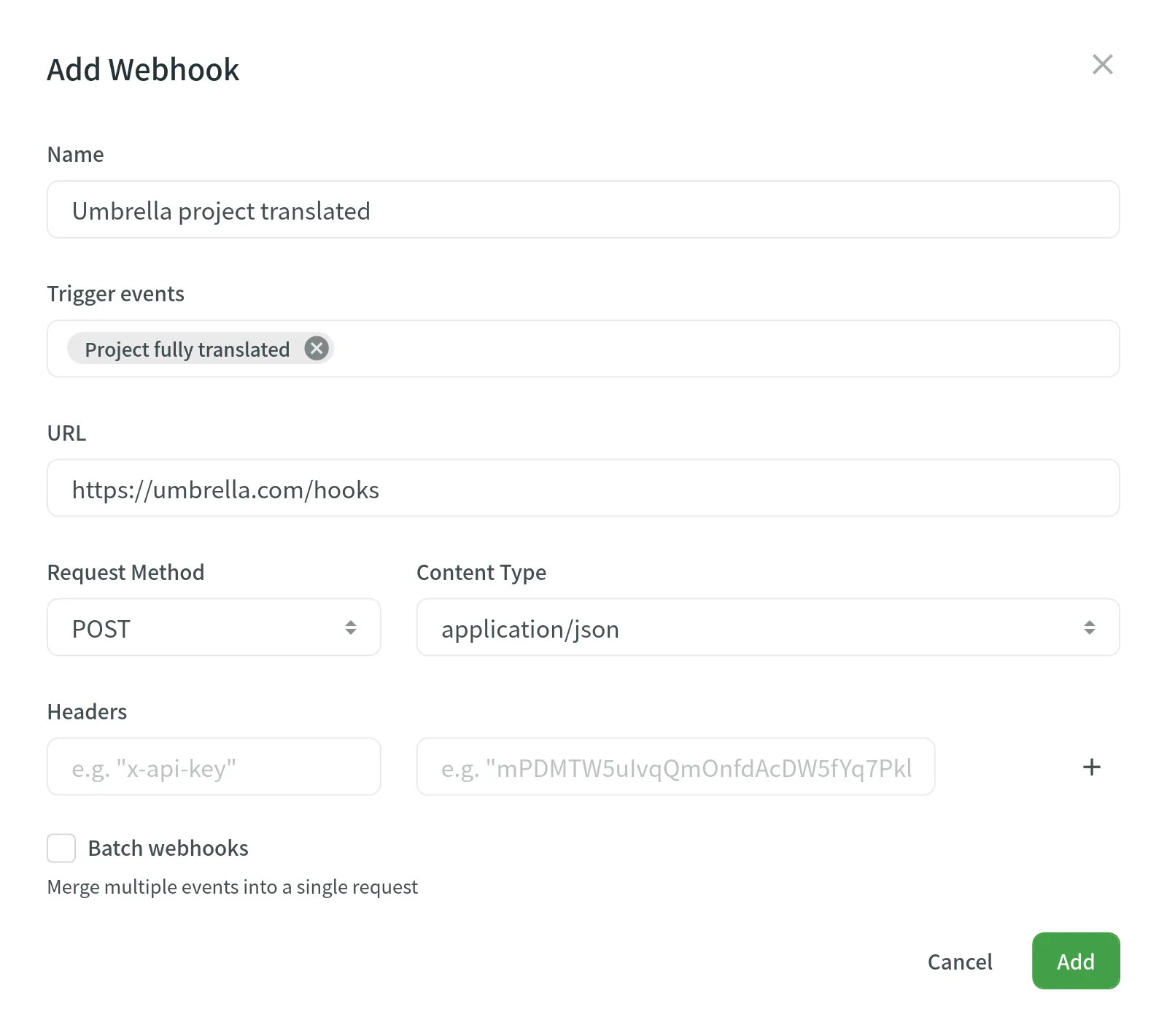
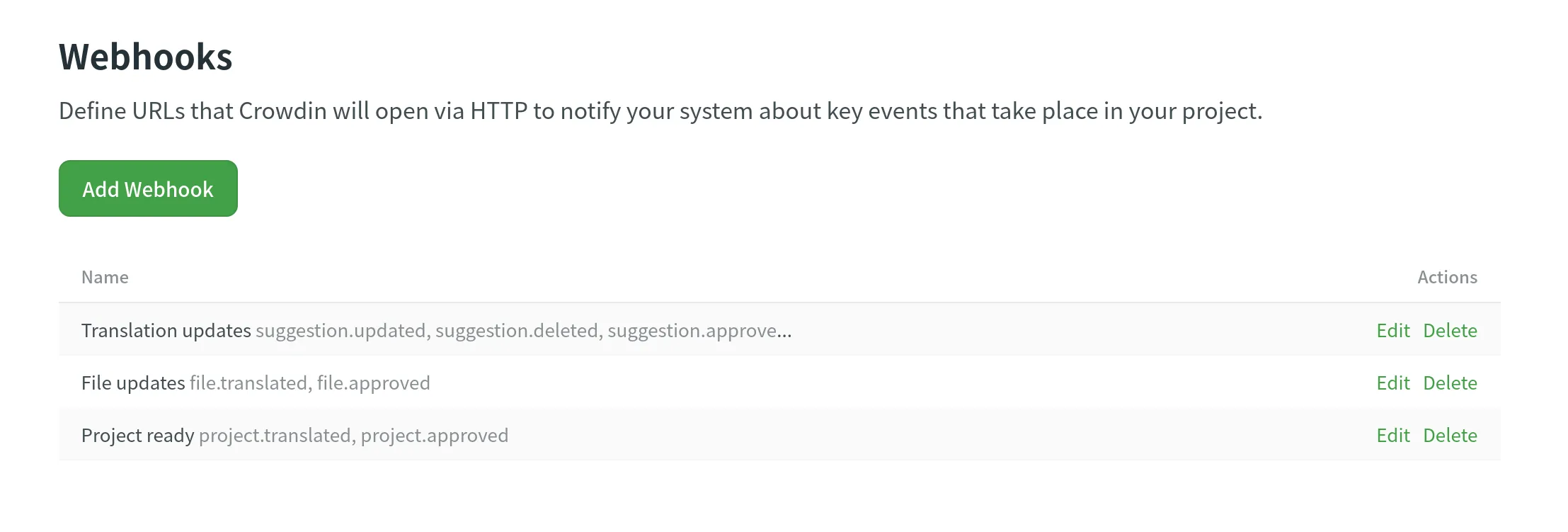
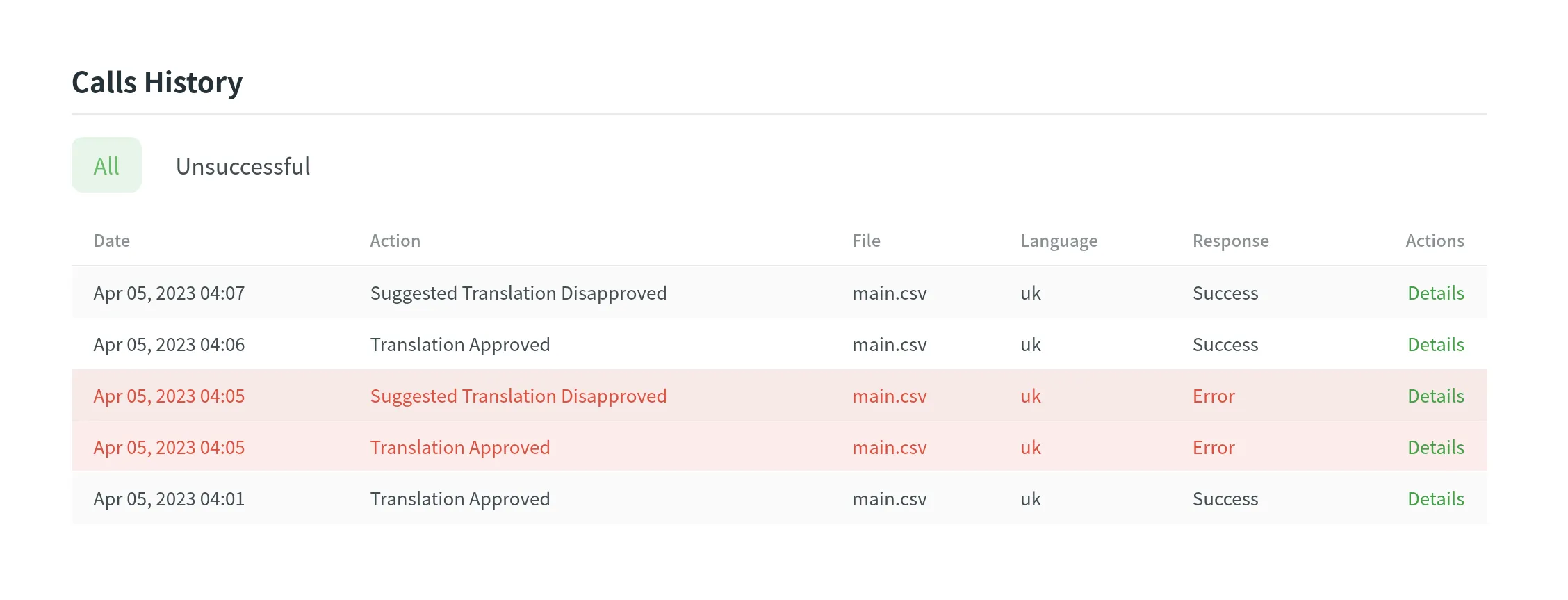
# Word Counter
> Learn how Crowdin counts words in your files
Below are the principles due to which Crowdin counts words: * A word is a combination of letters, punctuation marks, and special characters (e.g.:@ # $ % ^ & \* – \_ \` ‘ “) followed by space. * A sequence of punctuation marks or special characters is not considered a word. * By default, HTML tags are considered separate words for most formats, except the following ones: HTML, Front Matter HTML, HAML, MD, Front Matter MD, XML, WEBXML, IDML, XLIFF, XLIFF 2.0, ADOC, DOCX, MIF, DITA. You can change the default word count settings in your project’s **Settings > Import > Word count**. * URLs (e.g. `https://crowdin.com`) and emails (e.g. `support@crowdin.com`) are considered one word. * Hieroglyphs in Chinese, Japanese, and other hieroglyphic languages are counted as one word/hieroglyph. For example, “ライフ・イン・トウキョウ。” is counted as ten words. Other examples of how the words are counted: | **String** | **Words** | | --------------------------------------------- | ---------------------------------------- | | Number is -123.45 | 3 | | `here` | 1 / 7 (if non-HTML-based format is used) | | 0 – 1 at 2 | 4 | | two-in-one | 1 | | 2-in-one | 1 | | two-in-1 | 1 | | `%file_type%` | 1 | | hello?world | 1 | | hello ? world | 2 | | `☂ ☃ ☀⚤` | 0 | | © %company% | 1 | | 01/01/1980 | 3 | | Monday, August 8, 2011 | 4 | | `https://ka-graphie.example.com/6d8b.png` | 1 | | Let’s look | 2 | | Let’s look | 3 (another type of apostrophe is used) | | Word(s) | 2 | ## [Translatable HTML Attributes](#translatable-html-attributes) [Section titled “Translatable HTML Attributes”](#translatable-html-attributes) When working with HTML-based file formats, depending on the file structure, some HTML attribute values may be considered translatable while others not. You can see the list of attributes and situations when their values are considered translatable in the table below. | **Attribute** | **Details** | **Example** | | ------------- | ------------------------------------------------------------------------------------------------------------------------------------------------------ | ------------------------------------------------------------- | | `title` | translatable if contained in any HTML tag | `Text
` | | `src` | translatable if contained in `img`, `iframe`, `embed`, `video`, `audio`, `source`\*, `track`\* tags \* – if nested in the parent tags `video`, `audio` | `` | | `href` | translatable if contained in `a` tag | `Site name` | | `data` | translatable if contained in `object` tag | `` | | `value` | translatable if contained in `input`, `button` tags | `` | | `placeholder` | translatable if contained in `input`, `textarea` tags | `` | | `alt` | translatable if contained in `img` tag | `
` | | `label` | translatable if contained in `optgroup`, `track`\* tags \* – if nested in the parent tags `video`, `audio` | `